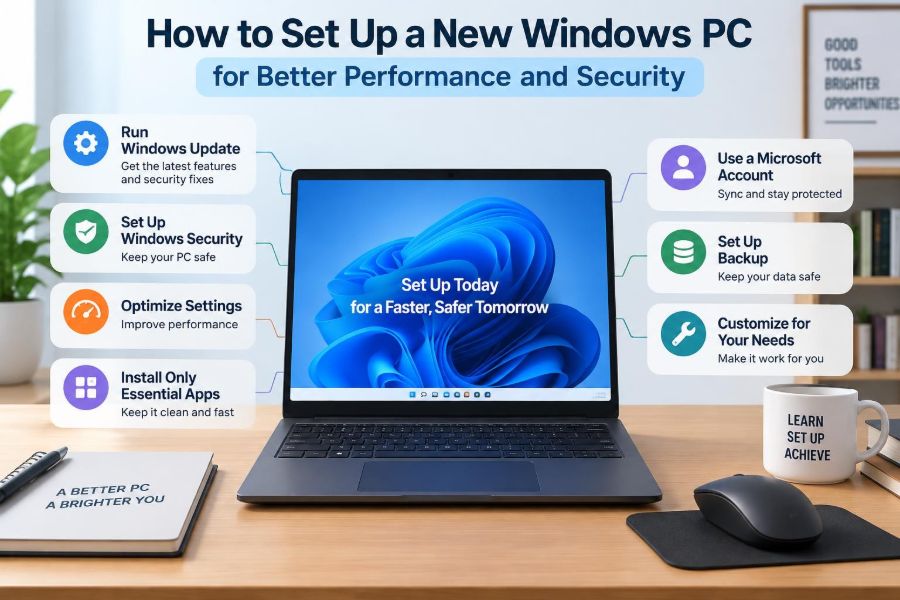

A new Windows PC feels fast because it has not yet collected years of downloads, background tools, browser extensions, and forgotten accounts. The first evening with it is also the easiest time to make choices that will keep it reliable later.
Many people rush through the setup screens just to reach the desktop. That is understandable, but a few deliberate decisions can reduce annoying pop-ups, protect personal files, improve battery life, and prevent avoidable slowdowns.
You do not need to be a technician to prepare a computer well. Think of the process like moving into a new home: secure the doors, decide where valuable items belong, remove clutter, and learn where the essential controls are.
This guide focuses on practical Windows setup habits for students and working professionals. Exact menu names can differ slightly between Windows editions and updates, but the underlying choices remain useful.
🧭 Begin With a Calm, Connected Setup
Set aside enough time to finish the first setup without skipping every option. Connect to a trusted home, school, or workplace network rather than public Wi-Fi, and keep the charger connected if the device is a laptop.
Windows may download updates during setup or shortly afterward. Interrupting this process is not usually disastrous, but allowing it to finish avoids starting your work with known bugs or outdated security protections.
👤 Choose the Right Sign-In Method
A Microsoft account connects settings, OneDrive, the Microsoft Store, and recovery options across devices. It is convenient if you already use Microsoft 365, Outlook, Xbox, or OneDrive.
A local account keeps sign-in more independent from online services, though some features become less seamless. Whichever route you choose, use an email address you will retain access to; account recovery is much harder when an old school or employer address disappears.
🔐 Create a Strong Account Recovery Plan
Your password protects more than the computer. It can lead to email, cloud files, saved browser passwords, and purchase history. Use a long, unique passphrase rather than reusing a familiar password from another site.
Add a recovery email address or phone number that you control. If multi-factor authentication is offered, enable it. This requires an additional proof of identity, such as an authenticator app prompt, when someone tries to sign in from a new device.
🙂 Set Up Windows Hello
Windows Hello lets you unlock a supported PC with a PIN, fingerprint, or facial recognition. A Windows PIN is tied to that particular device, so it is not simply a shorter version of your Microsoft account password.
Use a PIN that is not obvious, and avoid sharing it. Biometrics are convenient, but keep your password and recovery methods current because you may need them after a hardware change or security check.
🔄 Run Windows Update Before Installing Much Else
Open Windows Update in Settings and check for updates repeatedly until no important updates remain. A new PC may have spent weeks or months in storage, so its preinstalled version can be behind on security fixes and hardware compatibility improvements.
Restart when Windows asks. Some updates only complete during restart, and postponing them for weeks can leave the system in a partially updated state.
🧩 Understand Optional Updates
Windows Update may list optional driver updates. Drivers are small pieces of software that help Windows communicate with hardware such as graphics chips, Wi-Fi adapters, printers, and touchpads.
Optional drivers are not automatically better. If everything works properly, leave them alone unless they solve a documented problem. For graphics-intensive work or gaming, a current driver from the PC or graphics manufacturer can be appropriate, but download it only from the official source.
🛡️ Confirm Built-In Security Is Active
Windows Security includes Microsoft Defender Antivirus, a firewall, account protections, and reputation-based safeguards. For most personal PCs, it provides a sensible security baseline without installing a second antivirus product.
Check that real-time protection and the firewall are on. Running multiple real-time antivirus programs can cause conflicts, extra alerts, and slowdowns; more security software is not automatically more security.
🧱 Leave the Firewall Enabled
A firewall monitors network traffic and helps control which connections can reach your computer. Windows applies different rules to private networks, such as your home Wi-Fi, and public networks, such as a café connection.
When Windows asks whether an app may communicate through the firewall, pause before approving it. A video-calling app may need network access; an unfamiliar utility with an unclear purpose deserves more scrutiny.
🌐 Mark Networks as Private or Public Correctly
Set your trusted home network to Private if you need features such as printer sharing. Set hotel, airport, café, and other unfamiliar networks to Public. Public mode makes your PC less discoverable to other devices nearby.
This setting does not make public Wi-Fi risk-free. Avoid sensitive tasks on unknown networks where possible, and verify website addresses before entering passwords.
🔒 Review Privacy Settings Instead of Clicking Accept
Windows asks about diagnostic data, location, tailored experiences, and advertising identifiers. These choices are personal, but they should be intentional. Read each description and disable options that do not serve a clear purpose for you.
Location can be useful for weather, maps, and finding a lost laptop. Advertising personalization is easier to decline if you do not want apps to use an identifier to tailor advertisements.
📁 Decide Where Your Files Will Live
Choose a simple file strategy early. For example, keep active coursework or work files in clearly named folders, store synchronized documents in OneDrive if you want cloud access, and maintain an additional backup for material you cannot replace.
Cloud synchronization is useful, but it is not identical to a backup. If a file is deleted or corrupted, that change can synchronize too. Version history may help, but do not assume it will solve every situation.
☁️ Configure OneDrive With Care
OneDrive can automatically back up common folders such as Desktop, Documents, and Pictures. This helps when a laptop is lost or fails, and it makes files available on another signed-in device.
Check available storage and understand what is being synchronized. Large video projects, virtual machine files, or confidential work material may require a different approved storage location. Follow workplace or school rules where they apply.
💾 Add a Real Backup Layer
For irreplaceable files, keep a copy separate from the PC and separate from your main synchronized location. An encrypted external drive is a practical option for many people. Back up after major projects, not only when you remember once a year.
Test your backup occasionally by opening a copied file. A backup that cannot be found, unlocked, or restored is only an intention, not protection.
🔑 Turn On Device Encryption When Available
Encryption scrambles data so that someone cannot simply remove the drive and read its contents elsewhere. Many modern Windows PCs support Device Encryption or BitLocker, although availability varies by Windows edition and hardware.
Save the recovery key somewhere secure that is not only on the same PC. You may need it after certain hardware or firmware changes. Losing both the sign-in method and recovery key can make your files inaccessible.
🧰 Create a Recovery Option
Windows recovery tools can repair startup problems, uninstall a troublesome update, or reset the PC. Review the Recovery section in Settings while the computer is healthy, not during an emergency.
A recovery drive on a USB device can be helpful, especially for a computer used for important work. Store it safely and label it; do not leave it permanently connected where it could be lost or altered.
📦 Remove Unwanted Preinstalled Software
New PCs often include trial programs, games, vendor utilities, and promotional shortcuts. Some are harmless, while others consume storage, show notifications, or start in the background.
Uninstall applications you do not want through Settings. Be cautious with unfamiliar manufacturer tools: some provide useful firmware, audio, battery, or support updates. Search the name and purpose before removing a component that appears hardware-related.
🚀 Control Startup Apps
Startup apps open automatically after sign-in. Too many can make a fast PC feel slow before you have even opened your first document. Review them in Task Manager or Windows Settings and disable nonessential items.
| Usually reasonable at startup | Often safe to review or disable |
|---|---|
| Security software, touchpad tools, essential cloud sync | Game launchers, chat tools, music apps, update helpers |
| Accessibility tools you depend on | Retail trials, unused meeting apps, promotional utilities |
Disabling startup does not uninstall an app. You can still open it when needed, which makes this a low-risk way to improve everyday responsiveness.
⚙️ Choose a Sensible Power Mode
Laptops balance performance, noise, heat, and battery life. Windows power settings let you favor better battery life or stronger performance depending on what you are doing.
Use a balanced setting for most tasks. Choose a performance-oriented mode temporarily for demanding activities such as compiling code, editing video, or working with large spreadsheets while plugged in. Constant maximum performance can create more heat and shorten battery runtime.
🧹 Keep Storage Space Available
Windows needs free drive space for updates, temporary files, virtual memory, and application caches. A nearly full drive can contribute to failed updates and sluggish behavior, especially on lower-capacity laptops.
Enable Storage Sense if it suits your needs, and periodically review large downloads, duplicate installers, and old files in the Recycle Bin. Do not delete unfamiliar system folders merely to reclaim space; use Windows storage tools to identify safer targets.
🌍 Install a Secure, Updated Browser
Microsoft Edge is included with Windows, but you may prefer another mainstream browser. Whichever browser you choose, enable automatic updates and sign in only if synchronization of bookmarks and passwords is useful to you.
Install extensions sparingly. Each extension can read or change content on websites within its allowed permissions. A small set of well-understood extensions is safer and usually faster than a crowded toolbar.
🗝️ Use a Password Manager
A password manager creates and stores unique passwords, reducing the temptation to reuse one password everywhere. Reuse is risky because a breach at one service can expose credentials that attackers try on other sites.
Protect the password manager with a strong master passphrase and multi-factor authentication when available. Browser-based password saving can be convenient, but compare its recovery, sharing, device access, and security controls with your needs.
📧 Prepare for Phishing Before It Arrives
Phishing messages imitate trusted organizations to persuade you to reveal a password, payment information, or verification code. A new PC does not prevent phishing; cautious habits do.
- Check the sender address and the actual website address, not just the displayed name.
- Do not approve unexpected multi-factor prompts.
- Open billing, delivery, or account pages directly instead of following an urgent email link.
- Treat attachments and QR codes from unexpected messages with care.
Even a legitimate-looking message can be fraudulent. When unsure, independently contact the organization through a trusted official channel.
📥 Install Software From Trusted Sources
Prefer the Microsoft Store, an organization’s official site, or established software publishers. Avoid search advertisements and third-party download sites that wrap legitimate installers in extra offers.
Read each installer screen. Optional browser changes, trial products, and “recommended” tools often appear because users click Next too quickly. If software asks for administrator permission, confirm that you expected the request and recognize its publisher.
🧑💼 Separate Work, School, and Personal Accounts
It is common to use one computer for several roles, but mixing accounts without a plan can expose files or cause confusion. Use the correct Microsoft, browser, cloud storage, and collaboration account for each context.
If your organization manages the device, its policies may control updates, encryption, antivirus settings, or installed software. Do not try to bypass those controls; ask IT support what is permitted, particularly before storing sensitive work data locally.
🖨️ Add Printers and Peripherals Deliberately
Connect only the devices you need, then install their software from the manufacturer or through Windows. A printer, webcam, dock, or external drive may prompt for permissions or offer companion software that you do not require.
For external storage, use the safe removal option before unplugging when files may still be writing. This reduces the chance of file corruption.
🖥️ Tune Display, Scaling, and Accessibility
Set the display’s recommended resolution and a comfortable scaling level before spending hours reading or working. Scaling enlarges text and interface elements without necessarily reducing the screen’s native sharpness.
Explore accessibility settings such as Night light, text size, captions, contrast themes, Magnifier, and voice access. These are not only for permanent disabilities; they can reduce eye strain or make a long workday more comfortable.
⌨️ Learn a Few Time-Saving Shortcuts
A small number of shortcuts improves daily productivity more than many complicated tweaks. Press Windows + V for clipboard history after enabling it, Windows + Shift + S for a screen snip, and Windows + L to lock the PC when stepping away.
Alt + Tab switches between open apps, while Windows + E opens File Explorer. Locking the screen matters in shared spaces: an unlocked session gives anyone nearby access to your active accounts.
🔔 Reduce Notifications Without Missing What Matters
Notifications are useful for calendar reminders, security warnings, and direct messages. They become distracting when every application treats every update as urgent.
Review notification settings after a few days of normal use. Keep alerts from people, calendars, and security tools; silence shopping apps, game launchers, and services that merely advertise features.
🧪 Avoid “PC Cleaner” and Registry Fixer Promises
Many cleanup utilities promise dramatic speed improvements by removing registry entries or “optimizing” the system. Windows already includes maintenance tools, and aggressive cleaners can remove useful settings or create new problems.
When performance declines, first check startup apps, available storage, browser extensions, updates, and malware scans. These steps address common, understandable causes without making risky, opaque changes to the system.
📊 Check Task Manager When Something Feels Slow
Task Manager shows which applications are using processor time, memory, disk activity, and network bandwidth. It is a better starting point than guessing why a fan is loud or an app is unresponsive.
High usage is not automatically bad. A backup, update, video export, or malware scan can legitimately use resources. Look for a process that stays unusually busy when it should be idle, then identify the app before ending it.
🔄 Establish a Light Maintenance Routine
A well-configured PC still needs occasional attention. Once a month, check Windows Update, review storage, confirm backups are working, and remove software you no longer use.
After installing major software or changing important settings, consider creating a restore point if your Windows configuration supports it. It can provide a way back from certain system-level changes, but it should not replace backups of personal files.
🧾 Keep Essential Device Information Handy
Record the computer model, serial number, purchase details, warranty information, and recovery-key location in a secure place. This helps with support requests, theft reports, repairs, and replacement parts.
Also note the date of your last verified backup. In a stressful hardware failure, clear records save time and prevent a scramble to locate account or device details.
⚖️ Balance Performance, Privacy, and Convenience
The most convenient option is not always the most private, and the strictest setting is not always practical. Cloud syncing improves access and recovery, for example, but requires confidence in the account and storage rules behind it.
Likewise, disabling every background service may reduce some activity but can break useful notifications, automatic backups, or updates. Good setup means making informed trade-offs rather than chasing a single “best” configuration.
✅ Build a PC You Can Trust Every Day
A good Windows setup has a clear pattern: keep the operating system updated, protect accounts, encrypt and back up important files, limit unnecessary software, and pay attention to unexpected prompts.
These choices work together. Updates close known weaknesses, strong sign-in methods reduce account takeover risk, backups soften the impact of loss or failure, and careful software habits prevent many problems before they begin.
The best new-PC setup is not a one-time collection of tweaks; it is a simple system of habits that keeps your computer secure, responsive, and ready for real work. Start with the essentials, revisit them occasionally, and let the computer serve your goals instead of demanding constant repair. 🖥️🔐⚙️