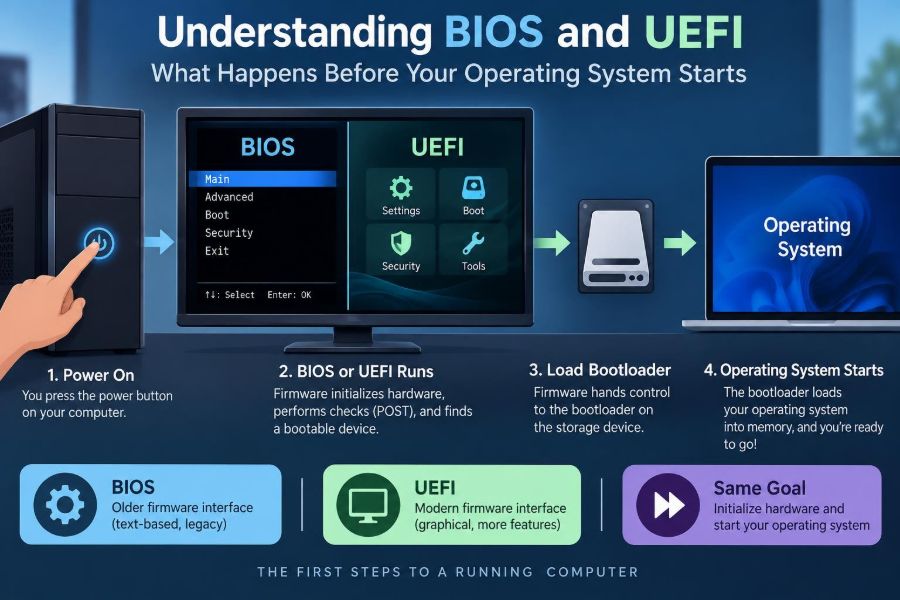

You press the power button, hear a fan begin to spin, and wait for the familiar sign-in screen. Usually, the process feels instant enough that it is easy to imagine the operating system simply “waking up.”
But before Windows, Linux, or another operating system can appear, your computer must identify its hardware, decide where to find startup software, and create a safe path into that software. A small layer of firmware handles these first decisions.
You may encounter it when changing boot order, enabling virtualization, troubleshooting a drive that will not start, or seeing an alarming message about Secure Boot. Knowing what BIOS and UEFI do turns those settings from a mysterious blue screen into a useful part of computer maintenance.
This early startup process also explains why a PC can fail before an operating system has even had a chance to load.
🔌 The Moment a Computer Receives Power
When a computer is off, its main processor is not running your applications or operating system. Pressing the power button signals the power supply and motherboard to begin a carefully ordered startup sequence.
The CPU needs instructions immediately after reset. Those instructions come from firmware: low-level software stored in non-volatile memory on the motherboard, meaning it remains available even when the machine is powered down.
BIOS and UEFI are firmware environments. Their first job is not to launch Windows or Linux directly; it is to make the hardware usable enough to locate a valid operating system boot program.
🧠 Firmware Is Software Close to the Hardware
Firmware sits below the operating system. It can initialize components before any disk driver, graphics driver, or desktop interface exists.
Motherboards have firmware, but so do devices such as SSDs, network adapters, keyboards, and graphics cards. Each device may contain code that helps it identify itself and operate correctly.
Because motherboard firmware starts first, it coordinates the initial handoff. Think of it as the building manager opening utilities and checking access before tenants—the operating system and its programs—arrive.
📜 What BIOS Originally Meant
BIOS stands for Basic Input/Output System. It is the traditional PC firmware interface developed for early IBM-compatible computers and retained, with many extensions, for decades.
Classic BIOS runs in a very limited processor mode and follows conventions created when disks, memory sizes, and booting needs were much simpler. It initializes hardware, checks essential components, and looks for bootable code in a selected device.
Many people use “BIOS” loosely to mean any firmware setup screen. Technically, most current PCs use UEFI, even if a manufacturer or manual still calls the menu “BIOS setup.”
🚀 What UEFI Is
UEFI, or Unified Extensible Firmware Interface, is the modern successor to traditional BIOS. It provides a more capable, standardized firmware environment with support for contemporary hardware and boot methods.
UEFI can use drivers and applications designed for its pre-operating-system environment. It commonly supports a graphical setup utility, mouse input, networking features, and more flexible storage handling, though the exact features depend on the manufacturer.
UEFI does not replace the operating system. It prepares the system and starts a dedicated boot manager, which then loads the operating system kernel.
🧭 BIOS and UEFI at a Glance
| Area | Traditional BIOS | UEFI |
|---|---|---|
| Boot method | Usually starts code from a disk’s boot sector | Usually starts a boot file from an EFI System Partition |
| Partition style commonly used | MBR | GPT |
| Interface | Often keyboard-focused text menus | May offer graphical menus and mouse support |
| Security option | No native Secure Boot model | Can support Secure Boot |
| Compatibility | Useful for older systems and software | Designed for modern hardware and operating systems |
These are common patterns, not absolute rules. Some UEFI systems offer a compatibility mode that imitates aspects of legacy BIOS booting.
✅ The Power-On Self-Test
One early firmware task is the Power-On Self-Test, often shortened to POST. The firmware checks whether essential components can be initialized well enough to continue.
This can include processor initialization, memory detection, keyboard availability, video output, and storage discovery. A failure at this stage may produce a message, a diagnostic LED pattern, or a sequence of beeps on some machines.
POST is not a full health examination. A computer can pass POST while still having a failing SSD, unstable memory, or an operating system problem.
💾 Initializing Memory and the Processor
Modern systems cannot simply use RAM at full speed the instant power arrives. Firmware configures memory controllers and performs “memory training,” allowing the system to determine stable timing settings for installed memory.
It also initializes processor features and creates the basic environment needed for subsequent code. This work is one reason the first seconds after pressing power can take longer than expected, especially after a hardware change.
Memory-related startup failures are particularly disruptive because firmware itself relies on working memory to continue.
🖥️ Making a Display and Input Available
Firmware initializes enough graphics functionality to show a logo, text prompt, or setup interface. On systems with separate graphics hardware, that device may need its own firmware assistance before video appears.
It also detects basic input devices so you can press a key such as Delete, F2, F10, or Esc to enter setup. The correct key varies by motherboard and manufacturer.
If a computer appears to run but shows no image, the cause may be display selection, graphics initialization, memory, or power—not necessarily the operating system.
🔎 Detecting Storage and Other Devices
Firmware identifies connected storage devices through interfaces such as SATA, NVMe, or USB. It may also detect network controllers, audio hardware, expansion cards, and attached peripherals.
Detection does not mean every device is configured for use by the eventual operating system. It simply gives firmware enough information to present boot choices and start the next program.
A newly installed SSD that does not appear in firmware setup may indicate a connection, slot-sharing, compatibility, or drive problem. Checking this before reinstalling an operating system can save considerable time.
📋 Boot Order Decides Where to Look First
The boot order is a priority list of devices or boot entries. A computer might try an internal SSD first, then a USB drive, then network boot.
This setting matters when installing an operating system from a USB installer or when a system unexpectedly starts from an external device. It also explains the familiar instruction to “press any key to boot from USB.”
After installation, leaving removable media first is usually unnecessary. On shared or public-facing computers, a restricted boot order can also reduce opportunities for unauthorized startup from external media.
🪪 Legacy BIOS Booting and the MBR
Traditional BIOS booting normally begins by reading the first sector of a selected disk. On an MBR-partitioned disk, this area contains a small amount of boot code and a partition table.
That tiny first-stage code cannot load a complete modern operating system by itself. Instead, it locates a more capable bootloader, which continues the startup chain.
MBR has historical constraints, including limits in its conventional addressing design and a limited number of primary partitions. These constraints helped drive adoption of GPT on newer systems.
🗂️ UEFI Booting and the EFI System Partition
UEFI usually boots from an EFI System Partition, commonly abbreviated ESP. This is a small special partition, typically formatted with a FAT-compatible file system, that stores boot files.
Instead of executing anonymous code from the first disk sector, UEFI can select a named boot application such as a Windows Boot Manager file or a Linux bootloader file. Boot entries are commonly stored in motherboard firmware settings.
This file-based approach makes the boot path more explicit, although it introduces its own troubleshooting details when entries or files are missing.
🧩 GPT and Why Modern Disks Use It
GPT, or GUID Partition Table, is a modern disk partitioning format often paired with UEFI. It records partition information in a structure designed for modern storage layouts and supports more flexible partition arrangements than classic MBR.
GPT also keeps backup partition metadata near the end of the disk, which can help recovery tools identify damaged partition information. It is not a substitute for backups: a failing drive can still lose both copies.
UEFI and GPT are commonly used together, but they are separate concepts. A disk format and a firmware boot mode must still be chosen in a compatible combination.
🔐 Secure Boot Verifies the Startup Chain
Secure Boot is a UEFI feature that checks whether boot software is trusted according to cryptographic signatures or configured keys. Its purpose is to make it harder for unauthorized boot code to run before the operating system’s own defenses begin.
It is especially relevant to threats that try to establish control at the boot stage. Secure Boot does not guarantee that a computer is malware-free, and it does not protect against every type of compromise.
Many mainstream operating systems support Secure Boot. Some specialized tools, older operating systems, or custom bootloaders may require adjusted keys or temporarily disabling it.
🗝️ Keys, Signatures, and Trust Choices
Secure Boot works through a set of trusted keys and databases stored in firmware. A boot component presents a signature; firmware checks whether that signature chains back to a trusted authority or allowed key.
This is less like checking a password and more like checking a tamper-evident publisher seal. A valid signature says the component is trusted under the current policy, not that it is automatically suitable for every use.
Changing these settings without understanding them can prevent a computer from booting. Record original values and use vendor documentation when managing custom keys.
🔗 The Bootloader Takes Over
Once firmware finds an acceptable boot target, it transfers control to a bootloader or boot manager. This is the bridge between firmware and the operating system kernel.
Windows Boot Manager commonly selects and starts Windows. Linux systems may use bootloaders such as GRUB or systemd-boot, depending on the distribution and installation choices.
A bootloader can present a menu when multiple operating systems are installed. It can also pass startup options, select a kernel, and load supporting files needed for the next stage.
🐧 Multiple Operating Systems Need Careful Planning
Dual-boot computers can work well, but their firmware mode and partition layout need to be consistent. Installing one operating system in legacy mode and another in UEFI mode can make boot selection confusing.
A practical approach is to decide on UEFI booting first, use a GPT disk when appropriate, and ensure installation media is started in the intended mode. Firmware boot menus often show separate entries for the same USB device in legacy and UEFI forms.
Installing or repairing one operating system can change boot entries. Keep recovery media and back up important files before changing partitions or boot configurations.
🧰 The Firmware Setup Utility
The firmware setup utility is a configuration interface available before the operating system loads. It may be plain and keyboard-driven or graphical with mouse support.
Typical categories include boot settings, storage settings, security, power management, processor options, memory information, and firmware update tools. Labels differ widely among brands.
Enter setup only with a purpose. Browsing is generally harmless, but saving unknown changes can cause startup failures, reduced performance, or lost access to encrypted data.
⏱️ Settings You May Actually Need
Most users rarely need firmware settings, but a few tasks are common:
- Choosing a USB drive for an operating system installation or recovery tool.
- Checking whether an SSD, RAM module, or processor is detected.
- Enabling hardware virtualization for certain virtual machine software.
- Reviewing Secure Boot when a supported tool will not start.
- Correcting date and time after a depleted motherboard battery.
For a one-time boot, the temporary boot menu is often safer than permanently changing boot order.
🌡️ Performance Controls Require Restraint
Some firmware interfaces expose fan curves, power limits, memory profiles, and processor tuning controls. These can be useful for experienced users who understand cooling, voltage, and stability testing.
For example, a memory profile may configure RAM to run at its advertised performance settings. But it is still an operational change, not a universal promise of stability on every motherboard and processor combination.
Overclocking and aggressive power settings can increase heat, instability, and component stress. Change one setting at a time and know how to restore defaults.
🔄 Firmware Updates Can Fix Real Problems
A firmware update may improve compatibility with newer processors or memory, correct stability defects, address security issues, or improve device support. It can be valuable when it solves a known issue relevant to your system.
It is not routine maintenance to perform casually. An interrupted or incorrect update can leave a motherboard unable to start normally, although some boards include recovery features or dual firmware storage.
Use the exact update intended for your motherboard or laptop model, follow the manufacturer’s instructions, and maintain reliable power throughout the process.
⚠️ Never Treat Firmware Files as Interchangeable
A similar product name does not mean two firmware files are compatible. Motherboard revisions, regional laptop models, and hardware configurations can have different firmware images.
Download updates only from the relevant manufacturer’s official support channel. Avoid unofficial packages, especially those claiming to unlock hidden settings or offer unexplained performance gains.
Before updating, confirm the model, board revision where applicable, current version, and whether the update’s notes address a need you actually have.
🔒 Firmware Passwords and Device Encryption
A firmware administrator password can limit who changes startup settings. It is different from an operating system account password and should be recorded securely; recovery can be difficult or require service support.
Startup changes can also interact with full-disk encryption. On systems using features such as TPM-backed encryption, a major change to Secure Boot, boot order, or firmware configuration may trigger a recovery-key request.
Before altering firmware on an encrypted computer, ensure the recovery key is available. Do not assume a successful update means the next sign-in will be completely unchanged.
🧱 Compatibility Support Module Explained
Some UEFI firmware includes a Compatibility Support Module, or CSM. It helps UEFI hardware boot operating systems and devices that expect legacy BIOS-style behavior.
CSM can be useful for older operating systems, expansion cards, and legacy MBR installations. However, it may limit or complicate newer features, including some Secure Boot configurations.
For a current operating system on modern hardware, native UEFI boot is generally the cleaner path. Turn on legacy compatibility only when an identified requirement calls for it.
🛠️ Reading Common Startup Failures
“No bootable device” usually means firmware could not find a boot entry or disk containing usable startup software. Start by checking whether the drive appears in setup and whether boot order changed.
A screen that repeatedly returns to firmware setup can indicate a missing boot entry, a disconnected drive, or corrupted boot files. A sudden time reset along with odd startup behavior may point to a depleted CMOS battery on systems that use one.
If POST never completes, focus first on hardware basics: power connections, memory seating, display connections, and diagnostic indicators. The operating system cannot repair a system that never reaches its bootloader.
🧹 Resetting Settings Is a Useful, Not Magical, Fix
Most firmware offers an option to load default or optimized default settings. This can reverse an accidental boot, memory, or tuning change.
It may also reset boot order, virtualization choices, RAID or storage controller modes, and security settings. A storage-mode change can prevent an existing operating system from booting even though the disk itself is fine.
Photograph or write down unusual working settings before resetting. Defaults are a troubleshooting baseline, not always the correct final configuration.
🔋 CMOS, NVRAM, and Why Settings Persist
Firmware needs a place to remember choices such as boot entries, clock settings, and configuration values. Older terminology often refers to CMOS settings, while modern systems may use non-volatile memory such as NVRAM.
Many desktop motherboards include a small battery that helps preserve certain clock and configuration information when unplugged. A weak battery can cause incorrect dates or settings to reset, but it is not the explanation for every boot problem.
Clearing stored settings should be done according to the device manual. Laptop procedures in particular vary and may not involve a user-replaceable battery.
🏢 Laptops, Desktops, and Managed Work Devices Differ
Desktop motherboards often provide broad adjustment options. Laptops usually expose fewer controls because their cooling, battery, and hardware combinations are tightly designed as a system.
Workplace-managed computers may have firmware passwords, disabled external booting, remote management, or organization-controlled Secure Boot settings. These restrictions can protect company data and inventory.
On a managed device, do not bypass controls. Contact the organization’s IT team when a legitimate installation, repair, or boot setting is needed.
🧪 A Safe Troubleshooting Sequence
When a computer will not start normally, work from the earliest stage toward the operating system:
- Disconnect unnecessary USB devices and verify power and display connections.
- Observe whether firmware logos, diagnostic lights, or beep patterns appear.
- Open firmware setup and confirm that memory and the intended storage device are detected.
- Check the date, boot mode, boot order, and relevant Secure Boot state.
- Use known-good recovery media only after confirming the machine can reach the boot menu.
- Back up data before partition repair, reinstallation, or firmware changes when possible.
This sequence prevents a common mistake: reinstalling an operating system when the real issue is an undetected drive or incorrect firmware setting.
🧭 The Core Principle: Firmware Builds the Road to Your OS
BIOS and UEFI exist to establish a controlled path from powered-off hardware to a running operating system. They initialize essential components, discover boot options, apply configuration and security policies, then hand control to a bootloader.
Traditional BIOS remains relevant for older hardware and legacy compatibility. UEFI is the normal foundation for modern systems, particularly where GPT disks, Secure Boot, and contemporary boot managers are involved.
The practical lesson is simple: treat firmware settings as foundational infrastructure. Understand the boot mode, preserve recovery information, and change settings deliberately rather than randomly.
Before an operating system can solve problems, BIOS or UEFI must first make the computer ready to begin. That quiet work is the first chapter of every startup. 🖥️🔐⚙️