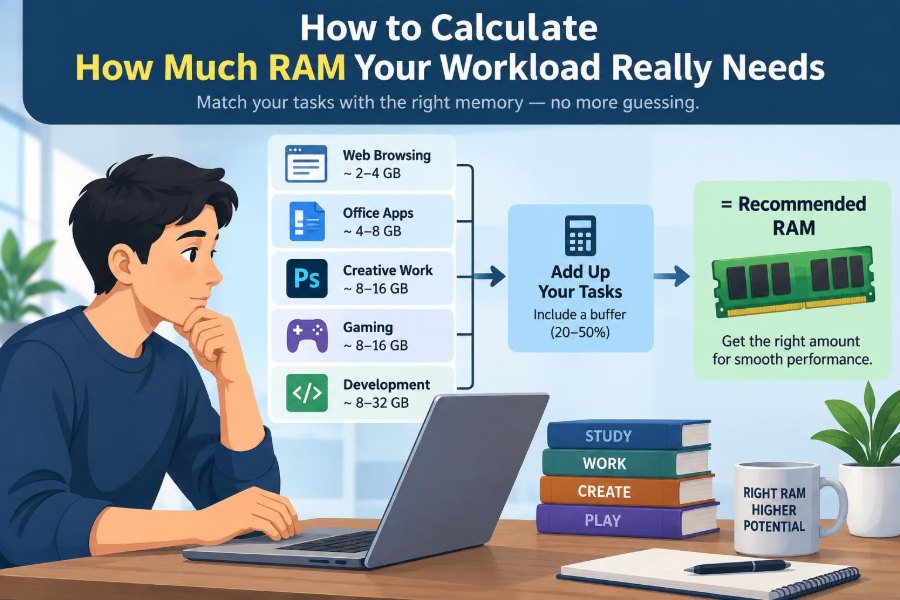

Your computer feels fine when you open a browser, write an email, and play music. Then a video call begins, a spreadsheet grows, twenty more browser tabs appear, and everything starts responding a little late.
It is easy to conclude that the computer is simply “slow.” Often, though, the real issue is more specific: the programs you need at the same time no longer fit comfortably in memory.
Buying more RAM can help dramatically in that situation. It can also be a wasted upgrade when the real bottleneck is a full storage drive, a weak processor, thermal throttling, or a poorly behaving application.
The useful question is not “How much RAM is best?” It is: how much memory does my actual workload use at its busiest realistic moment? Once you can answer that, choosing 8 GB, 16 GB, 32 GB, or more becomes a practical calculation rather than a guess.
🧠 Start With What RAM Actually Does
RAM, short for random-access memory, is the computer’s fast working area. The operating system places active program code, open documents, browser data, and other information there so the processor can reach it quickly.
Think of RAM as desk space. A larger desk lets you keep more books, notes, and tools within reach. If the desk is too small, you can still work, but you repeatedly put items away and retrieve them from a slower cabinet.
RAM is temporary. Its contents disappear when power is removed, unlike files stored on an SSD or hard drive.
📦 Separate RAM From Storage Capacity
A computer with a 1 TB SSD does not have 1 TB of usable working memory. Storage holds files and applications long term; RAM holds the portions currently being used.
An SSD can make a computer feel much more responsive than an old hard drive, especially when memory is tight. But it is not a substitute for sufficient RAM. Even a fast SSD is far slower than RAM for the frequent, tiny accesses active software expects.
⚙️ Understand the Operating System’s Share
Your applications do not receive all installed RAM. Windows, macOS, Linux, device drivers, security software, background sync tools, and graphics services use memory before you open your first work program.
The amount varies by operating system, hardware, installed software, and current activity. This is why a simple rule such as “my editor uses 2 GB” is incomplete: the operating environment matters too.
Always measure on the computer configuration you actually use, not only an application vendor’s minimum requirement.
📊 Define Your Real Workload
A workload is the set of tasks you perform together, not a single app viewed in isolation. A web developer may run an editor, local server, database, browser developer tools, terminal, chat, documentation, and a video meeting at once.
Write down two scenarios:
- Typical workload: an ordinary productive day.
- Peak workload: the heaviest believable combination you need without closing work.
Plan primarily for the peak scenario, but do not size a machine around an unusual task you perform once a year if you can handle that task another way.
🕰️ Measure at the Busiest Moment
Open your normal tools, then let them reach their working state. A browser may consume more memory after loading several complex sites; an editing program may need more after importing media; a compiler may spike during a build.
Do not inspect memory immediately after launching everything. Perform the actions that usually cause waiting: join the meeting, load the large project, filter the data, preview the timeline, or build the code.
A short observation can miss intermittent peaks. Check more than once across a demanding session when possible.
🪟 Use Windows Task Manager
On Windows, open Task Manager with Ctrl+Shift+Esc. The Processes view gives a quick per-app picture, while the Performance section’s Memory page shows installed memory, current use, available memory, committed memory, and hardware-reserved memory.
The Memory column in Processes is useful for finding large consumers, but it does not tell the whole story. Shared memory, caching, and system services mean that adding every visible number will not always exactly match total use.
For everyday sizing, watch the overall memory graph and whether the system remains responsive during your peak work.
🍎 Check Memory Pressure on macOS
On a Mac, open Activity Monitor and choose the Memory tab. The memory pressure graph is particularly helpful because it summarizes whether macOS can satisfy memory needs comfortably.
Green generally indicates comfortable pressure. Yellow or red during sustained normal work suggests the system is relying more heavily on compression or storage-backed memory and may benefit from more RAM if the model permits an upgrade.
Do not treat one brief color change as a verdict. Repeated pressure while doing routine work is more meaningful than a momentary spike during launch.
🐧 Inspect Memory on Linux
Linux users can begin with graphical system monitors or use tools such as free, top, or htop. Linux deliberately uses spare RAM for file cache, so a high “used” figure by itself is not necessarily a problem.
Pay attention to available memory, swap activity, and performance under load. The exact labels differ across distributions and desktop environments, but the principle is the same: free cache can be reclaimed; actively needed memory cannot.
📈 Read Available Memory, Not Just Used Memory
Modern operating systems try not to leave expensive RAM idle. They use unused space to cache recently accessed files and data, making later access faster.
Therefore, seeing most RAM “used” is normal. The stronger warning sign is very little available or reclaimable memory combined with slowing, stuttering, or frequent disk activity.
Memory figures need context. A computer using 14 GB of 16 GB smoothly may be fine for that moment; the same system may struggle if another 4 GB task is about to begin.
🔄 Learn What Virtual Memory Means
When physical RAM is under pressure, operating systems can move less-active memory pages to storage. Windows commonly calls this the page file; macOS uses swap; Linux commonly uses swap space.
This feature prevents many immediate crashes and lets applications coexist beyond physical memory limits. It is a safety net, not extra RAM at equal speed.
Because storage access is much slower than RAM, sustained swapping can make application switching, scrolling, and interaction feel delayed. A fast SSD softens the effect, but it does not eliminate it.
🚨 Recognize Signs of Memory Pressure
Low RAM does not always produce a clear error message. More often, it creates an accumulating pattern of friction.
- Programs take longer to return after switching away from them.
- Browser tabs reload when you revisit them.
- The storage drive stays busy while simple tasks lag.
- Typing, window movement, or timeline playback becomes uneven.
- Applications warn that memory is low or close unexpectedly under a heavy load.
These symptoms can have other causes, so confirm them with memory and storage monitoring rather than diagnosing from one sign alone.
🧮 Calculate a Sensible Capacity Target
Use a measured peak as a baseline. If your normal peak uses roughly 13 GB and your system becomes less smooth near that point, 16 GB is likely a tight fit; moving to 24 GB or 32 GB, where supported, gives meaningful headroom.
Do not seek a magical fixed percentage of free RAM. Instead, leave enough capacity for normal variation: a larger document, a new browser tab group, an operating-system update process, or an overlapping meeting.
A practical target is measured peak demand plus comfortable headroom, chosen within the capacities your device supports and your budget allows.
🧾 Count Concurrent Applications
Memory requirements add up when programs run at the same time. A photo editor that works well alone and a browser that works well alone can still create pressure alongside a communication app and cloud synchronization.
Include quiet background tools in your count. These may include backup clients, antivirus scanning, launchers, hardware utilities, browser extensions, and collaboration software.
The question is not whether each program is “lightweight.” It is whether their combined active data fits in memory during your real day.
🌐 Treat Browser Tabs as a Variable Load
Browsers separate tabs, extensions, site processes, graphics work, and sometimes helper processes for stability and security. A plain text page may use modest resources, while a web app, online meeting, interactive dashboard, or media-rich site can use much more.
Count the types of tabs you keep open, not merely the number. Ten documentation pages are different from ten web applications with live data and video.
If browser use dominates your workload, test your usual tab set after a few hours, when cached content and background pages have had time to accumulate.
🗂️ Match Office Work to Document Size
Email, word processing, presentations, and ordinary spreadsheets often run comfortably on modest modern memory. The exception is the unusually large or complicated file.
Spreadsheets with many formulas, imported data, pivot tables, macros, or multiple open workbooks can require considerably more working memory. So can presentations containing high-resolution images or embedded media.
For office work, choose based on the largest files and the surrounding tools you keep open, especially browsers and communication apps.
🎨 Account for Creative Applications
Image, illustration, layout, audio, and video applications often hold large assets, previews, undo histories, and caches in memory. Higher resolution, more layers, longer timelines, effects, and multiple open projects generally increase demand.
A small photo crop and a multilayer high-resolution composite are not comparable workloads. Similarly, short video trimming differs greatly from editing a complex project with many media streams and effects.
Consult application documentation for supported configurations, then test representative project files. Specifications can establish compatibility, but your project complexity determines comfort.
🎮 Consider Graphics Memory Separately
A dedicated graphics card has its own video memory, or VRAM, used for textures, frame buffers, and graphics workloads. More system RAM does not automatically fix a GPU running out of VRAM.
Integrated graphics share part of system memory. On those systems, graphics activity can reduce the RAM available to applications, and hardware-reserved memory may appear in system monitoring.
For gaming, 3D design, GPU computing, or local AI tools, assess both system RAM and VRAM. They are related but distinct limits.
🧪 Plan Extra Memory for Virtual Machines
A virtual machine (VM) runs an operating system inside another operating system. The guest operating system needs its own allocated memory, while the host must still run its applications.
If you assign 8 GB to a VM, that does not mean the entire computer can comfortably operate with 8 GB installed. The host, virtualization software, browser, editor, and file cache all need room too.
Run the VM, then perform the work inside it—such as compiling code or running a test database—while observing host memory pressure. VM allocations are one of the clearest reasons to choose 32 GB or more.
🧑💻 Include Development Tools and Local Services
Software development commonly combines several memory users: an integrated development environment, language server, browser, terminal sessions, containers, databases, test runners, and emulators.
Containers can be especially misleading because each one may appear small while their combined services, caches, and database data are substantial. Mobile device emulators can also require significant resources.
A developer who writes small scripts may need far less memory than one running a local multi-service application. Size the computer for the project environment, not the job title.
🧠 Treat Data and Analysis Workloads Carefully
Data analysis often expands data in memory. A file on disk may occupy more memory once it is parsed into tables, indexed, transformed, copied, or combined with other data.
Notebook environments, statistical tools, and databases may retain intermediate results to make exploration faster. A script that works on a sample can therefore fail or slow down with the full dataset.
When possible, test with representative data volume. If full data cannot fit, consider streaming, chunked processing, database queries, or cloud/remote compute rather than assuming an unlimited RAM upgrade is the only solution.
📐 Use Minimum, Comfortable, and Heavy Tiers
Capacity tiers are useful planning shorthand, not universal rules. The table describes common patterns for a modern general-purpose computer; requirements vary by operating system, application version, and simultaneous tasks.
| Installed RAM | Usually suits | Watch for |
|---|---|---|
| 8 GB | Light browsing, basic documents, streaming, and single-task use | Many tabs, meetings, large files, and multitasking |
| 16 GB | General work, study, many office tasks, moderate multitasking | Heavy creative work, VMs, large development stacks |
| 32 GB | Demanding multitasking, creative projects, development, some VMs | Very large media, datasets, or several VMs |
| 64 GB and above | Specialized professional workloads and substantial local environments | Whether the software, CPU, GPU, or storage is the true limit |
These tiers are starting points. Measurement should overrule a generic category whenever you can measure your own workload.
⚡ Distinguish Capacity From RAM Speed
RAM has specifications such as generation, transfer rate, timings, and channel configuration. These can affect performance, especially in memory-sensitive tasks and systems with integrated graphics.
However, insufficient capacity usually causes a larger practical problem than a modest difference in speed because swapping to storage is so costly. If choosing between adequate capacity and slightly faster but insufficient RAM, capacity is commonly the better first priority.
Compatibility still matters. A laptop or motherboard supports only certain memory types, sizes, and arrangements.
🧩 Check Channels and Module Layout
Many computers perform best when memory can operate across two channels, often achieved with a matched pair of modules. For example, two compatible 8 GB modules may provide more bandwidth than one 16 GB module on a dual-channel system.
This does not mean every upgrade must use identical sticks; device documentation determines what is supported. Soldered memory, mixed capacities, and modern platform designs can make the details less straightforward.
Before buying, identify the current module count, open slots, maximum supported capacity, and whether memory is replaceable at all.
🔍 Check Upgrade Limits Before You Buy
Look up the exact computer model or motherboard model in its manufacturer documentation. Verify supported memory generation, slot count, maximum capacity, module format, and any stated restrictions.
Laptops commonly use small SO-DIMM modules when upgradeable; desktop systems commonly use DIMMs. Many thin laptops and some compact computers have soldered RAM that cannot be upgraded later.
If a purchase decision is still open, upgradeability has value. A configuration that is adequate now but permanently fixed may be less flexible than one with accessible slots.
💾 Make Sure Storage Is Not the Real Problem
A nearly full drive can reduce room for temporary files, updates, application caches, and virtual memory. This can make low-memory behavior worse and complicate diagnosis.
Older hard drives also make swapping painfully noticeable. Replacing a hard drive with an SSD can transform general responsiveness, even if RAM capacity stays the same.
Check both resources during a slowdown. High memory pressure plus sustained storage activity points toward RAM pressure; high storage activity without memory pressure may suggest another cause.
🌡️ Rule Out CPU, Heat, and Software Issues
More RAM will not repair every performance complaint. A processor may be fully occupied by rendering, compiling, calculations, or background tasks. Heat can cause a system to reduce clock speed to protect hardware, a behavior called thermal throttling.
One misbehaving app can also consume excessive memory over time due to a memory leak, where it fails to release memory it no longer needs. Restarting may temporarily help, but updating, reconfiguring, or replacing the app may be the real fix.
Use monitoring to identify what is saturated before spending money.
🧹 Improve the Workload Before Upgrading
Good memory habits do not mean closing every program constantly. They mean reducing waste that does not serve your work.
- Close stale project files, unused VMs, and duplicate applications.
- Review browser extensions and persistent background helpers.
- Restart occasionally if a particular program’s memory use grows abnormally.
- Keep enough free storage for the operating system and application caches.
- Use smaller previews, proxies, or chunked datasets when a workflow supports them.
These steps can reveal whether an upgrade is genuinely needed and may improve performance even after one.
💰 Avoid Both Underbuying and Overbuying
Too little RAM creates daily friction and can shorten the useful life of a machine as software and workloads grow. Too much RAM may sit mostly unused while money that could improve storage, CPU, GPU, display quality, or backups is tied up in capacity you do not need.
The balanced choice is not the lowest number that launches your apps, nor automatically the highest supported number. It is enough capacity for your peak work with reasonable room to grow.
📝 Build a Repeatable RAM Sizing Checklist
- List the applications, tabs, files, devices, and background services used together.
- Recreate a typical and a peak work session.
- Monitor overall memory availability or pressure, swap behavior, and storage activity.
- Note delays that occur specifically during peak work.
- Rule out CPU saturation, heat, lack of drive space, and a single faulty application.
- Choose a supported capacity above the measured peak, with headroom for realistic variation.
- Recheck after changing your workflow or adding major software.
This method works whether you are buying a first student laptop, upgrading a desktop, or specifying a workstation for a demanding role.
✅ Let Evidence, Not Labels, Guide the Final Choice
Terms such as “student laptop,” “office PC,” and “creator workstation” are convenient, but they hide large differences in behavior. One student may use a few documents; another may run engineering simulations and virtual machines. One office role may use email; another may manipulate large financial models all day.
Your system monitor, representative files, and concurrent applications provide the most relevant evidence. Combine that evidence with hardware compatibility and a realistic view of future work.
The core principle is simple: calculate RAM from your busiest real workload, then add enough headroom that normal variation does not force the computer into slow storage-backed memory.
RAM is best chosen as working capacity, not as a status symbol. Measure what you run, identify the actual bottleneck, and buy the capacity that keeps your important work comfortably in reach. 🧠💻📈