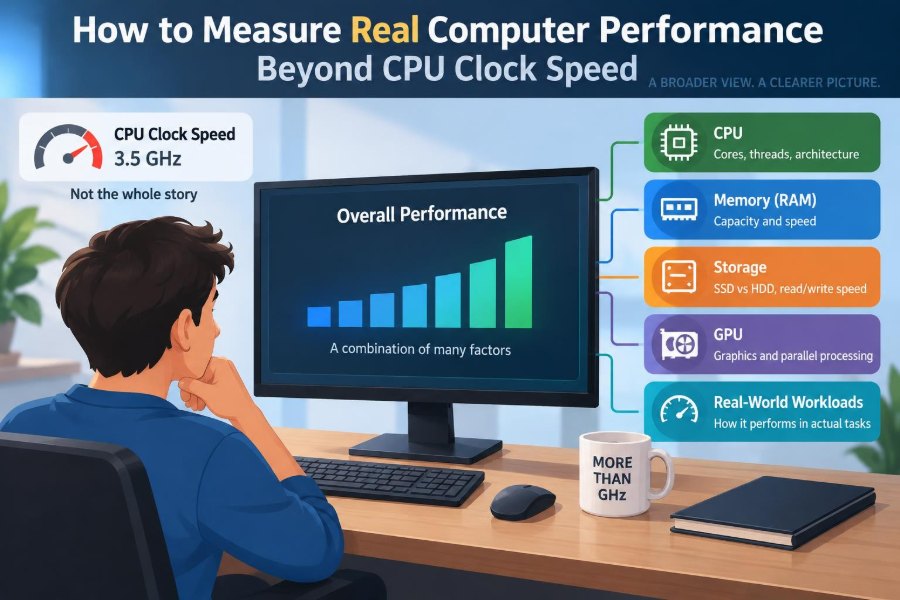

You buy a laptop with an impressive-looking processor speed, open a few browser tabs, start a video call, and suddenly everything feels slower than expected. The cursor hesitates, applications take a moment to appear, and a file copy seems to crawl.
It is tempting to blame, praise, or compare computers by one number: CPU clock speed, usually expressed in gigahertz (GHz). A higher number sounds like a faster machine, much as a higher speedometer reading suggests a faster car.
But computers do not complete real work by clock speed alone. Their performance depends on several components working together, the software being used, and even the type of task being measured.
Learning what to look beyond helps students choose practical devices, helps professionals diagnose slowdowns, and prevents misleading comparisons between systems that were built for very different jobs.
🧭 Performance Means Completing Useful Work
Computer performance is the system’s ability to complete a task in a useful amount of time. That task might be opening a presentation, exporting a video, compiling software, rendering a 3D scene, or responding smoothly while you type.
There is no single performance score that describes every experience. A computer that excels at rendering may not be the best at battery-powered office work, while a gaming system may be unnecessarily expensive for spreadsheets and video meetings.
A better question than “How fast is this CPU?” is: “How quickly and smoothly does this computer complete the work I actually do?”
⏱️ What CPU Clock Speed Actually Measures
Clock speed is the number of timing cycles a processor can perform each second. A processor listed at 3 GHz has a clock that ticks roughly three billion times per second.
Each tick helps coordinate processor activity. However, a tick is not the same as one completed instruction or one finished task. Modern CPUs can perform different amounts of work per cycle depending on their design and the instructions involved.
Clock speed remains relevant, especially for tasks that rely heavily on one processor core. It is simply not enough information to predict overall computer performance.
🏗️ Why Two CPUs at the Same GHz Differ
Imagine two workers who both receive a new instruction every second. One can handle a simple action at a time; the other has better tools, can prepare several actions in advance, and can complete more useful work during that second.
CPU architectures work similarly. Their internal layouts, caches, instruction handling, and prediction mechanisms affect how much work they accomplish in each clock cycle. This is often described as instructions per clock, or IPC.
For that reason, comparing GHz values across different processor generations, brands, or device types is unreliable. A newer CPU running at a lower clock speed can outperform an older one with a higher advertised speed.
📈 Base Clock, Boost Clock, and Real Conditions
Processor specifications often show a base clock and a boost or turbo clock. The base clock is a sustainable reference speed under defined conditions, while boost clocks are higher speeds the processor may reach temporarily or on selected cores.
A boost figure is not a promise that every core will run at that speed throughout a demanding workload. Temperature, power limits, cooling quality, the number of active cores, and the laptop’s power mode all influence the result.
When comparing devices, treat peak clock speed as a capability rather than a complete description of sustained performance.
🧮 Single-Core Performance and Responsiveness
Many everyday actions are limited by one primary processing thread: opening parts of an application, navigating complex spreadsheets, running older software, or responding to interface input. In these situations, strong single-core performance often makes a computer feel quick.
Single-core performance reflects more than a core’s clock speed. It combines architecture, IPC, available boost behavior, cache access, and how efficiently software uses that core.
A system can have many cores yet still feel less responsive than another system if its individual cores are weaker for the task at hand.
👥 Core Count Helps Only When Work Can Split
A CPU core is an independent processing unit within a processor. More cores can handle more work at once, but only when the operating system and application can divide that work into parallel pieces.
Video encoding, 3D rendering, scientific calculations, software builds, and running multiple virtual machines can often benefit substantially from additional cores. Editing a single line of text or waiting for one webpage script usually cannot use all of them effectively.
Extra cores are valuable, but they are not a universal shortcut to faster performance. Consider whether your most time-consuming applications are designed to use them.
🧵 Threads Are Not Always Extra Physical Cores
Specifications may list cores and threads separately. Some CPUs allow one physical core to manage more than one execution thread, which can improve utilization when one thread is waiting for data or a particular operation.
This feature can improve multitasking and some heavily parallel workloads. It does not turn an eight-core processor into a sixteen-core processor in the physical sense, and the gain varies by application.
Read core and thread counts as useful clues about capacity, not as direct measurements of speed.
🗃️ Cache Reduces Waiting for Data
A CPU is extremely fast compared with main memory. To avoid repeatedly waiting for data from RAM, processors include small, very fast memory areas called cache.
Frequently needed instructions and data can remain close to the processing cores. When the needed information is found in cache, the CPU can continue working with less delay; when it is not, the processor may have to wait for slower memory.
Cache size and design contribute to performance, particularly in workloads that repeatedly reuse data. Still, a larger cache alone does not guarantee a better CPU because the workload and the architecture matter too.
🧠 RAM Capacity Prevents a Common Bottleneck
Random-access memory, or RAM, holds programs and active data while the computer is running. If there is not enough available RAM, the operating system may move some data to storage and retrieve it later.
Even fast solid-state storage is much slower than RAM for this purpose. The result can be stuttering, longer application switches, browser tab reloads, or a computer that feels slow despite having a capable processor.
For a realistic comparison, check whether both systems have enough memory for the intended workload. A processor upgrade cannot fully compensate for a machine constantly running short of RAM.
🚀 Memory Speed and Channels Also Matter
RAM is not defined only by capacity. Its transfer rate, latency, and configuration affect how rapidly data can move between memory and the CPU or integrated graphics.
Many systems perform best when compatible memory modules operate in multiple channels, allowing more data to be transferred at once. A laptop with one memory module may have enough capacity but less available memory bandwidth than a comparable dual-channel configuration.
This is especially relevant for computers using integrated graphics, which borrow system RAM rather than relying on dedicated video memory.
💾 Storage Changes How Fast a PC Feels
Storage determines how quickly the system can load the operating system, applications, project files, and game assets. Replacing a hard disk drive with a solid-state drive often produces one of the most noticeable improvements in everyday use.
Different SSDs also vary. Their speed can depend on interface, controller design, cache behavior, free space, and the size and type of files being handled. A headline sequential-read figure does not describe every real file operation.
For general responsiveness, look at boot time, application launching, file search, project loading, and whether the drive slows during long writes—not merely its largest advertised number.
🎮 The GPU Has Its Own Performance Story
A graphics processing unit, or GPU, creates images for games, design software, simulations, and some creative or technical workloads. In many visual tasks, the GPU matters far more than CPU clock speed.
A dedicated GPU has its own processing resources and usually its own video memory. Integrated graphics share resources with the main processor and system memory, which can be efficient for light work but limiting for demanding visual workloads.
GPU comparisons should consider the software used, the display resolution, graphics settings, available video memory, and driver support. A powerful GPU can also be underused if another part of the system cannot provide data quickly enough.
🖼️ Video Memory Sets Limits in Visual Work
Video memory, often called VRAM, stores textures, frame buffers, 3D models, and other graphics data near the GPU. When a project needs more VRAM than is readily available, performance can become inconsistent or the application may reduce quality settings.
Higher display resolutions and detailed visual assets generally require more memory. This is why two graphics cards with similar compute capability can behave differently in a demanding game, CAD model, or video-editing timeline.
VRAM is not a universal measure of graphics speed, but it is an important capacity limit for workloads with large visual data sets.
🌡️ Heat Can Turn Brief Speed into Slow Sustained Work
Every active component produces heat. If a laptop or desktop cannot remove that heat effectively, the CPU or GPU may reduce its operating speed to protect itself. This behavior is commonly called thermal throttling.
A thin laptop may finish a brief task quickly and then slow during a long export, compilation, or gaming session. A larger system with stronger cooling may deliver steadier performance even if its peak specification looks similar.
For sustained work, reviews and tests that run for longer periods are more revealing than a short benchmark burst.
🔌 Power Limits Shape Laptop Results
Desktop processors usually have more room for cooling and more access to power. Laptops must balance performance against heat, fan noise, battery life, size, and charger capacity.
Two laptops can use processors with similar names but configure them with different power limits. One may prioritize quiet operation and battery life, while another allows higher sustained power and may perform better under load.
Do not assume a processor label produces identical performance in every chassis. The complete device design matters.
🧩 Software Optimization Is Part of Performance
Hardware provides capability, but software determines how much of that capability is used. An application may be optimized for particular instruction sets, many CPU cores, a GPU acceleration framework, or one operating system.
For example, one video editor may use a GPU efficiently for effects and export, while another relies more heavily on the CPU. The same computer can therefore produce very different results in the two programs.
Before purchasing for a specialized role, check the requirements and recommended hardware for the exact applications, plugins, file formats, and operating system you expect to use.
⚙️ The Operating System Manages Competing Work
The operating system schedules processes, allocates memory, handles storage requests, and coordinates devices. A computer rarely runs one task alone: background syncing, updates, security scanning, browser tabs, and communications tools may all compete for resources.
Good performance includes the ability to remain usable under this mixed workload. A benchmark that measures one isolated calculation cannot fully represent a machine during a busy workday.
Startup programs and unnecessary background tools can also create avoidable slowdowns. Measuring a clean, updated system produces more meaningful results than measuring one crowded with unknown utilities.
📊 Benchmarks Are Tools, Not Final Verdicts
A benchmark is a standardized test that measures a defined task, such as CPU rendering, graphics output, storage transfer, or browser scripting. Benchmarks are useful because they make controlled comparisons possible.
However, each benchmark answers a narrow question. A high score in a multi-core render test does not automatically predict gaming frame rates, spreadsheet responsiveness, or battery life.
The most useful approach is to examine several relevant tests and ask what each one actually measures. Avoid reducing a device to one overall score.
🧪 Synthetic Tests and Real Application Tests
Synthetic benchmarks run specially designed workloads to test a component or system feature. They are repeatable and useful for identifying broad differences, but they may not closely resemble your daily tasks.
Application benchmarks measure work in actual software, such as exporting a video project or compiling code. They are often more practical, though results can vary with project settings, versions, and workflow choices.
| Test type | Best used for | Main limitation |
|---|---|---|
| Synthetic CPU test | Comparing processor compute behavior | May not match a particular application |
| Game benchmark | Graphics performance at stated settings | Results change with resolution and quality options |
| Application export test | Estimating a creative workflow | Project files and codecs influence outcomes |
| Storage test | Comparing drive behavior | Large sequential transfers are not all daily tasks |
🎯 Match the Test to the Job
A student mainly writing papers and joining online classes should prioritize smooth multitasking, enough RAM, reliable storage, battery behavior, and a usable keyboard over extreme rendering scores.
A software developer may care about build times, virtual machines, containers, memory capacity, and sustained CPU behavior. A photographer may care about image-catalog responsiveness, display quality, RAM, storage speed, and application acceleration.
Write down your common tasks and their demanding moments. This simple step turns performance shopping from spec chasing into an evidence-based comparison.
🕹️ Gaming Performance Needs Context
Frames per second, or FPS, measures how many complete images a game produces each second. Higher average FPS can be useful, but it is not the entire experience.
Frame-time consistency matters too. Uneven frame delivery can make motion feel jerky even when the average frame rate appears high. Resolution, graphics settings, game updates, drivers, and CPU-GPU balance all affect results.
Compare gaming tests only when their settings are clearly similar. A result at a lower resolution or reduced quality level is not directly comparable to one tested with more demanding settings.
🔗 Bottlenecks Move from Task to Task
A bottleneck is the component, resource, or condition currently limiting progress. It is not necessarily a permanent flaw in one part of a computer.
During a large file copy, storage may be the bottleneck. During a high-resolution game, the GPU may be the limit. With dozens of browser tabs, RAM capacity may become the issue. During a long CPU render, cooling or processor power may dominate.
This is why balanced systems matter. Improving the wrong component may produce little visible change, while addressing the real bottleneck can transform a specific workflow.
🧰 Use System Monitoring to Find the Limit
When a computer slows down, monitoring tools can show CPU activity, memory use, disk activity, GPU use, temperatures, and power behavior. The goal is not to stare at numbers constantly; it is to observe what happens while the slowdown occurs.
If memory use is near capacity and storage activity spikes while programs pause, RAM pressure may be involved. If one CPU core is heavily used while others are not, the task may be limited by single-thread performance. If temperatures rise before speeds fall, cooling may be relevant.
Interpret these signs carefully. High usage can mean a component is working effectively, not automatically that it is defective.
🔍 A Practical Measurement Routine
For a computer you already own, test the activities that matter most under normal conditions. Use the same files, settings, power mode, and network conditions when repeating a test.
- Restart or close unnecessary applications.
- Choose one repeatable task, such as opening a large project or exporting a short video.
- Record completion time and note whether the system remains responsive.
- Monitor CPU, memory, storage, GPU, and temperatures during the task.
- Repeat the task after a meaningful change, such as adding RAM or changing power settings.
Small timing differences can come from background activity, caching, or normal variation. Look for consistent patterns rather than treating one run as a final verdict.
📡 Network Speed Is Not Computer Speed
Slow web pages, cloud files, video calls, and online games are sometimes caused by the network rather than the computer. Internet connection quality, Wi-Fi signal strength, server load, and latency can all be involved.
Latency is the delay before data begins to travel or respond. It can matter greatly for interactive tasks even when a connection’s download capacity is high.
Test local tasks separately from online tasks when diagnosing a problem. A fast computer cannot remove a delay created by a distant server or a weak wireless connection.
🔋 Battery Mode Can Change Benchmark Results
Many laptops reduce processor and graphics power when running on battery to extend runtime and control heat. Some also offer quiet, balanced, or performance modes that alter power limits and fan behavior.
A laptop tested while plugged in with performance mode enabled may behave very differently from the same laptop used on battery in a quiet classroom. Neither result is false; they describe different operating conditions.
When reading results or measuring your own system, note the power source and selected mode. Context makes a result useful.
🧾 Specifications Worth Reading Together
A sensible performance comparison considers the system as a whole. The following details are more informative together than any single CPU frequency:
- Processor generation, architecture, core count, and realistic sustained behavior
- RAM capacity, speed, and whether upgrades are possible
- Storage type, capacity, and expected workload
- GPU model and VRAM for graphics-intensive work
- Cooling design, power mode options, and noise tolerance
- Display resolution and refresh rate when visual work or gaming matters
- Ports, wireless capability, battery needs, and software compatibility
This broader view also protects against a common mistake: buying a powerful chip inside a device with compromises that make it unsuitable for your actual routine.
🚫 Common Comparison Mistakes
One mistake is comparing only processor names or clock speeds. Another is trusting a single benchmark without checking the workload, power setting, memory configuration, or test version.
Buyers also sometimes choose maximum specifications for tasks that would benefit more from comfort and reliability: a better display, quiet cooling, longer battery life, adequate storage, or a keyboard suited to daily use.
At the other extreme, selecting the cheapest system with just enough hardware can shorten its useful life if memory and storage cannot be expanded or if routine multitasking already pushes it to its limits.
🛠️ Improve the Experience Before Replacing Everything
A slow computer does not always need a new CPU or a full replacement. An SSD upgrade, additional RAM where supported, freeing storage space, removing unnecessary startup items, or cleaning dust from a cooling system may address the actual limitation.
Software maintenance matters too. Keep the operating system, application, and device drivers appropriately updated, but do not assume every update will improve every task. If performance changes unexpectedly, compare behavior before and after a change.
Hardware upgrades should match the diagnosis. Adding memory helps memory pressure; it does little for a GPU-limited 3D workload.
🧠 The Core Principle: Measure the Whole Workflow
Real computer performance is a chain of connected decisions and components. CPU clock speed contributes to that chain, but architecture, core behavior, memory, storage, graphics, cooling, power limits, software, and workload characteristics all influence the final experience.
The most meaningful measurement is not an isolated specification. It is how consistently a properly configured computer completes your chosen tasks at acceptable noise, heat, battery use, cost, and responsiveness.
Think in workflows, identify the likely bottleneck, and compare evidence from relevant tests. That approach produces a much clearer answer than GHz alone.
A fast computer is not the one with the most impressive single number; it is the one whose complete system fits the work you need it to do. Measure the task, not just the label. 🖥️⚙️📊