
A computer that suddenly becomes loud, sluggish, or warm enough to heat the desk can be frustrating. A game may stutter after running smoothly for twenty minutes, a video call may lag, or a laptop may become uncomfortable to use.
These are often signs that the system is struggling to move heat away from its working parts. Heat is a normal by-product of computing, but trapped or poorly managed heat can limit performance and shorten the useful life of components.
Overheating is not solved by simply buying the biggest fan available. It is usually a system-level problem involving airflow paths, cooler installation, dust, room temperature, workload, and the amount of electrical power the PC is using.
Understanding that system makes troubleshooting far less mysterious. Whether you maintain a home laptop, build desktop PCs, or support computers at work, the same practical principles apply.
🌡️ What PC Overheating Actually Means
Every processor, graphics card, storage device, and power circuit converts some electrical energy into heat. Cooling systems transfer that heat into the surrounding air so the component can remain within its intended operating range.
A PC is overheating when a component reaches temperatures high enough to reduce performance, trigger protective behavior, become unstable, or shut the computer down. A warm case alone is not proof of overheating; temperature readings and behavior under workload provide more useful evidence.
⚡ Why Electronics Produce So Much Heat
Modern chips switch enormous numbers of tiny electrical circuits on and off. The faster they work and the more power they draw, the more heat they generally produce.
This creates a direct trade-off: higher performance settings can require more electrical power, and that power must ultimately be managed as heat. A compact laptop has less room to disperse it than a large desktop, but both face the same basic physics.
🛡️ Thermal Throttling Is a Protective Response
Most current CPUs and GPUs monitor their own temperature. When a limit is approached, they may lower clock speeds, reduce power use, or otherwise restrict performance. This behavior is called thermal throttling.
Throttling is designed to prevent immediate damage, not to deliver ideal day-to-day operation. A PC that repeatedly slows down under ordinary tasks may need cleaning, improved cooling, or a change in power settings.
🚩 Signs That Heat Is Affecting Your PC
Not every slowdown is thermal, but overheating often leaves recognizable clues. Observe when symptoms occur: immediately after startup, only during demanding work, or after the system has been running for a while.
- Fans run loudly for long periods during modest tasks.
- Games, rendering jobs, or compiles slow down after several minutes.
- The computer restarts, freezes, or shuts down under heavy load.
- A laptop becomes unusually hot around its exhaust or keyboard area.
- Temperature-monitoring software reports persistently high readings while performance falls.
Unexpected shutdowns can also come from power, driver, or hardware faults, so heat should be investigated rather than assumed to be the only cause.
📊 Measure Before Changing Parts
Use reputable monitoring software supplied by the component maker, motherboard maker, or a well-known hardware-monitoring utility. Check CPU and GPU temperatures, clock speeds, fan speeds, and power draw while the PC is idle and while it performs the task that causes concern.
Look for patterns rather than one alarming peak. Brief temperature spikes can be normal; sustained high temperatures combined with clock-speed reductions are more meaningful. Manufacturer specifications remain the best reference for a particular component’s operating limits.
🏠 Ambient Temperature Sets the Starting Point
A cooler can only move heat from the component into the air around the computer. If the room is hot, the air entering the case or laptop is already warmer, leaving less temperature difference for effective cooling.
This explains why a PC that seems fine in winter may become louder in summer. Relocating a desktop away from a radiator, sunny window, or enclosed cabinet can make a noticeable difference without changing any hardware.
💨 Airflow Is a Path, Not Just a Fan Count
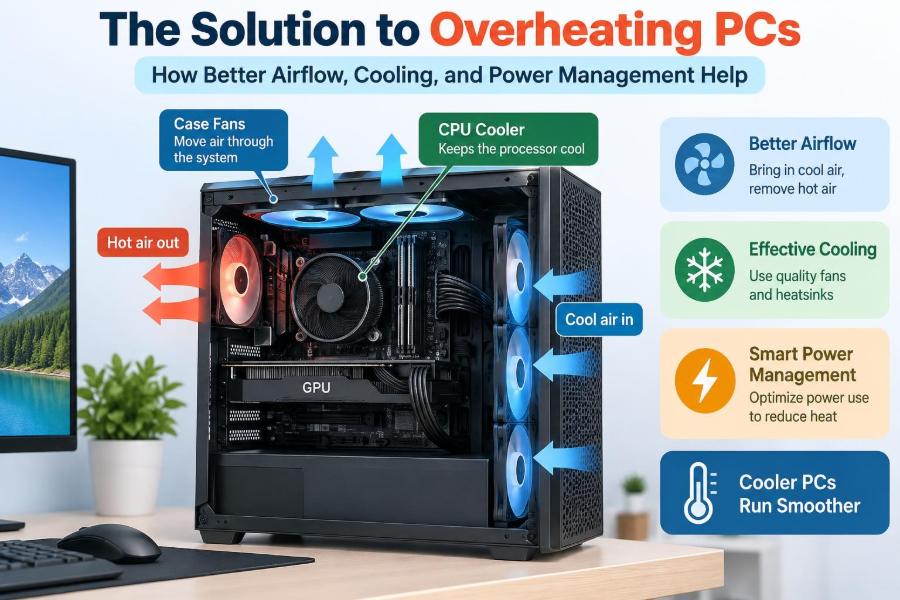
Good airflow means cool air has a clear route into the enclosure, across heat-producing parts, and out again. Fans only help fully when the case design, cable placement, cooler orientation, and vents support that route.
Imagine air moving through a hallway. Adding people at one door does little if boxes block the exit. Likewise, several fans cannot compensate for blocked vents or a case pushed tightly against a wall.
➡️ Creating a Sensible Airflow Direction
Many desktop cases work well with intake fans at the front or bottom and exhaust fans at the rear or top. This generally follows the tendency of warmed air to collect higher in the case while creating a useful front-to-back flow.
Case layout matters more than a universal rule. The goal is to supply major components with fresh air and give heated air an easy exit. Check fan-frame arrows or the manufacturer’s markings to confirm each fan’s direction.
⚖️ Positive, Negative, and Balanced Case Pressure
Positive pressure means intake fans collectively bring in somewhat more air than exhaust fans remove. If intake locations use filters, this can reduce the amount of unfiltered dust drawn through gaps.
Negative pressure means exhaust is stronger than intake, which can pull air and dust through every opening in the case. Neither arrangement is automatically disastrous, but lightly positive pressure is often easier to keep clean in a dusty home.
| Airflow approach | Typical effect | Practical consideration |
|---|---|---|
| Positive pressure | Air tends to leave through gaps | Use filtered intakes and avoid restricting exhaust |
| Negative pressure | Air is pulled in through gaps | May gather more dust where there are no filters |
| Balanced pressure | Similar intake and exhaust capacity | Performance depends heavily on case layout |
🧹 Dust Turns Cooling Hardware Into Insulation
Dust accumulates on fan blades, filters, radiator fins, and heatsink fins. It reduces the surface area exposed to moving air and can restrict the flow path itself.
Turn off and unplug the computer before cleaning. Use compressed air carefully in a ventilated area, hold fan blades still to prevent excessive spinning, and avoid vacuum attachments that may create static electricity near sensitive electronics. Clean or replace washable filters according to the case maker’s guidance.
🧱 Clear Vents and Give the PC Room to Breathe
A desktop placed inside a closed desk compartment recirculates its own warm exhaust. A laptop used on a blanket or cushion may have its underside intake vents blocked entirely.
Place the machine on a firm, stable surface and leave clearance around its intake and exhaust areas. A laptop stand can improve the space below the chassis, but it cannot fix a clogged internal heatsink or an inadequate built-in cooling design.
🌀 Fans Move Air, but Fan Curves Control Behavior
A fan curve tells the system how quickly a fan should spin at different temperatures. A very quiet curve may allow temperatures to climb before fans react; an aggressive curve may keep components cooler but create distracting noise.
Adjust curves gradually in BIOS or trusted vendor software. Test with the workload you actually use, since a curve that seems fine at the desktop may respond poorly during gaming or video export.
🧊 CPU Coolers Transfer Heat Outward
A CPU cooler uses a metal contact plate, heat pipes or liquid circulation, fins, and fans. Its job is to draw heat away from the CPU’s small surface and spread it across a much larger area where air can carry it away.
Stock coolers can be adequate for many processors at default settings. Larger air coolers may provide lower noise or more thermal headroom, but only if they fit the case, clear the memory modules, and are installed with proper mounting pressure.
💧 Liquid Cooling Has Strengths and Limits
All-in-one liquid coolers move heat to a radiator, where fans release it into the air. They can place a large radiator near a case intake or exhaust and may suit high-power CPUs or space-constrained layouts.
They are not magic cooling systems: the radiator still depends on airflow, and pump reliability, radiator placement, and tube routing matter. A quality air cooler is often simpler, durable, and highly effective for many systems.
🧴 Thermal Paste Fills Microscopic Gaps
Thermal paste improves contact between a chip and its cooler by filling tiny surface imperfections that would otherwise trap air. Air transfers heat poorly compared with the paste and metal surfaces.
More paste is not automatically better. Use an appropriate small amount and follow the cooler manufacturer’s mounting instructions. Replacing paste can help when a cooler is removed or old material has degraded, but it will not solve a blocked case vent or undersized cooler.
🎮 Graphics Cards Need Their Own Cooling Plan
During games, 3D design, machine-learning tasks, or GPU rendering, the graphics card may produce more heat than the CPU. Its fans need a ready supply of cool case air, and its exhaust must not be trapped near a solid panel.
Before adding fans, inspect the GPU’s clearance and the case’s intake area. A powerful graphics card installed in a narrow case with a sealed front panel may remain warm despite having multiple nearby fans.
🔌 Power Delivery Also Creates Heat
Voltage-regulation modules on a motherboard and graphics card convert power into forms that components can use. These circuits generate heat and often rely on nearby case airflow, especially during sustained processor loads.
A correctly sized, reputable power supply supports stable operation, but it does not eliminate component heat. Avoid treating a larger-wattage unit as a cooling upgrade; airflow and workload power limits are the relevant controls.
📉 Power Management Reduces Heat at Its Source
The most efficient watt is often the watt the PC does not need to use. Lowering unnecessary power consumption reduces heat before fans and coolers have to deal with it.
Operating-system power modes can favor efficiency, balanced behavior, or peak responsiveness. A balanced setting is usually a sensible default for ordinary work, while a performance-oriented mode may be useful for time-sensitive tasks when additional heat and fan noise are acceptable.
🔧 Understand Power Limits and Boost Behavior
Many modern processors automatically boost above their base speed when temperature, power delivery, and workload allow. This is normal, but motherboard settings may permit long periods of high power use that exceed what a basic cooler can comfortably handle.
Review BIOS settings carefully before changing power limits. Returning unknown settings to manufacturer defaults, choosing a lower power profile, or setting reasonable limits can reduce sustained temperatures with a modest effect on performance. Exact options vary greatly by platform.
⚙️ Undervolting Can Help, but Requires Care
Undervolting reduces the voltage supplied to a processor or graphics card while attempting to retain similar performance. Because electrical power and heat are strongly related to voltage, a stable undervolt can improve efficiency.
It is not risk-free. An overly aggressive setting can cause crashes, calculation errors, or unreliable behavior that appears only under certain workloads. Change one setting at a time, test thoroughly, save stable profiles, and understand how to restore defaults.
📱 Laptop Cooling Has Tighter Constraints
Laptops combine compact dimensions, batteries, displays, and high-performance chips in a thin enclosure. Their small fans and heatsinks have less room for error, and dust buildup can have a larger effect than it does in a roomy desktop.
Use the laptop on a hard surface, keep vents clear, and select sensible power modes for the task. If a laptop remains excessively hot or shuts down after basic maintenance, internal cleaning or repair may be best handled by a qualified technician because disassembly can be complex.
🧩 Cable Management Supports Air Movement
Neat cable routing is not merely cosmetic. Large bundles placed directly in front of intake fans, between the front panel and graphics card, or around radiator fans can disrupt airflow.
Route unused power cables behind the motherboard tray when the case allows it. Do not pull cables so tightly that connectors are strained, and do not obstruct fans with loose wires.
🪟 Case Design Can Set the Cooling Ceiling
A case with broad mesh intakes, usable fan mounts, filters, and adequate space around components usually has more cooling potential than a compact case with decorative but restrictive panels. Appearance is only one part of a case decision.
Small-form-factor systems can still cool well, but they need more deliberate component selection. Cooler height, GPU thickness, radiator support, and intake clearance should be checked before purchase rather than after temperatures become a problem.
🛠️ A Practical Troubleshooting Order
Start with simple, reversible checks before replacing hardware. This helps identify the real bottleneck and prevents spending money on parts that do not address the cause.
- Monitor temperatures, clock speeds, and fan behavior during the problematic task.
- Check that all fans spin and that vents, filters, and heatsinks are clean.
- Improve placement and remove airflow obstructions around the computer.
- Verify fan orientation, fan curves, and cooler mounting.
- Review power modes and return unexplained overclocking or BIOS changes to safe defaults.
- Consider a better cooler, more suitable case airflow, or professional service if needed.
❌ Common Fixes That Often Miss the Problem
Opening a side panel may briefly reduce temperature in some restrictive cases, but it can also disrupt the intended airflow path and let in more dust. It is a diagnostic clue, not usually a finished solution.
Similarly, adding fans without identifying intake and exhaust paths can add noise with little gain. Running every fan at maximum is rarely necessary and may shorten fan life or make a workspace unpleasant. Solve restrictions first, then tune the system.
🔍 When Heat Points to a Hardware Fault
A fan that does not spin, a rattling pump, a cooler mounted unevenly, dried thermal material, or a failing temperature sensor can produce unusual behavior. Sudden changes compared with the PC’s normal temperature pattern deserve attention.
Stop using the system for demanding tasks if it repeatedly shuts down or if cooling hardware appears damaged. Seek professional support when warranty coverage applies, liquid-cooling equipment leaks, laptop disassembly is uncertain, or electrical damage is suspected.
🗓️ Build a Simple Maintenance Routine
Maintenance frequency depends on pets, carpets, smoking, open windows, and local dust levels. Check filters and vents regularly, then clean when buildup is visible rather than waiting for fan noise and throttling to become severe.
After a hardware upgrade or a major software change, run a familiar demanding task and observe temperatures. This creates a useful baseline, making future changes easier to spot.
✅ The Core Principle: Balance Heat, Airflow, and Power
Reliable cooling comes from matching heat output to the system’s ability to remove it. A powerful component needs a suitable cooler, a clear airflow path, clean surfaces, and power settings that make sense for the workload.
There is no single best temperature, fan speed, or cooler for every PC. The best setup is one that remains stable, performs appropriately, stays reasonably quiet, and fits the physical limits of the machine and its environment.
When a PC overheats, improve the whole heat-management chain: reduce unnecessary power, move air through a clean and unobstructed path, and use cooling hardware suited to the components. With measured changes and regular maintenance, most systems can run cooler, quieter, and more consistently. 🖥️💨🔧