
You open a few browser tabs, join a video call, start editing a document, and suddenly your computer feels slow. The cursor hesitates, programs take longer to open, and a simple task becomes frustrating.
It is tempting to blame “the computer” as one single thing. But a PC is a team of components, and each member of that team handles a different kind of work.
A faster processor will not fix every delay. More memory will not necessarily increase game frame rates. A powerful graphics card may sit mostly idle while a spreadsheet is calculating.
Understanding what the CPU, RAM, SSD, and GPU actually contribute makes buying, upgrading, and troubleshooting far more practical. Instead of chasing the most impressive specification, you can identify the part that limits the work you really do.
🧩 PC Performance Is a Team Effort
Computer performance is not one measurement. It describes how quickly and smoothly a system completes different tasks: launching software, switching between apps, rendering video, loading a game level, compiling code, or saving a large file.
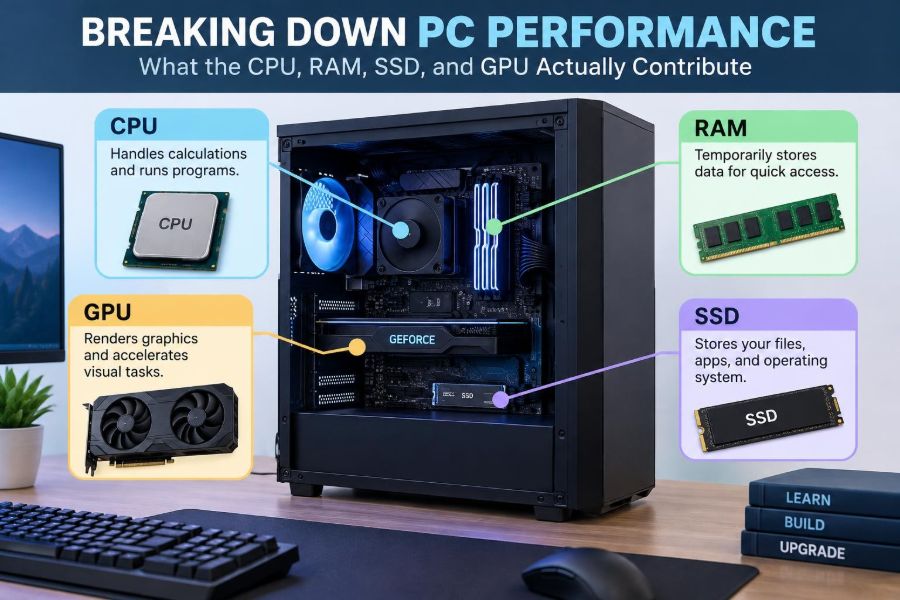
The main parts work together. The CPU processes instructions, RAM holds actively used data, the SSD stores data for the long term, and the GPU handles graphics and other highly parallel calculations.
A weakness in any one area can become a bottleneck. A bottleneck is the component that slows the whole task because the other parts must wait for it.
🚦 Why One “Fast PC” Rating Does Not Exist
Consider two hypothetical computers. One has a high-end GPU but limited RAM; the other has abundant RAM and a modest integrated GPU. The first may excel at 3D games but struggle with many memory-heavy browser tabs. The second may feel excellent for office work while performing poorly in modern 3D games.
Performance depends on the workload. A useful question is not “Which component is best?” but “Which component matters most for the task I do?”
- Office work often depends on responsive CPU performance, adequate RAM, and fast storage.
- Gaming commonly depends on both the GPU and CPU, with RAM and SSD capacity affecting smoothness and loading.
- Video editing can use all four components heavily, although the balance varies by software and project.
- Large datasets, virtual machines, and many simultaneous applications can place unusual pressure on RAM and storage.
🧠 The CPU: The Computer’s General-Purpose Decision Maker
The central processing unit, or CPU, executes the instructions that make software run. When an application checks a formula, responds to a mouse click, organizes files, or tells another component what to do, the CPU is usually involved.
A CPU is often compared with a brain, but a production manager is sometimes a better analogy. It coordinates many jobs, follows detailed instructions, and decides what should happen next.
Nearly every activity uses the CPU to some degree. That does not mean the CPU performs every specialized task itself; it frequently assigns work to the GPU, storage device, network hardware, or other parts.
🔢 Cores, Threads, and Parallel Work
A CPU contains processing units called cores. More cores allow the processor to work on more tasks at once, particularly when software is designed to divide work into parallel pieces.
For example, rendering a video frame sequence or compiling a large software project can often spread work across many cores. In contrast, some older programs and everyday actions rely more heavily on one or a few cores.
Many CPUs also expose extra logical processors, often called threads. These can help a core keep busy when one stream of work is waiting. They are useful, but they are not identical to adding fully separate physical cores.
⏱️ Clock Speed Is Only Part of CPU Speed
Clock speed, commonly measured in gigahertz (GHz), describes how rapidly a CPU’s clock cycles occur. A higher number can be useful, but it does not provide a complete comparison between processors.
Different CPU designs accomplish different amounts of work per clock cycle. Cache size, architecture, power limits, cooling, and the software being used also influence real results.
That is why comparing CPUs only by GHz can mislead buyers. A newer processor with a lower listed clock speed can outperform an older one in many tasks.
📋 What CPU Cache Does
CPU cache is a small amount of extremely fast memory located on or near the processor. It stores instructions and data the CPU is likely to need again soon.
Without cache, the CPU would need to retrieve more information from RAM, which is fast but much farther away in computer terms. Cache reduces these delays and helps the processor keep working efficiently.
Users rarely need to choose a computer based on cache alone. Still, it helps explain why CPUs with similar core counts and clock speeds may behave differently in certain workloads.
⚠️ Signs That the CPU Is the Limiting Part
A CPU bottleneck may appear when a computer becomes sluggish during calculations, code compilation, data processing, or CPU-heavy games. The system can also feel slow when one demanding program consumes most available processor time.
High CPU use is not automatically a problem. A video export should use the CPU aggressively if the software is designed that way. The concern is persistent high use accompanied by poor responsiveness when the task should be manageable.
Background processes, browser extensions, malware, overheating, and outdated software can imitate a weak CPU. Check what is using processing time before assuming hardware needs replacement.
🗂️ RAM: The Workspace for Active Tasks
Random access memory, or RAM, is the computer’s short-term workspace. It holds the programs, documents, browser tabs, and data currently needed for quick access.
RAM is temporary: its contents disappear when the computer shuts down. That is different from an SSD, which keeps files after power is removed.
Imagine a desk. Your filing cabinet may hold thousands of documents, but the papers spread across the desk are the ones you are working with now. RAM is that desk space.
📚 What More RAM Actually Changes
More RAM lets a computer keep more active information readily available. This is especially noticeable when multitasking: switching among browser tabs, messaging apps, spreadsheets, photo editors, and meetings without repeatedly reloading data.
Extra RAM does not automatically make a simple task run faster if the existing memory was already sufficient. A word processor does not type faster merely because a system has far more unused memory.
The benefit appears when the current workload approaches or exceeds available RAM. At that point, the operating system must rely more heavily on storage as a substitute workspace.
🔄 Virtual Memory and Why Low RAM Feels So Slow
When physical RAM fills up, an operating system can move less-active data to a portion of the storage drive. This process is commonly called paging or virtual memory.
It prevents an immediate crash in many situations, but storage is much slower than RAM. If the system constantly moves data back and forth, it may pause, stutter, or take a long time to switch applications.
An SSD makes this fallback much less painful than an old hard disk drive, but it is still not equal to having enough RAM. Frequent paging is usually a sign that the workload needs more memory or fewer simultaneous tasks.
🧪 RAM Capacity Versus RAM Speed
RAM has both capacity and speed characteristics. Capacity determines how much can remain active; speed and latency influence how quickly the CPU can access it.
For most general users, adequate capacity has the clearer practical effect. A system that runs out of memory benefits more from additional RAM than from a minor improvement in memory speed.
Speed can matter in some games, integrated-graphics systems, technical workloads, and certain processor designs. Compatibility matters too: a motherboard supports specific memory generations, configurations, and maximum capacities.
🖥️ Integrated Graphics Share System Memory
Many CPUs include integrated graphics, meaning graphics capability built into the processor package. Unlike a dedicated graphics card, integrated graphics often use a portion of normal system RAM.
This arrangement is efficient for web use, media playback, office work, and light creative tasks. However, demanding games and 3D applications can be limited because system RAM must serve both the CPU and the graphics hardware.
More RAM and properly configured memory can therefore matter more on an integrated-graphics computer than people expect.
💾 The SSD: Long-Term Storage That Affects Daily Responsiveness
A solid-state drive, or SSD, stores the operating system, applications, documents, games, and media files even when the computer is powered off. It uses flash memory rather than the spinning platters found in traditional hard disk drives.
Storage does not normally perform instructions like a CPU or draw frames like a GPU. Its major contribution is getting data into and out of the system quickly enough that software does not spend unnecessary time waiting.
For many older computers, replacing a hard drive with an SSD produces one of the most noticeable everyday improvements.
🚪 Why SSDs Improve Startup and Loading Times
Starting an operating system or opening an application requires reading many files. SSDs can access small, scattered files far more quickly than mechanical hard drives because they do not need to move a physical read head into position.
This improves boot times, program launches, updates, file searches, and general responsiveness. It also helps when games or creative software need to load assets such as textures, project files, or audio samples.
Once a program’s needed data is loaded into RAM, the CPU and GPU usually become more significant for the actual processing work.
🛣️ SATA, NVMe, and the Limits of Faster Storage
SSDs use different connection methods. SATA SSDs are widely compatible and already much faster in everyday use than hard drives. NVMe SSDs connect through PCIe and can transfer data at much higher rates in workloads that can use that bandwidth.
NVMe can be valuable for large file transfers, demanding content creation, some modern games, and data-intensive work. Yet the difference between a SATA SSD and a fast NVMe drive is not always dramatic when opening a small document or browsing the web.
Buy storage based on capacity, reliability, compatibility, and workload—not only the largest sequential read number on the package.
🧹 Free Space and SSD Health Matter
An SSD needs some free capacity for normal housekeeping, updates, temporary files, and efficient operation. A nearly full drive can make a computer harder to manage and may reduce performance in certain situations.
Storage also has a finite write endurance, though normal consumer use is often well within the intended range of a quality drive. The more immediate risk is data loss from failure, accidental deletion, theft, or corruption.
Backups are not optional just because an SSD is fast. Keep important files in more than one location, using a backup method appropriate for their value.
🎮 The GPU: Specialist for Visual and Parallel Work
The graphics processing unit, or GPU, creates images for displays and accelerates workloads that can be divided into many similar calculations. It is central to 3D gaming, visual effects, computer-aided design, and some video, scientific, and AI-related applications.
Where a CPU is built to handle varied instruction-heavy tasks quickly, a GPU contains many smaller processing units designed to work on large amounts of parallel data.
Rendering a scene with thousands or millions of pixels is a natural GPU task. Each pixel or group of pixels can often be processed alongside many others.
🖼️ GPU Performance and Frame Rates
In games, the GPU transforms 3D models, lighting, textures, and effects into frames displayed on screen. A more capable GPU can often produce more frames per second, use higher visual settings, or support a higher display resolution.
But frame rate is not determined by the GPU alone. The CPU prepares game logic, physics, draw calls, and other instructions. If the CPU cannot prepare work fast enough, the GPU may wait.
This is why a graphics card upgrade can produce a large gain at high resolutions yet a smaller gain in a CPU-limited game at low settings.
🧮 VRAM Is Not the Same as System RAM
A dedicated graphics card usually includes its own memory, called video RAM or VRAM. It holds graphics data such as textures, frame buffers, geometry, and rendering resources close to the GPU.
VRAM capacity matters when working with high-resolution textures, multiple displays, large scenes, or demanding creative projects. If an application exceeds available VRAM, it may reduce quality settings, move data more slowly, or become unstable depending on its design.
System RAM and VRAM are related only in the broad sense that both store data. Adding system RAM does not give a dedicated GPU more VRAM.
🎬 When a GPU Helps Creative Work
Many creative applications can use GPU acceleration for previews, effects, color processing, image manipulation, 3D rendering, or video encoding and decoding. The actual benefit depends on the application, its settings, file formats, and effect types.
A powerful GPU will not necessarily accelerate every editing step. Some exports are mostly CPU-limited; some effects are GPU-accelerated; some projects are constrained by RAM capacity or storage speed.
Before buying hardware for professional work, check the software vendor’s current requirements and recommended hardware. Support and performance can vary substantially between versions.
🌡️ Cooling and Power Can Change Real Performance
Processors and graphics cards generate heat while working. If cooling is inadequate or environmental temperatures are high, hardware may reduce its operating speed to remain within safe limits. This is called thermal throttling.
Laptops face tighter space and power constraints than desktop PCs, so two devices with similarly named CPUs or GPUs may sustain very different performance. The thinness of a laptop is not a reliable indicator of how long it can maintain peak speed.
Dust buildup, blocked vents, aging fans, and an undersized power supply can also create stability or performance problems. Hardware specifications should always be viewed alongside the system that supports them.
🔗 Data Has to Travel Between Components
Components communicate through connections such as memory channels, PCIe lanes, storage interfaces, and the motherboard chipset. These pathways influence how much data can move and how quickly it can arrive.
In most ordinary systems, compatible mainstream hardware works together without users needing to calculate every pathway. However, expansion cards, multiple fast SSDs, external devices, and professional workloads can share available bandwidth.
Compatibility is broader than the socket or slot. Firmware support, physical space, cooling clearance, power connectors, and operating-system drivers can all affect whether an upgrade works as intended.
📊 A Practical Workload Comparison
The table below summarizes which components commonly have the greatest influence. “High” means the component often has a major effect, not that every task in that category behaves identically.
| Typical activity | CPU | RAM | SSD | GPU |
|---|---|---|---|---|
| Web browsing and office work | Medium | Medium to high with many tabs | Medium | Low |
| Modern 3D gaming | High | Medium | Medium for loading and streaming | High |
| Video editing | High | High for larger projects | High for media and cache files | Varies by software and effects |
| Programming and compilation | High | Medium to high | Medium to high | Usually low |
| 3D modeling and rendering | High | High for complex scenes | Medium | Often high |
🧱 Recognizing a Bottleneck in Real Use
A bottleneck is not a permanent label attached to a component. The limiting part can change with the application, settings, file size, resolution, and number of background tasks.
For example, a game may be GPU-limited at a high resolution because drawing more pixels is demanding. Lowering the resolution may shift the limit toward the CPU because the GPU finishes each frame more quickly and waits for game logic.
Performance monitoring tools can show CPU use, memory pressure, disk activity, GPU use, and temperatures. Treat these readings as clues, not final verdicts: one busy CPU core can matter even if total CPU usage looks moderate.
🛠️ Diagnose Before You Upgrade
Start by reproducing the slow task. Open the same project, game, or set of applications that causes the problem, then observe which resource is under sustained pressure.
- Check available storage space and close unnecessary background applications.
- Install operating-system, driver, and application updates from trusted sources.
- Look for unusually high CPU, memory, disk, or GPU use during the slowdown.
- Check temperatures and listen for signs of cooling trouble.
- Compare your hardware with the current requirements of the software you use.
This approach prevents costly upgrades based on guesswork. A cluttered startup list or a failing drive can make a capable computer feel far slower than its specifications suggest.
💰 Upgrade the Component That Matches the Problem
If applications reload constantly and multitasking causes pauses, RAM may be the sensible upgrade. If startup, loading, and file operations are painfully slow on a hard drive, an SSD may offer the best improvement.
If games run at low frame rates while the GPU is heavily loaded, a graphics upgrade may help. If compilation, simulation, or general CPU-heavy work is slow, a stronger CPU platform may be more appropriate.
CPU upgrades can be more involved than other changes because they may require a compatible motherboard and RAM generation. A complete platform upgrade can be justified, but it should be planned as a system decision rather than treated as a simple processor swap.
🚫 Common Buying Mistakes
One common mistake is paying for specifications that do not match the intended workload. A top-tier GPU is unnecessary for email and documents, while a very small SSD can quickly become restrictive for a person working with large media files.
- Choosing a CPU by clock speed alone.
- Assuming more RAM always increases raw speed.
- Buying a GPU based only on VRAM capacity.
- Ignoring laptop cooling, power limits, and upgrade restrictions.
- Filling an SSD almost completely and keeping no backup.
- Using minimum software requirements as a comfortable long-term target.
Balance matters. A system with sensible, compatible parts usually feels better than one expensive component paired with constraints everywhere else.
🧭 Build for Your Next Few Years, Not Every Possible Task
Computer hardware changes quickly, but buying the most powerful available option is rarely the most efficient plan. Instead, estimate the applications, project sizes, and display setup you expect to use over the next few years.
Leave reasonable headroom for multitasking, updates, and larger files. At the same time, avoid paying for capacity or performance you are unlikely to use.
Upgradeability can be valuable. A desktop with accessible memory slots and storage bays may offer a longer practical life than a sealed system, even if their initial performance is similar.
✅ The Core Principle: Match Resources to Work
The CPU handles broad instruction processing and coordination. RAM keeps active work close at hand. The SSD provides persistent storage and fast access to files. The GPU specializes in graphics and massively parallel operations.
None of these components replaces the others. A fast SSD cannot compensate for too little RAM during heavy multitasking, and a powerful GPU cannot make a CPU-bound calculation finish instantly.
The most useful performance decision comes from identifying the real workload, finding the resource under pressure, and improving that specific constraint. That is the difference between buying impressive specifications and building a computer that genuinely feels responsive.
A well-balanced PC is not defined by its most expensive part; it is defined by how well its CPU, RAM, SSD, and GPU fit the work you ask it to do. 🖥️⚙️📈