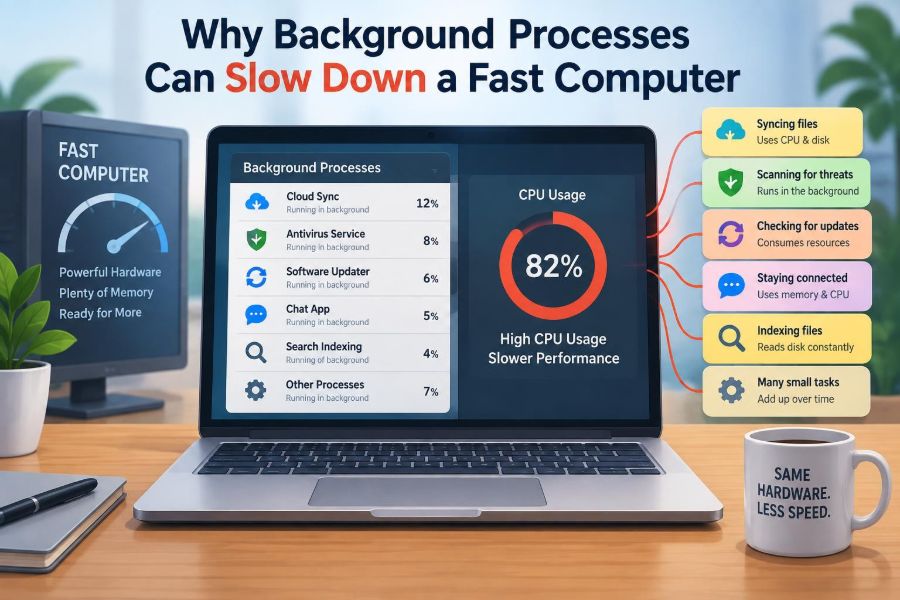

Your computer has a fast processor, plenty of memory, and perhaps even a solid-state drive. Yet a browser tab pauses while loading, a video call stutters, or a simple document takes a moment too long to respond.
That experience can be confusing because the hardware is not necessarily old or weak. Often, the computer is busy doing work you did not explicitly ask it to do at that moment.
Operating systems are designed to run many tasks at once. Some keep essential features working, while others check for updates, synchronize files, index content, display notifications, or support installed applications.
These background processes are useful, but they still compete for limited resources. Understanding that competition makes it much easier to diagnose slowdowns without randomly deleting software or blaming the wrong component.
🧠 What a Background Process Is
A background process is a program or service running without an open, active window demanding your attention. It may start when you sign in, launch when needed, or remain active so it can react quickly to an event.
For example, a cloud-storage app may watch a folder for changed files. An antivirus service may inspect a newly downloaded file. Neither task needs a visible application window, but both consume some computing resources.
🎭 Foreground Work and Invisible Work
The foreground application is usually the program you are actively using: a spreadsheet, game, browser, or video editor. The operating system generally tries to give this work a responsive experience.
However, “background” does not mean “free.” When a background process suddenly needs processor time, memory, storage access, or network capacity, it can interfere with foreground work. A task can be invisible and still be demanding.
⚙️ A Fast Computer Still Has Limits
Computer speed is not one single resource. A system can have a powerful CPU but limited available memory, a quick drive that is handling many requests, or a fast internet plan shared among several transfers.
Think of a computer as an office with several departments. Adding capable employees helps, but work still slows when too many people need the same printer, meeting room, or phone line at once.
🧮 CPU Time Is Shared
The central processing unit, or CPU, performs instructions for programs. Modern processors have multiple cores, allowing more work to happen in parallel, but the number of cores and the processing capacity of each core are still finite.
The operating system’s scheduler rapidly switches CPU attention among tasks. If a backup, update, browser, game, and security scan all request time, each may receive less immediate attention than it would alone.
A brief rise in CPU activity may be harmless. Persistent high use, especially while the computer feels slow, is more meaningful because it suggests one or more tasks are continually competing for processing time.
🧵 Why One Busy Core Can Matter
Not every program can spread its work evenly across all CPU cores. Some parts of an application depend on a single main thread, meaning one sequence of instructions must finish before the next can begin.
This is why an activity monitor may show modest overall CPU use while a particular application still feels sluggish. One core may be busy with the application or with another process that frequently interrupts it.
🧠 Memory Pressure Changes Everything
RAM, or random-access memory, holds programs and data that the computer needs quickly. When several applications and services fit comfortably in RAM, switching between them is usually smooth.
When RAM becomes crowded, the operating system must decide what to keep readily available and what to move out of active memory. This situation is often called memory pressure.
Many browser tabs, virtual meeting software, creative tools, game launchers, and synchronization clients can collectively create memory pressure even when no individual program appears unusually large.
💾 Virtual Memory Can Turn Into a Bottleneck
To avoid immediately closing programs when RAM fills, operating systems use virtual memory. Some less-active data is moved to storage and brought back when needed, a process commonly called swapping or paging.
Solid-state drives make this less disruptive than older hard drives, but storage is still much slower than RAM. If the system repeatedly moves data between RAM and storage, windows may pause, apps may reopen slowly, and typing can occasionally lag.
📀 Storage Contention Is More Than File Copies
Your drive is used for far more than manually saving documents. Background services may read logs, update databases, download files, scan items, create thumbnails, or build search indexes.
At the same time, your foreground application may need to load a document, retrieve browser cache, or save a large project. When many requests arrive together, the drive must queue and process them.
Traditional hard drives are especially sensitive because their physical parts must move to reach data. Solid-state drives handle many small requests better, but they can still become busy during heavy activity.
🌐 Network Activity Can Make Apps Feel Slow
A computer can be responsive locally while online work feels delayed. Cloud backup, operating system updates, game downloads, video synchronization, and file sharing can consume available network bandwidth.
Upload activity deserves special attention. On some connections, a saturated upload can affect video calls, online games, and web browsing because those activities also need timely outgoing responses.
This is not always a computer-performance problem in the strictest sense, but the result feels similar: an app appears slow because it is waiting for the network.
🔋 Battery and Heat Affect Available Performance
Laptops may reduce performance to protect battery life or control heat. A busy set of background tasks can raise CPU use, increase power draw, and create additional heat even when you are not doing visibly intensive work.
If temperatures rise beyond a device’s preferred operating range, the system may reduce clock speeds. This behavior, called thermal throttling, is protective, not necessarily a fault.
Dust, blocked vents, soft surfaces, aging batteries, and hot rooms can worsen the effect. Background load does not cause every thermal issue, but it can expose one.
🔄 Startup Apps Create a Slow First Impression
Some applications configure themselves to launch when you sign in. This can be convenient for tools you genuinely use throughout the day, such as accessibility software, password managers, or a workplace security agent.
But many startup items begin competing for resources at the exact moment the desktop is trying to become usable. Multiple update checkers, chat clients, launchers, and sync tools can make a new session feel slow for several minutes.
Startup programs are not automatically bad. The practical question is whether each one provides enough value to justify being ready all the time.
🔍 Search Indexing Has a Real Cost
Fast file search depends on an index: a database that records file names, locations, and sometimes their contents or metadata. The operating system updates this index when files change.
After a major update, connecting a large external drive, restoring files, or adding many photos, indexing may become temporarily busy. Search becomes useful later because the system did work earlier.
Repeated or constant indexing, however, can point to a troublesome folder, a disconnected drive, damaged search data, or another configuration issue worth investigating.
🛡️ Security Software Scans at Important Moments
Security tools often scan files when they are opened, downloaded, copied, or created. This real-time checking can reduce risk from malicious software, so disabling it merely to gain a little speed is rarely a sensible first response.
The trade-off becomes noticeable during large software builds, archives, media imports, or folders containing thousands of small files. In managed work environments, security settings may be required and should not be changed casually.
A better approach is to use trusted software sources, keep the security tool updated, and follow approved guidance if a legitimate workload needs a carefully limited exclusion.
☁️ Cloud Sync Can Compete With Your Work
Cloud-storage services monitor selected folders and upload or download changed files. This protects work and enables access across devices, but synchronizing a large project can use the drive, CPU, memory, and network at once.
For example, editing many high-resolution images in a synced folder may trigger uploads while the editor is also reading and writing large files. The slowdown comes from overlapping work, not necessarily from the image editor alone.
Pausing sync briefly during a time-sensitive task can be reasonable, as long as you remember that recent changes will not be backed up until synchronization resumes.
🔔 Notifications and Helper Apps Add Small Loads
Individual helper processes often use very little power. A notification service, clipboard utility, keyboard customizer, printer monitor, or menu-bar tool may be nearly unnoticeable by itself.
The issue is accumulation. Dozens of small utilities can consume memory, wake the CPU periodically, check the network, or add delays during startup. Their total effect may be larger than any one utility suggests.
This does not mean a clean desktop guarantees performance. It means convenience software deserves the same periodic review as larger applications.
🌍 Browser Tabs Are Background Processes Too
A browser tab you are not viewing may still run scripts, play or prepare media, maintain a connection, refresh a page, or hold a large amount of memory. Extensions can add their own ongoing activity.
Browsers now often suspend inactive tabs or separate tabs into processes for stability and security. These features help in many situations, but a browser with many active sites can still become a major source of CPU and RAM demand.
If performance improves after closing a group of tabs, that is useful evidence. It does not prove the browser is defective; it shows the current browsing workload exceeds the resources comfortably available.
🧩 Updates Often Arrive at Inconvenient Times
Operating systems and applications download updates, verify packages, install components, and sometimes reorganize files afterward. These jobs improve reliability and security, yet their timing can overlap with your own work.
Stopping an update in the middle can create more trouble than waiting for it to finish. If scheduling options are available, use them to move large updates outside presentations, meetings, or deadlines.
A computer that is slow just after an update may be performing one-time cleanup or indexing. If the issue continues long after the system has been idle, further diagnosis is justified.
🧹 Maintenance Tasks Are Usually Legitimate
Systems perform maintenance such as clearing temporary data, rotating logs, optimizing databases, checking backups, and applying routine repairs. Some tasks are scheduled for idle periods, though “idle” may simply mean you have not touched the keyboard recently.
A short burst of background work is often normal. Constant activity is different. Look for patterns: does it happen after startup, when a particular drive is connected, or whenever one application is open?
Patterns turn a vague complaint—“my computer is slow”—into a problem that can actually be investigated.
📊 Use Task Manager or Activity Monitor Correctly
Windows Task Manager, macOS Activity Monitor, and similar Linux utilities show which processes are using CPU, memory, storage, and network resources. They are starting points, not automatic verdicts.
Sort by the resource linked to the symptom. If video calls stutter, inspect CPU and network use. If apps pause while opening files, inspect storage activity. If switching apps is slow, inspect memory pressure or memory use.
- Observe the system while the slowdown is happening.
- Note the process name, resource level, and whether usage stays high.
- Check whether the process belongs to the operating system, a known application, or unfamiliar software.
- Search official documentation before ending or removing an unknown system-related process.
A process name alone can be misleading. Legitimate processes may sound technical, and unwanted software may use a harmless-sounding name.
📈 Focus on Patterns, Not One Snapshot
A process using substantial CPU for a few seconds may simply be completing a task. A snapshot taken during that moment does not establish a problem.
More useful clues include sustained resource use, recurring spikes at predictable times, a specific action that triggers the issue, or a process that remains active after its expected job should be complete.
Keeping a brief note can help: “Slow for ten minutes after login,” or “Drive activity rises whenever the sync folder changes.” Specific observations make support conversations and troubleshooting far more efficient.
🚫 Do Not End Random System Processes
It is tempting to select the biggest-looking process and choose End Task or Force Quit. Ending a stuck ordinary application may be appropriate, but ending essential system services can log you out, disable a feature, lose unsaved work, or cause instability.
Before acting, identify the process and its parent application. If it belongs to software you recognize, first try closing that application normally. If it is part of the operating system, research its role through the vendor’s documentation.
Resource use is a clue, not proof of malfunction. A busy process may be doing exactly what it was designed to do.
🧰 Reduce Startup Load Thoughtfully
Review startup settings and disable applications that do not need to launch immediately. Good candidates are often game launchers, rarely used chat tools, nonessential updaters, and optional creative helpers.
Keep items that support security, accessibility, hardware functionality, or essential workplace requirements unless you understand the consequences of turning them off. If uncertain, disable one optional item at a time and observe the result.
- Open your operating system’s startup-app settings.
- Identify items you recognize and do not need at sign-in.
- Disable a small number, then restart or sign out and back in.
- Restore an item if a needed feature stops working.
🗂️ Control Sync and Download Timing
Large sync jobs and downloads are easiest to manage through timing. Let them run when you are away from the device or when you are not relying on a stable connection.
For active projects, consider whether every working folder needs immediate cloud synchronization. Some workflows use a local working area and move completed material into a synced folder afterward; others depend on continuous syncing for collaboration. The right choice depends on the risk of lost work and the team’s needs.
Never treat “pause” as a permanent backup strategy. Confirm that important files have synchronized once the busy period ends.
🧼 Remove Software You No Longer Need
Uninstalling unused software can reduce startup items, update services, extensions, and background helpers. It also reduces the number of programs that might conflict with one another.
Use the operating system’s normal uninstall method rather than deleting application folders at random. Proper removal is more likely to unregister services and startup entries cleanly.
Be cautious with aggressive “cleaner” or “optimizer” utilities. Some make broad changes without explaining them clearly, and many cannot deliver a meaningful improvement on a healthy, modern system.
🦠 Consider Unwanted Software When Behavior Is Unexplained
Unexpected background activity can sometimes come from adware, poorly designed browser extensions, unwanted bundled software, or malware. Warning signs may include unfamiliar programs, persistent pop-ups, changed browser settings, unexplained network use, or processes that return after being closed.
Use reputable, updated security tools and follow your organization’s procedures on managed devices. Do not download random “process killer” tools or registry fixes in response to a suspicious process.
Not every unfamiliar process is harmful, so treat suspicion as a reason to verify—not as a reason to delete files blindly.
🔧 Keep the System Healthy Before Chasing Tweaks
Install operating system, driver, and application updates from trusted sources. Updates can fix resource leaks, compatibility problems, and bugs that cause a process to consume more resources than intended.
Restarting occasionally also has value. It closes accumulated sessions, clears many temporary states, and allows deferred updates or maintenance tasks to complete. A restart is not a cure for every issue, but it is a safe diagnostic step.
Also maintain free storage space. A nearly full drive leaves less room for updates, temporary files, caches, and virtual-memory activity.
🧪 Isolate the Cause One Change at a Time
Changing ten settings at once may make a computer feel different, but it prevents you from knowing which change mattered. Troubleshoot like a small experiment: form a hypothesis, make one reversible change, and observe.
For instance, if a system becomes slow during calls, pause cloud sync for one call and compare the result. If nothing changes, network competition may not be the main cause.
This method is slower than random tweaking at first, but it avoids creating new problems and produces evidence you can use later.
💻 When Hardware Is the Real Constraint
Background processes can reveal a hardware limit rather than create the whole problem. A device with limited RAM may struggle with modern browsers and collaboration tools even after unnecessary startup items are removed.
Likewise, an older hard drive, a weak cooling system, or a processor designed for light workloads may not keep up with demanding software. Optimization can reduce waste, but it cannot turn every computer into a high-performance workstation.
Before upgrading, identify the limiting resource. More RAM helps memory pressure; switching from a hard drive to an SSD helps storage responsiveness; neither directly fixes a poor internet connection.
🏢 Managed Work Computers Need Extra Care
Business and school devices may run encryption, endpoint protection, inventory agents, backup tools, remote-management software, and compliance checks. These services can use resources, but they often protect accounts, data, and the wider network.
Do not disable managed security or monitoring tools without authorization. Instead, document the symptoms, timing, affected applications, and resource readings, then provide that information to IT support.
A support team can determine whether a policy, software update, device specification, or scheduling adjustment is appropriate without compromising required protections.
⚖️ The Goal Is Balance, Not Zero Background Activity
A computer with no background work would lose many conveniences: automatic saving, security monitoring, notifications, search, updates, backups, and synchronization. Eliminating every process is neither practical nor desirable.
The better goal is intentional background activity. Keep services that provide clear value, schedule heavy jobs sensibly, remove software you do not use, and investigate processes whose behavior does not match their purpose.
Performance is most reliable when the computer has enough free capacity for what you need to do now, while essential supporting work runs at a reasonable time.
✅ The Core Principle to Remember
A fast computer can feel slow when several tasks compete for the same bottleneck. That bottleneck may be CPU time, available RAM, storage access, network capacity, battery power, or cooling headroom.
Start with the symptom, observe the relevant resource while it occurs, and look for a sustained pattern. Then make a targeted, reversible change rather than treating every background process as a problem.
This approach respects the fact that many invisible tasks are useful while still giving you practical control over the work your computer is doing.
The key is not to stop all background processes, but to ensure that necessary background work does not crowd out the task that matters most right now. 🖥️⚙️🔍