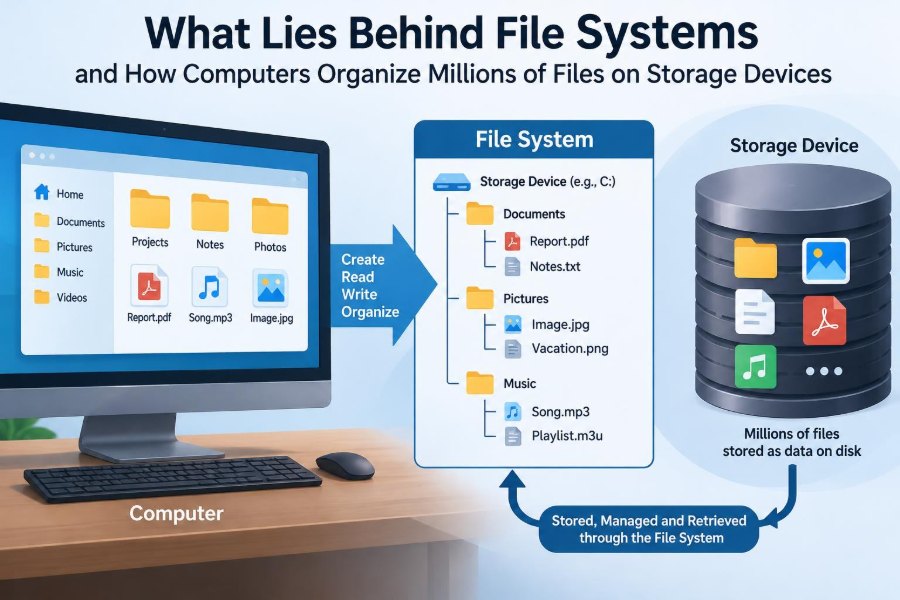

You save a report, download a photo, install an app, and plug in a USB drive. Each action feels simple: choose a name, pick a folder, and expect the file to be there later.
Behind that familiar interface, a computer must answer harder questions. Where are the file’s bytes physically stored? How can it find them quickly among millions of others? What happens if the device loses power halfway through saving?
The answer is a file system: the set of rules and data structures that turns raw storage space into files, folders, names, permissions, and usable free space.
Understanding file systems makes everyday problems less mysterious, from a drive that says it is full to a document that disappears after an unsafe USB removal. It also explains why different devices use different storage formats.
🗂️ The File System’s Core Job
A storage device provides a large sequence of places where data can be written. By itself, it does not know what a “photo,” “folder,” or “spreadsheet” is.
A file system organizes that raw capacity. It records each file’s name, size, location, ownership, timestamps, and other attributes, then offers a consistent way for programs to read and write it.
Think of a warehouse. The drive is the building; the file system is the catalog, aisle map, labels, and staff procedures that make individual boxes retrievable.
💾 From Raw Blocks to Usable Storage
Operating systems usually work with storage in fixed-size units called blocks. A block may hold a small chunk of a file, but its exact size varies by file system and configuration.
When an application saves a 3 MB presentation, the file system divides its contents into blocks and records which blocks belong to that file. The blocks do not have to sit next to one another.
This abstraction matters because the same file system concepts can operate on hard disk drives, solid-state drives, memory cards, and network storage, even though their hardware differs.
📦 Why Allocation Units Exist
File systems commonly group physical sectors into allocation units, often called clusters. A cluster is the smallest amount of space normally assigned to a file.
A very small text file may still occupy one whole cluster. If clusters are 4 KB and a note contains 500 bytes, the unused remainder of that cluster cannot normally be shared with another file.
This is called slack space. Larger clusters can simplify bookkeeping, while smaller clusters can reduce wasted space for collections of tiny files. Neither choice is automatically best for every workload.
🧾 Metadata: Data About Data
A file’s actual contents are only part of its identity. The supporting information is called metadata.
Common metadata includes the filename, file type indicators, size, creation and modification times, permissions, and pointers to the blocks holding the contents. Folders also have metadata describing their entries.
When File Explorer or Finder sorts by date or shows a file’s size, it is reading metadata rather than opening every document and calculating those details again.
🏷️ Names Are Not the File Itself
People identify files by names such as budget-2025.xlsx. Internally, many file systems treat a name as a directory entry that points to a separate record describing the file.
This distinction enables features such as renaming a file without moving all its contents. In many systems, it also enables multiple directory entries to refer to the same underlying data object.
A filename extension like .jpg is useful convention, not a universal guarantee of content. Software may inspect the file’s internal format as well as its name.
📁 Directories Build a Navigable Tree
A directory, often called a folder in graphical interfaces, is a special structure containing names and references to files or other directories. It creates the hierarchy seen in paths such as Documents/Projects/Proposal.pdf.
This hierarchy helps people group related work, but it is also an efficient lookup system. The operating system resolves a path one directory at a time until it reaches the requested item.
Different operating systems present paths differently. The underlying purpose is the same: move from a known starting point to a particular record on storage.
🧭 Paths and the Current Location
An absolute path identifies a location from a defined root, such as a drive root or the top of a mounted file system. A relative path is interpreted from the program’s current working directory.
For example, a command-line tool can open notes.txt if it is already working in the relevant folder. That same name might refer to a completely different file from another folder.
Path mistakes are a common source of “file not found” errors. The file may exist, but the program is searching in the wrong location or lacks permission to traverse part of the path.
🔎 How a Computer Finds a File
Opening a file begins with a lookup. The system reads directory information, matches each component of the requested path, and obtains the metadata record for the final item.
It then uses the recorded block locations to request the file’s contents from the storage device. Frequently used metadata and data may be kept temporarily in memory caches, making repeated access much faster.
The operating system hides this sequence behind simple actions such as double-clicking a document. That convenience depends on carefully maintained indexes and references.
🧱 Common Ways to Track File Blocks
File systems need a map from each file to its allocated space. Older and simpler designs may use a file allocation table, while other designs use per-file records containing block pointers or ranges called extents.
An extent describes a continuous run of blocks, such as “start here and use the next 200 blocks.” For a large, sequential file, one extent can describe substantial data with little metadata.
Modern designs may combine methods and optimize for different cases. The central requirement never changes: the system must reliably know which space is in use and who owns it.
🧩 Fragmentation and Scattered File Pieces
Fragmentation occurs when a file’s blocks are scattered across separate locations. It can happen gradually when files grow, shrink, and are replaced while free space is distributed around the drive.
On a traditional hard disk, scattered pieces can require more mechanical movement, which may slow some reads. Solid-state drives do not have moving heads, so the performance effects differ, though scattered allocations still add management overhead.
Fragmentation is not proof that a drive is failing, and aggressive defragmentation is not appropriate for every device. Operating systems often apply maintenance policies suited to the storage type.
🧹 Free-Space Management
Saving a new file requires more than finding any empty location. The file system must choose free blocks and update its records so no other file is assigned the same space.
Free space can be tracked with bitmaps, lists, trees, or related structures. A bitmap, for example, can use one bit per block to indicate whether that block is free or allocated.
This bookkeeping also explains why storage management takes time. Deleting or copying a file can require updates to metadata, allocation maps, directory entries, and durability records.
🗑️ What Deleting Usually Means
Deleting a file usually removes its directory entry and marks its occupied blocks as available. The system generally does not immediately overwrite every old byte because that would make deletion slower.
Until those blocks are reused, some remnants may remain on the device. Recovery tools sometimes use remaining metadata or recognizable file patterns, but success is uncertain and falls sharply after new data is written.
For sensitive information, ordinary deletion is not the same as secure erasure. The right approach depends on the device type, encryption status, organizational rules, and the level of protection required.
🔐 Permissions Control Who Can Do What
File systems commonly store access rules with files and directories. These rules may distinguish reading, changing, running, deleting, and listing content.
On multi-user systems, permissions can be based on an owner, groups, or detailed access control lists. A shared project folder might permit a team to edit documents while preventing unrelated accounts from opening them.
Permissions are a useful boundary, not a replacement for backups or encryption. An administrator or a person with physical access may have ways to bypass ordinary account-level restrictions.
🧷 Ownership, Attributes, and Timestamps
Beyond permissions, metadata can hold an owner, hidden or read-only flags, and several timestamps. Timestamp meanings vary: a modification time usually indicates content changes, while an access time may be disabled or updated less often for performance reasons.
These details help with sorting, synchronization, auditing, and troubleshooting. They are not always perfect historical evidence, because copying, restoring, changing system clocks, and application behavior can alter them.
When investigating a missing or changed file, compare timestamps carefully rather than assuming that one displayed date tells the whole story.
🪢 Links Create Alternate Routes
A symbolic link is a special entry that points to another path. It acts like a signpost: following it leads software to the target location.
A hard link, where supported, is another name for the same underlying file record. Deleting one hard link does not necessarily remove the contents if another link still refers to them.
Links are useful for shared resources and organized software layouts, but they can confuse backups and users. A symbolic link may also become broken if its target is moved or removed.
🔄 Mounting Makes Storage Available
Before an operating system can use a separate file system, it must recognize it and make it available. This process is commonly called mounting.
Some systems show a mounted device as a new drive letter. Others attach it at a folder-like location within one unified directory tree. Either way, the operating system gains a starting point for interpreting paths on that storage.
Mounting also involves checking that the file system is understandable and in a usable state. A device can be physically connected yet unavailable because its format is unsupported, damaged, locked, or not mounted.
🌐 File Systems Can Live Across a Network
Network file systems let a computer access files stored elsewhere as though they were in a familiar folder. The client sends requests over a network, while a server performs or coordinates the storage operations.
This supports shared work, central backups, and managed access. It also adds dependencies: network delays, server availability, authentication, and conflict handling can affect the experience.
A network share is not simply “another local disk.” Applications that assume instant access or ignore simultaneous edits can behave differently when files are remote.
🧠 Caching Speeds Up Everyday Work
Reading from storage is far slower than reading from main memory. For that reason, operating systems cache recently used file data and metadata in RAM.
When an application asks for the same content again, the system may serve it from memory. It can also delay some writes briefly, combining them efficiently before sending them to the device.
The trade-off is durability. Data waiting in memory may be lost during a sudden power failure, which is why well-designed systems use syncing rules, journaling, and sometimes hardware power protection.
📓 Journaling Helps After an Unexpected Shutdown
A journal is a record of planned or in-progress metadata changes. Before making complex changes permanent, a journaling file system can record enough information to replay or safely complete them after a crash.
Suppose a file is being moved while power fails. Without safeguards, the directory and allocation records could disagree. Journaling reduces the chance of such inconsistent structures.
Journaling does not guarantee that the newest contents of every open file will survive. It primarily protects file system consistency, and the exact protection depends on the file system and its settings.
⚡ Write Ordering and Safe Removal
Storage devices and operating systems may reorder or temporarily cache writes for speed. A file can appear saved in an application while some related changes are still being finalized below it.
Using an operating system’s eject or safely remove command asks it to finish pending work before disconnecting removable media. Pulling out a USB drive while its activity light is busy can interrupt those updates.
Safe removal is particularly sensible after copying files, editing documents directly on removable media, or using devices that may have delayed writes.
🛠️ File System Checks and Repair Tools
If a system detects an improper shutdown or inconsistent metadata, it may run a file system check. Repair utilities examine structures such as directories, allocation records, and journals for contradictions.
They can often restore a usable state, sometimes by reconnecting found data or removing damaged entries. However, repair is not the same as recovering every original filename, folder relationship, or byte of content.
Run repair tools with care on valuable data. If a drive shows repeated errors, copy accessible files first when possible and investigate the underlying hardware or connection problem.
🧱 Comparing Popular File System Families
No single file system suits every purpose. Compatibility, maximum file size, permissions, resilience features, and operating-system support all influence the choice.
| Family | Typical strength | Common limitation or consideration |
|---|---|---|
| FAT variants | Broad compatibility with simple removable devices | Limited features and constraints on large files in common FAT32 use |
| exFAT | Convenient for larger removable-media files across many systems | Fewer traditional permission and journaling features than some desktop file systems |
| NTFS | Windows-focused features including permissions and journaling | Cross-platform write support can vary by operating system and tools |
| APFS | Designed for modern Apple platforms and solid-state storage | Not intended as a universal exchange format |
| ext4 | Widely used, mature Linux file system | Native support is less common on other consumer operating systems |
These labels describe families and common uses, not a complete feature list. Specific versions, settings, and operating-system implementations can change the details.
🔁 Why Formatting Changes Everything
Formatting prepares a storage area for a chosen file system by creating its key metadata structures. A quick format generally creates new organizational records rather than testing or overwriting every storage location.
That is why formatting can make old files inaccessible quickly, yet some data may remain recoverable until overwritten. It also explains why formatting the wrong drive is so disruptive: the map to its contents is replaced.
Before formatting, verify the target device, copy needed files elsewhere, and choose a file system compatible with the devices that must use it.
📱 Flash Storage Has Different Needs
Solid-state storage writes data electrically rather than magnetically and has limits on how repeatedly individual cells can be programmed. Controllers distribute writes internally through wear leveling and manage erased space.
Commands such as TRIM allow an operating system to tell compatible solid-state storage which blocks are no longer needed. The device can prepare that space for future writes rather than treating it as live data.
Because the device controller may move data internally, the file system’s visible block map is not always a literal physical map of flash cells. This is one reason hard-disk assumptions do not transfer perfectly to SSDs.
📸 Snapshots and Copy-on-Write
Some file systems support snapshots, which preserve a view of data at a particular moment. Rather than copying every file immediately, they may keep old blocks only when later changes would overwrite them.
This approach, called copy-on-write in many designs, can make snapshots space-efficient at first. They are useful before upgrades, for versioning, and for backup workflows.
A snapshot is not automatically an off-device backup. If the entire drive fails, is lost, or is damaged by a destructive event, snapshots stored on that same device may be unavailable too.
🧬 Compression and Encryption at the File-System Layer
Some file systems can compress files transparently, reducing storage use for data that compresses well. Already compressed formats, such as many photos and videos, often gain little and may cost extra processing time.
File-system encryption can protect stored data when a device is lost or stolen, provided keys and recovery information are managed safely. It does not protect a file from someone already logged into an unlocked account.
These features are valuable tools, but they introduce recovery responsibilities. Lost encryption keys or forgotten recovery procedures can make legitimate data inaccessible.
🚫 Common File Organization Mistakes
Many storage problems begin with habits rather than a damaged file system. Keeping every document in one folder, using vague names, and storing the only copy on a removable drive make retrieval and recovery harder.
- Do not rely on desktop clutter or downloads as a long-term filing system.
- Use clear names that identify the subject and version, such as
client-proposal-v03.docx. - Avoid editing the sole copy of important work directly from a USB drive.
- Do not disconnect storage while files are copying or applications are saving.
- Check free space before major updates, video imports, or large exports.
Folders are for people, while metadata and search tools are for machines. A practical organization system uses both.
🛡️ Backups Solve a Different Problem
A file system helps organize and protect active storage, but it cannot by itself protect against every loss. Accidental deletion, ransomware, hardware failure, theft, fire, and account mistakes can affect an entire device or synchronized folder.
A backup is a separate copy with a recovery path. For important information, maintain copies on separate storage or services and periodically confirm that files can actually be restored.
Synchronization is helpful, but it may quickly copy deletions or corrupted changes. Version history and independent backups provide protection that a simple mirror may not.
🧭 Choosing the Right Format for a Device
Choose a file system based on the job, not on a vague idea that one format is “best.” A removable drive shared among different systems may prioritize compatibility, while a system drive may prioritize permissions, reliability features, and native support.
Ask practical questions before formatting:
- Which operating systems must read and write this device?
- Will individual files be very large?
- Does the device need account permissions or encryption?
- Is it for everyday transfer, long-term storage, or an operating system?
- Do the receiving devices support the chosen format without extra software?
Compatibility claims should be checked for the actual devices and operating-system versions involved, especially for writing rather than merely reading.
🎯 The Core Principle Behind Every File System
A file system is a structured agreement between software and storage: names point through directories to metadata, metadata points to allocated data, and protective mechanisms keep those relationships coherent.
That agreement must balance speed, space efficiency, recovery, compatibility, security, and simplicity. The best design choices differ between a camera card, an office laptop, a shared server, and an archival system.
For everyday users, the practical lesson is clear: treat filenames and folders as the visible layer of a much larger map. Save carefully, remove devices safely, use suitable formats, and keep separate backups of work that matters.
File systems make enormous amounts of storage usable by maintaining a trustworthy map between human-friendly files and the blocks where their data lives. Once that map is understood, safer and more deliberate storage habits follow naturally. 💾🗂️🔐