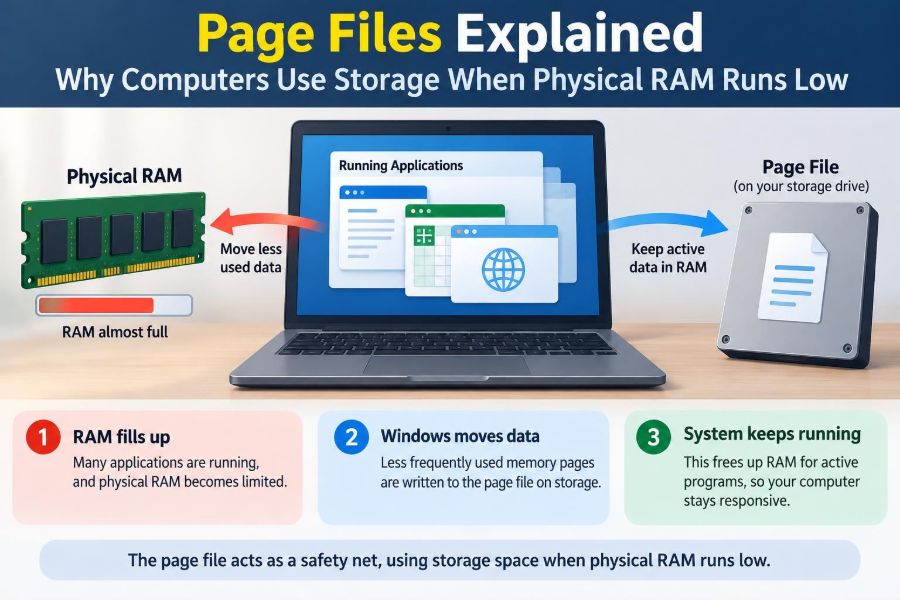

You are editing a presentation, keeping a video call open, browsing with dozens of tabs, and perhaps running a spreadsheet in the background. Then the computer becomes less responsive. A window takes a moment to appear, switching apps feels sticky, and the storage activity light may suddenly become busy.
It is tempting to assume that the processor has become slow. Often, the processor is waiting rather than working: the operating system is moving information between fast memory and much slower storage because the active programs need more memory than physical RAM can comfortably provide.
This behavior involves a page file, also called swap space or virtual memory backing storage in different systems. It is one of the quiet mechanisms that helps a computer remain usable instead of immediately refusing to open another program.
Understanding page files explains a familiar puzzle: why a computer with a fast SSD can still feel slow when memory runs low, and why deleting or disabling a system-managed file is rarely the performance improvement it appears to be.
🧠 RAM Is the Computer’s Working Area
Random-access memory, or RAM, is the fast temporary workspace used by running programs and the operating system. When you open a document, launch a browser, or load a game level, the data and instructions currently needed are placed in RAM.
RAM is fast enough for the processor to access repeatedly with very little delay. It is also volatile: its contents disappear when power is removed. That makes RAM excellent for active work but unsuitable as ordinary long-term storage.
💾 Storage Has a Different Job
An SSD or hard disk stores files persistently. It holds your operating system, applications, documents, photos, and many other files even while the computer is turned off.
Storage is vastly slower than RAM for the small, frequent accesses programs make while running. Even a quick modern SSD cannot serve as a direct substitute for RAM; the difference is especially noticeable when many small pieces of data must be fetched unpredictably.
📚 The Desk-and-Archive Analogy
Think of RAM as the space on your desk and storage as an archive cabinet. Your desk holds the papers you are actively using. The cabinet holds everything else safely, but retrieving and filing papers takes longer.
A page file gives the operating system a place in the archive for some desk material that is not needed right now. This makes room for the next task, but it becomes inconvenient if you must repeatedly retrieve papers that were just filed away.
🗂️ What a Page File Actually Is
A page file is an area of storage reserved for memory management. On Windows, it is commonly represented by a hidden system file named pagefile.sys. Linux generally uses a swap partition or swap file; macOS manages similar virtual-memory mechanisms internally.
It is not a folder where you manually save projects, and it is not a copy of every file on the drive. The operating system controls it, using it to hold selected portions of memory when that is useful or necessary.
🧩 Virtual Memory Creates a Larger Address Space
Modern operating systems use virtual memory. Each program is given its own virtual address space: a logical map of memory addresses it can use without directly seeing the complicated placement of data in physical RAM.
The operating system and processor’s memory-management hardware translate those virtual addresses into locations in RAM. Some virtual-memory regions may instead be backed by a file, an executable, or page-file space on storage. This design improves isolation between programs as well as flexibility.
📄 Why Memory Is Divided into Pages
Memory is managed in fixed-size chunks called pages. The exact page size depends on the operating system and hardware, but the core idea is the same: the system moves and tracks manageable blocks rather than individual bytes.
When a program needs an address whose page is not currently in RAM, it triggers a page fault. Despite the alarming name, a page fault is often normal. The system simply finds the page and makes it available in RAM.
🚦 A Page Fault Is Not Always a Problem
A soft page fault can be satisfied without reading storage, perhaps because the page is already elsewhere in RAM, such as in a file cache. This is a routine part of normal operation.
A hard page fault requires data to be read from storage. Occasional hard faults are expected when opening programs or files. Frequent hard faults during active work, however, can create visible delays because storage must serve as a memory overflow area.
🔄 What Happens When RAM Gets Crowded
When available RAM becomes limited, the operating system decides which pages are least useful to keep immediately available. It may write modified, inactive pages to the page file, then reuse their RAM for data that is needed sooner.
If a displaced page becomes necessary later, the system reads it back into RAM. To create room, another page may have to leave. This continual exchange is called paging, and it is beneficial only while the amount of movement remains manageable.
🎯 The System Does Not Simply Move “Unused Apps”
Memory management works at page level, not just application level. A single program can have some pages that are actively used and others that have not been touched for a while. Its code, settings, documents, and temporary data may therefore be treated differently.
Operating systems also consider whether a page can be reconstructed. For example, unmodified program code can often be read again from the application’s original file, while modified data may need page-file space because it exists nowhere else in that form.
⚖️ RAM, Storage, and Page Files Compared
| Resource | Primary purpose | Speed in active use | Survives shutdown? |
|---|---|---|---|
| RAM | Current program work and cached data | Very fast | No |
| SSD or hard disk | Long-term files and installed software | Much slower than RAM | Yes |
| Page file or swap space | Storage-backed support for virtual memory | Limited by storage speed | Not a user archive |
The page file belongs on storage, but its role is tied to memory pressure. It should not be judged like ordinary free disk space or like a backup destination.
🐢 Why Heavy Paging Feels So Slow
When the computer must repeatedly evict pages and retrieve them moments later, it can enter thrashing. The system spends a large share of its time moving memory pages instead of letting programs perform useful work.
The processor may appear underused during this slowdown because it is often waiting for data. An SSD reduces the delay compared with a mechanical hard drive, but it cannot remove the fundamental gap between storage access and RAM access.
🌐 The Browser-Tab Scenario
Consider a hypothetical laptop with modest RAM. A user opens a video meeting, a large spreadsheet, an image editor, and many browser tabs. Each tab may use memory for page content, scripts, images, media buffers, and extensions.
The operating system can keep the session alive by paging out less recently used material. Returning to an old tab or switching back to the image editor may then cause a pause while its needed pages are brought back. Closing unused tabs reduces demand more directly than hoping storage will behave like extra RAM.
🎮 Memory-Hungry Workloads
Large games, virtual machines, software development tools, database workloads, video editing, scientific computing, and high-resolution creative applications can all require substantial memory. Their needs vary with project size, settings, data, and concurrent programs.
A page file lets such workloads exceed physical RAM in some situations, but it is a safety margin rather than a promise of smooth performance. If a task regularly depends heavily on paging, more RAM or a lighter workload is usually the better fix.
🛡️ Why Operating Systems Keep a Page File
Page files provide flexibility. They allow inactive memory to be moved aside, support larger committed memory demands, and give the operating system room to manage changing workloads without failing immediately.
They can also support diagnostic crash dumps on some systems. The precise requirements depend on configuration and the kind of dump selected, so users who need crash analysis should follow their operating system’s documentation rather than assuming any page-file setting will work.
📌 Committed Memory and Physical RAM Are Different
A program can ask the operating system to reserve memory for future use. On Windows, the total amount of memory that can be committed is influenced by physical RAM plus available page-file capacity. This is why a page file can matter even before obvious disk paging begins.
Committed memory is not identical to the amount of RAM actively occupied at one instant. Still, when the system approaches its commit limit, applications may fail to allocate memory or may become unstable. Adequate virtual-memory backing gives the operating system more room to manage commitments safely.
🔍 Why the Page File Can Look Large
A large page file does not prove that the computer is constantly slow or that all of its contents are actively being used. The operating system may reserve capacity based on memory, workload patterns, crash-dump needs, and its own policy.
Likewise, a page file that has grown is not automatically a problem to clean up. It is managed system data. The useful question is whether the computer is experiencing memory pressure, slowdowns, allocation errors, or insufficient free storage.
⚙️ System-Managed Size Is Usually Sensible
For most people, the safest setting is a system-managed page file. The operating system can adjust its size within practical limits as workload requirements change.
Manual sizing can be reasonable in specialized environments with known requirements, limited disk layouts, or controlled software workloads. It requires care: setting the maximum too low can cause allocation failures, while choosing a very large fixed size consumes storage without making RAM faster.
🚫 Why Disabling the Page File Often Backfires
A common myth says that computers with plenty of RAM should always disable the page file. This can reduce available commit capacity, interfere with certain applications or diagnostic features, and turn a recoverable period of memory pressure into an out-of-memory failure.
More RAM reduces reliance on paging; it does not make virtual-memory management irrelevant. Unless you have a specific, tested reason and understand the consequences for your operating system and workload, leaving the default management in place is the practical choice.
📉 Free Disk Space Still Matters
The page file needs room on a storage volume, and so do operating-system updates, temporary files, caches, restore points, and applications. A nearly full system drive gives the operating system less flexibility and can create unrelated performance and update problems.
Freeing space is worthwhile when storage is crowded, but deleting random system files is not the approach. Use built-in storage-management tools, remove unneeded applications, move personal files carefully, and empty temporary data through supported methods.
🔧 SSDs Change the Experience, Not the Principle
SSD-based page files are much more responsive than page files on traditional hard disks. That makes occasional paging less disruptive and helps the operating system recover pages more quickly.
Yet an SSD remains far slower than RAM for this purpose. Concern about ordinary page-file writes wearing out a modern SSD is usually less useful than focusing on the actual bottleneck: if frequent paging is visible, the workload or available RAM deserves attention first.
🧱 Mechanical Drives Make Memory Pressure Obvious
Hard drives rely on moving parts and are particularly slow at scattered, small reads and writes. Heavy paging on a hard drive can make a computer feel frozen even though it is still working through requests.
Replacing a hard drive with an SSD can greatly improve general responsiveness, including page-file activity. However, an SSD upgrade and a RAM upgrade solve related but different problems: one speeds storage access, while the other reduces the need to use storage as memory overflow.
📊 How to Recognize Memory Pressure
Warning signs include applications taking a long time to regain responsiveness after switching, persistent storage activity during simple tasks, browser tabs reloading unexpectedly, and messages that memory cannot be allocated. These symptoms can have other causes, so they are clues rather than proof.
Use the operating system’s performance-monitoring tools to look at memory usage, available RAM, committed memory, and disk activity over time. Observe the computer while reproducing the slowdown. A one-time spike after launching a large program is different from sustained pressure during ordinary work.
🧪 Diagnose Before Changing Settings
Start by identifying which processes consume memory. A browser with many extensions, a virtual machine left running, a background sync tool, or a program with a memory leak can be more relevant than the page-file configuration.
A memory leak occurs when software keeps allocating memory it no longer needs. Restarting the program may temporarily help, but updating, reconfiguring, or replacing the faulty software addresses the underlying cause more effectively.
🧹 Practical Ways to Reduce Demand
When memory pressure is real, reduce the amount of simultaneous work before making risky system changes. Small adjustments can restore responsiveness quickly.
- Close applications and browser tabs you are not actively using.
- Restart a program that has grown unusually large in memory use.
- Disable unnecessary browser extensions and startup applications.
- Use lower-resolution assets or smaller datasets when a project permits it.
- Shut down unused virtual machines instead of merely leaving them suspended.
- Install software updates that may address known stability or memory-use issues.
➕ When Adding RAM Is the Right Upgrade
More RAM is most helpful when the same workload regularly causes high memory use and paging. It gives the operating system more fast workspace, allowing more active program data to remain resident instead of being moved to storage.
Check the device’s supported memory type, capacity, accessible slots, and upgradeability before buying modules. Many thin laptops have soldered memory that cannot be upgraded, while desktops and some laptops offer straightforward expansion. Matching the workload matters more than pursuing a particular capacity without evidence.
🧭 When a Faster Drive Helps More
If the computer still uses a mechanical hard drive, replacing it with an SSD often improves boot times, application launches, file operations, and occasional page-file access. It can make an older system feel substantially more responsive.
But a fast drive will not cure a program that needs far more active memory than the machine has. If monitoring shows repeated memory exhaustion during normal work, additional RAM, fewer concurrent tasks, or a less demanding workflow is the more targeted response.
🪟 Operating Systems Use Different Names
The concepts are shared, but terminology varies. Windows commonly uses “page file” and exposes virtual-memory settings. Linux uses “swap,” which may be a dedicated partition or a file. macOS handles swap files automatically as part of its memory-management system.
The best advice also varies by platform and version. Avoid copying a tuning guide written for a different operating system, an old release, or a server environment. Defaults are generally designed for broad compatibility.
🔐 A Page File Is Not a Privacy Eraser
Because page-file contents may include portions of data that were in memory, organizations with strict security requirements may consider encryption and shutdown policies as part of a broader device-security plan. The exact behavior and available controls depend on the operating system.
For most personal users, full-disk encryption, a strong account password, and current security updates are more meaningful safeguards than manually manipulating the page file. Do not delete or edit it while the operating system is running.
🧰 Page Files and Hibernation Are Different
Hibernation saves enough system state to storage so that the computer can power down and later resume. Its purpose is session restoration after power is removed.
A page file supports normal virtual-memory operation while the system is running. Both use storage and relate to memory, but they are separate mechanisms with different files, behavior, and configuration implications.
❌ Common Page-File Misunderstandings
- “Using a page file means my RAM is broken.” No. Virtual memory is a standard operating-system feature.
- “Any page fault means the computer is failing.” No. Many page faults are routine and do not require storage access.
- “A larger page file makes the computer faster.” No. It increases potential backing capacity, not RAM speed.
- “Deleting the file frees useful space permanently.” The operating system will normally recreate or manage it as needed.
- “No page file is always best with lots of RAM.” It can create compatibility and allocation problems without a clear performance benefit.
🧑💻 A Sensible Troubleshooting Order
When a computer slows down, begin with the workload rather than the page-file control panel. Check memory and disk activity, identify the demanding process, close or update what is unnecessary, and ensure the system drive has reasonable free space.
If the pattern persists, consider whether the hardware matches the work. An SSD upgrade helps storage-bound systems; a RAM upgrade helps recurring memory pressure. Keep virtual-memory settings at their defaults unless a documented, tested requirement calls for a change.
✅ The Core Principle to Remember
A page file is a carefully managed fallback area that lets an operating system balance limited fast memory against abundant but slower storage. It protects flexibility and stability, but it cannot transform storage into RAM.
The best outcome is not a page file that never exists or never gets touched. It is a system with enough RAM for its usual workload, enough free storage for healthy operation, and an operating system allowed to manage virtual memory intelligently.
Page files keep computers functioning when RAM is under pressure, while sufficient physical RAM is what keeps demanding work smooth. Treat the page file as a useful safety net, not a shortcut around a memory shortage. 🧠💾⚙️