
You plug in a new mouse, connect a second monitor, or press Print—and expect the computer to respond. Most of the time, it does. The device seems to become part of the system almost immediately.
But when a printer produces nonsense, audio disappears after an update, or a USB device is detected but will not work, the familiar advice is often: “Check the driver.” That raises a useful question: what is a driver actually doing, and who is in charge when software needs something physical to happen?
The answer is not one program giving orders to everything else. A computer uses a layered chain of authority, translation, and safety checks. Hardware, firmware, drivers, the operating system, applications, and users each have a different role.
Understanding that chain makes troubleshooting less mysterious. It also explains why installing random drivers can be risky, why restarts sometimes help, and why an operating system can show a device without being able to use every feature it offers.
🧭 The Short Answer: The Operating System Coordinates
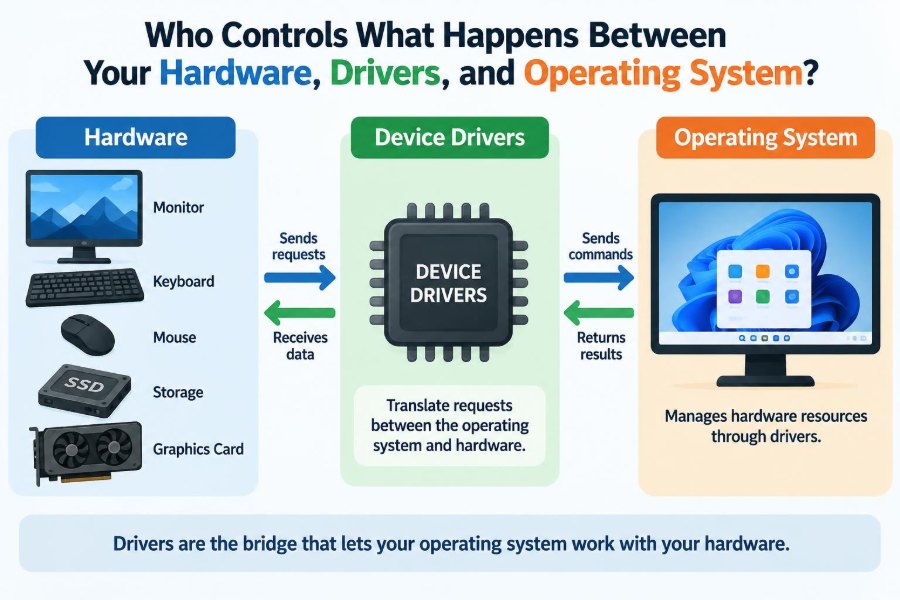
The operating system (OS) coordinates normal access to hardware. Windows, macOS, Linux, Android, and iOS decide which programs may request services, which driver handles a device, and when that device gets time on shared resources.
Yet the OS does not directly know every electrical detail of every printer, graphics card, network adapter, or storage controller. It relies on drivers and device firmware to turn general requests into device-specific actions.
Think of the OS as an air-traffic controller. It organizes safe movement, but pilots and aircraft systems still perform specialized tasks.
🧱 Hardware Is the Physical Foundation
Hardware is the physical equipment: processor, memory, display, keyboard, disk, camera, Wi-Fi chip, and thousands of smaller controllers. Hardware performs work by processing signals, storing bits, moving data, or interacting with the outside world.
On its own, hardware does not understand an application’s intentions. A photo editor may ask to draw an image; the graphics hardware ultimately receives carefully formatted commands and data, not the high-level idea of “make this look sharper.”
🔌 Devices Speak Their Own Technical Languages
Different devices expose different registers, command sets, timing rules, and capabilities. A storage controller needs commands about reading blocks and reporting errors. A sound device needs audio buffers, sample rates, and output settings.
Those differences are why one universal piece of software cannot meaningfully operate every possible device at the lowest level. There must be a translation layer between broad OS requests and specific hardware behavior.
🚗 Drivers Are Specialized Translators
A device driver is software that lets the operating system communicate with a particular class or model of hardware. It translates standardized operating-system requests into commands the device or its controller understands.
For example, an application may request that a document be printed. The OS manages the print job; a printer driver converts its content and settings into a form suitable for that printer. The device then carries out the work.
Drivers also report information back: whether a device is ready, what features it supports, whether it encountered an error, and sometimes how much data has been transferred.
🗂️ One Driver Does Not Always Mean One Device
The relationship is not always one-to-one. A single driver may support many devices built to the same standard, while a complex device can rely on several drivers and services.
A modern laptop, for instance, may have separate components for graphics, audio, Bluetooth, touch input, storage, camera, and power management. A USB docking station can expose network, display, audio, and input functions at once.
🧠 The Kernel Has the Closest OS Access
The most privileged core of an operating system is commonly called the kernel. It manages processor time, memory, hardware access, and the boundary between ordinary programs and sensitive system operations.
Many drivers run in or close to this privileged environment because they need to interact with hardware efficiently. That power comes with risk: a serious driver bug can freeze, corrupt, or crash a whole system rather than merely closing one application.
Some systems increasingly place suitable drivers in less privileged user-space processes. This can improve fault isolation, though it is not practical for every performance-sensitive task.
🛡️ Privilege Keeps Applications at a Safe Distance
Ordinary applications are generally not allowed to directly rewrite device registers or take over memory used by the operating system. If every app had that access, a faulty game or malicious download could interfere with storage, networking, displays, or other programs.
Instead, an application asks through approved interfaces. A video call app requests camera frames through the OS. A browser asks the OS to send network traffic. The OS checks permissions and routes work to the appropriate services and drivers.
📨 APIs Are the Requests Programs Actually Make
An API, or application programming interface, is a defined way for software to request a service. APIs hide much of the hardware complexity from application developers.
A program that saves a file normally uses file-system APIs. It does not need to know whether the file ends up on an internal solid-state drive, an external disk, or a network location. The OS and lower layers handle the path.
🧩 The Stack From App to Device
A useful simplified model is a stack of layers. Each layer has a narrower, more specialized responsibility than the one above it.
| Layer | Main responsibility | Example |
|---|---|---|
| Application | Expresses a user task | “Print this report” |
| Operating system and services | Applies permissions and coordinates resources | Queues the print job |
| Driver | Translates to device-specific operations | Formats commands for the printer |
| Firmware and hardware | Executes local control and physical action | Moves paper and applies ink or toner |
Real systems can include more layers, but this model explains why an issue can occur at several different points.
⚙️ Firmware Controls the Device From Within
Firmware is software stored on or near a device itself. It runs on embedded processors inside components such as routers, SSDs, printers, keyboards, graphics cards, and motherboards.
The operating system may tell an SSD to read data, but the SSD’s firmware decides many low-level details involved in carrying out that request. Similarly, a printer’s firmware controls mechanisms and sensors after receiving a job.
Firmware is not the same as a driver. A driver runs as part of, or alongside, the OS; firmware runs inside the device or system hardware.
🚀 BIOS and UEFI Begin Before the OS
Before the operating system is running, motherboard firmware takes charge. Traditional BIOS and modern UEFI firmware initialize essential hardware, perform early checks, identify a bootable system, and start the boot process.
After the OS loads, it assumes most day-to-day control. Firmware still provides configuration and low-level services, but it is not normally deciding which desktop app gets to use the microphone.
🔍 Device Discovery Explains “Plug and Play”
When hardware is connected or the computer starts, the system needs to identify it. This process is often called enumeration. Buses such as USB and PCI Express provide ways for the system to discover connected devices and read identifying information.
The OS uses that information to find a compatible driver. If one is already included with the OS, the device may work at once. Otherwise, the OS may offer a basic function, seek an approved driver source, or ask the user to install software.
🏷️ Hardware IDs Help the OS Match a Driver
Devices report identifiers that describe a manufacturer, product, class, or supported protocol. The operating system compares these identifiers with driver information to choose a match.
This is why a driver intended for a similar-looking device may be wrong. Two adapters can use different chips, revisions, or features despite sharing a brand name or external shape.
📦 Generic Drivers Trade Features for Compatibility
Operating systems include generic drivers for common standards such as keyboards, basic mice, USB storage, and many displays. They prioritize broad compatibility and safe basic operation.
A generic driver may not expose every specialized feature. A graphics device might display an image with a basic driver but lack optimized 3D performance, advanced power controls, or multiple-display functions until its vendor driver is installed.
Generic does not mean bad. It often means the device follows a well-defined standard closely enough that vendor-specific software is unnecessary for ordinary use.
🎛️ Drivers Also Describe Capabilities
Drivers do more than send commands. They tell the OS what a device can do: supported resolutions, audio formats, power states, display modes, input features, or storage behavior.
That information shapes what users see in settings. If a control panel does not offer a feature, the cause may be a hardware limitation, a missing driver capability, a disabled policy, or a connection that cannot carry the required signal.
⏱️ Interrupts Let Hardware Ask for Attention
Computers cannot efficiently ask every device thousands of times per second, “Do you have anything to report?” Instead, hardware often uses an interrupt to signal that it needs attention.
A network controller can alert the processor when data arrives. A keyboard controller can signal a key press. The OS responds through the relevant driver, then resumes other work. This event-driven approach helps computers handle many activities without constant wasteful checking.
🧺 Buffers Smooth Out Speed Differences
Devices operate at different speeds. A processor can handle data far faster than a printer can place marks on paper, and audio needs a steady stream even when other programs are busy.
A buffer is temporary memory that holds data while one part of the system catches up with another. Audio buffers help prevent gaps; print queues let users continue working while pages are produced; disk caches can combine or delay operations.
Buffers improve smoothness, but they can also make an action appear complete before the physical device has finished. A file copy window may disappear while the drive still completes final writes.
🧮 Scheduling Decides Who Gets Shared Resources
Several programs can want the same resource at once. The OS scheduler decides how processor time is shared, while other subsystems coordinate memory, storage, network access, and devices.
For a shared printer, jobs are normally queued. For a shared GPU, the OS and graphics stack manage competing workloads. For a camera, platforms may restrict simultaneous access because the hardware or privacy model does not allow unrestricted sharing.
🔒 Permissions Answer “Who Is Allowed?”
Control is not only technical; it is also about authorization. The OS may require permission before an app accesses a camera, microphone, location service, removable storage, or Bluetooth device.
Administrative privileges matter for driver installation because drivers can receive deep system access. A standard user may use a device through an existing driver without being allowed to add or replace the driver itself.
🪪 Driver Signing Builds a Trust Check
Many operating systems use driver signing, where a driver package is cryptographically associated with a publisher and checked for tampering. This does not guarantee that software is flawless, but it helps the OS reject many altered or untrusted packages.
Security policies vary by platform and configuration. The practical lesson is consistent: obtain drivers through the OS update mechanism or the hardware manufacturer’s official support channel whenever possible.
🔄 Updates Can Fix Problems—and Change Behavior
Driver updates may add support for newer hardware, correct bugs, improve stability, address security weaknesses, or adjust performance and power use. Firmware updates can address issues inside the device itself.
They can also introduce incompatibilities or change defaults. Updating merely because a newer version exists is not always necessary for a stable system, especially for specialized equipment. When an update solves a known problem or addresses a security concern, it is usually more clearly justified.
🧪 A Printer Problem Has Several Possible Owners
Suppose a hypothetical office printer appears online but prints blank pages. The application may be producing a malformed document; the print service may have a stuck queue; the driver may have selected an unsuitable page description mode; the printer firmware may be confused; or toner, paper, and mechanical parts may be involved.
“The printer is broken” is therefore not a diagnosis. The symptom helps narrow the layer, but it does not identify it alone.
🌐 Network Hardware Adds More Layers
Networking makes the chain longer. An app sends data through the OS networking stack, then through a Wi-Fi or Ethernet driver, network hardware, a router, an internet provider, and remote systems.
A Wi-Fi failure may result from an airplane-mode setting, authentication issue, driver problem, router configuration, weak signal, DNS issue, or service outage. Seeing the Wi-Fi icon is evidence that some layers work—not proof that every layer beyond it works.
🖥️ Graphics Drivers Are Especially Visible
Graphics drivers are prominent because displays, games, video editing, and design tools place demanding requirements on the GPU. They coordinate rendering commands, memory allocation, display timing, color handling, and sometimes compute workloads.
Because graphics stacks are complex, an incorrect or unstable driver can lead to flickering, poor performance, missing display modes, or application crashes. It does not follow that every visual issue is a driver issue; cables, monitors, overheating, and application settings can produce similar symptoms.
🧯 Why Restarting Can Actually Help
A restart clears temporary memory, stops stuck processes, reloads drivers, and makes the OS initialize devices again. That can recover from a transient state such as a stalled service, failed device handshake, or resource conflict.
Restarting does not repair damaged hardware or permanently fix a broken driver. It is a sensible first diagnostic step because it changes many temporary conditions at once.
🔧 A Practical Troubleshooting Order
Start with observations that distinguish layers rather than making immediate assumptions. Ask what changed, whether the device works elsewhere, and whether the failure affects one app or the whole computer.
- Check physical connections, power, ports, cables, and obvious device status indicators.
- Restart the relevant device and the computer when appropriate.
- Test with another application, user account, port, cable, or computer if available.
- Review OS settings, permissions, and error messages.
- Check the installed driver and use an official update or rollback path if evidence points there.
- Consider firmware updates only with the correct model, stable power, and manufacturer instructions.
Back up important data before changes involving storage, firmware, or major driver replacements. Those tasks have more potential impact than adjusting a normal application preference.
⚠️ Common Driver Mistakes to Avoid
A frequent mistake is downloading a “driver updater” from an unfamiliar site. Such tools may identify hardware incorrectly, bundle unwanted software, or offer drivers with unclear origin. The safest source is usually the computer maker, device maker, or operating system’s own update service.
- Do not install a driver solely because its name sounds close to your device.
- Do not interrupt a firmware update by removing power or disconnecting the device.
- Do not assume removing a driver is harmless when it supports storage, networking, graphics, or input.
- Do keep a note of the current version and recovery options before changing a working critical driver.
🧰 Device Manager and Similar Tools Show Clues, Not Verdicts
Operating systems provide utilities that list detected hardware and driver status. They are useful for identifying a device, checking whether a driver loaded, viewing errors, and finding version details.
But a “working properly” status generally means the OS can communicate at a basic level. It may not verify every advanced feature, every cable condition, or the behavior of every application that uses the device.
🧑💻 Developers Program Against Abstractions
Most software developers target OS APIs and frameworks rather than individual devices. A developer uses a camera API, audio API, file API, or graphics API; the OS chooses the available compatible path underneath.
This abstraction makes software portable across many machines. Its trade-off is that a program may not have direct access to every unusual device capability unless the OS and driver deliberately expose it.
🏢 Manufacturers, OS Vendors, and Users Share Responsibility
Hardware manufacturers design devices and often supply firmware and drivers. Operating-system vendors define interfaces, security requirements, and update mechanisms. Computer manufacturers may customize drivers for a particular laptop or desktop design.
Users and administrators decide what to install, which permissions to grant, and when to update. No single party controls every outcome, which is why compatibility problems can require coordination across several teams.
📚 The Core Principle: Layers Divide Control
Between hardware and an application, control is deliberately divided. Firmware handles device-local behavior. Drivers provide device-aware translation. The kernel and OS enforce access rules, allocate shared resources, and present consistent services. Applications request outcomes through those services.
This design is not needless complexity. It allows one operating system to support enormous variety while limiting unsafe direct access and giving programs stable ways to work across different machines.
When something fails, look for the layer that owns the specific behavior: physical connection, firmware, driver, OS service, permissions, application, or network. That question is more useful than blaming the nearest visible component.
✅ Bringing the Chain Into Focus
A computer works because its layers cooperate, not because one layer does everything. The OS is the daily coordinator, drivers are the specialized interpreters, firmware governs low-level device actions, and hardware performs the physical work.
Knowing these roles helps you make safer choices: use trusted updates, check permissions, test the simplest causes first, and treat driver changes as system-level changes rather than casual downloads.
The most useful way to understand a device problem is to follow the request from the application, through the operating system and driver, to the firmware and hardware that must complete it. That chain turns many confusing failures into solvable questions. 🖥️🔧🔍