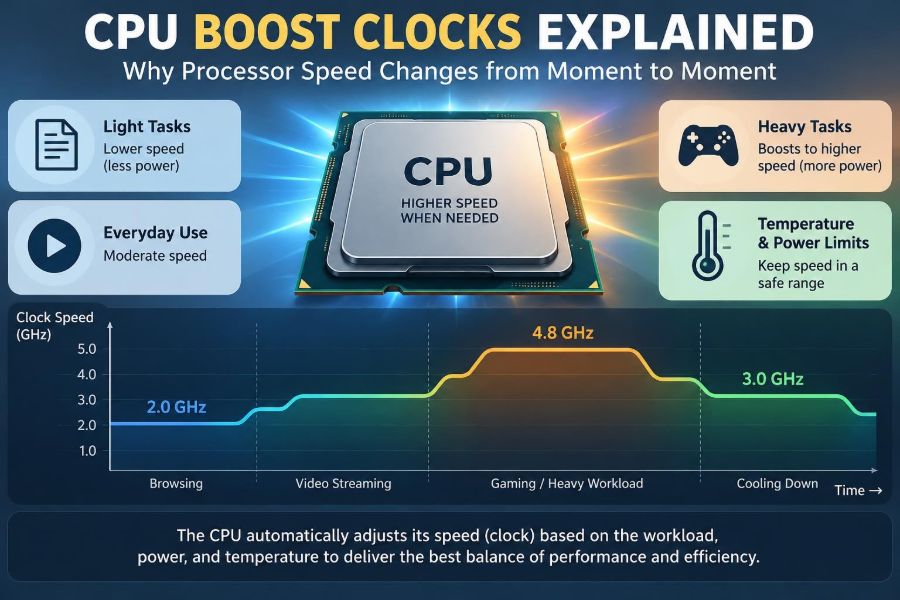

You open a large spreadsheet, start a video call, and then launch a game. A monitoring app shows your processor jumping from a quiet low frequency to a much higher number—then dropping again a moment later. Nothing is necessarily wrong with the computer.
Many people expect a CPU to run at one advertised speed all day. Modern processors do not work that way. Their clock speed changes constantly because the work, temperature, power limits, and available cooling are always changing.
This behavior affects everyday questions: Why does a laptop feel fast for a short task but slow down during a long export? Why is the “up to” speed on the box not always visible? Why do two computers with the same CPU sometimes perform differently?
Understanding boost clocks turns those changing numbers from a mystery into a useful clue about how a system is balancing speed, heat, battery life, and reliability.
⚙️ The basic idea of CPU clock speed
A CPU clock is a timing signal that coordinates the processor’s work. Clock speed, measured in hertz, indicates how many timing cycles occur each second. Gigahertz (GHz) means billions of cycles per second.
A higher clock can allow a processor to complete more work in a given time, but it is not a complete measure of performance. Different CPU designs can accomplish different amounts of work in each clock cycle.
🏷️ Base clock versus boost clock
The base clock is a conservative frequency a processor is designed to sustain under a defined, long-running workload and power setting. The boost clock, often described as turbo frequency, is a higher speed the CPU may use when conditions allow.
“Up to 5 GHz” means the processor can reach that frequency in suitable circumstances. It does not mean every core will run at 5 GHz continuously, or that every program will benefit equally.
📈 Why CPUs do not stay at one speed
Running at maximum frequency all the time would waste energy while the computer is waiting for input, reading storage, or displaying an idle desktop. It would also create unnecessary heat and fan noise.
Instead, the processor raises speed for demanding work and lowers it when demand fades. This automatic adjustment is called dynamic frequency scaling.
🚦 Workload demand starts the decision
The operating system and CPU can detect when threads need processing time. A thread is a stream of instructions within a program, such as one part of a browser, game, or rendering application.
When a few threads suddenly need quick results, the CPU may boost one or several cores. When little work is waiting, it can reduce frequency and move cores into lower-power states.
🧵 Single-core boost and all-core boost
Maximum advertised boost speed commonly applies to one core, or a small number of preferred cores, rather than every core at once. This is useful because many everyday tasks depend heavily on one main thread.
In a long video render or software build, many cores may be busy together. Total performance can be excellent, but the clock on each core is often lower than the CPU’s peak single-core boost.
| Workload pattern | Typical boost behavior | Example |
|---|---|---|
| One demanding thread | One or a few cores may reach very high clocks | Opening a complex document |
| Many active threads | More cores boost, usually at a lower shared level | Video encoding |
| Light or idle work | Clocks fall to save power | Reading a static webpage |
🔥 Power rises faster than clock speed
Increasing frequency requires the CPU to switch circuits more often. To remain stable at higher speeds, it may also need more voltage. That combination can increase power use sharply rather than in a simple one-to-one line.
This is why the final stretch toward a very high boost frequency can be energetically expensive. A small speed gain may create noticeably more heat.
🌡️ Temperature sets a practical boundary
Heat must travel from the processor into its cooler and then into the surrounding air. If the chip approaches its temperature target, it reduces speed, voltage, or both to protect itself.
This response is normal. It is often called thermal throttling when temperature is the limiting factor, though people sometimes use that term loosely for any clock reduction.
❄️ Cooling changes sustained performance
A larger heatsink, effective thermal paste, good airflow, and a capable fan can remove heat more quickly. Better cooling does not make a CPU architecture faster by itself, but it can give the processor more room to sustain its allowed boost behavior.
Desktop computers generally have more cooling capacity than thin laptops. Two systems with the same CPU can therefore deliver different results during long workloads.
🔌 Power limits matter as much as temperature
A processor operates within power rules set by its manufacturer and, often, by the computer maker. These rules determine how much electrical power it may use for brief bursts and for extended operation.
Even a cool CPU may reduce clocks if it reaches a configured power limit. Conversely, a well-cooled desktop may hold higher clocks because its board and cooling system permit more sustained power.
⏱️ Short boosts use available thermal headroom
At the beginning of a demanding task, the chip and cooler are relatively cool. The CPU can often use a short high-power boost before the cooler becomes saturated with heat.
Think of sprinting up a flight of stairs versus maintaining that pace for an hour. Short boosts make computers feel responsive, while sustained limits prevent heat from building indefinitely.
🧠 The CPU makes many decisions at once
Modern boost systems evaluate more than one number. They consider active cores, temperature sensors, power draw, current limits, voltage requirements, workload type, and quality differences among individual cores.
The exact rules differ between processor families and computer manufacturers. The useful general principle is that boost is an automatic negotiation between performance and safe operating conditions.
🎯 Preferred cores can reach higher peaks
During manufacturing, tiny variations mean some cores can run a little more efficiently than others. Many modern CPUs identify their best-performing cores and direct lightly threaded work toward them when possible.
This helps a CPU deliver strong responsiveness without requiring every core to operate at its most demanding frequency. It also explains why a monitoring tool may show one core behaving differently from its neighbors.
📊 Why monitoring tools show jumping numbers
Monitoring software samples activity at intervals, while CPUs can change frequency extremely quickly. A number displayed once per second may be an average, a recent peak, or a brief snapshot depending on the tool.
Do not assume a fluctuating graph signals instability. Rapid movement between low and high clocks is often exactly what an efficient processor should do.
🛌 Low clocks are usually a good sign
A low frequency at the desktop does not automatically mean the computer is underperforming. When there is little useful work to do, reducing clocks lowers energy use and heat.
For a battery-powered device, this behavior is especially valuable. The system can save power during reading and waiting, then boost quickly when you edit a photo or load a page.
🔋 Battery mode changes the balance
Laptops commonly use different power policies on battery and while plugged in. Battery-focused modes may limit sustained power or make boost less aggressive to reduce heat, noise, and battery drain.
This is a design choice, not always a fault. If performance matters more than runtime for a particular task, check the operating system’s power mode and the laptop maker’s control software.
🔧 Laptop design creates trade-offs
A thin, quiet laptop has limited space for heatsinks, fans, and airflow. A thicker workstation or gaming laptop can usually move more heat, although it may be heavier and louder.
CPU names alone cannot reveal sustained performance. Reviews and real workload testing are particularly useful when comparing laptops with identical processor models.
🖥️ Desktop motherboards can alter behavior
On desktop systems, motherboard firmware settings may follow standard limits, enforce stricter limits, or allow more generous ones. Some boards enable performance-oriented settings by default.
More power can raise sustained clocks, but it can also raise temperatures, fan noise, and electricity use. It is not automatically the best setting for every user or cooler.
🧩 The operating system has a role
The operating system decides which tasks run, when they run, and often which cores receive them. Its scheduler works with CPU hardware to place urgent work efficiently and allow unused cores to rest.
Background tasks can affect this picture. File syncing, antivirus scans, browser tabs, or updates may keep cores active and reduce the headroom available to a foreground task.
🗂️ Not every slow task is CPU-bound
A program can appear slow because it is waiting on storage, memory, a network connection, or the graphics processor. In that situation, raising CPU clock speed may make little difference.
For example, a game limited by the GPU may show modest CPU use even when frame rate is low. A large file transfer may be limited by the drive or network rather than processor speed.
🧮 Clock speed is not the same as performance
Performance depends on frequency, instructions completed per clock, cache design, memory access, software optimization, and the number of useful cores available. The term IPC, or instructions per clock, describes one part of that equation.
That is why comparing GHz across distant CPU generations, different brands, or different product classes can mislead. Use clock speed to understand behavior within a system, not as a universal score.
🎮 Everyday examples of boost in action
When you click a menu or start an application, a brief boost can finish the urgent work quickly. The CPU then returns to a lower-power state, which supports a responsive feel without constant high consumption.
During a game, clocks may vary with the scene. A busy simulation, physics calculation, or game-engine task can increase CPU demand, while a graphically demanding scene may shift the bottleneck to the GPU.
🎬 Long creative workloads reveal sustained limits
Video encoding, 3D rendering, compiling large projects, and scientific calculations can keep many cores busy for minutes or hours. These jobs reveal the system’s sustained cooling and power capability more clearly than a short benchmark.
A processor that begins at a high clock and later settles lower is not necessarily failing. The later speed may be the normal long-duration operating point for that computer.
🧪 Benchmarks need careful interpretation
A short benchmark may emphasize burst performance, while a repeated or extended benchmark reveals what happens after the system warms up. Both measurements can be useful, but they answer different questions.
When comparing results, look for comparable power modes, cooling conditions, memory configurations, and benchmark versions. A single frequency screenshot rarely tells the whole story.
🔍 How to check clocks sensibly
Use a reputable system monitor or the operating system’s built-in performance view to observe CPU activity, temperature, and frequency while running the task you care about. Watch patterns over time rather than reacting to one reading.
- Compare idle behavior with behavior during a real workload.
- Check whether all cores are active or only a few.
- Observe temperature and power alongside clock speed.
- Use the same power mode when making comparisons.
A brief maximum reading can be genuine even if it is hard to catch visually. Sampling methods differ, so two utilities may not display identical values.
🧹 Maintenance can protect boost headroom
Dust buildup can restrict airflow, and old or poorly applied thermal interface material can impair heat transfer. On systems designed for user maintenance, cleaning vents and fans can help preserve cooling performance.
Be careful with laptops: opening one may be difficult, may damage fragile parts, or may affect warranty conditions. If temperatures, noise, or sudden shutdowns seem abnormal, professional service can be safer than improvised repairs.
⚠️ Common misunderstandings to avoid
Several assumptions lead to unnecessary concern or unrealistic expectations:
- “My CPU is slow because it idles at a low clock.” Low idle clocks are generally efficient behavior.
- “The boost number should appear on every core.” Peak boost is often a light-workload figure.
- “Higher clocks always mean better results.” The workload may be limited by memory, storage, software, or the GPU.
- “Any clock reduction is damage or failure.” Power and temperature management are normal safeguards.
🛠️ When changing settings makes sense
Changing power modes can make sense when you understand the trade-off: a quieter, cooler mode for travel; a performance mode for rendering while plugged in. Firmware updates from the system maker can also improve compatibility or power-management behavior.
Manual overclocking or altering power limits is more advanced. It can increase heat, noise, and instability, and it may not produce meaningful gains for a particular workload. Make one change at a time and retain a known-good configuration.
🚨 Signs that deserve investigation
Variable clocks alone are normal. Investigation is more appropriate when performance drops sharply compared with the system’s usual behavior, fans run constantly at high speed, temperatures are unusually high, or the computer freezes, crashes, or shuts down under load.
Start with simple checks: confirm the charger is appropriate, choose the intended power mode, close unexpected background tasks, inspect ventilation, and update software only from trusted sources. Hardware-specific diagnosis may require manufacturer documentation or a technician.
🧭 Choosing a CPU with boost behavior in mind
For light office work, browsing, and everyday communication, brief responsive boosts often matter more than extreme all-core performance. For regular rendering, compiling, or production work, sustained performance, cooling, memory capacity, and a suitable power design deserve more attention.
For laptop purchases, evaluate the complete machine rather than only the processor label. Screen resolution, chassis thickness, fan design, battery mode, and manufacturer tuning all influence the experience.
✅ The core principle behind changing CPU speed
Boost clocks are not a fixed promise that the processor runs at one number forever. They are an adaptive capability: the CPU uses higher speed when useful and safe, then backs off when demand, heat, or power constraints require it.
The most meaningful question is not “Is my CPU always at its advertised maximum?” It is whether the computer delivers expected performance for your real tasks without excessive heat, noise, or instability.
A changing CPU clock is usually evidence of a processor doing its job—matching its effort to the work and the limits of the system around it. Once you view boost as a balance rather than a single score, those fluctuating numbers become much easier to interpret. 🖥️⚡🌡️