
You add more RAM to a computer, open the same applications, and expect everything to feel dramatically faster. Sometimes it does. Other times, the change is surprisingly small—even when the new memory has a higher capacity or a faster number on its label.
One reason is that computer memory is not only about how much data can be stored. It is also about how quickly the processor can move data to and from that memory. Memory channels are part of the pathway that determines this movement.
A laptop with two memory modules may perform differently from the same laptop with one module of equal total capacity. A workstation with four or eight memory channels can feed many processor cores far more effectively than a typical desktop.
Understanding channels helps you buy compatible RAM, install it in the right slots, and set realistic expectations. It also explains why a seemingly minor hardware detail can matter in games, creative software, engineering workloads, and everyday multitasking.
🧠 What Computer RAM Actually Does
Random-access memory, usually called RAM, is the computer’s short-term working area. Programs, operating-system data, open documents, browser tabs, and active game assets are placed in RAM so the processor can access them much faster than it could from a storage drive.
RAM is temporary: its contents disappear when power is removed. Its job is not long-term storage but keeping currently needed information close to the CPU.
When available RAM is insufficient, the operating system may move some data to storage. That can keep a system running, but even a fast SSD is much slower than RAM for this purpose. Capacity therefore remains the first memory requirement; channels become more relevant after capacity is adequate.
🛣️ The Meaning of a Memory Channel
A memory channel is a communication path between the processor’s memory controller and installed RAM. The memory controller is hardware that organizes reads and writes, deciding how data is transferred between the CPU and memory modules.
Think of RAM capacity as the size of a warehouse and a memory channel as a road serving it. A larger warehouse holds more goods. More lanes on the road can move more goods at once. Neither feature completely replaces the other.
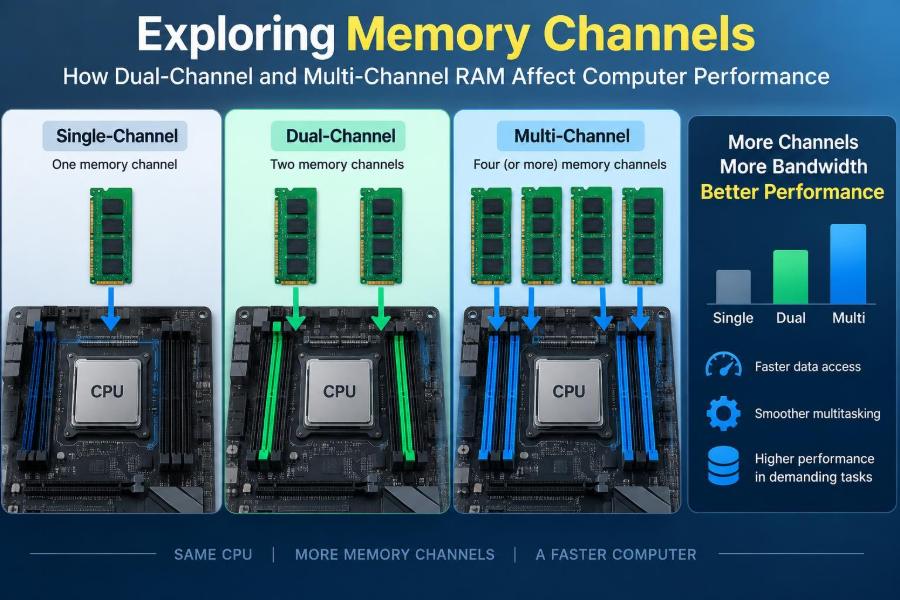
Modern consumer processors commonly support two channels. Higher-end desktop and server platforms may support four, six, eight, or more channels, depending on the processor and motherboard.
📊 Bandwidth: The Main Advantage of More Channels
The clearest benefit of additional channels is greater memory bandwidth: the amount of data that can be transferred in a given time. A single channel has a limited data path. Two properly configured channels can transfer data in parallel, roughly doubling available theoretical bandwidth.
That theoretical figure is not a promise that every application will run twice as fast. The CPU, software, cache, graphics hardware, storage, and other limits still matter. But workloads that repeatedly move large amounts of data can gain meaningfully from the wider path.
For standard desktop memory, each channel normally uses a 64-bit data path. Error-correcting configurations may include additional bits for checking and correction, but the basic performance idea is the same: independent channels provide more aggregate transfer capacity.
⏱️ Bandwidth Is Not the Same as Latency
Bandwidth and latency describe different memory behaviors. Bandwidth measures volume over time; latency is the delay before a requested piece of data begins to arrive.
Adding channels primarily increases bandwidth. It does not automatically cut every memory-access delay in half. This is why a workload that makes many small, scattered requests may see less improvement than one that streams large blocks of data.
Memory speed, timings, controller design, and CPU cache behavior influence latency. A balanced system needs enough capacity, sensible memory settings, and channel configuration rather than an obsession with one specification.
🔢 Understanding Dual-Channel Memory
Dual-channel memory uses two channels at the same time. On most mainstream desktops, the CPU exposes two memory channels, and the motherboard has two or four physical RAM slots connected to them.
A common dual-channel setup uses two matching modules, such as two 8 GB sticks for 16 GB total or two 16 GB sticks for 32 GB total. The memory controller can distribute transfers across both channels.
It is usually not necessary for the modules to come in a special package labeled “dual channel.” What matters is compatible hardware and correct installation. Matched kits are still useful because their modules are tested to operate together at their advertised settings.
🧩 Why Two Modules Often Beat One
Consider two hypothetical systems with the same processor and 16 GB of memory. One uses a single 16 GB module; the other uses two compatible 8 GB modules in the correct paired slots. The second system can normally use dual-channel operation, while the first is limited to one channel.
This difference can be noticeable where memory bandwidth is a bottleneck. Integrated graphics are a particularly clear example because they use system RAM rather than having a large pool of dedicated graphics memory.
However, two smaller modules are not always the right choice. Someone planning to expand later may prefer one module temporarily, especially in a laptop with only two slots. The trade-off is reduced bandwidth until a matching module is added.
🧱 What Multi-Channel Memory Means
Multi-channel memory is the broader term for systems with more than two active channels. Quad-channel uses four, while server and professional platforms may have still more.
These platforms are designed for processors with many cores and workloads that can keep those cores busy. More cores can make more simultaneous requests for data, so a larger memory subsystem helps prevent the processor from waiting unnecessarily.
Installing four RAM sticks in an ordinary dual-channel motherboard does not create quad-channel memory. The number of supported channels comes from the CPU and platform design, not simply the number of modules installed.
🏢 Where Quad-Channel and Higher Configurations Help
High-channel-count platforms are most useful when software transfers or processes large datasets across many active threads. Common examples include scientific computing, virtualization, large databases, professional rendering, simulation, and some video-production workflows.
These are not automatic gains. A video editor may benefit more from a capable GPU or fast storage if those components are the actual bottleneck. A virtual-machine host, on the other hand, may need both high memory capacity and high bandwidth when many guests are active.
For office documents, web browsing, and many ordinary desktop tasks, the difference between dual-channel and a more expensive multi-channel platform often provides little practical value.
🎮 Gaming Performance Depends on the Rest of the System
Games vary widely in their sensitivity to memory bandwidth. A system with a dedicated graphics card has its own video memory, so the effect of dual-channel system RAM may be modest in many titles. CPU-limited scenes, background tasks, game engines, and settings can still make a difference.
Integrated graphics change the picture. Since the graphics processor shares system RAM, single-channel memory can restrict the data available to it. Dual-channel operation frequently improves the experience more clearly than it would with a dedicated GPU.
Frame rate is only one measure. Consistent frame delivery and reduced stutter can matter just as much, but results depend on the game, driver, CPU, memory capacity, and graphics configuration.
🎨 Creative Workloads and Memory Throughput
Image editing, audio production, 3D work, and video editing use memory in different ways. Large files and many layers can require substantial capacity, while effects, previews, encoding, and simulations may also benefit from bandwidth.
A project that exceeds available RAM may slow dramatically because the system begins relying on storage. In that situation, increasing capacity usually matters more than moving from single-channel to dual-channel at the same total capacity.
Once capacity is sufficient, a properly configured dual-channel setup is a sensible baseline for most creative PCs. Higher-channel-count platforms are better justified by sustained professional workloads, not by the label alone.
🧮 Memory Channels and Integrated Graphics
An integrated GPU is built into the processor package and borrows system memory. It does not have the separate high-bandwidth memory found on most dedicated graphics cards.
That makes RAM configuration unusually important. Faster memory and two active channels can give the integrated GPU more bandwidth for textures, frame buffers, and rendering data.
This does not turn entry-level integrated graphics into a high-end gaming solution. It simply prevents a avoidable memory bottleneck. For compact PCs and budget laptops without a dedicated GPU, dual-channel RAM is often worth prioritizing.
🧭 Physical Slots Are Not the Same as Channels
A motherboard may have four RAM slots but only two channels. Usually, two slots belong to one channel and two belong to the other. The additional slots provide expansion flexibility, not additional channels.
Slot labels often appear as A1, A2, B1, and B2. On many boards, a two-module kit belongs in A2 and B2, but this is not universal. The motherboard manual is the reliable source.
Incorrect placement can leave the computer running in single-channel mode even though two modules are installed. It may still boot normally, making the mistake easy to miss.
📘 Reading the Motherboard Manual
The manual or manufacturer support page identifies the recommended slot population order. It may also list supported memory types, maximum capacity per slot, and speed expectations for one, two, or four installed modules.
Look for diagrams labeled memory configuration, DIMM population, or channel architecture. Laptop service manuals may specify whether memory is soldered, removable, or partly both.
Do not rely only on slot color. Colors can be helpful on older boards, but their meaning is not standardized and many modern boards use a single color for every slot.
🧷 Matching Modules: What “Matched” Really Means
For the smoothest setup, use modules with the same capacity, memory generation, rated speed, and primary timing profile. A matched kit is ideal because its sticks were packaged and validated together.
Mixing modules can work, but the system usually operates at settings both modules can support. For example, a faster stick may slow down to match a slower one. In less cooperative combinations, the system may fail memory training or become unstable.
Matching appearance is not enough. Two modules with the same brand and capacity can use different memory chips or profiles. Check the part number and specifications when possible.
⚖️ Unequal Capacity and Flex Modes
Memory modules do not always need identical capacities to provide any multi-channel benefit. Many modern controllers can operate the matching portion of unequal modules in dual-channel mode, with the remaining capacity operating in single-channel mode. Manufacturers may call this flex mode or use related terminology.
For example, with an 8 GB module and a 16 GB module, the first 16 GB of total memory may be interleaved across both channels, while the unmatched 8 GB region is accessed through one channel. Exact behavior depends on the platform.
This is useful for practical upgrades, but it is not identical to having two equal modules. Consult the processor and motherboard documentation if predictable performance is required.
📦 Capacity Comes Before Channel Count
A computer with too little RAM cannot be rescued by a perfect multi-channel layout. If routine work exceeds available memory, paging to storage can overwhelm the advantage gained from extra bandwidth.
Choose capacity based on the real workload: operating system, browser habits, applications, project files, virtual machines, and expected lifespan of the machine. Then choose a channel-friendly arrangement within the available slots and budget.
As a general principle, enough RAM in dual-channel is better than insufficient RAM in a faster-looking configuration. The right choice is workload-specific rather than universal.
⚡ Memory Speed, Timings, and Channels Work Together
RAM labels include transfer-rate ratings and timing values. A higher transfer rate can increase potential bandwidth, while timings describe parts of the delay involved in memory operations. Neither number tells the entire story alone.
Channels multiply the width of available transfer paths, while memory speed affects how much each path can carry. Two channels of reasonably fast RAM can offer substantially more bandwidth than one channel at the same speed.
Compatibility and stability matter more than chasing an extreme specification. A system that repeatedly crashes, fails to boot, or silently falls back to safe settings is not benefiting from its theoretical rating.
🧰 XMP, EXPO, and Memory Profiles
Many performance-oriented memory kits store an overclocking profile. Intel systems commonly use XMP profiles, while AMD platforms may support EXPO profiles or XMP-compatible settings. These profiles provide tested speed, timing, and voltage targets for the kit.
Without enabling the appropriate profile in firmware setup, a kit may run at a conservative default speed. That is normal behavior, not necessarily a defect.
Profile support is not a guarantee on every CPU and motherboard combination. If instability appears after enabling one, update firmware, verify module placement, and consider a lower supported setting.
🖥️ DDR Generations Cannot Be Mixed
DDR memory generations, such as DDR4 and DDR5, are physically and electrically different. Their notch positions differ, and a motherboard is designed for one generation or the other.
You cannot install DDR4 in a DDR5 slot, or vice versa. Even when a processor family supports variants of both through different motherboards, the board determines which memory generation it accepts.
Before buying RAM, verify the motherboard model or laptop specification, the required DDR generation, supported capacity, and whether the system uses desktop DIMMs or smaller laptop SO-DIMMs.
🔄 DDR5 Has More Internal Structure, Not More Platform Channels
DDR5 modules divide certain internal functions into two smaller subchannels. This can improve efficiency in some access patterns, especially when handling smaller transfers.
That design does not mean a single DDR5 module turns a dual-channel computer into a four-channel computer. Platform memory channels remain defined by the processor and motherboard.
It is useful to distinguish the module’s internal subchannels from the system-level memory channels discussed in product specifications. Both affect behavior, but they are not interchangeable terms.
🧑💻 Laptops Have Special Upgrade Constraints
Many laptops have two removable SO-DIMM slots, making a matched pair straightforward. Others have one slot plus soldered memory, and some have no upgradeable memory at all.
With soldered memory, the laptop may already use one or both channels depending on its design. A model with 8 GB soldered plus an empty slot may gain capacity and dual-channel operation when a compatible module is added, but this must be confirmed for that model.
Check service documentation before opening a laptop. It can reveal slot count, compatible module type, battery-disconnection steps, and whether upgrades affect warranty terms in your region.
🔍 How to Check Whether Dual-Channel Is Active
Firmware setup may report installed memory and channel configuration. Operating-system tools and reputable hardware-information utilities can also show channel mode, memory speed, and module details.
Use more than one clue when diagnosing a problem. A utility may describe memory in a platform-specific way, and reported clock values can be confusing because DDR means “double data rate.”
If two modules are installed but the system reports single-channel operation, power down, reseat the modules, confirm the recommended slots, and inspect the manual before assuming a component has failed.
🛠️ A Safe Installation Process
- Confirm the required memory generation, module form factor, and supported capacity.
- Shut down the computer, disconnect external power, and follow the manufacturer’s safety guidance.
- Use the recommended slots for the number of modules being installed.
- Align each module’s notch correctly and press evenly until the retaining clips lock.
- Start the system, verify recognized capacity, then enable a suitable memory profile only if supported.
- Test stability with normal work and, when appropriate, a memory diagnostic tool.
Handle modules by their edges and avoid touching contacts. If the system does not start, do not force settings repeatedly; recheck seating, compatibility, and firmware defaults.
🚧 Common Mistakes That Reduce Memory Performance
- Installing two modules in adjacent slots when the board requires alternating slots for dual-channel operation.
- Assuming four slots automatically mean quad-channel memory.
- Buying the wrong DDR generation or laptop/desktop form factor.
- Mixing modules and expecting the fastest stick’s advertised profile to apply without compromise.
- Enabling an aggressive profile without checking stability.
- Prioritizing channel count while ignoring inadequate total capacity.
Most of these issues are preventable with a few minutes of documentation checking. The motherboard manual is more reliable than assumptions based on a previous computer.
🧪 Benchmark Results Need Context
Synthetic memory benchmarks often show a large bandwidth increase when moving from one channel to two. They are measuring the part of the system that channels directly affect, so this result is expected.
Real applications may show smaller, larger, or inconsistent changes because they spend time doing other work. A game may be GPU-limited; an office task may wait on user input; a compile may depend on CPU cores and storage as well as memory.
Use benchmarks to understand a change, not to replace your own workload. Test the programs and files that matter to you.
💸 When Spending More on Channels Makes Sense
For most new mainstream desktops, a two-module dual-channel kit is a practical default when it does not compromise capacity or a planned upgrade path. It is especially sensible for integrated graphics and memory-sensitive workloads.
A platform with four or more channels makes sense when its processor, motherboard, and workload justify the wider memory subsystem. It usually comes with higher platform cost and is aimed at professional or server-class use.
Do not upgrade solely because a chart shows higher bandwidth. First identify whether the current system is constrained by RAM capacity, memory bandwidth, CPU performance, graphics performance, storage, or software configuration.
🧱 Upgrade Planning Without Blocking Future Options
Slot availability shapes good upgrade decisions. In a four-slot dual-channel desktop, two matched modules leave two slots free, but filling all slots later can sometimes reduce the highest stable memory speed, particularly on demanding configurations.
In a two-slot laptop, using both slots for dual-channel means future capacity expansion may require replacing both modules. Buying a larger matched kit initially can be simpler if you expect memory needs to grow.
There is no perfect configuration for every buyer. Plan around the capacity you need now, the likely upgrade path, and the performance penalty you are willing to accept temporarily.
🧩 Memory Interleaving Makes Parallel Access Useful
Dual-channel performance depends on the memory controller distributing data across channels, a process commonly called interleaving. Instead of treating one module as the first destination and the other as a completely separate reserve, the controller can spread consecutive chunks of data across them.
This allows parallel transfers when access patterns permit it. The operating system does not normally need special configuration; the platform firmware and memory controller handle the underlying arrangement.
Interleaving explains why correct pairing matters. The controller needs compatible, active memory paths to make effective use of its channel design.
🧠 CPU Cache Still Does a Great Deal of Work
Processors contain fast caches that store recently or frequently used data close to execution cores. Effective caching can reduce the number of trips to main memory.
As a result, an application with good cache locality may gain less from added memory bandwidth than one that continuously streams large datasets. This is one reason that two programs with similar-looking requirements can respond differently to the same RAM upgrade.
Memory channels are valuable, but they are one layer in a hierarchy that includes registers, cache, RAM, storage, and software behavior.
🌡️ Stability, Heat, and Reliability
More modules can place greater electrical load on a memory controller, particularly at high advertised speeds. Four modules may not always reach the same settings that two modules can sustain on a given platform.
Proper airflow and sensible settings help, but stability should be verified rather than assumed. Random application errors, corrupted archives, crashes, or boot failures can be symptoms of unstable memory, though they can also have other causes.
For school, work, and important projects, stable supported settings are usually a better choice than a small theoretical gain from aggressive tuning.
✅ The Core Principle: Balance Capacity, Channels, and Workload
Memory channels determine how much data the processor can move between RAM and itself in parallel. Dual-channel is a valuable baseline on mainstream systems; multi-channel platforms extend the same idea for processors and workloads that can use the added bandwidth.
But channels are not a shortcut around every performance limit. Capacity prevents costly paging, memory speed and timings influence behavior, the CPU and GPU set other limits, and software decides whether extra bandwidth is actually used.
The most useful question is not “How many channels are best?” It is “What is limiting this computer’s real work?” That question leads to upgrades that solve a problem instead of merely improving a specification.
Choose enough compatible RAM first, place it correctly so the platform can use its available channels, and match the configuration to the work you actually do. With that approach, memory specifications become practical tools rather than confusing numbers on a box. 🖥️⚙️📚