
You press the power button, glance at a dark screen, and expect your desktop to appear a few seconds later. Most of the time, it does. That familiar sequence can feel almost instantaneous: a light turns on, a logo appears, and suddenly your files, apps, and browser are ready.
But a computer cannot simply “wake up” in the way a phone call wakes a person. At the instant power arrives, its processor has no running program, its memory contains no useful working data, and its operating system is still stored on a drive.
The boot process is the carefully ordered chain that turns inactive hardware into a usable system. It checks essential components, finds software capable of starting the machine, loads that software into memory, and hands over control in stages.
Understanding this chain makes startup messages less mysterious. It also helps when a computer stalls on a logo, cannot find an operating system, starts unusually slowly, or asks for a recovery key.
🔘 The Power Button Starts a Controlled Sequence
Pressing the power button does not directly start Windows, macOS, Linux, or any other operating system. On a typical desktop or laptop, the button signals a power-management circuit on the motherboard.
That circuit tells the power supply, battery controller, or both to provide the required voltages to the processor, memory, storage devices, and other components. Modern machines keep a small amount of standby power available so they can notice the button press, a keyboard event, or a network wake request.
Once electrical power becomes stable enough, the processor is released from reset. Reset is a deliberately inactive state: it prevents the CPU from executing unpredictable instructions while voltages and clock signals are still settling.
⚡ Stable Power Comes Before Useful Computing
Electronic components require power within expected ranges. If power rises or fluctuates incorrectly, a system may fail to start, restart repeatedly, or show behavior that looks like a software problem but is actually electrical.
The motherboard monitors signals that indicate whether power is good. Only after these checks does it allow the CPU to begin its first instructions. This is one reason a failing charger, depleted battery, loose power connection, or aging power supply can cause boot trouble.
On a laptop, the battery, charger, and charging circuitry add another layer of decisions. A machine may boot from the charger even with a weak battery, but performance or reliability can still suffer if the power source cannot meet demand.
🧠 The CPU Begins at a Predetermined Location
A processor cannot search a drive for instructions on its own. When it exits reset, it begins execution from a predefined location established by its design. That starting point leads to firmware: low-level software stored in non-volatile memory on the motherboard.
Firmware is software closely tied to hardware. Unlike the operating system, it remains available even when a storage drive is empty or the installed operating system is damaged.
This arrangement solves a bootstrapping problem. The computer needs a small, dependable program to locate and load the much larger operating system. Firmware provides that first step.
🧩 Firmware: The Computer’s First Available Software
Most current PCs use firmware commonly called UEFI, short for Unified Extensible Firmware Interface. Older systems may use the earlier BIOS approach, or users may casually say “BIOS” when they mean the firmware setup screen on a UEFI computer.
UEFI can work with modern disk layouts, provide a graphical configuration interface, and support security features such as Secure Boot. Its exact appearance and options vary by computer maker and motherboard model.
Firmware is not the operating system. Its job is narrower: initialize enough hardware, apply configured startup rules, and identify a valid path to software that can continue the boot process.
🕒 The Clock Signal Coordinates Every Step
A computer’s components operate in timed steps rather than as one continuous blur. A clock signal provides the rhythm that lets circuits coordinate operations. Before normal execution, the system must establish usable clocking for the processor and other parts.
This does not mean every component runs at the same speed. Modern systems use several clocks, dynamically adjust frequencies, and place unused components into low-power states. Still, orderly timing is fundamental to reliable startup.
A failure involving clock generation or the motherboard can prevent a system from reaching even a firmware screen. At that point, an operating-system repair will not help because the machine has not yet reached the operating-system stage.
🧪 POST Checks the Essentials
After basic initialization, firmware performs a Power-On Self-Test, usually called POST. POST is not one giant, universal examination. It is a set of checks intended to confirm that essential hardware can begin operating.
The system may test or initialize the processor, memory, graphics output, keyboard controller, storage interfaces, and connected devices. Modern computers often perform much of this so quickly that you never see it.
Some failures appear as beep patterns, diagnostic LEDs, or error messages because the display may not yet be available. The pattern meanings depend on the manufacturer, so a motherboard manual or official support documentation is more reliable than guessing from a generic list online.
🧮 Memory Must Be Trained and Prepared
Random-access memory, or RAM, is where the computer keeps programs and data it is actively using. RAM is fast but volatile: it loses its contents when power disappears. Before it can hold a boot loader or operating system, the firmware must configure it.
On many systems, this includes memory training. The firmware determines timing and signal settings that allow the memory controller and RAM modules to communicate reliably. This work can take noticeably longer after hardware changes or certain firmware updates.
If RAM is loose, incompatible, failing, or incorrectly configured, a computer may not boot at all. Repeated restarts with no display, or a diagnostic code related to memory, point earlier in the chain than a missing-operating-system error.
🖥️ Graphics Initialization Makes Early Messages Visible
Before your normal desktop graphics driver loads, firmware needs a basic way to send an image to a display. It initializes a graphics adapter, whether that is integrated into the processor or installed as a separate card.
That early display mode is simple compared with the high-resolution, hardware-accelerated environment used later by the operating system. A screen can therefore look stretched, low-resolution, or plain during startup without indicating a fault.
A black screen can have several meanings. The computer may be running but using the wrong display output, waiting during a firmware stage, failing before graphics initialization, or booting an operating system with a separate display problem. The surrounding clues matter.
⌨️ Input Devices Get Just Enough Support
Firmware initializes basic input paths so you can enter setup or select a boot device. This is why keys such as Delete, F2, F12, Escape, or a manufacturer-specific key may work before the operating system starts.
Wireless keyboards and some USB hubs may not be available immediately, especially on older hardware or when a setting limits early USB support. A wired keyboard connected directly to the computer is often the simplest troubleshooting choice when you need to enter firmware settings.
Once the operating system loads its own drivers, it takes over more complete support for keyboards, touchpads, Bluetooth devices, and accessibility tools.
💾 Firmware Searches According to Boot Order
Next, firmware follows its configured boot order: a prioritized list of places to look for startup software. Common choices include an internal SSD, a USB drive, an optical drive, or a network service.
Boot order explains a common surprise. Leaving a bootable USB installer plugged in can cause a computer to open the installer instead of its usual system. It does not necessarily mean the internal drive has failed.
For a managed workplace computer, network boot may be intentional. Administrators can use it to install an operating system or run maintenance tools without first preparing every machine’s local drive.
🗂️ Partition Tables Tell the System Where to Look
A physical drive needs an organized map of its storage areas. A partition table records how the drive is divided into partitions, which are logical sections that can hold file systems, recovery tools, or boot files.
Modern UEFI installations commonly use a GUID Partition Table, or GPT. Older BIOS-oriented systems often use the Master Boot Record, or MBR, scheme. Both are ways to describe disk organization, but they fit different boot approaches and have different design limits.
The important point is that firmware does not simply open an arbitrary folder and hope to find an operating system. It uses defined disk structures and boot records to locate the next program in the chain.
📁 The EFI System Partition Holds Startup Files
On many UEFI-based computers, a small FAT-formatted partition called the EFI System Partition, or ESP, stores boot files. It is usually hidden during everyday use because deleting or changing its contents can make a system unbootable.
Firmware can read this partition and start an EFI application, often a boot manager. The boot manager then knows more about the installed operating system and its available startup options.
This separation is useful. The first-stage startup files can remain small and easy for firmware to locate, while the operating system itself occupies a much larger partition with a different file system.
🔐 Secure Boot Checks Trust, Not Every Possible Threat
Secure Boot is a UEFI feature that can verify digital signatures on early boot software. In simple terms, it helps firmware reject boot components that are not signed by a trusted key or that have been altered in an unauthorized way.
This can reduce the risk of certain bootkits, malicious software designed to run before the operating system’s normal defenses. It is valuable because code that starts that early can be difficult for an operating system to detect.
Secure Boot is not a complete security solution. It does not make unsafe downloads harmless, replace software updates, or guarantee that every trusted component is free of flaws. It can also require configuration when installing some alternative operating systems or specialized tools.
🚪 The Boot Manager Chooses a Path
A boot manager presents or selects the available boot choices. On a computer with one operating system, this stage may be so fast that you never notice it. On a dual-boot machine, it may show a menu such as Linux, Windows, or a recovery environment.
The boot manager’s task is to find the appropriate operating-system loader and pass along information it needs. It may also account for recovery entries, safe modes, encrypted volumes, or the last successful startup configuration.
If you see a boot menu, that is generally a sign that firmware successfully found startup software. A problem at this stage is different from a system that cannot power on or cannot display a firmware logo.
📦 The Operating-System Loader Brings in the Core
The operating-system loader is the bridge between boot software and the full operating system. It loads the kernel, the central part of an operating system that manages hardware access, processes, memory, and many core services.
It also loads required supporting files, configuration data, and often an initial set of drivers. The exact names and arrangement differ among Windows, Linux distributions, macOS, and other systems, but the underlying purpose is similar.
At this point, the machine is no longer relying solely on generic firmware routines. It is preparing the specialized code that understands the operating system’s own architecture and hardware drivers.
🧱 The Kernel Takes Control
Once loaded into RAM, the kernel begins establishing the environment the rest of the system needs. It configures memory management, schedules processor time, creates essential internal structures, and starts communicating with hardware through drivers.
A driver is software that lets the operating system communicate with a device or device class. Storage controllers, graphics hardware, network adapters, audio devices, and USB controllers all need appropriate support.
Early drivers are especially important. The system must be able to read the storage device containing its own files. If a required storage driver is absent or corrupted, the kernel may fail before the familiar login screen appears.
🗃️ The Root File System Becomes Available
The operating system must mount, or make available, its main file system. This is where it finds system libraries, configuration files, applications, user accounts, and services needed for a normal session.
Some systems use an intermediate temporary environment before mounting the final root file system. Linux systems, for example, may use an initial RAM file system to load modules or unlock encrypted storage before accessing the main installation.
Disk encryption adds a deliberate checkpoint here. If the startup drive is encrypted, the system may need a password, recovery key, security chip approval, or a combination of these before it can read the protected data.
🔑 Encryption Protects Data During Startup
Full-disk encryption is designed to keep data unreadable if someone removes or steals a drive. It does not merely lock your user documents; it can protect the operating-system files and hidden startup areas too.
A Trusted Platform Module, or TPM, may help safeguard encryption keys. It can compare aspects of the startup environment with expected measurements. Significant changes, such as some firmware settings or hardware changes, can trigger a request for a recovery key.
A recovery-key prompt is not automatically evidence of an attack. It can result from a legitimate change. Still, never bypass or share a recovery key casually; it protects access to data and should be stored through a method appropriate for the device owner or organization.
🛠️ Services Start the System’s Background Work
After the core operating system is running, it launches background services. These may handle networking, printing, time synchronization, security monitoring, update management, audio, device discovery, and many other functions.
The service manager decides what should start, in what order, and what dependencies exist. For example, a network-dependent service cannot do much until networking is available.
This explains why a computer may show a login screen while some capabilities are still catching up. The visual interface can appear before every startup task has completed.
👤 Login Turns a Running System into Your Workspace
At the sign-in screen, the operating system has reached a usable state but has not yet created your personal working session. Logging in verifies your identity using a password, PIN, biometrics, security key, or an organizational sign-in method.
It then loads your profile: desktop preferences, application settings, permissions, and user-specific files. On a shared computer, each user can have a separate profile while relying on the same underlying operating system.
A slow login is not always a slow boot. The basic system may already be running efficiently while profile synchronization, network account checks, cloud storage, or user startup applications delay the desktop becoming fully responsive.
🚀 Startup Apps Can Slow the Final Stretch
Many applications ask to launch when you sign in. Cloud-sync tools, chat clients, update utilities, security software, audio control panels, and creative suites may all compete for processor time, memory, disk access, and network bandwidth.
Some startup items are useful. Automatically starting endpoint protection or a backup utility may be appropriate. Others are convenient rather than necessary and can make a new computer feel slower than its hardware suggests.
- Review startup applications in your operating system’s settings or task-management tools.
- Disable items only when you understand their purpose; a driver helper or security component may matter.
- Prefer uninstalling software you no longer use instead of merely hiding its startup entry.
Reducing unnecessary startup work often improves the period after login more than it improves the firmware stages before the logo appears.
🌙 Sleep, Hibernate, and Restart Are Different Paths
A cold boot begins from a powered-off state and follows the full startup chain. Sleep usually keeps the current session in RAM while using very little power, allowing a quick return if power remains available.
Hibernation saves the memory state to storage and powers down more fully. Waking from hibernation restores that saved state rather than launching every program from scratch. Hybrid approaches combine ideas from both methods.
A restart is often more thorough than simply closing and reopening applications. It can clear temporary memory state and force drivers and services through a fresh initialization, which is why support guidance commonly asks you to restart before attempting complex repairs.
⏱️ Fast Startup Trades a Clean Slate for Speed
Some operating systems offer a feature commonly described as fast startup. Rather than shutting down every component exactly as a traditional cold shutdown would, the system preserves selected kernel-related state and restores it at the next power-on.
This can shorten startup time on some hardware. However, it may complicate troubleshooting because a “shut down” operation may not reset every part of the system as completely as a restart.
It can also create confusion in dual-boot setups if a file system is left in a state intended for fast resumption. Whether to use it depends on the computer, operating system, and the need for predictable maintenance behavior.
🐢 Where Slow Boots Usually Happen
“My computer takes forever to boot” is useful but broad. The stage where delay occurs narrows the likely cause. A long pause before any logo points toward firmware, hardware checks, external devices, or storage detection; a delay after login often points toward applications and services.
| Visible symptom | Possible stage | Practical first check |
|---|---|---|
| No lights, fan, or display | Power delivery | Check power source, charger, cable, and battery condition |
| Long delay before operating-system logo | Firmware or device detection | Disconnect nonessential USB devices and review firmware messages |
| “No boot device” message | Boot selection or storage access | Confirm the internal drive is detected and boot order is correct |
| Logo appears but system loops or crashes | Loader, kernel, driver, or file system | Use the operating system’s recovery options |
| Desktop appears but remains sluggish | Startup apps and services | Review startup items and available storage space |
These are starting points, not certain diagnoses. Similar symptoms can arise from different faults, especially when storage hardware or memory is failing intermittently.
🧭 Read Boot Failures by Their Position
One of the most useful troubleshooting habits is identifying the last successful stage. If you can open firmware setup, power delivery, the CPU, enough memory, and basic display output are probably functioning well enough to reach that point.
If firmware sees no internal drive, investigate physical connections, the drive, or its controller before reinstalling the operating system. If it sees the drive but reports missing boot files, recovery tools may be more relevant.
A crash after an operating-system logo can involve damaged system files, an incompatible driver, a failed update, or disk errors. Avoid treating every failure as malware or assuming that reinstalling the operating system is always the first or safest answer.
🔌 External Devices Can Interrupt Startup
USB drives, memory cards, docks, printers, and even unusual keyboard adapters can affect boot behavior. Firmware may spend time probing them, attempt to boot from them, or encounter a device that responds poorly during initialization.
When diagnosing a stubborn startup issue, disconnect nonessential peripherals. Keep only the display, power connection, and a basic wired keyboard if needed. Then test whether the computer starts normally.
Reconnect devices one at a time after the system is stable. This simple isolation method is safer and more informative than changing many firmware settings at once.
🧰 Recovery Environments Provide a Safer Repair Path
Operating systems commonly include a recovery environment separate from the normal desktop. It may offer startup repair, safe mode, disk checks, system restore options, command-line tools, or the ability to reinstall the operating system.
Safe mode starts with a reduced set of drivers and services. It is useful when a normal startup fails because of a nonessential driver or startup application, but it is not a universal cure for hardware faults.
Before making destructive changes, back up data if you can do so safely. A recovery option labeled “reset” or “reinstall” can have different effects depending on the system and chosen settings, so read each screen carefully.
🧯 Firmware Updates Need Careful Handling
Firmware updates can improve hardware compatibility, address defects, or add security fixes. They can also be riskier than ordinary application updates because the computer depends on firmware before it can start the operating system.
Use update files and instructions from the computer or motherboard manufacturer for the exact model. Do not interrupt the process, use an uncertain file, or update solely because a newer version exists without understanding the reason.
For organization-managed devices, follow the IT team’s process. Firmware settings related to security, boot mode, and encryption may be centrally controlled for good operational reasons.
🛡️ Protecting the Boot Chain Is Ongoing Work
A secure boot process depends on more than one setting. Keep firmware and operating-system updates current when practical, use disk encryption where appropriate, protect recovery keys, and avoid installing unknown boot tools from untrusted sources.
Physical access matters too. Someone with unrestricted access to a device may try to boot external tools, alter firmware settings, or remove storage. Firmware passwords, disabled external boot options, and device-management policies can reduce risk, though they must be managed carefully to avoid locking out legitimate owners.
Security involves trade-offs. Restrictive settings can improve control on a work laptop but make repair, dual booting, or hardware experimentation less convenient on a personal learning machine.
🎯 The Core Principle: Booting Is a Chain of Trust and Handoffs
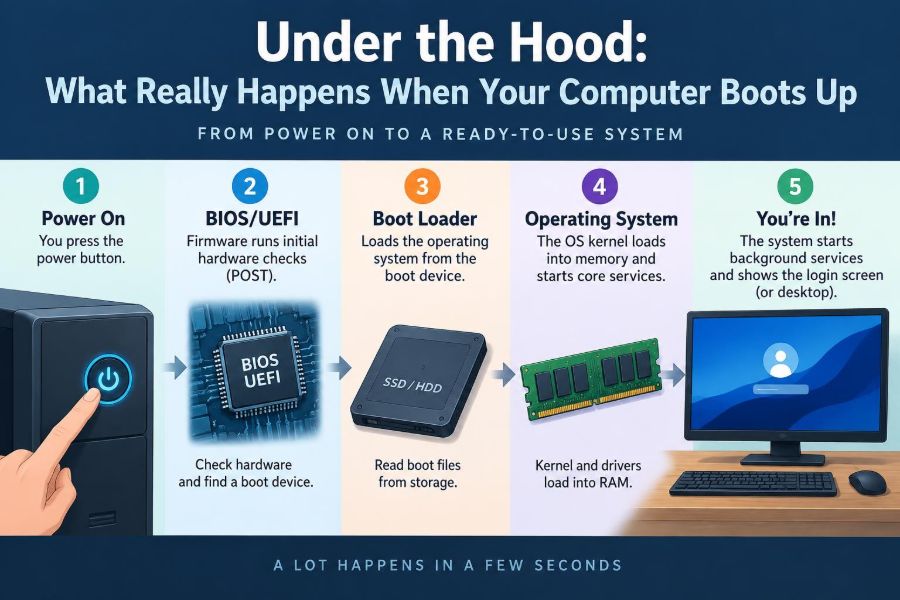
A computer boots by moving control through a sequence: stable power, firmware, hardware initialization, boot selection, a boot manager, an operating-system loader, the kernel, services, and finally your user session.
Each stage depends on the one before it. Firmware cannot load a boot manager until it can use memory and storage; the kernel cannot start normally until it can access its essential files; your desktop cannot become responsive until background services and user applications stop competing for attention.
This model is more useful than memorizing screen messages. When startup goes wrong, ask where the chain stopped. When startup feels slow, ask which stage consumes the time. Those questions turn a mysterious black box into a system you can reason about.
Booting is not a single event—it is a disciplined sequence of small handoffs that transforms powered hardware into your working computer. Once you recognize the stages, startup screens and errors become clues rather than mysteries. 🖥️⚙️🔐