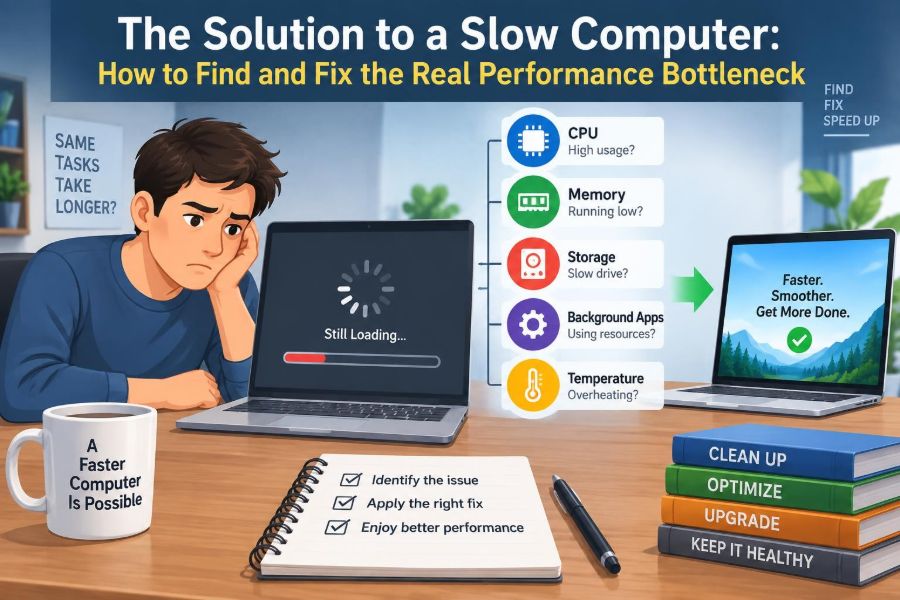

A computer can feel slow in surprisingly ordinary moments: a browser takes too long to open, a video call freezes when several tabs are active, or a document pauses after every few words. The instinct is often to blame “the computer” as a whole.
But a computer is not one single source of speed. It is a system of parts and software working together. A fast processor cannot compensate for a nearly full drive, and adding memory will not repair an unreliable internet connection.
That is why random fixes can be disappointing. Closing programs, buying an upgrade, or running a cleanup tool may help temporarily—or may change nothing—if they do not address the actual constraint.
The practical solution is to identify the performance bottleneck: the component, program, setting, or connection currently limiting the task you are trying to do. Once you know what is holding work back, the right fix becomes much clearer.
🚦 What a Performance Bottleneck Means
A bottleneck is the narrowest part of a process. Think of traffic flowing from a wide motorway into one narrow lane: no matter how clear the earlier road is, the narrow lane controls how quickly cars can pass.
In computing, the bottleneck is the resource that is fully occupied, delayed, or unable to keep pace with the rest of the system. It may be the CPU, RAM, storage drive, graphics processor, network connection, or a specific application.
The key detail is that a bottleneck is task-dependent. A laptop may browse the web comfortably but struggle with video editing. It may run games well offline but perform poorly in an online match because the network, not the hardware, is the limit.
🧭 Start by Describing the Slowdown Precisely
“My computer is slow” is a useful starting complaint, but not a diagnosis. Notice when the delay begins, what action triggers it, and whether the issue affects everything or only one activity.
- Does startup take a long time before the desktop becomes usable?
- Does one app freeze while other apps remain responsive?
- Do files open slowly, copy slowly, or save slowly?
- Does the computer become sluggish only with many browser tabs open?
- Does an online service load slowly while local programs work normally?
These observations narrow the search. For example, slow file copying suggests storage or connection issues, while a browser that slows only with many tabs often points to memory pressure, a demanding website, or extensions.
🧪 Reproduce the Problem Before Changing Anything
Try to reproduce the issue with a simple, repeatable action. Open the same project, launch the same game, copy a similarly sized file, or visit the same website. A repeatable symptom is much easier to investigate than a vague feeling that the machine is “off.”
Also separate a one-time delay from a persistent one. An application may be slow immediately after an update because it is rebuilding a cache, checking files, or downloading background content. Repeated delays under the same conditions deserve closer attention.
Write down what was running at the time. This small habit prevents guesswork and makes it easier to see patterns later.
📊 Use Activity Monitoring Instead of Guessing
Windows Task Manager, macOS Activity Monitor, and Linux system monitors show how resources are being used. These tools are not only for advanced users; they provide direct evidence about what the system is doing.
Look at CPU, memory, disk activity, network activity, and—where available—GPU use while the slowdown is happening. The goal is not to find a single “bad” percentage. It is to identify which resource remains heavily used at the exact moment performance drops.
| Symptom during the slowdown | Likely area to inspect |
|---|---|
| CPU stays very high | Processor demand, background tasks, inefficient software |
| Memory is nearly exhausted and disk activity rises | RAM pressure and paging |
| Disk remains busy while programs pause | Storage speed, free space, drive health, syncing |
| Only online tasks lag | Network, Wi-Fi signal, router, service availability |
| Frames drop in visual work or games | GPU workload, graphics settings, heat, drivers |
Usage readings are clues, not verdicts. A CPU at high use while exporting a video may be entirely normal. The useful question is whether that use matches the task and explains the unwanted delay.
🧠 Understand CPU Limits
The CPU, or central processing unit, performs general-purpose calculations and coordinates many operating system tasks. A CPU bottleneck occurs when software needs more processing work than the processor can complete quickly enough.
This often appears during code compilation, spreadsheet calculations, file compression, antivirus scans, video conversion, or demanding multitasking. A single older CPU core can also be limiting when an application does not divide its work effectively across multiple cores.
High CPU use is not automatically a fault. It becomes a problem when an unnecessary process consumes processor time, when the task is beyond the computer’s intended capability, or when heat forces the CPU to reduce speed.
🧩 Find the Process Using Processor Time
Sort the process list by CPU usage while the computer is slow. A familiar program may be doing expected work, such as rendering a presentation or installing an update. An unfamiliar process needs more careful checking before it is ended or removed.
Look for patterns. A browser using substantial CPU only on one tab may be handling a complex web app, autoplaying media, or running a troublesome extension. A security scan using CPU at a scheduled time may simply need to run when you are away from the machine.
Do not routinely force-close system processes just because their names are unfamiliar. Ending essential processes can log you out, interrupt updates, or create instability. Identify the process first and prefer its normal settings or uninstall option when available.
🧮 Recognize RAM Pressure
RAM, or random-access memory, holds the programs and data currently needed for quick access. Unlike long-term storage, RAM is designed for rapid, temporary work.
When RAM fills up, the operating system moves less-active information to storage in a process commonly called paging or swapping. Modern drives can make this less painful than it once was, but storage is still much slower than RAM for this kind of constant back-and-forth movement.
The result can be a computer that pauses when switching applications, a browser that reloads tabs, or an editor that hesitates as you work. Memory pressure is especially common when several large applications run together.
🌐 Browsers Can Be Major Memory Users
Modern browsers often use separate processes for tabs, extensions, graphics work, and security isolation. This improves reliability and safety, but it means an open browser can use considerable memory.
Do not assume every tab is equally expensive. A plain article may use little memory, while online meetings, design tools, dashboards, streaming pages, and complex spreadsheets can require much more.
- Close tabs you no longer need, or bookmark them for later.
- Disable extensions you do not use or no longer trust.
- Use the browser’s built-in task manager, if available, to identify unusually demanding tabs.
- Restart the browser occasionally after long sessions, especially if it has become progressively less responsive.
If normal work routinely requires more memory than your computer has, a RAM upgrade can be meaningful—provided the device supports it and another resource is not the real constraint.
💾 Storage Is More Than File Capacity
Your storage drive holds the operating system, applications, documents, and temporary data. Its speed affects boot time, application launching, updates, file searches, saving, and the operating system’s ability to page memory.
A traditional hard disk drive uses spinning platters and moving read/write heads. A solid-state drive, or SSD, uses flash memory and has no moving parts. For everyday responsiveness, replacing a hard drive with a suitable SSD is often more noticeable than a modest CPU upgrade on an otherwise compatible computer.
Still, an SSD does not solve every slowdown. It cannot add RAM, repair a weak Wi-Fi signal, or make highly demanding software run as though it were on a much more powerful machine.
🗂️ Leave Working Space on the Drive
A nearly full system drive can make ordinary work harder. Operating systems and applications need room for updates, temporary files, caches, virtual memory, and recovery operations.
Rather than chasing an exact universal free-space target, keep a sensible margin based on the drive’s size and your workload. Video editing, large software projects, and virtual machines can need substantial temporary workspace.
Remove files deliberately. Empty the recycle bin or trash, uninstall unused applications, move archives to external storage if appropriate, and use built-in storage tools to review large categories. Avoid deleting folders whose purpose you do not understand merely because they look technical.
🔍 Check Drive Health Before Blaming Software
If programs freeze during file access, the system takes unusually long to boot, or files produce read errors, storage health deserves attention. A drive can be slow because it is busy, but it can also be slow because it is struggling to read or write reliably.
Built-in diagnostics and reputable drive-health utilities can report warning signs, though they cannot predict every failure. Repeated errors, unusual mechanical noises from a hard drive, or disappearing drives should be treated as reasons to protect your data promptly.
Back up important files before experimenting with repairs. A backup is useful only when it is stored separately from the drive that might fail and can be accessed when needed.
🔥 Heat Can Quietly Reduce Performance
Computer components generate heat while working. If temperatures rise beyond safe operating limits, the system may reduce clock speeds to protect itself. This is called thermal throttling.
A computer affected by heat may seem fast when first started and slower after a game, meeting, export, or long work session. Loud fans, a hot chassis, and performance that improves after cooling down are useful clues.
Use the device on a hard, clear surface so vents remain open. Dust, aging cooling components, and dried thermal interface material can require cleaning or service, particularly in older desktops and laptops. Opening a device is not appropriate for every user; follow manufacturer guidance or seek qualified help when needed.
🎮 Separate GPU Problems from CPU Problems
The GPU, or graphics processing unit, handles image rendering and other highly parallel tasks. Games, 3D design, video effects, some creative applications, and machine-learning workloads may depend heavily on it.
A visual slowdown can have different causes. Low frame rates with the GPU heavily used may mean graphics settings are too demanding. Low frame rates with the CPU fully occupied may mean the game or application is processor-limited. Heat, power settings, drivers, and insufficient video memory can also matter.
Lowering resolution or visual effects is a useful test, not just a compromise. If performance improves sharply, graphics workload was probably a significant factor. If it barely changes, look elsewhere.
📶 Distinguish Internet Slowness from Computer Slowness
When a website, cloud document, video call, or online game lags, the computer may be working perfectly. The delay may come from the local Wi-Fi signal, the router, the internet provider, a busy shared connection, or the remote service itself.
Compare a local task with an online one. If a saved document opens quickly but a cloud-based document syncs slowly, storage and CPU are less likely to be the main problem. Testing another device on the same network can also help separate device-specific issues from network-wide ones.
Distance from the router, walls, interference, and crowded wireless channels can affect Wi-Fi quality. A wired connection is a useful diagnostic test where practical, but it is not always a convenient permanent solution.
📡 Watch for Background Network Activity
Downloads, cloud backups, operating system updates, game patches, and synchronization services can compete for network capacity. On a limited or unstable connection, this can make calls stutter and web pages seem slow.
Check the network activity list during the issue. Pause non-urgent transfers temporarily rather than disabling updates indefinitely. Updates often include reliability and security fixes, so scheduling them for quieter periods is usually a better long-term approach.
Also remember that upload traffic matters. A large backup upload can interfere with video calls because those calls need timely outgoing data as well as incoming data.
🚀 Startup Programs Affect the First Minutes
A slow startup is not always a sign that the whole computer is underpowered. Many applications add themselves to the startup list so they can check for updates, sync files, show notifications, or open faster later.
Review startup items in your operating system’s settings. Disable programs that do not need to launch immediately, especially software you use only occasionally. Keep essential security software and hardware utilities enabled when their function is unclear.
The goal is not an empty startup list. It is a list that reflects what you genuinely need as soon as you sign in.
🧹 Treat Cleanup Tools with Caution
Deleting temporary files can recover space and occasionally resolve a corrupted cache, but cleanup is not a universal speed fix. Temporary data often exists for a reason: it can help applications open or load content faster.
Be skeptical of tools that promise to “boost” performance with one click or claim that a registry cleanup will transform a stable computer. Aggressive cleaners can remove useful settings, create new errors, or pressure users into unnecessary purchases.
Built-in storage cleanup features and normal application uninstallers are generally safer first choices. Make one change at a time so you know what actually helped.
🛡️ Rule Out Malware and Unwanted Software
Unexpected advertisements, browser redirects, unfamiliar extensions, unexplained resource use, and settings that keep changing can indicate unwanted software. Malware is not the most likely explanation for every slow computer, but it should not be ignored when the signs fit.
Run a scan with the operating system’s trusted security tools, update the security definitions, and remove software from recognized settings panels rather than downloading random “repair” utilities. Review browser extensions and installed programs carefully.
If you suspect a serious compromise, prioritize changing important passwords from a known-safe device and seek trusted technical support. Performance troubleshooting and account security may need to happen together.
🔄 Updates Can Help—or Temporarily Disrupt
Operating system, driver, browser, and application updates can fix bugs, improve compatibility, and address security vulnerabilities. Outdated software may cause crashes, poor hardware support, or performance problems that a normal update resolves.
However, an update can also introduce a new issue, especially with specialized hardware or older software. If a problem begins immediately after a specific update, record what changed before rolling anything back. Check whether the software maker provides a known workaround or a later fix.
Keep a balanced approach: avoid both extremes of installing every optional update immediately and never updating anything at all.
⚙️ Power Settings Can Limit a Portable Computer
Laptops and tablets often reduce performance to extend battery life and manage heat. A power-saving mode may be appropriate for note-taking or travel, yet feel restrictive during video editing, large downloads, or demanding applications.
Check whether the device is on battery, connected to its correct charger, and using a suitable power mode for the task. Some systems also limit performance if they detect an underpowered charger or cannot draw enough power.
Higher-performance modes usually increase heat, fan noise, and battery consumption. Use them when the work justifies the trade-off rather than leaving them enabled automatically.
🧱 One Application May Be the Bottleneck
If only one program is slow, troubleshooting the entire computer first can waste time. Test whether other applications launch, save files, and respond normally.
The affected program may have a damaged cache, an oversized project file, a problematic plug-in, insufficient permissions, a synchronization conflict, or a bug in its current version. Opening a new blank project can help distinguish a program-wide issue from a file-specific one.
For example, a spreadsheet with extensive formulas and external data connections may be slow because of its design, not because the computer is generally failing. Simplifying formulas, splitting data, or adjusting recalculation behavior may help more than replacing hardware.
📁 Large Files Behave Differently from Simple Tasks
Performance expectations should match the workload. A high-resolution video project, a database export, a large photo catalog, or a complex architectural model can stress several parts of a system at once.
File size alone does not determine difficulty. A modest-size file with many layers, formulas, linked assets, or effects can be demanding, while a larger but simple file may open quickly.
Use proxies, lower-preview settings, archive unused assets, or divide a project into manageable parts when the relevant software supports these approaches. These are workflow improvements, not admissions of failure.
🧰 Upgrade Only After Identifying the Constraint
Hardware upgrades are most valuable when they match a confirmed bottleneck. More RAM helps recurring memory pressure. A faster or healthier storage drive helps slow launching, paging, and file work. A stronger GPU helps suitable graphics-heavy tasks.
Not every device can be upgraded. Many thin laptops have soldered memory, limited storage options, or thermal designs that restrict the benefit of a faster component. Check compatibility, warranty implications, power requirements, and the cost of professional installation.
For an older system, compare the total upgrade cost with the benefit you realistically expect. A targeted upgrade can extend useful life, while a series of mismatched upgrades can cost more than a replacement without solving the main issue.
🧾 Use a Simple Elimination Process
A consistent troubleshooting order reduces unnecessary changes. Start with the easiest, least risky observations and move toward more involved actions only when the evidence supports them.
- Describe the exact slow task and reproduce it.
- Restart the computer if it has been running for a long time.
- Check resource use while the problem occurs.
- Close or adjust the process clearly causing unnecessary demand.
- Check available storage, startup items, updates, and power settings.
- Test the network separately for online problems.
- Back up data before drive repair, major changes, or hardware work.
- Upgrade or seek repair only after identifying the most likely constraint.
This process does not guarantee that every issue will be simple. It does make your next step evidence-based rather than random.
🚫 Avoid Common Troubleshooting Mistakes
One common mistake is changing five things at once. If the problem improves, you will not know which change worked; if it worsens, reversing it becomes harder.
Another is assuming high usage is always wrong. A computer is meant to use resources during work. The relevant concern is sustained demand that causes unwanted delays, especially when a background process is consuming the resource.
Finally, do not confuse speed with security or reliability. Disabling security protections, skipping updates, or deleting system files might appear to reduce activity briefly, but these actions can introduce much larger problems.
🩺 Know When Professional Help Is Sensible
Some symptoms deserve help beyond routine tuning: repeated blue-screen or kernel errors, random restarts, swelling batteries, burning smells, liquid damage, recurring drive errors, or a computer that cannot retain data reliably.
Professional support is also sensible when a device contains work records, business data, or irreplaceable personal files. The priority in those cases is protecting data and avoiding further damage, not squeezing out a little more speed.
When asking for support, share the exact symptoms, when they began, any error messages, the applications involved, and what you have already tried. Good information shortens diagnosis time.
🎯 The Core Principle: Measure the Constraint, Then Fix It
A slow computer is rarely solved by one universal trick. It is solved by connecting a specific symptom to the resource or software behavior responsible for that symptom.
Observe the task, check what is busy, and test the simplest plausible explanation. A crowded browser, full RAM, overworked drive, overheated processor, poor Wi-Fi link, or single inefficient application each calls for a different response.
This approach also protects your budget and your data. Instead of buying parts because they sound faster, you can make a targeted decision based on what your computer is actually waiting for.
The best performance fix is the one that removes the real bottleneck for the work you need to do—not the one that sounds most dramatic. 🖥️🔧📈