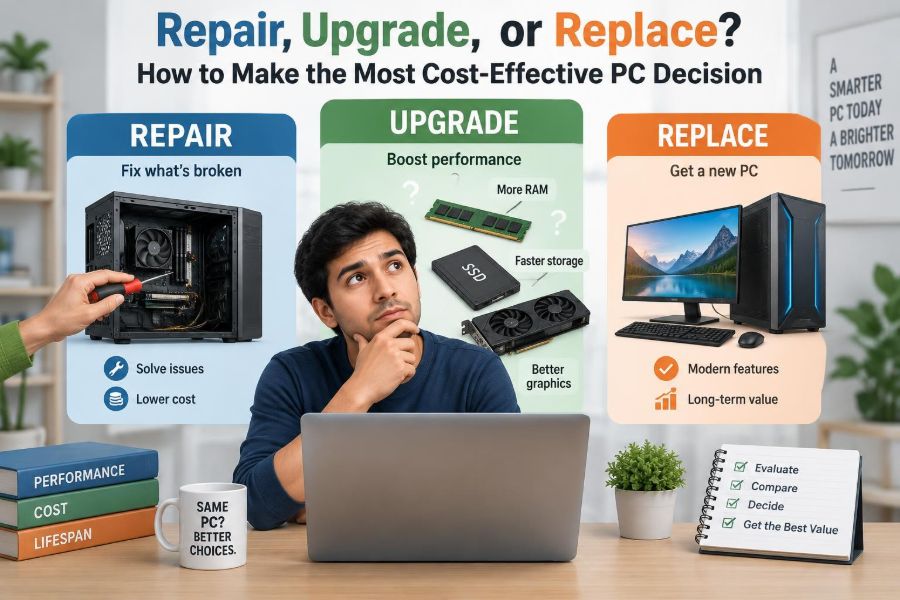

Your computer starts taking longer to open a browser, video calls stutter, and a warning about low disk space appears again. Then a friend suggests buying a new PC, while another says a simple upgrade will fix everything.
The right answer is rarely obvious. A sluggish computer can be suffering from one inexpensive, replaceable part—or it can be limited by an old platform that no sensible upgrade can fully rescue.
Making the wrong choice can waste money in either direction: replacing a machine that needed basic maintenance, or spending repeatedly on upgrades that never solve the real bottleneck.
A cost-effective PC decision begins by identifying what is actually failing, what work you need the computer to do, and how long the solution is likely to remain useful.
🧭 Start With the Job Your PC Must Do
A PC is not “too old” in the abstract. It is too slow, unreliable, or incompatible for a particular task. Email, web browsing, documents, streaming, coding, gaming, photo editing, and 3D work place very different demands on hardware.
Write down the tasks that feel difficult and the software involved. “My PC is slow” is vague; “large spreadsheets freeze while I am on a video call” is a useful starting point.
- Basic work: browser, office applications, learning platforms, and streaming.
- Moderate work: multiple apps, programming tools, large spreadsheets, light photo editing.
- Demanding work: current games, video production, CAD, 3D rendering, and data-heavy projects.
A repair or upgrade only has value if it makes your actual workload comfortable. Do not pay for gaming-level hardware if your heaviest task is writing reports, but do not expect an entry-level machine to edit high-resolution video smoothly.
🔎 Separate Slowness From Failure
Slowness and failure can look similar, but they lead to different decisions. A computer that works reliably but feels slow may need cleanup, more memory, or faster storage. A machine that shuts down unexpectedly, corrupts files, or will not start may have a failing component.
Common failure symptoms include repeated blue-screen or crash messages, burning smells, clicking from a hard drive, random restarts, display artifacts, or a battery that swells. A swollen battery is a safety concern: stop using the device and have it assessed or replaced professionally.
Do not assume that every strange behavior means the entire PC is finished. One bad power supply, storage drive, fan, or memory module can make an otherwise useful desktop appear unusable.
🧪 Test Before You Spend
Gather evidence before ordering parts. Check available storage space, identify the processor, installed memory, drive type, and operating system version. Built-in system information tools can provide most of this without opening the case.
Also observe when the problem occurs. If performance falls only when many browser tabs are open, memory may be the constraint. If the system is slow from the moment it starts and the storage light stays busy, the drive may be the issue.
A backup comes first. Diagnostic work, operating-system repairs, and drive replacement all carry some risk to data. Keep a separate copy of essential files before changing hardware or reinstalling software.
📊 Identify the Real Bottleneck
A bottleneck is the component that most limits performance for a particular task. Replacing another component may improve specifications on paper while changing little in daily use.
| Symptom | Likely area to investigate | Possible response |
|---|---|---|
| Long startup and app-loading times | Hard drive or nearly full storage | Free space, check drive health, move to an SSD |
| Slowdowns with many apps or tabs | RAM capacity | Add compatible memory if supported |
| Low frame rates in games | Graphics processor, settings, or CPU | Adjust settings; assess GPU and platform limits |
| Random crashes and file errors | Storage, RAM, drivers, or power | Diagnose before upgrading |
| Overheating and loud fans | Dust, airflow, fan, or thermal issue | Clean and service the cooling system |
One task can have several bottlenecks. For example, video editing may benefit from storage speed, RAM, processor performance, and graphics acceleration. That is why task-specific testing is more useful than comparing a single specification.
💾 Recognize When Storage Is the Problem
Traditional hard disk drives use spinning platters and moving parts. They can still store large amounts of data economically, but they are much slower than solid-state drives, or SSDs, for starting an operating system and loading applications.
If an older PC uses a hard drive and otherwise meets your needs, installing an SSD is often one of the most noticeable upgrades. It can reduce waiting during startup, updates, searches, and everyday application use.
Storage capacity matters too. When a drive is nearly full, updates and temporary files have less room to work. Delete unneeded files, move archives to external storage, and keep enough working space rather than assuming more capacity alone will fix a speed problem.
🧠 Know What More RAM Can—and Cannot—Do
Random access memory, or RAM, holds data that actively running programs need. When RAM is insufficient, the operating system moves some data to storage, which is far slower and can produce pauses when switching tasks.
Adding RAM can be worthwhile for users who keep many browser tabs, documents, communication tools, and creative applications open. It is less useful when the processor is already fully occupied or when the computer has a very slow drive.
Check the maximum supported capacity, memory type, slot availability, and whether the computer uses soldered memory. Many thin laptops cannot be upgraded at all, while desktops often offer straightforward access.
⚙️ Understand the Processor Ceiling
The central processing unit, or CPU, performs general-purpose calculations and coordinates much of the system. An older CPU may still handle simple work well, but it can struggle with newer software, complex multitasking, media processing, or workloads designed for more cores.
Unlike storage and RAM, processor upgrades are often restricted by the motherboard socket, firmware support, cooling, and power delivery. A used “faster” CPU may not be compatible, and the performance gain may not justify the cost.
For laptops, CPU replacement is usually impractical because the processor is commonly soldered to the main board. When an aging laptop is CPU-limited, replacement is often more realistic than a processor upgrade.
🎮 Treat Graphics Upgrades as System Upgrades
A graphics processing unit, or GPU, creates images for displays and accelerates many visual workloads. In a desktop, a new graphics card can extend the life of a machine used for games, design, or video work.
However, a graphics card has dependencies. The case must have room, the power supply must provide suitable wattage and connectors, cooling must be adequate, and the CPU must be able to feed it work efficiently.
A powerful new GPU paired with a very old CPU may still improve some tasks, but performance can be uneven. Check your target software and games rather than expecting one component to transform every workload.
🌡️ Fix Heat Before Calling a PC Obsolete
Computers slow themselves down when temperatures rise too high. This protective behavior, often called thermal throttling, prevents damage but can make a previously capable PC feel inconsistent.
Dust-blocked vents, failing fans, dried thermal interface material, and poor laptop placement can all contribute. A laptop used on bedding or a cushion may have its intake vents blocked; use it on a hard, flat surface instead.
Cleaning internal components requires care. Power the device off, unplug it, follow the manufacturer’s guidance, and avoid using a household vacuum directly on delicate electronics. If opening the device is unfamiliar, a repair shop can evaluate cooling safely.
🔌 Do Not Ignore Power Problems
Power issues are especially easy to misread. Sudden shutdowns under load, failure to start, charging problems, or intermittent restarts can come from a power supply, charger, battery, outlet, cable, or internal connection.
Desktop power supplies are replaceable, but quality matters. A cheap or unsuitable unit can create instability and may lack the proper protections or connectors. Choose a reputable, compatible replacement rather than selecting only by the largest wattage number.
For laptops, use a charger with the correct specifications. An underpowered or questionable third-party charger can cause poor charging behavior or unreliable performance, particularly during demanding tasks.
🛠️ Repair Makes Sense When the Fault Is Isolated
Repair is generally the best value when a technician—or a careful diagnosis—can point to one failed part and the rest of the PC still serves your needs. Replacing a drive, fan, keyboard, charging port, screen, battery, or power supply may restore years of useful service.
The key question is not merely “Can it be repaired?” Almost anything can be repaired with enough time and parts. Ask whether the repaired computer will be reliable and capable enough afterward.
For example, replacing a failed SSD in a reasonably modern office desktop is usually sensible. Replacing a cracked display and worn battery in a laptop that already struggles with required software may be harder to justify.
🧩 Upgrade Makes Sense When the Platform Has Headroom
An upgrade is most attractive when the computer’s core platform—motherboard, processor, ports, and operating-system support—remains suitable, but one clear limitation is holding it back.
Good candidates often include desktops with an SSD upgrade path, available memory slots, and a processor that is still adequate for the user’s workload. A modest upgrade can be more sustainable and less disruptive than replacing a complete system.
Think in terms of a balanced machine. Adding storage to relieve a capacity shortage is sensible; adding expensive graphics hardware to a system that cannot support it well is not.
🧱 Replace When the Foundation Is the Limit
Replacement becomes more compelling when several essential parts are old, unsupported, or failing at once. A machine needing a battery, storage drive, more memory, and major cooling work may cost less than a new computer in parts, yet still remain constrained by its processor and ports.
Other replacement signals include no practical upgrade path, inability to run required applications, missing modern connectivity, repeated reliability problems, and lack of security support for the operating system.
A new PC is not automatically the premium choice. It is the rational choice when the old platform cannot meet your needs reliably after reasonable repair costs are considered.
🧾 Compare Total Cost, Not Just Part Prices
The price of a replacement part is only one part of the decision. Include shipping, tools, professional labor, possible data recovery, software migration, downtime, and the chance that a second fault appears soon after the first repair.
Then compare that total with the cost of a replacement that includes a warranty, current connectivity, and a realistic useful life for your needs. This does not require a precise spreadsheet, but a simple written comparison prevents impulse purchases.
- Cost of the immediate repair or upgrade.
- Other worn or limiting components.
- Expected usefulness after the work is complete.
- Time without a working computer.
- Value of a warranty and easier support.
⏳ Consider Remaining Useful Life
Useful life is not a fixed number of years. It depends on workload, care, parts availability, and software requirements. A lightly used desktop may remain excellent for years, while a heavily used laptop can develop battery, hinge, keyboard, and cooling issues sooner.
Ask a practical question: after spending this money, will the PC likely meet my needs long enough to make the expense worthwhile? If the answer is “only until the next required repair,” replacement may be less frustrating and more economical.
For a second computer, a child’s homework PC, or a simple home media machine, a shorter remaining life may be acceptable. For a work-critical device, reliability has greater value.
🔐 Check Software and Security Compatibility
Hardware that still turns on may no longer be suitable if it cannot run supported operating-system versions or required software. Security updates address vulnerabilities discovered after release, so an unsupported operating system deserves careful consideration.
Compatibility can also affect printers, specialized business software, development tools, and peripherals. Verify requirements before buying either parts or a replacement PC; older drivers and applications may not behave as expected on a newer system either.
Where support is uncertain, consider the full transition plan. A replacement may require data migration, application reinstallation, and possibly updated licenses or workflow changes.
💻 Desktop and Laptop Decisions Differ
Desktops are usually easier to repair and upgrade. Storage, memory, graphics cards, power supplies, and cooling components can often be replaced individually, making incremental improvement practical.
Laptops trade that flexibility for portability. Some permit SSD and memory upgrades, but thin designs increasingly use soldered components. Screens, keyboards, batteries, and charging systems may also require more labor to access.
Before buying a laptop, repairability should be part of the purchase decision. Accessible storage and memory, available replacement batteries, and clear service documentation can make a future problem less costly.
🧰 Verify Compatibility Before Buying Parts
Compatibility mistakes are costly because component names can look deceptively similar. Memory generation, drive connector type, physical size, graphics-card clearance, power connectors, and motherboard firmware support all matter.
Use the PC manufacturer’s documentation or the motherboard manual as the primary reference. For a custom desktop, identify the exact motherboard model rather than guessing from the processor name.
If you are uncertain, photograph labels and note model numbers before asking a repair provider or retailer for advice. “Will this fit?” is a question that deserves an evidence-based answer.
🧑🔧 Decide When Professional Diagnosis Is Worth It
A diagnostic fee can feel unnecessary, but it may prevent a much larger mistake. Professional assessment is especially useful for intermittent faults, liquid damage, no-power conditions, board-level laptop problems, unusual noises, or valuable data trapped on a failing drive.
Ask what the fee covers: diagnosis only, a written estimate, data backup, or repair labor. A good estimate should separate required work from optional improvements.
You can still decline the repair and replace the PC. The useful outcome is clarity about the fault, not an obligation to approve every proposed fix.
📁 Put Data Recovery Ahead of Hardware Value
A computer can be replaced; irreplaceable files often cannot. If a drive begins clicking, disappears intermittently, or reports serious errors, reduce use immediately and prioritize copying essential data if the drive remains accessible.
Repeatedly restarting a failing drive or running intensive tests may worsen the situation. Professional data recovery can be expensive and is not guaranteed, particularly when physical damage is involved.
A regular backup routine changes the repair-versus-replace decision. With verified backups, you can choose the best hardware option without treating the old machine as the only copy of your work and memories.
🧹 Rule Out Maintenance and Malware First
Too many startup applications, browser extensions, unwanted software, full storage, outdated drivers, and malware can mimic old hardware. Review startup items, remove software you no longer use, update the operating system, and use trusted security tools.
A clean operating-system installation can be revealing when backed-up data is available. If performance remains poor on a fresh installation, hardware limits become more likely. If it improves dramatically, replacement may be unnecessary.
Do not install multiple “PC cleaner” programs that promise dramatic speed gains. Some add background processes, advertisements, or risks of their own.
📉 Avoid the Sunk-Cost Trap
The sunk-cost trap is the urge to keep spending because you have already spent money. Previous repairs do not make the next repair a good deal; evaluate the next expense based on what it will achieve from this point onward.
Suppose a hypothetical laptop has already received a new battery. If it now needs a costly main-board repair and still lacks enough performance for required work, the battery purchase should not force another investment.
The opposite mistake also happens: discarding a PC because it “feels old” after a minor problem. Focus on current capability, diagnosis, and future needs—not frustration or past spending.
🛒 Do Not Let a Sale Choose Your Specs
A discounted PC is not a bargain if it repeats the limitations of the machine it replaces. Check processor class, RAM capacity, storage type and capacity, display quality, ports, upgrade options, and warranty conditions.
For general use, responsive storage and adequate memory often matter more than a long list of marketing features. For specialized work, confirm application requirements and look for independent compatibility guidance from the software vendor.
Also consider the monitor, keyboard, docking equipment, and peripherals you already own. A replacement that forces several accessory purchases has a higher real cost than its listed price suggests.
🌱 Include Energy, Waste, and Reuse
Keeping a repairable PC in service can reduce electronic waste and avoid the resources required to manufacture a replacement. That benefit is meaningful when the machine remains reliable and useful.
But keeping an inefficient or failing device alive indefinitely is not always the greener choice, especially if it drives unnecessary replacement-part shipments or prevents a more durable solution. The practical goal is to extend useful life, not to preserve every device at any cost.
If you replace a computer, wipe personal data properly and use a certified electronics recycling or reuse program where available. A functioning older PC may be suitable for a family member, school task, or lightweight home use.
🗺️ Use a Simple Decision Framework
When choices feel complicated, move through them in order. This prevents a dramatic symptom from pushing you straight to a purchase.
- Back up important files.
- Define the tasks the PC must handle.
- Check for maintenance, storage, temperature, and software problems.
- Identify the likely failing or limiting component.
- Confirm compatibility and obtain a realistic repair estimate.
- Compare total repair or upgrade cost with replacement value and expected life.
- Choose the option that meets needs reliably with the least wasteful spending.
This process will sometimes lead to a small repair and sometimes to a new machine. A good framework is valuable precisely because it does not force the same answer every time.
📌 Match the Choice to Common Scenarios
A desktop used for documents and browsing that has a slow hard drive is a strong candidate for an SSD and basic maintenance. Its processor may already be sufficient, so replacement would add little practical benefit.
A laptop with a failed battery but otherwise smooth performance may justify a battery replacement, provided the battery is available from a trustworthy source and there are no major signs of wear.
A computer that freezes during required design work, lacks upgrade options, has an unsupported operating system, and needs several repairs is a stronger replacement candidate. The issue is not one component; it is the combined limit of the platform.
🚫 Watch for Common Decision Mistakes
Many poor outcomes come from skipping diagnosis or judging hardware by one headline number. Avoid these patterns:
- Buying more RAM without checking whether RAM is actually full.
- Replacing a PC because it is slow when a failing hard drive is the real cause.
- Installing incompatible parts based on appearance or a partial model name.
- Ignoring backups before troubleshooting.
- Choosing the cheapest power supply, charger, or battery available.
- Paying for several upgrades without considering platform age and software support.
Each mistake has the same underlying cause: treating a computer as a single object rather than a system of parts, software, and user needs.
✅ Make the Decision You Can Explain
The best choice should be easy to explain in a sentence. For example: “I am replacing the SSD because the rest of this desktop meets my work needs,” or “I am replacing the laptop because the needed repairs would not solve its compatibility and performance limits.”
That explanation keeps the decision tied to evidence rather than anxiety, advertising, or attachment to a familiar device. It also makes conversations with repair shops, managers, or family members more productive.
The core principle is simple: repair an isolated fault, upgrade a clear bottleneck on a capable platform, and replace a system whose foundation can no longer meet your needs reliably.
A thoughtful decision protects your budget, your files, and your time. Diagnose first, compare the full cost and likely lifespan, then choose the option that delivers useful performance without paying for more computer than you need. 🖥️🔧♻️