
A computer can feel strangely slow even when its processor is not especially old. You click an app, wait for the icon to stop bouncing, then wait again while the window fills in. Restarting seems to take forever, and a simple update can turn a quick task into a coffee break.
For many laptops and desktops, the overlooked cause is the storage drive. A traditional hard disk drive (HDD) may still have plenty of free space and may not be broken, yet it can hold back nearly every task that needs to read or write files.
Replacing an HDD with a solid-state drive (SSD) is often one of the most noticeable computer upgrades available. But it is not magic: the benefit depends on the kind of slowdown you have, the computer’s connections, its memory, and how you use it.
The useful question is not simply whether SSDs are faster. It is when the HDD is the limiting part of your system and when an SSD will change the experience you actually notice.
🧭 Start With the Storage Bottleneck
A bottleneck is the component that most restricts a task. In a computer, work flows through the processor, memory, storage, graphics hardware, and network connection. Improving one part helps most when that part is causing the delay.
An HDD is commonly the bottleneck during booting, launching programs, opening many small files, searching mail, and loading software updates. If the drive is busy while the processor is mostly idle, faster storage is likely to help.
💽 Understand What an HDD Does Differently
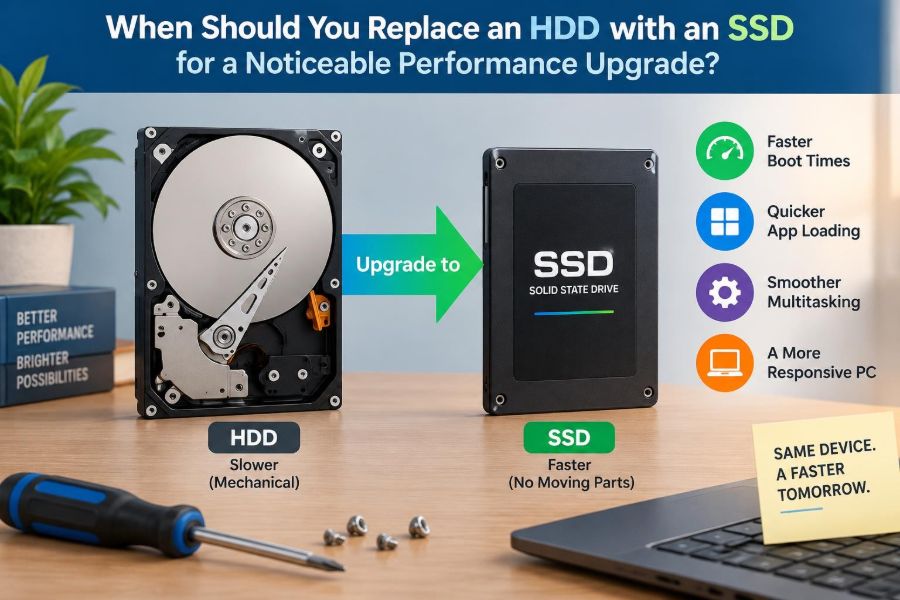
An HDD stores data on spinning magnetic platters. A moving read/write head must travel to the right location before data can be read or written. This mechanical movement is called seek time.
That design works well for inexpensive high-capacity storage, but it is slow when the computer requests lots of small pieces of data from different locations. Modern operating systems and applications do this constantly.
⚡ Know Why an SSD Feels Faster
An SSD stores data in flash memory and has no moving head or spinning disk. It can access scattered pieces of data with far less delay, which is especially valuable for everyday desktop work.
The improvement is not just about a large headline transfer-rate number. Low latency—the small wait before each request begins—is often the reason a computer feels more responsive after the upgrade.
🚦 Notice the Most Common Warning Signs
A slow computer does not automatically need a new drive, but these patterns make an SSD upgrade a strong candidate:
- The operating system takes a long time to reach a usable desktop.
- Programs pause before opening, especially after a restart.
- The system becomes unresponsive while updates, antivirus scans, or file indexing run.
- The disk activity indicator stays busy during ordinary tasks.
- Opening folders full of photos, documents, or project files causes repeated delays.
These signs matter most when they happen consistently rather than only during one unusually demanding task.
🖥️ Consider Boot and Sign-In Time
Starting a computer involves loading the operating system, drivers, login services, startup applications, and background tasks. These files are not read in one neat sequence, so HDD head movement can add noticeable waiting.
An SSD often makes startup and sign-in substantially quicker. The exact result varies with the operating system, startup programs, encryption, and hardware, but this is one of the upgrades users tend to notice immediately.
🚀 Look at Application Launch Delays
Applications load executable files, libraries, fonts, settings, caches, and sometimes plug-ins. An office program may be modest, while a development environment, photo editor, or game launcher may need many separate files.
If an app eventually runs acceptably but takes a long time to open, storage is a plausible limit. An SSD reduces much of that opening delay; it cannot fix an application that is slow because it is calculating a complex task.
🗂️ Pay Attention to Small-File Work
Copying one large video file mainly tests sustained transfer speed. Handling thousands of small documents, thumbnails, code files, browser cache entries, or email messages tests random access much more heavily.
This distinction explains why an old HDD can appear reasonable when copying a movie yet make a workstation feel sluggish. SSDs are particularly strong at many small, scattered requests.
🧠 Separate Memory Problems From Storage Problems
RAM, or random-access memory, holds active programs and data for quick access. When there is not enough RAM, the operating system moves some data to storage temporarily, a process often called paging or swapping.
An SSD makes this fallback far less painful than an HDD, but it does not create more working memory. If your browser, video calls, and documents regularly exhaust RAM, adding memory may be equally important or more important.
📊 Check What the System Is Actually Doing
Use your operating system’s built-in activity or task monitor before buying hardware. Look for periods when disk usage is near its limit while the processor and memory are not under comparable pressure.
Also identify the process responsible. A backup, cloud synchronization client, malware scan, or failing update may explain temporary activity. An SSD improves ordinary storage access, but it will not solve poorly configured software by itself.
🔍 Recognize a Drive That May Be Failing
Slow performance can be an early warning, not merely an inconvenience. Repeated file errors, unexpected freezes, clicking or grinding sounds from a hard drive, disappearing folders, and failed boots deserve attention.
Back up important files promptly if failure is suspected. Do not treat an SSD migration as a substitute for a backup: a struggling HDD can fail during cloning, and every drive can eventually fail.
🧪 Distinguish Healthy Slowness From Hardware Trouble
A healthy HDD can be slow because mechanical access has inherent limits. A failing HDD may be slow because it repeatedly retries reads from damaged areas or encounters connection problems.
Drive health utilities can report some warning information, but they do not predict every failure. The practical rule is simple: if data matters and behavior is unusual, secure a backup before diagnosing further.
🔌 Identify the Drive Connection You Have
Most older laptops and desktops use a 2.5-inch SATA HDD or a larger 3.5-inch SATA HDD. A 2.5-inch SATA SSD is usually a straightforward replacement because it uses the same data and power connections.
Many newer systems also support M.2 SSDs, which are small circuit-board drives. M.2 describes the physical shape, not necessarily the speed or protocol, so compatibility must be checked carefully.
🛣️ SATA and NVMe Are Not the Same Choice
SATA SSDs connect through the older SATA interface and are far faster in day-to-day responsiveness than HDDs. NVMe SSDs typically use PCIe connections and can offer higher throughput and lower overhead for supported systems.
For someone replacing an HDD in a typical older computer, a SATA SSD is often the relevant and practical option. NVMe can be excellent, but buying one does not help if the device has no compatible M.2 PCIe slot.
| Storage type | Best-known strength | Typical limitation | Common role |
|---|---|---|---|
| HDD | High capacity at lower cost | Mechanical random access delays | Archives and large media storage |
| SATA SSD | Major everyday responsiveness upgrade | Limited by SATA interface | Operating system and applications |
| NVMe SSD | Very fast transfers and demanding workloads | Requires compatible hardware | Newer systems, creative and technical work |
📏 Verify Physical Fit Before Ordering
Desktop HDDs are often 3.5 inches, while laptop drives are commonly 2.5 inches. A 2.5-inch SSD can fit in many desktops with an inexpensive mounting bracket, though the bracket is about secure installation rather than electrical compatibility.
For laptops, check the drive thickness, connector position, and service manual where available. Some thin machines use proprietary layouts or soldered storage and cannot accept a normal replacement drive.
🧩 Check Firmware and Operating System Support
Most computers made in the SATA era can use a SATA SSD. Very old firmware may need special settings, and systems that use NVMe may require firmware support to boot from that drive.
Confirm support using the manufacturer’s documentation or the existing drive information. Avoid assuming that an empty-looking M.2 slot is a storage slot; it may be intended for wireless hardware or support only a different protocol.
💼 Decide Whether Your Workload Will Benefit
An SSD is especially worthwhile for general productivity: web browsing with many tabs, spreadsheets, email, school assignments, coding, accounting software, and frequent application switching all involve numerous file operations.
It also improves loading in many games and creative applications. However, frame rate in a graphics-limited game, the speed of a CPU-heavy render, or an internet delay in an online meeting may change little.
🎓 Think About Everyday Student Use
Students often work in bursts: wake a laptop, open a learning platform, download slides, search notes, edit a document, and join a call. Those transitions rely on storage often enough that an HDD can make the machine feel older than it is.
For a computer with an otherwise capable processor and sufficient RAM, an SSD can extend useful life without replacing the entire device. It is a practical upgrade when the machine still meets software requirements.
🏢 Consider Professional Workflows
Office workers may notice faster logins, search results, document loading, and virtual meeting application launches. Developers can benefit when tools index source files, build projects, and manage local dependencies.
Media professionals should consider capacity and workload. SSDs help with application caches and active projects, while a large HDD can still make sense for completed footage, backups, and long-term storage.
🎮 Set Realistic Gaming Expectations
An SSD can reduce game load screens and improve the speed at which game assets are read from storage. Some newer games are designed with fast storage in mind, though the practical effect differs by title and system.
Do not expect an SSD alone to transform graphics quality or solve low frame rates caused by a weak graphics processor, a hot CPU, insufficient RAM, or demanding game settings.
📦 Choose Capacity Based on Free Space
Buy enough capacity for the operating system, applications, current files, and reasonable headroom. A nearly full drive can be awkward to manage and may leave too little room for updates, temporary files, and normal SSD maintenance.
Before choosing, inspect how much space the old HDD uses and identify large files you can archive. Selecting a drive solely because it is the cheapest may force difficult compromises soon after installation.
🗄️ Keep the HDD When It Still Has a Job
Replacing the system HDD does not always mean discarding it. In a desktop with room for both drives, the SSD can hold the operating system and active applications while the HDD stores media, installers, and archives.
An old drive may also be placed in a compatible external enclosure for secondary storage, provided it is healthy. It should not become the only copy of important data just because it is available.
🔄 Choose Between Cloning and a Clean Installation
Cloning copies the old drive’s operating system, programs, settings, and files to the SSD. It can be convenient, especially when the current installation is stable and the destination SSD has enough capacity.
A clean installation starts with a fresh operating system and requires reinstalling programs and restoring files. It takes more preparation but can avoid carrying over old clutter, unwanted startup tools, and configuration problems.
🧰 When Cloning Usually Fits
- The existing system works reliably.
- The used space fits comfortably on the new SSD.
- You need to preserve specialized applications or settings.
- You have a verified backup before beginning.
🧹 When a Clean Installation May Be Better
- The old system has persistent software problems.
- The HDD is suspected of failing or has read errors.
- You want a simpler, more controlled setup.
- The old installation contains years of unused software.
🛡️ Back Up Before Touching the Drive
A migration involves copying data, changing hardware, and sometimes resizing partitions. Any of these steps can expose an existing problem or lead to accidental loss if the wrong disk is selected.
Create a backup on separate storage and make sure you can locate essential files. For critical work, verify that the backup opens and is not merely a folder that appears to exist.
🔐 Plan for Encryption and Recovery Keys
Some systems encrypt storage automatically or through workplace management tools. Encryption protects data, but drive changes can trigger recovery checks.
Save recovery information through the approved account or organizational process before starting. If the computer belongs to an employer or school, follow its support policy rather than bypassing management or security controls.
🧭 Prepare the Migration Carefully
Record the computer model, current drive type, storage used, and available ports. Download any needed migration software only from a trusted source, and connect the SSD using an appropriate adapter if cloning externally.
Disconnect unnecessary external drives during installation when practical. This reduces the chance of selecting the wrong destination or placing boot files on a disk you did not intend to use.
⚙️ Install and Configure the New Drive
After physically installing the SSD, confirm that firmware detects it. If you cloned the old drive, the first boot should be tested with the old system drive disconnected or removed when possible; otherwise, the computer may boot from the wrong device.
For a fresh installation, choose the SSD deliberately during setup. Once the system starts, install updates and confirm that storage capacity, partitions, and boot behavior look as expected.
✅ Verify the Upgrade Before Erasing Anything
Open key applications, review important documents, restart the computer, and check that the system boots from the SSD. If the old HDD remains connected, label it clearly so it is not mistaken for an empty drive.
Keep the original data intact for a short period after a successful migration. Erase or repurpose the old drive only after you are confident that files, licenses, account access, and recovery options are in order.
🌡️ Avoid Common SSD Care Misunderstandings
Modern operating systems generally manage SSDs well. You do not need to manually defragment an SSD; traditional defragmentation is designed around HDD mechanics and is not a routine SSD maintenance task.
Leave some free space and allow the operating system’s normal storage optimization features to work. Also keep firmware and backups in sensible condition, just as you would with any important storage device.
🚫 Do Not Expect an SSD to Fix Every Slowdown
If the processor is too slow for current software, the system overheats, the battery is failing, the network is poor, or malware is present, an SSD addresses only part of the experience. Diagnose obvious issues rather than treating storage as a universal cure.
Likewise, a device with very little RAM may still stutter under heavy multitasking. The SSD reduces the penalty of paging, but closing unused tabs or upgrading memory may remain necessary.
💰 Weigh Cost Against Remaining Computer Life
An SSD is usually most sensible when the computer’s display, battery or power system, processor, memory, and software compatibility are otherwise adequate. It can be a focused repair-and-upgrade decision rather than a reason to replace a whole machine.
For a severely outdated computer that cannot run required software or has several expensive faults, put the SSD cost in the context of replacement options. The old HDD may still be useful as a data source or external archive after careful backup.
♻️ Handle the Old Drive Responsibly
Before donating, selling, recycling, or disposing of an HDD, make sure personal or organizational data is handled appropriately. Simply deleting files may not be enough for sensitive information.
Use an approved secure-erasure method if the drive works, or use a trusted electronics recycling service that offers suitable data-destruction handling. Workplace devices may require a documented procedure.
🧾 Use This Replacement Decision Checklist
- Is the computer slow mainly during startup, app launches, and file-heavy tasks?
- Does monitoring show sustained disk pressure when CPU and RAM are not the main limit?
- Is the current HDD healthy enough to copy, and is there a separate backup?
- Does the computer support a compatible SATA or NVMe SSD?
- Can you buy enough capacity for current data and future headroom?
- Are RAM, software compatibility, and other hardware adequate for your needs?
Several “yes” answers point toward a worthwhile upgrade. A “no” on compatibility or a serious hardware fault means pausing to investigate before purchasing.
🎯 The Core Principle: Upgrade Where Waiting Happens
Replace an HDD with an SSD when the delays you feel are driven by storage access: booting, signing in, launching applications, opening scattered files, and recovering from background disk activity. In those situations, the change is often more visible than a modest processor upgrade.
Choose the compatible drive type, plan capacity rather than buying blindly, back up before migration, and keep expectations grounded. An SSD improves data access dramatically, while memory, processing power, graphics hardware, software condition, and network quality still determine other parts of computer performance.
If a healthy but mechanical hard drive is making ordinary tasks wait, an SSD is one of the clearest ways to make an otherwise capable computer feel responsive again. 💽⚡🖥️