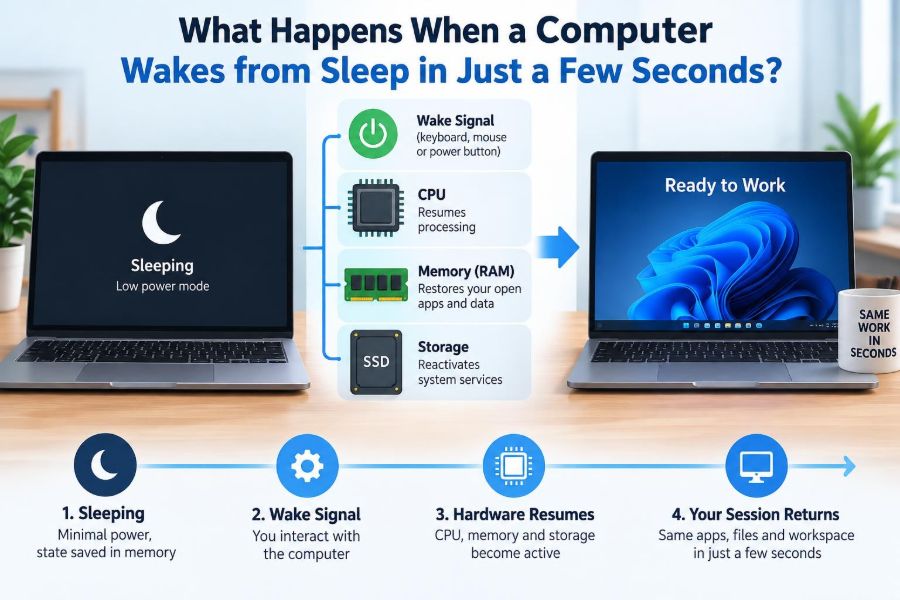

You close your laptop after answering a message, walk to a meeting, and return a little later. You open the lid, and the screen is ready almost immediately. Your documents are still open, your browser tabs are where you left them, and the cursor may even be blinking in the same place.
That quick return feels ordinary now, but it involves a carefully coordinated pause rather than a simple on-and-off switch. A sleeping computer preserves enough of its current state to continue working without repeating the full startup process.
Understanding sleep mode helps explain why a computer can wake quickly, why its battery may still drain in a bag, and why it occasionally refuses to wake correctly. It also makes it easier to choose between sleep, hibernation, shutdown, and other power options.
The details vary between desktops, laptops, operating systems, and hardware, but the central idea is consistent: the computer saves its place, reduces power use, and keeps a small part of itself ready to listen for a wake-up signal.
🌙 Sleep Is a Low-Power Pause
Sleep mode is a low-power state designed for short breaks. Instead of closing every program and clearing memory, the computer pauses most activity while retaining the working information needed to resume.
Think of it less like packing up an office and more like leaving your desk with the paperwork spread out, then dimming the lights. The work is not actively progressing, but it remains available when you return.
Sleep is especially useful when you expect to use the computer again later that day. It prioritizes convenience and speed, although it still consumes a small amount of electricity.
🧠 RAM Holds Your Active Workspace
The key to quick waking is usually RAM, or random-access memory. RAM contains the active data that programs need while they are running: open documents, program code, window positions, browser tabs, and many temporary calculations.
RAM is fast, but it is normally volatile memory. That means it needs power to retain its contents. If all power to RAM disappears, its stored information is lost.
During ordinary sleep, the computer keeps RAM powered while turning off or slowing down many other components. Because the active workspace is already in RAM, the system does not need to rebuild it from storage.
📸 The System Freezes a Consistent Moment
Before sleeping, the operating system has to put the computer into a stable state. Programs may be writing files, a network connection may be active, and the processor may be handling several tasks at once.
The operating system coordinates this transition by pausing work, notifying software and drivers, and preparing hardware for reduced power. A driver is the software that lets the operating system communicate with a device such as a graphics adapter, Wi-Fi card, or printer.
This is why a computer may take a brief moment after you choose Sleep. It is arranging a safe pause, not merely switching the display off.
⚙️ The Processor Stops Running Normal Work
The central processing unit, or CPU, normally executes instructions continuously while a computer is in use. In sleep, it stops performing ordinary application work and enters a very low-power state.
The CPU does not need to keep recalculating a spreadsheet or drawing an unchanged desktop. Its previous results and program state are already represented in memory, ready for later use.
Some small control circuits remain capable of responding to wake events. They are far less active than the full CPU during normal operation, which is one reason sleep uses much less power than leaving a computer fully awake.
🖥️ The Display Goes Dark First
A black screen does not necessarily mean a computer is asleep. Operating systems can turn off the display after a short period of inactivity while leaving programs, downloads, or calculations running normally.
When the whole computer enters sleep, the display is usually powered down too. This reduces energy use, especially on larger monitors, but the display change alone is not the defining feature of sleep.
If a computer wakes instantly when you move the mouse, it may have been asleep, or only the display may have been off. The distinction depends on the computer’s configured power settings.
💾 Storage Is No Longer the Main Workspace
Your internal SSD or hard disk stores files permanently, but it is much slower to use as an active workspace than RAM. A full startup requires the computer to load the operating system, drivers, and programs from storage into memory.
Sleep avoids much of that loading process because the current session is already sitting in RAM. Modern solid-state drives have made cold starts much faster, but resuming from RAM can still feel nearly immediate.
Storage may be powered down in conventional sleep, unless the system briefly needs it for a maintenance task or a special hybrid sleep arrangement.
🔋 A Tiny Power Budget Keeps Memory Alive
Sleep is not the same as zero power. The computer needs a small standby supply for RAM and for selected components that can detect a wake request.
On a laptop, that energy comes from the battery. On a desktop, it usually comes from the power supply while the machine remains plugged into a working outlet.
The exact amount varies widely with hardware and settings. A computer with a nearly depleted battery, several connected accessories, or a less efficient standby design may lose charge more noticeably during sleep.
🔔 Wake Signals Tell the Computer to Resume
A sleeping computer needs a trigger to begin waking. Common triggers include opening a laptop lid, pressing a power button, tapping a keyboard key, clicking a mouse button, or pressing a configured key on an external device.
Other possible triggers include a scheduled alarm, a network event, or a device connected through USB. The computer’s firmware and operating system decide which events are permitted.
Only selected circuitry needs to remain alert for these signals. Once a valid event arrives, it requests power restoration and begins the resume sequence.
⌨️ Not Every Keyboard Tap Should Wake It
Wake settings involve a practical trade-off. If every connected device can wake a computer, an accidental mouse movement, a Bluetooth event, or a desk vibration could bring it back unnecessarily.
For this reason, systems often let you choose which devices are allowed to wake the computer. A laptop may respond to its built-in keyboard but ignore an external mouse, for example.
If your computer wakes unexpectedly, checking device wake permissions is often more useful than assuming the battery or operating system is faulty.
🔌 Power Returns in a Controlled Sequence
When the system receives a wake request, it does not simply apply full power everywhere at random. Hardware components need power rails, clocks, and communications to become available in a dependable order.
The firmware, low-level software that starts and manages basic hardware behavior, helps coordinate this process. Devices such as the display controller, storage controller, USB ports, and wireless adapter are restored as needed.
This sequence is much shorter than a cold boot because the operating system was already running before sleep. It is resuming an existing session rather than constructing one from the beginning.
🧩 Drivers Reconnect Hardware to the Session
During wake, drivers restore their relationship with hardware devices. A graphics driver must redraw the display, a network driver may reconnect Wi-Fi, and audio hardware must become available again.
Most of the time this is invisible. When it fails, the symptoms can be recognizable: no display after waking, missing sound, a disconnected external monitor, or Wi-Fi that takes unusually long to return.
These problems are often related to a specific driver, peripheral, or firmware interaction rather than to sleep mode as a general concept.
🎨 The Screen Is Redrawn from Memory
Once the graphics system is active, the computer redraws what you were seeing. Applications do not necessarily recreate every window from scratch; much of the visual and program state was already retained in memory.
A web browser might briefly refresh a page, and a video call application may need to reconnect. Those actions are application-specific, not proof that the entire computer restarted.
External displays can take a little longer because they must detect the video signal and negotiate settings such as resolution and refresh rate.
🌐 Networks May Reconnect After Wake
Network connections are a common source of confusion. During sleep, Wi-Fi and Ethernet activity may stop completely, remain partly available, or wake only for limited system tasks, depending on the device and configuration.
After resuming, a computer may need to authenticate with a wireless network again, request an address from the network, or restore a virtual private network connection. That can take longer than the screen wake-up.
This explains a familiar moment: the desktop appears immediately, but a cloud file or webpage is not ready for a few more seconds.
📥 Apps Decide What to Do with Interrupted Work
The operating system can preserve a running application, but it cannot guarantee that every outside service stayed connected. An email program may synchronize again, a chat tool may collect missed messages, and an online game may require a new connection.
Well-designed software expects short interruptions and recovers smoothly. Older applications, specialized business tools, or programs connected to remote systems may behave less gracefully.
For unsaved work, sleep is helpful but not a substitute for saving. A power failure, a drained battery, or a crash can still interrupt the session.
🛡️ The Lock Screen Protects the Paused Session
A sleeping computer often requires a password, PIN, fingerprint, or other sign-in method when it wakes. The session remains in memory, so leaving it accessible would expose your files and applications to anyone nearby.
For a personal computer in a private home, the choice may feel less urgent. In a shared office, classroom, library, or travel setting, automatic locking is a basic protection against unauthorized access.
Convenience and security are separate settings: a computer can wake quickly while still requiring authentication before revealing the desktop.
🧭 Firmware and the Operating System Share Responsibility
Sleep behavior is not controlled by one piece of software. The operating system requests a power state, firmware supports hardware-level transitions, and device drivers cooperate with both.
Modern computers commonly use standardized power-management concepts, but the visible options and technical implementation differ. A desktop with older peripherals may behave differently from a thin laptop designed around newer standby methods.
That shared responsibility is why a firmware update, operating system update, or driver update can change sleep reliability for better or worse.
🪶 Traditional Sleep and Modern Standby Differ
Older-style sleep generally keeps RAM powered while most components are off. Many newer laptops use a more connected standby approach, allowing limited background activity while the system appears asleep.
This can enable timely notifications, synchronization, or maintenance, but it can also increase standby battery use if hardware or software behaves poorly. The names used by manufacturers and operating systems are not always identical.
| Power state | Where the session lives | Wake speed | Power use |
|---|---|---|---|
| Display off | RAM, with computer still running | Immediate | Higher than sleep |
| Sleep | RAM | Usually very fast | Low |
| Hibernate | Storage file | Slower than sleep | Very low or none after saving |
| Shutdown | Session closed | Requires a full startup | Very low or none |
💤 Hibernate Saves the Session to Storage
Hibernation writes the contents of active memory to a file on permanent storage, then powers the computer down much more completely. When it starts again, the operating system restores that saved memory image.
Hibernate is usually slower than ordinary sleep because reading a large memory image from storage takes more time than retaining RAM. However, it is safer for long periods away from power because RAM no longer needs battery power.
It is a sensible option before storing a laptop for an extended period, traveling without reliable charging, or working with a battery that is already low.
🔄 Hybrid Sleep Adds a Safety Copy
Some systems combine sleep and hibernation concepts. They keep the active session in RAM for a quick return while also writing a copy to storage.
If power remains available, the computer wakes quickly from RAM. If power is lost, it can attempt to restore the saved copy from storage when power returns.
This approach offers resilience, but entering sleep may take a little longer because the system must write the memory image. Availability and naming depend on the operating system and hardware.
🔌 Desktop and Laptop Sleep Have Different Risks
A desktop is usually attached to wall power, so ordinary sleep can be dependable as long as power is stable. A power outage or switched-off power strip can still erase the RAM session.
A laptop has its own battery, making short sleep periods practical away from an outlet. Yet that battery can eventually drain, particularly if the laptop remains asleep for days or if connected standby allows ongoing activity.
For either device type, a surge protector does not replace regular saving. It can help with certain electrical events but cannot promise that an active RAM session will survive every interruption.
🎒 A Sleeping Laptop Can Wake Inside a Bag
A laptop that wakes in a backpack has no airflow around it and may continue using battery power. It can become warm, especially if it starts installing updates, indexing files, or running a demanding task after waking.
Before carrying a laptop, make sure it has actually entered sleep or use hibernation or shutdown when travel will be long. Closing the lid usually requests sleep, but organization policies and power settings can alter that behavior.
If this happens repeatedly, inspect configured wake sources and lid-close settings. A firmware or driver update may also be relevant, but updates should be obtained through the device maker or operating system’s normal channels.
🔧 Why a Computer Sometimes Will Not Wake
Wake failures are frustrating because the screen can remain black even while lights or fans suggest that some hardware has power. The cause may be a graphics driver issue, a USB device conflict, unstable firmware, or a problem with the sleep state itself.
A forced restart often recovers the computer, but it discards unsaved work because it clears RAM. Treat it as a recovery step rather than the preferred normal method.
- Disconnect recently added docks, displays, or USB accessories and test sleep again.
- Install appropriate operating system, driver, and firmware updates.
- Review power settings, especially external-device wake permissions.
- Use hibernation or shutdown temporarily if sleep remains unreliable.
- Seek manufacturer or workplace IT support when the problem affects managed equipment.
🧪 A Simple Test Reveals Your Computer’s Behavior
You can learn a great deal without special tools. Save your work, put the computer to sleep, wait a short time, and wake it using the normal method. Notice whether the screen, network, external display, and applications recover as expected.
Then test a longer period, ideally while the device is in a safe, ventilated place. If battery level drops far more than expected or the system wakes on its own, review settings before assuming a hardware failure.
When troubleshooting, change one variable at a time. For example, test once with a docking station attached and once without it. That produces more useful clues than changing many settings at once.
⚡ Choose the Right Power Mode for the Break
No single power state is best in every situation. The useful choice depends on how soon you will return, whether battery power matters, and whether you need the session to survive a complete loss of power.
- Use display off when the computer should keep working on a download, backup, or long calculation.
- Use sleep for short breaks when fast resumption matters.
- Use hibernation for longer breaks or travel when preserving battery is a priority.
- Use shutdown when you want a fresh start, are storing a device for a long time, or need to disconnect all active software.
Workplace security rules, encryption tools, remote-management software, and update policies can affect which option is appropriate. Follow organization guidance on managed devices.
🧹 Good Habits Make Sleep More Reliable
Sleep works best when the computer has enough free battery, current software, and healthy hardware connections. Keeping important work saved remains the simplest safeguard, even when sleep has been reliable for years.
Restarting occasionally can also help clear temporary software problems. This is different from sleeping: a restart closes the current session and reloads core system components.
Avoid treating sleep as long-term storage. If you will not use a laptop for several days, hibernation or shutdown usually makes more sense than relying on a slowly draining battery.
🔐 Sleep Is Convenient, Not a Backup Strategy
Sleep preserves a live session, but it does not create an independent copy of your work. A hardware failure, accidental reset, battery exhaustion, or serious software crash can still make unsaved changes unavailable.
Save files to appropriate storage and maintain backups for important work. If a document matters, the safest assumption is that any active session can eventually be interrupted.
Cloud synchronization can be useful, but it is not automatically a complete backup either. Synchronization may copy accidental deletions or unwanted changes, depending on the service and its version-history features.
🏁 The Core Principle Behind a Fast Wake-Up
A computer wakes in seconds because it has not truly started over. It preserved its active workspace in RAM, kept a small amount of power available, and waited for a permitted signal to restore the rest of the system.
The rapid experience depends on many components cooperating: power circuitry, firmware, the operating system, device drivers, applications, and security settings. When that cooperation is smooth, opening a laptop lid feels almost effortless.
Sleep is therefore best understood as a carefully managed pause. It delivers speed by retaining state, while hibernation and shutdown trade some speed for stronger protection against power loss and battery drain.
A fast wake-up is possible because the computer keeps your session alive in memory while almost everything else takes a low-power rest. Choose the power mode that matches the length and risk of your break, and save important work before stepping away. 🖥️🌙🔋