
Your computer feels slower than it did a year ago. Programs take longer to open, files seem to hesitate before loading, and a search for advice quickly produces a familiar suggestion: “Defragment the drive.”
That recommendation made sense for many older PCs. But modern computers use very different storage technologies, and applying old maintenance habits blindly can range from useless to counterproductive.
The right answer depends less on the age of the computer than on the kind of drive inside it, how full it is, and what problem is actually causing the slowdown.
Understanding what defragmentation does—and what it does not do—helps you maintain storage sensibly instead of treating it as a universal performance cure.
🧩 The Short Answer
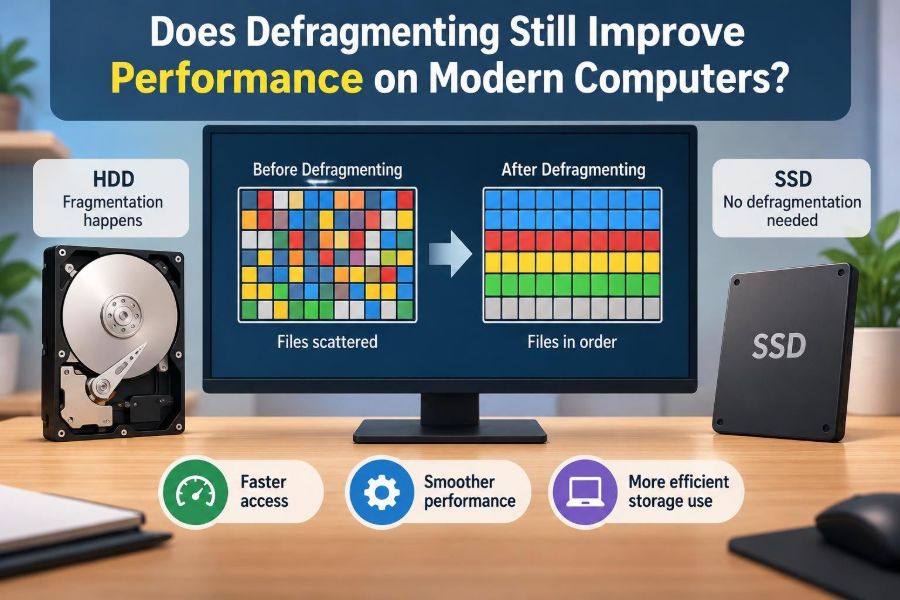
Defragmenting can still improve performance on a computer with a traditional mechanical hard disk drive, usually called an HDD. It generally offers little or no speed benefit for a solid-state drive, or SSD.
Modern operating systems recognize this difference. Their built-in storage optimization tools usually defragment HDDs when appropriate and use a different process, called TRIM, for SSDs.
So the practical rule is simple: let the operating system manage routine optimization, and investigate other causes if an SSD-equipped computer feels slow.
💾 What “Fragmented” Means
A file is not always stored as one uninterrupted piece on a drive. When free space is scattered around the disk, the operating system may save parts of one file in several separate locations. Those pieces are called fragments.
Think of a book whose pages have been placed in different drawers. Reading it is still possible, but collecting page 1, then page 2, then page 3 takes longer than reading pages already arranged together.
Fragmentation is a normal result of creating, editing, moving, and deleting files. It is not automatically evidence of damage or poor computer care.
🛠️ What Defragmentation Actually Does
Defragmentation reorganizes file pieces so that more of each file is stored together. It can also consolidate free space, creating larger continuous areas where future files can be written.
On a hard disk, this reduces the number of locations the drive must physically visit to read a fragmented file. The result can be quicker file access in workloads that involve many fragmented files.
It does not repair corrupted files, remove malware, increase memory, or upgrade a slow processor. Defragmentation is a storage-layout task, not a general tune-up.
🧲 Why HDDs Can Benefit
An HDD stores data on spinning magnetic platters. A moving read/write head must travel to the right track before data can be read or written. This physical travel is called seek time.
If a file is split across many distant locations, the head may need to make many separate movements. Those tiny delays accumulate, especially when the drive is reading lots of files.
Keeping file pieces closer together reduces unnecessary seeking. That is why defragmentation was a meaningful maintenance task on heavily used mechanical drives.
⚡ Why SSDs Work Differently
An SSD stores data in flash memory rather than on spinning platters. It has no moving head that must travel from one physical location to another.
Because access time is very low across the drive, reading file fragments from different locations does not create the same penalty seen on an HDD. An SSD can still contain fragmented files, but ordinary fragmentation is rarely the reason it feels slow.
This is the key distinction behind modern maintenance advice: storage layout affects mechanical drives and flash storage in different ways.
🚫 Why Manual SSD Defragmentation Is Usually a Bad Idea
Traditional defragmentation rewrites data as it moves file fragments together. SSD flash cells have a finite number of program-and-erase cycles, so unnecessary rewriting adds wear without providing the HDD-style performance benefit.
Modern SSDs are designed to manage wear internally through techniques such as wear leveling. A one-off mistaken optimization is unlikely to destroy a healthy SSD, but regularly forcing old-style defragmentation is unnecessary.
Use an SSD-aware optimization tool, not a legacy disk-defragmenter configured to run repeatedly.
🧹 TRIM Is Not Defragmentation
When you delete a file, an SSD does not always erase its old data immediately. The operating system marks the space as available, but the SSD benefits from knowing which blocks no longer contain useful data.
The TRIM command communicates that information. It allows the SSD to prepare unused space more efficiently for later writes, helping the drive maintain its normal behavior over time.
TRIM does not arrange files into contiguous runs. It is a flash-storage housekeeping process, so it should not be confused with defragmentation.
🖥️ What Modern Operating Systems Usually Do
Current desktop operating systems include scheduled storage maintenance. They identify the storage type and choose an appropriate operation: conventional defragmentation for many HDDs, and optimization that may include TRIM for SSDs.
This automation is useful because it avoids a simplistic “defrag everything” approach. It also means most people do not need a third-party utility for basic drive maintenance.
You can normally inspect the optimization status in your system’s storage or disk-management settings, but manually running tasks every day rarely improves anything.
🔍 Why an SSD May Still Be Mentioned in Optimization Tools
Seeing an SSD in an operating system’s “Optimize Drives” screen does not necessarily mean it is being conventionally defragmented. The wording of these utilities often covers several maintenance actions under one interface.
In some circumstances, an operating system may perform limited metadata-related consolidation on an SSD. This is not the same as routinely moving all file data around as older defragmenters did.
The important point is to trust the drive-aware built-in process rather than assuming every button labeled “optimize” performs the same action.
📁 File Fragmentation Versus Free-Space Fragmentation
File fragmentation means pieces of an individual file are separated. Free-space fragmentation means the unused capacity on a disk is scattered into many small gaps.
Both can matter on an HDD. Scattered free space makes it harder for the system to place a newly written file in one continuous area, increasing the chance of further fragmentation.
On an SSD, neither form usually creates a meaningful read-speed problem. Available capacity matters for other reasons, but contiguous empty space is not needed in the same mechanical sense.
📦 Large Files Are Not Always the Main Problem
A large video file may be fragmented, yet still play smoothly because modern drives can read data quickly enough for sequential playback. Fragmentation tends to be more noticeable when a system must open many small files from scattered locations.
For example, an older HDD-based computer may spend extra time starting an application that loads numerous libraries, settings files, icons, and cached data.
That does not mean every slow program is fragmented. Startup delays may also come from background services, security scanning, low memory, or the application itself.
🎮 Workloads That May Notice HDD Fragmentation
The impact of fragmentation varies with how a computer is used. Repeatedly loading many files can expose the seek-time limits of a mechanical disk more than reading one large file does.
- Operating system startup on an older HDD
- Opening software with many supporting files
- Working with large, frequently modified project folders
- Searching or indexing heavily used file collections
- Loading game assets from a mechanical drive
Even in these cases, the effect depends on the degree of fragmentation and the drive’s overall condition.
⏳ When Defragmenting an HDD Can Help
Consider defragmenting when a mechanical drive has been used for a long time, its file layout is substantially fragmented, and disk activity appears to be a real bottleneck. The built-in analyzer or optimizer can provide a more useful signal than guessing.
It may also be worthwhile after extensive file churn, such as editing large media projects, repeatedly installing and uninstalling software, or filling and emptying a drive many times.
A defrag is most likely to help file-access responsiveness—not internet speed, graphics performance, or a processor-bound task.
🧠 Why Defragmentation Rarely Fixes a Slow Modern PC
Many current slowdowns come from causes unrelated to file layout. A computer may be short of memory, running too many startup applications, overheating, downloading updates, or using a nearly full drive.
On systems with SSDs, switching from an old hard disk to flash storage often produced a far larger improvement than any defragmentation ever could. Once an SSD is already installed, other bottlenecks become more visible.
Diagnosing the symptom matters. If the disk is barely active while an application lags, defragmenting it is unlikely to help.
📊 Check the Storage Type First
Before changing maintenance settings, find out whether the computer contains an HDD, an SSD, or both. Many desktops and some older laptops use a combination: an SSD for the operating system and an HDD for large files.
| Drive type | Routine approach | Expected benefit from defrag |
|---|---|---|
| Mechanical HDD | Allow scheduled optimization; defragment when appropriate | Can help with fragmented-file access |
| SATA or NVMe SSD | Allow TRIM and built-in optimization | Usually negligible; manual defrag is not needed |
| Hybrid or mixed system | Check each physical drive separately | Depends on the individual drive type |
Do not make decisions based solely on how much storage a drive has or whether the computer is new.
🗂️ Mixed Drives Need Separate Decisions
A desktop might have an SSD containing Windows and programs, plus an HDD used for photos, recordings, or backups. In that situation, the two drives should not receive identical maintenance.
The HDD may benefit from ordinary scheduled defragmentation. The SSD should retain its SSD-appropriate optimization and enough free space for normal flash-management tasks.
This arrangement also changes performance expectations. Opening the operating system may be fast from the SSD while browsing a huge archive on the HDD remains comparatively slower.
📉 Low Free Space Causes Different Problems
A nearly full drive can slow a computer, but the reason is not always fragmentation. An HDD has less room to place files efficiently, while an SSD has less spare capacity available for internal housekeeping and write management.
Operating systems also need working space for updates, temporary files, virtual memory, and application caches. When capacity is extremely tight, failures and slowdowns can appear even on a perfectly healthy SSD.
Deleting unneeded files or moving archives to another location is often more useful than defragmenting a drive that is simply full.
🧪 Benchmark Results Need Context
Disk benchmarks measure specific operations under specific conditions. A test may show strong sequential speed while ordinary use still feels slow because opening applications involves many small reads, background activity, and CPU work.
Likewise, a small improvement after defragmenting an HDD does not prove that fragmentation was the only cause. Caches, update activity, and a restarted system can affect how responsive a computer feels.
Use measurements as clues, not as a reason to repeatedly run maintenance tasks in pursuit of an ideal score.
🩺 Signs of a Failing HDD Are Different
Defragmentation cannot cure a drive with physical or logical problems. Repeated read errors, disappearing files, unexplained crashes during file access, unusual clicking or grinding sounds, and very slow retries deserve attention.
If an HDD may be failing, back up important data first. A lengthy defragmentation process creates substantial disk activity and is not the first action to take when data safety is in doubt.
Use the operating system’s disk-checking tools or seek technical support if errors persist. Replace unreliable hardware rather than attempting to organize it into health.
🛡️ Backups Matter More Than Disk Layout
Defragmentation changes where data sits on a drive; it does not protect that data from hardware failure, accidental deletion, theft, ransomware, or a damaged operating system.
Keep important work in at least one separate backup location, such as an external drive or a reputable cloud service. Ideally, the backup is not permanently connected and exposed to the same failure or malicious software event.
Before major maintenance, verify that valuable files exist somewhere else. This is good practice whether the drive is an HDD or an SSD.
🧰 Safe Maintenance for an HDD
For a healthy mechanical drive, the safest approach is usually uncomplicated:
- Confirm the drive is an HDD.
- Back up important files.
- Ensure the computer has stable power; use mains power for a laptop.
- Use the operating system’s built-in optimization utility.
- Let the task finish rather than interrupting it unnecessarily.
There is rarely a need to run a manual defrag on a fixed calendar schedule. Let actual drive usage and the system’s scheduled maintenance guide the decision.
🔧 Safe Maintenance for an SSD
For an SSD, check that the operating system recognizes it correctly and that scheduled optimization is enabled. This normally allows TRIM and other drive-aware tasks to run without manual intervention.
Keep sufficient unused capacity, install firmware updates only through the drive manufacturer’s trusted process when relevant, and maintain reliable backups. Avoid utilities that promise to “defrag,” “deep clean,” or constantly rewrite the SSD for speed.
Normal use is not a reason for anxiety. Modern SSDs are built for ordinary reading and writing; the goal is to avoid pointless extra work, not to avoid using the drive.
🚨 Third-Party Cleaner Claims Deserve Skepticism
Some utility suites combine defragmentation, registry cleaning, driver updating, memory optimization, and other features behind a single “boost” button. These tools may oversimplify the problem or recommend changes that are unrelated to the slowdown.
Registry cleaning, for example, is not a dependable way to make a healthy computer faster and can create configuration problems if entries are removed incorrectly.
Prefer built-in tools for routine storage optimization. Add specialized software only when you understand the task it performs and have a specific reason to use it.
🧱 File Systems Also Reduce the Old Problem
Modern file systems and operating systems are better at managing free space and delayed writes than many earlier environments. They can make placement decisions, cache data in memory, and perform maintenance in the background.
That does not eliminate HDD fragmentation, especially on busy or space-constrained drives. It does mean the dramatic, frequent manual defragmenting once associated with home computing is usually unnecessary.
Storage technology, software design, and automatic maintenance have all changed the practical value of the task.
🔄 Defragmenting Is Not the Same as Reinstalling
A fresh operating-system installation can feel faster because it removes accumulated applications, startup tasks, old drivers, and configuration clutter. That improvement is often mistakenly credited to “cleaning up” the disk layout.
Defragmentation does not remove unwanted programs or reset software settings. It reorganizes existing files while preserving them.
Before considering a reinstall, try targeted cleanup: remove unused applications, review startup items, update the operating system, free storage space, and scan for security issues.
🧭 Troubleshoot Slowness in the Right Order
When a computer slows down, begin with observable behavior. Is it slow only at startup? Only when opening files? Only while browsing? Does the disk stay busy, or is memory usage high?
- Check available storage space.
- Review startup and background applications.
- Install pending system and application updates.
- Run a reputable security scan if behavior is suspicious.
- Check whether the storage device reports errors.
- Consider RAM or storage upgrades when hardware is the limiting factor.
This approach produces a more useful diagnosis than treating defragmentation as the first answer to every delay.
🏁 When an SSD Upgrade Is the Better Answer
If an older computer still relies on an HDD for its operating system and frequently used applications, replacing that drive with an SSD can make routine work feel much more responsive. Booting, launching programs, and opening files often involve many small reads where SSD access latency helps.
Compatibility, storage capacity, data migration, and backup planning should be checked before upgrading. An SSD cannot compensate for every limitation, such as too little memory or a severely outdated processor, but it can address the mechanical storage bottleneck directly.
For many aging HDD-based systems, this is a more durable improvement than repeatedly reorganizing the existing disk.
🧑💻 A Practical Decision Guide
If you are unsure what to do, use this quick decision path. It keeps the maintenance action aligned with the drive technology.
- You have an SSD: leave scheduled optimization enabled, maintain free space, and do not manually defragment it.
- You have an HDD: allow built-in optimization and consider a manual defrag only when analysis or heavy file churn suggests it is warranted.
- You hear odd HDD noises or see errors: back up first and investigate drive health.
- Your PC is slow but disk use is low: look beyond storage fragmentation.
- Your HDD-based PC feels consistently sluggish: evaluate an SSD upgrade.
🎯 The Core Principle: Match the Tool to the Drive
Defragmentation remains a legitimate performance tool, but it is now a specialized one. It addresses the physical seeking behavior of mechanical hard disks, not a universal condition affecting every kind of storage.
SSDs changed the equation by removing moving parts and using flash-aware maintenance such as TRIM. Automatic operating-system tools changed it further by handling routine optimization without demanding constant attention.
The best maintenance habit is to identify the storage device, protect your data, preserve usable free space, and solve the bottleneck that is actually present.
Defragment HDDs when there is a sensible reason, optimize SSDs with their built-in tools, and do not confuse either task with a complete performance fix. A little accurate diagnosis goes further than an old maintenance ritual. 🖥️⚙️💾