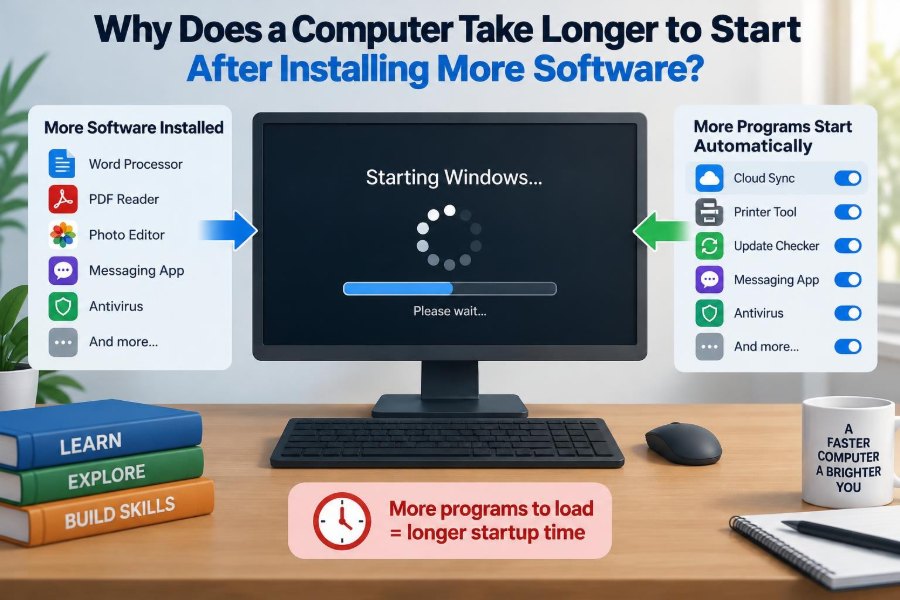

You install a few useful programs: a video-meeting app for work, a cloud-storage tool, a music player, a printer utility, perhaps a game launcher. Nothing seems wrong at first. Then, weeks or months later, turning on the computer becomes a waiting exercise.
The screen may appear quickly, yet the desktop feels unresponsive. The mouse moves, but clicking an icon takes several seconds. Fans may become louder, and the computer may seem busy before you have opened a single document.
This is not always a sign that the computer is old or broken. Very often, the machine is being asked to do far more during startup than it did when it was new.
Understanding what happens between pressing the power button and reaching a usable desktop makes it easier to fix slow startup without randomly deleting software you need.
⏱️ Startup Is More Than Seeing the Desktop
Many people measure startup time from pressing the power button until the desktop background appears. The more meaningful measure is the time until the computer is ready to use: applications open promptly, typing is smooth, and the system no longer feels occupied.
A desktop can be displayed while many background tasks are still loading. This explains a common experience: the computer looks finished, but it is not yet responsive.
Startup is a sequence of stages. Extra software can add work to one stage, several stages, or the period immediately after sign-in.
🔌 The First Stage: Firmware and Hardware Checks
Before the operating system starts, the computer’s firmware performs basic hardware checks. Firmware is low-level software stored on the motherboard; on modern systems it is commonly called UEFI, while older systems may use BIOS.
It identifies devices such as memory, storage drives, keyboards, and sometimes network hardware. Most ordinary desktop applications do not significantly affect this stage.
If the delay happens before an operating system logo or loading indicator appears, installed applications may not be the cause. External drives, a failing storage device, unusual boot settings, or hardware detection can be more relevant.
🚀 The Operating System Then Loads Its Core
Next, the operating system loads its kernel, the central component that manages memory, processors, files, and hardware access. It also loads essential drivers, which are small programs that let the operating system communicate with devices.
Security software, storage encryption, device-management tools, and some drivers may interact with this part of startup. They can be necessary, especially on work-managed computers, but they may add time.
Core startup is usually not affected much by a simple text editor or photo viewer. The larger effect usually comes later, when installed software begins launching services and helpers.
👤 Signing In Starts a New Wave of Work
After you enter a password, PIN, or other sign-in method, the computer builds your personal session. It loads your desktop, preferences, user-specific settings, network connections, and startup programs.
This is where software installations often become visible. A program may add an item that starts every time you sign in, even if you only use that program occasionally.
For example, installing a messaging application might add its main app, an update checker, a notification helper, and a background service. Each item may be small alone, but the combined workload can be noticeable.
📦 Software Rarely Arrives Alone
An application is not always just the window you open. It may include background components that check for updates, synchronize files, provide notifications, manage licenses, connect hardware, or speed up later launching.
These components are not automatically bad. A cloud-storage client must run in the background if it is to copy changed files. A backup tool needs a scheduled process to protect data.
The problem appears when background behavior is unnecessary for your needs, poorly designed, or multiplied across many programs. Installing more software increases the chance of accumulating tasks that all want attention at login.
🏁 Startup Apps Compete for Early Resources
A startup app is a program configured to launch automatically when the operating system starts or when a user signs in. It may show a window, start silently, or place an icon in the notification area.
At startup, several applications can request processor time, memory, disk access, and network access at nearly the same moment. The computer must divide those resources among them.
Think of a supermarket opening its doors while delivery staff, customers, cleaners, and cashiers all try to use the same narrow entrance. Nobody may be doing anything wrong, but congestion slows everyone down.
⚙️ Background Services Can Start Before You Notice
A service is a program component that runs in the background, often without a visible app window. Services can support printing, antivirus protection, cloud synchronization, remote access, updates, databases, and other functions.
Some services start with the operating system before anyone signs in. Others start after login or only when a related feature is needed.
Installed software can register new services, and removing a startup icon does not always stop its service. That distinction matters when diagnosing a slow computer: visible startup items are only part of the picture.
🧩 Scheduled Tasks Also Wake Up at Login
Operating systems allow programs to create scheduled tasks. These can run at a particular time, after an update, when the computer becomes idle, or when a user signs in.
Software vendors often use them for update checks, maintenance, telemetry collection, or cleanup. A scheduled task may be reasonable, but several tasks triggered at login can create a burst of activity.
Because these tasks may not appear in an ordinary startup-app list, they are easy to overlook. System administration tools can reveal them, but changing or disabling tasks without understanding their purpose can cause features to stop working.
💾 Storage Speed Often Determines How Noticeable the Delay Feels
Startup requires reading many small files: program settings, libraries, drivers, databases, icons, logs, and security definitions. Storage devices handle this work very differently.
Traditional hard disk drives use spinning platters and a moving read/write head. They are much slower at handling many scattered small requests than solid-state drives, or SSDs, which have no moving parts.
On a hard drive, several startup programs reading files at once can create long waits. An SSD usually handles the same workload more smoothly, although an overloaded SSD, low free space, or software problems can still slow a system down.
📁 More Files Do Not Automatically Mean Slow Boot
It is tempting to assume that installing many programs slows startup simply because the disk contains more files. That is not quite accurate.
A computer does not normally read every installed application during startup. A large game that never starts automatically may have almost no direct effect on boot time.
What matters more is what the software asks the computer to do at startup: launch a process, load a driver, scan files, connect to a server, check licenses, or prepare a helper service. Installed size and startup impact are related only in some cases.
🧠 Memory Pressure Makes Early Login Feel Sluggish
Random-access memory, or RAM, stores programs and data that are actively being used. If several startup programs load into memory, they reduce the space available for the operating system and the applications you actually want to use.
When RAM is limited, the operating system may move less-active data to storage, a process often called paging or swapping. Storage is slower than RAM, so heavy paging can make the whole desktop feel delayed.
This does not mean every computer needs a memory upgrade. First check whether unnecessary background apps are consuming memory. If required work tools genuinely need more RAM, then adding memory may help more than repeated software cleanup.
🧮 Processor Demand Creates a Short Traffic Jam
Startup work is not only about storage. Programs may unpack files, verify updates, decrypt data, scan folders, build search indexes, or communicate with online services. These tasks use processor time.
Modern processors can handle many tasks at once, but they still have limits. A lower-power laptop, an older processor, or a system running demanding security software may show the effects more clearly.
A brief spike in processor use is normal after sign-in. The concern is sustained high use that continues long after the computer should be idle, particularly if it makes ordinary work difficult.
🛡️ Security Scans Can Add Legitimate Work
Antivirus and endpoint-protection tools inspect files and processes to help detect threats. They may update definitions, check recently changed files, or monitor newly started programs during startup.
That work can increase boot activity, but disabling security protection merely to gain a few seconds is usually a poor trade-off. On a company device, it may also violate organizational policy.
A better approach is to avoid running multiple real-time security products that duplicate each other, keep the operating system updated, and investigate unexpectedly heavy activity through the tool’s own status screen or trusted IT support.
🌐 Network-Dependent Programs May Wait for Connections
Some software expects a network connection at sign-in. Cloud drives may compare files, email clients may fetch messages, virtual private network tools may establish a secure connection, and business applications may contact management servers.
If Wi-Fi is slow to connect or a server is unavailable, a poorly designed app may wait, retry, or repeatedly display notifications. This can make startup seem slow even when the computer’s processor and storage are healthy.
For a simple test, observe whether the problem is different on another reliable network. Do not disable essential VPN, security, or workplace tools unless the person or team managing the computer approves it.
🔄 Automatic Updaters Add Convenience and Load
Many applications include separate updater processes. They check whether a newer version exists, download it, and sometimes install it in the background.
Automatic updates can close security gaps and fix bugs, so turning off every updater is not a sensible universal rule. The better question is whether each program needs to check immediately at every login.
For nonessential applications, update checks can often be scheduled less frequently or handled when the app is opened. Essential operating system and security updates should generally remain enabled.
☁️ Sync Tools May Begin With Large Queues
Cloud storage is especially active after a device has been offline. If many files changed elsewhere, the sync client may need to download metadata, compare versions, and transfer files.
Large folders containing thousands of small files can create substantial disk and network activity. This is normal behavior for a synchronization tool, not necessarily a defect.
Consider whether every folder truly needs continuous synchronization. Selective sync, pausing a nonurgent sync during a presentation, or keeping archives outside the active sync folder can reduce startup pressure without abandoning backups.
🖨️ Hardware Utilities Can Be Useful but Excessive
Printers, scanners, graphics tablets, audio interfaces, webcams, and gaming peripherals often install companion utilities. These may provide shortcuts, firmware updates, color profiles, battery indicators, or custom button settings.
Some of these tools are necessary for advanced features. Others mainly offer quick access to settings that you rarely use.
Review them individually. Keep the driver and any service required for the device to function; consider disabling optional launchers or promotional dashboards from automatic startup if the hardware works without them.
🎮 Launchers and Creative Tools Often Prefer to Stay Ready
Game launchers, media suites, design applications, and development tools may run helpers in the background to deliver notifications, update content, index assets, or speed up opening the main program.
For someone who uses a tool every day, this trade-off may be worthwhile. For someone who opens it once a month, starting it at every login wastes resources when they are most noticeable.
A practical rule is simple: if an application does not need to notify, protect, synchronize, or connect hardware continuously, it is a candidate for manual launch.
📊 Measuring the Slowdown Prevents Guesswork
Do not judge only by how long the logo stays on screen. Use the operating system’s built-in monitoring tools to see which apps, services, processor activity, memory use, and disk activity are busiest after login.
On Windows, Task Manager can show startup apps and their estimated startup impact, while additional system tools can provide deeper detail. On macOS, Login Items and Activity Monitor can help identify automatic launches and resource use. Linux desktop environments vary, but startup applications and system logs are commonly available.
Measurements are clues, not verdicts. A process using resources briefly may be behaving normally; a process that remains busy and unrelated to your needs deserves closer inspection.
🔎 Identify What Actually Starts Automatically
Begin with a calm inventory. Look for items you recognize, then ask whether they need to run immediately after every sign-in.
- Usually worth keeping: security software, touchpad or accessibility tools, core audio or graphics components, required backup or work-management software.
- Often optional: game launchers, chat apps you do not need instantly, music players, update helpers for occasional software, promotional utilities.
- Investigate before changing: unfamiliar driver names, hardware services, entries from your employer, and anything with a vague name.
Search for the publisher and purpose of unfamiliar entries, or ask an IT administrator. Do not assume an unknown item is unnecessary simply because its name is technical.
🧪 Disable First, Then Observe
For optional startup apps, disabling automatic launch is usually safer than uninstalling the application immediately. The program remains available when you choose to open it.
Change only a few items at a time, restart, and observe the result for several days. This makes it easier to connect a change with an effect.
If an expected feature disappears, such as cloud sync or custom mouse buttons, re-enable the related item. Careful testing is more reliable than making a large batch of changes and hoping for the best.
🧹 Uninstall Software You No Longer Use
Disabling startup prevents some automatic activity, but unused software may still leave services, scheduled tasks, update mechanisms, file associations, and stored data behind. Uninstalling applications you genuinely no longer need can simplify the system.
Use the operating system’s normal uninstall feature or the software vendor’s documented removal process. This is safer than deleting a program folder, which can leave configuration data and startup registrations behind.
Be conservative with unfamiliar system components. Removing a manufacturer driver package or business-management tool can affect printing, networking, security, or support arrangements.
🗂️ Keep Enough Free Storage Space
Storage that is almost full can make a computer feel slower, especially when the operating system needs room for updates, temporary files, memory paging, and caches.
Free space does not directly remove startup programs, but it gives the system more room to manage its workload. Clearing old downloads, uninstalling unused large applications, and moving personal archives to suitable storage can help.
Avoid deleting unknown files from system folders to create space. Built-in storage-management tools are less likely to remove files the operating system needs.
🔧 Updates Can Fix Startup Problems Too
Slow startup is sometimes caused by a bug, a conflicted driver, or an outdated application that repeatedly fails and retries. Keeping the operating system, device drivers, and key applications current can resolve such issues.
Updates can also introduce changes, so on a work computer or a device used for critical tasks, follow the organization’s process. If a slowdown began immediately after a specific update, documenting the timing helps with troubleshooting.
Do not download “driver updater” utilities from random websites. Obtain drivers through the operating system, device maker, or trusted organizational tools.
🧯 Be Wary of One-Click Cleanup Promises
Utilities that promise to clean a computer, repair a registry, or make startup dramatically faster often oversimplify the problem. Some remove useful entries, pressure users into paid upgrades, or make changes that are difficult to reverse.
Registry entries and leftover files are not automatically responsible for slow startup. Modern operating systems are generally better served by identifying active processes and removing unnecessary software through standard settings.
If a tool recommends deleting something, understand what it is and ensure you have a backup or restore option. “Unused” does not always mean “safe to remove.”
🦠 Persistent Slowdown Can Signal Unwanted Software
Not every startup delay comes from legitimate programs. Adware, unwanted browser extensions, cryptomining software, or malware can run in the background and consume resources.
Warning signs include unfamiliar startup entries, persistent pop-ups, unexpected browser changes, high activity when the computer should be idle, or software that reappears after removal. None of these signs proves malware by itself, but they justify a careful scan.
Use reputable security tools and seek professional or organizational support if you suspect compromise. Avoid downloading several unknown “removal” programs, which can make the situation worse.
🏢 Work Computers Have Different Constraints
On an employer-managed device, startup software may support encryption, compliance checks, secure networking, backups, inventory, or endpoint protection. It may be required even if it adds a little delay.
Employees should avoid disabling management agents, security controls, or VPN components without permission. A faster startup is not worth exposing business data or breaking access to company systems.
Instead, report when startup has become unusually slow and describe what you observe: when it began, whether it occurs before or after sign-in, and which programs appear busy. Specific observations help IT teams diagnose the cause.
⚖️ Faster Startup Is a Trade-Off, Not a Single Setting
Automatic startup exists for a reason. It can deliver immediate notifications, protect the device, maintain backups, keep files synchronized, and make frequently used tools ready without waiting.
The goal is not to reach zero background activity. The goal is to ensure that the activity beginning at startup earns its place there.
| Startup item type | Potential benefit | When manual launch may make sense |
|---|---|---|
| Cloud sync client | Files stay current automatically | You only need files occasionally or can sync selected folders |
| Security protection | Ongoing device protection | Usually not a good candidate to disable |
| Game or media launcher | Updates and notifications | You use it infrequently |
| Peripheral utility | Custom device features | Basic device functions work without its dashboard |
| Work management tool | Security and organizational access | Only after approval from IT |
🧭 A Sensible Troubleshooting Order
When startup becomes slow, start with low-risk checks rather than drastic fixes. This order keeps useful functions intact while narrowing down the cause.
- Notice whether the delay occurs before the operating system loads, at sign-in, or after the desktop appears.
- Restart once more to rule out a temporary update or maintenance task.
- Check resource use and startup items with built-in system tools.
- Disable a small number of clearly optional startup apps and test.
- Uninstall software you no longer use through normal settings.
- Check free storage space, updates, and security status.
- Seek help for unknown processes, hardware symptoms, or managed-work-device restrictions.
This approach is slower than clicking a “boost” button, but it produces safer and more understandable results.
💡 The Core Principle: Every Startup Task Has a Cost
Installing more software does not automatically make a computer slow. The real issue is that some installations add background services, login items, update tasks, drivers, network activity, and security checks that compete for limited resources.
That competition is most visible during startup because many tasks begin at once. Storage speed, available RAM, processor capability, network conditions, and the quality of the software all influence how noticeable the delay becomes.
A well-maintained computer is not one with the fewest programs. It is one where the programs that start automatically have a clear purpose, and where optional tools wait until they are actually needed.
A slower startup usually means the computer has more work queued at once, not that it has mysteriously “filled up” with software. Review that work thoughtfully, preserve essential protection and services, and let convenience earn its resource cost. 🖥️⚙️✨