
You download a file labeled 1 GB, then notice that it occupies a slightly different amount of space on your computer. Or you buy a “1 TB” drive and discover that the operating system reports less than 1 TB available. Nothing necessarily went wrong—but several counting systems are meeting in one place.
Storage capacity looks simple because the labels are familiar: KB, MB, GB, and TB. Behind those labels is a compact mathematical system built from binary digits, powers of two, and a few industry conventions.
Understanding that system makes it easier to compare devices, estimate whether a file will fit, choose cloud storage, and diagnose why a drive appears smaller than its package suggests.
The key is not memorizing a long list of conversions. It is seeing the formula that connects a single bit to the largest storage units used in everyday computing.
🔢 Start With the Smallest Unit: The Bit
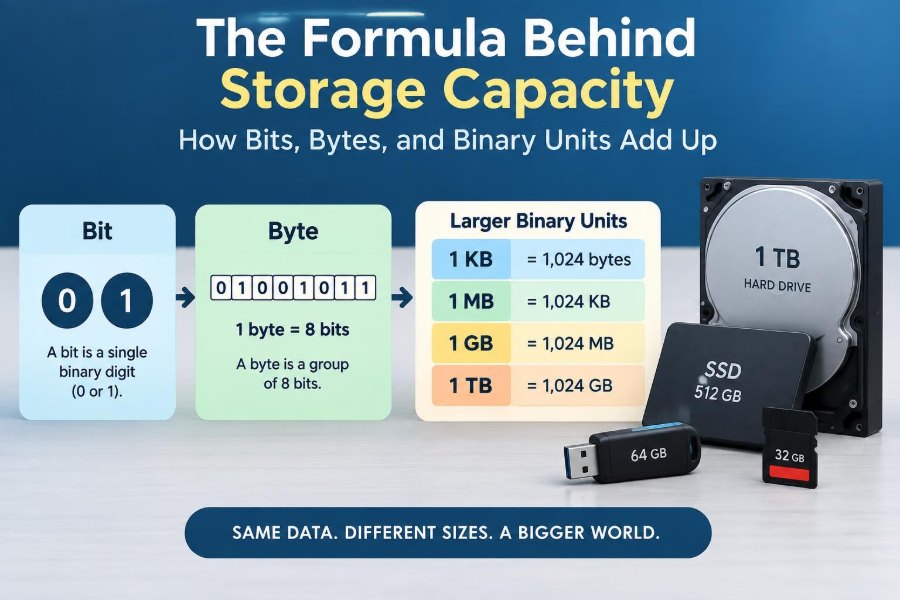
A bit is the smallest standard unit of digital information. Its name is short for binary digit, and it can hold one of two values: 0 or 1.
Those values do not have to mean only “off” and “on.” Depending on the situation, they can represent false and true, no and yes, black and white, or one of two electrical states in a circuit.
A single bit carries very little detail. Its usefulness comes from combining many bits in organized patterns.
⚙️ Why Computers Use Binary
Electronic circuits can reliably distinguish between two ranges of voltage or two switching states. Binary fits this physical reality well: one state can be treated as 0 and the other as 1.
Computers can perform far more complex work than simple on/off decisions because they process huge groups of bits at high speed. Text, music, photos, programs, and video are all ultimately represented as binary patterns.
Binary is therefore a representation system, not a claim that digital content is simplistic. A high-resolution photograph may be immensely detailed while still being stored as bits.
🧮 The Value of a Binary Position
Decimal notation uses powers of 10. From right to left, the places represent 1, 10, 100, 1,000, and so on. Binary uses powers of 2 instead: 1, 2, 4, 8, 16, 32, and beyond.
For example, the binary number 1011 equals decimal 11:
1×8 + 0×4 + 1×2 + 1×1 = 11
Each position answers whether a particular power of two is included. This positional structure is the reason storage quantities naturally align with powers of two.
🎲 How Many Patterns Can Bits Make?
Each added bit doubles the number of possible patterns. One bit has two possible values. Two bits have four combinations: 00, 01, 10, and 11.
The general formula is 2n possible patterns for n bits. Eight bits can therefore describe 28, or 256, distinct patterns.
This is a count of possible bit combinations, not a statement that every 8-bit pattern always means a visible character. Meaning depends on the format or encoding being used.
📦 Eight Bits Make One Byte
A byte is conventionally a group of eight bits. Written symbolically, 1 byte equals 8 bits.
Eight bits became a practical standard because 256 possible values are enough to represent a useful range of small numbers and coded symbols. Modern systems can use larger groups too, but the byte remains the basic addressable unit for storage and memory.
This distinction matters: a lowercase b usually means bit, while an uppercase B means byte. Confusing them creates an eightfold error.
🔤 Bytes and Character Encoding
Text gives a useful example of why “one character equals one byte” is only a rough shortcut. Early character systems could represent many common English letters, digits, and punctuation with one byte or less.
Modern text often uses Unicode encodings such as UTF-8. In UTF-8, basic English characters typically use one byte, while many accented letters, non-Latin scripts, and emoji use multiple bytes.
That is why a document containing the same number of visible characters can have different file sizes depending on its language, symbols, and file format.
📏 Bits Versus Bytes in Everyday Labels
Storage devices, files, and memory are commonly described in bytes. Network speeds are commonly described in bits per second. The different convention is a frequent source of confusion.
| Label | Meaning | Typical use |
|---|---|---|
| Mb/s or Mbps | Megabits per second | Internet and network speed |
| MB/s | Megabytes per second | File transfer rate, drive performance |
| GB | Gigabytes | File and storage capacity |
| Gb | Gigabits | Network link speed |
To convert a rate from bits per second to bytes per second, divide by 8. A theoretical 80 Mb/s connection corresponds to 10 MB/s before allowing for communication overhead and other real-world limits.
🧱 The Decimal Storage Ladder
Storage manufacturers commonly use decimal prefixes. In this system, each step is 1,000 times the previous one:
- 1 kilobyte (kB) = 1,000 bytes
- 1 megabyte (MB) = 1,000,000 bytes
- 1 gigabyte (GB) = 1,000,000,000 bytes
- 1 terabyte (TB) = 1,000,000,000,000 bytes
This convention is straightforward because the prefixes match familiar metric powers of 10. A drive marketed as 1 TB contains 1,000,000,000,000 bytes before formatting and reserved areas are considered.
🌲 The Binary Storage Ladder
Computers work naturally with powers of two, so binary-sized units have also long been used. The formal binary prefixes are:
- 1 kibibyte (KiB) = 210 bytes = 1,024 bytes
- 1 mebibyte (MiB) = 220 bytes = 1,048,576 bytes
- 1 gibibyte (GiB) = 230 bytes = 1,073,741,824 bytes
- 1 tebibyte (TiB) = 240 bytes = 1,099,511,627,776 bytes
The names kibibyte, mebibyte, gibibyte, and tebibyte were created to make the binary meaning explicit.
🔍 Why 1,024 Appears So Often
The number 1,024 is not arbitrary. It equals 210, making it a convenient large round number in binary systems.
Historically, people often used “kilobyte” informally for 1,024 bytes because it is close to 1,000. As capacities grew, that small difference compounded. The distinction between decimal and binary units became much more noticeable at gigabyte and terabyte scale.
Using KiB, MiB, GiB, and TiB avoids ambiguity, although not every program displays these labels consistently.
➗ The Core Conversion Formula
The most useful formula is simple: bytes = bits ÷ 8. The reverse is equally useful: bits = bytes × 8.
For unit changes, multiply or divide by the relevant base. Decimal units use powers of 1,000; binary units use powers of 1,024, or more precisely powers of 2.
For example, 4,000 MB is 4 GB in a decimal system. But 4,096 MiB is 4 GiB because 4,096 equals 4 × 1,024.
🧠 A Power-of-Two Shortcut
Binary unit conversions become easier when written as exponents. Since 1 GiB is 230 bytes and 1 MiB is 220 bytes, their difference is 210.
Therefore, 1 GiB equals 210 MiB, or 1,024 MiB. The same relationship applies between KiB and bytes, and between TiB and GiB.
This exponent approach is especially useful in programming, memory calculations, and technical documentation because it shows why the conversion works rather than merely giving a number to memorize.
💾 Why a 1 TB Drive Looks Smaller
Suppose a manufacturer labels a drive as 1 TB using decimal units: 1,000,000,000,000 bytes. If software reports that capacity using binary-sized gibibytes but labels the result “GB,” the displayed number is about 931 GiB.
The drive did not lose roughly 69 decimal gigabytes. The same number of bytes is being divided by a larger unit: 1 GiB contains 1,073,741,824 bytes, not 1,000,000,000.
Different operating systems and applications may choose different labels and conventions, so always check whether the display says GB or GiB and how the software defines it.
🗂️ Formatting Takes Space Too
Even after the decimal-versus-binary difference is understood, usable capacity can be lower than the raw byte count. A storage device needs a file system: the structure that records folders, filenames, locations, permissions, and free space.
Formatting creates that structure and consumes some capacity. Devices may also reserve small areas for internal management, recovery features, or system partitions.
The exact amount varies with the device, file system, partition layout, and operating system. It should not be assumed that every missing byte has one single cause.
🧩 Files Are Stored in Blocks
Most file systems allocate space in fixed-size chunks called blocks or clusters. Even a very small file generally occupies at least one whole allocation unit.
Imagine a file system with 4 KiB clusters. A 1 KiB note may still use 4 KiB on disk, leaving 3 KiB of unused space inside that allocated cluster. This is often called slack space.
With many tiny files, these small gaps can add up. With large files, the effect is usually less noticeable relative to total capacity.
📁 File Size and Size on Disk Are Different
Your operating system may show both a file’s size and its size on disk. The first is the actual number of bytes in the file. The second includes the full allocation units assigned to hold it.
For one file, size on disk is usually equal to or greater than file size. Compression, sparse files, and specialized file-system features can make the picture more complicated, but the basic distinction remains useful.
When a folder seems to consume more space than the sum of its visible files, allocation units are one possible explanation.
🖼️ What Determines a Photo’s Size
A photo’s storage requirement depends on more than its width and height. Resolution tells you how many pixels exist, while color depth tells you how much information each pixel can store.
An uncompressed image with 1,000 × 1,000 pixels and 24-bit color contains 1,000,000 pixels × 24 bits. Dividing by 8 gives about 3,000,000 bytes of raw pixel data, before file headers or other information.
Formats such as JPEG use compression, so the saved file may be much smaller. The final size also depends on image detail and compression settings; two photos with the same resolution need not occupy the same space.
🎬 Why Video Files Vary So Widely
Video combines a sequence of images with audio and timing information. A useful rough relationship is:
file size ≈ bitrate × duration
Bitrate measures how many bits are used per second. If a hypothetical video averages 8 Mb/s for 600 seconds, it contains about 4,800 megabits of video data; dividing by 8 gives about 600 megabytes before considering how the units are defined and any extra streams.
Resolution matters, but codec choice, frame rate, scene complexity, audio tracks, and quality settings also influence bitrate and final file size.
🎵 Audio Is Another Bitrate Example
Uncompressed audio can be estimated from sample rate, bit depth, number of channels, and duration. For instance, higher sample rates record more measurements per second, and higher bit depth stores more detail per measurement.
Compressed formats reduce the required data by encoding audio more efficiently. Lossy compression removes some information to shrink files; lossless compression preserves the original decoded audio while often saving less space.
“Better” is context-dependent. A small file can be ideal for streaming or limited storage, while editing and archiving may call for a higher-quality source.
🗜️ Compression Changes Data, Not Capacity Units
Compression reduces the number of bytes needed to store or transmit particular data. It does not change what a byte or gigabyte means.
Lossless compression can reconstruct the original data exactly. ZIP archives and many document formats use lossless methods. Lossy compression permanently discards some information in exchange for smaller files, as commonly happens with JPEG images and many streaming media formats.
Compression results vary. A plain text file may compress very well because it has repeated patterns; a file that is already compressed may shrink little or not at all.
🌐 Download Time Is Not Just File Size
A file’s size tells you how much data must move. Download speed tells you the rate at which it can move. To estimate time, first put both quantities in compatible units.
A rough formula is time = file size ÷ transfer rate. If the file is measured in bytes but the connection is measured in bits per second, multiply the file size by 8 or divide the rate by 8 before calculating.
Actual transfers can take longer because of protocol overhead, Wi-Fi quality, server limits, congestion, and competing traffic. Advertised link speed is not a promise of sustained file-download speed.
🚦 Storage Capacity Is Not Transfer Speed
Capacity answers “how much can this hold?” Speed answers “how quickly can data be read or written?” A 2 TB drive and a 2 TB drive can have very different performance.
Storage interfaces often advertise speeds in MB/s or GB/s. Internet connections often use Mb/s or Gb/s. The uppercase B remains essential when comparing these figures.
Also distinguish a device’s best-case sequential transfer rate from everyday performance. Copying one large video can behave differently from opening thousands of small files.
🧮 RAM Uses Similar Units but Serves a Different Role
Random-access memory, or RAM, is also measured in GB or GiB, but it is not long-term storage. RAM holds data and instructions that the computer is actively using, and its contents are normally lost when power is removed.
SSD and hard-drive capacity determine how much can be stored persistently. RAM capacity affects how much active work can remain readily available without relying as heavily on slower storage.
Both involve bytes, but substituting more storage for RAM—or more RAM for storage—does not solve the same problem.
📲 Capacity Labels on Phones and Cloud Plans
Phone capacity includes the operating system, installed apps, system data, cached content, photos, downloads, and other user files. The number printed on the device is not identical to the initially free space you will see.
Cloud plans add another layer: data may be stored in original form, compressed form, or several versions depending on a service’s settings. Shared plans can also count backups and files from more than one device.
Before upgrading, inspect the storage breakdown. Identifying whether photos, offline media, backups, or applications are the largest category leads to a more useful solution than relying on the total alone.
⚠️ Common Unit Mistakes
A few habits prevent most capacity misunderstandings:
- Do not treat Mb and MB as interchangeable; they differ by a factor of eight.
- Do not assume every “gigabyte” display uses the same base.
- Do not expect raw device capacity and available formatted capacity to match exactly.
- Do not estimate media size from duration or resolution alone when bitrate or compression is unknown.
- Do not add file sizes without considering backups, duplicate copies, hidden system files, and allocation overhead.
These are not merely terminology issues. They affect purchasing choices, transfer-time estimates, and troubleshooting.
🛠️ A Reliable Way to Calculate Capacity
When solving a storage problem, use a consistent sequence instead of jumping between labels:
- Identify whether each number is in bits or bytes.
- Write the unit definition being used: decimal or binary.
- Convert every value to a common unit, preferably bytes or bits.
- Perform the calculation.
- Convert the result into a readable unit and label it accurately.
For example, to check whether several files fit on a drive, convert all file sizes and available space to bytes first. This avoids rounding errors and mixed-unit confusion.
🧾 Reading Specifications Carefully
A specification page can contain several different figures: raw capacity, formatted capacity, usable capacity, read speed, write speed, cache size, and interface speed. They answer different questions.
Look for the unit symbols and any explanatory footnotes. A manufacturer may use decimal TB, while an operating system may report a binary-based value. Neither number is automatically deceptive if the units are clear.
When comparing products, compare like with like: decimal capacity to decimal capacity, sustained write speed to sustained write speed, and the same testing conditions where those conditions are provided.
🔐 Capacity Planning Needs Headroom
A device that is nearly full can become inconvenient even if the remaining free space appears technically sufficient. Updates, temporary files, application caches, and downloads need room to work.
Some storage technologies and systems may also manage free space more effectively when there is room available, though behavior differs by device and operating system. There is no single universal free-space percentage that suits every situation.
A practical approach is to leave a comfortable buffer based on your workload. Video editing, virtual machines, large game installations, and local backups generally need more headroom than basic documents and web browsing.
🧹 Ways to Reclaim Space Without Guessing
Start with categories, not random deletion. Storage-management tools can reveal whether the main consumers are applications, videos, downloads, backups, temporary files, or duplicated folders.
- Remove downloads and installers you no longer need.
- Move infrequently used large files to suitable external or cloud storage.
- Review old device backups before deleting them.
- Uninstall applications that are no longer used.
- Empty trash or recycle areas only after confirming their contents.
Keep at least one reliable backup before deleting important material. Reclaiming space is useful; losing the only copy of a file is not.
🧭 Choosing the Right Capacity
The right storage size depends on the kind of data you create and keep. A person working mainly with documents may need far less local capacity than someone recording high-resolution video, maintaining project archives, or running virtual machines.
Estimate from real usage where possible. Check how much space your current data occupies, identify how quickly it grows, and include room for updates, backups, and future projects.
Capacity is only one criterion. Reliability, backup strategy, portability, speed, compatibility, and privacy requirements may matter just as much.
🧩 The Core Principle Behind Every Capacity Number
Every storage label eventually describes a count of bits or bytes. The apparent complexity comes from how those bytes are grouped, displayed, allocated, compressed, transferred, and reserved.
Remember the central chain: bits form bytes; bytes scale through decimal or binary prefixes; file systems allocate storage in blocks; and real devices use some space for structure and management. Once the unit convention is known, most capacity puzzles become ordinary conversion problems.
The most dependable question to ask is: How many actual bytes are being counted, and which unit definition is this label using? That question turns a confusing number on a box or screen into something you can calculate and compare.
Storage capacity becomes clear when you track the bytes, respect the difference between decimal and binary units, and keep bits, bytes, capacity, and speed separate. With that foundation, labels from KB to TB become useful measurements rather than mysterious abbreviations. 💾🔢🖥️