
A computer rarely becomes slow all at once. More often, the change is gradual: startup takes longer, browser tabs hesitate, video calls stutter, or a familiar application suddenly feels heavy. The machine still works, but every task asks for a little more patience.
That experience can make replacement seem like the only practical answer. Sometimes it is—but many performance problems come from a specific bottleneck, aging component, software setting, or maintenance issue rather than from the entire computer being obsolete.
A thoughtful upgrade or cleanup can make a desktop or laptop far more comfortable to use while reducing cost and electronic waste. The key is to diagnose the actual constraint before buying parts or installing “speed booster” tools.
This guide explains how to find that constraint, choose upgrades with the best real-world effect, and avoid changes that cost money without solving the problem.
🔍 Start by Defining What “Slow” Means
Computer performance is not one single measurement. A system that opens files instantly may still struggle with games, and a machine that handles spreadsheets well may lag during video editing.
Describe the symptom in practical terms. Does the delay happen when starting the computer, opening programs, switching between browser tabs, saving large files, joining video meetings, or playing games? The timing points toward the likely cause.
For example, a computer that becomes unresponsive only when many applications are open may need more memory. One that feels slow immediately after sign-in may be burdened by startup software or a slow storage drive.
📋 Record a Simple Baseline First
Before changing anything, note how the system behaves during a few ordinary tasks. Time how long it takes to reach a usable desktop, open a frequently used application, or export a typical project.
This baseline helps distinguish genuine improvement from the temporary effect of restarting a computer. It also makes troubleshooting more disciplined: change one meaningful thing, then compare the result.
Include the operating system version, available storage space, installed memory, processor model, and the tasks that matter most to you. These details are more useful than a vague impression that the computer “feels old.”
📊 Use Task Manager or Activity Monitor
Operating systems include built-in tools that show which resources are busy. On Windows, Task Manager displays processor, memory, disk, network, and graphics activity. On macOS, Activity Monitor provides similar information.
Open the tool while the slowdown is happening rather than after it disappears. Look for a resource staying close to full use and identify the application or background process responsible.
| Resource under pressure | Common symptom | Likely next step |
|---|---|---|
| Processor (CPU) | Slow calculations, high fan noise, lag during demanding work | Close heavy tasks, check cooling, assess CPU limits |
| Memory (RAM) | Stuttering while multitasking, frequent tab reloads | Reduce active programs or add compatible RAM |
| Disk | Long boot times, slow launches, pauses during file access | Free space, inspect drive health, consider an SSD |
| Graphics processor (GPU) | Poor game frame rates or slow visual workloads | Adjust settings, update driver, consider GPU upgrade |
A momentary spike is normal. A resource that remains saturated during the exact task you care about is much more informative.
🧠 Understand the Main Performance Bottlenecks
Think of a computer as a small team. The processor performs instructions, memory holds active work close at hand, storage keeps files long-term, and the graphics processor draws images or accelerates certain creative tasks.
If one member cannot keep up, the whole job waits. Installing more RAM will not make a weak graphics processor render complex scenes quickly, and a powerful processor cannot fully hide the delay of a failing mechanical hard drive.
The most effective upgrade targets the part currently making other parts wait. That principle prevents many disappointing purchases.
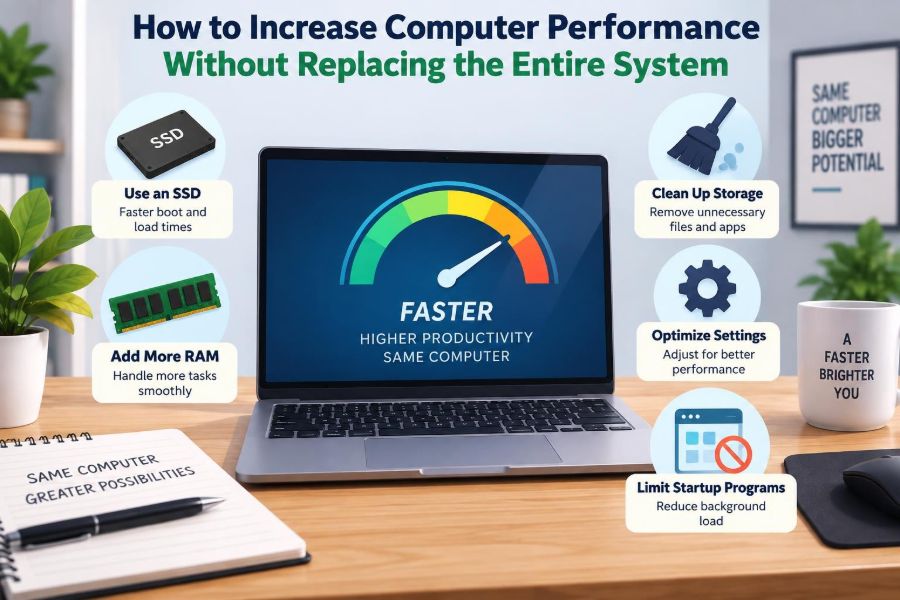
💾 Replace a Mechanical Hard Drive with an SSD
For many older computers, moving the operating system from a mechanical hard disk drive to a solid-state drive (SSD) produces the clearest everyday improvement. Hard drives use spinning platters and moving heads; SSDs use flash memory and access small files much more quickly.
The difference is especially noticeable during startup, sign-in, application launches, updates, searches, and general file browsing. It does not necessarily make a processor-intensive calculation faster, but it removes many of the pauses users associate with an aging computer.
Check whether the machine accepts a 2.5-inch SATA SSD, an M.2 SATA drive, or an M.2 NVMe SSD. These are not interchangeable simply because they share similar names or shapes.
🛠️ Choose an SSD That Actually Fits
Desktop and laptop storage connections vary by generation. A SATA SSD is widely compatible and still a substantial upgrade from a hard drive. NVMe SSDs generally offer higher throughput but require a compatible M.2 slot and suitable firmware support.
Also consider capacity. A very small drive can quickly become cramped, which limits performance and makes updates difficult. Choose enough space for the operating system, essential applications, current projects, and a sensible free-space buffer.
If you are uncertain, consult the computer manufacturer’s documentation or open the machine only if doing so is safe and permitted. Some thin laptops have soldered storage or use less common drive formats.
🔄 Plan the Storage Migration Carefully
You can install the operating system fresh on the new SSD or clone the existing drive. A clean installation removes accumulated software clutter but requires reinstalling applications and restoring files. Cloning is usually faster initially but copies existing configuration issues too.
Back up important files before either approach. Verify the backup by opening a few files from it; a backup that cannot be read is not useful when something goes wrong.
After migration, confirm that the computer boots from the new drive before erasing the old one. Keeping the old drive untouched briefly provides a practical fallback.
🧩 Add RAM When Multitasking Hits a Wall
Random access memory, usually called RAM, holds programs and data currently in use. When RAM runs low, the operating system moves some data to storage, a process often called paging or swapping. Even a fast SSD is much slower than RAM for this purpose.
Common signs include browser tabs reloading when revisited, applications pausing while switching windows, and a memory graph staying near its limit during normal work. More RAM is especially useful for large spreadsheets, virtual machines, photo editing, programming environments, and many open browser tabs.
RAM does not help every problem. If memory use is modest but the processor is fully occupied, additional RAM may make little difference.
🧷 Check RAM Compatibility Before Ordering
Memory modules differ by generation, form factor, voltage, speed, and capacity. Desktop systems often use DIMMs, while many laptops use smaller SO-DIMMs. Newer machines may have memory soldered directly to the motherboard, leaving no upgrade path.
Check the manufacturer’s supported memory type and maximum capacity. Installing the wrong generation of memory will not work, and mixing modules with different specifications can sometimes force them to run at a lower shared setting.
Where supported, matched modules in the appropriate slots can enable dual-channel operation, allowing more memory bandwidth. This can matter for integrated graphics, which share system memory, and for some memory-heavy workloads.
🚀 Reduce Startup Programs
Many applications add themselves to the startup list so they can check for updates, synchronize files, or remain ready in the background. A few are useful; a crowded startup list consumes time and memory before you have begun working.
Review startup items in the operating system’s settings or task-management tool. Disable nonessential launchers, old utilities, chat clients, and software you do not need immediately after sign-in.
- Keep security software and essential hardware utilities enabled unless you understand their role.
- Disable one item at a time if you are unsure, then restart and test.
- Uninstall software you no longer use instead of merely preventing it from starting.
This is not about making the list empty. It is about reserving resources for the tasks you actually choose to run.
🧹 Remove Unused Applications and Trialware
Old programs can consume storage, install background services, create scheduled tasks, and request updates even when they are rarely opened. Preinstalled trial software can have the same effect.
Use the operating system’s normal uninstall feature, then restart if requested. Avoid deleting application folders manually as a first choice; doing so can leave entries, services, or shared components behind.
Be cautious with removal tools that promise to erase everything automatically. Some identify legitimate shared files as leftovers. A modest amount of harmless residue is usually preferable to breaking another application.
🌐 Tame an Overloaded Web Browser
For many people, the browser is the main workplace. Each tab, extension, media stream, web application, and advertisement can use processor time and memory. A browser with dozens of active tabs may resemble several programs running at once.
Close tabs you do not need, bookmark research for later, and review extensions. Remove extensions with no clear purpose, especially those that alter search behavior, insert shopping offers, or claim to optimize browsing.
Modern browsers often include task-management or memory-saving features. These can suspend inactive tabs, though a suspended tab may take a moment to reload when you return to it.
🛡️ Check for Malware and Unwanted Software
Unexpected pop-ups, redirected searches, unexplained processor use, unfamiliar browser extensions, or new applications you did not install may indicate malware or potentially unwanted software. These can reduce performance, but performance alone does not prove an infection.
Run a scan using the operating system’s built-in security tools and make sure their definitions and operating-system updates are current. Remove suspicious programs through normal settings where possible.
If signs continue, seek reputable technical support rather than installing several aggressive “cleanup” utilities. Multiple security programs competing in real time can also slow a system and complicate diagnosis.
🔔 Limit Background Synchronization
Cloud storage, email clients, messaging tools, backup software, and game launchers often synchronize data in the background. This is valuable, but a large first-time sync or backup can compete for disk, network, processor, and battery resources.
Schedule large backups outside working hours where the software allows it. Pause a major synchronization temporarily when you need stable performance for a video call or deadline-driven task, then resume it afterward.
Do not permanently disable backups merely for a small speed gain. The right balance protects data while avoiding poorly timed resource contention.
📦 Keep Enough Free Storage Space
Storage drives need room for updates, temporary files, application caches, virtual-memory files, and normal file operations. A nearly full system drive can make routine maintenance difficult and can contribute to sluggish behavior.
Move large archives, completed video exports, duplicate downloads, and infrequently used media to external storage or a reliable cloud service. Empty the recycle bin or trash only after confirming that its contents are no longer needed.
There is no single free-space target that fits every device and workload. The useful goal is to leave enough room for the operating system and applications to work without constant storage warnings.
🧽 Clean Temporary Files with Restraint
Operating systems create temporary files for installations, caches, logs, previews, and updates. Built-in storage cleanup tools can safely identify common categories that are usually appropriate to remove.
Review each category before confirming deletion. Downloads folders, previous installations, and device backups can contain items you may still need, even if the tool presents them as reclaimable space.
Cleaning temporary files can recover capacity and occasionally resolve a specific problem. It is not a substitute for adding RAM, replacing a slow drive, or addressing a demanding workload.
🔄 Install Useful Updates, Not Random Drivers
Operating-system, browser, and application updates can correct bugs, improve compatibility, and address security vulnerabilities. Keeping them reasonably current is good maintenance, especially when a known issue affects hardware behavior or stability.
Drivers are software that let the operating system communicate with hardware. Update a graphics, storage, Wi-Fi, or chipset driver when the manufacturer provides one for your exact device and there is a relevant reason—such as a bug fix, compatibility issue, or new application requirement.
Avoid third-party driver-updater programs that scan broadly and install whatever they find. An incorrect driver can cause instability, missing features, or a system that fails to start properly.
🌡️ Deal with Heat Before It Causes Throttling
Processors and graphics chips generate heat under load. If temperatures rise too high, the system may reduce clock speeds to protect hardware. This automatic response, called thermal throttling, can look like random performance loss.
Dust-blocked vents, obstructed airflow, a failing fan, and soft surfaces that cover laptop vents are common contributors. A laptop used on a bed or thick blanket may trap heat even when its internal components are otherwise healthy.
Shut down the device before cleaning external vents. Internal cleaning or thermal-paste replacement can help in some cases, but opening a laptop may be difficult, void a warranty, or risk damage. Use a qualified technician when appropriate.
🔌 Check Power Settings and the Charger
Many laptops reduce performance to extend battery life or control heat. If the machine feels noticeably slower only on battery, inspect its power mode and test it with the correct charger connected.
Higher-performance modes can improve responsiveness but may increase fan noise, heat, and power use. For battery-powered travel, a balanced setting is often the better compromise; for rendering or compiling while plugged in, a performance-oriented setting may be sensible.
A damaged, low-wattage, or noncompliant charger may prevent a laptop from receiving sufficient power. Use a charger with the required specification, ideally the one supplied or approved for the device.
🎮 Match Graphics Settings to the Hardware
Games, 3D design tools, video effects, and some AI-assisted creative applications can place most of their demand on the graphics processor, or GPU. A fast SSD and extra RAM cannot fully compensate for a GPU that lacks the needed processing power or video memory.
Before buying hardware, lower the display resolution, texture quality, ray tracing, shadow detail, or effects level and test again. These settings differ in cost: reducing a demanding visual effect can improve responsiveness more than lowering an option that barely affects the workload.
Integrated graphics share resources with the processor and system memory. They are efficient for everyday use but have limits in demanding visual work compared with many dedicated graphics cards.
🖥️ Consider a Graphics Upgrade Realistically
A desktop graphics card may be upgradeable, but compatibility includes more than the motherboard slot. Check physical case clearance, power-supply capacity, available power connectors, display outputs, heat, and whether the processor will constrain the result in your applications.
Laptop GPU upgrades are rarely practical because the graphics hardware is commonly soldered or tightly integrated. External graphics solutions exist for some systems, but they require specific ports and can be costly relative to their benefit.
For office work, browsing, and general study, a graphics upgrade is usually not the first spending priority. Storage and memory often have a more direct effect on everyday responsiveness.
⚙️ Assess Whether the CPU Is the Limitation
The central processing unit, or CPU, handles general instructions. Older processors can still be capable for writing, browsing, and light office work, yet struggle with modern video editing, software development builds, complex simulations, or many simultaneous tasks.
Consistently high CPU use during a specific activity suggests that processor performance is relevant. However, first make sure a runaway background task, browser extension, overheating problem, or malware is not creating artificial load.
Desktop CPU upgrades require compatible motherboard sockets, firmware support, cooling, and sometimes new memory. On most laptops, the processor cannot be upgraded separately. This is where a whole-system replacement can become more reasonable.
🧬 Update Firmware Only When It Solves a Need
Firmware, including a computer’s BIOS or UEFI, starts hardware before the operating system loads. A firmware update can improve compatibility, stability, security, or support for certain components.
It is not a general performance tune-up. Interrupting a firmware update because of power loss or using the wrong file can leave a system unable to boot.
Read the manufacturer’s notes, confirm the exact model, and follow its instructions if an update addresses a specific problem or is required for a planned hardware upgrade. If the system is stable and no relevant fix exists, leaving firmware alone is often sensible.
🧪 Test One Change at a Time
It is tempting to clean files, change power settings, install updates, add software, and replace hardware in one long session. The result may improve—or worsen—but you will not know why.
Make a backup or restore point where available, apply one meaningful change, and repeat your baseline tasks. Keep short notes on what changed and what you observed.
This method is slower than guessing for an afternoon, but faster than trying to reverse a collection of poorly understood changes later.
🚫 Avoid “Optimizer” and Registry-Cleaner Promises
Utilities that promise dramatic speed improvements with one click often focus on minor housekeeping tasks. Some are harmless, but others show alarming scan results, encourage unnecessary subscriptions, change browser settings, or remove entries that software still needs.
Modern operating systems manage memory, storage, and configuration databases far better than such tools imply. A registry cleaner, for example, rarely fixes a true performance bottleneck and can create new errors by deleting valid entries.
Prefer built-in tools, reputable security software, manufacturer documentation, and measurable fixes. If a product cannot explain exactly what it changes and why, treat its claims cautiously.
💰 Prioritize Upgrades by Value and Compatibility
For a broadly typical older computer with a mechanical hard drive and limited memory, an SSD and compatible RAM are often the strongest first options. That is a starting hypothesis, not a universal rule; a graphics workstation or overheating laptop may need a different response.
Consider the remaining life of the system. Spending modestly to make a reliable computer comfortable for another period can be sensible. Investing heavily in proprietary parts for a device that no longer supports required software may not be.
- Price the complete upgrade, including adapters, tools, and any professional installation.
- Check operating-system support and application requirements.
- Compare the expected improvement with a replacement system, not just the individual part price.
🔒 Protect Your Data During Every Upgrade
Performance work often involves moving files, opening the case, changing storage, reinstalling software, or resetting settings. Each step can expose data to accidental deletion or hardware failure.
Keep at least one current backup separate from the computer, and protect sensitive data with strong account passwords and device encryption where available. If you sell, recycle, or give away an old drive, erase it using an appropriate method or physically retain it.
Data protection is not separate from performance planning. A fast computer is of little help if an upgrade process loses the documents, photos, or work projects it was meant to support.
🧰 Know When Professional Help Is Worth It
Professional assistance is useful when a device has swollen batteries, liquid damage, repeated crashes, strange noises from storage, overheating that requires disassembly, or data that cannot be replaced. These situations can involve safety or recovery risks beyond routine tuning.
It can also save time when compatibility is unclear. A technician can assess whether parts are soldered, whether a drive is failing, and whether a proposed upgrade is economically sensible.
Ask for an explanation of the diagnosis and proposed work. A good recommendation identifies the limiting component or fault instead of offering a vague promise to “make it faster.”
♻️ Decide When Replacement Is the Better Choice
Upgrading is not always the responsible answer. Replacement may be appropriate when the computer cannot run a supported operating system, lacks necessary security features, has multiple failing components, or cannot meet essential software requirements even after reasonable upgrades.
Also weigh repairability. A laptop with soldered memory, limited storage, a deteriorating battery, and an underpowered processor may offer little practical upgrade value. In contrast, a desktop with standard parts can often be improved gradually.
When replacing a system, transfer and verify data carefully, then recycle electronics through a suitable local program. Reusing a functional old machine for lightweight tasks can be another option.
🧭 Build a Practical Improvement Plan
A sensible plan moves from observation to low-risk maintenance, then to targeted upgrades. Start with the symptom, check resource use, remove obvious clutter, confirm free space and updates, and address heat or power problems.
Next, choose hardware only if the evidence supports it: an SSD for storage delays, RAM for memory pressure, or graphics hardware for visual workloads. Test the effect before spending on another component.
Computer performance improves most reliably when you identify the real bottleneck and solve that specific problem rather than treating the entire system as broken.
A slower computer can be frustrating, but it is often understandable once you observe when and where the delay occurs. Start small, protect your data, measure the result, and spend only where the change matches your actual work. 💻⚡🛠️