
A laptop starts taking longer to open ordinary files. A desktop freezes for a few seconds when you save a document. Perhaps a folder that always opened normally now produces an error message.
It is tempting to blame the operating system, a recent update, or a slow internet connection. Sometimes those are the cause. But intermittent storage trouble can look exactly like a minor software problem—until a drive becomes unreadable and the files on it matter most.
Hard drives and SSDs usually do not fail at a convenient time. They may give subtle warnings, fail with little warning, or continue working just long enough to encourage a dangerous delay.
Knowing what to watch for helps you respond calmly: protect the data first, investigate second, and replace uncertain hardware before a small symptom becomes a recovery problem.
💾 Storage Failure Is Really a Data-Access Problem
A storage device can be considered failed when it can no longer reliably store or return data. It does not have to be completely dead. A drive that occasionally corrupts a file, disappears from the computer, or cannot read one important folder is already unreliable.
The key word is reliably. A device may boot today and still be unsuitable as the only place where irreplaceable work, photographs, or records exist.
⚙️ Hard Drives and SSDs Fail Differently
A traditional hard disk drive, or HDD, contains spinning magnetic platters and a moving read/write head. Its mechanical parts can wear, suffer physical shock, or lose accurate alignment over time.
A solid-state drive, or SSD, stores data in flash memory chips and has no spinning parts. SSDs are generally more resistant to everyday bumps, but their flash cells, controller, firmware, or electrical components can still fail.
This difference affects the clues you may see. An HDD may make unusual mechanical sounds; an SSD is normally silent, so its warnings are more likely to appear as errors, crashes, or disappearing storage.
🔍 The Same Symptom Can Have Other Causes
Slow performance alone does not prove that a drive is failing. Too little free space, low memory, malware, a busy background update, an overheating computer, or a damaged cable can create similar symptoms.
Look for patterns and combinations. Repeated read errors plus unexplained file damage are more concerning than a single slow startup after a large update. Treat symptoms as a reason to protect data and investigate, not as a remote diagnosis.
🐌 Sudden, Repeated Slowness During File Access
A healthy computer can slow down when opening a large video or launching a complex application. A warning sign is different: ordinary folders or small files repeatedly take a long time to open, copy, save, or delete.
With an HDD, the system may be retrying a weak or unreadable area of the disk. With an SSD, it may be waiting for error correction or struggling with a controller problem. If the delay occurs at the same files or locations repeatedly, back up what you can immediately.
🧊 Freezes That Happen When the Drive Is Busy
Brief system freezes during file copies, application launches, game loading, or saving can point to storage trouble. The mouse may still move while the program stops responding because the operating system is waiting for data from the drive.
One freeze is not enough to condemn a device. Frequent freezes connected to disk activity, especially alongside error messages, deserve attention. Notice what you were doing when they occur; that context is useful during troubleshooting.
📂 Files That Will Not Open or Copy
A document that suddenly refuses to open, an image that displays only part of itself, or a file copy that stops with a read error can mean the relevant data cannot be read reliably.
Do not repeatedly force the same operation for hours. Repeated retries can add stress to a struggling HDD and waste time. Copy other important files first, beginning with the ones that are irreplaceable and currently accessible.
🧩 Corrupted Files and Broken Archives
Corruption means data is altered, incomplete, or inconsistent with what the application expects. An archive may fail its integrity check, a video may show glitches, or a database may report damage.
Corruption also has software causes, including improper shutdowns and application defects. However, when unrelated files become damaged at different times, especially after being saved to the same drive, storage hardware should be considered.
⚠️ Errors About Reading, Writing, or Input/Output
Operating systems may report that a file cannot be read, a device is unavailable, a location cannot be accessed, or an input/output error occurred. Input/output, often shortened to I/O, simply refers to moving data between the computer and a device.
Write errors are particularly urgent. A file may appear to save but not be written correctly. Stop treating that drive as a trustworthy workspace until important data has been copied elsewhere and the cause has been checked.
🔁 Frequent File-System Repair Messages
The file system is the structure that records file names, folders, locations, and free space. Tools such as Windows disk checking utilities or macOS disk repair features can correct some logical inconsistencies.
A repair message after one forced shutdown may be routine. Repeated repair requests after normal shutdowns are different. They can indicate unstable storage, a cable or power issue, or a problem that is causing the file system to be written incorrectly.
🧱 Bad Sectors on a Hard Drive
A sector is a small addressable area of storage. On an HDD, a bad sector is an area that cannot reliably hold or return data. The drive may try to remap it—redirecting use to a spare area—but remapping does not make existing damaged data reappear.
A growing number of bad sectors is a serious warning. Even if the drive seems usable after a scan, replace it rather than assuming a repair has restored its long-term reliability.
🧠 SSD Flash Errors Are Less Visible
SSDs do not use magnetic sectors in the same mechanical sense, but they can develop unreadable flash blocks, worn cells, or controller faults. Built-in error correction and spare capacity can hide some problems for a while.
That hidden recovery is useful, but it can also mean the first obvious warning arrives late. An SSD that begins reporting media errors, becoming read-only unexpectedly, or vanishing intermittently should be treated as at risk.
🔊 Clicking, Grinding, or Repeated Spin-Up Sounds
A working HDD makes some sound: a gentle whir from spinning and faint activity noises can be normal. New, repetitive clicking, grinding, scraping, or a cycle of spinning up and stopping is not normal behavior.
Such sounds can indicate trouble with the motor, head assembly, or calibration. Do not open the drive enclosure. Internal HDD components require extremely clean conditions, and opening a drive can make professional recovery far more difficult.
🔇 Silence Does Not Mean an SSD Is Healthy
An SSD has no moving parts, so it cannot warn you with clicks or grinding. Its silence should never be interpreted as evidence that it is safe.
Instead, watch for behavioral clues: system crashes under storage load, missing drives after a restart, unexplained read-only mode, and repeated errors in system logs or diagnostic tools.
🖥️ A Drive That Disappears From the System
If a drive sometimes appears after restarting and sometimes does not, act promptly. The problem could be the device itself, but an external enclosure, loose cable, failing port, or unstable power supply can produce the same result.
Try a known-good cable or port if it is safe to do so, particularly for an external drive. But do not let successful reconnection postpone the backup. Intermittent access is often the best window for copying data.
🔌 Connection and Power Problems Can Mimic Failure
A damaged USB cable, a loose SATA connection, or inadequate power can interrupt communication with a drive. External HDDs are especially vulnerable when a port or hub cannot provide stable power.
Check the simple physical path before replacing hardware: connections should fit firmly, cables should not be kinked or damaged, and external drives should use an appropriate power source. Still, a connection issue can coexist with a failing drive, so keep backups current.
🔥 Heat Can Expose a Weak Device
Storage devices generate heat, and excessive heat can reduce stability or worsen an existing weakness. A laptop clogged with dust, a desktop with poor airflow, or an SSD installed beneath a hot component may show errors during long transfers or demanding work.
Heat is not always the root cause. It may simply reveal a drive or controller that is already marginal. Improve cooling, but do not assume lower temperatures have repaired data that was already at risk.
🔄 Crashes and Restart Loops During Boot
A computer that crashes while loading the operating system, takes far longer than usual to boot, or repeatedly attempts automatic repair may have a storage problem. The operating system depends on thousands of small files; difficulty reading them can prevent startup.
Boot trouble can also arise from damaged system files, memory faults, or a failed update. If you can reach recovery tools or boot from another trusted device, prioritize copying user data before performing broad repairs or reinstalling the operating system.
📊 What SMART Health Information Can Tell You
SMART, short for Self-Monitoring, Analysis and Reporting Technology, is health information maintained by many drives. Diagnostic utilities can display attributes such as reallocated areas, uncorrectable errors, temperature, or remaining endurance indicators.
A SMART warning is a strong reason to back up and replace a drive. A clean SMART report, however, is not a guarantee. Some failures occur suddenly, and not every fault is reflected in a simple health label.
📈 Read SMART Results in Context
Do not focus only on a green, yellow, or red status icon. For an HDD, attributes related to reallocated sectors, pending sectors, and uncorrectable read errors can be meaningful. For an SSD, media errors, critical warnings, and endurance-related values may matter.
The names and meanings vary by manufacturer and utility. If a value is unclear, record it, compare it over time, and use the drive maker’s documentation when available. A worsening trend is usually more useful than one isolated number.
🧪 Diagnostic Scans Are Useful but Not Risk-Free
Short diagnostics can identify obvious issues. More extensive scans read large portions of the device and may locate unreadable areas, but they can take time and place a heavy workload on a failing drive.
Run diagnostics after securing your most important accessible files, not before. Avoid destructive tests, formatting, and repair options that write to the drive unless you understand exactly what they do and have an independent backup.
🛟 Back Up Before You Troubleshoot
When failure seems possible, troubleshooting is not the first task—data protection is. Copy essential files to a separate physical device, a trusted cloud service, or both. Verify that copied files actually open.
Start with items that cannot be recreated: personal photos, work projects, financial records, research data, and application-specific files. Programs can usually be reinstalled; the work created inside them may not be replaceable.
🗂️ Use More Than One Copy of Important Data
A backup stored on the same failing drive is not a backup. Nor is a second folder on the same computer. Separate copies should live on different storage devices, and ideally one copy should be protected from local events such as theft, fire, or accidental deletion.
A practical routine combines a local backup for fast restoration with an off-device or cloud-based copy for resilience. The right method depends on privacy needs, internet access, data size, and how quickly files change.
🚦 Choose the Safest Next Step
The right response depends on the symptoms and the value of the data. This guide offers a general decision framework:
| Situation | Practical priority |
|---|---|
| Drive works but feels unusually slow | Back up, check connections and health information, then monitor or replace. |
| Repeated errors or corrupted files | Stop using it for new work, copy accessible data, and plan replacement. |
| HDD makes abnormal mechanical sounds | Minimize use; seek recovery help if the data is valuable and not backed up. |
| Drive is not detected or requests formatting | Do not format it; assess recovery options before writing anything. |
When unique business, legal, research, or family data is involved, professional data recovery may be worth considering. Recovery can be expensive and is never assured, so it is a last resort rather than a backup strategy.
🚫 Mistakes That Make Recovery Harder
Many losses become worse because a user keeps experimenting after the first warning. The following actions can overwrite recoverable information or increase physical stress:
- Installing software or saving new files to the suspect drive.
- Formatting because the computer says the drive must be formatted.
- Running repeated repair scans before copying accessible files.
- Opening a hard drive or trying improvised physical fixes.
- Trusting one successful reboot as proof that the problem disappeared.
Careful restraint is often more valuable than aggressive troubleshooting.
🧰 Replacing a Drive Without Losing Your Setup
Once data is backed up, replacement is usually simpler than trying to extend the life of suspect hardware. You can install a fresh operating system and restore files, or migrate the old drive to a new one if the source remains stable enough.
Cloning creates a sector-by-sector or file-based copy of a drive, depending on the tool and method. It can be convenient, but cloning a severely unstable source may fail or copy corruption. A clean installation plus restored personal data is sometimes the safer choice.
🧹 Preventive Habits That Reduce Surprise
No maintenance routine can eliminate hardware failure, but good habits reduce the chance that one device failure becomes data loss. Keep backups automatic where possible, occasionally test that restores work, and leave enough free space for normal system operation.
Protect portable HDDs from drops, use reliable cables and power, maintain reasonable cooling, and shut down systems properly when practical. For SSDs, avoid treating free capacity as unusable waste; available space helps the drive manage data efficiently.
🧭 A Drive’s Age Is Only One Clue
Older drives deserve closer attention, but age alone does not determine condition. A lightly used drive in a cool, stable environment may continue operating well, while a newer drive can fail early because of a component defect, electrical event, or physical damage.
Base decisions on backup status, symptoms, diagnostic evidence, and the cost of downtime—not on age alone. If losing the contents would be disruptive, replace questionable storage sooner rather than trying to predict its exact remaining life.
🧑💻 Signs Professionals Should Treat as Urgent
For working professionals, a drive issue can affect deadlines, client files, shared projects, and confidential records. Treat repeated I/O errors, database warnings, virtual machine corruption, or failed backups as operational incidents rather than minor computer annoyances.
Move active work to reliable storage, document the symptoms, and follow your organization’s security and data-handling procedures. Do not copy sensitive information to an unapproved personal device merely because it seems convenient.
🎓 What Students Should Protect First
Students often discover storage trouble close to a submission deadline. Prioritize assignments, notes, research material, project files, presentations, and any data needed by specialized software.
Saving a final document in several locations is helpful, but version history matters too. A cloud-synced folder can preserve earlier versions in some situations, while a separate backup protects against account, sync, or local-device problems. Check that synchronization has completed before relying on it.
✅ The Core Principle: Protect Data Before Proving the Cause
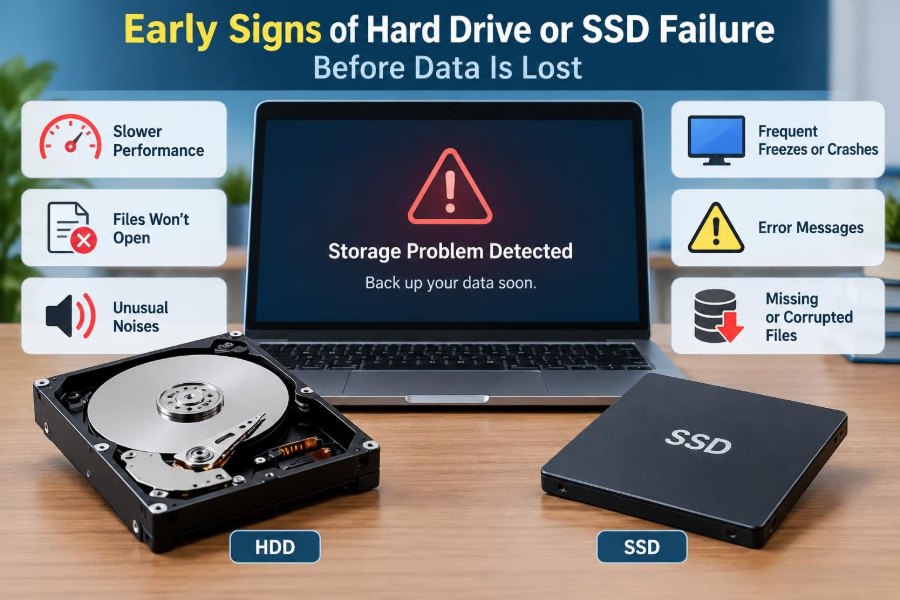
The early signs of HDD or SSD failure range from strange noises and missing drives to slow file access, corruption, and repair messages. None of them alone is a perfect diagnosis, and some arise from cables, power, heat, or software instead.
That uncertainty does not weaken the response. It clarifies it: make an independent copy of valuable data, avoid unnecessary writes, investigate with care, and replace storage that cannot demonstrate reliable operation. Hardware can be replaced; unique data often cannot.
When a drive starts behaving unpredictably, the safest assumption is that your backup needs attention now—not after the next restart. 💾🛟🔧