
A new computer can feel almost effortless at first. Apps open immediately, games look smooth, video exports race ahead, and large spreadsheets seem harmless. Then, after twenty minutes of demanding work, the same machine becomes noticeably slower.
That change can be confusing, especially when the computer has a fast processor, a capable graphics card, and plenty of memory. The hardware has not suddenly become less powerful. It may be protecting itself from too much heat.
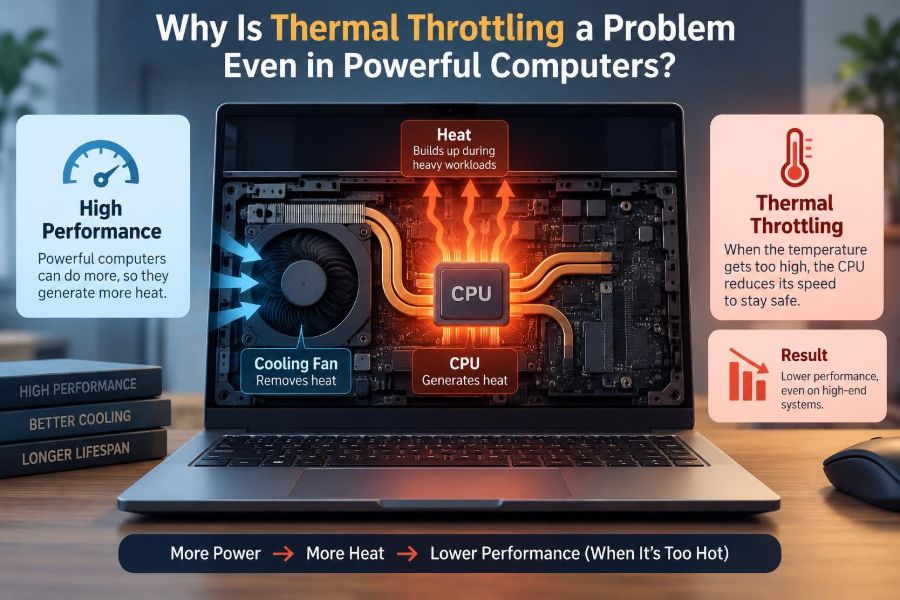
This behavior is called thermal throttling. It is a normal safety mechanism, but frequent or severe throttling can undermine the performance a buyer expected from expensive hardware.
Understanding it helps students diagnose a sluggish laptop, helps professionals keep long workloads predictable, and helps anyone make smarter choices about cooling, maintenance, and performance settings.
🌡️ Thermal Throttling in Plain Language
Thermal throttling is an automatic reduction in performance when a component approaches a temperature limit set by its manufacturer. The system slows the component down so it produces less heat and has a chance to stabilize.
Most often, people notice it in a CPU or GPU, but storage drives, memory systems, and power-delivery components can also reduce speed when they get too hot. The exact behavior differs by device and design.
Think of it like cycling uphill: you may be able to sprint for a short distance, but sustaining that effort creates more heat than your body can comfortably release. Slowing down is protective, not a sign of laziness.
⚙️ Why Fast Chips Create So Much Heat
Processors perform work by switching billions of tiny electronic elements on and off. That activity consumes electrical power, and much of that power ultimately becomes heat.
Higher clock speeds and higher voltages generally allow a chip to complete more work, but they also raise heat output. Modern chips can briefly use far more power than their low-load behavior might suggest, especially during rendering, compiling, simulation, or gaming.
A powerful computer therefore has a cooling challenge proportional to its performance ambitions. Fast hardware is useful only while the surrounding system can move its heat away.
🔁 The Difference Between a Brief Boost and Sustained Speed
Many CPUs and GPUs are designed to boost above their usual operating speed when workload, power, and temperature allow it. This is why a computer can feel extremely fast during a short task.
That boost is not always intended to last indefinitely. Once heat builds inside the chip and cooler, the system may lower clocks or power use to a sustainable level. Some reduction after an intense burst is expected.
The concern begins when performance falls sharply, happens quickly, or continues during ordinary workloads. A machine advertised with impressive peak speeds may deliver much lower sustained speed if its cooling design cannot support them.
🧠 Clock Speed Is Only Part of Performance
When throttling occurs, the system often lowers clock speed, but performance is not controlled by one number alone. It may also limit voltage, electrical current, power consumption, or the number of active processing cores.
A CPU can sometimes keep a seemingly high clock reading while delivering reduced performance because it is constrained elsewhere. Similarly, a graphics card may vary several settings at once to stay within thermal and electrical limits.
This is why a single sensor or a single advertised frequency does not tell the whole story. Useful diagnosis compares temperature, power, clock behavior, and actual task performance over time.
🧩 The Main Parts That Can Throttle
The CPU and GPU get most of the attention because their slowdowns are easy to notice. Yet other parts may quietly become bottlenecks during sustained work.
- CPU: affects program responsiveness, code compilation, calculations, and many creative applications.
- GPU: affects games, 3D work, visual effects, and some AI or compute workloads.
- SSD: may slow long file transfers, backups, or media imports when its controller heats up.
- VRM and power components: regulate electricity for the processor and can restrict operation if poorly cooled.
- Memory and chipset components: can contribute to instability or reduced operating modes in compact systems.
A computer may therefore feel slow even if the CPU temperature alone looks acceptable.
🧊 Cooling Is a Complete Path, Not Just a Fan
Heat must travel from the chip into a heat spreader, through thermal interface material, into a heatsink or vapor chamber, and finally into surrounding air. Fans then move that warm air away from the system.
A failure anywhere in this path reduces cooling effectiveness. A powerful fan cannot compensate fully for a poorly attached heatsink, dried thermal paste, blocked fins, or hot air trapped inside a small case.
This is also why two machines with the same processor can perform very differently. Their chips may be identical, while their paths for removing heat are not.
💻 Why Thin Laptops Face a Harder Trade-Off
Thin laptops have limited internal volume, small fans, narrow exhaust vents, and less metal available to absorb heat. Their designers must balance portability, noise, battery life, cost, and sustained performance.
A slim machine may run a demanding task very quickly at first, then reduce speed as its small cooling system becomes saturated. This does not automatically mean it is defective; it may be an unavoidable consequence of its physical design.
For a student writing documents or a professional attending meetings, that compromise may be reasonable. For regular video rendering, software builds, or 3D work, sustained performance deserves more attention than a thin profile.
🖥️ Desktop Computers Have Limits Too
Desktops usually have more room for large coolers and multiple case fans, but they can still throttle. A high-power CPU or GPU can overwhelm a weak cooler, restricted case, or poorly planned airflow.
Common causes include a glass-front case with little intake ventilation, fans installed in conflicting directions, a radiator receiving already-warm air, or a graphics card exhausting heat directly into the case.
More space helps only when it is used well. A desktop needs a deliberate route for cool air to enter, pass over hot parts, and leave without repeatedly circulating through the case.
🌬️ Ambient Temperature Changes the Starting Point
Cooling does not create cold air; it transfers heat to the surrounding environment. When a room is warm, every component begins closer to its temperature limit.
A computer that performs normally in a cool office may throttle sooner during a hot afternoon, inside a sunny room, or in a crowded equipment area. Portable systems are especially affected when used outdoors or in a warm vehicle.
This does not mean room temperature is the only cause. It explains why a marginal cooling setup can seem fine on one day and problematic on another.
🧱 Soft Surfaces Can Block a Laptop’s Airflow
Many laptops draw air through vents on the bottom. Placing one on a bed, blanket, cushion, or lap can reduce the gap beneath it and restrict intake air.
The result is often louder fans, rising temperatures, and lower sustained speed. The computer may be technically working as designed, but it is being denied the airflow its cooling system expects.
A hard, flat surface is the simplest test. If performance improves after raising the rear slightly or moving to a desk, airflow restriction was likely part of the problem.
🧹 Dust Turns Cooling Hardware into Insulation
Dust accumulates on fan blades, heatsink fins, filters, and vents. In severe cases it forms a felt-like layer that blocks air from passing through the cooler.
This buildup is gradual, so users may not notice the change until a formerly quiet task starts making the fans race. The system can then throttle even though its components and software are unchanged.
Cleaning should be careful and appropriate for the device. Compressed air can help with accessible vents, but opening compact laptops may require instructions, suitable tools, or professional service to avoid damaging cables and connectors.
🧪 Thermal Paste Matters, but It Is Not Magic
Thermal paste fills microscopic gaps between a chip and its cooler. Those gaps would otherwise hold air, which transfers heat poorly compared with the materials around it.
Old, uneven, or poorly applied paste can contribute to high temperatures, particularly on older computers. However, replacing paste is not a universal cure for every thermal problem.
If a fan has failed, vents are blocked, the cooler is undersized, or the room is very warm, fresh paste alone will not solve the underlying limitation. Diagnose the complete cooling path before treating paste as the answer.
🔌 Power Limits and Temperature Limits Are Related but Different
A component can reduce performance because it has reached a thermal limit, but it can also slow down because it has reached an electrical power limit. These situations can look similar from the user’s perspective.
Manufacturers often set power limits to manage heat, battery use, noise, and adapter capacity. A laptop may deliberately run a processor below its maximum potential even when temperatures appear safe.
Changing power settings can sometimes improve sustained performance, but it may increase heat, fan noise, and stress on the cooling system. Temperature readings should be interpreted alongside power behavior, not in isolation.
🔋 Battery Mode Can Change Performance
On battery power, many laptops limit CPU and GPU power to preserve runtime and avoid drawing more current than the battery can comfortably supply. This is not necessarily thermal throttling.
A computer may therefore become slower unplugged even when it is cool. Conversely, charging can add heat to the chassis, which may make a thermally constrained laptop throttle sooner during a demanding task.
For fair testing, use the manufacturer-recommended power adapter, select the intended power mode, and compare behavior under the same conditions. Otherwise, battery policy and heat policy can be confused.
🎮 Gaming Makes Thermal Problems Easy to Notice
Games often load the GPU continuously while also using the CPU, memory, storage, display, and network hardware. This creates a long, combined heat load rather than a brief burst.
A typical hypothetical example is a game that starts smoothly, then loses frame rate after half an hour. If lowering graphics settings reduces GPU load and restores steadier performance, the graphics subsystem may have been approaching its thermal or power limit.
But frame-rate drops also have non-thermal causes, including driver issues, background tasks, insufficient memory, or a demanding game area. Temperature evidence is useful, but it should not replace methodical troubleshooting.
🎬 Creative Work Reveals Sustained Performance
Rendering video, exporting photos, encoding media, producing 3D scenes, and compiling software can keep processing hardware busy for minutes or hours. These jobs expose the difference between peak performance and sustainable performance.
A short benchmark may favor a machine that boosts aggressively. A long export may favor a heavier laptop or desktop with a larger cooler, even if its peak specifications look less dramatic.
For people whose time depends on repeated long tasks, sustained performance is a productivity feature. It determines whether a workflow remains predictable after the first few minutes.
📉 Throttling Can Create Inconsistent Results
The most frustrating effect is often inconsistency. A task might finish quickly in the morning, then take longer later under a warmer room temperature, a different power profile, or accumulated heat from earlier work.
This variability complicates testing and planning. It can make a computer appear unreliable when the real issue is that its thermal conditions are changing.
Performance comparisons should therefore include a sustained workload, not only a short launch test. Recording results after the system has warmed up offers a more realistic picture of daily use.
🔊 Fan Noise Is a Clue, Not a Diagnosis
Loud fans mean the cooling system is trying to remove heat. They do not prove that throttling is happening, because a well-designed system may use fan speed to prevent it.
Likewise, a quiet computer is not always cool. Some systems favor silence and allow higher temperatures or lower performance before increasing fan speed.
Pay attention to patterns: fans that become loud during a normal task, hot exhaust with slowing performance, or fans that never spin despite heat can all justify further investigation.
📊 What to Monitor During a Real Workload
Useful monitoring tools can show sensor readings and clock behavior, but readings need context. Start a task that normally triggers the problem and observe the computer for long enough for heat to build.
| What to observe | What it may reveal |
|---|---|
| Component temperature over time | Whether heat steadily rises toward a limit |
| Clock speed and power draw | Whether the system reduces operating performance |
| Fan speed or noise | Whether cooling is responding to the load |
| Task completion time or frame rate | Whether the slowdown affects real work |
| Room and surface conditions | Whether the environment contributes to the issue |
Sensor labels and limits vary by model. Do not assume that one temperature value means the same thing across every CPU, GPU, or laptop.
🧭 Separate Heat Problems from Other Slowdowns
Not every slow computer is thermally throttled. Low free storage space, failing drives, too little memory, malware, browser overload, background updates, and network delays can all create poor performance.
A useful clue is timing. Thermal throttling typically appears or worsens after a period of heavy activity and may improve after the device cools. A slowdown that is identical from the first second may have another cause.
Check task-manager tools for unusually busy processes, confirm that the correct power mode is active, and test a repeatable workload. Good diagnosis avoids spending money on cooling parts for a software problem.
⚠️ Warning Signs That Deserve Attention
Some warmth and fan noise during hard work are normal. More concerning patterns suggest that cooling performance may be impaired or that the computer’s workload exceeds its practical design.
- Performance falls rapidly during a repeatable demanding task.
- The device becomes unusually hot at the keyboard, palm rest, or exhaust area.
- Fans are constantly loud during modest activity.
- The computer shuts down, crashes, or displays thermal warnings.
- Performance improved after cooling down, cleaning vents, or moving to a hard surface.
Unexpected shutdowns and repeated crashes deserve prompt attention. Thermal protection is meant to prevent damage, but recurring extreme conditions should not be ignored.
🪑 Improve Airflow Before Buying Accessories
Begin with simple, low-risk changes. Put a laptop on a solid surface, uncover vents, remove nearby objects that block exhaust, and avoid placing a desktop in a sealed cabinet.
For desktops, check that intake and exhaust paths are sensible and that dust filters are not clogged. For laptops, a stand that creates space beneath the chassis can help when bottom vents are present.
Cooling pads can be useful in certain designs, but results vary because their fans must align with the laptop’s intake layout. Better placement and clean vents often provide a clearer benefit than an accessory alone.
🛠️ Maintain Fans, Vents, and Internal Parts Carefully
Regular maintenance is less dramatic than upgrading hardware, but it can restore lost cooling capacity. The appropriate interval depends on the environment: homes with pets, smoke, fabric fibers, or dusty rooms may need more frequent attention.
Before opening a device, consider warranty terms, battery safety, and the difficulty of reassembly. Some systems use delicate clips, custom screws, or components that are easy to damage.
If a fan makes grinding sounds, fails to spin, or behaves erratically, replacement may be necessary. A failing fan can transform a manageable heat load into a recurring throttling problem.
🎛️ Use Performance Profiles With Intent
Operating systems and manufacturer utilities often offer quiet, balanced, and performance modes. These profiles adjust power limits, boost behavior, and fan response.
Performance mode can make a task finish faster, but it may also make the computer hotter and louder. Quiet mode can reduce noise but may intentionally limit sustained speed long before dangerous temperatures are reached.
Choose the profile that matches the task. A quiet lecture or meeting does not need maximum power; a long render may justify higher fan noise if it shortens a deadline-sensitive job.
⚡ Undervolting and Tuning Need Caution
Undervolting reduces the voltage supplied to a component while aiming to maintain stable performance. Because power and heat are closely tied to voltage, a successful undervolt can sometimes reduce temperatures or allow steadier clocks.
However, support varies by processor and manufacturer, and overly aggressive settings can cause errors, freezes, or corrupted work. Some systems restrict these adjustments for security or stability reasons.
This is an advanced option, not a required maintenance step. Keep records, test stability over time, and reverse changes if problems appear. It should never be used to conceal a failed fan or blocked heatsink.
🧰 Upgrades Can Solve Some Desktop Limits
Desktop owners may have practical upgrade paths: a larger CPU cooler, better case fans, a more ventilated case, or improved cable routing. These changes can reduce temperatures and noise when selected and installed correctly.
Compatibility matters. Check cooler clearance, motherboard mounting support, case dimensions, fan connectors, radiator placement, and the direction of airflow before buying parts.
A more elaborate cooler is not automatically better. The goal is enough heat dissipation for the workload, installed with a clean airflow path and sensible fan control.
🛒 Buying Advice: Look Beyond Peak Specifications
When choosing a computer for sustained demanding work, compare reviews and tests that include long workloads rather than relying only on the processor or graphics-card name. Chassis thickness, cooler design, fan behavior, and power settings all affect the experience.
Ask practical questions: Does the device remain fast after it warms up? Is the fan noise acceptable in the intended workspace? Can its storage, memory, or cooling components be serviced? Does it need portability more than maximum sustained output?
A compact computer is not inherently a poor choice. It simply needs to be matched honestly to the workload it will perform most often.
🛡️ Thermal Protection Is Better Than Overheating
It is tempting to treat every throttle event as a failure. In reality, throttling is a protective control that prevents components from continuing to increase heat beyond safe operating conditions.
The problem is not that protection exists. The problem is when the computer regularly reaches that protection point during work it is expected to handle, causing avoidable delays, stutter, noise, or instability.
Disabling safeguards or forcing extreme settings can risk crashes and hardware stress. The safer approach is to reduce heat generation, improve heat removal, or accept a workload setting that the system can sustain.
✅ The Core Lesson About Powerful Computers
Powerful components are not separate from their cooling systems. The processor, graphics hardware, power delivery, chassis, fans, thermal materials, room temperature, and software profiles all work together to determine real performance.
Peak speed describes what a computer can do briefly under favorable conditions. Sustained performance describes what it can keep doing when the work lasts. For studying, gaming, creative work, and professional tasks, that second measure is often the one that shapes daily experience.
Use symptoms and monitoring together, rule out non-thermal causes, start with straightforward airflow and maintenance fixes, and make upgrades or tuning changes only when they address a clearly identified limit.
Thermal throttling is a problem in powerful computers because power creates heat, and performance is only as sustainable as the system’s ability to remove that heat. A well-cooled computer is not merely faster at its peak; it is more consistent when the work continues. 🌡️💻🛠️