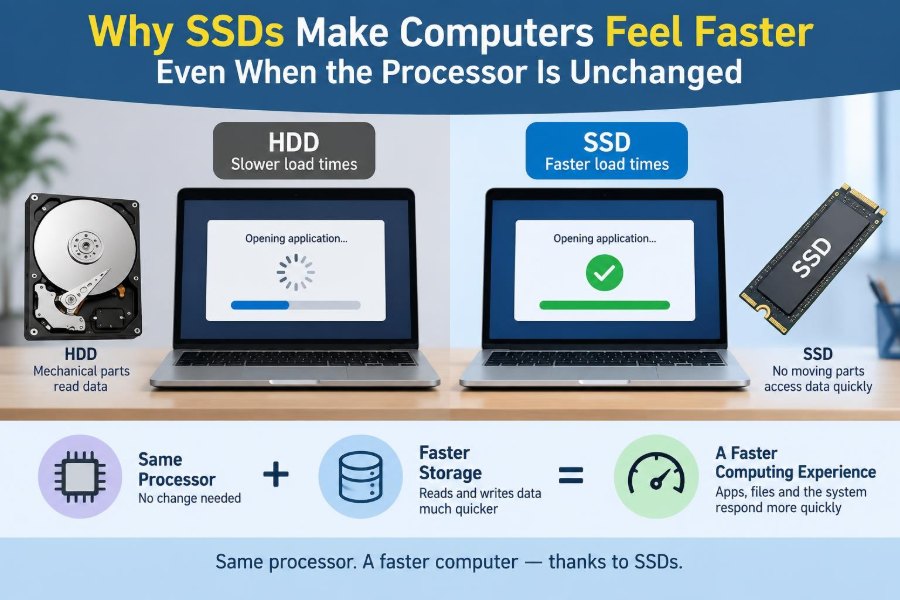

You press the power button on two otherwise similar computers. One reaches the desktop quickly and opens your browser almost at once. The other spends a long time showing loading circles, even though both machines have the same processor.
That difference can feel mysterious. People often treat the CPU as the single measure of computer speed, but everyday responsiveness depends on more than calculation power.
Much of a normal workday involves waiting for data: the operating system, programs, documents, browser files, photos, and updates all have to be retrieved from storage. If that retrieval is slow, a capable processor may sit idle.
This is why replacing a hard disk drive with a solid-state drive can make an older computer feel dramatically more usable without changing its CPU. The improvement is real, but it helps some tasks far more than others.
🧠 Computer Speed Is a Team Effort
A computer completes work through several parts: the CPU processes instructions, memory holds currently active data, storage keeps data when the power is off, and the operating system coordinates the work.
A fast CPU cannot finish a task until the required instructions and data arrive. When storage is the slowest part of that path, it becomes a bottleneck: the component that limits the overall experience.
💾 Storage Is Where Your Files Actually Live
Storage is the long-term home for your operating system, applications, and personal files. RAM is different: it is much faster working memory, but it is cleared when the computer shuts down.
When you launch an application, its code and supporting files are copied from storage into RAM. When RAM is scarce, the system may also move some data back to storage temporarily, making storage speed even more noticeable.
🔄 Hard Drives Depend on Moving Parts
A traditional hard disk drive, or HDD, stores data on spinning magnetic platters. A mechanical arm moves read/write heads across those platters to find the requested location.
That design is effective for inexpensive, high-capacity storage, but physical movement takes time. Before a file can be read, the drive may need to position its head and wait for the relevant part of a platter to rotate underneath it.
⚡ SSDs Retrieve Data Electronically
A solid-state drive, or SSD, stores data in flash memory chips rather than on spinning disks. It has no moving read head that must travel to a physical location.
The drive still has work to do—locating data, managing flash cells, and sending it to the computer—but electronic access avoids the mechanical delays that dominate many HDD requests.
⏱️ Access Time Changes the Feel of a PC
Access time, often called latency, is the delay before a storage device starts delivering requested data. HDDs must overcome mechanical positioning delays; SSDs usually begin responding much sooner.
This matters because a computer often requests many small pieces of data rather than one large uninterrupted file. A short delay repeated thousands of times becomes something a person can feel.
🧩 Small Random Reads Are the Main Difference
Data that sits next to itself can be read sequentially. A large video file is a common example. Data scattered around storage requires random reads, meaning the device must jump among many locations.
Operating systems and applications commonly involve random reads: configuration files, libraries, icons, fonts, security checks, caches, and many small records. HDD heads must physically seek for each scattered request. SSDs handle these patterns far more smoothly.
🚀 Booting a Computer Means Loading Thousands of Things
Startup is not one simple file copy. The firmware begins the boot process, the operating system loads core components, drivers start, services launch, and sign-in settings are applied.
Many of these files are small and spread across the drive. An SSD reduces the waiting between requests, so the desktop can become usable sooner even when the processor is unchanged.
📂 Opening Programs Is Often Storage-Bound
A program may need executable code, interface assets, plug-ins, language files, preferences, and shared libraries before its window is ready. A web browser or office suite can make many storage requests during launch.
On an HDD, the CPU repeatedly waits for those pieces to arrive. On an SSD, the same processor receives them faster and can begin its own work sooner.
🌐 Browsers Create a Particularly Busy Workload
Browsers store caches, profiles, extensions, cookies, history databases, and downloaded content. Opening a browser session can involve many small reads and writes, especially when restoring tabs.
Internet speed still determines how quickly new online content arrives. An SSD helps with the browser’s local work; it cannot make a slow website server or weak Wi-Fi connection faster.
📝 Everyday Multitasking Exposes Storage Delays
Consider a practical situation: a person joins a video meeting, opens a spreadsheet, searches old email, and downloads a PDF. Each action may request different files and background services at nearly the same time.
An HDD can become busy seeking back and forth between those requests. An SSD’s low access delay makes the system more likely to respond promptly rather than feeling stuck behind the previous request.
📊 Sequential Speed Is Only Part of the Story
Storage advertisements often emphasize large sequential transfer speeds. Those figures matter when copying a large file, importing video, or loading a large game asset, but they do not fully explain desktop responsiveness.
For ordinary use, random performance and latency are often more revealing. A device that quickly handles many small requests can feel faster than one that looks impressive only during long continuous transfers.
🔢 IOPS Describe Many Small Operations
IOPS means input/output operations per second. It describes how many read or write requests a drive can complete over a period of time, though the result depends on request size, queue depth, and testing conditions.
It is useful as a concept rather than a shopping number to compare blindly. SSDs generally handle far more small random operations than HDDs, which helps explain their advantage in real operating-system workloads.
🛑 The CPU Often Spends Time Waiting
A CPU can execute billions of operations rapidly, but it cannot use data that has not arrived. While a storage request is pending, the operating system may run another task, yet the task that needs the file remains delayed.
Installing an SSD does not make the CPU intrinsically more powerful. It removes many pauses that prevent existing CPU power from being used at the moment it is needed.
🧵 Modern Systems Can Queue Work, Not Eliminate Delays
Operating systems are designed to overlap work. They can cache data, schedule threads, and process other tasks while a device is busy. This reduces the visible effect of slow storage but cannot erase it.
When many requests depend on earlier requests, the next step cannot begin until the prior data arrives. This dependency chain is common during startup and application loading.
🗃️ File Fragmentation Affects HDDs More
Fragmentation occurs when parts of a file are stored in separate locations. An HDD may need extra head movement to read those pieces, so fragmentation can add delay.
SSDs are much less sensitive because they do not seek with a moving head. Modern operating systems manage storage maintenance automatically; manually defragmenting an SSD is neither necessary nor a useful way to improve it.
🧠 RAM and SSDs Solve Different Problems
Adding RAM lets a computer keep more active programs and data in fast memory. An SSD makes the long-term storage that feeds RAM much quicker.
If a computer has very little RAM, an SSD can lessen the pain of paging—using storage as temporary overflow memory—but it cannot make paging as fast as having enough RAM. Upgrading both can be sensible on an older machine.
🧮 When an SSD Cannot Fix a CPU Limitation
Tasks dominated by calculation will not gain much from a storage upgrade once their data is loaded. Examples include long CPU-only video encoding, complex simulations, large spreadsheet recalculations, and some software builds.
In those cases, a stronger processor, more CPU cores, or a more suitable application setting may matter more. The key question is whether the task is waiting for data or busy computing.
🎮 Games Benefit in Specific Ways
An SSD can shorten game launch times, level loading, texture streaming delays, and some update operations. Open-world games that continually load assets may also feel more consistent.
However, frame rate is commonly limited by the CPU, graphics processor, memory, game settings, and rendering workload. Replacing an HDD with an SSD usually does not transform a graphics-bound game into a high-frame-rate one.
🛠️ SATA SSDs and NVMe SSDs
Many SSDs use SATA, an interface originally common for HDDs. NVMe SSDs usually connect through PCIe and are designed for faster, more parallel storage communication.
| Storage type | Typical strength | Common everyday result |
|---|---|---|
| HDD | Low-cost large capacity | Slower startup and program loading |
| SATA SSD | Major improvement in access time | Very responsive general-purpose computer |
| NVMe SSD | Higher transfer potential and parallel work | Extra gains in demanding file and data workloads |
For web browsing, office work, and ordinary app launching, moving from HDD to any decent SSD is usually the major leap. Moving from SATA SSD to NVMe can help, but the difference may be less obvious in light use.
🔌 Compatibility Comes Before Buying
Not every computer accepts every SSD. Older desktops and laptops may support a 2.5-inch SATA drive but lack an M.2 slot. An M.2 slot can also support different connection types, so its physical shape alone does not guarantee NVMe support.
Check the device manual, manufacturer specifications, available drive bays, connector type, and maximum supported size where relevant. For laptops, confirm the physical length and thickness requirements before ordering.
📦 Capacity Affects Comfort and Performance
Choose enough space for the operating system, applications, current projects, updates, and free working room. A nearly full drive can be harder to manage and may have less room for normal background maintenance.
A common practical arrangement is an SSD for the operating system and frequently used applications, with a larger HDD or external drive for archives. This can balance responsiveness with capacity, although backup planning still matters.
🧹 SSDs Need Free Space but Not Old-Style Defragmenting
SSDs manage erased space differently from HDDs. Features such as TRIM allow the operating system to tell the drive which deleted blocks are no longer needed, helping the drive prepare them for later writes.
Leave reasonable free space and let the operating system perform its normal SSD-aware maintenance. Avoid advice that treats an SSD exactly like an HDD, especially routines involving repeated manual defragmentation.
🛡️ Faster Storage Is Not a Backup Plan
SSDs can fail, files can be deleted accidentally, malware can encrypt data, and a laptop can be lost. A faster drive improves access speed; it does not preserve a second copy of your work.
Keep backups separate from the computer whenever possible. The right method depends on the data and environment, but a backup should be tested occasionally by restoring a file rather than merely assuming it exists.
🔁 Cloning and Clean Installation Have Trade-Offs
When replacing a system drive, cloning copies the existing installation to the new drive. It can be convenient because programs and settings remain in place, provided the new drive has enough capacity and the process completes correctly.
A clean installation can remove accumulated unwanted software and configuration problems, but it requires reinstalling applications and restoring files. Back up important data before either approach; migration is not risk-free.
🔍 Check the Real Bottleneck First
If a computer remains slow after receiving an SSD, observe what is happening. Task Manager or similar system tools can show high CPU use, memory pressure, sustained disk activity, or a process consuming resources.
- High disk activity during launching and booting suggests storage is relevant.
- Memory nearly full during normal use suggests more RAM may help.
- CPU near full use during a calculation suggests a processor-bound task.
- Slow online services with little local activity may point to the network or remote server.
This simple diagnosis prevents spending money on an upgrade that does not address the actual delay.
⚠️ Common Expectations That Lead to Disappointment
One mistake is expecting an SSD to cure every kind of slowness. It will not repair overheating, unstable drivers, malware, failing RAM, weak Wi-Fi, or software that simply demands more CPU or graphics power.
Another is buying the fastest interface available while ignoring capacity, compatibility, backup needs, or the condition of the rest of the system. A reliable, properly sized SSD is often the more useful choice.
🏢 Why SSDs Matter at Work Too
For working professionals, small waits accumulate: opening large email archives, searching project folders, launching communication tools, and switching between applications. Lower storage latency can make these frequent transitions less disruptive.
In managed workplaces, encryption, security scanning, and synchronization software can add storage activity. An SSD does not remove those processes, but it can reduce the time they spend competing with ordinary work.
🎓 A Useful Analogy: Desk Drawer Versus Filing Room
Imagine the CPU as a skilled worker. RAM is the desk, holding papers already needed. Storage is the filing system where everything is kept.
An HDD resembles a large filing room where an assistant must walk to a different cabinet for each document. An SSD resembles a much quicker electronic retrieval system. The worker’s skill has not changed; the worker simply spends less time waiting for papers.
✅ The Core Principle: Remove Waiting, Not Just Add Power
An SSD makes a computer feel faster primarily because it reduces the delays involved in retrieving and writing data. Startup, application launches, searches, updates, multitasking, and file-heavy workflows contain many such delays.
The processor remains the same, but it receives instructions and data with fewer interruptions. That is why a storage upgrade can improve perceived speed so strongly while leaving raw CPU calculation performance largely unchanged.
The most responsive computer is not merely the one with the fastest processor; it is the one whose components spend less time waiting on one another. Choose upgrades based on the workload you actually have, protect your data, and let faster storage remove friction from the tasks you repeat every day. 💻⚡📁