
You click a large project folder, copy a video to an external drive, or launch a game that has been installed for months. Sometimes the result feels instant. Other times, the computer seems to pause while a progress bar crawls forward.
The difference is often not the processor, memory, or internet connection. It is the storage device responsible for reading and writing the files: either a traditional hard disk drive (HDD) or a solid-state drive (SSD).
Both devices can hold documents, photos, applications, and backups. Yet they move data in very different ways, and their advertised speed numbers can be confusing. A drive rated for several gigabytes per second does not make every task equally fast.
Understanding the difference helps when buying a laptop, upgrading a desktop, planning a backup, or figuring out why a fast-looking drive still feels slow in a particular job.
🧭 The Short Answer: SSDs Are Usually Far Faster
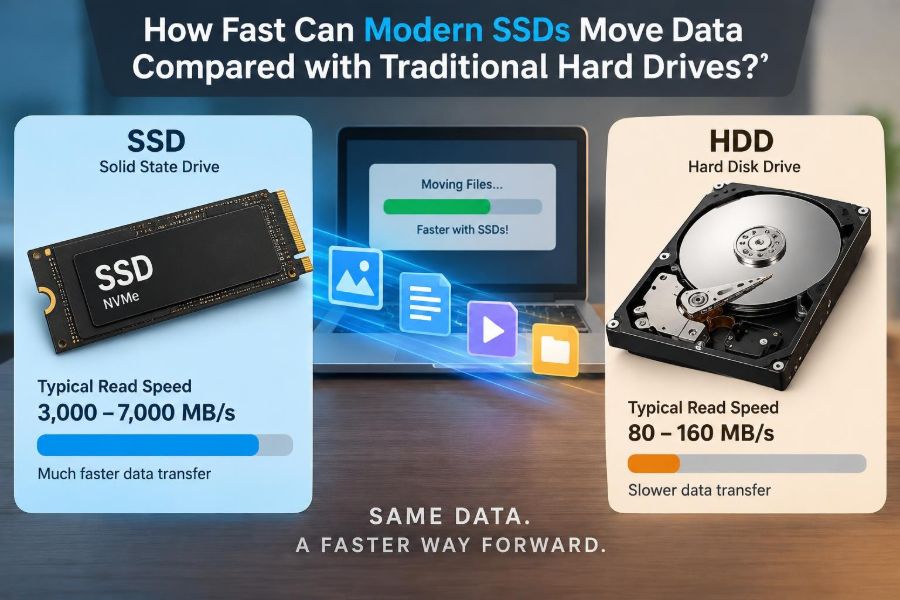
For most everyday tasks, a modern SSD is dramatically quicker than a traditional HDD. A typical hard drive may transfer large sequential files at roughly 100 to 200 megabytes per second under favorable conditions. SATA SSDs commonly reach about 500 to 550 MB/s, while many NVMe SSDs can transfer several gigabytes per second.
The larger practical gap appears when a computer must access many small files scattered across a drive. An SSD can respond in tiny fractions of a millisecond; an HDD must physically move a read head and wait for a spinning platter to reach the right position.
SSDs are not merely faster versions of hard drives; they use a fundamentally different method of storage.
💾 What a Traditional Hard Drive Actually Does
An HDD stores data magnetically on one or more circular platters. These platters spin at a fixed rate, commonly 5,400 or 7,200 revolutions per minute in consumer systems.
A moving actuator arm positions a tiny read/write head above the needed part of the platter. It is a precise mechanical process, but it takes time. Every file request may require both moving the head and waiting for the target sector to rotate underneath it.
That design explains why hard drives remain useful for high-capacity storage but are less responsive when handling scattered data.
⚡ How Solid-State Drives Store Data
An SSD stores information in flash memory chips, with no spinning disks and no moving read head. A controller inside the drive organizes data, directs requests to memory cells, and manages background maintenance.
Because the controller can access electronic memory almost immediately, the drive avoids the mechanical delays built into HDDs. It can also work with multiple flash chips at once, much like opening several checkout lanes instead of serving every customer through one.
This architecture gives SSDs low latency, strong random-access performance, silent operation, and better resistance to shock.
📏 Understanding Megabytes and Gigabytes per Second
Transfer rates are usually expressed as MB/s or GB/s. A byte is a unit of digital data; a megabyte is roughly one million bytes, and a gigabyte is roughly one billion bytes in common storage marketing.
If a drive writes at 500 MB/s, it can theoretically write a 5 GB file in around ten seconds. Real results can be slower because of file overhead, drive conditions, interface limits, and the speed of the source device.
Remember that GB/s is about one thousand MB/s. A quoted speed of 3 GB/s is therefore approximately 3,000 MB/s, not 300 MB/s.
🚦 Sequential Speed: The Easy-to-Measure Number
Sequential performance describes reading or writing data stored in one continuous stream. Copying a large video file, disk image, or archive is a common sequential task.
Manufacturers often highlight sequential speed because it is easy to test and produces impressive figures. It is genuinely useful for workflows involving large media files, scientific data, virtual machine images, or regular large backups.
However, a top sequential number alone does not predict how quickly an operating system starts or how responsive a folder full of small documents will feel.
🎯 Random Speed: Why Computers Feel Responsive
Random performance measures how efficiently a drive accesses many small pieces of data located in different places. Starting an operating system, opening an application, loading a complex web browser profile, and checking thousands of files all involve random access.
An HDD is slowed by physical seeking during these tasks. An SSD can jump electronically to the needed data location, which is why even a modest SATA SSD usually makes an older computer feel far more responsive than the same computer using a hard drive.
Random performance is often reported as IOPS, or input/output operations per second. Higher IOPS can be useful, but latency and workload type still matter.
⏱️ Latency Is the Delay Before Transfer Begins
Bandwidth tells you how much data can move per second after a transfer is underway. Latency tells you how long the system waits before data starts arriving.
Hard-drive latency is measured in milliseconds and includes head movement and rotational delay. SSD latency is typically far lower because there is no mechanical positioning step. The exact result varies by model, load, firmware, and connection.
A useful analogy is a library. Bandwidth is how many books can fit on a cart; latency is the time needed to locate the first book. Everyday computing often benefits enormously from finding that first book quickly.
🔌 The Interface Can Limit the Drive
A fast storage device cannot exceed the capability of its connection. SATA, the interface widely used by 2.5-inch SSDs and older hard drives, has a practical ceiling around the mid-500 MB/s range for modern SSDs.
NVMe SSDs use the PCI Express bus, the same high-speed expansion pathway used by components such as graphics cards. Depending on the PCIe generation and number of lanes, this provides much more bandwidth than SATA.
An NVMe SSD placed in a slower slot will still work only at the speed supported by that slot. Always check the computer or motherboard documentation before expecting a particular performance tier.
🧩 SATA SSDs: A Major Upgrade Over HDDs
A SATA SSD is often the most noticeable upgrade for a computer still using a hard drive. Its maximum sequential speed is limited by SATA, but its near-instant access time transforms booting, launching applications, installing updates, and searching files.
It may be a 2.5-inch drive connected with a cable, or an M.2-shaped drive that still uses the SATA protocol. The physical shape does not automatically reveal the performance level.
For office work, study, browsing, and general home use, a SATA SSD can remain entirely adequate.
🚀 NVMe SSDs: More Headroom for Demanding Work
NVMe is a storage protocol designed for solid-state storage over PCI Express. It supports many queues of requests and substantially more bandwidth than SATA, helping suitable workloads keep more of the flash hardware busy.
Entry-level NVMe drives may already be several times faster than SATA in sequential tests. High-end models can be faster again, particularly with a recent PCIe platform and a workload that can use the extra throughput.
The jump from HDD to SATA SSD is usually obvious in general responsiveness. The jump from SATA SSD to NVMe often matters most for heavy file transfers, content creation, development work, and specialized professional workloads.
📊 Typical Speed Ranges at a Glance
These are broad, approximate ranges rather than promises. Actual results depend on the drive, capacity, interface, computer, temperature, and data being handled.
| Storage type | Typical sequential transfer range | Common strength |
|---|---|---|
| 5,400 RPM HDD | Often around 80–150 MB/s | Low-cost bulk storage |
| 7,200 RPM HDD | Often around 120–220 MB/s | Faster desktop bulk storage |
| SATA SSD | Up to roughly 500–550 MB/s | Responsive everyday computing |
| NVMe SSD | From around 1 GB/s to several GB/s | High-throughput modern systems |
Small random transfers can show a much wider advantage for SSDs than this table suggests. Conversely, a slow USB connection can prevent an external SSD from reaching its internal-drive potential.
📁 One Huge File and a Folder of Tiny Files
Suppose you copy a single 20 GB video file. Transfer speed is mostly a sequential question, so a fast NVMe SSD may finish far ahead of an HDD if the destination and connection are equally capable.
Now suppose you copy 100,000 small source-code files or photo thumbnails. Each file requires filesystem work and metadata updates. SSD latency becomes especially valuable, but the file system, processor, antivirus software, and destination drive can also become bottlenecks.
This is why a copy dialog may calculate a time estimate, change it sharply, and then slow near the end. It is responding to a changing mix of work, not simply measuring raw drive speed.
🖥️ Boot Times Depend on More Than Storage
An SSD generally shortens operating-system startup because it reads many files quickly and with low delay. It also speeds application launches and background tasks that would otherwise queue behind disk activity.
But boot time also includes firmware checks, device initialization, drivers, startup programs, security tools, and sometimes network services. Replacing an HDD with an SSD helps substantially, yet it cannot remove delays caused before the operating system begins loading.
A practical improvement is to review unnecessary startup applications after the upgrade rather than assuming storage is the only cause.
🎮 Game Loading and Asset Streaming
Games load textures, audio, maps, models, and saved data. Moving from an HDD to an SSD often reduces loading screens and can lessen pauses caused by asset loading in open-world games.
Some newer games are designed with fast SSD storage in mind, but outcomes vary widely by game engine, CPU, graphics hardware, memory capacity, and how the game processes compressed assets.
A very fast NVMe drive will not automatically increase frame rate. It primarily helps when storage access is the limiting part of loading or streaming data.
🎬 Creative Workloads Can Use High Throughput
Video editing, large photo catalogs, audio production, 3D projects, and graphics work can benefit from SSD speed. Importing footage, generating previews, caching effects, and moving project files may all involve substantial reads and writes.
The benefit is greatest when source files, cache files, and exports are stored on capable drives and the application can process data quickly enough. A slow processor or limited RAM can still constrain the workflow.
For valuable projects, speed should never replace a backup plan. A fast working drive and a separate protected copy serve different purposes.
🧠 Why RAM Is Not the Same as an SSD
Both RAM and SSDs use electronic components, but they have different roles. RAM holds data actively needed by running programs and is much faster than storage, while SSDs preserve data after the power is turned off.
When RAM fills up, an operating system may use storage as temporary overflow space, often called swap or a page file. Even a fast SSD is much slower than RAM, so adding sufficient memory can improve multitasking more than choosing an even faster SSD.
Storage speed helps load data; memory capacity helps keep active data ready for use.
🧱 Flash Memory Has Its Own Constraints
SSDs are fast, but flash memory is not infinitely fast or simple. Data is written in pages and erased in larger blocks, so rewriting information often requires internal housekeeping.
The controller uses techniques such as wear leveling to spread writes across memory cells and garbage collection to prepare space for future writes. These processes help maintain usability and lifespan, but performance can vary when a drive is nearly full or heavily busy.
Quality controllers and firmware matter. Two SSDs with similar headline read speeds may behave differently during long writes or sustained multitasking.
🪣 The SLC Cache Explains Some Fast Write Claims
Many consumer SSDs reserve part of their flash as a fast write cache, often operating in an SLC-like mode. It allows short bursts of incoming data to be accepted very quickly.
When that cache fills during a long transfer, the drive may write more slowly to its main flash area. This does not mean the drive is faulty; it means the short benchmark result did not represent an unlimited write workload.
If you routinely move very large files, look beyond peak write speed for reviews or specifications that discuss sustained performance and cache behavior.
🌡️ Heat Can Reduce NVMe Performance
High-speed NVMe drives can generate noticeable heat during long transfers. If a drive reaches its temperature limits, it may reduce performance temporarily, a safety behavior called thermal throttling.
Many desktops provide an M.2 heat spreader, and some drives include one. Laptop space is tighter, so compatibility and airflow deserve attention before adding a thick heatsink.
Brief everyday tasks rarely create a problem. Long video writes, large backups, or sustained professional activity are more likely to reveal cooling limits.
🔋 Power, Noise, and Physical Durability
SSDs have no moving parts, so they are silent and generally better able to tolerate bumps than running hard drives. That makes them particularly suitable for laptops and portable devices.
Hard drives can use more power while spinning and seeking, though real battery-life differences depend on the whole system and its workload. HDDs also produce vibration and audible activity that some users find distracting.
These advantages do not make SSDs indestructible. Electronic failures, controller faults, accidental deletion, and file corruption can affect any storage type.
💰 Capacity Still Changes the Buying Decision
Hard drives usually offer more capacity for the money, especially at multi-terabyte sizes. They remain practical for large media libraries, archival copies, surveillance recordings, and backups where access speed is not the primary concern.
SSDs are often the better place for an operating system, current applications, active projects, and games played regularly. Many desktops use both: an SSD for active work and an HDD for spacious secondary storage.
The best choice is rarely about declaring one technology universally superior. It is about matching capacity, speed, budget, and protection needs.
🔄 External Drives Add Another Bottleneck
An external SSD can be very fast, but its real transfer rate is determined by the complete chain: the drive, enclosure, cable, USB or Thunderbolt port, and the computer at both ends.
A USB cable that physically fits may support only a lower data rate. Some external enclosures also limit an NVMe drive below its internal performance level.
When performance matters, verify the port standard and test with a large file after setup. For ordinary backups, reliability and capacity may be more valuable than chasing the highest benchmark score.
🧪 Benchmarks Are Useful but Not the Whole Story
Benchmark programs test defined patterns, often using large sequential blocks or controlled random workloads. They are useful for confirming that a drive is functioning roughly as expected and for comparing similar products under similar conditions.
They cannot fully reproduce every personal workflow. A benchmark may use empty-drive conditions, data that compresses easily, or a short test that remains inside an SSD cache.
Use benchmark results as clues, not guarantees. Consider the files you handle, the ports you own, and whether your current drive is actually causing a delay.
🛠️ A Practical Upgrade Path for an Older Computer
If a computer has a hard drive and feels slow during startup or routine use, installing a compatible SSD is often a high-value improvement. First identify whether it accepts a 2.5-inch SATA drive, an M.2 SATA drive, an M.2 NVMe drive, or more than one option.
- Back up important files before changing storage hardware.
- Check the device manual for physical size, interface, and slot support.
- Choose enough capacity for the operating system, applications, updates, and free space.
- Decide whether to clone the old drive or perform a clean operating-system installation.
- Keep the old HDD only after confirming the new system works and backups are safe.
Cloning is convenient, but a clean installation can remove years of unused software and configuration clutter.
📦 Leave Free Space for Better Drive Behavior
Filling any drive completely is inconvenient, but it can be particularly unhelpful for SSDs. Free space gives the controller room to organize data, handle temporary writes, and perform maintenance efficiently.
There is no single percentage that fits every drive and workload. The sensible rule is to avoid running constantly at the edge of full capacity, especially if you edit large files or download sizable games.
Free space also gives the operating system room for updates, temporary files, and recovery operations.
🧹 Maintenance Is Simpler Than Many People Think
Modern operating systems generally recognize SSDs and use TRIM, a command that tells the drive which deleted blocks no longer contain needed data. This helps the SSD prepare those blocks for future writes.
Do not manually defragment an SSD as though it were a hard drive. Defragmentation was designed to reduce mechanical seeking on HDDs; it provides no comparable benefit to SSD data access and creates unnecessary writes.
Keep firmware and operating-system updates sensible, maintain backups, and monitor available capacity. That is more useful than ritual maintenance utilities.
🛡️ Speed Does Not Equal Data Safety
A fast SSD can fail without the gradual warning signs sometimes associated with a noisy or slowing hard drive. Hard drives can also fail suddenly. Neither should be treated as a single safe location for important data.
A sound approach keeps more than one copy, with at least one copy separate from the main computer. The right method may include an external drive, a network location, or a reputable cloud service, depending on privacy, cost, and internet access.
Backup strategy protects data; drive speed only improves access to it.
⚠️ Common Mistakes When Comparing Drive Speed
- Comparing an internal NVMe SSD with an HDD connected through a different, slower external interface.
- Assuming the largest advertised read figure predicts all real-world tasks.
- Buying a PCIe drive faster than the computer can support.
- Ignoring sustained-write behavior when frequently transferring large files.
- Choosing too little capacity and leaving no working room.
- Using a fast new drive without creating a backup of irreplaceable data.
A comparison is meaningful only when the workload, connection, and surrounding hardware are considered together.
🧮 Choosing the Right Drive for the Job
Choose a hard drive when low-cost high capacity is the central requirement and waiting longer for access is acceptable. It is often a sensible home for backup sets and less frequently used files.
Choose a SATA SSD when you want a reliable everyday upgrade, have a SATA-only system, or do not need extreme sequential throughput. Choose NVMe when your system supports it and your work benefits from fast transfers, low latency under load, or an uncluttered internal installation.
For many people, the strongest configuration is not one “best” drive. It is a sufficiently large SSD for active work plus a separate backup destination.
🏁 The Core Principle: Match Speed to the Workload
Modern SSDs can move sequential data several times faster than traditional hard drives, and high-end NVMe models can extend that lead much further. Their most transformative advantage, however, is low-latency random access: the ability to handle many small requests without waiting for mechanical parts.
Hard drives still make economic sense for large, infrequently accessed collections. SSDs make computers feel quicker because they remove delays that occur constantly during normal use, from opening software to locating scattered system files.
The meaningful question is not simply “Which drive has the biggest number?” Ask what is slow now, how much storage you need, what your computer can connect to, and how your files will be backed up.
SSDs deliver speed through electronic access, while hard drives trade speed for affordable capacity; the right setup uses each strength where it matters most. 🖥️⚡💾