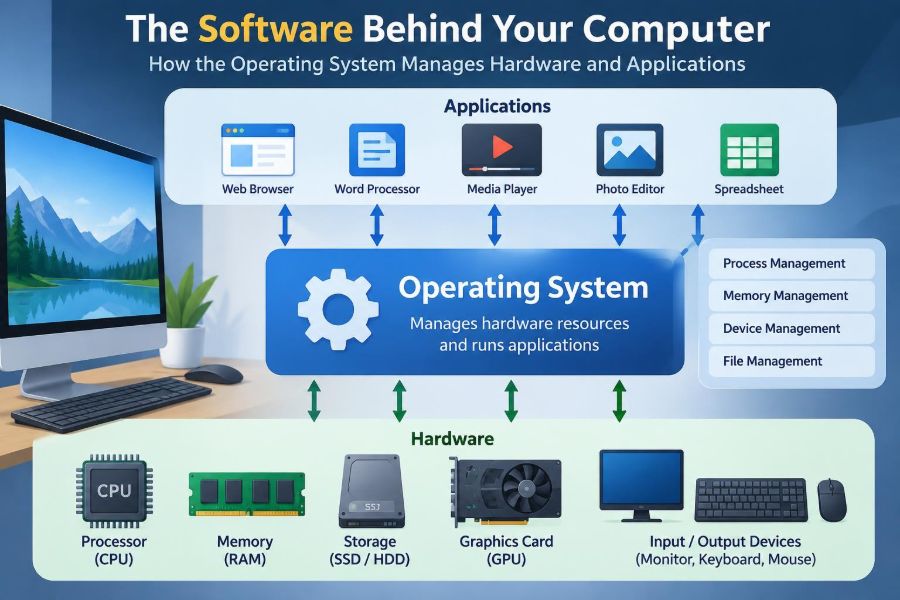

You press the power button, open a browser, join a video call, save a document, and perhaps connect headphones—all without thinking much about the coordination required. Yet every one of those actions asks many parts of the computer to work together.
Your applications do not directly control the screen, processor, storage drive, camera, or network connection. If they did, two programs could easily collide over the same hardware, and ordinary tasks would become unreliable.
The software that prevents this confusion is the operating system, usually shortened to OS. Windows, macOS, Linux, Android, iOS, and ChromeOS are familiar examples. They provide the organized environment in which programs run and hardware becomes useful.
Understanding the operating system makes everyday computer behavior less mysterious. It also helps you make better choices about updates, security, performance, storage, and troubleshooting.
🧭 What an Operating System Actually Does
An operating system is the central layer of system software that manages a computer’s resources and provides services to applications. It starts when the device boots and usually continues running until the device shuts down.
Think of it as a skilled coordinator rather than as one ordinary app. It decides which program gets processor time, keeps files organized, translates requests to hardware, manages memory, and presents interfaces through which people and programs interact.
Without an OS, software would need separate instructions for every possible printer, display, drive, and network adapter. The result would be far harder to build and maintain.
🏗️ The Layers Between You and the Hardware
A computer is easier to understand as a set of layers. At the bottom are physical components: the CPU, RAM, storage, display, keyboard, and network hardware. Above them sit firmware and the operating system; above that sit applications and user interfaces.
When you select “Print” in a document editor, the application asks the OS to print. The OS uses the appropriate driver to communicate with the printer hardware. This separation lets the editor focus on documents instead of learning how each printer model works.
Layers add some complexity, but they make computers more compatible, stable, and adaptable.
⚙️ Starting the Computer: Booting
When a computer is switched on, it cannot immediately run your desktop or phone apps. The processor begins by executing instructions stored in firmware, such as UEFI on many modern PCs. Firmware performs early checks and locates software needed to continue startup.
A small program called a bootloader then loads the operating system’s kernel into memory. The kernel is the core part of the OS, with broad authority over hardware and system resources.
After the kernel starts essential services, the operating system can display a sign-in screen or launch the environment configured for the device.
🧠 The Kernel: The Protected Core
The kernel handles low-level work that applications should not be allowed to perform freely. It manages processor scheduling, memory, devices, and system calls—controlled requests that applications use to ask the OS for privileged services.
This protection is deliberate. A music player should not be able to overwrite another program’s memory or take exclusive control of a storage drive simply because it has a bug.
Different operating systems organize their kernels differently, but the central goal is similar: provide controlled, dependable access to shared hardware.
🔄 Processes: Programs While They Run
A program stored on a drive is passive code and data. When the operating system loads and runs it, it becomes a process. Opening two separate document windows may create separate processes, depending on the application’s design.
Each process receives an identity, allocated memory, security permissions, and access to OS services. The operating system tracks these details so it can manage many activities at once.
This is why a task manager or activity monitor can show a browser, a background updater, and a video editor as distinct running items. They are not merely icons; they are active processes competing for resources.
🧵 Threads and Responsive Applications
A process can contain one or more threads, which are smaller units of work scheduled by the processor. A web browser might use different threads to draw a page, receive network data, play audio, and respond to your typing.
Using multiple threads can keep an application responsive while lengthy work continues in the background. For example, a photo editor may let you move the cursor while it exports a large image.
More threads are not automatically better. Coordinating them is difficult, and poorly designed concurrent work can create errors or waste processor time.
⏱️ CPU Scheduling: Sharing the Processor
A processor can execute only a limited amount of work at a time, even when it has multiple cores. The OS scheduler decides which runnable thread gets a turn and for how long. It switches rapidly enough that many tasks appear to happen simultaneously.
Interactive work, such as responding to a keypress, generally needs quick attention. A long background task, such as indexing files, can often wait briefly without bothering the user. Schedulers balance responsiveness, fairness, power use, and overall throughput.
If one process consumes most available CPU time, the system may feel slow. The cause might be demanding legitimate work, a software defect, or unwanted software—not necessarily a failing computer.
💾 RAM: The Workspace for Running Software
Random-access memory, or RAM, is the fast working area where the OS keeps active program code and data. More available RAM lets the system keep more useful information close to the processor.
Every process is given a protected memory space. This isolation helps prevent one application from accidentally changing another application’s data. It also makes crashes more contained, although a serious kernel or driver failure can still affect the whole system.
RAM is temporary. Its contents disappear when power is removed, which is why unsaved work can be lost after an abrupt shutdown.
🗂️ Virtual Memory Extends the Workspace
Operating systems use virtual memory to give each process the impression of having a large, private range of memory addresses. The OS and hardware translate those addresses to actual RAM locations.
When RAM becomes crowded, the OS may move less-active data to a reserved area on storage, often called a swap file or page file. This allows more programs to remain open, but storage is much slower than RAM.
Frequent swapping can make a device sluggish, especially when several memory-hungry applications are open. Closing unused tabs or programs may help; adding RAM can help on devices where it is possible.
📁 File Systems Give Storage Structure
A storage drive holds raw blocks of data. A file system organizes those blocks into files, folders, names, dates, permissions, and other metadata. It is the reason you can locate a report by name rather than by physical drive location.
Common file systems differ by platform and use case, but their purpose is broadly the same: store and retrieve data reliably. The OS records where file contents are placed and keeps directory structures consistent.
Deleting a file often removes the file system’s reference to it before its storage space is reused. That is one reason recovery may sometimes be possible, but it is never something to rely on.
🔐 File Permissions Control Access
Not every user or application should be allowed to read, modify, or run every file. Operating systems apply permissions and ownership rules to limit access. A personal document, a shared project folder, and a system configuration file should not receive identical treatment.
Permissions support privacy and system integrity. For example, ordinary accounts usually cannot change core operating system files without approval from an administrator account.
Granting broad access can solve a short-term inconvenience, but it can also expose sensitive data or let damaged software alter more than intended. Use the narrowest permission that genuinely enables the task.
🧩 Device Drivers Translate Hardware Requests
A device driver is software that enables the operating system to communicate with a particular class or model of hardware. Drivers translate general OS requests into instructions a graphics card, printer, touchpad, or Wi-Fi adapter can understand.
Many drivers are installed automatically, especially for common hardware. Some specialized equipment needs a driver supplied by its manufacturer, particularly when advanced features are required.
A faulty or incompatible driver can cause missing devices, crashes, poor performance, or strange behavior. Updating drivers from a trusted source can help, but installing random “driver updater” utilities is unnecessary and can introduce risk.
🖥️ Display, Sound, and Input Services
The operating system gathers input from keyboards, mice, touchscreens, microphones, cameras, and other devices. It then delivers relevant events to the active application. A click in a drawing program should affect the canvas, not a hidden spreadsheet.
It also coordinates output. The OS works with graphics and audio systems to place windows on a display, adjust volume, send sound to chosen speakers, and handle changes such as connecting a second monitor.
These services make hardware feel consistent. Applications can request a window or play audio without each one rebuilding the underlying control system.
🌐 Networking Makes Connections Manageable
Networks involve addresses, routing, wireless connections, data formats, and security settings. The OS supplies networking services so applications can communicate without individually implementing every low-level detail.
A browser uses OS networking components to send a request to a website. A video-call app uses related services to receive and send audio and video data. The OS also manages interfaces such as Ethernet, Wi-Fi, Bluetooth, and sometimes mobile data.
Network access is a meaningful permission. A simple offline utility has little reason to contact the internet, while a cloud backup service clearly does. Reviewing app permissions can reveal mismatches between a program’s purpose and its access.
🔌 Interrupts Let Hardware Get Attention
Hardware cannot wait patiently for the processor to ask about every possible event. Instead, devices can send an interrupt, a signal that tells the processor something needs prompt attention.
Pressing a key, receiving network data, or completing a disk operation can trigger an interrupt. The OS pauses ordinary work briefly, handles the event, and then resumes other tasks.
This event-driven approach is more efficient than constantly checking every device. It is one quiet reason a computer can react promptly while still performing background work.
🧰 System Calls: The Safe Request Channel
Applications need to open files, create windows, use the network, and allocate memory. Rather than touching protected hardware directly, they make system calls or use higher-level programming interfaces that eventually reach system calls.
The OS checks the request, applies permissions and limits, then performs or rejects the operation. This boundary separates ordinary application code from the most privileged parts of the system.
For example, an app can request access to a camera, but the OS may require user consent or deny the request based on policy. The exact interface varies by platform, but controlled access is the essential idea.
🪟 The User Interface Is More Than Decoration
The graphical user interface—windows, icons, menus, buttons, and touch controls—is the visible portion of an operating system for many users. It turns complex system actions into recognizable tasks such as moving files or changing settings.
Some systems also provide a command-line interface, where typed commands can automate work and expose detailed controls. Neither interface is inherently superior; the best choice depends on the task and the user’s knowledge.
Good interface design reduces mistakes by making system status visible. A clear storage warning, for instance, gives a person a chance to act before an update or save operation fails.
👤 User Accounts Separate People and Roles
User accounts let a single device serve different people or different roles. Each account can have its own files, settings, application data, and permissions. A shared family computer, office workstation, or school lab becomes more manageable this way.
Most operating systems distinguish standard accounts from administrator accounts. Administrators can make system-wide changes, while standard accounts have more limited authority for daily work.
Using a standard account for ordinary tasks is a practical safety measure. If malicious software runs under a limited account, it may be blocked from making some system-wide changes without further authorization.
🛡️ Security Is Built From Several Controls
Operating system security is not one switch called “protection.” It combines account permissions, authentication, process isolation, encryption options, application sandboxing, network filtering, update mechanisms, and security monitoring.
Sandboxing places an application in a restricted environment, limiting which files, devices, or services it can reach. This is especially common on mobile platforms and in browser environments.
No control is perfect. A strong password does not fix an unpatched vulnerability, and current software cannot protect someone who approves a convincing fraudulent prompt. Good security layers reduce risk rather than promising absolute safety.
🔑 Authentication and Encryption Serve Different Jobs
Authentication answers, “Who is allowed to use this account or device?” Passwords, PINs, security keys, fingerprints, and facial recognition can help establish identity. A PIN may be tied to one device rather than functioning like an online account password.
Encryption answers, “Can someone read this data without the correct key?” Full-disk encryption can protect data if a powered-off laptop is lost or stolen, though it does not protect files from someone already using your unlocked account.
These protections work best together: secure sign-in controls reduce unauthorized access, while encryption protects stored data in particular circumstances.
🔔 Background Services Keep Things Working
Not everything on a computer needs an open window. Operating systems run background services for tasks such as networking, printing, search indexing, time synchronization, backups, notifications, and updates.
These services make devices convenient, but too many startup programs and background agents can consume memory, processor time, battery power, or network bandwidth. The task manager can help identify which programs are active.
Do not disable unfamiliar system services merely to make a device look “clean.” Some are essential. Disable only software you recognize and can explain, especially optional applications that launch automatically.
🔋 Power Management Balances Speed and Battery Life
Portable devices must balance immediate responsiveness with battery life. The OS can reduce processor activity, dim displays, pause background work, and place devices into sleep states when they are not actively needed.
Power-saving behavior can occasionally surprise users. A laptop may delay a background task while on battery, or a phone may limit an app that repeatedly wakes the device. These choices are generally intended to preserve energy, not to make applications unreliable.
If a task must continue, check the relevant power and background-activity settings rather than assuming the hardware has failed.
🔄 Updates Repair, Improve, and Sometimes Change Things
Operating system updates can fix known defects, close security weaknesses, improve compatibility, and add features. Drivers and bundled system components may be updated at the same time.
Updates can also change menus, remove old compatibility behavior, or reveal problems in older applications and peripherals. That is why organizations often test updates before deploying them widely.
For personal devices, delaying every update indefinitely is risky. A sensible approach is to keep backups, install updates from trusted built-in channels, and allow time for an important update before a deadline or presentation.
🧪 Compatibility Explains Why Software Behaves Differently
An application is built for a particular operating system, processor architecture, and set of available features. A program designed for one environment may not run elsewhere without a compatible version, an emulation layer, or virtualization.
Virtualization lets one computer create a software-based version of another computing environment. For instance, a virtual machine can run a guest operating system inside a window on a host operating system.
This is useful for testing or legacy software, but it adds resource demands and may not provide perfect hardware support. Compatibility is a technical requirement, not merely a file-format issue.
📦 Applications Depend on Shared OS Services
Applications often rely on libraries, frameworks, fonts, codecs, and runtime environments supplied by the operating system or installed alongside the app. These reusable components save developers from recreating common capabilities.
That convenience can create dependency problems. If a required component is missing, outdated, or incompatible, an application may refuse to start or may behave incorrectly.
When troubleshooting, reinstalling only the visible app is not always enough. Error messages, system updates, available storage, permissions, and required runtimes can all matter. Read messages carefully before trying broad, disruptive fixes.
🚦 When the Operating System Runs Out of Resources
A computer can slow down even when no single part is “broken.” Too many demanding processes may exhaust RAM, fill storage, saturate the processor, or compete for network bandwidth. The OS then has fewer good choices for keeping everything responsive.
Typical signs include delayed switching between windows, constant drive activity, frozen interfaces, failed saves due to low storage, or a fan running heavily during demanding work.
- Close applications and browser tabs you no longer need.
- Check available storage before installing large updates.
- Use the task manager to identify unusually heavy processes.
- Restart when a temporary software problem persists.
- Investigate repeated symptoms rather than accepting them as normal.
🧯 A Practical Approach to Troubleshooting
When something fails, isolate the problem before changing many settings. Ask whether the issue affects one application, one user account, one device, or the entire system. This narrows the likely cause.
For example, if only one app cannot access a camera, check that app’s permission and settings first. If no app can use the camera, the issue may involve the device, its driver, a privacy control, or the operating system.
- Save work and note any error message.
- Restart the affected application, then the device if needed.
- Check connections, storage space, permissions, and updates.
- Undo only recent, clearly related changes when possible.
- Seek reliable documentation or technical support for persistent issues.
⚠️ Common Misunderstandings About Operating Systems
One common mistake is treating the operating system and every installed application as the same thing. The OS provides the platform; applications use that platform. Removing a game is different from repairing a damaged system component.
Another misunderstanding is assuming that more free storage always means more speed. Free space helps the OS work reliably, especially for updates and temporary files, but slow performance may instead be caused by limited RAM, heavy CPU use, or a network problem.
Finally, a system warning should not automatically be ignored or obeyed blindly. Read what is requesting access, why it needs it, and whether the request matches the task you initiated.
🌍 Different Operating Systems Make Different Trade-Offs
Desktop, server, mobile, and embedded operating systems are optimized for different needs. A server OS may emphasize remote administration, stability, and many simultaneous services. A mobile OS may prioritize battery life, touch interaction, and strict app isolation.
| Environment | Typical OS priority | Common example task |
|---|---|---|
| Desktop or laptop | Flexible multitasking and broad peripheral support | Editing documents while using external displays |
| Mobile device | Power efficiency and permission control | Using maps, camera, and notifications on the move |
| Server | Reliable services and remote management | Hosting files or web applications |
| Embedded device | Focused, predictable control | Running a router, appliance, or industrial controller |
No single design is best for every purpose. The right operating system depends on hardware, required software, security needs, and how the device will be used.
🎯 The Core Principle: Managed Sharing
The deepest idea behind an operating system is managed sharing. Many applications, users, and hardware devices need access to limited resources, often at the same time. The OS allocates those resources according to rules designed for usefulness, stability, security, and fairness.
It shares processor time through scheduling, memory through allocation and virtual memory, storage through file systems, and devices through drivers and controlled requests. It also sets boundaries so one process or user cannot casually interfere with another.
Once you see an OS as a resource manager and protective intermediary, ordinary computer behavior becomes easier to interpret. A permission prompt, slow system, update restart, or missing device is usually part of this ongoing coordination.
Your operating system is the organized layer that turns separate electronic components and independent applications into one usable computer. Learning its role helps you use technology with more confidence, caution, and clarity. 🖥️⚙️🔒