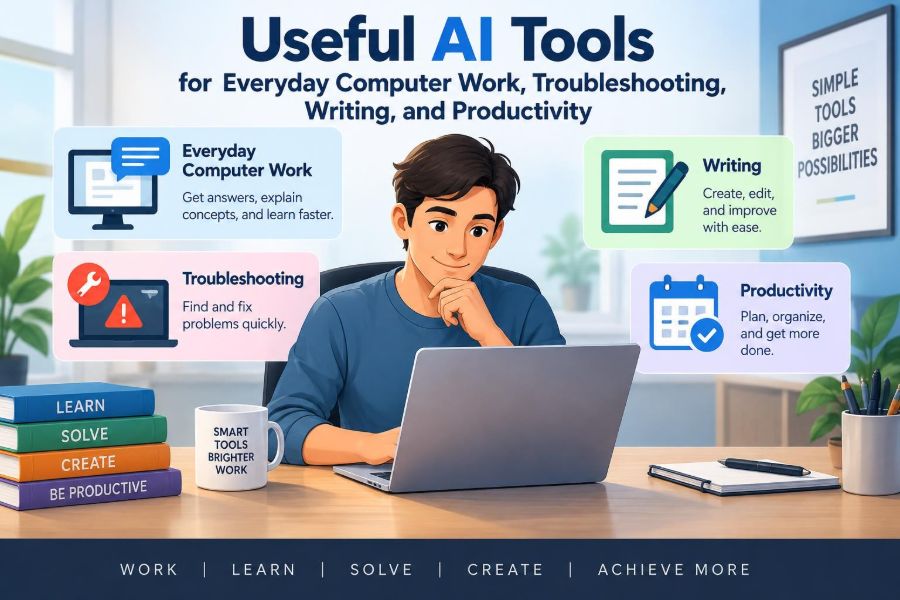

A document needs polishing before a meeting. A spreadsheet contains values that do not look right. Your computer shows an unfamiliar error, and a short email somehow takes twenty minutes to write.
These are ordinary computer-work problems, not dramatic technical emergencies. They still consume attention because they require you to search, interpret instructions, remember commands, and decide what to do next.
AI tools can reduce some of that friction. They can explain jargon, draft a starting point, reorganize information, suggest troubleshooting paths, and turn rough notes into usable text.
But a useful AI assistant is not a replacement for judgment. The best results come from treating it as a fast, fallible helper: give it clear context, check its output, and keep control of important decisions.
🤖 What an AI assistant can actually do
Most everyday AI tools are language models: software that produces text by recognizing patterns in large amounts of training material. They can respond to questions, summarize supplied text, generate drafts, write code, and help reason through a task.
They do not automatically “understand” your computer, account, files, or workplace rules. Unless a particular tool has been explicitly connected to those systems and you have approved access, it only knows what you type or upload.
🧭 Choose the right kind of tool
Different tools solve different parts of computer work. A general chat assistant is flexible, while a built-in writing assistant may be better for a document already open in your office software.
| Tool type | Useful for | Check carefully |
|---|---|---|
| General AI chat assistant | Explanations, drafts, plans, troubleshooting questions | Accuracy and current information |
| Writing assistant | Grammar, tone, rewriting, outlines | Meaning, voice, and unintended changes |
| Code assistant | Scripts, formulas, error explanations | Security, logic, and compatibility |
| Search-based AI tool | Research starting points and source discovery | Original sources and dates |
| Meeting or note assistant | Transcripts, action items, summaries | Consent, confidentiality, and omissions |
Start with the least powerful tool that fits the job. A spelling suggestion may be enough; a general assistant is unnecessary for every small correction.
🎯 Give context before asking for an answer
Vague prompts invite vague answers. Instead of asking, “Why is Excel broken?” describe what you expected, what happened, the app version if known, and what changed just before the issue appeared.
A strong request often includes four parts: the goal, the context, constraints, and the desired output. For example: “Rewrite this message for a client. Keep it under 120 words, friendly but formal, and do not change the dates.”
🧩 Break large jobs into smaller requests
AI output becomes easier to verify when the task is divided. Ask for an outline before a full report, or ask for possible causes of an error before requesting repair steps.
This also prevents a common failure: accepting a polished-looking answer whose basic assumptions are wrong. Each small stage gives you a chance to correct direction.
✍️ Turn rough notes into a first draft
AI is especially useful when you know what you want to say but have not organized it. Paste only information you are permitted to share, then ask it to create a draft with a clear purpose and audience.
For instance, bullet points from a project update can become a concise status email. Ask the tool to preserve facts, identify missing details, and use placeholders rather than inventing information.
- State who will read the draft.
- State the outcome you want from the reader.
- Specify length and tone.
- Ask it to mark uncertainty instead of guessing.
🗣️ Adjust tone without losing meaning
“Professional” can mean different things to different readers. A better instruction is concrete: “Make this direct but not harsh,” “write for a new customer,” or “remove jargon for a nontechnical manager.”
Compare the revised version with your original. Tone tools can accidentally weaken a firm deadline, remove useful detail, or make a personal message sound generic.
📝 Improve clarity, not just grammar
Grammar checking catches surface mistakes, but clarity is about whether a reader can act on the message. Ask an AI tool to identify ambiguous pronouns, unexplained acronyms, long sentences, and missing requests.
A helpful prompt is: “List three places a busy reader could misunderstand this, then suggest revisions.” Request explanations, not only a rewritten paragraph, so you can learn from the changes.
📧 Write faster emails with a decision in mind
Before drafting an email, decide whether it needs an answer, approval, information, or a record of a decision. Tell the assistant that purpose.
For a meeting request, ask for a subject line, a two-sentence context statement, and two proposed time options. For a follow-up, ask it to separate completed work, blockers, and the next action.
📚 Summarize long material responsibly
AI can turn long meeting notes, policies, or articles into a shorter overview. It is most reliable when you provide the actual text and specify the summary format, such as key decisions, deadlines, risks, and open questions.
A summary is not a substitute for reading material that affects contracts, safety, compliance, or major decisions. Ask for quoted passages or section references where the tool supports them, then inspect the original.
🔎 Use AI to prepare for research, not replace it
Research assistants can suggest search terms, explain an unfamiliar topic, and produce a list of questions to investigate. That is valuable preparation, especially when you do not yet know the vocabulary of a subject.
Do not treat a fluent response as a source. For current facts, policy details, product specifications, or academic claims, verify information using dependable primary or authoritative sources.
🧠 Ask for an explanation at your level
One advantage of AI is adjustable explanation. You can ask for a concept “as if I know basic computer terms,” then request an example, analogy, or a more technical version.
If a response uses unfamiliar words, ask the assistant to define only those terms. This is often more effective than requesting an entire answer simplified, which may remove useful precision.
🛠️ Start troubleshooting with safe observations
An AI assistant can help convert an error message into a troubleshooting checklist. Begin with observable facts: exact wording, application name, operating system, when the problem occurs, and whether it affects one file or all files.
Ask for low-risk checks first: save work, restart the application, verify a cable or network connection, check available storage, and determine whether the problem repeats. Avoid instructions that immediately delete, reset, or change many settings.
📸 Capture errors accurately
A screenshot or copied error message is usually more useful than a memory-based description. Redact names, email addresses, account numbers, document content, license keys, and other sensitive information before sharing it.
Include what you clicked immediately before the error appeared. “It failed” is hard to diagnose; “the app closes when I select Export as PDF from this one document” gives a useful path.
🧪 Test one possible fix at a time
When several changes are made together, you cannot tell which one solved the problem—or created a new one. Ask AI for an ordered list with a reason and expected result for each step.
- Record the current symptom.
- Try the least disruptive step.
- Test the original task again.
- Note the result before moving on.
This simple method is called controlled troubleshooting. It saves time and makes it easier to explain the issue to human support if needed.
⚠️ Recognize when AI troubleshooting should stop
Do not rely on generic instructions for suspected malware, damaged hardware, lost data, account compromise, unusual battery swelling, electrical problems, or business systems with important data. Disconnecting from a network, contacting qualified support, or following your organization’s incident procedure may be the safer route.
Be cautious with commands that alter system files, registry settings, disk partitions, security controls, or user permissions. Understand the command and have a backup before running it.
💻 Learn commands instead of blindly pasting them
AI can generate terminal commands or scripts quickly, but code executes instructions literally. A harmless-looking command may delete files, expose information, install software, or behave differently on another operating system.
Ask the tool to explain every command line by line, state which operating systems it applies to, and describe how to undo the change. Run unfamiliar commands only when you understand their scope.
📊 Clean data before asking for analysis
AI can help identify inconsistent dates, repeated labels, blank cells, or suspicious categories in a spreadsheet. However, it cannot know whether an unusual value is a data-entry error or a real exception without context.
Keep an untouched copy of the original file. Work on a duplicate, define what each column means, and inspect a sample of changes rather than accepting a bulk cleanup without review.
🧮 Build spreadsheet formulas with examples
Formula assistance is practical when you describe the columns and show a small fictional sample. Ask for the formula, where to place it, what it returns, and how it handles blanks or errors.
For example, rather than saying “calculate a discount,” explain that column B has list price, column C has a discount rate, and column D should show the final price. Test the formula on a few rows you can calculate yourself.
📈 Use AI to interpret, not manufacture, patterns
A tool can suggest ways to group feedback, create chart ideas, or explain a pivot table. It should not be asked to draw strong conclusions from incomplete data or to invent a reason for a trend.
Check whether a pattern might be caused by missing entries, a changed measurement method, seasonality, or a small sample. Good analysis distinguishes what the data shows from what it might mean.
🗂️ Organize files with a repeatable system
AI can propose file naming rules and folder structures, but the best system is one you will use consistently. Begin with how you retrieve files: by project, client, date, subject, or document type.
A practical naming pattern might be YYYY-MM-DD_Project_DocumentType_Version. Ask an assistant to generate names from a list, then inspect them for duplicates and names that reveal confidential details.
🧷 Convert meetings into useful next actions
Transcription and note tools can reduce the burden of capturing discussion. Their most useful output is not a complete transcript but a short list of decisions, owners, deadlines, and unresolved questions.
Review the result soon after the meeting. Names can be misheard, commitments may be implied rather than stated, and an automated summary can miss a key qualification.
🔐 Protect private and confidential information
Before pasting text into an AI service, ask whether it contains personal data, customer information, financial details, internal strategy, unpublished work, passwords, or protected records. If so, use an approved workplace tool or do not upload it.
Removing a name is not always enough. A project code, rare event, address, or combination of details can still identify a person or organization. Follow your school or employer’s rules for data handling.
👥 Respect consent in recordings and shared work
Meeting assistants may record audio, create transcripts, or send summaries to participants. Make sure people know when this is happening and that the chosen tool is permitted for the meeting.
For shared documents, check access settings and confirm that generated content does not reveal material from a restricted source. Convenience should not override confidentiality or trust.
✅ Verify facts, names, numbers, and citations
AI systems can produce incorrect details with confident wording. This failure is often called a hallucination: generated information that sounds plausible but is unsupported or false.
Check especially carefully:
- Names, dates, quotations, and statistics.
- Commands, formulas, and technical configuration steps.
- Legal, medical, financial, or safety-related guidance.
- References, links, and claimed sources.
If an answer matters, verify it outside the AI tool. Asking the same tool to “check itself” can help find inconsistencies, but it is not independent verification.
🧾 Keep your own voice and responsibility
Use generated text as material to edit, not as a reason to stop thinking. You remain responsible for the message sent under your name, the spreadsheet shared with a team, and the decision based on an explanation.
This matters in school as well as work. Follow course rules on AI use, cite or disclose assistance when required, and make sure you can explain and defend the final work.
🔄 Create reusable prompt templates
Repeated tasks benefit from a saved template. A template prevents forgotten details and produces more consistent output without forcing every request to sound identical.
Example template for troubleshooting
Device and operating system: [details]
App or feature: [details]
What I expected: [result]
What happened: [exact error or symptom]
When it started: [timing]
What I already tried: [steps]
Please suggest low-risk checks first and explain why.
Update templates as you learn what information produces useful results. Do not place passwords, private keys, or confidential default content in them.
⏱️ Use AI where it saves thinking overhead
The best productivity gain is not always typing faster. It is reducing the small barriers that delay useful work: facing a blank page, translating jargon, sorting ideas, or finding the next troubleshooting step.
Use AI for a first pass, then spend your attention on judgment, accuracy, priorities, and relationships. Those are the parts most likely to need human context.
🚫 Avoid the “accept all” habit
Fast output can create false confidence. Automatically accepting suggested edits, formulas, summaries, or code is risky because a small error can spread through a document or workflow.
Build a pause into the process: read the result, test it on a small example, and ask what assumptions it made. Speed without review is often only delayed rework.
🧰 Build a personal AI workflow
A simple workflow might look like this: define the task, remove sensitive details, ask for a structured first pass, verify important output, edit for your audience, and save useful prompts for next time.
Over time, notice where the tool consistently helps and where it creates extra checking. The right workflow differs for a student preparing notes, an administrator handling messages, and a technical worker diagnosing software.
🌱 Keep learning the underlying skill
An assistant can explain a formula, but learning the basic logic of spreadsheets helps you catch errors. It can suggest a repair, but understanding files, backups, updates, and permissions makes you less dependent on any one tool.
Use AI as a tutor: ask for a plain-language explanation, a practice exercise, and feedback on your attempt. Learning turns a one-time answer into capability you can use again.
🏁 Use AI as a careful co-worker
Useful AI for everyday computer work is not magic, and it does not need to be. Its practical role is to help you draft, clarify, organize, investigate, and learn with less friction.
The strongest results come from clear requests, small testable steps, privacy awareness, and independent checking. A good assistant accelerates your work; it should never quietly take over your judgment.
Use AI to extend your attention and skills, while keeping accuracy, privacy, and final responsibility in human hands. 🖥️🔍✨