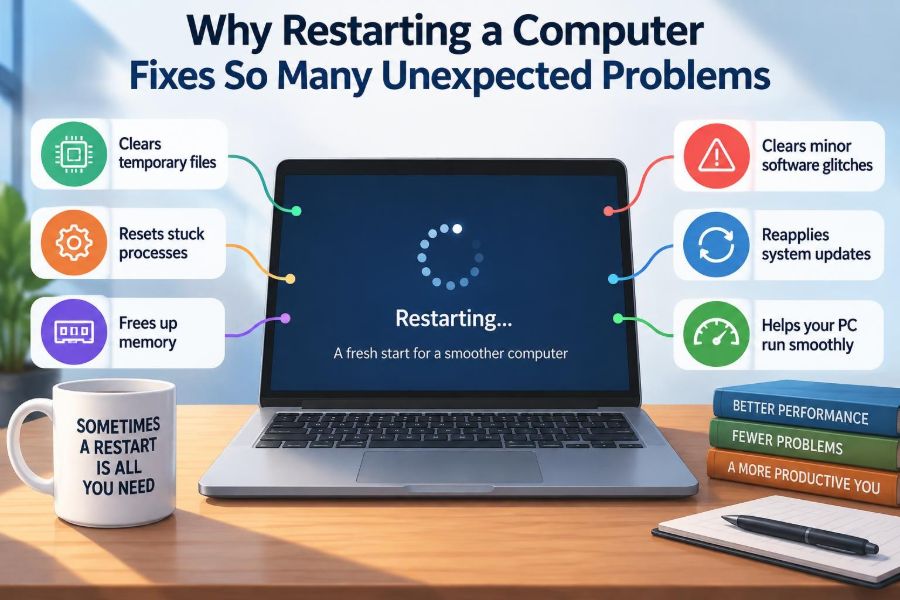

Your computer is acting strange. A program will not open, the Wi-Fi appears connected but nothing loads, the printer has disappeared, or the whole system feels unusually slow. Then someone gives the familiar advice: “Have you tried restarting it?”
That advice can sound almost too simple, especially when the problem seems complicated. Yet a restart often does solve it—not by magic, and not because it repairs every fault, but because it resets several temporary parts of a running computer at once.
Understanding what happens during a restart makes troubleshooting less mysterious. It also helps you know when restarting is a sensible first step, when a full shutdown is different, and when you should stop restarting and investigate a deeper issue.
A computer is not a single unchanging machine while it is on. It is a busy system of programs, memory, drivers, services, connections, and hardware states. Restarting gives that system a controlled chance to begin again.
🔄 Restarting Is a Controlled Fresh Start
A restart closes the current operating system session and starts a new one. The operating system, such as Windows, macOS, or Linux, shuts down running processes in an orderly way, reinitializes hardware, and loads the software needed for a new session.
This differs from simply closing one application. Closing a browser may remove the browser’s immediate problem, but background services, memory use, network components, and device drivers remain in their current state.
Think of a restart as clearing a busy whiteboard between lessons. The computer does not lose its installed programs or personal files, but much of the temporary work written during the session is cleared away.
🧠 Memory Is Fast but Temporary
Random-access memory, or RAM, is the computer’s short-term working area. Programs place code and data in RAM while they run because it is much faster to access than a storage drive.
RAM is volatile, meaning its contents disappear when power is removed. During a normal restart, the operating system ends the current session and releases the memory used by programs and many system components.
If a program has filled memory with unnecessary data, or if memory has become fragmented by many starts and stops, a restart can return the system to a cleaner baseline. It does not add more RAM, but it makes the installed RAM available again.
🧹 Memory Leaks Can Build Up Quietly
A memory leak occurs when software asks the system for memory but fails to release it when it is finished. The unused allocation may remain reserved even though the program no longer needs it.
One small leak may be unnoticeable. A program or service that runs for hours, days, or weeks can gradually consume enough memory to slow the system, cause crashes, or make other programs fail to open.
Restarting clears allocations associated with the ending session, so it often relieves the symptom. The underlying software bug may still exist, however. If the same problem returns predictably after using one application, update, repair, or replace that application rather than treating rebooting as a permanent fix.
📋 Processes Do Not Always End Cleanly
A process is a running instance of a program. When you close an application, its visible window may vanish while a background process remains active because it is finishing work, waiting for a response, or has become stuck.
For example, a video-conferencing app may leave behind a helper process that continues holding the camera or microphone. Another app then reports that the device is already in use.
A restart stops ordinary user processes and launches the system anew. That is why it can fix an application that refuses to reopen, a file that appears locked, or a peripheral that one program will not release.
🔒 Stuck Files and Resource Locks
Programs use resources beyond memory. They open files, reserve communication ports, access databases, and connect to devices. Operating systems track these resources so two programs do not make unsafe changes at the same time.
Usually, locks are released when a program exits. If the program crashes or fails to complete a task properly, a resource can remain unavailable until the process is ended or the session is restarted.
Restarting is especially useful when you do not know which background process owns the resource. It avoids guesswork, although unsaved work in other programs should always be saved first.
⚙️ Drivers Translate Between Software and Hardware
A device driver is software that helps the operating system communicate with hardware such as a graphics card, printer, keyboard, storage device, or network adapter. Drivers must coordinate commands, timing, and hardware-specific features.
If a driver encounters an unexpected state, it may stop responding correctly even though the physical device is fine. A display may flicker, Bluetooth may disappear, or a printer may remain marked as offline.
During startup, the system reloads drivers and asks hardware to initialize again. This can restore normal communication. Repeated driver trouble, though, may point to an outdated driver, a bad update, conflicting software, or failing hardware.
🔌 Hardware Needs Initialization Too
Initialization is the setup sequence that prepares hardware for use. At startup, the computer detects devices, assigns resources, loads firmware settings, and establishes how components will communicate.
A restart can reset a USB controller, renegotiate a network adapter connection, or make the operating system rediscover an attached device. This explains why a keyboard, dock, external drive, or webcam may reappear after rebooting.
Some devices keep receiving standby power, so a restart is not always the deepest possible reset. If a hardware issue persists, shutting down fully, disconnecting power when appropriate, and following the device maker’s guidance may have a different effect.
🌐 Network Connections Can Get Into Bad States
Internet access relies on several layers working together: the network adapter, router, address assignment, name lookup, security software, and the application making the request. A fault in any one layer can look like “the internet is broken.”
A computer may hold an expired network configuration, a confused wireless connection, or a background networking service that has stalled. Restarting renews much of that local networking state and starts the related services again.
It cannot repair an outage at your internet provider, a damaged cable, or a router that has failed. If several devices have the same problem, restart or inspect the router only after checking its status and avoiding disruption to people using it.
🧭 Background Services Keep the System Running
Many essential tasks run without a visible window. These services handle printing, updates, search indexing, audio, time synchronization, network discovery, security functions, and more.
A service can be running but unhealthy: waiting indefinitely for another component, using too much processor time, or no longer responding to requests. Restarting starts its normal startup sequence again.
Advanced users can sometimes restart one specific service instead. That is useful on managed systems where rebooting is disruptive, but it requires knowing which service is responsible. For everyday troubleshooting, a full restart is often safer and faster.
🗂️ Temporary Files Can Become Unhelpful
Applications create temporary files while editing documents, downloading updates, rendering video, or storing short-lived working data. These files are normally cleaned up when a task completes.
An interrupted task can leave incomplete temporary data behind. Restarting may prompt software to clear or rebuild some session-based temporary information, particularly after an update or a crash.
Still, a restart does not erase every cache or temporary folder. If a browser always displays an old version of a webpage, for instance, clearing that browser’s cache may be the more direct solution.
📦 Caches Improve Speed but Can Become Stale
A cache stores data that may be needed again, allowing a system to avoid repeating slow work. Browsers cache images; operating systems cache file information; applications cache settings and recently used data.
Caches are usually helpful. Problems arise when cached information no longer matches reality—for example, when an application keeps using outdated configuration data after a change.
A restart may clear some in-memory caches, but persistent caches on storage often remain. This is one reason restarting sometimes helps immediately and sometimes changes nothing. The correct fix depends on which cache is involved.
🧩 Updates Often Need a Restart to Finish
System updates may replace files that are currently in use. The operating system cannot safely swap every active component while it is relying on that component to keep running.
Instead, an update can stage replacement files and complete the change during the next startup. Restarting then loads the new versions of system libraries, drivers, or services.
Postponing restarts for long periods can leave an update only partially applied. When work allows, restart after significant operating system, driver, or security updates rather than assuming “installed” always means “active.”
🛡️ Restarts Matter After Security Updates
Security patches may correct weaknesses in the operating system or a service that is already loaded in memory. Until that running component is replaced, the older code can remain active.
A restart is therefore sometimes part of completing protection, not merely a performance habit. This is particularly relevant for shared, work, and school computers that receive centrally managed updates.
That does not mean every security concern is fixed by rebooting. Restarting cannot remove every type of malicious software, undo stolen credentials, or repair an unsafe configuration. Follow organizational guidance and use appropriate security tools when compromise is suspected.
⏱️ Uptime Changes What a Computer Has Been Through
Uptime is the length of time since a computer last started. Over a long uptime, a machine may run many applications, connect to different networks, install updates, attach devices, sleep and wake repeatedly, and accumulate background activity.
Well-designed systems can run for long periods, and servers are often maintained with carefully planned restarts. But long uptime also gives intermittent bugs more opportunity to appear.
If a laptop becomes unreliable only after many days of use, an occasional restart is reasonable maintenance. If it becomes unreliable every day, the pattern deserves investigation rather than acceptance.
🌙 Sleep, Hibernate, Shutdown, and Restart Are Different
These options are often treated as synonyms, but they preserve different amounts of state. Sleep keeps the session in RAM using low power; hibernation saves the session to storage and turns power off; a normal restart creates a new session.
| Option | What it generally does | Best use |
|---|---|---|
| Sleep | Keeps the current session ready in memory | Short breaks and quick return |
| Hibernate | Saves the session to storage, then powers down | Longer breaks, especially on laptops |
| Shutdown | Ends the session and powers off | Transport, power saving, some hardware checks |
| Restart | Ends the session and immediately starts a new one | Troubleshooting and completing updates |
Details vary by operating system and settings. Modern systems may use fast-start features that make a shutdown behave differently from a restart, so choose Restart when troubleshooting instructions specifically request it.
⚡ Fast Startup Can Make Shutdown Less Complete
Some computers use a fast-startup feature to reduce boot time. Rather than fully discarding all system-level state during shutdown, the operating system saves part of it for the next power-on.
This can be convenient, but it means shutting down and turning the computer back on may not reset every part of the operating system as completely as a restart. A restart is commonly designed to perform a fuller reinitialization.
The exact behavior depends on the operating system and configuration. You do not need to disable fast startup for routine use; simply use Restart when diagnosing a stubborn software or driver problem.
🧮 The Processor Is Rarely “Cleared” by Magic
People sometimes say restarting “clears the CPU.” The processor does not slowly fill up like a storage drive. It executes instructions, and the operating system schedules which program gets time to run.
What a restart can do is stop runaway processes, remove memory pressure, reset services, and reload drivers. Those changes can reduce processor load and make the computer feel faster.
If processor use becomes high again immediately after restarting, open the system’s task-monitoring tool and identify the process. A restart has revealed a clue; it has not explained the cause.
🐢 Why a Restart Can Improve Performance
Slow performance has many causes: limited RAM, too many startup programs, a nearly full drive, demanding browser tabs, background synchronization, overheating, or a malfunctioning process. Restarting addresses only some of these.
It is most likely to help when sluggishness comes from temporary memory pressure, a process using excessive resources, or a service stuck in an unhealthy state. It is less likely to help when the computer is consistently underpowered for the task.
A useful distinction is this: temporary slowness often improves after a restart; persistent slowness needs a diagnosis.
🖨️ Everyday Example: The Missing Printer
Imagine a printer that worked yesterday but now appears offline. The printer itself may be ready, while the computer’s print spooler—the service that organizes print jobs—has stalled or a network connection has changed.
Restarting the computer can restart the print service and rebuild the local connection. Restarting the printer may also help it reconnect to the network.
If the issue recurs, check whether jobs are stuck in the queue, whether other computers can print, and whether the printer has a stable network address. Rebooting is a practical first test, not a full diagnosis.
🎥 Everyday Example: The Camera That Another App Owns
A webcam can normally be used by only one application at a time. If a meeting app crashes or fails to release the device, another app may say that it cannot access the camera.
Closing the first app may solve it. If a hidden helper process remains, restarting clears the session and gives the camera driver a clean starting point.
Before restarting, save work and consider checking privacy permissions. A permissions setting, physical camera shutter, or security policy will not be corrected merely by rebooting.
🧪 Restarting Is Also a Diagnostic Test
A restart provides information. If the problem disappears and does not return, it was likely related to temporary session state. If it returns immediately, a startup item, configuration issue, hardware problem, or persistent data problem becomes more plausible.
Notice the conditions around the failure. Does it occur after connecting a particular USB device, opening one file, joining one network, or launching a specific application? Patterns are more useful than repeated random attempts.
Keeping a short note of the error message, time, and actions leading up to it can make later troubleshooting far more efficient.
📝 Save Work Before You Restart
Restarting closes applications. Modern programs often recover unsaved documents, but recovery is not guaranteed and may restore an older version or incomplete work.
Before rebooting, save open files and wait for cloud-storage indicators to finish syncing. If an application is frozen, give it a brief chance to recover before force-closing it.
- Save documents, spreadsheets, designs, and code.
- Pause transfers or confirm that downloads can resume.
- Check whether other people use shared files or services on the machine.
- Record any error message before it disappears.
🚫 Do Not Confuse Restarting With Force Power-Off
A normal restart lets the operating system close files, stop services, and finish pending tasks. Holding the power button or cutting power interrupts that process.
A forced power-off is sometimes necessary when the computer is completely unresponsive, but it can risk unsaved work and, in rare cases, file-system inconsistencies. Use it only when ordinary shutdown or restart controls cannot be reached.
After an unexpected power loss, allow the operating system to perform any disk checks or recovery steps it requests. Do not repeatedly interrupt startup unless there is a clear reason.
🛠️ When a Restart Does Not Help
A restart cannot fix every problem because not every problem is temporary software state. A cracked cable, empty printer cartridge, failed storage drive, expired account password, router outage, or incorrect configuration will remain after rebooting.
Look for evidence that points elsewhere: unusual noises, repeated blue-screen or kernel errors, a device missing even before login, disk warnings, overheating, or trouble shared by multiple users. These call for focused troubleshooting or qualified support.
Repeated crashes after restart are especially worth taking seriously. Back up important data when possible, because persistent instability can occasionally signal storage or hardware trouble.
🔍 Use a Simple Escalation Path
Efficient troubleshooting starts with the least disruptive action and becomes more specific as evidence appears. Restarting belongs near the beginning because it is broad, quick, and reversible.
- Save work and read the exact error message.
- Check obvious causes: power, cables, Wi-Fi, permissions, and account status.
- Close and reopen the affected application.
- Restart the computer if the issue persists.
- Update the relevant application, driver, or operating system.
- Check logs, diagnostics, settings, or support documentation for recurring faults.
- Seek IT support or repair help for suspected hardware, security, or data issues.
This sequence is not rigid. A smoking power supply, a swollen battery, or a suspicious security alert should not be treated as a routine reboot problem.
🏢 Managed Work Computers Need Extra Care
On a workplace computer, restarts may affect encrypted connections, remote sessions, scheduled tasks, or unsynchronized work. Some systems also install required updates during the restart process.
Follow your organization’s guidance, especially if the device runs specialized software or connects to equipment. Do not repeatedly restart a shared server, point-of-sale terminal, or production system without understanding who depends on it.
For remote workers, restarting can resolve a local issue while disconnecting a virtual private network and ending remote sessions. Tell collaborators if a restart will interrupt an active shared task.
🔁 Reboot Loops Are a Different Problem
A computer that restarts over and over is not experiencing an ordinary temporary glitch. A reboot loop can result from an incomplete update, damaged system files, a driver failure, storage errors, or hardware instability.
Do not keep forcing restarts without observing what happens. Note whether the failure occurs before login, after a logo appears, or only when a certain device is attached.
Recovery options differ by platform, but they may include safe mode, startup repair, removing recently attached peripherals, or professional support. Protect data first whenever the system provides a safe way to do so.
🧰 Preventing Problems Reduces Rebooting
Restarts are useful maintenance, but a computer that constantly needs them is asking for attention. Keep the operating system, browser, applications, and drivers updated from trusted sources.
Limit unnecessary startup programs, leave adequate free storage space, and remove software you no longer use. Use security tools responsibly, and avoid installing multiple utilities that perform the same low-level function.
Good habits also matter: safely eject external drives, let updates finish, use a surge protector where appropriate, and back up important files. Prevention does not eliminate faults, but it reduces avoidable complications.
🎯 The Core Principle: Reset State, Not Reality
The central reason a restart works is that it resets temporary state: information and conditions created while the computer was running. This includes memory allocations, processes, service activity, driver communication, and many live network connections.
It does not change permanent reality. A restart does not automatically repair damaged hardware, correct an incorrect setting, create more disk space, or solve a problem outside the computer.
That distinction explains both the power and the limit of the familiar advice. Restarting is an efficient way to remove temporary confusion from a complex system, then see what remains.
Restarting a computer fixes many unexpected problems because it clears temporary software state and reinitializes key components, giving both the system and the troubleshooting process a clean baseline. Use it thoughtfully, save first, and investigate any problem that keeps coming back. 🖥️🔄🧠