
An older PC often fails in small, frustrating ways before it fails completely. A browser takes too long to open, video calls stutter when several tabs are active, and a simple update seems to occupy the computer for hours.
That does not automatically mean the machine belongs in recycling. Many everyday slowdowns come from a few parts that can be replaced far more cheaply than the whole computer.
The best upgrade is not always the newest or most powerful part. It is the change that removes the bottleneck: the component currently holding the rest of the system back.
With a careful compatibility check, a backup, and realistic expectations, an old desktop or laptop can become much more pleasant for writing, browsing, learning, office work, and media playback.
🔍 Start by Defining the Everyday Problem
“Slow” is not one problem. A PC that takes several minutes to start needs a different solution from one that starts quickly but freezes during video meetings.
Write down the situations that cause trouble. For example, does the delay happen when opening programs, switching between browser tabs, saving files, playing video, or using several applications together?
This simple observation prevents wasted money. Installing more memory will not fix a nearly full, failing storage drive, while a new SSD will not make a very old processor suitable for demanding modern games.
📋 Record Your Current Hardware First
Before buying anything, identify the computer’s processor, installed memory, storage type and capacity, operating system, and available ports. On many systems, built-in system information tools can reveal these basics.
For a desktop, opening the case can also show the motherboard model, free memory slots, drive bays, power-supply connectors, and expansion slots. Take clear photos before disconnecting anything.
Laptops require extra care because many use proprietary layouts or have components that are soldered in place. Search the exact model number and consult its service documentation when it is available.
⚙️ Understand What a Bottleneck Means
A bottleneck is the part of a system that limits the speed of a task. Think of a busy checkout line: adding more shopping carts does not help if only one cashier can process customers.
When a PC starts programs slowly and its disk activity stays busy, storage is often the bottleneck. When programs close or pause as more browser tabs are opened, memory capacity may be the limit.
Processor limits tend to show up during work that needs continuous calculation, such as video editing, code compilation, complex spreadsheets, or modern games. Look for patterns rather than assuming one upgrade solves everything.
💾 Make an SSD the First Storage Upgrade
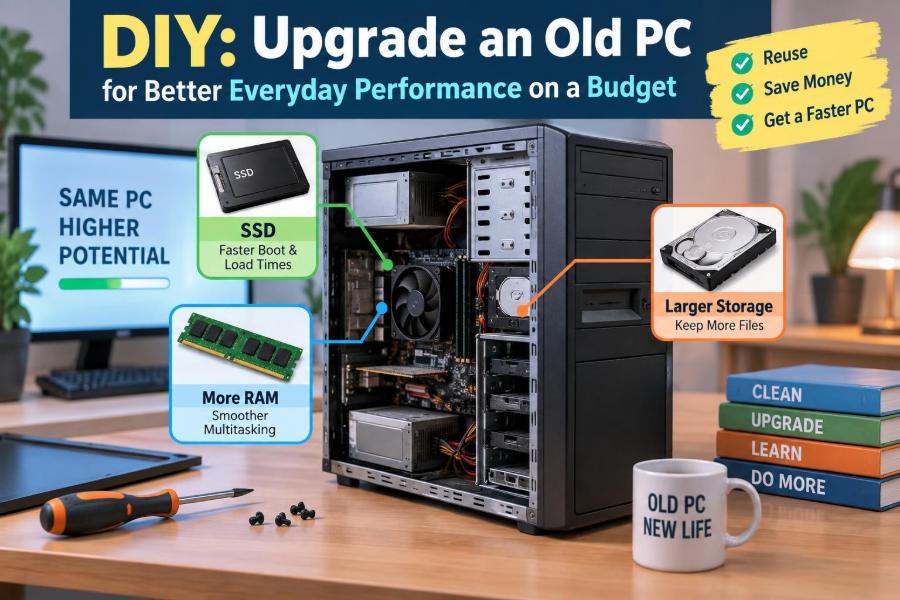
For many older computers that still use a mechanical hard disk drive, replacing it with a solid-state drive, or SSD, creates the most noticeable everyday improvement. An SSD has no spinning platters or moving read head, so it can access many small files much faster.
That matters because starting an operating system, launching applications, and opening browser caches all involve lots of small reads and writes. The computer may not gain more processing power, but it spends far less time waiting for storage.
A SATA SSD is a common option for older desktops and laptops. Newer systems may support a smaller M.2 SSD, but M.2 describes the physical shape; it does not by itself confirm compatibility or speed.
🧩 Check SSD Form Factor and Interface
Do not purchase an SSD based on capacity alone. A 2.5-inch SATA drive connects with a SATA data cable and power cable in most desktops, while many laptops use a 2.5-inch SATA bay with a compact connector.
M.2 drives slide into a slot on the motherboard. Some M.2 slots accept SATA drives, some accept NVMe drives that use PCIe, and some accept both. The motherboard documentation is the reliable place to confirm this.
| Drive type | Common use | Key compatibility check |
|---|---|---|
| 2.5-inch SATA SSD | Older desktops and laptops | SATA port or laptop drive bay |
| M.2 SATA SSD | Some compact and mid-age PCs | M.2 slot supports SATA |
| M.2 NVMe SSD | Many newer motherboards | M.2 slot supports PCIe/NVMe |
An NVMe drive can be faster than SATA in compatible hardware, but a reasonably sized SATA SSD is often the better budget choice for an older PC.
🗂️ Choose Between Cloning and a Clean Installation
After installing a new system drive, you can clone the old drive or install the operating system fresh. Cloning copies the existing installation, applications, settings, and files to the new drive.
It is convenient, but it can also carry over unused software, configuration problems, and clutter accumulated over years. A clean installation takes more setup time but often gives the system a cleaner starting point.
Whichever route you choose, make a separate backup first. A clone is not a backup if the original drive has errors or if an important file was already deleted.
🧠 Add RAM When Multitasking Runs Out of Room
Random access memory, usually called RAM, holds the programs and data currently being used. When RAM is nearly full, the operating system moves some data to storage, which is much slower even with an SSD.
Common signs include browser tabs reloading after you switch away, long pauses while changing applications, and slowdowns that appear only when several programs are open. More RAM can make multitasking smoother without changing the processor.
For basic current workloads, a practical capacity depends on the operating system and applications. Check your typical memory use before upgrading instead of choosing a number solely because it sounds larger.
🧬 Match Memory Type, Speed, and Layout
Desktop and laptop memory are physically different. Desktop modules are commonly called DIMMs, while laptops typically use smaller SO-DIMMs. Generations such as DDR3, DDR4, and DDR5 are not interchangeable.
Match the memory generation supported by the motherboard. Also confirm maximum supported capacity and whether existing modules occupy all slots. The manufacturer’s documentation is safer than guessing from a module’s appearance.
When possible, use matched modules of compatible capacity and specifications. Many systems can use two memory channels at once, which can improve memory bandwidth when suitable modules are installed in the recommended slots.
🪟 Check Whether the Operating System Still Fits
Hardware upgrades cannot solve every software limitation. An operating system that no longer receives security updates should not be treated as safe for routine online banking, email, or work accounts.
Some current operating systems have hardware requirements that older PCs cannot meet. Do not try to bypass requirements without understanding the support and security trade-offs; unofficial workarounds may complicate future updates.
If the PC cannot run a supported operating system, its useful role may be more limited: offline tasks, a carefully managed lightweight system, or reuse for a specific purpose. Consider the user’s needs and security exposure honestly.
🧹 Remove Startup Clutter Before Buying Parts
Many slow PCs start too many programs automatically. Cloud-sync tools, chat clients, updaters, printer utilities, and trial software can all compete for processor time, memory, and storage access after login.
Review startup applications in your operating system’s settings or task manager. Disable items that do not need to launch immediately, but leave security software and hardware-related services alone unless you know their purpose.
This does not replace a hardware upgrade when a real bottleneck exists. It is simply free maintenance that makes the upgraded computer feel more responsive from the first boot.
🧽 Reclaim Storage Space Safely
Very full drives have less room for updates, temporary files, virtual memory, and normal housekeeping. Freeing space can reduce avoidable slowdowns and makes a future migration easier.
Begin with obvious categories: large downloads, duplicate files, old installers, unused applications, and local copies of files already backed up elsewhere. Use the operating system’s storage tools to identify large folders rather than deleting at random.
Never manually remove files from system folders just to gain space. If you are unsure what a file supports, leave it in place or research it using the exact filename and location.
🌡️ Solve Dust and Heat Problems
Dust buildup blocks airflow through fans and heat sinks. As temperatures rise, many processors reduce their speed to avoid overheating, a protective behavior called thermal throttling.
Shut down the PC, unplug it, and open it only if you can do so safely. Use short bursts of compressed air in a ventilated area, hold fan blades still while cleaning, and avoid forcing a vacuum nozzle against delicate components.
A laptop with clogged vents may need careful disassembly to clean properly. If that requires removing the cooling assembly, seek a repair guide for the exact model or use a qualified technician.
🔌 Inspect the Power Supply in Older Desktops
A desktop power supply unit, or PSU, converts wall power into the voltages used by components. It is not a performance upgrade, but it becomes important when adding a graphics card, extra drives, or other hardware that increases power demand.
Check its wattage, age, connector types, and physical condition. Do not use cheap adapter chains to force incompatible power connections, and never open the power-supply casing; it can retain hazardous electrical charge.
If the PSU is unreliable, replacement may be wiser than adding upgrades to it. Random shutdowns, unusual noises, or a burning smell call for stopping use and investigating safely.
🎮 Be Realistic About Graphics Upgrades
A dedicated graphics card can improve games, 3D work, and some creative applications. It can also support additional displays or better video acceleration, depending on the software and the card.
However, it is often a poor first purchase for a PC used mainly for documents, browsing, and video calls. Those tasks usually benefit more from an SSD, adequate RAM, and a tidy software setup.
Before adding a card, verify the PCIe slot, available case space, PSU connectors, cooling, and processor capability. A powerful card paired with a very old processor may spend much of its time waiting for the processor.
📺 Consider the Display and Peripherals Too
Everyday performance is also about the experience at the desk. A clear monitor at a comfortable size, a working keyboard, a responsive mouse, and reliable webcam or headset can improve productivity without changing the PC itself.
Check which video outputs your computer offers, such as HDMI, DisplayPort, DVI, or older connectors. Adapters can help, but not every adapter converts every signal type, so confirm what it is designed to do.
For office work, screen space can matter as much as raw speed. Two modest displays or one appropriately sized display can make comparing documents and attending online meetings less tiring.
🛠️ Gather the Right Tools and Materials
Most basic desktop upgrades need only a screwdriver, good lighting, and a container for screws. A laptop may require small precision screwdrivers and a non-metal opening tool designed for electronics.
Have the new component, any needed SATA cable or mounting bracket, and a backup drive ready before starting. Work on a stable, non-carpeted surface when possible.
- Shut down fully and disconnect power.
- Press the power button briefly after unplugging a desktop to help discharge residual power.
- Handle circuit boards by their edges.
- Keep drinks, loose screws, and clutter away from the work area.
Static electricity can damage components, although careful handling reduces the risk. Touching grounded bare metal on a desktop case before handling parts is a sensible precaution.
🔒 Back Up Data Before Opening the Case
Any repair or upgrade can expose an existing problem, especially if the old drive is already unreliable. Copy irreplaceable documents, photos, project files, and browser data to a separate external drive or trusted backup service.
Check that the backup actually contains the files you expect. Open a few copied files and make sure you know how to access account recovery information if you will reinstall the operating system.
If a drive makes repeated clicking sounds, disappears intermittently, or reports errors, prioritize data recovery over performance upgrades. Continued use can make recovery more difficult.
🧭 Plan the Upgrade Order
A sensible budget sequence usually starts with the changes that solve the clearest limitations. For a hard-drive-based PC with limited memory, storage and RAM are commonly the first areas to examine.
Do one major change at a time when possible. Test the computer after each step so you can identify the cause if something does not work.
- Back up important files.
- Clean software clutter and check free space.
- Install or migrate to an SSD if storage is the bottleneck.
- Add compatible RAM if multitasking is constrained.
- Address heat, power, or graphics needs only when evidence supports it.
This approach protects the budget and teaches you what actually improved the system.
🧪 Test Performance Before and After
You do not need complicated benchmark software to judge an everyday upgrade. Time a few repeatable tasks: startup to a usable desktop, opening a browser with your usual tabs, launching a common application, or copying a known folder.
Also test the tasks that motivated the upgrade. Join a video call, open a spreadsheet, stream a video, or work with the programs you use each week.
Numbers are useful only if they represent real use. A PC that scores well in a synthetic test but still struggles with your normal workload has not solved the practical problem.
🚫 Avoid the “More Is Always Better” Trap
It is easy to buy the largest drive, the maximum memory, and a graphics card “just in case.” On a limited budget, that can leave you with costly parts whose potential the rest of the PC cannot use.
For example, an entry-level computer used for email and documents may never benefit noticeably from a premium high-capacity graphics card. That money may be better reserved for a future replacement or a reliable backup drive.
Choose components with enough headroom for expected use, not extravagant specifications for an uncertain future. Compatibility and reliability are more valuable than impressive labels.
🧾 Compare the Upgrade Cost With Replacement
Budget upgrading has a limit. If a machine needs a new drive, memory, battery, power supply, and major repair at the same time, compare the total with a newer refurbished or entry-level replacement.
Age matters because very old hardware may lack modern security support, efficient video decoding, current ports, or replacement parts. Time spent troubleshooting also has value, particularly for a work computer.
On the other hand, a modestly old desktop with an upgradable design can remain useful for years after a storage and memory refresh. Evaluate the complete situation rather than using age alone as the deciding factor.
♻️ Give Replaced Parts Responsible Homes
Do not throw storage drives into ordinary trash. They may contain personal information even after files appear to be deleted. Erase them using an appropriate method before reuse or recycling, and follow local electronic-waste guidance.
Working RAM, cables, drive brackets, and compatible power supplies may be useful as spares or for another repair. A functioning hard drive can also serve as a secondary backup device after its health has been checked.
Reusing a computer responsibly includes protecting data and reducing avoidable electronic waste, not merely making it run faster.
🧑💻 Tailor the PC to Its Next Job
An upgraded older PC works best when given a role that matches its capabilities. It may become a reliable writing station, family web computer, schoolwork machine, media player, print server, or light home-office device.
Keep the software selection focused. Fewer unnecessary background applications leave more memory and processor time for the work that matters.
For a hypothetical example, a desktop that once felt unusable with a hard drive may become perfectly comfortable for documents, web research, and video playback after an SSD installation and sensible memory upgrade. That does not turn it into a workstation for demanding 3D rendering, but it makes its new role clear.
🔐 Keep Security Part of the Upgrade
Performance work should not weaken security. Use a supported operating system where possible, install updates, use strong unique passwords, and enable multi-factor authentication for important accounts.
Be careful with “PC cleaner” and driver-update utilities that promise dramatic speed gains. Some are unnecessary, some add more background activity, and some may encourage questionable purchases or changes.
Get drivers from the computer or component manufacturer when needed, and create a restore point or backup before major driver or system changes. A stable PC is more useful than a slightly faster but unpredictable one.
🧩 Know When a Laptop Cannot Be Upgraded
Many modern thin laptops have soldered RAM, sealed batteries, or storage that is difficult to access. Even when an upgrade is technically possible, the risk of damaging clips, cables, or the display may outweigh the benefit.
Check the service manual before buying parts. If RAM is fixed but storage is replaceable, an SSD upgrade may still be worthwhile; if both are fixed and the machine is constrained, software cleanup and a replacement plan may be more practical.
Never force a case open. A hidden screw or adhesive strip is common, and forcing the chassis can cause damage that costs more than the planned upgrade.
📈 Learn From the Results
After the upgrade, notice which change produced the improvement. If boot time fell sharply after moving to an SSD, storage was likely the largest constraint. If many open applications now stay responsive after adding RAM, memory pressure was the issue.
This is useful computer-fundamentals knowledge: a system is not a single speed rating. It is a group of components, software settings, cooling, and workloads that influence one another.
Keeping notes on the parts installed, their dates, and any settings changed will make future maintenance much easier for you or the next owner.
✅ The Core Principle: Upgrade the Actual Limitation
A successful budget upgrade begins with observation, not shopping. Identify what slows the PC during normal use, check what the hardware can accept, protect your data, and make the smallest change likely to address that limitation.
For many older machines, an SSD, sufficient compatible RAM, basic cleaning, and sensible software maintenance offer a balanced improvement. More specialized upgrades should follow a clear need, not a vague hope that every new component will help.
The goal is not to make an old computer compete with new high-end hardware. The goal is to make it dependable and comfortable for the tasks it can realistically handle.
Spend your budget on the bottleneck you can identify, and an older PC can remain a useful everyday tool instead of becoming premature e-waste. 🖥️🔧♻️