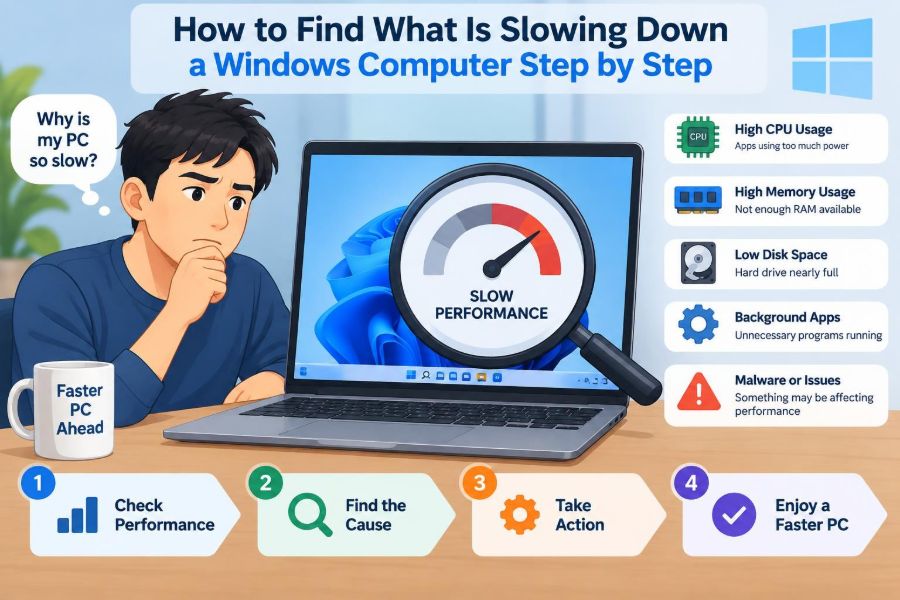

A Windows computer can feel perfectly normal one week and painfully slow the next. Programs take longer to open, the cursor pauses, video calls stutter, or a simple browser tab makes the fan run loudly. The temptation is to blame “the computer” as a whole.
That approach often leads to wasted money and risky fixes. A slow PC may be busy installing updates, short on storage, overloaded by startup apps, affected by a browser extension, or developing a hardware problem. Each cause leaves different clues.
The practical goal is not to make random changes until something improves. It is to observe what happens, identify the bottleneck, make one sensible change, and check the result.
This step-by-step process works for many Windows 10 and Windows 11 computers. Menu names can vary slightly by version, but the diagnostic ideas are the same.
🧭 Start With a Clear Description of the Slowdown
Before opening any tool, describe the symptom precisely. “Slow” can mean a long startup, delayed clicks, a sluggish internet connection, low frame rates in a game, or an application that freezes while everything else works.
Notice when it occurs. Does it happen immediately after signing in, only while charging, only in one program, or after the PC has been on for several hours? This first observation narrows the search dramatically.
- Slow startup: commonly related to startup apps, updates, or the drive.
- Slow internet only: may be a network, browser, or service issue rather than a slow computer.
- Slow while multitasking: often points to memory, CPU, or disk pressure.
- Random freezes: can involve drivers, storage errors, overheating, or failing hardware.
🔌 Check the Simple Conditions First
Check whether a laptop is running on battery saver mode or has an unusually low battery. Power-saving settings can deliberately reduce processor speed to extend battery life.
Also restart the computer if it has been running for days. Restarting closes many background processes, clears temporary memory use, and allows pending updates to complete. It does not solve every problem, but it creates a clean baseline.
For a desktop, make sure ventilation openings are not blocked. For a laptop, use a hard, flat surface rather than bedding or a cushion that traps heat.
📝 Record the Pattern Before Changing Anything
A short record prevents guesswork. Write down the time, the task, the programs open, and what you observe. For example: “Ten minutes after opening a large spreadsheet, switching browser tabs takes three seconds and the fan becomes loud.”
This is especially useful when a problem is intermittent. A pattern connected to one application suggests a different path from a computer that becomes slow even when idle.
📊 Open Task Manager
Task Manager is Windows’ most useful starting point because it shows which resources are busy right now. Press Ctrl + Shift + Esc, or right-click the Start button and choose Task Manager.
If it opens in a compact view, select the option to show more details. On the Processes page, look at the CPU, Memory, Disk, and Network columns. These do not diagnose a problem by themselves; they tell you where to investigate next.
Sort a column by selecting its heading. Watch it for a minute rather than reacting to one brief spike. A program may use substantial resources for a legitimate short task, such as loading a document or installing an update.
🧠 Understand CPU Usage
The CPU, or central processing unit, performs calculations and coordinates many tasks. Sustained high CPU use can make menus lag, audio crackle, and programs respond late because they are waiting for processing time.
Look for a process that remains near the top of the CPU column while the slowdown is happening. Web browsers, video editors, games, antivirus scans, and Windows updates can all use considerable CPU time under normal conditions.
If an unfamiliar process stays busy, do not immediately delete files with a similar name. Search its name through a trusted source, check its file location, and run a security scan before deciding what to do.
🧩 Understand Memory Pressure
Memory, usually called RAM, holds the programs and data the computer is actively using. When available RAM becomes scarce, Windows moves some data to the storage drive. This is called paging, and it is much slower than working in RAM.
High memory use is common with many browser tabs, large spreadsheets, virtual machines, design software, or several communication apps open together. The key clue is a slowdown that appears when multitasking and improves after closing programs.
Task Manager’s Memory column shows which processes are using the most. The Performance page gives a broader view of total memory use and can help show whether the system is routinely close to its installed capacity.
💽 Understand Disk Activity
The Disk column shows read and write activity to internal storage. A disk at or near full activity for an extended period can make Windows feel frozen even when CPU use is modest.
Common causes include updates, cloud-sync software, a search indexer, antivirus scanning, a backup, or an application repeatedly reading and writing data. Older mechanical hard drives are much more noticeable under heavy disk activity than solid-state drives.
Sort by Disk usage and observe the process name. If the busy process is a known update or backup task, allowing it to finish may be the right solution. Stopping it repeatedly can leave work incomplete.
🌐 Separate Network Delays From Computer Delays
A page that loads slowly is not always evidence of a slow PC. If local applications open normally but websites, cloud files, or video meetings are delayed, test the connection first.
Try another website or an offline task such as opening a saved document. If only online services are affected, check Wi-Fi signal strength, whether other household devices are busy, and whether the issue happens on another network.
Task Manager can show unusually high network use, but it cannot prove that the connection itself is healthy. A cloud backup or game download may simply be competing for available bandwidth.
🔎 Use the Performance Page for Context
Select the Performance page in Task Manager to see graphs for CPU, memory, disk, network, and often the graphics processor. This view helps distinguish a brief process spike from a resource that stays under pressure.
For example, a CPU graph that rises only when exporting a video is expected. A disk graph that remains busy while no visible work is happening deserves more investigation.
Check the disk type if Windows shows it. A system using a traditional hard disk may be functional but less responsive during updates and multitasking than one using an SSD.
🗂️ Identify the Program Behind the Number
Resource use is meaningful only when connected to a program and a task. A browser using a large amount of memory may be normal if it has many complex tabs open; it may be abnormal if a single idle tab keeps growing.
Expand grouped applications in Task Manager when available. This can reveal individual browser tabs, helpers, or child processes. Close unneeded work from inside the application first so documents and uploads are not lost.
Use “End task” only when an application is genuinely unresponsive or when you understand what it is. Ending a system process can cause instability, sign you out, or interrupt an update.
🚀 Review Startup Applications
Many applications ask to start with Windows so they are ready in the background. Over time, launchers, chat clients, update helpers, cloud tools, and utilities can make sign-in slower and consume resources before you begin work.
In Task Manager, open Startup apps. Review each entry by name, publisher, and startup impact where available. Disable programs that do not need to run immediately after sign-in.
Disabling startup is not uninstalling. The application remains available when you open it manually. Keep essential security software and hardware-related tools enabled unless you know their role.
🧹 Close Background Apps With Purpose
Background activity is not automatically bad. Syncing a work folder, receiving messages, or maintaining a backup can be useful. The question is whether the activity is needed at that moment.
Pause or schedule non-urgent jobs when you need performance for a presentation, game, or video call. For example, delaying a large cloud upload can free both disk activity and network capacity.
Avoid installing “one-click optimizer” tools that promise to close everything safely. They may stop useful services, make troubleshooting harder, or add their own background load.
🌍 Test the Web Browser Separately
Browsers often appear to be the whole problem because so much work happens inside them. Test with a few tabs, then compare with your usual session. If performance changes sharply, the browser configuration is a useful lead.
Close unused tabs, especially media-heavy pages and web applications. Review extensions and disable them one at a time to find a faulty or unnecessary add-on. Extensions can consume memory, process page content, or interfere with loading.
Also check for an outdated browser. Updates often include stability, security, and compatibility improvements, though an update will not compensate for insufficient hardware during demanding work.
🧪 Reproduce the Problem in a Controlled Way
A controlled test means changing one condition at a time. Restart the computer, open only the program involved, and repeat the task that causes the slowdown while Task Manager is visible.
Suppose a hypothetical laptop becomes unresponsive when opening a particular workbook. If memory rises sharply only with that workbook, the file, its formulas, add-ins, or the available RAM may be involved. That is more useful than concluding that Windows is generally slow.
Repeatability matters. A result that happens once could be an update or a temporary network delay; a result that occurs each time points to a more reliable cause.
🔄 Check Windows Update Activity
Windows updates can download, install, and perform background maintenance. During some stages, disk, CPU, and network use may rise. Check Windows Update in Settings to see whether an update is downloading, installing, awaiting a restart, or reporting an error.
Keep the computer connected to power and allow legitimate updates to complete when possible. Forcing shutdowns while updates are being installed can create additional problems.
If the slowdown began after an update and persists through restarts, note the timing and look for error messages rather than assuming every update is the cause.
🛡️ Scan for Malware Without Panic
Malware can consume resources, change browser behavior, create pop-ups, or run unknown processes. But high CPU or disk activity alone does not prove malware; normal software can produce the same symptom.
Run a full scan using the security protection already built into Windows or a trusted, established security product. Make sure its definitions are current first. Review detections carefully and follow the recommended quarantine or removal steps.
Be cautious with alarming pop-up advertisements that claim to have found threats. Genuine Windows security notifications do not require you to call an unsolicited number or pay immediately for a cleanup.
🧭 Check Storage Space and Drive Health
A nearly full system drive leaves little room for updates, temporary files, virtual memory, and normal application work. Open Settings and review storage use. Remove unneeded downloads, temporary files, duplicate installers, or applications you no longer use.
Do not delete folders merely because their names are unfamiliar. System and program folders can be required for Windows or installed applications. Use Windows’ storage cleanup tools and uninstall applications through Settings when possible.
Warning signs of a drive problem include repeated file errors, unusually long access delays, frequent crashes involving files, or diagnostic warnings. Important files should be backed up promptly; a failing drive may worsen without much notice.
🧰 Use Resource Monitor for a Closer Look
When Task Manager identifies the general bottleneck but not the reason, Resource Monitor offers more detail. You can open it by searching for “Resource Monitor” in the Start menu, or from relevant Task Manager performance options.
It can show which files a process is accessing, which disk activity is occurring, and more detailed network connections. This is useful when one program seems to be causing constant disk work but its purpose is unclear.
Treat this tool as an observation tool, not a reason to end random processes. Look for a pattern first: the same application, the same file path, or the same connection repeating while the PC slows down.
🌡️ Look for Heat and Thermal Throttling
Computers protect themselves from excessive heat by reducing performance, a behavior called thermal throttling. Symptoms can include a fan that runs constantly, performance that drops during long workloads, and a laptop that feels unusually hot.
Dust buildup, blocked vents, high room temperature, old cooling components, or demanding software can contribute. A laptop used on fabric is a common, fixable cause because air cannot flow freely underneath.
Power down the device before cleaning exterior vents. Internal cleaning or thermal repair may be better handled by a qualified technician, particularly for compact laptops where components are easy to damage.
🎮 Consider Graphics Workloads
Slow performance in games, 3D applications, video editing, or high-resolution displays may involve the GPU, or graphics processing unit. Task Manager can show GPU activity, but the meaning depends on the application and the hardware.
Check whether the problem appears only during graphically demanding tasks. Reducing in-app resolution, visual effects, or preview quality can test whether graphics demand is the limiting factor.
Graphics driver updates can solve compatibility issues, but install them from the hardware maker or Windows Update. Avoid unidentified driver-download sites, which can bundle unwanted software.
🔋 Review Power Mode and Charger Behavior
Windows power modes balance speed, heat, fan noise, and battery life. A laptop set to a power-saving mode may feel less responsive during demanding tasks, while a performance-oriented mode can use more energy and generate more heat.
Use Settings to choose an appropriate mode for the task. If a laptop is unexpectedly slow only on battery, compare its behavior when connected to its correct charger. An unsuitable or faulty charger can prevent some systems from using their full performance range.
🧩 Update Drivers Carefully
A driver is software that lets Windows communicate with hardware such as graphics adapters, Wi-Fi devices, printers, and storage controllers. A damaged or incompatible driver can contribute to crashes, stutters, or devices behaving incorrectly.
Update drivers when there is a specific reason: a known issue, a device error, a manufacturer recommendation, or an update intended for your hardware. Prefer Windows Update, the computer manufacturer’s support resources, or the component manufacturer’s official tools.
Updating every driver indiscriminately is not a maintenance strategy. If the PC works well, unnecessary changes can introduce a new variable.
🧼 Remove Unneeded Software
Applications you no longer use can occupy storage, add startup entries, create update services, and clutter troubleshooting. Review installed apps in Settings and uninstall software you recognize and no longer need.
Be particularly cautious with duplicate “cleanup,” registry, driver, or security utilities. More than one security product running real-time protection can create conflicts and extra resource use.
Do not remove unfamiliar programs solely because their names look technical. First identify the publisher and purpose, especially if the item may relate to hardware, work software, or a managed organization device.
🧱 Do Not Rely on Registry Cleaners
The Windows registry is a database of settings. Registry-cleaning tools often claim that removing old entries will dramatically speed up a computer. In ordinary cases, this is unlikely to address a genuine CPU, memory, disk, network, or heat bottleneck.
Changing registry entries carelessly can break applications or Windows features. Focus first on observable evidence from Task Manager, storage checks, updates, startup review, and security scans.
🧯 Use Safe Mode When Software Is Suspect
Safe Mode starts Windows with a limited set of drivers and services. It can help distinguish a general hardware or Windows problem from one caused by extra startup software, drivers, or third-party services.
If the computer is much more responsive in Safe Mode, that does not identify the exact culprit. It does show that a normal-start item deserves investigation. Re-enable or remove items methodically rather than making many changes at once.
Because the path into Safe Mode varies by Windows version and sign-in situation, use Microsoft’s current recovery guidance or seek local technical support if you are unsure.
🧾 Check Reliability History and Error Clues
Search Windows for “Reliability History” to view a timeline of application failures, Windows errors, and updates. It can reveal whether crashes began around a particular installation or whether one application fails repeatedly.
This record is a clue, not final proof. A program shown on the timeline may be the victim of a driver or storage problem rather than the root cause. Compare its entries with your written symptom pattern.
Repeated blue-screen errors, unexpected restarts, or disk warnings are stronger reasons to back up data and consider professional diagnosis.
💾 Back Up Before Major Repairs
Before resetting Windows, replacing a drive, changing partitions, or attempting advanced repairs, create a backup of important documents, photos, and work files. Store it somewhere separate from the computer, such as an external drive or a reputable cloud service.
A backup is useful even when the PC seems stable. Troubleshooting can uncover an existing drive issue, and a reset or repair process can remove local data if performed incorrectly.
🔧 Know When a Hardware Upgrade Makes Sense
Some limitations are not configuration problems. If memory use is consistently near capacity during your normal workload, adding compatible RAM can help. If a computer still uses a mechanical hard drive as its system drive, moving Windows to a suitable SSD can greatly improve everyday responsiveness.
Not every laptop can be upgraded, and compatibility matters. Check the model’s documentation or ask a technician before buying parts. For old systems, the cost of repair or upgrade should be weighed against reliability, battery condition, and current needs.
| Observed pattern | Likely area to inspect first | Useful next action |
|---|---|---|
| Slow immediately after sign-in | Startup apps and update activity | Review Startup apps; allow updates to finish |
| Slow with many apps or tabs | Memory pressure | Close workloads; check installed RAM |
| Freezes while disk stays busy | Storage activity or drive condition | Identify process; free space; back up data |
| Only websites and calls are slow | Network connection | Test another network or offline task |
| Slows during long demanding work | Heat, CPU, or GPU | Check ventilation and workload settings |
🛠️ Escalate Problems That Need Expert Help
Professional support is sensible when you see repeated blue screens, boot failures, clicking or disappearing drives, overheating that persists after basic ventilation checks, data-access errors, or a problem on a work-managed computer.
Provide the symptom record, screenshots of error messages, and the changes already attempted. Clear information helps a technician avoid repeating basic steps and makes the diagnosis faster.
✅ Use a Repeatable Troubleshooting Order
A reliable order is: define the symptom, restart and check simple conditions, observe Task Manager, isolate the affected program or resource, check updates and storage, scan for threats, then investigate drivers, heat, and hardware as the evidence suggests.
The core principle is simple: find the resource or condition that is under pressure while the slowdown occurs, then address that specific cause instead of applying random “speed-up” fixes.
A slower Windows computer is usually giving you useful clues. Observe the pattern, change one thing at a time, protect your files before major repairs, and let the evidence guide the next step. 💻🔍✅