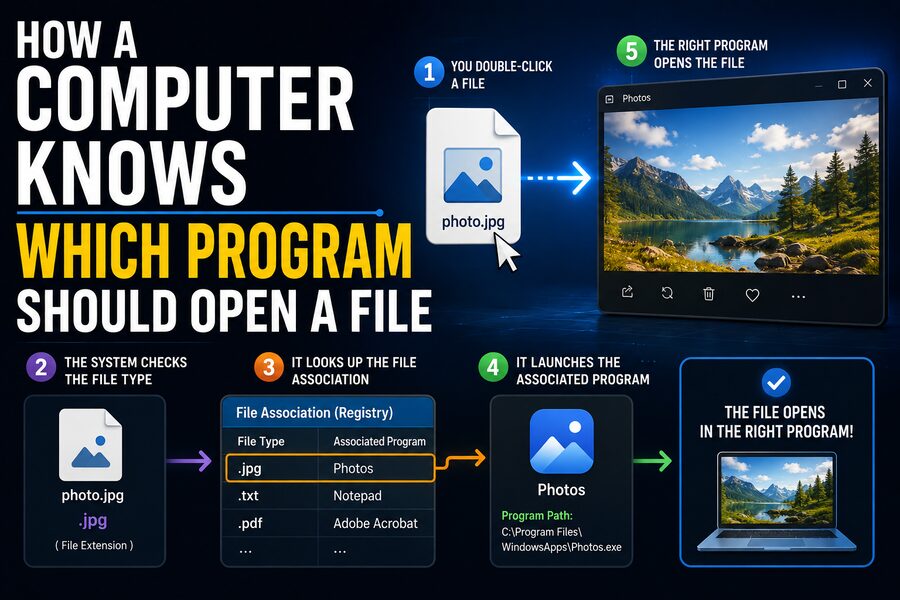

Double-click a .jpg image and a photo viewer appears. Open a .pdf and a document reader launches. Select a .mp3 file and your music player starts. To the user, this feels automatic—but behind the scenes, the operating system is making a quick decision about which application is associated with that type of file.
Computers usually make this decision using a combination of file extensions, file associations, application registrations, metadata, and sometimes the actual contents of the file. 🗂️⚙️
The process is a good example of how operating systems coordinate many separate applications while trying to make everyday tasks feel simple.
📄 What Is a File Type?
A computer file is essentially a structured collection of data stored on a storage device.
Different files contain different kinds of information.
An image file may contain pixel data.
A text document may contain characters, formatting information, and embedded objects.
An audio file may contain compressed sound data.
A spreadsheet may contain tables, formulas, styles, and charts.
The operating system therefore needs some way to determine what kind of file it is dealing with.
One common method is the file extension.
A file extension is the portion of a filename that usually appears after the final period.
Examples include:
photo.jpgreport.pdfmusic.mp3document.docxarchive.zip
The extension gives the operating system a clue about the file’s format.
🔤 Why File Extensions Matter
Suppose you double-click a file called:
holiday.jpg
The operating system sees the .jpg extension and checks its stored configuration to determine which application is assigned to JPEG image files.
Perhaps the default application is a photo viewer.
The system then launches that application and tells it to open holiday.jpg.
The operating system does not normally need to understand every detail of JPEG image encoding itself.
Instead, it delegates the task to a program designed to handle that format. 🖼️
This arrangement is called a file association.
🔗 What Is a File Association?
A file association connects a type of file with an application.
Conceptually, the operating system maintains rules similar to:
.jpg → Photo Viewer
.pdf → PDF Reader
.mp3 → Music Player
.txt → Text Editor
.html → Web Browser
When you double-click a file, the operating system consults these rules.
If there is a registered default program, it launches that program and passes the file’s location to it.
This is why installing a new application can sometimes change which program opens certain files.
For example, installing a new media player may offer to become the default application for .mp3, .wav, or .mp4 files.
🖱️ What Happens When You Double-Click a File?
The sequence happens extremely quickly.
Imagine you double-click invoice.pdf.
The process may look roughly like this:
- The file manager detects that you opened the file.
- The operating system identifies its type, often using
.pdf. - It searches the file-association database.
- It finds the default application registered for PDF documents.
- It starts that application if it is not already running.
- It passes the path of
invoice.pdfto the application. - The application reads the file and displays its contents.
All of this can happen in less than a second. ⚡
What feels like “the file opening itself” is actually cooperation between the file manager, operating system, application registry, and the application.
🪟 How Windows Handles File Associations
Microsoft Windows commonly uses file extensions as a major part of its file-association system.
Applications can register themselves with Windows and indicate which file types they support.
The operating system stores association information within its configuration system, including the Windows Registry and related default-app mechanisms.
For example, Windows may know that .png files can be opened by several programs:
- Photos
- Paint
- A web browser
- An image editor
One of these may be designated as the default app.
When you double-click the file, Windows normally uses that default.
If you right-click and choose Open with, you can select another compatible program instead.
Windows also allows users to change default applications by file type through system settings. ⚙️
🍎 How macOS Decides What to Open
macOS uses a similar idea, although its internal system differs.
Applications can declare which kinds of documents they support.
macOS keeps track of these capabilities and uses its application-launching infrastructure to decide which program should handle a file.
File extensions such as .pdf, .jpg, and .pages are useful indicators.
macOS also relies on standardized type information that helps describe the underlying kind of data.
When you open a file, macOS determines the preferred application for that document type and launches it.
Users can also select a file, choose Get Info, and change the application used to open that type of document.
🐧 How Linux Handles File Types
Linux desktop environments often use MIME types and desktop application registrations.
A MIME type is a standardized label describing a kind of data.
Examples include:
text/plain
image/jpeg
application/pdf
audio/mpeg
The system can map these MIME types to installed applications.
For example:
application/pdf → Document Viewer
or:
image/jpeg → Image Viewer
Different Linux distributions and desktop environments may implement these associations somewhat differently, but the general principle remains the same.
The system identifies a file type and finds an application registered to handle it. 🐧
🧾 What Are MIME Types?
MIME originally stood for Multipurpose Internet Mail Extensions, but MIME types became widely used far beyond email.
They provide a standardized way to describe data formats.
A MIME type usually has two parts separated by a slash.
For example:
image/png
The first part identifies the general category:
image
The second part identifies the specific format:
png
Similarly:
text/html
means HTML text content.
video/mp4
means MP4 video content.
application/json
means JSON-formatted application data.
Operating systems, browsers, servers, and applications frequently use MIME types to decide how information should be handled. 🌐
🔍 Does the Computer Only Look at the File Extension?
Not always.
File extensions are convenient, but they are not perfectly reliable.
You can rename:
photo.jpg
to:
photo.txt
That changes the filename, but it does not magically convert the JPEG image into a text document.
The internal bytes remain JPEG data.
This is why more sophisticated systems sometimes examine the file itself.
Certain formats contain distinctive patterns near the beginning of the file.
These are sometimes informally called magic numbers or file signatures.
For example, a program may inspect the first several bytes and recognize that the data structure matches a known format.
This provides stronger evidence than relying only on the filename.
✨ What Are File Signatures?
A file signature is a characteristic sequence of bytes that helps identify a file format.
Many formats begin with recognizable values.
For instance, a PNG image contains a specific identifying sequence near the beginning of the file.
PDF files typically begin with a recognizable PDF header.
ZIP-based formats also contain identifying binary structures.
Software can inspect these patterns and infer the likely file type.
This technique is useful when:
- A file has no extension
- The extension is incorrect
- The system needs additional confirmation
- Security software is examining suspicious files
File signatures therefore provide a deeper level of identification than filenames alone. 🔬
📦 Why Some Different File Types Are Structurally Related
Interestingly, different-looking document formats can sometimes share the same underlying container technology.
For example, many modern office document formats are based on ZIP containers containing structured files.
A .docx document, .xlsx spreadsheet, and .pptx presentation all use related packaging concepts.
The extension helps applications distinguish their intended use.
Inside the package, additional metadata tells the application exactly what kind of document is stored.
This illustrates an important point: a file extension is often only the first layer of identification.
🧠 How Applications Tell the Operating System What They Can Open
When software is installed, it may register the file formats it supports.
An image editor might announce:
“I can open .jpg, .png, .gif, and .tiff files.”
A media player might register:
“I can open .mp3, .wav, .flac, and .mp4 files.”
A document application may support:
.docx, .rtf, .txt, and .odt
The operating system stores this information.
If multiple applications support the same format, the user can usually choose which one should be the default.
This is why installing a new program can cause a system to ask:
“Do you want to make this your default application?”
⭐ What Does “Default Application” Mean?
The default application is simply the program the operating system chooses automatically when no alternative is explicitly requested.
You may have five programs capable of opening a JPEG image, but only one is normally configured as the default.
If the photo viewer is the default, double-clicking the JPEG opens the photo viewer.
If you later change the default to an image editor, future double-clicks launch the editor instead.
The file itself has not changed.
Only the association stored by the operating system has changed. 🔄
🚪 What Does “Open With” Actually Do?
The Open with option temporarily overrides the default association.
Suppose .txt files normally open in a basic text editor.
You want to open one particular file in a code editor instead.
You can choose:
Open with → Code Editor
The operating system then passes that file to the selected program.
Depending on the operating system, you may also be given an option to make that program the permanent default for all files of the same type.
This is useful when several applications understand the same format.
❓ What Happens If No Program Is Associated?
Sometimes you double-click a file and the computer does not know what to do.
You may see a message similar to:
“Choose an app to open this file.”
This usually means the system has identified the extension but does not have a default application registered for it.
It may also mean the extension is completely unknown.
For example, specialized engineering, scientific, or proprietary software may create uncommon file formats that ordinary computers do not recognize.
Installing the correct application usually provides the necessary association.
🧩 Why One File Can Open in Several Programs
File formats are often standardized, so many developers can create software that understands them.
A .jpg image can potentially open in:
- A photo viewer
- A web browser
- A graphics editor
- A file manager preview
- An illustration application
Similarly, an .html file can be opened in either a web browser or a text editor.
The browser interprets the HTML and displays the webpage.
The text editor displays the source code.
Both applications can technically open the same file, but they interpret or present it differently. 🌐📝
⚠️ File Extensions and Security
File associations also have security implications.
Some file types contain executable instructions rather than ordinary documents.
Opening an executable file may cause software to run.
Attackers sometimes try to disguise dangerous files by giving them misleading names or icons.
For example, a filename may appear to resemble a harmless document while actually being an executable or script.
This is one reason operating systems may show warnings when launching downloaded programs.
It is also why displaying full file extensions can be useful for security-conscious users. 🔐
A familiar-looking icon is not proof that a file is safe.
🦠 Why Antivirus Software Looks Deeper Than the Extension
Security software generally cannot trust file extensions alone.
A malicious program could simply rename itself.
Therefore, antivirus and endpoint-security systems may inspect:
- File signatures
- Internal structure
- Embedded code
- Behavioral patterns
- Known malware fingerprints
- Digital signatures
This allows security software to recognize suspicious content even when the filename is misleading.
The operating system’s file-association system is designed primarily for convenience.
Security tools perform a deeper form of inspection.
🪄 Why Icons Change Depending on the Default Program
Have you noticed that file icons sometimes change after installing a new application?
That often happens because the application becomes associated with a particular file type.
If your system assigns .pdf files to a different PDF program, PDF documents may begin displaying that application’s icon.
The icon gives you a visual clue about which program will probably open when the file is double-clicked.
The underlying PDF document itself remains unchanged.
Only the system’s visual representation and association have changed. 🎨
🧰 What Happens When an Application Is Uninstalled?
Suppose a certain program is the default handler for .abc files.
If you uninstall that program, the operating system may no longer have a valid application associated with .abc.
The next time you open such a file, several things could happen.
The system may automatically choose another compatible installed application.
It may ask you to select an application.
Or it may say that no suitable program is available.
Well-designed uninstallers usually remove or update their file associations so the operating system does not keep trying to launch software that no longer exists.
🌐 Browsers Also Make Similar Decisions
Web browsers perform their own type-handling decisions.
When a web server sends a file, it often includes a Content-Type header describing the data.
For example:
Content-Type: image/jpeg
The browser can then decide to display the image directly.
If the server sends:
Content-Type: application/pdf
the browser may display the PDF using its built-in PDF viewer.
For other formats, the browser may download the file and let the operating system decide which application should open it.
This shows how MIME types and file associations work together across the internet and your local computer.
📱 Smartphones Use Similar Concepts
Phones and tablets also need to determine which applications should handle files and links.
If you tap a PDF on a smartphone, the operating system may open it in a built-in viewer or offer several compatible apps.
If you tap a map location, the system may launch your default mapping application.
If you open an audio file, it may send the data to a media player.
Mobile operating systems often use application-declared capabilities, content types, and secure permission systems rather than relying only on traditional desktop-style file extensions.
The underlying principle remains the same:
Identify the content, find compatible software, and choose the appropriate handler. 📱
🔗 File Associations Are Similar to Link Associations
The same concept extends beyond files.
A web address beginning with https:// usually opens in your default browser.
An mailto: link may launch your email application.
A custom app link may launch a particular installed application.
These are known as protocol associations or URL handlers.
Instead of asking:
“Which program opens .pdf?”
the system might ask:
“Which application handles https links?”
This shows how operating systems generalize the idea of associations beyond normal files.
⚙️ What Happens Behind the Scenes When the Program Launches?
After deciding which application should open a file, the operating system launches or activates the program.
It then gives the application information identifying the selected file.
The program uses operating-system APIs to read the file’s contents from storage.
The application itself then interprets the format.
For example, a photo application understands JPEG compression.
A spreadsheet program understands worksheet structures and formulas.
A PDF reader understands PDF page descriptions, fonts, images, and other document objects.
The operating system chooses the program, but the application does most of the actual file interpretation.
🧠 Why the System Doesn’t Just Inspect Every File Fully
A computer could theoretically analyze the entire contents of every file before deciding what it is.
But that would often be unnecessary and inefficient.
Extensions and registered metadata provide a fast first answer.
Reading a short signature may provide additional confirmation when needed.
Fully parsing a complex file usually occurs only after the appropriate application opens it.
This layered design keeps the process fast:
Filename → type information → application association → application parser
Each layer performs only the work it needs to do. ⚡
🚨 What Happens If the Extension and Contents Disagree?
Suppose someone renames an image:
picture.jpg
to:
picture.pdf
The operating system may initially try to open it using the PDF application because of the .pdf extension.
The PDF application then examines the actual data and realizes:
“This is not a valid PDF.”
It may display an error.
Some applications are clever enough to recognize the actual format despite the incorrect extension, but others are not.
Renaming an extension therefore does not convert the file.
Proper conversion requires software to read the original format and write the data in the new format.
🔄 Renaming vs. Converting a File
This distinction is important.
Changing:
photo.png
to:
photo.jpg
is only renaming.
The underlying image remains encoded as PNG data.
Actually converting the image to JPEG requires an application to:
- Decode the PNG file.
- Obtain the image pixels.
- Encode them using JPEG compression.
- Save a new JPEG file.
The extension then accurately describes the new format.
This is why simply changing a filename sometimes causes applications to report that the file is corrupted or unsupported.
🧑💻 Why Developers Care About File Associations
Software developers often need to decide which document types their applications should register.
Too few associations can make software inconvenient.
Too many can annoy users by taking over file types that were previously handled by other applications.
Modern operating systems therefore increasingly give users more control over default applications.
Developers may declare what their software supports, but the operating system or user ultimately decides which program should become the default.
This balance helps prevent applications from silently taking over common file types.
🗃️ A Simple Analogy
Imagine a large office building with a reception desk.
A package arrives labeled:
Photography Department
The receptionist does not need to understand what is inside the package.
The label tells them where it should go.
The reception desk checks a directory and sends the package to the photography department. 📦
In this analogy:
- The file is the package.
- The extension or MIME type is the label.
- The file-association database is the directory.
- The operating system is the receptionist.
- The application is the department that knows what to do with the package.
If the label is wrong, the package may go to the wrong department.
If no department is registered, the receptionist asks you where it should go.
That is essentially what your computer does when opening files.
✅ The Bottom Line
A computer knows which program should open a file because the operating system maintains associations between file types and applications.
When you double-click a file, the system usually examines its extension or type information, looks up the registered default application, launches that program, and passes the file to it.
Systems can also use MIME types, file signatures, metadata, and application registrations to make more reliable decisions.
The process may involve several technical layers, but it happens so quickly that users rarely notice.
What appears to be a simple double-click is actually a carefully coordinated chain of events involving the file manager, operating system, application database, and document-handling software. 💻⚙️
So the next time a photo instantly opens in an image viewer or a PDF appears in a reader, remember: your computer is not guessing.
It is consulting a highly organized set of rules that tells it what the file probably is, which applications understand it, and which one you have chosen to use by default. 🎯