
Plugging a USB device into a computer seems almost effortless. You connect a flash drive, keyboard, mouse, webcam, printer, or external hard drive, and within seconds the computer often recognizes it and begins using it. 💻⚡
Behind that simple action, however, a carefully coordinated sequence of electrical signaling, digital communication, device identification, driver loading, and operating-system configuration takes place.
USB stands for Universal Serial Bus, a standard designed to allow many different types of peripherals to communicate with computers through a common interface. Instead of every device requiring a completely different connector and communication system, USB defines standardized rules for power delivery, data transfer, identification, and device control.
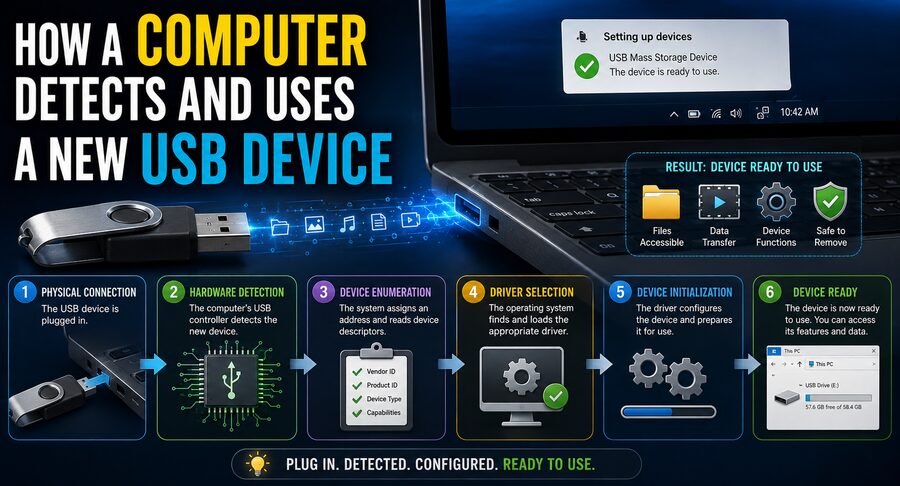
When you connect a new USB device, the computer does not simply “see” a flash drive or keyboard immediately. It first detects an electrical change on the USB connection. It then establishes communication with the device, asks the device what it is, assigns it a digital address, reads detailed information about its capabilities, selects an appropriate driver, and finally makes the device available to applications or the user.
The entire process is known broadly as USB enumeration. 🔍🔌
🔌 Step 1: The Device Is Physically Connected
Everything begins when the USB plug makes contact with the USB port.
A USB connection contains electrical paths used for power, ground, and data communication. The exact arrangement depends on the USB generation and connector type, such as USB-A, USB-B, Micro-USB, or USB-C.
When the device is connected, electrical signals allow the USB host—the computer—to determine that something has appeared on the bus.
The computer normally acts as the USB host, while peripherals such as keyboards, flash drives, and webcams operate as USB devices.
The host is responsible for controlling communication.
Conceptually:
Computer/USB Host ➡️ initiates communication ➡️ USB Device
A typical peripheral does not simply transmit arbitrary data whenever it wants. USB communication is organized and scheduled by the host controller. 🧠
⚡ Step 2: The USB Port May Supply Power
Many USB devices receive electrical power directly through the USB connection.
Small devices such as:
- Keyboards ⌨️
- Mice 🖱️
- USB flash drives
- Game controllers 🎮
- Webcams 📷
- Bluetooth adapters
- Small audio interfaces
may not require their own external power supplies.
When connected, the device initially receives power according to the rules of the USB standard.
More advanced USB systems, particularly those involving USB Power Delivery, can negotiate substantially higher power levels for devices such as laptops, monitors, and docking stations.
However, power delivery and device identification are related but separate processes. A device may receive enough power to activate its electronics before the operating system knows exactly what the device does.
📡 Step 3: The Host Detects a New Device
The computer’s USB hardware continuously monitors its ports.
A component known as the USB host controller handles much of the low-level communication between the operating system and connected USB devices.
When a device is plugged in, the electrical state of the connection changes.
The USB host controller recognizes this event and informs the operating system:
“A device has been connected to this port.”
At this stage, the operating system does not yet necessarily know whether the device is a mouse, storage drive, printer, microphone, or something else.
It simply knows that a USB device exists.
The discovery process must now begin. 🔎
🔄 Step 4: The USB Port and Device Are Initialized
Before normal communication begins, the host performs initialization procedures.
One important operation is a USB reset.
This does not necessarily mean rebooting the physical device in the ordinary sense. Instead, it places the USB communication interface into a known state so that the host and device can begin communicating according to the standard protocol.
The device initially responds using a default USB address.
USB devices eventually need unique addresses because several peripherals may be connected simultaneously.
For example, a computer could have:
- A USB keyboard
- A USB mouse
- A webcam
- An external SSD
- A USB microphone
The system needs a reliable way to distinguish them.
🏷️ Step 5: The Computer Assigns the Device an Address
During enumeration, the host assigns the new USB device a unique address on that USB bus.
You can think of this somewhat like assigning a room number in a hotel. 🏨
When the device first arrives, the host communicates with it using the default address.
The host then says, conceptually:
“From now on, your USB address is 7.”
The exact number is managed automatically.
Afterward, communications intended for that device can be directed to its assigned address.
This allows the host to communicate with many USB peripherals independently even though they may share portions of the same USB architecture through hubs.
🧾 Step 6: The Computer Requests Device Descriptors
Now comes one of the most important parts of USB detection.
The computer asks the device to provide information called descriptors.
A USB descriptor is a structured collection of data describing the device and its capabilities.
The device essentially introduces itself to the computer.
A device descriptor can contain information such as:
- USB version supported
- Device class
- Vendor ID
- Product ID
- Number of configurations
- Maximum packet size
- Manufacturer information
- Product information
- Device identifiers
These descriptors are critical because USB devices can represent thousands of different products from different manufacturers.
The computer needs standardized information to determine how to communicate with each one.
🏭 Vendor ID and Product ID
Two especially important pieces of identification are the Vendor ID (VID) and Product ID (PID).
The Vendor ID identifies the manufacturer or organization associated with the USB device.
The Product ID identifies a particular product or product family from that vendor.
Together, they form a useful identifier.
Conceptually:
Vendor ID + Product ID = Device identification
For example, when a peripheral is connected, the operating system may determine:
Vendor: Manufacturer X
Product: USB Audio Device Y
The operating system can then search its driver database for software capable of controlling that particular hardware.
These identifiers are also useful for troubleshooting because system-information tools often display USB VID and PID values.
📑 USB Descriptors Explain More Than Identity
USB devices can provide several types of descriptors.
A simplified hierarchy may include:
Device Descriptor
⬇️
Configuration Descriptor
⬇️
Interface Descriptor
⬇️
Endpoint Descriptor
Each layer describes something different.
A device descriptor provides general information about the hardware.
A configuration descriptor explains a possible operating configuration and its interfaces.
An interface descriptor describes a particular function.
An endpoint descriptor describes channels through which USB data is transferred.
This hierarchical design is important because a single physical USB device can perform several functions.
🎧 One USB Device Can Actually Be Several Devices
Consider a USB gaming headset.
Physically, it is one peripheral connected through one USB cable.
Logically, however, the computer might see several interfaces:
🎧 Audio output
🎤 Microphone input
🔘 Media-control buttons
Similarly, a multifunction printer might provide:
🖨️ Printing
📄 Scanning
💾 Memory-card access
Such hardware is known as a composite USB device.
USB descriptors allow each function to be identified separately so that the operating system can load appropriate software for each interface.
📦 Step 7: The Operating System Determines the Device Class
USB defines standardized device classes for common categories of peripherals.
Examples include:
HID — Human Interface Device
Keyboards, mice, game controllers
Mass Storage Class
Flash drives, some external storage devices
Audio Class
USB speakers, microphones, audio interfaces
Video Class
Webcams
Printer Class
Printers
Communication Device Class
Some modems and communication hardware
Device classes make USB much easier to use because manufacturers do not always need to create a completely unique driver.
For example, most ordinary USB keyboards follow the USB Human Interface Device (HID) standard.
The operating system already understands this standard.
That is why a newly connected keyboard can often start working almost immediately. ⌨️✅
🧩 Step 8: The Operating System Finds a Driver
Hardware alone is not enough for an operating system to use a device.
Software must understand how to communicate with the hardware.
This software is called a device driver.
The driver acts as an intermediary between the operating system and the USB peripheral.
Conceptually:
Application ➡️ Operating System ➡️ Device Driver ➡️ USB Hardware
When a new device appears, the operating system attempts to find a compatible driver.
Several possibilities exist.
The system may already contain a generic class driver.
For example, standard keyboards, mice, flash drives, and many webcams can use drivers included with the operating system.
Alternatively, the system may have a manufacturer-specific driver installed.
In some environments, the operating system may also obtain an appropriate driver through its driver-update infrastructure if permitted and available.
If no compatible driver exists, the device may appear as an unknown or unsupported device. ⚠️
🖱️ Why a USB Mouse Works Almost Instantly
A basic USB mouse is a useful example.
When the mouse is connected:
- The computer detects the electrical connection.
- The USB host enumerates the device.
- The mouse provides its descriptors.
- The operating system identifies it as a Human Interface Device.
- A standard HID mouse driver is selected.
- The device is configured.
- Mouse movement and button events begin reaching the operating system.
Because the USB HID standard is widely supported, the operating system usually does not require special manufacturer software.
The entire process can happen so quickly that the pointer begins responding only moments after the mouse is inserted. 🖱️💨
💾 What Happens When You Plug In a USB Flash Drive?
A flash drive follows the same basic enumeration process, but additional storage-related work happens afterward.
The operating system identifies the device as some form of storage hardware and loads the appropriate storage driver.
The computer then examines the storage media.
It may read information about:
- Partition layout
- File-system type
- Volume information
- Storage capacity
- Available space
If the operating system recognizes the file system, such as FAT32, exFAT, NTFS, or another supported format, it can mount the volume.
Mounting means making the storage available through the operating system.
On Windows, it may appear with a drive letter such as:
E:\
On Linux or macOS, it may appear at a particular mount location or in the graphical file manager.
Only after these additional storage steps can the user browse files normally. 📁
📂 Detection and Mounting Are Different
It is useful to distinguish hardware detection from file-system access.
A computer might successfully detect a USB storage device but still be unable to display its files.
For example:
USB device detected: ✅
Storage hardware recognized: ✅
File system recognized: ❌
This could happen if the storage media contains an unsupported, corrupted, or damaged file system.
Therefore, when a USB drive does not appear in a file browser, it does not automatically mean that the computer failed to detect the USB hardware.
The problem could occur at a later layer.
📬 Step 9: USB Endpoints Carry the Data
Once configured, the USB device communicates through logical channels known as endpoints.
An endpoint is a source or destination for USB data.
Some endpoints send information from the device to the host, while others transfer information from the host to the device.
For example, a keyboard needs to send keypress information toward the computer.
A printer primarily receives print data from the computer, although it may also send status information back.
USB defines several major transfer types.
🔁 Control Transfers
Control transfers are especially important during enumeration.
They are used for configuration and management operations.
When the host asks:
“What type of device are you?”
or
“Please provide your descriptor.”
those requests are handled using control communication.
Every USB device supports a control endpoint known as endpoint zero.
It serves as the basic management channel between the host and device.
📦 Bulk Transfers
Bulk transfers are designed for larger quantities of data where correctness is important but exact timing may not be.
USB storage is a classic example.
When copying a large file to a flash drive or external disk, bulk transfers can efficiently move substantial amounts of information.
If transmission errors occur, the system can detect and retry transfers according to the protocol.
For storage devices, receiving the correct data matters more than guaranteeing that every packet arrives at a precisely scheduled instant.
⌨️ Interrupt Transfers
Interrupt transfers are useful for devices that need small amounts of data transferred with predictable responsiveness.
Keyboards and mice commonly use this type of communication.
Despite the name, USB interrupt transfers are not exactly identical to traditional hardware interrupts.
The host still schedules communication.
However, the mechanism ensures that devices such as keyboards are checked frequently enough that user input feels immediate.
When you press the letter A, the keyboard produces a small report representing that key event, and the operating system receives it through the USB communication system. ⌨️
🎥 Isochronous Transfers
Isochronous transfers are designed for time-sensitive continuous data.
Examples can include:
- USB audio 🎵
- Microphones 🎤
- Webcams 📷
- Real-time multimedia streams
For streaming audio, receiving data at the correct time is extremely important.
A tiny missing piece of audio may be less disruptive than repeatedly delaying the stream while retransmitting data.
Isochronous USB communication therefore emphasizes predictable timing and bandwidth.
🧠 What the USB Host Controller Does
The CPU does not manually toggle every electrical signal on the USB cable.
A specialized USB host controller performs low-level USB communication.
Modern systems commonly use host-controller architectures such as xHCI, which supports newer USB generations and can manage multiple device types.
The operating system communicates with the host controller through a driver.
The host controller then schedules and executes USB transactions.
This division of labor allows the computer’s CPU to focus on higher-level tasks instead of directly managing every packet transmitted on every USB port.
🌳 USB Hubs Create a Device Tree
A computer may have more USB devices connected than it has visible physical ports.
This is possible because of USB hubs.
A hub expands one USB connection into several downstream ports.
Some hubs are external devices, while others exist internally inside computers, monitors, docking stations, or keyboards.
USB devices therefore form a tree-like structure:
Computer / Root Hub
⬇️
USB Hub
↙️ ↓️ ↘️
Keyboard — Mouse — Flash Drive
When a new peripheral is connected through a hub, the hub reports the connection change upstream.
The host then performs enumeration for the newly attached device.
🔌 USB-C Makes the Connector More Sophisticated
USB-C adds additional capabilities beyond traditional USB connectors.
The connector is reversible, so it can be inserted in either orientation.
USB-C systems may also negotiate:
- Power levels ⚡
- Data roles
- USB operating modes
- Alternate modes
- Charging behavior
Some USB-C connections can carry video signals through technologies such as DisplayPort Alternate Mode.
However, an important distinction is that USB-C describes a connector and associated capabilities—not one single data speed.
Two USB-C ports can look identical while supporting different USB versions, transfer speeds, charging capabilities, or alternate modes.
⚙️ What Does “Plug and Play” Mean?
Modern USB devices are often described as plug and play.
This means the operating system can automatically detect and configure compatible hardware with minimal user intervention.
USB makes plug-and-play operation possible through standardized mechanisms such as:
🔌 Automatic connection detection
🏷️ Device descriptors
📦 Standard device classes
🧩 Automatic driver matching
⚙️ Configuration negotiation
Before widespread plug-and-play hardware standards, adding peripherals could require manually configuring hardware settings or installing specialized software before the device could function.
USB greatly simplified that experience.
🔐 Security: Why USB Detection Can Be a Risk
Automatic USB detection is convenient, but it also introduces security considerations.
A connected USB device is not necessarily what it appears to be.
A malicious peripheral could identify itself as a keyboard and automatically generate keystrokes, for example.
Other attacks may exploit vulnerabilities in USB drivers, firmware, or operating-system components.
This is why organizations with strict security requirements sometimes restrict which USB devices may be connected to their computers. 🔐
Operating systems may also require permission before certain devices can access sensitive functions.
USB storage can present another risk because malicious files or software can be transferred through removable media.
Therefore, unknown USB devices should not automatically be considered safe simply because the computer recognizes them.
❓ Why Does a USB Device Sometimes Fail to Work?
USB detection involves multiple layers, so many different problems can prevent a device from working correctly.
Possible causes include:
- Damaged USB cable
- Faulty port
- Insufficient power
- Dirty connector
- Driver problems
- Unsupported device
- Corrupted firmware
- Faulty USB hub
- Operating-system errors
- Damaged storage file system
- Device hardware failure
This explains why troubleshooting often involves trying another cable, another USB port, another computer, or reinstalling a driver.
Each test helps identify which part of the detection chain has failed. 🔧
🔄 What Happens When You Unplug the Device?
USB also supports device removal.
When a peripheral is disconnected, the electrical connection changes again.
The host controller detects that the device is gone and informs the operating system.
The operating system then removes the corresponding device instance and frees associated resources.
For keyboards and mice, unplugging is usually straightforward.
Storage devices require more care.
The operating system may temporarily keep recently written information in memory before physically writing it to the storage device. This process is called write caching.
If the device is removed before pending writes are completed, data corruption can occur.
That is why operating systems sometimes provide an eject or safely remove hardware function. 💾⚠️
It ensures that important pending operations are completed before the storage device is disconnected.
🧭 The Entire USB Detection Process
The complete process can be summarized as:
1. Physical connection 🔌
The device is plugged into the USB port.
2. Electrical detection ⚡
The host controller notices a new device.
3. Initialization 🔄
The USB connection is reset and prepared.
4. Address assignment 🏷️
The host gives the device a USB address.
5. Descriptor requests 🧾
The computer asks what the device is and what it can do.
6. Device classification 🧩
The operating system identifies its class and functions.
7. Driver selection ⚙️
A compatible device driver is loaded.
8. Configuration ✅
Interfaces and endpoints are activated.
9. Higher-level setup 💻
Storage may be mounted, audio devices registered, cameras exposed to apps, or input devices activated.
10. Normal communication 📡
The computer and peripheral begin exchanging useful data.
What appears to the user as a one-second event actually involves a sophisticated protocol operating across several hardware and software layers.
🌍 Why USB Became So Successful
USB succeeded largely because it standardized a problem that once required many specialized interfaces.
Over the years, computers used separate connections for:
- Keyboards
- Mice
- Printers
- Modems
- Joysticks
- External storage
- Cameras
- Audio equipment
USB allowed many of these peripherals to share a common architecture.
It also provided automatic device detection, standardized communication protocols, power delivery, hot plugging, device classes, and scalable transfer speeds.
This made computers easier for ordinary users while giving hardware manufacturers a common platform for peripheral development. 🌐
🏁 Conclusion
When a computer detects a new USB device, it performs far more work than the user sees.
The process begins electrically when the USB host detects that something has been connected. The host initializes the link, assigns the device an address, and requests standardized descriptors that explain the device’s identity and capabilities. 🧾
The operating system then determines what type of hardware has appeared and loads an appropriate driver. Once configuration is complete, USB endpoints provide channels for exchanging actual data.
A keyboard can begin reporting keystrokes. ⌨️
A mouse can transmit movement. 🖱️
A flash drive can expose files. 💾
A webcam can stream video. 📷
A microphone can deliver audio. 🎤
All of this happens because USB combines electrical standards, communication protocols, device identification, drivers, and operating-system services into one coordinated system.
So the next time you plug in a USB device and see it become available almost instantly, the computer has actually completed a rapid digital introduction:
“Something was connected ➡️ What are you? ➡️ What can you do? ➡️ Which driver understands you? ➡️ Configure yourself ➡️ Start communicating.” 🔌🧠⚡
That invisible conversation is what makes USB’s familiar plug-and-play experience possible.