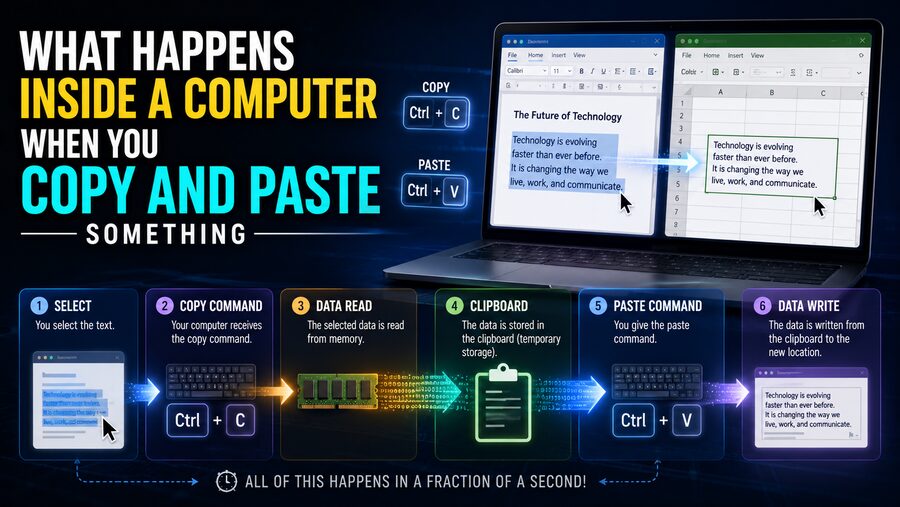

Copy and paste feels almost magical. You select a sentence, image, file, or link, press Ctrl+C or Command+C, move somewhere else, and press Ctrl+V or Command+V. Within a moment, the information appears in a new location. 📋⚡
Behind that simple action, however, the operating system, application software, memory, and sometimes storage or networking systems coordinate to transfer data from one place to another.
The key idea is that most copy-and-paste operations use a temporary software-managed area called the clipboard.
But the clipboard is more sophisticated than a simple box containing text. Depending on what you copy, it may store several representations of the same information, references to files, formatting instructions, images, metadata, or even data that is generated only when another application requests it.
Understanding this process reveals a fascinating example of how modern operating systems allow different programs to communicate.
📋 What Is the Clipboard?
The clipboard is a mechanism provided by an operating system or application environment for temporarily holding information that has been copied or cut.
You can think of it as an intermediary between two programs.
For example:
Web browser → Clipboard → Word processor
If you copy a paragraph from a website and paste it into a document, the browser provides the copied information to the clipboard system. The word processor then asks the clipboard what types of data are available and chooses a format it understands.
The clipboard does not necessarily behave like a normal file sitting permanently on your computer. Its exact implementation depends on the operating system and application.
🖱️ Step 1: You Select Something
The process begins when you select information.
Suppose you highlight:
“Computers process information extremely quickly.”
The application displaying that sentence already knows where those characters are stored internally.
Text editors and web browsers typically maintain complex data structures describing:
- Characters
- Paragraphs
- Formatting
- Fonts
- Hyperlinks
- Images
- Selection boundaries
When you drag the mouse across the sentence, the application records the beginning and end of your selection.
Nothing has been copied yet.
The program simply knows:
“The user has selected this section of data.”
⌨️ Step 2: You Press Copy
Now you press:
Ctrl+C on many Windows and Linux systems,
or
Command+C on macOS.
The operating system sends keyboard events to the active application.
The application recognizes the keyboard shortcut as a copy command.
Instead of physically moving data from one part of the computer to another immediately, the application prepares the selected information for the clipboard.
This is where things become interesting. 🧠
📝 The Same Copied Content Can Have Multiple Formats
Suppose you copy this sentence from a webpage:
The Earth orbits the Sun.
The browser may provide several versions of that selection.
For example:
Plain Text
The Earth orbits the Sun.
Rich Text
The same words may include information about:
- Bold formatting
- Font style
- Text size
- Paragraph structure
HTML
The browser could also provide something resembling:
<strong>The Earth</strong> orbits the Sun.
Why offer several formats?
Because the application receiving the paste may have different capabilities.
A basic text editor may accept only plain text.
A word processor may prefer formatted text.
An email editor may understand HTML.
This is why copying the same information and pasting it into different programs can produce different results.
🧠 Step 3: The Clipboard System Records the Available Data
Once the application handles the copy command, it communicates with the operating system’s clipboard services.
At a conceptual level, the system records:
“This application currently has clipboard data available in these formats.”
Depending on the operating system and application architecture, the actual bytes may be placed into memory immediately.
In other cases, the application can promise to provide a certain format later if another program requests it.
This technique is sometimes called delayed rendering or lazy data transfer.
It can save memory and processing time.
Imagine copying a very large image.
Instead of instantly converting that image into five different formats, the application may simply tell the operating system:
“I can provide PNG, bitmap, and another image format if somebody asks.”
Only the required version may then be generated.
🧮 Does Copying Always Duplicate Data Immediately?
Not necessarily.
The word copy sounds as though the computer instantly duplicates every byte.
Sometimes it does.
But modern software often uses more efficient methods.
The clipboard may contain:
- Actual copied bytes
- References to data
- Descriptions of available formats
- Temporary objects
- File paths
- Data produced only when requested
The exact behavior depends on what was copied and which programs are involved.
For small text, the difference is insignificant.
For large images, videos, or groups of files, efficient handling can matter greatly.
💾 Is the Clipboard Stored in RAM?
Clipboard information is commonly associated with system memory, or RAM, but the complete answer is more complicated.
Small clipboard contents may exist primarily in memory.
However, modern operating systems and clipboard managers may also store clipboard history or synchronized clipboard information more persistently.
That data may therefore interact with:
- RAM
- Temporary storage
- Local databases
- Cloud synchronization services
The implementation varies widely.
So it is more accurate to say that the clipboard is a software service for exchanging copied data, rather than simply a fixed section of RAM.
📥 Step 4: You Move to Another Application
Now imagine you open a word processor.
At this point, the clipboard still represents the information you copied.
When you click somewhere in the document, the word processor becomes the active application.
Then you press:
Ctrl+V or Command+V.
The operating system delivers that command to the word processor.
The word processor now asks:
“What data is currently available on the clipboard?”
🔎 Step 5: The Receiving App Chooses a Format
The clipboard may announce something like:
Available formats:
- Plain text
- HTML
- Rich text
- Image data
The receiving application chooses the format it prefers.
A sophisticated document editor may select rich text or HTML because those formats preserve formatting.
A simple text editor may request plain text instead.
This is why formatting sometimes disappears when you paste.
It is also why many applications offer commands such as:
Paste as plain text
or:
Paste special
These commands tell the program to choose a different representation of the clipboard data.
🧱 Step 6: The Application Creates New Content
Once the receiving application gets the requested data, it inserts a new representation into its own internal document structure.
Suppose you paste a sentence into a word processor.
The application may:
- Receive the text.
- Decode the character representation.
- Interpret formatting.
- Insert the characters at the cursor location.
- Adjust surrounding paragraphs.
- Recalculate the page layout.
- Redraw the affected part of the screen.
Only after those steps do you visually see the pasted information.
To you, the operation seems instant because modern processors can perform all of this extremely quickly. ⚡
🖥️ How Does the Screen Update?
The paste operation changes the application’s internal data.
The application then tells its graphics system that part of the window needs to be redrawn.
The operating system and graphics hardware ultimately convert the updated document into pixels displayed on your monitor.
For text, this may involve:
- Selecting font glyphs
- Calculating character positions
- Applying colors
- Drawing backgrounds
- Handling antialiasing
Your graphics processor, or GPU, may assist with rendering depending on the application and operating system.
So even a simple paste operation eventually involves the graphics subsystem.
✂️ What Is Different About Cut and Paste?
Cut works similarly to copy but with one important difference.
When you press:
Ctrl+X or Command+X
the application prepares the selected data for transfer and marks or removes it from the original location according to the application’s rules.
For text, the selected characters usually disappear immediately.
The clipboard still contains a representation that can be pasted elsewhere.
Conceptually:
Copy = Keep original + make clipboard data available
Cut = Remove or mark original + make clipboard data available
However, file managers may implement cut differently.
When cutting files, the operating system often does not immediately move all file contents into the clipboard.
Instead, it may record which files are intended to be moved.
The actual filesystem move happens when you paste them into another folder.
📁 Copying Files Works Differently From Copying Text
Suppose you select a 2 GB video file and press Ctrl+C.
Does the computer instantly place 2 GB of video data into clipboard memory?
Usually, that would be inefficient.
Instead, file-manager clipboard data commonly describes the selected files and the intended operation.
It may effectively say:
“These files should be copied if the user pastes them somewhere.”
When you paste into another folder, the operating system or file manager begins the actual file-copy operation.
Then data is read from the original storage device and written to the destination.
That process may take seconds or minutes depending on:
- File size
- Storage speed
- Destination
- Network performance
This distinction explains why copying a huge file to the clipboard seems instantaneous while pasting it may take much longer. 📂➡️📂
🖼️ What Happens When You Copy an Image?
Images can be even more complicated.
When you copy an image from an application, the clipboard may offer several representations.
These might include:
- PNG
- JPEG
- Bitmap data
- File reference
- Application-specific image data
Different programs may choose different versions.
For example, an image editor may prefer a high-quality pixel representation, while another application may use a compressed image.
Some professional applications can also place proprietary data on the clipboard so another instance of the same program can preserve advanced information such as layers or vector objects.
🔗 What Happens When You Copy a Web Link?
Copying a URL is usually straightforward.
The clipboard may store the address as plain text:
https://example.com/page
However, if you copy a hyperlink from a rich document, the clipboard could contain both:
Visible text:
“Read the article”
and:
Link destination:
https://example.com/article
A rich-text editor may preserve the clickable link.
A basic text editor may paste only the visible text or URL, depending on the clipboard formats offered.
🔤 How Does the Computer Represent Text?
Modern computers typically represent text using character-encoding standards such as Unicode.
Unicode assigns numerical identifiers to characters from many writing systems and symbol sets.
That allows the clipboard to handle information such as:
Hello
こんにちは
مرحبا
नमस्ते
🚀
When text moves between applications, the software must interpret the character encoding correctly.
Modern operating systems handle most of these conversions automatically.
🕘 What Is Clipboard History?
Traditional clipboard behavior often stored only the most recently copied item.
Copy something new, and the previous item was replaced.
Modern operating systems and third-party tools may provide clipboard history. 📚
This allows users to retrieve several recently copied items.
Such systems may maintain records containing:
- Text
- Images
- Links
- Timestamps
- Other metadata
Clipboard history can be extremely useful when repeatedly moving information between applications.
However, it also introduces privacy considerations because information can remain available longer than expected.
☁️ Can a Clipboard Synchronize Between Devices?
Some systems allow clipboard contents to synchronize across multiple devices.
For example, text copied on one computer may become available for pasting on another device connected to the same ecosystem.
To make this possible, the system may:
- Detect new clipboard content.
- Prepare it for synchronization.
- Protect the transfer using the platform’s security mechanisms.
- Send relevant data through local or cloud infrastructure.
- Make it available on another authorized device.
The exact process depends on the operating system and configuration.
This shows that the modern clipboard can sometimes extend far beyond a single computer.
🔐 Clipboard Security Matters
Clipboard convenience can create security risks.
Imagine copying:
- A password
- Credit-card information
- A private message
- Cryptocurrency wallet data
- Confidential business information
That information may remain on the clipboard until it is replaced, cleared, or removed according to the operating system’s behavior.
Some applications therefore automatically clear sensitive clipboard contents after a period of time.
Modern operating systems may also restrict or notify applications about clipboard access, especially on mobile platforms.
Users should be cautious about copying highly sensitive information, particularly when using unfamiliar software.
🦠 Can Malicious Software Read the Clipboard?
Depending on the operating system’s permissions and security model, malicious software may attempt to monitor or manipulate clipboard data.
For example, certain forms of malware have historically tried to detect copied cryptocurrency addresses and replace them with addresses controlled by attackers.
Other malicious applications might try to capture copied credentials.
Operating systems continue introducing security protections to reduce these risks, but the clipboard should still be treated as potentially sensitive.
Installing trusted software and keeping systems updated are important defenses. 🛡️
📱 Copy and Paste on Smartphones
Phones and tablets use the same basic concept but implement it through touchscreen interfaces.
When you press and hold text, the operating system displays selection handles and commands such as:
Copy | Cut | Paste
The selected application communicates with the mobile operating system’s clipboard services.
When another app requests a paste, the operating system provides compatible data.
Mobile platforms may impose stronger restrictions on background clipboard access because a smartphone often contains extremely sensitive personal information.
⚙️ Why Some Content Cannot Be Copied
Occasionally, an application prevents or limits copying.
This may happen because:
- The content is protected.
- The app intentionally disables selection.
- The information uses a specialized format.
- Security policies restrict clipboard access.
- Remote computing software blocks clipboard sharing.
- The application simply does not implement copy functionality.
Copy and paste is therefore not a universal property of all computer data.
Applications must participate in the clipboard system.
🖥️ Copying Between a Remote Computer and Your Computer
Remote-desktop and virtual-machine software can add another layer.
Suppose you copy text on your physical computer and paste it inside a remote computer.
The clipboard data may travel through the remote-session software.
Conceptually, the flow becomes:
Local application → Local clipboard → Remote-desktop software → Network/session channel → Remote clipboard → Remote application
Administrators may disable this functionality in secure environments to prevent sensitive data from moving between systems.
🧩 Why Formatting Sometimes Looks Strange After Pasting
Have you ever pasted text into a document and suddenly seen unexpected fonts, sizes, or colors?
This often happens because the source application provided formatting information and the destination application preserved it.
The destination program may receive details such as:
- Font family
- Font size
- Text color
- Hyperlinks
- Paragraph spacing
- Lists
- Background colors
If those styles conflict with the destination document, the result may look inconsistent.
Using paste as plain text removes most of this formatting because only the characters themselves are inserted.
🚀 Why Copy and Paste Feels So Fast
For ordinary text, the amount of data is extremely small by modern computing standards.
A paragraph might require only a few thousand bytes.
Modern processors perform billions of operations per second, while RAM can transfer enormous amounts of information every second.
Because the copied data is already represented digitally, transferring a small piece of text between applications requires very little work.
The computer mainly needs to:
Recognize command → Expose clipboard data → Select format → Transfer information → Insert it → Redraw screen
All of this can occur in milliseconds. ⚡
🧪 A Simple Copy-and-Paste Example
Imagine copying the phrase:
“Mars has two moons.”
A simplified sequence looks like this:
1. Selection 🖱️
The text application records which characters you selected.
2. Copy command ⌨️
You press Ctrl+C or Command+C.
3. Clipboard preparation 📋
The source application makes the selected text available in one or more formats.
4. Clipboard ownership or storage 🧠
The operating system records the clipboard content or how to obtain it.
5. Application switch 🔄
You move to another program.
6. Paste command ⌨️
You press Ctrl+V or Command+V.
7. Format request 📥
The destination application asks for a compatible format.
8. Data insertion 📝
The destination inserts the text into its document.
9. Screen update 🖥️
The application redraws the window.
To the user, all nine conceptual stages appear to happen almost instantly.
🤯 Copy and Paste Is Really Communication Between Programs
The most fascinating part of copy and paste is that two applications do not necessarily understand each other’s internal file structures.
A browser may represent a webpage one way.
A word processor may represent a document in a completely different way.
The clipboard acts as a standardized exchange mechanism between them.
Each program agrees to communicate using known data formats.
This general principle appears throughout computing:
Standardized interfaces allow different systems to exchange information without needing identical internal designs.
The clipboard is one of the simplest examples users interact with every day.
✅ Final Thoughts
When you copy and paste something, your computer is doing much more than secretly placing text into an invisible box. 💻📋
The source application first determines what you selected and makes that information available through the operating system’s clipboard mechanism. It may provide several versions of the same content, such as plain text, rich text, HTML, images, or file references.
When you press paste, the receiving application asks which formats are available, chooses one it understands, retrieves the information, converts it into its own internal structure, inserts it at the appropriate location, and updates the screen.
For files, the clipboard may contain references rather than the complete file contents. For large objects, data may even be generated only when another application requests it.
Modern clipboard systems can also support history, cross-device synchronization, specialized application data, and advanced security protections.
So the next time you press Ctrl+C and Ctrl+V, remember that a surprisingly sophisticated conversation is happening between your applications, your operating system, memory, storage, and sometimes even another computer. ⚡🧠
What looks like one of the simplest actions in computing is actually a beautifully engineered system for moving information between completely different pieces of software.