
Deleting a file feels instant. You select a photo, document, video, or program, press Delete, and it disappears from view. But in most cases, the computer does not immediately erase every bit of that file from the storage device.
What actually happens depends on several factors, including the operating system, the type of storage device, whether you emptied the Recycle Bin or Trash, the file system being used, and whether the drive is an HDD, SSD, USB flash drive, or cloud-synchronized storage.
Understanding file deletion is important because it explains why deleted files can sometimes be recovered—and why securely erasing sensitive information requires more than simply pressing the Delete key. 🔐
🗂️ How Computers Store Files
To understand deletion, it helps to first understand how files are stored.
A storage device such as a hard disk drive or solid-state drive contains enormous numbers of locations where binary data can be stored.
When you save a file, the operating system does not merely place it somewhere as a visible object. It also records information about the file in a file system.
The file system keeps track of details such as:
- 📄 File name
- 📁 Folder location
- 📏 File size
- 🕒 Creation and modification times
- 🔐 Permissions
- 📍 Where the file’s data is stored on the drive
Common file systems include NTFS, APFS, ext4, FAT32, and exFAT.
The file system acts somewhat like an index in a library. It tells the operating system where each file is located and which storage areas belong to it.
🗑️ What Happens When You Press Delete?
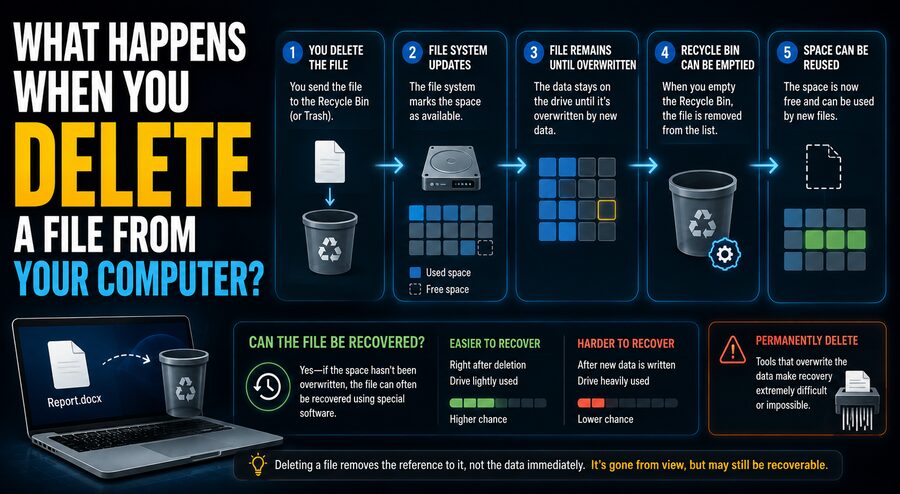
On many desktop operating systems, pressing Delete does not immediately remove the file permanently.
Instead, the operating system usually moves the file into a temporary holding area.
On Windows, this is called the Recycle Bin.
On macOS, it is called the Trash.
The file is still present on the storage device, and the system retains information needed to restore it.
This is why you can often right-click a deleted file in the Recycle Bin or Trash and choose Restore.
The computer is essentially saying:
“This file is marked for deletion, but I will keep it available in case you change your mind.”
So at this stage, the file has usually not been permanently erased at all.
♻️ What Happens When You Empty the Recycle Bin or Trash?
Things become more interesting when you empty the Recycle Bin or Trash.
Many people assume that the computer now goes through the storage device and immediately replaces every byte of the file with zeros.
Usually, that does not happen.
Instead, the file system generally marks the storage space previously used by the file as available for reuse.
Imagine a library catalog.
Suppose a book occupies shelf position 25.
Instead of physically destroying the book, the librarian removes its entry from the catalog and marks shelf position 25 as available.
The book may still physically remain on the shelf for a while, but the system no longer treats it as an active item.
A similar thing can happen with deleted computer files. 📚
🔍 Why Deleted Files Can Sometimes Be Recovered
If the file’s original data remains physically present and has not yet been replaced by new data, recovery software may be able to reconstruct it.
File recovery tools often search storage devices for remnants of deleted files.
They may analyze:
- File system records
- File signatures
- Previously allocated storage blocks
- Fragments of deleted data
For example, if a JPEG image has been deleted, recovery software may scan the drive for the distinctive binary structure associated with JPEG files.
If enough of the original data remains intact, the image might be recovered.
This is why one common piece of advice after accidentally deleting an important file is to stop using the storage device immediately. ⚠️
Every new file you create or download increases the chance that the operating system will reuse the storage space where the deleted file was located.
Once that space is overwritten, recovery becomes much more difficult or impossible.
💽 Deleting Files From a Hard Disk Drive
Traditional hard disk drives, or HDDs, store information magnetically on rotating platters.
When a file is deleted, its magnetic data may remain on those platters until the operating system writes new data over the same sectors.
As a result, deleted files from HDDs can sometimes remain recoverable for a significant period.
Suppose a deleted file occupied several sectors.
The operating system may mark those sectors as free but leave their magnetic contents untouched.
Later, when another file needs storage space, those sectors might be reused.
At that point, some or all of the deleted file can be overwritten.
⚡ SSDs Behave Differently
Solid-state drives, or SSDs, work differently from hard drives.
They store information in flash memory cells and use sophisticated internal controllers to manage data.
Modern SSDs commonly support a command called TRIM.
When the operating system deletes a file, it can tell the SSD that certain storage blocks are no longer needed.
The SSD may then erase or prepare those blocks for future use as part of its internal maintenance processes.
Because of TRIM, deleted files on SSDs can become unrecoverable much more quickly than deleted files on traditional HDDs.
However, the exact behavior depends on:
- The SSD
- The operating system
- The file system
- Whether TRIM is enabled
- Internal garbage-collection processes
- Encryption settings
So file recovery from SSDs is often less predictable.
🧠 What Is TRIM?
TRIM is a command that helps SSDs operate efficiently.
Flash memory cannot always overwrite data in exactly the same way a magnetic hard drive can. Before certain flash-memory blocks can be reused, they must first be erased.
Without TRIM, the SSD might not know which blocks contain data that the operating system no longer needs.
TRIM tells the SSD:
“These blocks are no longer storing useful files.”
The drive can then clean those blocks in advance, improving future write performance.
The side effect is that deleted data may disappear more permanently.
🔐 What About Encrypted Drives?
Modern computers often use full-disk encryption.
Examples include technologies such as BitLocker on Windows and FileVault on macOS.
When storage is encrypted, files are stored in encrypted form rather than as directly readable data.
If a deleted file’s encrypted data remains on the drive, recovering it may still require access to the correct encryption keys.
Encryption therefore adds another layer of protection.
In some secure-erasure scenarios, deleting or destroying the encryption key can effectively make the underlying data unreadable, even if encrypted remnants remain physically stored.
This concept is sometimes known as cryptographic erasure. 🔑
📁 What Happens to the File Name?
When a file is deleted, its contents and its metadata are not necessarily handled in exactly the same way.
The file system may remove or alter the record containing the file’s name and location while leaving its actual data blocks untouched.
This can produce situations where recovery software finds the contents but cannot recover the original filename.
For example, instead of finding:
Family_Vacation_2025.jpg
the recovery software might identify the file simply as:
Recovered_001.jpg
The picture might be intact even though the original metadata is gone.
🧩 File Fragmentation Can Affect Recovery
Files are not always stored in one continuous location.
A large file may be divided into several fragments stored in different areas of the disk.
This is called fragmentation.
If only some of those areas have been overwritten after deletion, recovery software may retrieve only part of the file.
A damaged photograph might show only its upper section.
A recovered video might play for several seconds and then stop.
A document may contain missing or corrupted sections.
The more fragmented a deleted file was, the harder complete recovery may be.
🔥 What Does “Overwriting” Mean?
Overwriting occurs when new data is written into storage areas previously occupied by deleted data.
Suppose a deleted file contained the text:
HELLO
If the storage space is later reused for another file containing different binary information, the original data is replaced.
Once genuinely overwritten, the old information is generally no longer recoverable through ordinary software.
For this reason, secure-deletion tools historically performed one or more overwrite passes on hard drives.
However, secure deletion is more complicated on SSDs because wear-leveling and internal controller behavior can cause the drive to remap storage locations.
🔄 What Is Wear Leveling?
Flash memory cells can endure only a limited number of erase and write cycles.
To prevent certain cells from wearing out much faster than others, SSD controllers use a process called wear leveling.
Instead of repeatedly writing new data to exactly the same physical location, the controller distributes writes across the flash memory.
This improves SSD lifespan.
However, it also means software may not have direct control over the exact physical memory cells being overwritten.
That is one reason why repeatedly overwriting individual files is not always a reliable secure-erasure strategy for SSDs.
🔒 How Do You Securely Erase an SSD?
For SSDs, manufacturers and operating systems may provide specialized secure-erase or sanitize functions.
Depending on the drive, secure erasure might involve:
- Resetting flash blocks
- Using firmware-level sanitize commands
- Performing cryptographic erasure
- Destroying encryption keys
For highly sensitive data, organizations may follow formal data-destruction standards.
Physical destruction may also be used when a storage device must never be reused.
For ordinary users, built-in device-reset procedures combined with modern encryption are often more appropriate than repeatedly overwriting an SSD.
☁️ What Happens When You Delete a Cloud File?
Cloud storage adds another layer of complexity.
If you delete a file from a synchronized folder, the deletion may also be synchronized to remote servers.
However, many cloud services keep deleted files temporarily in an online recovery area.
A deleted file might remain recoverable for days or weeks depending on the service and account type.
Cloud providers may also maintain:
- Backups
- Version histories
- Redundant storage copies
- Disaster-recovery systems
Therefore, deleting a local copy does not necessarily mean every server-side copy disappears instantly.
Users handling sensitive information should understand the retention and deletion policies of their cloud provider.
📱 What About Smartphones?
Smartphones commonly use flash storage similar in principle to SSD technology.
Modern mobile operating systems also use encryption extensively.
When a file, image, or app is deleted, the underlying data may become inaccessible quickly because of storage management, encryption, and flash-memory cleanup.
Factory-resetting an encrypted modern smartphone can also render previous user data inaccessible by removing cryptographic keys.
This is one reason device encryption has become such an important security feature.
🧾 Temporary Files and Copies May Still Exist
Deleting the original file does not always remove every copy.
Applications and operating systems often create additional data such as:
- Temporary files
- Thumbnail images
- Auto-save copies
- Backups
- Cached versions
- Cloud-synchronized copies
- Previous versions
For example, deleting a photograph may not immediately remove its thumbnail from a photo-management application’s cache.
Similarly, deleting a document may leave an older version inside a backup system.
This is important when trying to securely remove sensitive information.
💾 Backups Change Everything
Backups are designed specifically to preserve data even if the original file is lost or deleted.
If you delete a file from your main drive, it may still exist in:
- External backup drives
- Network backup systems
- Cloud backups
- System snapshots
- Version history
This is excellent when a deletion is accidental.
However, it also means that complete data deletion may require managing backup retention.
Organizations often establish formal policies specifying how long backups must be retained and when old copies should be destroyed.
🧪 What Do Data-Recovery Specialists Do?
Professional data-recovery specialists use specialized tools and techniques to retrieve data from damaged or deleted storage.
For logical deletion, they may analyze file-system structures and raw storage blocks.
For physically damaged hard drives, specialists may repair mechanical components inside controlled environments.
SSD recovery can be much more complex because of:
- Encryption
- TRIM
- Wear leveling
- Proprietary controllers
- Flash-memory architecture
Data recovery is never guaranteed.
The chance of success depends heavily on what happened to the device after deletion or failure.
⚠️ Accidental Deletion: What Should You Do?
If you accidentally delete an important file, the safest general principle is to minimize further writes to the storage device.
Avoid:
- Installing new programs on that drive
- Downloading large files
- Copying new data onto it
- Running unnecessary applications that create temporary files
First, check the Recycle Bin or Trash.
Then check backup systems, cloud storage, and version history.
If the file is extremely valuable, professional recovery may be safer than experimenting with recovery tools, especially if the storage device is physically failing.
🔐 Deletion vs. Secure Deletion
There is an important difference between deleting a file and securely destroying its data.
Ordinary deletion usually means:
“The system can reuse this storage space.”
Secure deletion means:
“The original information should no longer be recoverable.”
For HDDs, overwriting can often accomplish this.
For SSDs and encrypted devices, secure erase, sanitize commands, or cryptographic erasure may be more appropriate.
This difference matters when disposing of computers, selling storage devices, or handling confidential information.
🌟 Final Thoughts
When you delete a file from your computer, it usually does not instantly vanish from the physical storage device.
At first, it may simply be moved to the Recycle Bin or Trash. Even after that is emptied, the file system may only mark the file’s storage space as available for reuse.
On traditional hard drives, the actual data can sometimes remain until new information overwrites it. On SSDs, technologies such as TRIM, garbage collection, wear leveling, and encryption can cause deleted data to become inaccessible much more quickly.
This explains why deleted files can sometimes be recovered—and why simply pressing Delete is not always enough when sensitive information must be permanently erased. 🔍💾
Modern storage systems are designed primarily for speed, reliability, and convenience, not to physically destroy every byte the moment a user removes a file. Deletion is therefore often less like shredding a piece of paper and more like removing its entry from an index and declaring the space available for something new.
Understanding that distinction helps users make better decisions about data recovery, privacy, backups, device disposal, and secure erasure. 🔐🗑️💻