
A laptop that once felt instant can gradually become frustrating. Browser tabs pause before loading, video calls make the fan run loudly, and a simple software update seems to demand more patience than it used to.
That change often creates a difficult question: is the laptop genuinely old, or does it merely need attention? Replacing a computer too early wastes money, but waiting too long can mean unreliable work, missed security updates, and daily interruptions.
There is no single expiration date for every laptop. A student writing essays, a remote worker using spreadsheets, and a designer editing high-resolution video place very different demands on the same kind of machine.
The useful question is not simply “How old is it?” It is whether the laptop still performs the work you need, safely and reliably, without costing more time and effort than it saves.
🧭 Start With What “Last” Actually Means
A laptop can last in several different ways. It may still turn on, still receive operating-system updates, still run basic applications, or still handle demanding professional workloads. These are not the same milestone.
Hardware lifespan means its physical components continue to work. Performance lifespan means it feels sufficiently responsive for your tasks. Support lifespan means its software still receives security and compatibility updates.
A device may remain physically usable long after it stops being a sensible primary computer. Conversely, a slow laptop with a healthy screen, keyboard, and motherboard may become useful again after a targeted upgrade or clean installation.
⏳ A Practical Expectation for Most Modern Laptops
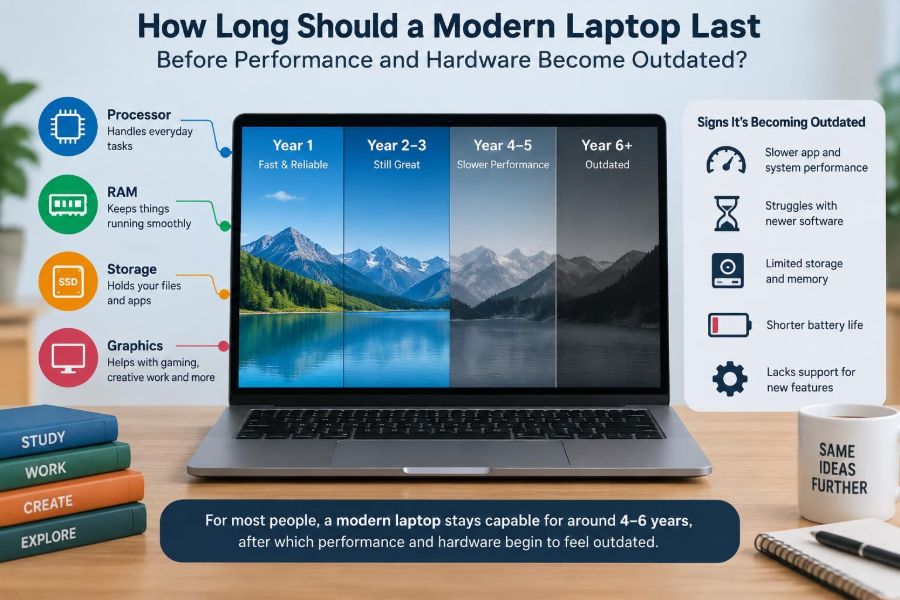
For ordinary web browsing, documents, email, streaming, and light office work, a well-chosen modern laptop often remains comfortable for roughly five to eight years. Careful use and modest needs can extend that period.
For heavier work such as software development, large spreadsheets, 3D modelling, video editing, engineering applications, or current games, the comfortable performance window is often shorter. These fields can expose limits in processing power, graphics capability, memory, storage, or cooling sooner.
These are planning ranges rather than guarantees. A budget laptop can feel constrained early, while a higher-specification business or performance model may stay capable far longer.
📊 The Lifespan Depends on the Job
| Typical use | What usually becomes limiting | Likely replacement pressure |
|---|---|---|
| Documents, email, online learning | Battery, storage space, software support | Usually gradual |
| Many browser tabs and office multitasking | Memory and processor responsiveness | Moderate after several years |
| Programming and data work | Memory, storage speed, virtualisation needs | Depends on tools and project size |
| Photo, video, CAD, 3D work | Processor, graphics, memory, display quality | Often sooner as workloads grow |
| Modern gaming | Graphics performance and cooling | Driven by desired game settings |
A laptop is not outdated because a newer model exists. It is outdated for you when it cannot meet your requirements at an acceptable speed, reliability level, and security standard.
⚙️ The Processor Sets the Long-Term Pace
The central processing unit, or CPU, performs general calculations and coordinates many everyday tasks. Its design strongly affects how responsive a laptop feels when several programs are open.
Older processors may still handle one lightweight task well but struggle with modern browser pages, background syncing, video conferencing, or multitasking. Newer software is not always poorly made; it often assumes capabilities that were uncommon when the older chip was designed.
Because laptop CPUs are normally soldered to the motherboard, they are rarely upgradeable. This makes processor choice especially important when buying a machine intended to last many years.
🧠 Memory Determines Multitasking Headroom
Random access memory, usually called RAM, holds the data that active programs need immediately. When RAM is limited, the system moves some of that data to storage, which is much slower even on a solid-state drive.
Low memory is often mistaken for a slow processor. The clues include browser tabs reloading unexpectedly, applications switching slowly, or the system becoming sluggish only when multiple programs are open.
For a long-lived general-use laptop, more memory provides useful breathing room. Whether memory can be upgraded varies greatly: some laptops have accessible slots, while many thin models have memory permanently soldered in place.
💾 Storage Speed Matters More Than Many People Expect
Replacing an old mechanical hard drive with a solid-state drive, or SSD, can transform startup times, application launches, and general responsiveness. An SSD has no moving parts and accesses data far more quickly than a traditional hard disk.
Storage capacity matters too. A nearly full drive leaves less room for temporary files, updates, and normal system operation. It can also make file management stressful, especially for photo libraries or project folders.
Before replacing a laptop because it feels slow, check its storage type, free space, and health. On models with replaceable storage, an SSD upgrade is often one of the most effective ways to extend useful life.
🎮 Graphics Needs Change With Creative Work and Games
Graphics processing can be handled by integrated graphics built into the main processor or by a separate dedicated graphics processor, often called a GPU. Integrated graphics are sufficient for many everyday tasks and light creative work.
Demanding games, 3D applications, rendering, simulation, and some video-editing workflows benefit from stronger graphics hardware. A laptop that remains excellent for documents may no longer provide a smooth experience in newly released, graphically intensive software.
Graphics performance is difficult to upgrade in a laptop. If visual work is central to your career or hobby, buy for your likely workload a few years ahead rather than only the software you run today.
🌡️ Heat Can Quietly Shorten Useful Life
Heat is a normal by-product of computing, but persistent overheating can reduce performance. Modern laptops protect themselves by lowering clock speeds when temperatures rise, a behavior often called thermal throttling.
Dust in vents, worn thermal material between chips and heat sinks, blocked airflow, and heavy use on soft bedding can all make a laptop run hotter. A hot chassis and constantly loud fan deserve attention, especially if the machine also slows down.
Use the laptop on a hard, flat surface and keep vents clear. Cleaning should be done carefully; if opening the laptop is unfamiliar or would affect a warranty, a qualified repair service is the safer choice.
🔋 The Battery Is a Consumable Part
Lithium-ion batteries gradually lose capacity through age, charging cycles, heat, and normal chemical wear. This is expected behavior, not necessarily a defect. The laptop may still work perfectly when connected to power while becoming inconvenient away from an outlet.
A battery replacement can make an older laptop feel useful again, particularly for students and mobile workers. On some devices it is straightforward; on others, adhesive, internal placement, or paired electronics make professional service more practical.
Swelling, unusual heat, a lifting trackpad or case, or sudden battery behavior should not be ignored. Stop using a battery that appears physically damaged and seek appropriate repair guidance.
🔌 Ports and Wireless Standards Can Age First
A computer may have adequate processing power but lack the connections your work now requires. New monitors, docks, storage devices, and charging accessories may use ports that an older laptop does not provide.
Wireless networking also changes. An older Wi-Fi generation can still work, but it may not take full advantage of a newer network and can become a bottleneck in busy homes or offices.
Adapters and docks can bridge many gaps, but they add cost and complexity. If you routinely connect several devices, port selection is a practical part of longevity, not a minor specification.
🖥️ The Screen and Keyboard Are Everyday Quality Factors
Performance is not the only reason to replace a laptop. A dim display, failing backlight, loose hinge, inaccurate colors, damaged keyboard, or unreliable trackpad can affect daily work more than a benchmark score.
For example, an older laptop may compile code adequately but become uncomfortable for long reading sessions if the display is too dim or low in resolution. Repair may be worthwhile when the rest of the machine remains suitable.
Evaluate the complete experience. A laptop is a tool you touch and look at for hours, so ergonomic problems deserve real weight in a replacement decision.
🛡️ Software Support Is a Hard Boundary
Operating-system updates correct security weaknesses, improve reliability, and keep the laptop compatible with current applications. When a device can no longer receive supported updates, continuing to use it online creates increasing risk.
This does not mean an unsupported laptop instantly stops working. It means newly discovered vulnerabilities may no longer be fixed, and developers may eventually stop supporting their software on that system version.
Security support can matter more than raw speed. A fast computer that cannot be kept reasonably secure is a poor choice for banking, work accounts, personal records, or other sensitive online activity.
🔐 Browser Compatibility Is Part of Security
Many people use a laptop mainly through a web browser. That makes browser support especially important. An older operating system may prevent installation of current browser versions even when the hardware itself is still functional.
Without updates, browsers can become less compatible with modern websites and less protected against security issues. Online services may also stop supporting old browser versions because they cannot safely provide current features.
If the laptop is used offline for a specific legacy purpose, the situation is different. For routine internet use, current browser and operating-system support should be treated as essential.
🧹 Software Clutter Can Imitate Obsolescence
Slow performance does not automatically prove that hardware is too old. Startup applications, unnecessary background utilities, storage shortages, browser extensions, malware, and accumulated system problems can all make a capable laptop feel worn out.
Start with basic checks: remove programs you no longer use, review startup items, update the operating system, scan for malicious software using trusted tools, and free meaningful storage space.
A backup followed by a clean operating-system installation can be helpful in some cases. It is not magic, but it removes years of accumulated configuration problems and reveals whether the underlying hardware is still adequate.
🔍 Diagnose the Bottleneck Before Spending Money
Watch what happens during the task that feels slow. If memory use stays near its limit while switching between applications, RAM may be the constraint. If storage activity remains high during simple actions, the drive or free space may be the issue.
If the laptop becomes slow only when hot, investigate cooling. If video editing or gaming is poor while routine work is fine, graphics capability may be the real limitation rather than the entire computer.
A diagnosis prevents the common mistake of buying a costly replacement to solve a small, repairable problem. It also prevents wasting money on an upgrade that cannot address the true bottleneck.
🧰 Upgrades That Can Extend a Laptop’s Life
Upgrade options depend on the model, but several repairs can have a meaningful effect:
- Replacing a mechanical hard drive with an SSD.
- Adding memory where slots are available and supported.
- Replacing a worn battery.
- Repairing a damaged charging port, keyboard, hinge, or fan.
- Cleaning cooling components and addressing overheating.
Check the manufacturer’s documentation or a reliable repair guide for your exact model before ordering parts. Compatibility involves more than a connector shape; capacity limits, physical size, firmware, and internal layout can matter.
🚫 Limits That Upgrades Usually Cannot Solve
Some constraints are effectively permanent. A soldered CPU or GPU cannot normally be replaced economically, and soldered memory cannot be expanded. A limited display, outdated wireless hardware, or insufficient ports may also remain a daily compromise.
An SSD will improve loading and general responsiveness, but it will not turn an entry-level processor into a workstation chip. More RAM helps multitasking, but it cannot make unsupported software suddenly available.
Good maintenance extends a laptop’s useful role. It does not erase the architectural limits of the design.
📚 Students Need Reliability More Than Peak Specifications
For note-taking, research, writing, learning platforms, presentations, and video calls, a laptop with a reliable battery, comfortable keyboard, current software support, and enough memory usually matters more than top-tier graphics.
Students should also consider course-specific requirements. Architecture, media production, programming, science, and design courses may need specialist software with stronger hardware demands than general coursework.
A sensible approach is to check official course recommendations before buying. Avoid assuming that a lightweight general-purpose laptop will suit every degree program simply because it handles ordinary school tasks.
💼 Working Professionals Should Measure Lost Time
For a professional, laptop replacement is often a productivity decision. Frequent freezes, failed video calls, slow file searches, poor battery life during travel, or unreliable docking can cost time repeatedly across a working week.
Consider the value of reliability alongside purchase price. A machine that works smoothly with required security tools, company software, monitors, and collaboration platforms can be more appropriate than a cheaper device that creates friction every day.
Managed workplace devices may also have organization-specific support rules. Personal repair or operating-system changes should not be attempted if they conflict with company security policies.
🎨 Creative Professionals Face Faster Hardware Turnover
Creative applications often increase hardware demands as projects use larger files, higher-resolution media, more complex effects, and faster export expectations. A laptop can still open the program while becoming impractical for professional deadlines.
Memory capacity, fast storage, graphics acceleration, display quality, and sustained cooling all matter. A thin laptop may show impressive short bursts of speed but slow down during long renders if it cannot dissipate heat effectively.
Test with representative work where possible. A hypothetical project involving a few small photos does not reveal how a laptop will behave with a large catalog, layered files, or long video timelines.
🕹️ Gamers Should Separate Playability From Preference
A gaming laptop becomes “outdated” at different times depending on the games played and the experience expected. Older or less demanding titles may run well for years, while recent large releases may require reduced resolution or lower visual settings.
There is nothing inherently wrong with adjusting settings. The key question is whether the result remains enjoyable and stable for you. Chasing maximum settings on every new game is a different goal from playing a broad library comfortably.
Gaming laptops also work their cooling systems hard. Regular maintenance, sensible ventilation, and battery care can help preserve performance and usability.
📈 New Software Tends to Raise the Baseline
Software evolves because developers add features, security protections, accessibility improvements, and support for new hardware. These changes can increase background activity and memory use, even in programs that appear familiar.
Websites can also become heavier as they include richer interfaces, media, and web applications. A laptop that once felt quick for browsing may therefore feel slower without any single component having failed.
This trend is gradual and uneven. Lightweight applications and operating systems can keep older hardware useful, but they may involve feature trade-offs and require careful attention to ongoing security support.
🧪 Benchmark Scores Do Not Tell the Whole Story
Benchmarks measure particular tasks under controlled conditions. They can help compare devices, but they do not fully capture keyboard comfort, fan noise, battery condition, display quality, port selection, or how a laptop handles your exact workflow.
A modest-looking computer with fast storage and sufficient memory may feel better for everyday office tasks than a machine with a stronger processor but an overloaded hard drive and too little RAM.
Use specifications and tests as evidence, not as the entire decision. Your slowest recurring task is usually more relevant than an impressive score in an unrelated test.
🧾 Repair Costs Need Context
A repair is worthwhile when it restores a laptop that otherwise meets your needs. Replacing a battery or SSD on a supported, capable machine can be a practical investment.
Be more cautious when several major issues appear together: a weak battery, cracked display, failing hinge, old unsupported operating system, and inadequate performance. Each repair may be reasonable alone, but the combined cost and inconvenience can point toward replacement.
Also consider the value of your time. Repeated troubleshooting has a cost, particularly when the laptop is essential for classes, employment, or client work.
♻️ Reuse an Older Laptop Responsibly
Replacement does not always mean disposal. A retired primary laptop can become a backup computer, a simple writing device, a home media machine, a learning project, or a device for a family member with light needs.
Before giving away, selling, recycling, or repurposing it, back up your files and securely erase personal data. Sign out of accounts and remove the device from account-management lists where appropriate.
Electronic recycling programs can recover materials and keep damaged batteries and electronics out of ordinary waste. Follow local guidance, especially for devices with built-in batteries.
🛒 Buy for the Next Few Years, Not Just This Week
When choosing a new laptop, focus on the parts that cannot realistically be upgraded later. Processor class, memory capacity on soldered designs, display quality, port selection, and repairability shape the machine’s long-term value.
Do not automatically buy the most expensive option. Instead, identify your demanding tasks and leave reasonable headroom for future software, larger files, and multitasking. For many people, a balanced configuration is more valuable than one impressive specification paired with compromises elsewhere.
Read the exact model specifications. Product families often include versions with very different screens, memory, storage, processors, and ports under nearly identical names.
✅ Signs Your Laptop Is Still Worth Keeping
Keeping the laptop is usually sensible when it receives current security updates, completes your regular tasks without excessive delays, has no serious reliability problems, and can be repaired or upgraded at a reasonable cost.
Some inconvenience is normal. Waiting a few seconds for a large application to open is different from frequent crashes, missed meetings, corrupted files, or an inability to run essential software.
Ask whether the limitation occurs occasionally or shapes your daily routine. The latter is a stronger signal that the laptop’s role should change or that replacement should be planned.
🚩 Signs Replacement Is the Better Choice
Replacement becomes more compelling when an operating system is no longer safely supported, essential applications no longer run, hardware failures recur, or the laptop cannot perform core tasks even after sensible maintenance.
- Battery life is too short for required travel or classes, and replacement is impractical.
- Repairs approach the value of a suitable replacement.
- Memory, processor, or graphics limits block necessary work.
- Connectivity, display, or webcam limitations disrupt a modern workflow.
- The machine is unreliable when you need it most.
Planning ahead is better than waiting for a complete failure. A replacement process is easier when you can transfer files and settings from a working computer.
🗓️ Create a Replacement Plan Before an Emergency
Keep regular backups independent of the laptop itself. A backup protects your work whether the next problem is a failed drive, stolen bag, damaged screen, or simply a decision to upgrade.
Track the model, purchase date, battery condition, warranty status, and major repairs. This gives you a clearer picture than relying on a vague impression that the laptop is “getting old.”
If your work depends on the device, set aside time to compare options before a failure becomes urgent. An unplanned purchase often leads to compromises in specifications, price, or setup.
🏁 The Core Principle: Fitness for Purpose
A modern laptop does not become obsolete on a fixed birthday. Its useful life is determined by the relationship between its capabilities and your real needs: the applications you run, the files you handle, the places you work, and the security standards you require.
Maintain the machine, diagnose slowdowns before replacing it, and upgrade practical components when that solves the actual problem. At the same time, recognize when permanent hardware limits or ended software support make further investment unwise.
The best time to replace a laptop is not when a new model appears. It is when your current machine can no longer do its required work safely, reliably, and efficiently enough to justify keeping it.
A well-maintained laptop can serve for many years, but its true lifespan ends when it no longer fits your work—not when its calendar age reaches an arbitrary number. 🖥️🔋♻️