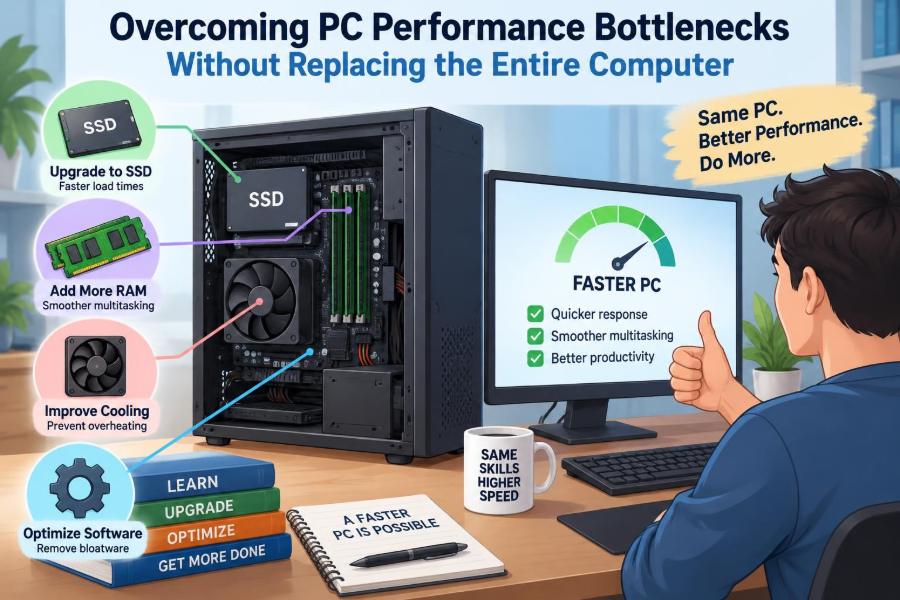

A computer that once felt quick can gradually become frustrating. Programs hesitate to open, browser tabs reload unexpectedly, video calls stutter, or a game runs well until a crowded scene appears.
The usual reaction is to assume that the entire PC is old. Sometimes that is true, but many slow computers have one or two specific parts—or one avoidable software problem—holding everything else back.
Think of a PC as a road network. A fast highway does not help much if every journey must pass through one narrow bridge. Finding that bridge is more useful than replacing every road.
With a little observation and a sensible upgrade plan, students and working professionals can often make a desktop or laptop feel substantially more responsive without buying a completely new machine.
🔎 What a Performance Bottleneck Actually Is
A performance bottleneck is the component, setting, or workload that most limits a task at a particular moment. It does not mean that one part is permanently “bad.” It means that this part cannot keep up with what the rest of the system and the current task demand.
For example, a fast processor cannot make a large application launch instantly if the application is stored on a slow, busy hard drive. Likewise, adding memory may not improve game frame rates when the graphics processor is already fully occupied.
🧩 Performance Depends on the Task
A PC can have different bottlenecks for different jobs. Editing a large spreadsheet, compiling code, joining a video meeting, exporting a video, and playing a modern game stress different resources.
This is why general advice such as “upgrade the CPU” is often incomplete. First identify the task that feels slow, then observe which resource becomes saturated while that task runs.
| Common task | Likely limiting resource | Useful first check |
|---|---|---|
| Slow startup and app launches | Storage drive | Drive type and disk activity |
| Many browser tabs or large documents | Memory | Memory use and paging |
| Game visual slowdowns | Graphics processor or VRAM | GPU use, temperatures, settings |
| Long exports or calculations | CPU, memory, or storage | Per-core CPU activity and RAM use |
| Online meeting glitches | Network, CPU, or background apps | Connection stability and system load |
📊 Start With Evidence, Not a Shopping List
Before changing hardware, reproduce the slow task and open your operating system’s performance monitor. On Windows, Task Manager provides CPU, memory, disk, GPU, and network views. Other operating systems offer comparable monitoring tools.
Watch for a resource that stays near its practical limit while the slowdown occurs. A brief spike is normal. A resource that remains heavily used while the machine becomes unresponsive is a stronger clue.
Record what you see: the application involved, the resource under pressure, and whether the problem happens only on battery power, after waking from sleep, or during certain projects. This avoids upgrading based on guesswork.
🧠 Recognize Memory Pressure
Random-access memory, or RAM, holds programs and working data that the computer needs immediately. When available RAM becomes scarce, the operating system moves less-active data to storage in a process often called paging or swapping.
Storage is far slower than RAM, even when it is a solid-state drive. The visible symptom is often a computer that pauses while switching between applications, reloads browser tabs, or becomes sluggish with several documents open.
➕ Upgrade RAM When It Matches the Symptom
Adding RAM can be one of the most effective upgrades when everyday multitasking is the problem. It helps when the system routinely runs out of memory, not merely because more memory sounds better.
- Check how much RAM is installed and how much is used during normal work.
- Confirm the memory type, supported capacity, and number of available slots.
- Where practical, use matched modules so compatible systems can use dual-channel memory bandwidth.
- For laptops, verify that memory is not soldered or restricted by the manufacturer.
More RAM will not cure a failing drive, a weak graphics processor, or a processor-heavy render. It removes the delay caused by constantly moving data between RAM and storage.
💾 Replace a Mechanical Hard Drive First
If a computer still starts its operating system and applications from a mechanical hard disk drive, replacing it with a solid-state drive is often the clearest everyday improvement. Hard drives use spinning platters and moving heads; SSDs access flash storage electronically.
The difference is especially noticeable during startup, searches, updates, application launches, and opening many small files. An SSD does not make the CPU calculate faster, but it reduces waiting for data.
⚡ Choose the Right Kind of SSD
Many desktops and laptops support either a 2.5-inch SATA SSD or a small M.2 drive. M.2 describes the physical form factor, while NVMe is a common high-speed protocol used by some M.2 drives. Not every M.2 slot supports every type.
A SATA SSD remains a major upgrade over a hard drive. An NVMe SSD can offer higher transfer performance for compatible systems and certain large-file workloads, but it may not transform basic office work as dramatically as the move from hard drive to any SSD.
🗂️ Leave Enough Free Storage Space
A nearly full drive creates practical problems. The operating system needs room for temporary files, updates, virtual memory, and application caches. Creative applications also need working space for previews and exports.
Delete files only after checking what they are, and keep a backup of valuable work. Moving archives, old installers, or completed media projects to external storage can free space without treating the main drive as a disposable folder.
🛡️ Back Up Before Changing Drives
A storage upgrade involves data. Create a verified backup before cloning an existing drive or reinstalling the operating system. A backup is useful only if important files can actually be recovered from it.
Cloning can preserve applications and settings, while a clean installation can remove accumulated software clutter. Neither method is universally better: cloning is convenient, while a clean installation takes more setup but may produce a cleaner starting point.
⚙️ Understand CPU Bottlenecks
The central processing unit, or CPU, performs general-purpose instructions. It affects tasks such as document processing, code compilation, data analysis, decompression, simulation, and many parts of media creation.
A CPU bottleneck may appear when a program takes a long time to calculate even though disk activity is low and sufficient memory is available. It can also appear in games where the graphics card is waiting for the processor to prepare frames.
🧵 Check Per-Core Activity, Not Just the Total
A processor has multiple cores, and applications vary in how well they divide work among them. A total CPU reading may look moderate while one heavily used core limits a program that relies mainly on a single thread.
This matters when comparing upgrades. More cores can help workloads designed for parallel processing, but faster individual cores may matter more for older software, some office tasks, and applications with a serial stage.
🔧 CPU Upgrades Have Platform Limits
Desktop CPU upgrades require compatibility with the motherboard socket, chipset, firmware version, power delivery, and cooling system. A processor that physically fits is not automatically supported.
On most laptops, the CPU is soldered to the motherboard and is not a realistic upgrade. In that case, reducing background load, improving cooling, adding storage or memory where possible, and changing workload settings are more practical options.
🌡️ Heat Can Look Like a Hardware Problem
Processors and graphics chips reduce speed when temperatures become too high, a protective behavior known as thermal throttling. A system may feel fast when cold but slow down after a few minutes of gaming, exporting, or video conferencing.
Dust-clogged vents, failing fans, dried thermal interface material, poor case airflow, and soft surfaces blocking laptop vents can all contribute. Temperature-monitoring software can help identify a pattern, but readings should be interpreted alongside actual behavior.
🧹 Improve Cooling Carefully
Power down and disconnect the computer before cleaning it. Use appropriate methods for electronics, hold fans still if using compressed air, and avoid forcing dust deeper into the case or laptop.
For a desktop, check that intake and exhaust fans create a sensible airflow path. For a laptop, use a hard flat surface during demanding tasks. Disassembling compact laptops or replacing thermal paste can carry a risk of damage, so it is reasonable to seek qualified repair help.
🎮 Identify Graphics Bottlenecks
The graphics processing unit, or GPU, draws images, video effects, and 3D scenes. In games, high resolution, ray tracing, complex shadows, and detailed textures can push the GPU harder than the CPU.
A GPU bottleneck is not necessarily a flaw. In a visually demanding game, it is normal for the graphics card to be very busy. The useful question is whether visual settings can be adjusted to reach an acceptable balance of image quality, smoothness, heat, and noise.
🖼️ Video Memory Has Its Own Limit
Graphics hardware uses video memory, commonly called VRAM, to hold textures, frame buffers, and other graphics data. When a game or application needs more VRAM than is available, it may stutter, lower texture quality, or move data more often.
Reducing texture quality, resolution, or unusually demanding visual features can help. Lowering every setting blindly is less useful than adjusting the options most connected to the actual limit.
🎛️ Tune Software Before Replacing the GPU
For games, begin with the display resolution, render scale, texture quality, shadows, anti-aliasing, and ray-tracing settings. A moderate reduction in a few expensive settings can be less noticeable than a broad reduction in every setting.
For creative software, check whether hardware acceleration is enabled and supported by the application. A driver update may improve compatibility, but install drivers from the hardware vendor or operating-system source rather than from unsolicited “driver updater” utilities.
🔌 Power Settings Can Quietly Restrict Performance
Laptops often use lower-power modes on battery to extend runtime and reduce heat. Desktops may also use power plans that favor efficiency. This behavior is useful, but it can make a system appear slower during demanding work.
Check the active power mode before diagnosing a fault. Use a higher-performance mode when plugged into reliable power and when extra heat and fan noise are acceptable; return to a balanced mode for routine use.
🚀 Reduce Startup and Background Load
A capable computer can still feel slow if many programs launch automatically, synchronize files, scan the system, or place overlays on top of other applications. Each item may be small, but several active tasks compete for memory, CPU time, storage access, and network bandwidth.
Review startup applications and disable items that are not needed immediately. Keep security software and essential device utilities in mind; the goal is to remove unnecessary work, not to disable services at random.
🧽 Separate Software Clutter From Malware
Unused programs, old browser extensions, and redundant utilities can cause slowdowns without being malicious. Removing software you no longer need and reviewing extensions can reduce background activity and simplify troubleshooting.
Unexpected advertisements, browser redirects, unexplained processes, or repeated security warnings deserve more careful attention. Use reputable built-in or established security tools, update the operating system, and avoid downloading cleaners or optimizers that make dramatic promises.
🌐 Do Not Mistake Network Delays for PC Slowness
A web page, cloud document, streaming service, or remote desktop session can feel slow because information is arriving slowly, not because the local PC lacks power. Wi-Fi interference, a weak signal, a busy connection, or a service-side issue can all affect responsiveness.
Compare a local task with an online task. If locally stored applications work normally while websites and video calls struggle, investigate the network connection before buying hardware.
🔄 Keep the Operating System and Drivers Sensible
Operating-system updates can include security fixes, hardware compatibility improvements, and bug corrections. Device drivers allow the operating system to communicate with components such as graphics cards, storage controllers, and wireless adapters.
Update through trusted channels and avoid changing several things at once when troubleshooting. If a problem begins directly after an update, note the timing and consider documented rollback or recovery options rather than assuming that newer is always better for every system.
🧪 Test One Change at a Time
Changing hardware, cleaning software, updating drivers, and altering power settings all at once makes it difficult to know what helped—or what caused a new problem. A deliberate approach is slower initially but faster overall.
- Describe one repeatable slow task.
- Measure the relevant resource use and temperatures.
- Make one reasonable change.
- Repeat the same task under similar conditions.
- Keep the change only if it improves the real problem without creating an unacceptable trade-off.
📏 Use Meaningful Before-and-After Checks
You do not need specialized benchmark software to assess every upgrade. Time how long a familiar application takes to open, how long a project export lasts, or whether a browser remains responsive with your usual set of tabs.
Benchmarks can be helpful for comparing components, but real workflows matter more. A synthetic score may rise while the task that annoys you every morning remains unchanged.
🖥️ Desktop and Laptop Upgrades Are Different
Desktops are usually easier to expand. Storage, memory, graphics cards, cooling, and sometimes CPUs can be replaced separately, provided the case, power supply, and motherboard support the parts.
Laptops trade that flexibility for portability. Some allow SSD or RAM upgrades; others have soldered components. Check the exact model’s service information before buying parts, and remember that opening a device may affect warranty terms in some cases.
🔋 Check the Power Supply Before a Desktop GPU Upgrade
A stronger desktop graphics card may require more electrical power and additional power connectors. The power supply must provide sufficient capacity and have the correct connectors, while the case must have adequate physical clearance and airflow.
Using adapters or a low-quality power supply without understanding the electrical requirements can create instability. This is one area where compatibility information should be checked carefully rather than estimated from appearance.
🧱 Avoid the Weakest-Link Upgrade Trap
It is possible to overspend on one component that another part cannot support effectively. For example, a powerful graphics card paired with a constrained power supply, limited CPU performance in a chosen game, or a low-refresh display may not deliver the expected experience.
That does not mean components must be perfectly matched. It means the upgrade should solve a defined problem and fit the system around it.
💰 Spend Where the Waiting Happens
A practical budget follows the bottleneck. For a computer with a hard drive and enough CPU power for office work, an SSD is usually more relevant than a high-end graphics card. For a designer hitting memory limits with large files, RAM may matter before a processor replacement.
Include supporting costs: adapters, a backup drive, cooling, a power supply, tools, or professional installation. The cheapest component is not always the lowest-cost solution if it requires several overlooked changes.
⚠️ Common Fixes That Often Miss the Cause
Several popular “speed-up” habits are unreliable or counterproductive. Registry cleaners can remove entries without addressing the bottleneck, while aggressive task-killing can disrupt useful services.
- Do not buy RAM solely because a game has low frame rates.
- Do not defragment an SSD; its maintenance needs differ from a mechanical drive.
- Do not assume high CPU temperature is dangerous without checking the processor’s documented behavior and cooling condition.
- Do not install multiple security tools that compete for the same system resources.
- Do not trust vague optimization software that cannot explain what it changes.
🛠️ Know When Repair Is Better Than Upgrade
Some performance problems are signs of a fault: a drive reporting errors, a fan that no longer spins, abrupt shutdowns, repeated crashes, or swollen laptop batteries. Adding faster components will not solve failing hardware.
Back up data promptly if storage reliability is in doubt. A diagnostic check or repair assessment can be more valuable than an upgrade when the system is unstable.
🚧 Know When a Full Replacement Is Reasonable
Targeted upgrades have limits. A full replacement becomes sensible when a computer cannot run required software reliably, lacks security support for its operating system, has multiple failing components, or would need several expensive platform changes at once.
Compatibility also matters. An old motherboard may not support newer CPUs, modern storage interfaces, or the memory capacity a workload now requires. In those cases, continuing to patch the system can cost more effort than it saves.
🧭 Build a Simple Upgrade Priority Plan
For many general-purpose computers, a useful order is: solve storage problems first, address insufficient RAM next, remove unnecessary software load, correct cooling or power restrictions, then consider CPU or GPU upgrades based on the workload.
This is not a universal ranking. A gaming PC with an adequate SSD and memory may benefit most from graphics settings or a GPU upgrade, while a coding workstation may benefit from CPU cores, RAM, and fast project storage.
✅ The Core Principle: Diagnose, Then Upgrade
The most valuable lesson is not a particular part number. It is the habit of matching a symptom to evidence. A computer is a system, so responsiveness depends on the slowest resource involved in a specific task.
Measure the workload, rule out avoidable software and thermal issues, confirm compatibility, protect your data, and make the smallest change likely to remove the limitation. That approach reduces waste and gives each upgrade a clear purpose.
You do not need a new computer every time performance drops; you need to identify what is making your particular work wait. A focused repair, setting change, or component upgrade can often extend a PC’s useful life with far less disruption. 🖥️⚙️🔍