
Your laptop starts the day well enough. Then you open a browser with several tabs, join a video call, edit a document, and switch back to a spreadsheet. Suddenly, everything feels delayed: windows hesitate, the cursor stutters, and the fan gets louder.
It is tempting to point at RAM and conclude that more memory is the obvious cure. After all, product pages, upgrade guides, and casual advice often frame RAM as a direct route to a faster computer.
Sometimes that advice is exactly right. A PC that repeatedly runs out of memory can feel dramatically better after an upgrade. But a machine with plenty of unused RAM may remain slow for entirely different reasons.
Understanding the difference helps you spend money where it will matter, diagnose slowdowns more calmly, and choose a computer that fits the work you actually do.
🧠 What RAM Actually Does
RAM, or random-access memory, is the computer’s short-term working area. Programs place the data and instructions they actively need there because the processor can access RAM far faster than it can retrieve the same information from long-term storage.
Think of RAM as desk space. A larger desk lets you keep more books, notes, and tools within reach. It does not make you read faster, but it reduces the time spent putting items away and fetching them again.
When you launch an application, open a file, or load a web page, some of that information is placed in RAM. The operating system also uses available RAM to keep useful data ready for future use.
⚙️ Why RAM Is Not the PC’s Speedometer
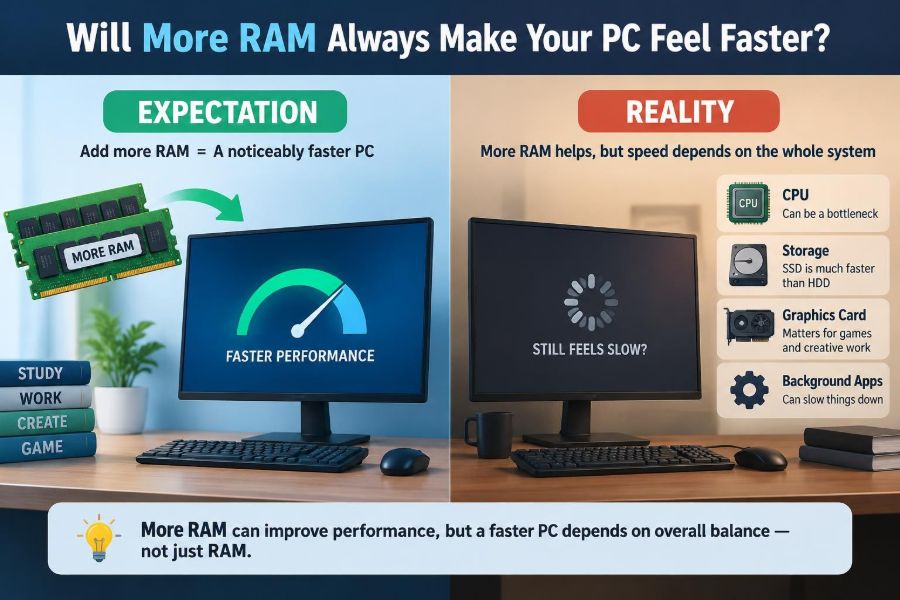
Computer performance has several possible limits. The processor handles calculations and instructions, the graphics processor handles many visual workloads, storage delivers files, and the network supplies online data. RAM is only one part of that system.
Adding capacity removes a memory bottleneck when memory is the part holding the system back. If another component is the bottleneck, extra RAM may change very little. A larger desk does not help if the task is waiting for a slow printer.
This is why two computers with the same amount of RAM can feel completely different in everyday use.
📦 Capacity Versus Memory Speed
RAM has both capacity and performance characteristics. Capacity is measured in gigabytes (GB), while speed involves data transfer rate, timing, and the way memory is configured. These are related but not interchangeable.
Moving from too little RAM to enough RAM often produces a larger real-world improvement than buying marginally faster memory. Once capacity is sufficient, however, memory speed and configuration can affect particular workloads, especially integrated graphics and some processor-heavy tasks.
Do not assume that a higher number on a memory package automatically means a noticeably quicker PC. Compatibility and the workload matter.
🚧 What Happens When RAM Fills Up
When active programs need more memory than physical RAM can provide, the operating system must make room. It moves less-active information out of RAM and later brings it back when required.
This process is commonly called paging or swapping. Modern operating systems manage it automatically, so it is not inherently a sign that something is wrong. Trouble begins when it happens repeatedly during active work.
A computer may then pause while it moves data between RAM and storage. Switching applications, returning to an old browser tab, or opening a large file can feel much slower than expected.
💾 Why Storage Still Matters During Paging
Page files and swap files live on storage. A solid-state drive (SSD) handles this work much better than an older mechanical hard disk because an SSD can access small pieces of data quickly without waiting for a spinning disk.
Even a fast SSD is far slower than RAM for active memory access. Therefore, an SSD can soften the consequences of limited memory, but it does not replace having enough RAM.
A PC with a hard disk, limited RAM, and many active programs can feel especially unresponsive because both the memory limit and storage delay appear at once.
🔎 Signs That Your PC Is Actually RAM-Limited
Symptoms can suggest a memory shortage, but no single symptom proves it. The useful clue is a pattern: the PC slows after more applications or tabs are opened, then becomes more responsive after you close them.
- Switching between open applications causes long pauses.
- Browser tabs reload after you return to them.
- Storage activity becomes intense while the system is otherwise not doing much.
- Programs report low-memory warnings or close unexpectedly.
- Performance improves immediately when you reduce the number of active tasks.
These signs are reasons to investigate, not a reason to buy memory blindly.
📊 How to Check Memory Use Properly
Use your operating system’s built-in performance monitor while doing the tasks that feel slow. On Windows, Task Manager can show memory use, active processes, and storage activity. macOS users can inspect Memory Pressure in Activity Monitor. Many Linux desktop environments offer similar system monitors.
Look at the system during the slowdown, not only when it is idle. A computer using a large share of its RAM is not automatically in trouble; operating systems intentionally use spare memory for caching. What matters is whether memory pressure is high and whether the system is actively paging.
Also identify the application using memory. One browser extension, virtual machine, game, or editing project may explain the behavior better than the total number alone.
🗂️ The Operating System Likes Unused RAM
A common misconception is that RAM should remain mostly empty. In practice, empty RAM is an opportunity the operating system can use to cache recently accessed programs and files.
Cached data can be discarded when another program needs space. This means high reported memory use can be normal, especially after the computer has been running for a while.
The better question is not “Is my RAM full?” but “Is memory pressure forcing the computer to constantly move active data to storage?” That distinction prevents many unnecessary upgrades.
🌐 Browsers Make the Question More Complicated
Modern browsers can use substantial memory because each tab, extension, media element, and web application may keep data ready for quick interaction. A few simple text pages and a collection of online documents, dashboards, video streams, and development tools are very different workloads.
Browsers also deliberately suspend or discard background tabs in some situations. If a tab refreshes when you revisit it, that can indicate memory management, but it may also be normal browser behavior designed to reduce resource use.
Before upgrading, inspect extensions and unusually heavy tabs. Closing a problematic page can be more useful than treating every browser slowdown as a hardware failure.
🎓 Everyday Workloads Have Different Needs
Writing documents, managing email, watching video, and browsing modestly are generally lighter memory tasks than professional media creation or software development. Still, individual habits change the picture.
| Workload pattern | When additional RAM may help | Other likely limits |
|---|---|---|
| Office work and light browsing | Many simultaneous apps or a very low-memory system | Slow storage, background tasks |
| Many browser tabs and meetings | Tabs reload, app switching pauses, memory pressure rises | Network quality, processor load |
| Photo and video editing | Large projects, high-resolution assets, multitasking | Processor, graphics hardware, fast storage |
| Programming and virtual machines | Several tools, containers, or virtual systems run together | Processor cores, storage capacity |
| Gaming | Game requirements exceed available memory or multitasking is heavy | Graphics processor, processor, game settings |
Use this as a starting point, not a universal sizing chart. Software changes, and two people doing the same kind of work may use very different applications.
🎮 Gaming: More RAM Has Limits
Games need system RAM, but they also depend heavily on the graphics processor (GPU), video memory, processor capability, game engine, display resolution, and settings. If the GPU is already struggling to render each frame, extra system RAM is unlikely to transform frame rates.
An upgrade can help when a game and background applications exceed available memory, causing stutters, loading delays, or instability. It can also help a computer using integrated graphics, because integrated graphics borrow part of system RAM.
Check the game’s requirements and observe which resource is saturated. Lowering a graphics setting may solve a GPU limit that a RAM upgrade cannot touch.
🎨 Creative Projects Can Grow Quickly
Photo editors, audio workstations, 3D tools, and video editors may hold previews, undo history, source media, effects, and project data in memory. Large files and high-resolution timelines can make a formerly adequate computer feel constrained.
More RAM can make these applications smoother by allowing larger projects and more concurrent assets. Yet rendering, exporting, and applying certain effects may remain processor- or GPU-bound.
Fast storage is especially valuable here because creative applications frequently read and write large files, caches, and temporary project data.
🧪 Virtual Machines Are a Clear Memory Case
A virtual machine is a software-created computer running inside your real computer. It is assigned part of the host system’s RAM, so its memory needs are easier to see than many everyday workloads.
For example, running a virtual machine for testing while keeping a browser, editor, and communication tools open can consume memory quickly. The host and the guest operating system both need enough working space.
In this situation, additional RAM often has a direct benefit. It allows the virtual machine to operate without squeezing the host system into excessive paging.
🧮 Integrated Graphics Share System Memory
Many laptops and budget desktops use integrated graphics built into the processor rather than a separate graphics card. These graphics systems share main system memory.
That arrangement makes RAM configuration more influential than it would be in a system with dedicated graphics memory. More capacity can leave more room for applications, while faster or dual-channel memory may improve graphics performance in some systems.
Results vary by hardware design and task. Check the manufacturer’s specifications before assuming that any RAM kit will run at its advertised speed or deliver the same benefit.
🔗 Dual-Channel Memory Can Matter
Many computers can access memory through more than one channel. A matched pair of compatible memory modules can enable dual-channel operation, increasing available memory bandwidth compared with a similar single-module setup.
This does not double general PC speed. The practical gain depends on whether the workload needs more memory bandwidth. Integrated graphics are often a notable example because they rely on shared system memory.
Mixing modules can work, but the computer may run them at a common supported speed or in a less optimal mode. When possible, follow the system documentation and use compatible modules.
🧱 The Processor Can Be the Real Limit
If a program is using most of the processor’s capacity, adding RAM will not make its calculations complete faster. This often appears during software compilation, file compression, code analysis, rendering, or a demanding background task.
Older processors can also struggle with modern web applications, encryption, video calls, and multitasking even when memory is plentiful. A performance monitor can reveal sustained high processor use during the slowdown.
In that case, closing unnecessary tasks, adjusting application settings, or moving to a newer system may make a larger difference than a memory upgrade.
🎞️ The GPU Can Be the Real Limit
Visual workloads may be limited by the GPU. Games, 3D modelling, video effects, and high-resolution displays can demand more graphics processing or video memory than the system has available.
Typical clues include low frame rates, graphics-quality settings that must be reduced, or a GPU that remains heavily loaded while system memory has room left. More system RAM may help only if memory shortage is also present.
Dedicated graphics memory and normal RAM are not identical resources. A graphics card’s video memory stores data needed close to the GPU, while system RAM serves the wider computer.
🚀 Slow Storage Can Make Everything Feel Slow
A nearly full or aging hard drive can make booting, launching applications, searching files, and installing updates feel sluggish regardless of RAM capacity. An SSD upgrade is often more noticeable than extra RAM on a computer still using a mechanical drive.
Storage issues can also come from insufficient free space, failing hardware, or a background process continuously reading and writing data. These problems deserve attention before assuming the computer needs more memory.
Back up important files if storage behavior becomes unusual, especially if there are errors, repeated freezes, or warnings about drive health.
📡 Network Delays Cannot Be Fixed With Memory
A video meeting that freezes because of a weak connection, a cloud document that takes time to synchronize, or a web page waiting on a remote server can look like a slow PC. In reality, the computer may be waiting for data to arrive.
RAM can help the browser keep more work available locally, but it cannot increase internet bandwidth or reduce delays caused by a distant service. Compare offline tasks with online ones when troubleshooting.
If local programs respond quickly while web-based tools hesitate, investigate Wi-Fi strength, network congestion, VPN behavior, and the service itself.
🦠 Background Software Can Consume Resources
Startup utilities, cloud sync clients, update services, browser extensions, and security scans can compete for memory, processor time, storage access, or network bandwidth. A new slowdown may be caused by software that was not previously running.
Review startup applications and remove only software you recognize and do not need. Do not disable security tools or system services at random; that can create reliability or safety problems.
A clean restart and a check of active processes can help separate a temporary background workload from a genuine hardware limitation.
🧹 Freeing RAM Is Usually a Temporary Fix
Closing unused applications and restarting a computer can restore responsiveness when memory is under pressure. Those are sensible immediate actions, particularly before a meeting or deadline.
However, so-called memory cleaner utilities often provide little lasting value. They may force useful cached data out of RAM, causing the operating system to retrieve it again later. A full-looking memory meter is not automatically a problem to clean.
Focus on the application creating pressure, a persistent memory leak, or insufficient capacity for your normal workload rather than trying to keep RAM artificially empty.
🐛 Memory Leaks Need a Different Response
A memory leak occurs when software keeps reserving memory it no longer needs and fails to release it. Memory use may climb steadily over hours or days, eventually slowing the system or causing instability.
More RAM can delay the symptom, but it does not repair the underlying software behavior. Updating the application, disabling a faulty extension, restarting the affected program, or reporting the issue may be more appropriate.
Watch for a specific process whose memory use keeps increasing without a matching increase in meaningful work.
🛠️ Check Upgrade Compatibility First
Not every computer can be upgraded. Some thin laptops have soldered memory, meaning the RAM is permanently attached to the motherboard. Others provide one or more slots, but support only particular memory generations, capacities, and configurations.
Before purchasing, verify the model documentation, installed memory type, number of accessible slots, maximum supported capacity, and whether opening the device affects warranty coverage or requires special care.
- Use the correct memory generation, such as the type specified for your system.
- Confirm the physical module format: desktop and laptop modules differ.
- Check supported capacity and configuration guidance.
- Back up essential work before opening hardware.
- If unsure, ask a qualified technician rather than forcing a module into place.
💰 Avoid Buying RAM for the Wrong Reason
More RAM is a good purchase when evidence points to frequent memory pressure during the work you care about. It is a poor purchase when the computer is slow because of an aging processor, inadequate GPU, failing drive, overloaded browser extension, or weak network.
It may also be poor value when the system already has sufficient memory but cannot be upgraded meaningfully in other areas. In some older computers, saving toward a replacement provides better long-term results.
The goal is not to maximize a specification. It is to remove the limit that affects your experience.
🧭 A Simple Troubleshooting Order
Use a repeatable sequence instead of guessing. First, reproduce the slow task. Then observe resource use while it occurs: memory, processor, storage, GPU, and network activity.
- Close obvious unnecessary programs and test again.
- Check whether one application, tab, extension, or background process dominates resources.
- Confirm adequate free storage space and look for storage errors.
- Update relevant software when a known bug or compatibility issue is plausible.
- Upgrade RAM only when the evidence shows recurring memory pressure in normal use.
This approach does not require expert-level knowledge. It simply connects an observed problem to the component most likely to cause it.
📈 When an Upgrade Will Feel Dramatic
The clearest gains occur when your current memory capacity is below the demands of your routine. Consider a hypothetical student with a low-memory laptop running a video call, many research tabs, a PDF editor, and notes at once. If the system begins paging constantly, extra RAM can make switching among those tasks feel far more immediate.
The same upgrade may be modest for someone who opens a few tabs, writes documents, and mostly works in one application at a time. Their computer may already have enough usable desk space.
Expectation should follow the bottleneck, not the size of the upgrade.
⚖️ When the Difference May Be Hard to Notice
If your current memory is rarely under pressure, doubling it does not make routine tasks inherently execute twice as fast. Applications still wait on the processor, storage, GPU, or internet when those are the limiting factors.
You may notice indirect benefits, such as more applications remaining open without reloading. But boot time, a slow website, a processor-heavy export, or a game limited by graphics performance may barely change.
This is not a failed upgrade; it means the computer was constrained elsewhere.
🔮 Plan Capacity Around Your Next Few Years
When buying a new computer, choose memory for the software and multitasking you expect to use during its useful life, not only the lightest task you can do today. Software updates, larger files, and changing work habits can raise memory demands over time.
Upgradeable memory provides flexibility, while soldered memory makes the original choice more consequential. For a professional workflow involving virtual machines, large creative projects, or extensive multitasking, leave sensible headroom.
There is no single best amount for everyone. A realistic workload forecast is more useful than copying someone else’s specification.
✅ The Core Principle: Remove the Actual Bottleneck
RAM is essential because it keeps active work close to the processor. Too little of it can turn a capable computer into a frustrating one, particularly during multitasking and memory-heavy work.
But more RAM is not a universal accelerator. A fast, responsive PC depends on a balanced combination of enough memory, a capable processor and GPU, healthy storage, efficient software, and a reliable network where online work is involved.
Measure the slowdown, identify the constraint, and then make the change that addresses that constraint. That is the difference between a useful upgrade and an expensive assumption.
More RAM makes a PC feel faster when limited memory is the problem; when it is not, the smarter fix lies elsewhere. 🧠💻⚙️