
A student may see two laptops that look almost identical on a store shelf, yet one costs far more than the other. A small business may buy desktop computers that seem modest on paper but run reliably for years. Meanwhile, a gaming tower may contain parts that would be unnecessary—and expensive—in an office machine.
Those differences are not usually accidental. Before a computer reaches a shop, its manufacturer has made a chain of decisions about processor speed, memory capacity, storage type, cooling, battery life, cost, and expected workload.
Understanding that chain helps people read specifications more intelligently. It also explains why the “best” CPU, RAM amount, or drive is not the same for every computer.
A computer is a system of trade-offs. Manufacturers choose components that make sense together for a particular job, price range, size, and audience.
🧩 A Computer Is Designed as a Complete System
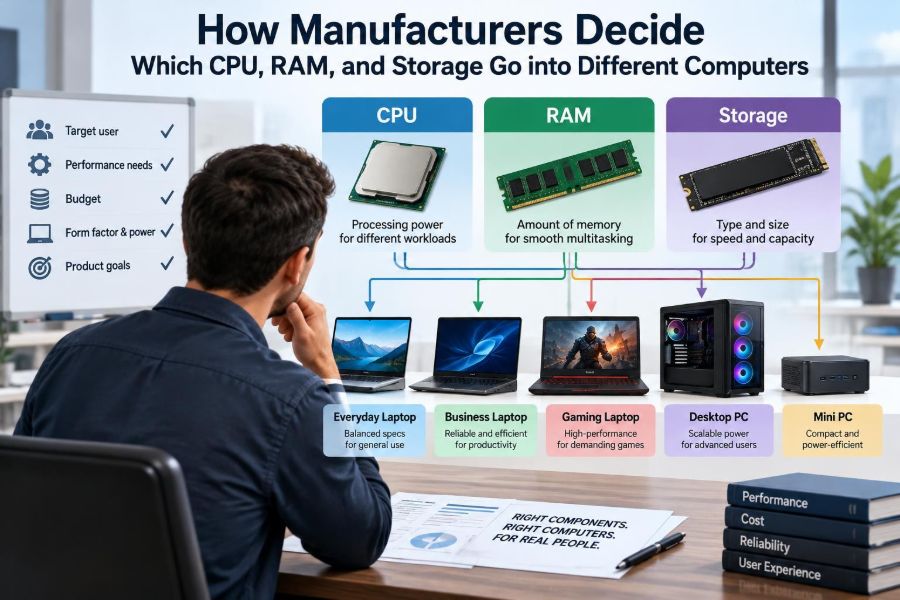
Manufacturers do not normally choose a CPU, RAM, and storage drive as isolated items. They design around a product target: for example, a low-cost school laptop, a quiet office desktop, a portable creative workstation, or a high-performance gaming machine.
Each target sets limits. A thin laptop has little room for cooling and a battery that must last through the day; a desktop tower has more space, power, and airflow. The same processor can therefore be appropriate in one design and unsuitable in another.
🎯 The First Question: What Is This Computer For?
The starting point is the intended workload. Manufacturers estimate the programs, files, and habits a typical buyer will have, then select hardware that handles those needs without adding needless cost.
A basic web-and-documents computer needs responsive everyday performance. A machine for video editing needs more processing capacity, memory, and fast storage because it works with large media files. A server may prioritize reliability and expansion rather than a thin case or long battery life.
- Entry-level systems target browsing, email, streaming, and documents.
- Mainstream systems target multitasking, schoolwork, office applications, and light creative work.
- Performance systems target demanding games, engineering software, programming workloads, or media production.
👥 The Intended Buyer Shapes Every Specification
“User” is not a single category. A manufacturer may create separate models for students, families, remote workers, designers, gamers, and organizations managing hundreds of devices.
A student model may favor a durable case, sensible memory, and low weight. A business model may include security features, a better keyboard, easier repair access, and support for docking stations. These choices can matter as much as a benchmark score.
💰 Price Tiers Set a Realistic Component Budget
Every product has a target selling price. From that price, the manufacturer must cover components, assembly, testing, packaging, shipping, software licensing where applicable, warranty support, retailer margins, and its own operating costs.
This is why a lower-priced computer may use a less powerful CPU, smaller solid-state drive, or less upgradeable memory. It is not always a sign of carelessness; it may be the only way to meet a particular price point while retaining an acceptable display, battery, and build quality.
⚙️ Choosing the CPU: More Than a Speed Number
The central processing unit, or CPU, executes instructions for applications and the operating system. Manufacturers compare CPU families by performance, power use, heat output, integrated graphics capability, available features, and supply cost.
Clock speed alone is an incomplete guide. CPUs differ in architecture, number of cores, cache memory, and how long they can sustain high speeds. A newer efficient processor can feel quicker in normal tasks than an older chip with a higher quoted clock speed.
🧠 Cores, Threads, and the Type of Work
A core is an independent processing unit inside a CPU. More cores can help when software divides work into parallel tasks, such as rendering video, compiling large software projects, or running several heavy applications at once.
However, many everyday tasks still depend heavily on quick performance from one or a few cores. Manufacturers balance core count against price, battery use, and cooling. Adding more cores does not automatically make every task equally faster.
🔋 Power Limits Matter in Laptops
Laptop CPUs operate within carefully managed power limits. When a task becomes demanding, the chip may briefly use more power to finish quickly, then reduce speed to control heat and preserve battery life.
Two laptops with the same CPU name can therefore perform differently. A larger model with strong cooling may sustain demanding work longer than a very thin model, even though their advertised processor is identical.
🌡️ Cooling Determines Sustainable Performance
Heat is a design constraint, not a minor afterthought. Fans, heat pipes, vents, metal chassis surfaces, and internal spacing affect how much heat a computer can move away from its components.
When temperatures rise too high, the system lowers operating speed, a process often called thermal throttling. Manufacturers must decide whether a product should be slim and quiet, powerful under long workloads, or somewhere between those goals.
🎮 Integrated Graphics Can Change the CPU Choice
Many CPUs include integrated graphics, which handle the display and basic visual tasks without a separate graphics card. This approach saves space, energy, and cost, making it common in everyday laptops and office desktops.
For 3D gaming, advanced design work, or some professional computing tasks, manufacturers may add a dedicated graphics processor. That decision influences the entire design: it requires more power, cooling, circuit-board space, and often a larger charger.
🧮 RAM Is the Computer’s Active Workspace
Random-access memory, or RAM, holds the data and program instructions the computer is actively using. A useful analogy is a desk: a larger desk lets you keep more books and papers open without constantly putting them away and retrieving them.
RAM is not long-term storage. Its contents are normally lost when power is removed, while files remain on a storage drive. Manufacturers select enough RAM for the computer’s expected workload and operating system.
📚 How Manufacturers Estimate RAM Needs
They consider common usage patterns rather than just one open application. A typical person might have a browser with many tabs, a video call, a document editor, messaging software, cloud synchronization, and background security tools running together.
Systems aimed at light use can work with less memory, but a modest amount may become restrictive as applications and browsing habits grow. Models intended for creative projects, virtual machines, large spreadsheets, or software development are commonly configured with more RAM to avoid frequent slowdowns.
🔄 What Happens When RAM Is Insufficient
If active programs need more memory than the machine has available, the operating system moves some data temporarily to storage. This is often called swapping or paging. It allows work to continue, but storage is much slower than RAM.
On a modern solid-state drive, the result may be a noticeable pause rather than a complete stop. On an older hard disk drive, it can make multitasking feel severely sluggish. Manufacturers try to avoid this experience in the uses their product is meant to serve.
🧷 Soldered RAM Versus Upgradeable Modules
Some computers use memory modules that can be removed and replaced. Others have RAM soldered directly to the main circuit board. Soldered memory can help make a device thinner, reduce internal complexity, and sometimes improve power efficiency.
The drawback is clear: the buyer may be unable to increase memory later. A manufacturer choosing soldered RAM must predict future needs more carefully, while buyers should consider whether the original configuration will remain adequate for the device’s expected lifetime.
📐 Memory Speed and Channels Also Matter
RAM capacity is usually the first practical concern, but speed and configuration matter too. Memory bandwidth describes how quickly data can move between RAM and the processor.
Using multiple memory channels can increase bandwidth, especially for integrated graphics that share system memory. Still, manufacturers may limit configurations in lower-cost models because the motherboard layout, available components, and product price all impose constraints.
💾 Storage Is Chosen for Capacity, Speed, and Form Factor
Storage keeps the operating system, programs, and personal files when the computer is off. Manufacturers choose among storage technologies according to performance, capacity, physical size, energy use, reliability characteristics, and cost.
For most new personal computers, solid-state drives are standard because they are fast, compact, and have no spinning mechanical parts. Yet the capacity selected can vary greatly because large drives add cost.
🚀 Why Solid-State Drives Feel So Responsive
An SSD stores data in flash memory and can access many files quickly. It improves startup times, application launches, updates, and the general feeling of responsiveness compared with a traditional hard disk drive.
Not all SSDs perform identically. Connection type, controller design, flash type, available free space, and workload can affect results. A manufacturer may use different SSD models within a product line while aiming to meet a stated capacity and performance class.
🗄️ Hard Drives Still Have a Place
A hard disk drive, or HDD, stores data on spinning magnetic disks. It is slower and more vulnerable to physical shock than an SSD, but it can provide large capacity economically in certain desktop systems and external storage products.
Manufacturers may use an HDD where bulk file storage matters more than speed. In a hypothetical home media desktop, a smaller SSD could hold the operating system while a larger HDD stores video archives and backups.
📦 Capacity Depends on Expected File Growth
Storage requirements are shaped by the kind of files a user creates and keeps. Documents consume little space; high-resolution photos, game installations, raw camera footage, engineering projects, and local media collections can consume much more.
A manufacturer cannot make every model include maximum capacity. Instead, it may offer several configurations, or provide expansion through additional internal slots, memory-card readers, external drives, or cloud storage services. Each option has different cost and convenience trade-offs.
🔌 Motherboard Compatibility Sets the Boundaries
The motherboard connects the CPU, memory, storage, graphics, ports, and power system. Its chipset and physical layout determine what kinds of components can be installed and what features are available.
A CPU must match the board’s socket or soldered platform. RAM must use a supported generation and form factor. Storage needs compatible connectors, such as an M.2 slot for many compact SSDs or SATA ports for certain drives. Component selection is therefore a compatibility puzzle.
🔧 Upgrade Paths Are a Deliberate Product Decision
Some desktop manufacturers provide extra drive bays, memory slots, and power capacity for future upgrades. This appeals to buyers who want to extend a computer’s useful life or adapt it to changing needs.
Compact desktops and laptops often offer fewer options. Limited space can make a device portable and attractive, but it can also mean that storage is the only replaceable internal part—or that no major component is user-upgradeable. Neither approach is universally better; the intended use decides the value.
🔌 Battery Life and Charger Size Influence Hardware
For portable computers, power consumption is central. A faster CPU, brighter display, more powerful graphics chip, and high-performance storage can all increase demand on the battery.
Manufacturers balance performance with expected unplugged use. They may select efficient processors, tune operating modes, fit a larger battery where the chassis allows, or reduce sustained performance to prevent rapid battery drain. A heavy charger can also undermine the benefit of a lightweight laptop.
🏭 Supply Chains Affect Which Parts Are Available
Computer makers plan products months before sale. They negotiate component supplies, test alternative parts, and try to avoid building a design around a component that may be difficult to obtain in sufficient quantity.
Availability can lead to substitutions, especially for SSDs, wireless chips, or memory suppliers. Responsible manufacturers validate these alternatives so the finished system continues to meet its advertised capabilities, though detailed performance characteristics can sometimes vary between production batches.
🧪 Testing Prevents Bad Combinations
Before release, manufacturers test hardware combinations with operating systems, drivers, common applications, wireless networks, accessories, and different workloads. The goal is not merely to make a computer turn on; it is to identify instability, excessive heat, poor battery behavior, and compatibility problems.
Testing also helps set firmware rules for fan behavior, charging, processor power limits, and memory operation. A component that is excellent in isolation can behave poorly in a particular enclosure if the surrounding design is not validated.
🛡️ Reliability, Warranty, and Business Requirements
Organizations often value predictable behavior over the highest possible specification. A fleet of office computers may need standardized parts, long driver support, remote management, security features, and configurations that can be repaired consistently.
Manufacturers serving this market may favor components with stable availability and proven compatibility. Consumer models may change more frequently, while business lines often emphasize controlled configurations and support arrangements.
♿ Accessibility and Everyday Comfort Also Count
Hardware decisions affect more than raw performance. A responsive system can reduce frustration for people using assistive software, speech recognition, magnification tools, or several input devices at once.
Likewise, a quiet fan, quick wake-from-sleep behavior, adequate ports, and enough storage for offline files may improve daily usability more than a small increase in processor benchmark results. Good product design considers these practical experiences.
⚖️ Why One Specification Cannot Tell the Whole Story
A listing that says “fast CPU,” “16 GB RAM,” or “1 TB SSD” provides useful clues, but not the full picture. The cooling system, screen resolution, graphics setup, battery, storage speed, upgrade options, and software configuration all influence the final experience.
For example, two computers with equal RAM capacity may differ because one has faster memory, better cooling, a larger SSD, or a processor allowed to use more power. Compare the complete model and its intended role, not a single number.
| Computer type | Typical priority | Likely component balance |
|---|---|---|
| Basic laptop | Low cost and portability | Efficient CPU, adequate RAM, modest SSD |
| Office desktop | Reliability and multitasking | Balanced CPU, practical RAM, SSD, useful ports |
| Creative workstation | Large projects and sustained work | Powerful CPU, higher RAM, fast spacious SSD, often dedicated graphics |
| Gaming computer | Graphics performance and cooling | Balanced CPU, capable GPU, sufficient RAM, fast SSD |
🛍️ Reading a Product Configuration Carefully
When comparing computers, start with your actual tasks. Then examine whether the specifications support those tasks for the period you expect to own the device.
- Check the exact CPU model, not only the brand name.
- Confirm RAM capacity and whether it can be upgraded.
- Identify storage capacity and whether an extra slot is available.
- Consider cooling, battery, ports, display, and graphics where relevant.
- Look for the manufacturer’s documentation on serviceability and supported configurations.
A computer that is slightly less impressive in one category may be the better choice if it fits your work, budget, and upgrade expectations.
🚫 Common Mistakes When Judging Hardware
One mistake is buying only by the largest headline number. More storage is useful, but not if the computer lacks enough RAM for your applications. A powerful CPU may also offer little benefit if your main work is writing documents and joining video calls.
Another mistake is assuming a model name guarantees a particular configuration. Manufacturers often sell several versions under one family name. Check the exact RAM, drive size, display, graphics, and port selection of the unit being considered.
🔮 Planning for Future Needs Without Overbuying
It is sensible to allow room for change: more browser tabs, larger files, new software versions, or a new hobby. This is particularly valuable when RAM cannot be upgraded or when the computer has only one storage slot.
But future-proofing has limits. Paying for specialized high-end hardware that will remain unused may reduce money available for features that improve daily work, such as a better display, longer warranty, larger battery, or comfortable keyboard. Choose flexibility where it addresses a realistic need.
🏁 The Core Principle: Fit the Hardware to the Job
Manufacturers decide on CPU, RAM, and storage by balancing workload, cost, physical design, power, heat, availability, reliability, and product positioning. The components must operate together within the limits of a real machine, not merely look impressive in a specification list.
That is why there is no universally ideal configuration. The right computer is the one whose hardware supports the tasks you actually perform, with sensible room for growth and without forcing you to pay for capacity or performance you will not use.
The most useful specification is not the biggest number—it is the combination of components that matches the computer’s purpose and your own. Once you view computers as designed systems rather than lists of parts, product choices become much easier to understand. 🖥️⚙️💡