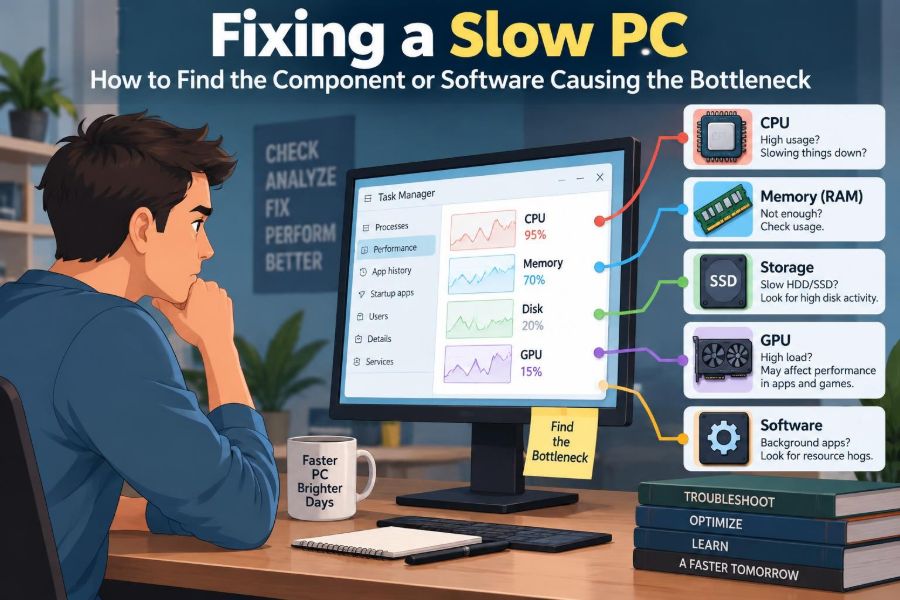

Your PC may feel slow in a very specific way: a browser takes ages to open, a game stutters whenever an effect appears, a video call freezes when you share your screen, or saving a large file brings everything else to a halt.
It is tempting to call the whole computer “slow” and start buying upgrades. That approach often wastes money. A computer is a chain of parts and programs, and the slowest active part of that chain can limit the experience.
Finding that limit is called diagnosing a bottleneck. The goal is not to make every graph look low; it is to identify what is saturated, delayed, failing, or competing for resources during the task that feels slow.
With a repeatable method, you can distinguish a temporary software problem from a genuine hardware limit—and make a fix that matches the real cause.
🔎 What a PC Bottleneck Actually Means
A bottleneck occurs when one resource cannot keep up with the work demanded of it. Other components may then wait idle, much like cars waiting behind a single blocked lane.
The limiting resource changes with the job. A spreadsheet with complex formulas may be limited by the processor, while opening a large project may be limited by storage. A gaming PC can be graphics-limited in one game and processor-limited in another.
A bottleneck is therefore not a permanent label attached to a component. It is a relationship between a specific workload, its settings, and the computer running it.
🎯 Start With One Reproducible Symptom
Do not diagnose “the PC is slow” as one broad complaint. Describe when the problem appears and repeat the same action several times. For example: “The system pauses for ten seconds after waking,” or “Frames drop when entering crowded areas in this game.”
Notice whether the issue affects the whole system or one application. A single sluggish browser tab points toward a different investigation than a mouse cursor that freezes across the entire desktop.
- Record the program and task involved.
- Note whether the issue began after an update, new device, or new software.
- Observe whether it happens on battery power, mains power, or both.
- Write down any error messages, unusual fan noise, or drive activity.
A repeatable symptom gives you something meaningful to measure after each change.
🧭 Establish a Baseline Before Changing Anything
Restart the PC, then allow it a few minutes to finish normal startup work. Test the troublesome task before opening many unrelated programs. This baseline separates the original issue from the clutter that can build up during a long session.
If possible, compare a simple task with the demanding one. A machine that handles web browsing smoothly but struggles only with video editing is not equally slow at everything; its limitation is likely workload-specific.
Also check free storage space, installed updates, and whether the system is connected to its usual power source. These basic conditions influence later observations.
📊 Use Task Manager as Your First Dashboard
On Windows, Task Manager is a practical starting point. Press Ctrl + Shift + Esc, then inspect the Processes and Performance views while reproducing the slowdown. Resource Monitor can provide more detail when Task Manager is not enough.
On macOS, Activity Monitor serves a similar role. Linux users can use graphical system monitors or terminal tools such as top or htop. The exact interface differs, but the principle is the same: observe resource use while the problem is happening.
A high reading by itself is not proof. The timing matters. If CPU use rises exactly when the program stalls, that observation is more useful than an idle reading taken afterward.
📈 Read Utilization Without Chasing Perfect Numbers
Utilization shows how busy a resource is. Sustained near-maximum use during a slow task is a strong clue, but it must be interpreted in context. A brief spike while opening an application can be normal.
| Observation during the slow task | Likely direction to investigate |
|---|---|
| CPU remains very busy | Processor load, background tasks, heat, or software efficiency |
| Memory nearly full and disk activity rises | RAM pressure and paging |
| Disk stays busy with high response time | Storage speed, health, free space, or competing I/O |
| GPU is fully loaded in a game | Graphics settings, resolution, cooling, or GPU capability |
| Network activity or latency aligns with pauses | Connection, Wi-Fi, server, or background transfers |
Look for a resource that is persistently constrained, not simply momentarily active.
🧠 Identify a CPU-Limited Workload
The CPU executes general instructions: program logic, calculations, data preparation, compression, and much of the operating system’s work. Processor limits often appear as slow application response, delayed calculations, or low frame rates in simulation-heavy games.
Check whether one process is consuming substantial CPU time. Then ask what it is doing. A video encoder using the CPU heavily may be expected; an unfamiliar process consuming resources constantly deserves closer inspection.
Modern programs do not always spread work evenly across every CPU core. One heavily used core can limit a task even if the overall CPU percentage does not look extreme.
🧩 Understand Cores, Threads, and Single-Thread Limits
Many CPUs have multiple cores, allowing separate tasks to run at the same time. Some workloads can divide their work across these cores; others depend mainly on one busy thread, a single sequence of instructions.
This explains a common puzzle: a game may stutter while total CPU utilization appears moderate. Its main game thread may be at its limit, while other cores have spare capacity. Faster per-core performance or lower CPU-heavy settings may help more than simply adding cores.
Do not assume that “all cores at 100%” is required before a CPU can be the bottleneck.
🌡️ Check for Thermal Throttling
Processors and graphics chips reduce speed when temperatures approach their designed limits. This protective behavior is called thermal throttling. It can make a PC fast for a few minutes and then progressively slower as heat accumulates.
Clues include loud fans, hot exhaust, reduced clock speeds under load, and performance that returns after the machine cools. Laptops are especially sensitive because their cooling systems are compact.
Clear external vents, use the device on a hard surface, and ensure fans can draw air properly. Internal cleaning or thermal servicing should be done carefully; if you are not comfortable opening the machine, qualified repair support is safer than accidental damage.
🔋 Rule Out Power Limits and Battery Modes
Power-saving modes can deliberately reduce processor speed, screen refresh behavior, and graphics performance to extend battery life. A laptop that seems slow only when unplugged may be behaving according to its power plan rather than failing.
Check the operating system’s power mode and, for laptops, test with the manufacturer-approved charger connected. Some systems limit performance when a lower-wattage USB-C charger is used.
Higher-performance modes increase heat, fan noise, and power use. Use them for demanding work rather than treating them as a universal fix.
🧠 Recognize RAM Pressure
RAM is fast working memory for active programs and their data. When available RAM becomes scarce, the operating system moves less-active data to storage, a process commonly called paging or swapping.
Typical signs are a browser that redraws tabs after you return to them, lengthy pauses when switching programs, and disk activity during ordinary multitasking. The PC may not crash, but its responsiveness can collapse.
Count what is open: browser tabs, meetings, virtual machines, editing tools, launchers, and background utilities all consume memory. Closing unnecessary tasks is a useful test before deciding that more RAM is needed.
🗂️ Separate RAM Capacity From Memory Leaks
Not every memory problem means the computer was purchased with too little RAM. A memory leak occurs when software keeps reserving memory it no longer needs. Usage may climb over hours or days until closing or restarting the program restores normal behavior.
Watch the memory column over time. If one application grows unusually large during a routine task, update it, disable questionable extensions, or test without add-ons. A restart is a diagnostic clue, not a permanent cure.
If normal workloads consistently exceed capacity even after software cleanup, increasing compatible RAM can reduce paging. Check the device’s supported memory type and upgrade limits first.
💾 Spot a Storage Bottleneck
Storage affects booting, program launches, file searches, updates, and any work that repeatedly reads or writes data. Traditional hard disk drives are mechanically slower than solid-state drives, especially when handling many small files.
During a slowdown, look beyond the disk percentage. High active time combined with long response times is more revealing than a short burst of copying. A busy drive can delay every program that needs files or virtual memory.
An SSD does not make every task faster, but replacing a healthy hard drive used as the main system drive often improves everyday responsiveness dramatically.
🧹 Keep Enough Free Space on the System Drive
A nearly full system drive creates practical problems. Applications need workspace for temporary files, updates need room to unpack, and the operating system needs flexibility to manage data efficiently.
Remove large downloads, empty the recycle bin, uninstall unused applications, or move personal archives to suitable external or secondary storage. Do not delete unfamiliar system folders merely to reclaim space; that can damage applications or Windows itself.
Free space alone will not repair a failing drive, but it removes a common and avoidable source of slowdowns.
🩺 Treat Drive Health Warnings Seriously
Unexpected freezes, repeated file errors, clicking from a hard drive, or warnings from the operating system can indicate storage trouble. Performance may degrade because the drive is retrying operations or dealing with unreadable areas.
Back up important files before extensive testing or repair attempts. Diagnostic utilities can report health information, but they cannot guarantee that a drive will remain reliable.
If a drive appears to be failing, replacement and data recovery planning matter more than performance tuning. Avoid repeatedly stressing a suspected failing disk with unnecessary benchmarks.
🎮 Tell GPU Limits From CPU Limits in Games
The GPU renders images, while the CPU prepares game logic, physics, draw calls, and background processing. In a graphics-limited game, increasing resolution or visual quality usually lowers frame rate because the GPU has more pixels and effects to render.
In a CPU-limited situation, lowering resolution may barely improve performance. The processor is still preparing the same simulation work. Crowded scenes, strategy games, and high-frame-rate targets can expose this limit.
Frame-rate overlays and in-game performance graphs can help, but interpret them alongside the scene being tested. One menu screen is not a meaningful benchmark.
🖼️ Adjust the Setting That Matches the Limit
Randomly lowering every setting makes diagnosis harder. Change the setting most likely to affect the constrained component, then retest the same scene.
- For a GPU limit, try resolution, render scale, shadows, anti-aliasing, ray tracing, and texture settings appropriate to available video memory.
- For a CPU limit, try view distance, crowd density, simulation detail, physics settings, or frame-rate caps where available.
- For stutter, investigate asset streaming, storage activity, memory use, temperatures, and driver issues rather than focusing only on average frame rate.
Visual compromises are personal. A stable frame rate with slightly lower effects may be preferable to a beautiful setting that produces distracting stalls.
🌐 Do Not Mistake Network Lag for a Slow PC
Online delays can look like poor computer performance. In a multiplayer game, movement may snap backward because the connection is delayed. In a cloud application, a page may wait for a remote server even when local CPU and storage use are low.
Check whether offline work is responsive. Compare a wired connection with Wi-Fi if practical, pause large downloads, and observe whether other devices have similar connection trouble.
Network latency, packet loss, overloaded servers, and local hardware limits are different problems. Upgrading RAM will not fix a distant server responding slowly.
🚦 Inspect Startup Apps and Background Tasks
Many programs ask to start with the computer: cloud sync tools, chat clients, update agents, game launchers, RGB controllers, and vendor utilities. Individually they may be harmless; together they can prolong startup and compete for resources.
Use the operating system’s startup-app controls to disable nonessential items, then test. Avoid disabling security software or drivers simply because their names are unfamiliar.
Also look for scheduled behavior. Indexing, backups, synchronization, and updates may cause predictable slowdowns shortly after startup or at particular times of day.
🧪 Use a Clean-Boot Mindset
If you suspect background software, reduce variables in a controlled way. Disable nonessential startup items, restart, and retest the original symptom. Re-enable items gradually until the issue returns.
This approach is more informative than uninstalling many programs at once. It preserves evidence about which change mattered and makes it easier to reverse a mistake.
For workplace-managed computers, follow organizational policy. Security, monitoring, and management tools may be required even if they contribute to resource use.
🧩 Browser Tabs, Extensions, and Web Apps
A browser is often the busiest program on a modern PC. Each tab can run scripts, media, advertisements, video calls, or web applications. Extensions can add useful features but also consume memory and processor time.
Test slow browsing in a private window or a fresh browser profile with extensions disabled. If performance improves, restore extensions one by one rather than assuming the browser itself needs replacement.
Keep the browser updated. A web page can still be inherently heavy, so compare several sites before drawing conclusions.
🦠 Consider Malware and Unwanted Software Carefully
Unexpected CPU use, aggressive pop-ups, unfamiliar startup entries, changed browser search settings, or unexplained network activity can indicate unwanted software. These signs are not conclusive on their own, but they justify a careful security check.
Run reputable, up-to-date security scanning tools and install operating system updates. Remove software through normal uninstall methods when possible, rather than downloading random “cleaner” utilities that may create new problems.
If you suspect account compromise or persistent malware, back up essential data carefully and seek trusted technical assistance. Performance troubleshooting should not override data and account security.
🔄 Update Drivers With Purpose
Drivers allow the operating system to communicate with hardware. A graphics, chipset, storage, or network driver problem can cause poor performance, crashes, or instability, particularly after a major operating system update.
Update from the computer maker or component maker’s official support channel. Do not treat every driver update as automatically beneficial; if a system is stable, make changes deliberately and retain a way to roll back.
Firmware and BIOS updates deserve extra caution. They can address compatibility issues but should be installed only when relevant and with stable power, following the manufacturer’s instructions exactly.
🧰 Check Software Configuration Before Replacing Hardware
Applications often have settings that quietly limit performance. Examples include a low memory allocation for a creative tool, a software renderer selected instead of hardware acceleration, a restrictive sync option, or a background cloud backup scanning a project folder.
Check the application’s own performance preferences and update status. For specialized work, compare the program’s documented system requirements with the size and complexity of your actual projects.
A system that is adequate for basic photo edits may not be adequate for large multilayer files, high-resolution video timelines, or several virtual machines at once.
🧪 Benchmark Only After You Have a Question
Benchmarks can compare performance under a defined test, but they are most useful when they answer a specific question: Is the CPU performing unusually below expectation? Is a new SSD behaving correctly? Does a graphics setting change improve the frame rate?
Do not run benchmarks continuously on a hot or suspect system. Synthetic scores do not perfectly represent your applications, and online comparison results vary by cooling, power limits, memory configuration, and software versions.
Your best benchmark is often the real task you need to complete, repeated under similar conditions.
🧾 Change One Variable and Keep Notes
Effective troubleshooting is an experiment. Change one meaningful variable, repeat the same workload, and record what changed. This protects you from placebo improvements and from losing track after several adjustments.
- State the symptom and choose a repeatable test.
- Observe resource use during the test.
- Form one likely explanation.
- Make one reversible change.
- Retest and compare the result.
For example, if closing a large browser session removes disk-heavy pauses, you have evidence of memory pressure. If the pauses continue unchanged, investigate another path.
🛑 Avoid Common “Speed-Up” Mistakes
Registry cleaners, miracle booster tools, and bulk driver-updater programs often promise more than they can safely deliver. Removing files or registry entries without understanding them can cause instability while producing little measurable improvement.
Likewise, do not upgrade hardware based only on one high utilization number. A GPU at full load while gaming can be normal and desirable; it means the game is using it. The question is whether it produces the performance you need at your chosen settings.
Back up important data before major changes, including operating system resets, storage work, firmware updates, and partition changes.
🔧 Choose the Fix That Fits the Evidence
Once you have identified the limiting factor, select the smallest reliable remedy. This may be closing or updating a program, reducing a particular setting, freeing disk space, improving cooling, replacing a degraded drive, or adding RAM.
Hardware upgrades have trade-offs. More RAM helps only when memory capacity is a real limit. A faster GPU helps graphics-bound workloads but may do little for a CPU-bound simulation. An SSD improves data access but cannot compensate for an overheating processor.
Compatibility matters: check memory slots, storage interfaces, power supply capacity, physical space, and laptop upgrade restrictions before purchasing parts.
🧑💼 Know When to Escalate the Problem
Some symptoms call for professional help or manufacturer support: repeated blue screens, burning smells, swollen batteries, data that cannot be read, random shutdowns under load, or hardware still covered by warranty.
Work devices may also contain encryption, management software, and business data that make self-repair inappropriate. Report the exact symptom, when it occurs, and what you already observed. Clear notes shorten the path to a solution.
There is no shame in stopping when a repair could risk safety, data, or warranty coverage.
✅ The Core Principle: Measure the Wait, Then Fix Its Cause
A slow PC is rarely solved by a single ritual. It is solved by connecting a real symptom to evidence: which task is delayed, which resource is constrained, and what change removes that constraint.
Watch the system during the slowdown, not just when it is idle. Separate local performance from network delays, normal short activity from sustained saturation, and software conflicts from hardware limits.
The most useful upgrade or adjustment is the one supported by the pattern you observe. That disciplined approach saves time, protects your budget, and builds confidence for the next troubleshooting task.
Find the workload, observe the resource under pressure, test one change, and let the evidence—not guesswork—guide the fix. 🖥️🔍⚙️