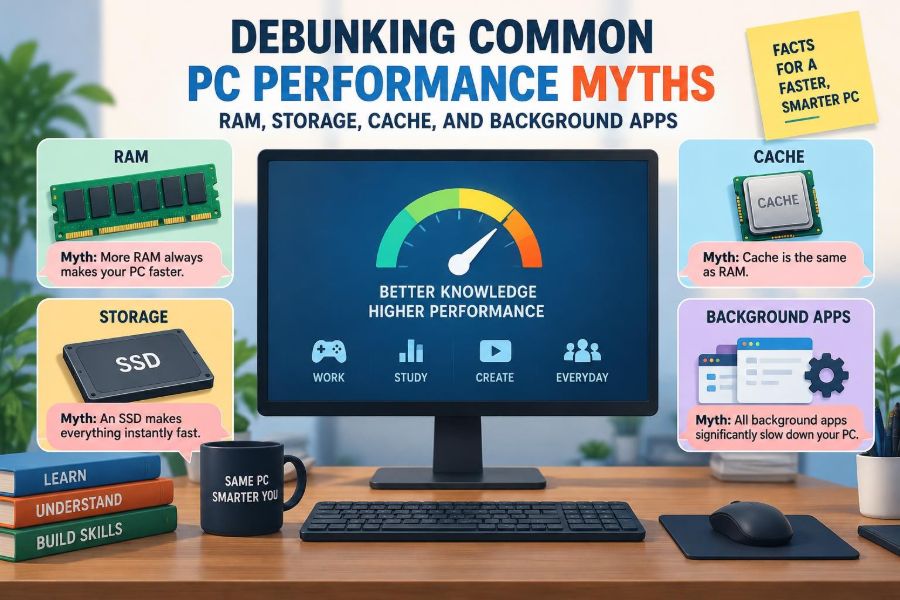

A PC begins to feel slow in familiar ways: a browser takes longer to open, a game stutters after an update, or the desktop becomes unresponsive while a large file copies. The usual advice arrives quickly—buy more RAM, delete everything, close every background app, or “clear the cache.”
Some of that advice can help, but much of it treats every slowdown as the same problem. A computer is a group of cooperating parts, and a bottleneck in one part cannot always be fixed by upgrading another.
That matters for students trying to make an older laptop usable and for professionals who need a dependable work machine. A targeted fix saves money, avoids needless tinkering, and is more likely to improve the task that actually feels slow.
Before changing settings or buying hardware, it helps to replace popular performance myths with a clearer picture of what RAM, storage, cache, processors, and background software really do.
🧭 Performance Is About the Task, Not a Single Score
“Fast computer” is not one measurable quality. A system can start quickly yet render video slowly, or run office software smoothly while struggling in a modern game.
Each task stresses different resources: processor cores for calculations, graphics hardware for visual work, RAM for active data, and storage for loading and saving. The useful question is not “What part is bad?” but “Which resource is limiting this task right now?”
🚧 The Bottleneck Principle
A bottleneck is the component, program, or condition that currently limits progress. Imagine a wide road narrowing to one lane: expanding a different part of the route does not remove the queue.
For example, adding RAM may not speed up a spreadsheet calculation that is using one processor core fully. Replacing a hard disk with an SSD may greatly reduce loading time but will not necessarily raise a game’s graphics frame rate.
🧠 Myth: More RAM Always Makes a PC Faster
RAM is short-term working space. Programs keep the code and data they are actively using there because RAM is much faster to access than normal storage.
More RAM helps when the existing amount is genuinely insufficient for the programs and files open at once. If there is already ample available RAM during a task, extra capacity has little direct effect; unused RAM is capacity waiting for demand, not a speed boost by itself.
📚 What RAM Actually Holds
Opening a browser, editing document, and video project all place working data in memory. Switching among them is smoother when their active data can remain in RAM.
Memory also stores operating-system components and file data that may be needed again. This is why a computer can appear to use a large share of its RAM even when the user has opened only a few visible applications.
🔄 Why Low RAM Causes Stuttering
When RAM is under pressure, the operating system can move less-active data to a page file or swap space on storage. Later, if that data is needed, it must be read back.
This process allows software to continue rather than immediately failing, but it is much slower than keeping active data in memory. Symptoms include pauses while switching apps, browser tabs reloading, and delays during large projects.
📏 Capacity and Speed Are Different RAM Questions
RAM capacity determines how much active work can fit at once. RAM speed and latency affect how quickly data can be transferred or accessed, although the real-world benefit varies by system and workload.
For most general users, having enough capacity is the first concern. Faster memory may matter more in certain games, integrated-graphics systems, or memory-sensitive professional work, but it is not a universal cure.
🧩 Matching Memory Modules Matters
Many systems can use two memory channels at once when compatible modules are installed in the correct slots. This can increase available memory bandwidth, which is particularly relevant when integrated graphics shares system RAM.
Mixing modules may still work, but the system may use conservative settings or lose some channel benefits. Check the device documentation before purchasing, and never assume a laptop’s memory is upgradeable; some models have soldered RAM.
🗂️ Myth: Empty RAM Is Always Better
Modern operating systems commonly use otherwise idle RAM as a file cache. Recently used files and program data may stay in memory so they can be opened again quickly.
That cached data is usually reclaimable when an application needs space. Therefore, high reported memory use is not automatically harmful. Persistent slowdowns, heavy swapping, or application errors are more meaningful signs of a memory shortage.
💾 Storage Is Long-Term Space, Not Working Memory
Storage keeps the operating system, applications, documents, and media when power is off. RAM is temporary; storage is persistent.
The distinction explains why a 1 TB drive does not substitute for 16 GB of RAM. A large drive can hold many files, but it cannot provide the rapid working space applications expect while they run.
⚡ Myth: All SSDs Feel the Same
Any healthy SSD is generally far more responsive than a traditional hard disk for many everyday operations, especially startup, application launches, and random file access. But SSDs differ in interface, controller design, flash type, cache behavior, and sustained-write performance.
An NVMe SSD can offer higher throughput than a SATA SSD, yet the difference may be subtle when opening a small document. Long transfers, large media projects, and workloads with many simultaneous requests can expose the difference more clearly.
🌀 Why Hard Drives Still Feel Slow
A hard disk drive uses spinning platters and a moving read/write head. Reading scattered files requires physical movement and waiting for the correct sector to rotate into position.
That delay is especially noticeable during booting, updates, antivirus scans, and multitasking. A hard drive can still be useful for inexpensive bulk storage, but it is often the most noticeable limitation in an older everyday PC.
📦 Myth: A Full Drive Is the Only Reason Storage Slows Down
Very low free space can create problems: updates may fail, temporary files have less room, and some SSDs have less flexibility for internal management. Keeping reasonable free space is sensible.
But a drive with plenty of free capacity can also be slow because it is failing, busy with another process, connected through a slow interface, or simply limited by its design. Free space alone does not diagnose storage performance.
🧹 Deleting Files Is Not a Universal Tune-Up
Removing unused files can reclaim capacity and make backups easier. It may help when a drive is nearly full, but deleting random folders will not make a healthy PC broadly faster.
Be cautious with system folders and “cleaner” tools. Removing temporary data or application caches may force programs to rebuild it, causing short-term delays, while careless deletion can break software or erase needed work.
🧱 Fragmentation Depends on the Drive Type
On a hard drive, fragmented files can require extra head movement, so periodic operating-system-managed optimization can be useful. Modern systems usually handle this automatically.
SSDs do not have moving heads, so traditional disk defragmentation is not a performance ritual to perform manually. Operating systems may run SSD-appropriate maintenance such as TRIM, which helps the drive manage blocks that are no longer in use.
🗃️ Cache Is a Shortcut, Not Digital Clutter
A cache stores data likely to be reused soon. Browser images, application resources, processor data, and recently accessed file blocks can all be cached at different levels.
The goal is to avoid repeating slower work. A browser cache, for instance, may keep website assets locally so a returning page needs fewer downloads. Cache is often part of good performance, not evidence that a device needs cleaning.
🔍 Myth: Clearing Cache Always Speeds Things Up
Clearing a cache is appropriate when it is corrupt, outdated, excessively large, or causing a specific problem such as a webpage displaying stale content. It can also be useful for privacy on a shared device.
Otherwise, clearing it often makes the next launch or visit slower because the computer must download or rebuild data. Treat cache clearing as troubleshooting with a reason, not routine maintenance.
🏎️ CPU Cache Is Different from Browser Cache
Processor cache is very small, extremely fast memory located on or close to the CPU. It stores frequently needed instructions and data to reduce trips to slower system RAM.
Users do not normally clear or configure CPU cache. Its effectiveness depends on processor design and the pattern of software activity, not on a desktop cleanup utility.
🕰️ Myth: Every Background App Is Wasting Performance
Background processes include useful services: networking, audio, device drivers, cloud synchronization, security checks, update systems, and accessibility features. Many consume almost no resources while idle.
Closing everything indiscriminately can remove convenience or disrupt essential functions. The better approach is to identify processes that use substantial CPU, memory, disk activity, or network bandwidth when they should be idle.
🔎 Reading Activity Instead of Guessing
Task Manager on Windows, Activity Monitor on macOS, and system monitors on Linux can show current resource use. Look while the slowdown is happening, because a snapshot taken later may miss the cause.
Sort by CPU, memory, disk, or network use and consider the pattern. A brief spike during an update is normal; a process continuously using a resource without a clear reason deserves closer investigation.
🚀 Startup Apps Affect the First Few Minutes
Some applications ask to launch when you sign in so they can sync files, check updates, or be ready quickly. Too many can lengthen the time before the computer feels settled after boot.
Disable nonessential startup items through the operating system’s startup settings rather than uninstalling software blindly. Keep services needed for security, input devices, backup, or work tools unless you understand their role.
☁️ Syncing and Updates Can Imitate a Slow PC
Cloud storage may upload a large folder after a change, while operating-system updates can download, install, or index files. These activities can compete for storage, processor time, and internet bandwidth.
If the slowdown has a clear temporary trigger, let the work finish or schedule it for a quieter time. Repeated unexplained activity is different and may justify checking settings, storage health, or security software.
🛡️ Security Software Needs Context
Real-time security scanning checks files and processes to reduce risk. During a full scan or while handling many new files, that work can be noticeable on modest hardware.
Turning off protection merely to improve responsiveness creates a poor trade-off for most people. Prefer scheduling scans, reducing duplicate security utilities, and investigating conflicts rather than leaving a computer unprotected.
🎮 Games Reveal Different Limits
Game performance can be constrained by the graphics processor, CPU, RAM capacity, storage streaming, cooling, or game settings. A frame-rate drop during a visually demanding scene often points more toward graphics workload than drive space.
Loading screens, texture pop-in, and stutters while entering new areas may involve storage or memory pressure, but diagnosis still depends on the game and hardware. Lowering resolution, effects, or background load tests different possible limits.
🌡️ Heat Can Make Fast Hardware Run Slowly
Processors and graphics chips reduce their operating speed when temperatures approach limits, a behavior called thermal throttling. It protects hardware, but performance may fall during sustained rendering, gaming, or compiling.
Dust, blocked vents, a failing fan, poor airflow, and soft surfaces that obstruct a laptop’s intake can all contribute. Improving ventilation is safer and more relevant than adding RAM when heat is the actual cause.
🔋 Power Settings Can Change the Result
Laptops often reduce performance on battery power to extend runtime and control heat. A power-saving mode may limit processor behavior or screen refresh settings.
Compare performance on battery and while connected to appropriate power, then review the operating system’s power mode. Maximum-performance settings can increase heat, fan noise, and energy use, so choose them for the task rather than permanently.
🧪 Change One Variable at a Time
Performance troubleshooting becomes confusing when several “fixes” are applied together. If the issue improves, there is no reliable way to know whether the cause was a startup app, a driver update, freed storage, or a restart.
Reproduce the problem when possible, observe resource use, make one relevant change, and test again. This simple method turns vague impressions into useful evidence.
🛠️ A Practical Diagnosis Order
Start with the least disruptive checks. Confirm whether the behavior is limited to one program, then look at resource activity, available storage, recent changes, and operating-system updates.
- Restart if the system has been running for a long time or behaves unusually.
- Check which resource is saturated during the slow task.
- Pause or reschedule clearly nonessential heavy background work.
- Verify sufficient free space and back up important files.
- Check for application, driver, and system updates from legitimate sources.
- Consider hardware upgrades only after identifying a likely limit.
🧾 Upgrade Decisions Should Follow Evidence
An SSD is often a strong upgrade for a computer still using a hard drive as its main system disk. Additional RAM can be valuable when normal workloads consistently cause swapping or force applications to close or reload data.
A faster CPU or graphics upgrade is more relevant for demanding computation or visual work, but compatibility, cooling, power supply capacity, and laptop limitations must be considered. There is no single “best upgrade” without a workload.
📊 A Quick Myth-and-Reality Reference
| Common claim | More accurate view | Useful response |
|---|---|---|
| More RAM always makes a PC faster | It helps primarily when memory demand exceeds available RAM. | Check memory pressure during normal work. |
| Clear every cache | Caches usually speed up repeated work. | Clear only for a specific fault, space issue, or privacy need. |
| Close all background apps | Many are idle or provide needed services. | Target processes using meaningful resources. |
| Delete files to make a PC fast | Free space helps only in relevant situations. | Keep room for updates and temporary work; diagnose the actual limit. |
🧠 The Core Principle: Match the Fix to the Constraint
RAM, storage, cache, and background apps are not interchangeable villains. RAM supports active work, storage preserves data, caches avoid repeated work, and background processes range from essential services to genuine distractions.
Good maintenance is deliberate: observe the symptom, identify the constrained resource, and choose the smallest effective change. That approach is more reliable than chasing universally advertised tweaks.
A faster-feeling PC comes from removing the right bottleneck, not from applying every performance tip at once. With a little observation, most upgrades and settings changes become easier to justify—and easier to reverse if they do not help. 🖥️⚙️✨