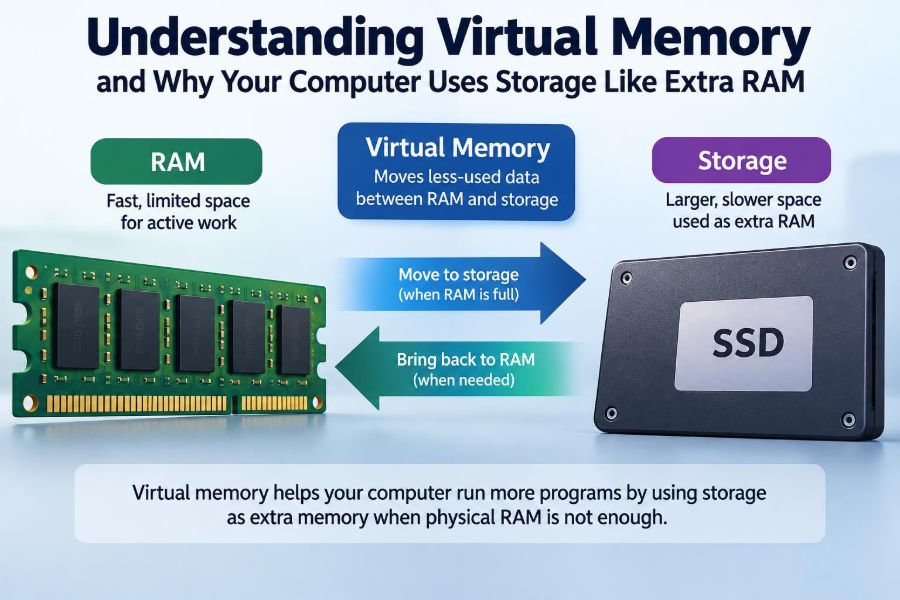

You open a browser with too many tabs, start a video call, edit a document, and launch a game or design tool. At first, everything feels normal. Then the computer begins to hesitate: windows take longer to appear, the cursor pauses, and switching between apps becomes frustrating.
Many people assume this always means the computer has “run out of RAM.” That is partly true, but modern operating systems have another tool available. They can temporarily use part of a drive—an SSD or hard disk—as an extension of working memory.
This feature is called virtual memory. It helps computers keep more programs open than physical RAM alone would allow, but it is not a free performance upgrade. Storage is far slower than RAM, so virtual memory is useful precisely because it is a compromise.
Understanding that compromise makes common problems easier to diagnose. It also explains why closing a few demanding apps can make a bigger difference than changing a setting, and why a nearly full drive can cause trouble even when you have plenty of storage capacity on paper.
🧠 Start with the job RAM performs
RAM, short for random-access memory, is the computer’s short-term workspace. Programs place the instructions and data they are actively using in RAM because the processor can access it extremely quickly.
When you type into a document, move objects in a presentation, or play a level in a game, the relevant information needs to be available with very little delay. RAM is designed for this kind of rapid, temporary access.
RAM is also volatile: its contents disappear when power is removed. That is why unsaved work can be lost after a sudden shutdown. Long-term files belong on storage, not in RAM.
💾 Storage has a different purpose
An SSD or hard disk stores data persistently. Your operating system, applications, photos, documents, and saved game files remain there after the computer is turned off.
Storage has much more capacity than RAM in most computers, but it is optimized differently. Even a fast SSD generally cannot respond to the processor’s requests with the tiny delays expected of RAM. A mechanical hard drive is slower still, especially when it must seek many small pieces of data.
The distinction is simple: RAM is the workbench; storage is the warehouse. Virtual memory lets the operating system borrow warehouse space when the workbench becomes crowded.
🗂️ What virtual memory actually means
Virtual memory is an operating-system technique that gives each program the impression that it has a large, continuous area of memory to use. Behind that impression, the operating system and processor coordinate where each piece of data really resides.
Some data is in physical RAM. Some may be stored temporarily in a file or reserved area on the drive. The operating system moves data between these locations as needed, a process commonly called paging.
This does not mean your drive literally becomes RAM. The drive remains storage. Rather, the system uses storage to hold memory contents that are not currently needed in physical RAM.
🧩 The idea of virtual addresses
Programs do not normally work directly with physical RAM locations. Instead, they use virtual addresses, which are addresses within their own protected view of memory.
Hardware called the memory management unit, working with the operating system, translates those virtual addresses into locations in physical RAM. If the requested data is currently on storage, the system must retrieve it before the program can continue.
This design brings more than flexibility. It also helps isolate programs from one another. One ordinary application should not be able to overwrite another application’s memory simply because both are running.
📄 Pages are the units being moved
Virtual memory is usually managed in fixed-size blocks called pages. A page is a small chunk of memory; the exact size depends on the system and architecture.
When a program needs a page that is not currently in RAM, it triggers a page fault. Despite the alarming name, a page fault is often a normal event: the operating system finds the page, loads it into RAM, updates its records, and resumes the program.
The issue is not that page faults ever happen. The issue is when they happen constantly, because retrieving many pages from storage causes visible delays.
🚪 A page fault is not automatically an error
The word “fault” can sound like a crash or defect, but a page fault is usually an expected part of memory management. It simply tells the system that a program tried to access a page not presently mapped into physical RAM.
Some page faults can be handled without reading the drive, such as when the system allocates a new, unused memory page. Others are more expensive because the needed data must be read from a paging file or loaded from an application file on storage.
A problem arises when the computer spends a large share of its time shuffling pages rather than doing useful work. That condition is called thrashing.
🔄 Why the operating system moves data out of RAM
When available RAM becomes limited, the operating system must choose which data can be moved aside. It tries to retain pages that are likely to be needed soon and move pages that have not been used recently or are less urgent.
For example, imagine a browser tab you opened an hour ago and have not revisited. Its memory may be a reasonable candidate to move out temporarily while an active video editor needs more RAM.
No operating system can predict the future perfectly. Memory managers use access patterns and priorities to make practical decisions, then adjust when your behavior changes.
🎯 Working sets explain everyday slowdowns
A program’s working set is the collection of memory pages it is actively using during a period of work. A web browser may have one working set while rendering a page and another while decoding video or running a complex web application.
If the combined working sets of your active programs fit comfortably in RAM, performance is usually smooth. If they do not fit, the system repeatedly evicts pages and reloads pages that were just needed again.
This explains why an older laptop can feel acceptable for email and documents but slow down sharply when a meeting app, many browser tabs, and a large spreadsheet are all active at once.
📚 An everyday desk analogy
Picture a small desk covered with books for several assignments. RAM is the desk surface. The filing cabinet across the room is storage.
When the desk is full, you put a book back in the cabinet to make space. If you soon need that same book again, you must walk over and retrieve it. A few trips are manageable; nonstop trips prevent you from doing the actual assignments.
Adding RAM is like getting a larger desk. An SSD is like replacing a distant filing cabinet with a nearby, well-organized drawer. The larger desk still helps more when too many books must remain open at once.
⚡ Why SSD-backed virtual memory feels better
Solid-state drives have no moving read/write heads, so they handle many small reads and writes much better than traditional hard drives. When a system must page to storage, an SSD can reduce the delay substantially.
That improvement should not be confused with RAM-level speed. RAM remains dramatically faster and is accessed in a different way. An SSD makes memory pressure less painful; it does not eliminate it.
On a computer with a mechanical hard drive, heavy paging can produce long pauses and continuous drive activity. Replacing that drive with an SSD can improve overall responsiveness, though adding RAM may still be the more direct solution for a memory-starved workload.
🐢 Why hard drives struggle with paging
A mechanical hard drive reads data from spinning platters using moving components. It performs reasonably well for large, sequential transfers, but paging often involves many small, scattered requests.
Those requests force the drive to reposition repeatedly. While the system waits, applications may appear frozen even though they are technically still working.
This is why older systems sometimes become unresponsive when several applications compete for limited RAM. The processor may not be the main bottleneck; the drive may be busy handling memory traffic.
🧱 The paging file, swap file, and swap partition
Operating systems use different names and arrangements for disk-backed virtual memory. You may encounter a page file, swap file, or swap partition.
On many Windows systems, the page file is a managed file on a drive. On Linux, swap may be a dedicated partition or a file. Other systems have their own memory-management designs, and the exact details can change by version.
The name matters less than the role: it provides disk space that the operating system can use for memory pages when RAM is insufficient or when it chooses to move inactive data out of RAM.
🪟 What Windows typically does with the page file
Windows normally manages the page file automatically. It can adjust its size based on the system’s configuration and workload, subject to available drive space and operating-system rules.
The page file supports more than just keeping applications open. Windows may rely on it for certain memory-management functions and, depending on configuration, for diagnostic information after a serious system failure.
For most users, leaving the setting system-managed is sensible. Manually limiting it too aggressively can lead to low-memory warnings, application failures, or an inability to create certain diagnostic dumps.
🐧 How swap is commonly used on Linux
Linux systems commonly use swap space as a partition or a file. The kernel can move less-active memory pages to swap, making RAM available for more immediate work.
Linux also offers settings that influence how readily the system uses swap. These controls can be useful for administrators with a specific workload, but changing them without understanding the effect is not a general performance cure.
Some Linux configurations use compressed RAM-based swap mechanisms. These keep selected pages compressed in memory rather than writing them immediately to a drive, trading some processor time for reduced storage traffic.
🍎 Memory compression changes the picture
Several modern operating systems use memory compression. Before writing some inactive pages to storage, the system can compress them in RAM to make room.
Compression is not free: the processor must compress and decompress data. Yet on many systems, that cost is much smaller than waiting for storage access, especially if the alternative is reading from a hard drive.
Compression does not create unlimited memory. It is another layer in the strategy: keep useful data in RAM when possible, compress less-active data when practical, and use storage when necessary.
📈 Commit memory is not the same as RAM in use
Memory monitors often show several numbers, and they are easy to confuse. One important concept is committed memory: memory the operating system has promised can be backed by RAM, paging space, or both.
A program can reserve an address range without immediately filling it with data. It may also commit memory that is not currently resident in physical RAM. Therefore, a high commitment figure does not always mean every byte is actively occupying RAM at that moment.
Look at the whole pattern: available RAM, swap or page-file activity, disk activity, and which processes are consuming memory. One number alone rarely tells the full story.
🔍 How to recognize memory pressure
Memory pressure occurs when the system has difficulty keeping the active data it needs in RAM. The symptoms are usually more revealing than a single percentage meter.
- Switching between open applications causes repeated pauses.
- The storage drive shows sustained activity while you are not intentionally copying files.
- Programs become responsive again only after several seconds.
- The browser reloads tabs or applications discard cached content more often.
- The operating system displays low-memory warnings or closes background work.
These signs can also have other causes, such as a failing drive, background updates, or a CPU-heavy task. Check resource-monitoring tools before assuming virtual memory is the culprit.
🧪 A realistic multitasking example
Consider a hypothetical computer with modest RAM. A student joins a video lecture, opens a browser with research tabs, edits a large presentation, and keeps a messaging app running.
Each application may be reasonable by itself. Together, their active working sets can exceed available RAM. The operating system begins moving less-active pages to storage, then must retrieve them when the student returns to a tab or edits a slide.
Closing unused tabs, pausing a demanding background task, or restarting a memory-hungry application can reduce the immediate pressure. Installing more RAM, if the device supports it, addresses the capacity limit more permanently.
🌐 Browsers are frequent memory consumers
Modern browsers often use separate processes for tabs, extensions, rendering, graphics, and security isolation. This design improves stability and safety, but it can increase total memory use.
A simple text page may use little memory, while a tab with video, interactive tools, advertisements, a web-based editor, or a large document may use much more. Extensions can also add background activity.
Do not assume every open tab has the same cost. Use the browser’s task manager or your operating system’s process monitor to identify unusually demanding tabs before closing everything blindly.
🎮 Games and creative applications have changing demands
Games, video editors, 3D tools, and large image editors can have memory needs that change during a session. Loading a new level, opening high-resolution media, or applying an effect may require much more memory than an idle screen.
Some of these programs also use graphics memory, often called VRAM, on the GPU. VRAM and system RAM are related to overall performance but are not interchangeable pools in the simplest sense.
When a workload exceeds available system RAM, virtual memory may prevent an immediate crash. However, stutters during editing or gameplay are likely if the system must frequently retrieve data from storage.
🧮 Virtual memory also improves reliability
It is tempting to describe virtual memory only as emergency overflow space. Its broader design also supports protected address spaces, controlled allocation, shared program code, and safer separation between processes.
For example, multiple running copies of an application can sometimes share read-only code pages rather than each storing identical copies in RAM. When one process needs to modify data, the system can create a separate copy through a technique often called copy-on-write.
These mechanisms help systems use memory efficiently and limit the damage from ordinary software mistakes. They are central to modern multitasking, not merely a patch for low-RAM machines.
🛡️ Memory protection keeps programs apart
Virtual memory lets the operating system assign permissions to memory pages. A page may be readable, writable, executable, or restricted in other ways.
If an application tries to access memory it does not own, the operating system can stop that action rather than allowing it to overwrite unrelated data. A crash may still occur in the faulty program, but isolation can prevent it from corrupting the entire system.
Security features vary by platform and configuration, but memory protection is one reason modern systems are generally more stable than environments where programs had broad, direct access to all memory.
📦 Shared libraries reduce duplicate work
Applications often rely on common libraries: reusable code for interface elements, networking, graphics, and other functions. The operating system can map compatible read-only portions of these libraries into several processes.
That sharing reduces unnecessary duplication in RAM. Each application still has its own private data, so one program’s changes do not alter another program’s view.
Efficient sharing is another reason memory use is more complicated than simply adding up the numbers shown beside every app. Monitoring tools may report shared memory differently.
🚫 Disabling virtual memory is usually a bad experiment
Some advice suggests disabling the page file or swap because “RAM is faster.” The statement is true but incomplete. Removing disk-backed virtual memory does not make RAM faster; it removes a safety margin and may conflict with operating-system expectations.
With no paging space, a temporary memory spike can force applications to fail, prevent new programs from starting, or cause the system to behave less gracefully under pressure. Certain features may also be limited.
There are specialized environments where administrators make deliberate choices about swap, often after testing a known workload. That is different from treating its removal as a universal desktop optimization.
📏 Why manually setting a huge page file is not a cure
A very large page file can provide room for committed memory, but it cannot turn storage into fast RAM. If active programs continually need more data than RAM can hold, performance can still be poor.
Likewise, moving a page file to a faster drive may help in some configurations, but it will not solve an application leak, excessive browser use, or a workload that truly needs more physical memory.
Think of page-file size as capacity for a fallback mechanism. Think of RAM capacity as the space available for fast, active work. They solve related but different problems.
🧹 Free storage space still matters
Virtual memory needs usable storage space. A drive that is nearly full leaves less room for page files, temporary files, updates, application caches, and ordinary file-system housekeeping.
SSDs also benefit from having room for their internal management tasks. Exact behavior depends on the drive and operating system, but keeping some free capacity is a practical habit rather than filling a drive to its absolute limit.
Remove unneeded large files, uninstall unused software, or move archives to appropriate external or cloud storage. Do not delete system files or page files simply to make a storage meter look better.
🔧 Practical ways to reduce memory pressure
Start with the least disruptive steps. Identify what is actually using memory, then reduce unnecessary demand before changing technical settings.
- Save work and restart if the system has been running for a long time.
- Close unused applications, especially duplicate browser windows and heavy background tools.
- Review browser tabs and extensions; suspend or remove ones you do not need.
- Check for a single process whose memory use grows unusually large over time.
- Keep sufficient free space on the system drive.
- Update or repair a misbehaving application if it repeatedly consumes excessive memory.
If the same normal workload consistently causes swapping, more RAM may be the appropriate upgrade where the device allows it.
🧭 Use monitoring tools to investigate, not guess
Windows Task Manager and Resource Monitor, macOS Activity Monitor, and Linux tools such as system monitors or command-line utilities can reveal memory use, swap activity, and disk activity.
Look for patterns over a few minutes. A brief burst of disk activity after launching a large program is not the same as continuous paging while every application is slow.
Also consider whether an application is leaking memory. A memory leak occurs when software keeps allocating memory it no longer needs. Restarting may provide temporary relief, but updating or replacing the faulty application is the better long-term fix.
🧰 When adding RAM is the right answer
Adding RAM is most useful when your normal, legitimate work repeatedly exceeds current capacity. Common examples include development tools with local containers or virtual machines, large spreadsheets, photo and video projects, many research tabs, and modern games alongside background apps.
Before buying, check whether your computer supports an upgrade, how many memory slots are available, what memory type it requires, and whether any RAM is soldered in place. Laptops and compact devices vary widely.
More RAM will not fix every slowdown. A weak processor, an overheating system, limited graphics hardware, malware, or a deteriorating drive can each produce different symptoms. Upgrade based on the actual bottleneck.
🖥️ Virtual machines need special attention
A virtual machine runs a guest operating system inside a host computer. The guest needs memory, but the host operating system and other applications still need memory too.
Assigning nearly all available RAM to the virtual machine can leave the host under pressure, causing both systems to page heavily. The result may feel worse than giving the guest a smaller but realistic allocation.
Plan memory across the entire workload. Leave enough RAM for the host, browser, security software, and the applications you need beside the virtual machine.
⚠️ Distinguish slow virtual memory from a failing drive
Heavy paging can make a healthy drive busy, but persistent freezes, read errors, unexpected file corruption, or system warnings may indicate a storage problem rather than ordinary memory pressure.
Back up important files promptly if you suspect drive failure. Do not rely on virtual-memory troubleshooting to diagnose hardware health, and do not repeatedly force a struggling system to work without protecting your data.
Similarly, a system that suddenly becomes slow after a change may be indexing files, installing updates, scanning for malware, or running a new background service. Context matters.
🧠 The core principle to remember
Virtual memory lets a computer present flexible, protected memory spaces and continue operating when RAM alone cannot hold every active and inactive page. It is a foundational part of modern operating systems, not an embarrassing sign that a computer is broken.
But storage-backed memory is a fallback, not a performance substitute. Smooth computing depends on keeping the active working set of your real workload comfortably within physical RAM whenever possible.
When performance drops, check the workload, available RAM, swap activity, and storage health together. That approach leads to better decisions than assuming every slowdown needs a page-file tweak.
Virtual memory keeps multitasking possible, while sufficient physical RAM keeps multitasking fast. Once you understand that relationship, pauses, drive activity, and memory warnings become useful clues rather than mysterious computer behavior. 🧠💾⚡