
A photo library can fill a phone in months. A modern game can occupy more space than an entire office computer once had. Yet a tiny drive no larger than a stick of gum can now hold years of documents, videos, and software.
That change did not happen simply because engineers learned how to make disks bigger. Computer storage evolved through a series of trade-offs involving size, speed, cost, reliability, and convenience.
Understanding that history makes everyday choices clearer: why an old laptop feels slow, why cloud files are not quite the same as backups, and why a fast SSD can matter more than a faster processor.
From flexible magnetic disks to silent solid-state chips, storage tells a practical story about how computers became personal, portable, and always available.
🗄️ What Computer Storage Actually Does
Computer storage is the hardware that keeps data when power is turned off. This includes operating systems, applications, documents, photographs, databases, and configuration settings.
It differs from memory, usually called RAM. RAM holds information a computer is actively using, but its contents disappear when power stops. Storage is non-volatile: it is designed to retain information.
A useful analogy is a desk and a filing cabinet. RAM is the desk where current work is spread out; storage is the filing cabinet where work is kept for later.
🔢 Bits, Bytes, and Capacity
All digital storage represents information as bits: values of 0 or 1. Eight bits form a byte, and bytes are used to describe file and drive capacity.
Early storage was often measured in kilobytes. Later, megabytes and gigabytes became common. Modern consumer drives are usually measured in terabytes, though usable space is slightly lower than the number shown on the package because of measurement conventions and drive management.
Capacity matters, but it is only one part of the experience. A large drive can still be frustrating if it takes too long to find, read, or write data.
🧲 The Magnetic Recording Principle
For much of computing history, data was stored by changing tiny magnetic regions on a surface. One magnetic orientation could represent one value and the opposite orientation another.
Magnetic storage made it possible to keep data cheaply and rewrite it many times. Its limitation was physical motion: a tape must move past a reader, while a disk must spin and position a read/write head accurately.
Those moving parts shaped the speed, noise, durability, and size of early storage devices.
📼 Punch Cards and Magnetic Tape
Before personal computers, punch cards recorded information as patterns of holes. They were useful for submitting programs and data to large systems, but they were slow to handle and easy to misorder.
Magnetic tape improved capacity and reusability. Data is arranged sequentially, much like scenes on an old cassette tape. To reach a record near the end, the system may need to pass through much of what comes before it.
Tape remains useful for long-term archival work because it can store large amounts of data economically. It is a poor fit, however, for quickly opening thousands of scattered files.
💿 Hard Disk Drives Changed Everyday Computing
A hard disk drive, or HDD, stores data on one or more spinning circular platters coated with magnetic material. A moving actuator positions heads over tracks on those platters.
Unlike tape, a hard drive provides random access: it can move directly to an approximate location instead of reading every earlier record. That ability made interactive computing far more practical.
Hard drives steadily became smaller, denser, and cheaper per unit of capacity. For decades, they were the standard internal storage device in desktops, laptops, and servers.
🌀 Why Hard Drives Have a Speed Limit
An HDD has to perform physical work before data arrives. The head must travel to the right track, called seek time, and the correct sector must rotate beneath it, called rotational latency.
These delays are tiny in human terms but large for a processor that can perform billions of operations per second. Repeatedly opening many small files forces many separate seeks and waits.
That is why an older computer with a mechanical hard drive may pause during startup or application launches even when its processor is still adequate.
📏 Storage Density Made Drives Smaller
Storage density describes how much data can fit into a given physical area. Higher density allowed engineers to place more bits on each platter and reduce the space required for a useful amount of storage.
Improved magnetic materials, more precise heads, cleaner manufacturing, and better error correction all contributed. A drive did not merely gain capacity; it learned to distinguish increasingly tiny magnetic patterns reliably.
Greater density also created engineering challenges. The closer data regions are placed together, the more carefully the system must prevent errors caused by interference or imperfect positioning.
🧠 Error Correction Protects Imperfect Media
No storage medium is flawless. Dust, wear, electrical noise, manufacturing variation, and aging can all affect recorded data. Storage systems therefore add extra information that helps detect and sometimes correct errors.
This is called error-correcting code, or ECC. It is one reason a drive’s raw physical capacity is not all available for user files.
Modern devices also track weak areas and may remap data away from failing blocks or sectors. These safeguards improve reliability, but they do not replace backups when a device fails completely.
💾 The Floppy Disk Era
Floppy disks brought removable storage to schools, homes, and offices. Early versions were physically flexible magnetic disks inside protective sleeves; later versions used a harder shell while retaining the familiar name.
They made it easy to move a report or program between machines. Their small capacity and slow transfer rates now seem restrictive, but they suited text documents and compact software of their era.
A floppy disk also taught users an enduring lesson: removable media is convenient, but it can be lost, damaged, mislabeled, or infected by unwanted software.
📦 Why Removable Storage Mattered
Before widespread networking, transferring data often meant physically carrying it. Removable disks turned files into something people could hand to a colleague, take home, or store in a drawer.
This created practical workflows, but also version-control problems. Several disks named “final” could contain different versions of the same project, with no easy way to tell which was current.
Networked collaboration and cloud synchronization reduced that problem, although they introduced others, such as permissions mistakes and accidental synchronization of unwanted changes.
🔌 Optical Discs Expanded Distribution
CDs, DVDs, and later Blu-ray discs store data as patterns read optically by a laser. They offered far more capacity than floppy disks and became common for music, films, software installation, and backups.
Optical media was especially useful when publishers needed to distribute identical content widely. A single disc could carry an operating system, a large application suite, or multimedia that would not fit on earlier media.
Its limitations include relatively slow access, vulnerability to scratches, and the growing absence of optical drives from modern laptops.
🔦 Flash Memory Removed Moving Parts
Flash memory stores data electronically in semiconductor cells. Because it has no spinning platters or moving read heads, it is silent, compact, and resistant to shocks that might damage a hard drive.
USB flash drives, memory cards, and solid-state drives all use forms of flash memory. The same broad technology enabled cameras, phones, handheld consoles, and thin laptops to carry substantial storage.
Flash is non-volatile, but it is not unlimited. Its cells can be written only a finite number of times, so controllers manage writes carefully.
⚡ NAND Cells and Their Trade-Offs
Most modern flash storage uses NAND flash. A cell can hold one or more bits by maintaining one of several electrical charge levels.
Storing more bits per cell reduces cost and increases capacity, but it requires the drive to distinguish more finely separated charge levels. This can affect speed, endurance, and the amount of error management required.
| Cell type | General characteristic | Common trade-off |
|---|---|---|
| SLC | One bit per cell | Fast and durable, but costly per capacity |
| MLC | Two bits per cell | Balances density and endurance |
| TLC | Three bits per cell | Widely used, with more controller work |
| QLC | Four bits per cell | High density, often less suited to sustained heavy writing |
These categories describe general design trade-offs, not a complete verdict on any particular drive. Firmware, spare capacity, cooling, and workload all affect real-world behavior.
🧩 The SSD Controller Is the Traffic Manager
An SSD is more than flash chips. Its controller directs reads and writes, corrects errors, encrypts data on some models, and presents the drive as a usable device to the computer.
The controller uses wear leveling to distribute writing across cells rather than repeatedly using the same physical locations. It also performs garbage collection, preparing blocks for future writing.
These tasks explain why two drives with the same stated capacity can behave differently under sustained work. The controller and firmware matter as much as the advertised interface.
🧹 Why SSDs Need Free Space
Flash memory cannot overwrite a small piece of existing data as directly as a hard drive can. Before certain data can be rewritten, a larger block may need to be erased and reorganized.
When an SSD is nearly full, it has fewer empty blocks available for this work. Write performance may decline, particularly during large file transfers or creative workloads.
Keeping some space free is sensible. The exact amount depends on the drive and workload, but treating a drive as permanently full leaves less room for both the operating system and the SSD’s internal housekeeping.
🚀 SATA SSDs Made Old Computers Feel New
Many early consumer SSDs used SATA, the same connection commonly used by hard drives. This made upgrades straightforward: replace a 2.5-inch HDD with a 2.5-inch SATA SSD.
SATA SSDs remove mechanical delays, so startup, updates, searches, and application launches often become dramatically more responsive. However, the SATA interface limits how much data can move per second.
For web browsing, office documents, and ordinary home use, a SATA SSD can still feel excellent. It remains a practical upgrade for many compatible systems.
🛣️ PCIe and NVMe Opened a Faster Path
As flash storage became faster, the SATA pathway became a bottleneck. Newer SSDs commonly use PCI Express, or PCIe, a high-speed connection also used by components such as graphics cards.
NVMe, short for Non-Volatile Memory Express, is a protocol designed for solid-state storage on these faster connections. It allows the computer and drive to handle many requests efficiently and with lower overhead.
NVMe is not the name of a storage material. It is the communication method used by many modern SSDs, while NAND flash is the medium that stores the bits.
📐 M.2 Is a Shape, Not a Speed Guarantee
M.2 refers to a small circuit-board form factor often used for internal SSDs. An M.2 drive may use SATA or PCIe, and PCIe models can support NVMe.
That distinction prevents a common purchasing mistake: seeing an M.2 slot or M.2 drive and assuming it will automatically deliver NVMe performance. A laptop’s slot and firmware must support the intended connection.
Check the device documentation, the drive interface, its physical length, and the required keying before buying an upgrade.
🏎️ Sequential Speed Versus Random Speed
Drive specifications often advertise sequential read and write speeds. These measure large, continuous transfers, such as copying a big video file.
Daily responsiveness also depends on random performance: how quickly the drive handles many small, scattered requests. Booting an operating system or opening an application involves numerous small files, not one long stream.
Benchmark numbers are useful, but they are not a complete prediction of your experience. A drive’s capacity, controller, cache behavior, and the rest of the computer also influence results.
🌡️ Faster Drives Can Produce More Heat
High-performance NVMe drives can generate substantial heat during long transfers, video editing, compiling code, or other sustained tasks. If temperatures rise too far, a drive may reduce its speed to protect itself.
This behavior, called thermal throttling, is a protective response rather than necessarily a defect. Compact laptops and tightly packed desktops may have less airflow than larger systems.
A suitable heatsink or motherboard heat spreader can help where recommended, but it must fit the device and not interfere with cooling elsewhere.
📱 Storage Made Mobile Devices Possible
Mechanical hard drives were difficult to use in small devices because motion, drops, battery limits, and physical thickness all posed problems. Flash memory changed the design possibilities.
Phones can store apps, offline maps, photographs, and high-resolution video without a spinning disk. Cameras use memory cards because they are compact and can write data quickly enough for many shooting modes.
Mobile storage is often soldered to the device, however. This saves space but can make capacity upgrades and data recovery more difficult.
☁️ Cloud Storage Is Someone Else’s Storage System
Cloud storage lets users keep files on remote servers and access them through the internet. It is useful for synchronization, collaboration, off-site copies, and reaching files from multiple devices.
It does not eliminate local storage. A device may keep local copies for speed or offline access, while the remote service stores another copy elsewhere.
Access depends on an account, network availability, service settings, and available storage limits. For valuable data, understand whether a service is syncing files, retaining deleted versions, or truly providing backup behavior.
🛡️ Synchronization Is Not Automatically Backup
Synchronization keeps folders aligned across locations. If a file is changed or deleted on one synchronized device, that change can spread to the others.
A backup is a separate recoverable copy, ideally with version history and protection from a single mistake, hardware failure, or ransomware event. The two tools can work together, but they solve different problems.
- Keep more than one copy of valuable data.
- Use separate storage locations when practical.
- Test that important backups can actually be restored.
- Protect accounts with strong passwords and multi-factor authentication where available.
🔐 Encryption Protects Data, With Responsibilities
Storage encryption converts data into unreadable form unless the correct key, password, or recovery method is supplied. It can protect information if a laptop or external drive is lost or stolen.
Encryption is powerful, but it changes the recovery situation. If a person forgets the password and has no recovery key, even legitimate access to the data may be impossible.
Store recovery information securely and separately. Do not leave it only on the device it is meant to unlock.
🩺 Recognizing Storage Trouble
A failing storage device may show slowdowns, file errors, repeated crashes, unexplained missing files, or warnings from the operating system. Mechanical drives can also produce unusual clicking or grinding sounds.
These symptoms are not a precise diagnosis; similar problems can come from cables, software, memory, or power issues. Still, suspected storage trouble should prompt an immediate backup of accessible data.
Do not rely on a drive “working again” after an intermittent failure. The first priority is protecting files, not running repeated stress tests on a questionable device.
🗂️ Choosing Capacity for Your Work
Choose storage based on your actual files and likely growth. Office documents use modest space, while raw photos, video projects, virtual machines, modern games, and local databases can grow quickly.
Consider the complete picture:
- Operating system and applications: reserve room for updates and temporary files.
- Active projects: need fast storage when opened and edited frequently.
- Archives: may suit a larger, slower, lower-cost drive.
- Backups: need separate capacity, not leftover space on the primary drive.
A smaller fast SSD paired with a larger secondary drive can be sensible in a desktop. A laptop owner may instead value one larger internal SSD and an external backup drive.
🧰 Upgrading Storage Without Common Mistakes
Before upgrading, identify the computer model, available slots, supported interfaces, physical dimensions, and whether a replacement requires moving an operating system. Manufacturer documentation is more reliable than visual guesses.
Back up first. If cloning an existing drive, verify the clone can boot and that personal files are present before erasing the old drive.
Also remember that a fast new drive cannot overcome every bottleneck. Very low RAM, an aging processor, malware, or a poor network connection can still make a system feel slow.
♻️ Disposal and Data Privacy
Deleting files or formatting a drive does not always make past data unrecoverable. The right disposal method depends on the storage type, operating system, encryption status, and the sensitivity of the information.
For an encrypted device, securely removing or destroying the encryption keys can be effective when implemented correctly. For damaged or highly sensitive drives, professional destruction may be appropriate.
Do not place old drives in ordinary waste. Electronics recycling programs can handle materials more responsibly, but remove or protect personal data first.
🔮 What May Come After Today’s SSDs
Storage development continues through denser flash designs, faster interfaces, improved controllers, and new approaches to persistent memory. Data centers also explore technologies suited to huge archives, rapid analysis, or long retention periods.
Not every promising technology becomes a consumer product. Cost, manufacturing scale, compatibility, power use, and reliability determine whether a laboratory idea becomes common hardware.
The direction is clear, though: storage will continue to be shaped by the need to keep more data closer to where it is used, without making devices larger or less dependable.
🎯 The Core Lesson: Match Storage to the Job
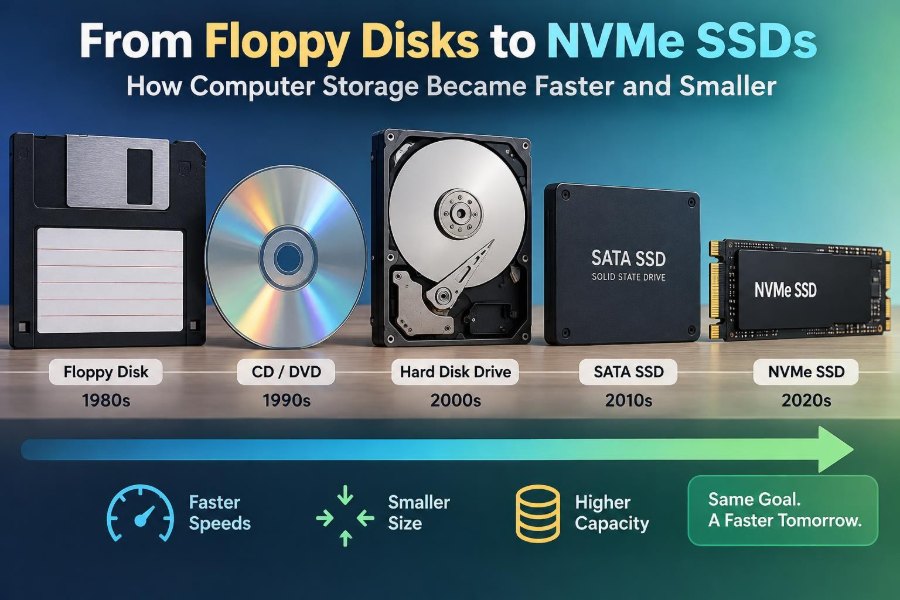
The move from floppy disks to NVMe SSDs was not a simple race for bigger numbers. Each stage addressed a particular need: portability, random access, low cost, durability, faster response, or easy sharing.
Hard drives still offer useful high-capacity storage. SATA SSDs remain capable everyday upgrades. NVMe SSDs excel when a system and workload can use their lower latency and higher throughput. Cloud services add access and collaboration, but do not remove the need for thoughtful backup planning.
The best choice is the one that balances capacity, speed, reliability, compatibility, and recovery needs for the way you actually work.
Computer storage became faster and smaller by replacing physical movement with denser, smarter, and increasingly electronic ways to preserve data—and the practical goal remains the same: keep the right information available when you need it. 💾⚡🖥️