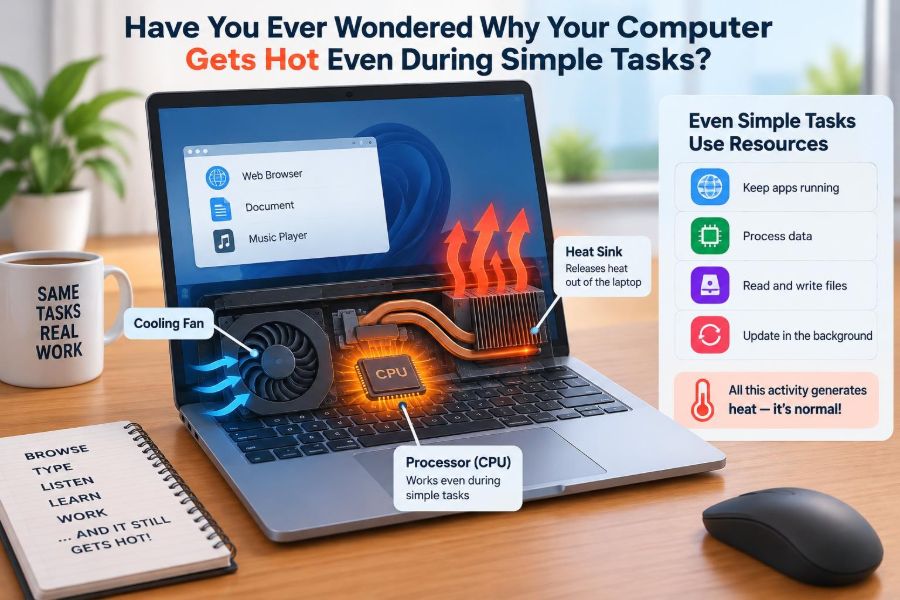

You open a few browser tabs, answer emails, or watch a short video—and soon your laptop feels warm beneath your hands. Sometimes the fan starts humming even though you are not editing video, playing a game, or doing anything that seems demanding.
That experience can be confusing. A computer that becomes warm is often behaving normally, but persistent heat, noisy fans, slowdowns, or sudden shutdowns can point to a problem that deserves attention.
Understanding where the heat comes from makes maintenance less mysterious. It also helps you tell the difference between a harmless warm keyboard and a machine that is struggling to protect itself.
Computers do not create heat because they are “working hard” in a human sense. They create it because moving and processing electrical energy is never perfectly efficient.
🌡️ Heat Is a Normal Result of Computing
Every electronic component uses electrical power. Some of that power performs useful work, such as calculating, storing data, displaying an image, or sending a Wi-Fi signal. The rest ultimately becomes heat.
A processor contains billions of tiny switches called transistors. As these switches change state, they consume energy. Even a simple task involves many rapid changes, so some warmth is expected whenever a computer is on.
The goal is not to keep a computer cold. The goal is to move heat away from sensitive components quickly enough that they stay within safe operating limits.
⚡ Why Electricity Turns into Heat
Electric current encounters resistance as it travels through circuits, wires, and components. Resistance converts part of electrical energy into thermal energy, much like a light bulb becomes warm while it is lit.
Modern chips are highly efficient, but they operate at enormous speeds. A CPU may perform billions of operations each second, and a small loss of energy during each operation adds up.
Charging circuits, voltage regulators, memory, storage drives, screens, and wireless radios also contribute heat. The CPU is often the most noticeable source, but it is rarely the only one.
🧠 The CPU Often Gets the Most Attention
The central processing unit, or CPU, handles general-purpose instructions for the operating system and applications. Opening a document may look simple, but it can involve loading files, checking fonts, updating background services, and drawing the interface.
Many processors briefly increase their clock speed when work appears. This feature improves responsiveness, but faster operation can require more power and produce more heat.
For example, clicking a browser tab may trigger page scripts, advertisements, video previews, extensions, and security checks at once. The visible action is small; the invisible workload may not be.
🎮 The GPU Can Be Active in Ordinary Apps
The graphics processing unit, or GPU, draws images, text, animations, and video. It is not used only for games. Browsers, video-call apps, design software, and even desktop effects may use graphics acceleration.
High-resolution displays increase the amount of visual information the GPU must handle. Connecting an external monitor, especially one with a high refresh rate or many pixels, can raise power use during everyday work.
A warm area near the keyboard or bottom panel may therefore come from graphics hardware, not just the CPU. This is especially common in thin laptops where several components share a compact cooling system.
🧩 “Simple” Tasks Are Often Bundles of Tasks
A computer rarely performs only one action at a time. While you read a webpage, the operating system may synchronize files, scan for updates, index search results, receive notifications, and keep network connections open.
Cloud-storage tools are a familiar example. Saving one file can cause the software to compare versions, encrypt data, upload changes, and confirm that the copy reached a server.
Short bursts of activity are normal. What matters is whether the workload settles down after a few minutes or continues when the computer appears idle.
🌐 Browsers Can Use More Resources Than Expected
A browser is often the busiest program on a general-purpose computer. Modern webpages may contain interactive scripts, embedded media, live chat widgets, animations, tracking code, and advertisements.
Each open tab can retain memory and occasionally use CPU time. A tab playing video, running a web meeting, or refreshing live information may continue working even when it is not the tab you are viewing.
- Close tabs you no longer need.
- Review extensions, especially those you do not recognize or rarely use.
- Use the browser’s own task manager or performance tools when one page seems unusually demanding.
This is not an argument against multitasking. It is a reminder that a crowded browser can create a real workload.
🔄 Background Processes Work Quietly
Background processes are programs or services that run without occupying the foreground of your screen. They make computers more convenient, but they can also explain unexpected warmth.
Common examples include operating-system updates, antivirus scans, backup software, search indexing, photo analysis, and synchronization tools. A newly set-up computer may work particularly hard while organizing files and downloading updates.
Open your operating system’s activity monitor, task manager, or resource monitor to see which processes are using CPU, memory, disk, or network resources. Look for patterns rather than assuming that any one brief spike is a fault.
🛡️ Security Scans Can Temporarily Raise Temperatures
Security software checks files, downloads, and system activity for possible threats. A full scan may read a large number of files, making the processor and storage device more active than usual.
This is often reasonable after installing security software, connecting an old external drive, or scheduling a scan. It becomes less reasonable if an unknown process consistently consumes large resources or if security software repeatedly scans without finishing.
Keep security tools and the operating system updated. If you suspect malware, use reputable security software and avoid downloading “cleaner” utilities from untrusted pop-ups.
💾 Storage Activity Produces Its Own Workload
Storage devices generate some heat while reading and writing data. Traditional hard drives also contain spinning disks and moving parts, while solid-state drives use electronic memory chips.
Copying a large folder, installing a major application, unpacking an archive, or synchronizing many files can keep storage busy. The CPU may also heat up because it is coordinating the work, checking files, or compressing data.
Very full storage can make a system feel less responsive because the operating system has less room for temporary files and memory management. Freeing sensible space may help performance, though it will not fix a failed fan or blocked vent.
📶 Wi-Fi, Bluetooth, and Cellular Radios Add Small Loads
Wireless radios consume power whenever they transmit or receive information. A weak Wi-Fi signal can increase activity because the device may need to retry transmissions or work harder to maintain a connection.
Video calls are a useful example: the camera, microphone, speakers, screen, Wi-Fi radio, CPU, and sometimes GPU all operate together. A laptop can become noticeably warm during a meeting even if no single application seems dramatic.
Poor network quality is not always the cause, but moving closer to a reliable access point can reduce connection problems and sometimes reduce needless radio activity.
🔋 Charging Creates Heat Too
Batteries store energy through chemical processes, and charging is not perfectly efficient. The charger, charging circuitry, and battery can all become warm, particularly during faster charging or when the computer is being used heavily at the same time.
Use the correct charger or a reputable compatible charger with suitable power delivery. A low-power charger may struggle to keep up under load, while damaged cables and adapters should be replaced.
Warmth while charging is common. Excessive heat, swelling, a chemical smell, or a battery that pushes against the case is not normal; stop using the device and seek qualified service.
🔬 Thin Devices Have Less Room to Lose Heat
A large desktop computer has space for fans, heat sinks, and open airflow paths. A thin laptop or tablet-style computer must fit its components into a much smaller enclosure.
Manufacturers balance weight, noise, battery life, performance, and cooling capacity. A slim design can feel warm because the outer case deliberately helps spread heat away from internal parts.
That means a warm metal chassis is not automatically a warning sign. In some designs, it is part of the cooling strategy.
🧊 Heat Sinks Move Heat Away from Chips
A heat sink is a piece of metal, usually aluminum or copper, designed to absorb and spread heat from a component. Its fins create more surface area so air can carry heat away.
Between a chip and its heat sink is usually a thin thermal interface material, often called thermal paste or a thermal pad. It fills tiny gaps that would otherwise trap insulating air.
Heat sinks do not destroy heat. They transfer it from a concentrated, delicate component to a larger area where cooling can happen more effectively.
🌀 Fans Depend on Clear Airflow
Fans pull cooler air into a computer and push warmer air out. This airflow carries heat away from heat-sink fins and other warm components.
If air cannot enter or leave, the fan may spin faster without solving the underlying problem. A fan is only effective when vents, internal channels, and nearby space remain clear.
On many laptops, intake vents are on the underside and exhaust vents are near the sides or hinge. Their location varies, so consult the device documentation before assuming where air should flow.
🛋️ Soft Surfaces Can Block Laptop Vents
Using a laptop on a bed, blanket, cushion, or thick carpet can block underside vents. Soft material can also trap the warm air that the machine has already expelled.
A hard, flat desk gives the cooling system a better chance to work as designed. A simple laptop stand can improve airflow by raising the device, but it cannot compensate for internal dust or an aging fan.
If you need to use a laptop away from a desk, place a firm tray beneath it rather than resting it directly on fabric.
🌫️ Dust Acts Like an Insulating Blanket
Over time, dust and lint can collect on fan blades, vent openings, and heat-sink fins. The problem is not only reduced airflow: dust can form a dense layer that prevents heat from transferring efficiently to moving air.
Homes with pets, carpets, smoke, or frequent open windows may accumulate dust faster. A desktop placed on the floor is also exposed to more debris than one placed on a desk.
External vents can be cleaned carefully with appropriate tools. Opening a device is more complicated and may affect warranty coverage, so internal cleaning is often best handled according to the manufacturer’s guidance or by a qualified technician.
📊 Temperature Numbers Need Context
Software can report temperatures from sensors inside a computer, but a number alone does not tell the whole story. Sensor locations differ, readings may be brief peaks, and safe ranges vary among processors, graphics chips, and device designs.
Ambient temperature matters too. A computer in a warm room has less cool air available for cooling than the same computer in a cooler room.
Instead of fixating on one reading, consider symptoms together: sustained high temperatures, frequent fan noise, performance drops, crashes, or hot surfaces that are uncomfortable to touch for more than a moment.
🚦 Thermal Throttling Protects the Hardware
When a component approaches a temperature limit, it can reduce its speed or power use. This protective behavior is called thermal throttling.
Throttling may make an application feel slower, cause video frames to drop, or lengthen a file export. It is frustrating, but it is generally safer than allowing the component to keep heating unchecked.
If throttling occurs repeatedly during light tasks, investigate airflow, background workloads, software behavior, and hardware condition. Persistent throttling is a symptom to understand, not merely a setting to disable.
🚨 Sudden Shutdowns Are a Different Level of Warning
Computers can shut down or restart when protective limits are exceeded. They may also do so because of battery faults, power problems, driver errors, or failing hardware, so heat is not the only possible explanation.
A one-time shutdown after use on a blanket may have a clear cause. Repeated unexpected shutdowns, especially during routine work, warrant backup of important files and professional diagnosis if basic checks do not resolve the issue.
Do not repeatedly restart a machine that immediately overheats. Allow it to cool and inspect the environment before trying again.
🔊 Fan Noise Is Information, Not Always Failure
A fan becoming audible during updates, games, video calls, or charging can be normal. The computer is responding to heat by increasing airflow.
Changes in the sound can be more revealing than volume alone. Rattling, grinding, scraping, or a fan that repeatedly surges and stops may indicate dust buildup, a worn bearing, or a control problem.
Fan noise is also subjective. A quiet room makes normal cooling more noticeable, while a thin chassis may transmit vibration more clearly than a larger desktop case.
🧭 Find the Real Workload Before Changing Settings
When heat seems unusual, start with observation. Check which applications are using resources, whether the activity began after an update or new installation, and whether it appears only during charging, video calls, or use of an external display.
- Save your work and close unnecessary applications.
- Open the system resource monitor and sort processes by CPU use.
- Wait a few minutes to see whether a temporary task finishes.
- Restart if a process appears stuck.
- Note recurring names, times, and conditions before making larger changes.
This method avoids guessing. It also prevents you from blaming the fan when a single browser tab is actually consuming the resources.
🧹 Start with Low-Risk Maintenance
Several useful checks require no disassembly. Place the device on a hard surface, clear external vents, close unused software, and install pending operating-system and application updates from trusted sources.
Restarting can clear a process that has become stuck. It is a basic step, not a cure-all, but it is often more useful than immediately installing optimization software.
Review startup applications as well. Too many programs launching at sign-in can create an unnecessary burst of CPU, disk, and network activity every time you turn the computer on.
⚙️ Power Modes Trade Speed for Heat and Battery Life
Many operating systems offer balanced, performance-focused, or power-saving modes. A performance mode may let the CPU maintain higher speeds for longer, which can improve demanding work but raise heat, fan noise, and battery use.
A balanced mode is suitable for most everyday tasks. Power-saving modes can reduce heat during reading, writing, and light browsing, though they may make demanding tasks feel less responsive.
Choose a mode based on what you are doing rather than assuming maximum performance is always better. A quiet, cool computer that completes your work comfortably is often the sensible choice.
🖥️ External Displays Change the Cooling Picture
Connecting an external monitor can increase graphics activity, especially at high resolutions or refresh rates. The laptop may also be closed in a dock or placed where its exhaust path is restricted.
If heat appears only when using a monitor, test a lower refresh rate, disconnect unused displays, and verify that the docking position leaves space around vents. These tests help separate a graphics workload from a general cooling issue.
Some systems are designed to run warmer while driving external screens. The key question is whether they remain stable and responsive rather than whether the case feels identical to unplugged use.
🧪 Software Bugs Can Cause Constant Activity
An application can occasionally enter a loop, repeatedly retry a failed task, or use more resources after an update. This can make a computer hot even when the visible task is simple.
Check for updates from the software developer, restart the application, and test whether the issue returns with extensions or add-ons disabled. If a problem began immediately after a particular installation, removing or updating that software may help.
Be cautious with vague advice to delete random system files or change advanced settings. A measured troubleshooting step is safer than a dramatic “fix” copied from an unverified source.
🧰 Cooling Pads and Accessories Have Limits
A laptop cooling pad may improve airflow for some vent layouts, particularly when a laptop sits flat on a desk. Its benefit depends on whether its fans align with the device’s intake areas and whether the internal cooling system is already obstructed.
It cannot repair dried thermal material, a failing fan, a swollen battery, or software that is driving the processor continuously. Treat accessories as optional support, not as a diagnosis.
A simple stand is often enough for light workloads because it prevents vent blockage and gives warm exhaust air room to disperse.
🔧 When Professional Service Makes Sense
Consider qualified service when fans make mechanical noises, a device overheats during very light use after basic troubleshooting, vents are heavily clogged internally, or the battery shows signs of damage.
Technicians can inspect fans, internal dust, heat sinks, thermal interface materials, batteries, and power components. Repair may not always be economical for an older device, but diagnosis can prevent data loss and help you decide sensibly.
Back up important files before service or whenever hardware behavior becomes unpredictable. Heat problems are not guaranteed to damage data, but backups should never depend on a computer remaining problem-free.
❌ Common Mistakes That Make Heat Problems Worse
Some reactions feel logical but create more trouble. Blocking vents to reduce fan noise, running unknown “PC booster” tools, or ignoring battery swelling can turn a manageable concern into a larger one.
- Do not use a pillow, blanket, or lap covering that seals vent openings.
- Do not spray liquid cleaners directly into vents or ports.
- Do not force fan speed or overclocking settings unless you understand the device and the risks.
- Do not dismiss repeated crashes simply because the computer eventually restarts.
Good troubleshooting reduces variables. Change one reasonable factor at a time and observe the result.
🧠 The Core Principle: Heat Follows Power and Airflow
Most everyday computer heat can be understood through two questions: what is consuming power, and can the cooling system move the resulting heat away? Background activity, video calls, charging, browsers, and external displays answer the first question. Dust, soft surfaces, compact designs, and failing fans often answer the second.
A warm computer is not automatically unhealthy. Modern systems are designed to monitor temperatures, adjust performance, and use fans or their outer casing to manage normal heat.
The concern rises when the heat is persistent, paired with unusual noise or slowdowns, causes shutdowns, or comes with physical warning signs such as battery swelling. In those cases, careful checks and timely service are more useful than panic.
Your computer needs power to work and airflow to stay comfortable; understanding both turns “Why is it hot?” into a problem you can usually investigate calmly. 🖥️🌡️🔧