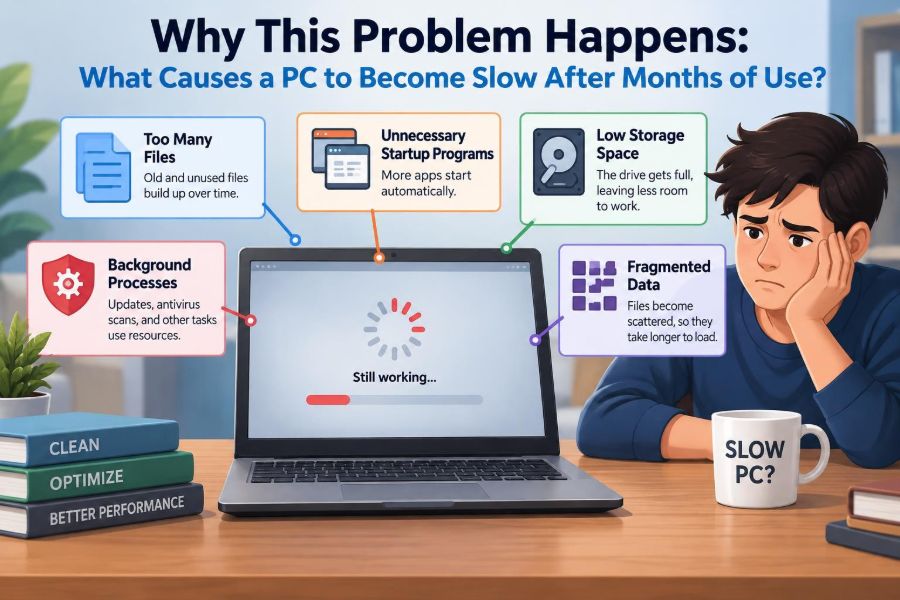

Your PC felt quick when it was new. Programs opened without hesitation, browser tabs switched smoothly, and a restart took little time. Then, several months later, ordinary tasks begin to drag: the desktop appears slowly, video calls stutter, and even opening a folder can feel delayed.
This experience is common, but it is also easy to misunderstand. A computer does not simply “get old” because time passed. Its performance changes because software, files, settings, heat, storage, and sometimes hardware conditions change around it.
That distinction matters. If the cause is a crowded startup list, buying a new computer will not solve the underlying habit. If the cause is a failing drive or overheating processor, deleting a few temporary files will not be enough.
A slow PC is usually the result of several small pressures competing for limited resources. Understanding those pressures makes troubleshooting more logical—and helps you decide what to clean up, what to upgrade, and when to seek help.
🧠 A PC Is Not Slowing Down in Just One Place
“Slow” can describe several different problems. A computer may take too long to start, pause when opening apps, lag only online, freeze during games, or become unresponsive when switching between tasks.
These symptoms involve different parts of the system. The processor handles calculations, memory holds active work, storage retrieves files, the graphics processor draws images, and the network transfers data. The first useful question is therefore: when does the slowdown happen?
If every app is slow, the cause may be system-wide. If only a web browser is slow, extensions, tabs, or the connection may deserve attention first.
⚙️ The Main Resources Programs Compete For
Every running program asks the computer for resources. When demand exceeds what one component can provide quickly, the user notices waiting, stuttering, or freezing.
| Resource | What it does | Typical sign of pressure |
|---|---|---|
| CPU | Processes instructions and calculations | Apps respond slowly during demanding work |
| RAM | Temporarily holds active programs and data | Frequent pauses while switching apps |
| Storage | Stores and retrieves files, apps, and system data | Slow booting and long loading times |
| GPU | Renders graphics, video, and visual effects | Choppy animation, video, or games |
| Network | Moves data to and from the internet | Slow websites, downloads, and cloud apps |
Task Manager in Windows, Activity Monitor in macOS, and similar tools on Linux can show which resource is heavily used. A high reading is not automatically bad; it is evidence that must be matched with the moment you feel the problem.
🚀 Startup Programs Quietly Extend Boot Time
Many applications add themselves to the startup process after installation. Cloud storage tools, chat apps, game launchers, update helpers, printer utilities, and vendor software may all try to load when you sign in.
Each item might seem small alone. Together, they compete for CPU time, memory, disk access, and internet bandwidth precisely when the operating system is trying to become ready.
Review startup items periodically and disable programs that do not need to be available immediately. Do not disable security software or unfamiliar system components blindly; identify an item first.
📦 Background Processes Keep Working After You Close an App
Closing a window does not always stop its background services. An app may continue syncing files, checking for updates, sending notifications, indexing content, or keeping a helper process ready for faster launching.
This is useful when it saves time or protects data, but it can be wasteful when many programs do it at once. A lightly used PC can appear busy because its background software is active rather than because the user is doing demanding work.
Look for processes that consistently use CPU, memory, or disk activity while the machine is idle. Uninstalling software you no longer use is often cleaner than merely preventing it from starting.
🧩 Software Updates Can Raise the Baseline Demand
Applications do not stay the same after installation. New versions may add features, security checks, integrations, higher-resolution assets, or support for newer services. Operating system updates can also require more storage and background maintenance.
That does not mean updates are a mistake. Security fixes and compatibility improvements are valuable. But on older or lower-specification hardware, software that was once comfortable may gradually use more of the available resources.
When a slowdown began soon after a specific update, check whether the developer documents a known issue. Avoid assuming every update is harmful; compare the timing, symptoms, and resource use before rolling anything back.
🧠 Too Little RAM Forces Constant Swapping
RAM, or random-access memory, is fast working space for programs currently in use. When there is not enough available RAM, the operating system moves some data temporarily to storage. This process is often called paging or swapping.
Storage is much slower than RAM, even when the PC uses a solid-state drive. The result can be a noticeable pause when returning to a browser tab, spreadsheet, design project, or meeting app that has been pushed out of active memory.
A common example is a laptop with many browser tabs, a video call, a large document, and several messaging apps open at once. The hardware may not be broken; its active workload simply exceeds its memory capacity.
🌐 Browsers Can Become Full Workspaces
Modern browsers run web applications that can be as demanding as traditional desktop software. A single tab may contain scripts, ads, video, live dashboards, document editors, and background connections.
Extensions add another layer of work. Password managers and ad blockers can be useful, but unnecessary extensions, duplicate tools, or poorly behaved add-ons can increase memory use and page-loading delays.
Try closing inactive tab groups, reviewing extensions, and testing the browser in a private window or a fresh profile. If performance improves there, the issue is more likely browser-related than a general PC failure.
💾 A Nearly Full System Drive Has Less Room to Work
The main drive needs free space for updates, temporary files, caches, restore data, and virtual memory. When it is nearly full, the operating system has less flexibility to manage routine work.
Large downloads, old installers, duplicate media, unused games, device backups, and application caches can consume space quietly. Cloud folders can also be unexpectedly large when files are stored locally for offline access.
Freeing space is sensible, but do it deliberately. Remove items you recognize, empty the recycle bin or trash, and use built-in storage reports before deleting folders with unfamiliar names.
🔩 Hard Drives Become a Major Bottleneck
Traditional hard disk drives store data on spinning platters and use moving read/write heads. They can still hold large amounts of data economically, but their mechanical design makes random file access much slower than a modern solid-state drive.
As software starts more services and opens many small files, a hard drive can become the part users wait on most. Booting, launching apps, searching files, and applying updates may all feel sluggish.
Replacing a healthy hard drive with an SSD is often one of the most noticeable upgrades for an older PC. It will not add processor power or RAM, but it can greatly reduce delays caused by storage access.
🗂️ File Clutter Is Usually an Indirect Cause
Having many documents, photos, or videos does not automatically make a computer slow. Files sitting quietly on a drive do not consume CPU time merely by existing.
The effects are indirect. Large collections can make backups, antivirus scans, photo-library indexing, search indexing, and cloud synchronization take longer. A crowded drive can also leave too little working space for the system.
The practical goal is not to keep every folder tiny. It is to organize large data, archive what is rarely needed, and leave adequate space on the drive that runs the operating system.
🔎 Search Indexing and Media Analysis Can Create Temporary Slowdowns
Operating systems index filenames and sometimes file contents so searches return quickly. Photo applications may also identify faces, locations, or image content. These tasks are useful, but they can be demanding after a large import, an update, or a new external drive connection.
A laptop may feel slow for a while after copying thousands of photos or restoring a backup. If disk activity is high and the system becomes normal after the task finishes, this points to maintenance work rather than permanent decline.
Letting these tasks complete while the computer is plugged in and idle is usually better than repeatedly interrupting them.
☁️ Cloud Syncing Can Saturate the Connection and Disk
Cloud storage services watch selected folders for changes. When you add a large folder, edit many files, or reconnect after being offline, the service may upload and download extensively.
That can use network bandwidth, disk access, processor time, and battery power simultaneously. On a slower connection, it may also make video calls and websites feel slow even though the PC itself is functioning normally.
Check the sync service’s status before diagnosing a more serious problem. Pausing a large sync temporarily can be reasonable, but make sure it resumes later so files are protected and consistent.
🛡️ Security Scans Have a Performance Cost
Antivirus and endpoint security tools inspect files and processes to detect threats. Real-time protection is especially important because it checks activity as it occurs, but scans can add overhead when many files are being opened, copied, or installed.
A scheduled full scan may explain a temporary slowdown. Multiple security products running at once, however, can duplicate work and sometimes interfere with one another.
Use a reputable, current security solution and keep the operating system updated. Do not turn protection off permanently merely to gain speed; investigate unusual scan schedules or conflicts instead.
🦠 Malware Is Possible, But Not the Default Explanation
Malicious software can consume resources, alter browser behavior, run unwanted tasks, or steal data. Sudden unexplained CPU use, persistent pop-ups, unknown startup items, browser redirects, or suspicious network activity deserve attention.
Still, most slow PCs are slowed by ordinary software accumulation, limited hardware, storage pressure, or heat—not automatically by malware. Treating every performance issue as an infection can lead to unnecessary tools and risky “cleaner” downloads.
Run a trusted security scan, remove unknown software carefully, change passwords if there is evidence of compromise, and seek technical support when symptoms are serious or persistent.
🌡️ Heat Makes Components Reduce Their Speed
Processors and graphics chips generate heat while working. If temperatures become too high, the system may reduce their operating speed to protect the hardware. This behavior is called thermal throttling.
The effect is often most visible during games, video editing, compiling code, or long video calls. A PC may start a task normally and become slower after several minutes as heat builds up.
Warm air from the exhaust is normal. Repeated severe slowdowns, loud fans, unexpected shutdowns, or a chassis that becomes unusually hot point to a cooling issue worth checking.
🧹 Dust and Blocked Airflow Trap Heat
Dust can collect on intake vents, fans, and cooling fins. A laptop used on bedding, a cushion, or a lap desk with blocked vents may pull in less cool air and retain more heat.
Simple habits help: use the machine on a hard, flat surface, keep vents clear, and clean accessible exterior vents carefully. Desktop computers may need periodic internal cleaning, performed safely with power disconnected and with awareness of the manufacturer’s guidance.
Opening a compact laptop can be difficult and may affect warranties or damage delicate connectors. For internal cleaning or thermal-paste work, professional service can be the safer choice.
🔋 Power Settings Can Prioritize Battery Life Over Speed
Laptops often use power modes that reduce performance to extend battery life or lower fan noise. A conservative mode can make a computer feel slow even when its hardware is otherwise capable.
Check whether the slowdown happens only on battery power, only when using a particular charger, or after a power-saving setting changes. Some systems also limit performance if they cannot identify the charger correctly.
Higher-performance settings use more energy and produce more heat, so they are not automatically the best choice. Select the mode that matches the task: efficient for reading and writing, more responsive for demanding work.
🔌 Chargers, Batteries, and Docking Stations Can Affect Performance
A damaged, underpowered, or incompatible charger may prevent a laptop from receiving enough power during heavy use. Some models intentionally limit processor performance in that condition to avoid unstable behavior.
Docking stations and USB hubs can add complications too, especially when they carry displays, storage devices, networking, and charging through one connection. A fault or bandwidth limit can make only certain tasks feel slow.
Test with the manufacturer-recommended charger and, if appropriate, without the dock. This isolates whether the slowdown follows the computer itself or an accessory.
🖥️ Graphics Drivers and Visual Workloads Matter
The GPU handles visual output, including display effects, high-resolution video, 3D software, and games. An outdated, corrupted, or unsuitable graphics driver can cause stutter, display glitches, crashes, or poor performance in a specific application.
More pixels also require more work. Connecting a high-resolution external display, running several monitors, or enabling demanding visual settings can expose limits that were not obvious on the laptop’s built-in screen.
Install graphics drivers from the computer or GPU manufacturer when appropriate, and avoid random driver-update utilities. If one app is slow, lower its visual settings before assuming the entire PC needs replacement.
📡 Network Slowness Can Look Like Computer Slowness
A web page that loads slowly, a cloud document that lags, or a meeting that freezes may be limited by the internet connection rather than the computer. Weak Wi-Fi signal, network congestion, router problems, and service outages can all produce similar symptoms.
Compare an offline task with an online one. If a local document and installed app respond quickly while websites struggle, investigate the network path first.
Trying another network, moving closer to the router, using wired Ethernet when practical, or checking whether other devices are affected can narrow the cause without changing the PC.
🔄 Long Uptime Can Leave a System Carrying Extra Baggage
Modern operating systems manage memory well, but some apps gradually consume more memory or handles the longer they remain open. This is commonly described as a memory leak, though not every increase in memory use is a true leak.
Restarting closes active programs, clears many temporary states, and applies some updates. It is not a cure for chronic problems, but it is a valuable diagnostic step.
If a restart repeatedly restores speed for only a short time, observe what was open before the slowdown returns. One particular app, driver, or background task may be accumulating the problem.
🧱 Old Hardware Meets Newer Expectations
Hardware does not lose capability simply because it is older, but the workload expected of it changes. Websites become richer, video resolution increases, workplace tools add features, and operating systems continue to evolve.
An older dual-core processor, limited RAM, or integrated graphics may still be excellent for email and documents while struggling with modern multitasking, virtual meetings, large spreadsheets, or creative applications.
This is a compatibility gap, not a moral failure by the user or the device. Knowing the intended workload helps determine whether maintenance, an upgrade, or replacement is the sensible response.
🧪 Measure Before You Change Anything
Performance tools turn vague frustration into useful clues. Open the system monitor while reproducing the issue: start the slow app, copy the large file, join the meeting, or launch the game.
Look for a pattern. Sustained high CPU use may identify a demanding process; memory near capacity can suggest RAM pressure; disk activity near its limit during pauses can point to storage. Temperatures and fan behavior add context for suspected heat problems.
Do not focus only on the highest number. A process using resources briefly may be normal. The meaningful evidence is high demand that occurs at the same time as the slowdown.
🧰 Start With Low-Risk Maintenance
Many slowdowns improve through basic housekeeping that does not require special software. The aim is to reduce unnecessary work and ensure the system can update, store temporary data, and cool itself properly.
- Restart the PC and install pending operating system and application updates.
- Uninstall programs you no longer use.
- Review startup apps and disable nonessential ones.
- Free space on the system drive using built-in storage tools.
- Close unused browser tabs and remove unneeded extensions.
- Check for security issues with trusted built-in or established security tools.
- Keep vents unobstructed and confirm the correct charger is in use.
Make one or two changes at a time, then test. Changing everything at once makes it difficult to learn what actually helped.
🚫 “PC Cleaner” Tools Can Create New Problems
Utilities that promise instant speed boosts often rely on broad claims. Some remove temporary data safely, but others push registry cleaning, aggressive process termination, or driver updates without providing enough context.
The Windows registry and similar system configuration stores are not usually a meaningful source of everyday slowness. Removing entries indiscriminately can break associations, settings, or software behavior while delivering little measurable benefit.
Prefer built-in cleanup tools, manual review, and software from recognized vendors. Be especially cautious of tools that show alarming error counts and demand payment before explaining what they found.
🔧 Upgrades Should Target the Actual Bottleneck
An upgrade works best when it matches the limitation. More RAM helps systems that regularly run out of memory. An SSD helps systems held back by a hard drive. A faster GPU helps visual workloads, while a faster internet plan helps only network-limited tasks.
Check whether a laptop allows memory or storage upgrades; many newer models have components soldered in place. For desktops, upgrades are often more flexible, but power supply capacity, physical space, and component compatibility still matter.
Before spending money, ask what task is slow and which resource becomes constrained during that task. That simple habit prevents upgrades based only on guesswork.
🧑🔧 Warning Signs That Need More Than Routine Cleanup
Some symptoms indicate a possible hardware fault or deeper software issue. Repeated blue screens or kernel panics, clicking hard drives, unexpected shutdowns, battery swelling, burning smells, and files that repeatedly become corrupted should not be dismissed as ordinary slowness.
Back up important data promptly if a drive appears unreliable or the system becomes unstable. Continued use can turn a recoverable inconvenience into lost work.
Professional diagnosis is worthwhile when the PC overheats despite clear vents, fails to boot consistently, crashes under light use, or contains data you cannot risk losing.
📋 A Sensible Order for Troubleshooting
A structured sequence avoids wasted effort. Begin with the least invasive checks, then move toward deeper diagnosis only if the symptom persists.
- Define the symptom: boot time, one app, all apps, graphics, or internet activity.
- Restart and reproduce the problem.
- Check system monitoring tools during the slowdown.
- Review startup apps, background software, storage space, and browser extensions.
- Install appropriate updates and run a trusted security check.
- Check cooling, power settings, chargers, and connected accessories.
- Consider targeted upgrades or professional testing if evidence points to hardware limits or faults.
Keep a short note of what changed and what happened. This is particularly useful when a problem appears only at certain times or after a particular application starts.
🧭 The Core Principle: Find the Pressure, Not a Magic Fix
A PC becomes slow after months of use because its environment changes: more programs launch automatically, files and caches occupy storage, cloud services synchronize, software demands grow, and cooling systems collect dust. In some cases, a component is simply no longer adequate for the work being asked of it.
The right response is not to delete random files or install a dramatic “optimizer.” It is to identify the resource under pressure, connect it to the moment the PC slows down, and apply the smallest effective fix.
That approach is calmer, safer, and usually more economical. It also helps you distinguish a temporary maintenance task from a genuine need for hardware repair or replacement.
A slow PC is usually a diagnosable resource problem, not an unavoidable consequence of owning it for a few months. Observe the pattern, reduce unnecessary load, and upgrade or repair only when the evidence supports it. 🖥️⚙️🔍