
A desktop PC can look complete long before it is ready to run. The processor is chosen, the graphics card has arrived, and the case is waiting on the desk—yet one decision still affects whether the system starts reliably, stays quiet, and leaves room for future upgrades: the power supply.
It is tempting to choose a power supply unit (PSU) by finding the largest wattage number that fits the budget. The opposite mistake is equally common: selecting a low-wattage unit because a quick list of component ratings appears to fit within its limit.
Neither approach tells the whole story. A good PSU is not merely a box that provides “enough watts.” It must deliver stable power through the right cables, cope with short bursts of demand, work efficiently at typical loads, and fit physically in the case.
Calculating the right wattage is therefore a practical sizing exercise rather than a guessing game. Once you understand what each component draws and why headroom matters, the choice becomes much clearer.
🔌 What a PC Power Supply Actually Does
The PSU converts alternating current (AC) from a wall outlet into the low-voltage direct current (DC) power used by computer components. It supplies several voltage rails, with the 12-volt rail doing most of the demanding work for modern CPUs, graphics cards, fans, and pumps.
Its wattage rating is the maximum DC power it is designed to provide under specified conditions. A 750-watt PSU can supply up to 750 watts to the PC; it does not continuously force 750 watts into the system.
⚡ Wattage Is Capacity, Not Constant Consumption
Think of PSU wattage like the capacity of a bridge. A bridge built for heavier traffic does not create more cars; it simply has room to carry them safely. Likewise, the PC draws the power it needs, within the PSU’s available capacity.
A computer that consumes 250 watts while browsing will not suddenly consume 750 watts because it has a 750-watt PSU. Wall power will be slightly higher than component power because conversion is not perfectly efficient.
🧩 Start With the System You Are Actually Building
Calculate for the exact or planned configuration, not for a vague category such as “gaming PC.” Two machines with the same processor family can have very different needs when one includes a high-end graphics card, several drives, and liquid cooling.
Make a component list before comparing PSUs. Include parts already installed and additions you realistically expect within the next few years.
- CPU and its expected power limit
- Graphics card or cards
- Motherboard and memory
- Storage drives
- Case fans, RGB controllers, and cooling pumps
- USB-powered accessories that draw substantial power
🧠 Estimate CPU Power Beyond the Nameplate
Processor specifications can be confusing because terms such as base power, processor base power, TDP, or thermal design power do not always represent the highest electrical draw. TDP is often primarily a cooling-related guideline, not a universal maximum-power figure.
Many motherboards allow a CPU to boost above its basic rating for limited or extended periods. Check the processor’s documented power limits and the motherboard’s default behavior, especially for high-performance desktop CPUs.
For a conservative estimate, use the likely maximum sustained CPU package power during demanding work, not its lowest published figure.
🎮 Treat the Graphics Card as the Main Power Driver
In many gaming and graphics-focused PCs, the GPU is the largest single load. Manufacturers usually publish a board power rating or a recommended system PSU wattage. The board power rating helps estimate the GPU itself; the recommended PSU figure includes allowance for a typical supporting system.
Use the GPU manufacturer’s recommendation as a useful safety check, but do not treat it as a complete calculation. A recommendation may assume a particular class of CPU and may be deliberately broad.
📈 Understand Short Power Spikes
Component demand is not perfectly flat. A graphics card can create very brief transient spikes—short increases in power demand that occur faster than a simple average reading may show. CPUs can also change demand rapidly as boost behavior responds to workload.
A quality PSU must handle such changes without unstable voltage or protective shutdowns. This is one reason a calculated total that barely matches the PSU label is a poor target, particularly with powerful modern GPUs.
🧮 Add the Supporting Components
Motherboards, RAM, solid-state drives, fans, and lighting are usually smaller loads than a CPU or GPU, but they are not zero. Their combined use matters more in feature-heavy systems with many drives, fan hubs, pumps, and RGB devices.
A practical estimate for these supporting parts is often a modest allowance rather than an attempt to assign a precise number to every memory stick and connector. Exact figures vary with hardware and workload.
💾 Storage Devices Have Different Patterns
NVMe and SATA solid-state drives generally use relatively little power, although their draw can rise during intensive transfers. Mechanical hard drives need more power than SSDs and can demand a higher burst when their motors spin up.
A system with one NVMe drive needs little extra allowance. A file server with multiple hard drives should account for drive spin-up behavior and ensure the PSU has enough SATA power connectors on appropriate cable runs.
🌀 Cooling, Fans, and Lighting Are Small but Real Loads
A single case fan rarely changes PSU selection. However, a system with eight fans, a liquid-cooling pump, multiple lighting strips, and several controllers can add a meaningful amount to the total.
Read labels and manuals when possible. More importantly, avoid overloading a fan or RGB header on the motherboard; that is a connector and header limitation, not simply a PSU wattage issue.
➕ Use a Simple Calculation Method
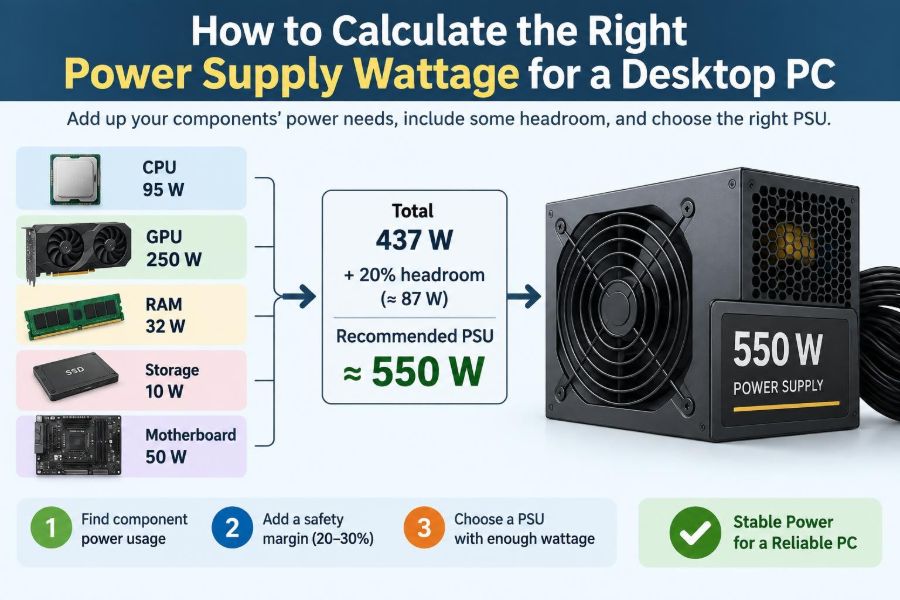
A reliable first estimate is straightforward: add the expected high-load CPU power, expected high-load GPU power, and an allowance for everything else. Then add headroom.
Estimated system load = CPU maximum expected draw + GPU board power + supporting-component allowance
Target PSU capacity = estimated system load + sensible headroom
For example, a hypothetical workstation might have a CPU expected to reach 180 watts, a GPU rated around 320 watts, and 100 watts allowed for the motherboard, memory, storage, fans, and cooling. Its estimated heavy-load demand is about 600 watts before headroom.
🛟 Why Headroom Makes a System More Reliable
Headroom is unused PSU capacity above expected demand. It helps accommodate transient spikes, component variation, warm operating conditions, aging, and future changes without running close to a unit’s limit.
It also avoids designing around an unrealistically perfect scenario. Actual power use depends on motherboard settings, workloads, peripheral count, and even the particular sample of a component.
📏 Choose Practical Rather Than Extreme Headroom
For many builds, choosing a PSU whose rated capacity is comfortably above estimated heavy use is sensible. The needed margin depends on the system: a modest office computer needs less reserve than a high-end PC with a powerful GPU and aggressive CPU boost settings.
More wattage is not automatically better. An oversized unit may cost more, take space needed elsewhere, and offer no meaningful benefit if the build will never approach demanding loads. Buy enough capacity for stable operation and credible upgrades, not a number chosen purely for bragging rights.
📊 A Quick Wattage Planning Guide
| Typical PC category | Likely power pattern | Planning focus |
|---|---|---|
| Basic office or study PC | Integrated graphics and modest CPU load | Quality, correct connectors, and quiet operation often matter more than very high wattage. |
| Mainstream gaming PC | GPU-led demand during games | Estimate GPU and CPU together, then leave meaningful room for spikes. |
| Creator workstation | Long CPU and GPU rendering loads | Plan for sustained demand, cooling, many drives, and future storage expansion. |
| High-end gaming or professional GPU PC | High continuous demand and larger transients | Follow GPU guidance closely and prioritize a strong, modern, high-quality PSU. |
These are planning categories, not exact wattage prescriptions. Specific component specifications always override a broad category.
🏷️ Read PSU Efficiency Labels Correctly
An efficiency certification, often described using an 80 Plus tier, indicates how effectively a PSU converts wall power into DC power at defined test loads. Higher efficiency generally means less wasted energy as heat under those test conditions.
Efficiency is useful, but it is not a complete quality score. It does not by itself reveal voltage regulation, internal component quality, protection behavior, noise, cable design, or long-term reliability.
🌡️ Efficiency Affects Heat and Noise
When a PSU wastes less power as heat, its cooling system has less heat to remove. That can help a unit run cooler and sometimes quieter, depending on its fan curve and overall design.
Still, do not assume the highest certification tier is always the best value. A well-reviewed unit with suitable wattage, protections, and warranty may be a stronger choice than a more efficient unit with unknown build quality.
🔍 Check the 12-Volt Output Rating
Modern systems place most of their load on 12 volts. On the PSU label, look for the combined 12-volt wattage or amperage rating, rather than focusing only on less relevant 3.3-volt and 5-volt figures.
A reputable modern PSU usually makes most of its total capacity available on 12 volts. If the label is unclear or the unit has unusually weak 12-volt capacity for its headline wattage, treat that as a warning sign.
🧷 Count the Connectors Before Buying
A PSU with sufficient wattage can still be wrong if it lacks the cables your parts require. Confirm the graphics card’s PCIe power needs, CPU power connectors near the top of the motherboard, SATA power plugs, and any newer high-power GPU connector requirements.
Do not assume every PSU of a given wattage includes the same cable set. Connector availability varies by model and generation.
- Check how many separate GPU power connections are required.
- Confirm the motherboard’s main 24-pin connector and CPU EPS connector needs.
- Count SATA-powered drives, hubs, and controllers.
- Check the graphics card documentation for approved connector arrangements.
🔗 Use Separate GPU Cables When Required
Some graphics cards use multiple power sockets. When the PSU and GPU documentation call for separate PCIe cables, use them rather than relying on a single daisy-chained cable for all connections.
This spreads current across the intended cable paths and connectors. Follow the instructions for your particular PSU and GPU, especially where newer high-power connectors or adapters are involved.
🧱 Understand Modular, Semi-Modular, and Fixed Cables
A fixed-cable PSU has all cables permanently attached. A semi-modular PSU keeps essential cables attached and allows others to be added. A fully modular PSU lets you connect only the cables the build needs.
Modularity mainly improves installation and cable management; it does not inherently make a PSU electrically better. One rule is critical: never use modular cables from a different PSU model unless the manufacturer explicitly confirms compatibility. PSU-side pinouts are not universally interchangeable.
📦 Confirm Physical Size and Case Fit
Many desktop PSUs follow the ATX form factor, but their depth can differ. A long, high-wattage unit may conflict with a drive cage, front-mounted radiator, or limited cable space in a compact case.
Check the case manual for maximum PSU length and allow space for cable bends. Small-form-factor systems may require SFX or SFX-L units rather than standard ATX supplies.
🛡️ Look for Essential Electrical Protections
Good PSUs include protections designed to shut down or limit operation under unsafe electrical conditions. Common names include over-current, over-voltage, under-voltage, short-circuit, over-power, and over-temperature protection.
Feature labels are not a substitute for credible product evaluation, but their absence from documentation is concerning. The PSU is connected to every major component, so quality and protection design deserve more attention than decorative features.
🔇 Consider Noise at Your Normal Load
Fan noise depends on the PSU’s cooling design, internal temperature, and load. Some models keep their fan stopped at low loads, while others run it slowly all the time. Neither approach is automatically superior.
For a quiet office or studio PC, choose based on how the unit behaves around your likely everyday power draw, not only at its maximum rating. A PSU mounted in a restrictive case compartment may also run warmer and change its fan behavior.
🧪 Use Online Calculators as a Second Opinion
PSU calculators can save time because they collect common component information in one place. They are useful for checking that your manual estimate is reasonable and for comparing possible upgrade paths.
However, their recommendations depend on their component database and assumptions. Enter accurate parts, compare the result against manufacturer guidance, and do not treat a calculator output as a guarantee of compatibility or quality.
🖥️ Example: A Mainstream Gaming Build
Consider a hypothetical PC with a midrange CPU that can draw roughly 125 watts under demanding settings, a graphics card near 250 watts, and about 90 watts reserved for all other components. The estimated heavy load is around 465 watts.
A quality 650-watt PSU could be a reasonable target if it has the required connectors and the GPU maker’s guidance supports it. A 750-watt model may make more sense if the owner expects a stronger graphics card later, uses higher CPU power limits, or simply wants extra reserve.
🎬 Example: A Rendering and Storage Workstation
Imagine a hypothetical workstation with a 220-watt CPU workload, a 350-watt GPU, multiple hard drives, a pump, and numerous fans. Giving the supporting hardware a larger allowance might place expected sustained demand around 700 watts.
In this case, moving well above that estimate is sensible. Long rendering sessions are different from occasional game peaks, and many drives also increase connector and cable-planning requirements.
🚫 Mistake: Buying by Wattage Alone
Two PSUs with the same wattage label can differ greatly in electrical performance, protections, acoustics, cables, warranty terms, and internal design. Wattage tells you capacity; it does not establish quality.
When comparing candidates, seek detailed specifications and trustworthy independent technical assessments where available. A dependable 650-watt unit can be a better choice than a questionable 850-watt unit.
🚫 Mistake: Treating a Cheap PSU as a Safe Shortcut
Budget limits are real, but the PSU is not a good place to chase the lowest possible price. An unreliable unit can cause instability that is difficult to diagnose, such as shutdowns during gaming, failed boot attempts, or inconsistent behavior under load.
This does not mean every expensive unit is necessary. It means selecting an appropriately sized model from a credible product line, with clear specifications and suitable protections.
🚫 Mistake: Ignoring Motherboard Power Settings
A CPU can use far more power when motherboard firmware applies permissive boost settings or removes recommended limits. Two systems with the same processor can therefore produce different power results.
After building, inspect BIOS or UEFI power settings if power draw, temperatures, or noise seem higher than expected. Setting reasonable limits can reduce consumption and heat with little effect on everyday performance, depending on the workload.
🔧 Test the Completed PC Under Load
After assembly, test demanding workloads gradually. A game, rendering task, or benchmark can reveal shutdowns, cable issues, excessive temperatures, or unstable overclocks that idle use does not expose.
A wall power meter can show total AC power drawn from the outlet, though it does not directly equal DC power delivered to components. Use it as an observation tool, not as the only basis for judging PSU health.
🔄 Plan Upgrades Without Overbuilding Forever
Future-proofing is useful when it reflects a real plan. If you expect to replace a midrange GPU with a substantially more power-hungry model, choosing the next sensible PSU tier now can avoid a later rebuild.
But predicting many years of hardware changes is uncertain. Standards, connector requirements, and component efficiency evolve, so an enormous PSU purchased only for hypothetical upgrades may not be the most practical investment.
✅ A Final Pre-Purchase Checklist
- Estimate CPU and GPU demand using realistic high-load figures.
- Add an allowance for the motherboard, storage, cooling, fans, and accessories.
- Leave sensible headroom for spikes, operating conditions, and upgrades.
- Check the GPU maker’s PSU recommendation as a cross-check.
- Confirm 12-volt capacity and every required connector.
- Verify case dimensions and cable-routing space.
- Choose a reputable model with documented protections and appropriate efficiency.
- Never mix modular cables between unconfirmed PSU models.
🎯 The Core Principle for Choosing PSU Wattage
The right power supply is the one that meets your system’s realistic maximum demand with enough reserve to handle short peaks and normal aging, while also providing the correct connectors, physical fit, and dependable electrical design.
Start with the CPU and GPU, account for the rest of the machine, add thoughtful headroom, and evaluate the PSU as a component of quality—not just a wattage number. That process works for a compact study computer, a gaming rig, and a demanding workstation alike.
Choose a PSU for the complete system and its real workload, not for the biggest number on the box. A measured choice brings stable performance, cleaner upgrades, and fewer surprises when the PC is finally under pressure. 🖥️⚡🔧