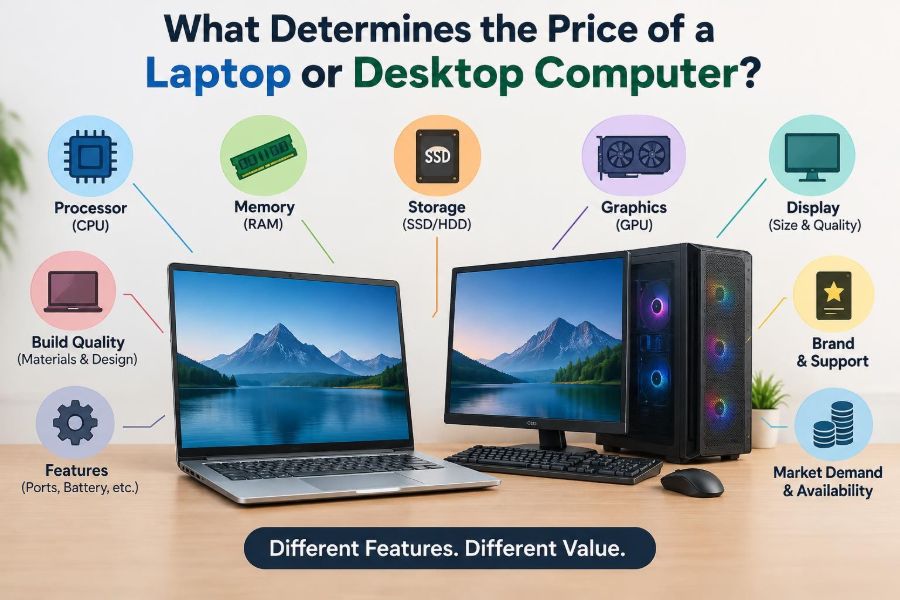

A student may see two laptops that look almost identical: same screen size, similar keyboard, and the same operating system. Yet one costs far more than the other. A working professional shopping for a desktop can face the same puzzle when a compact office PC costs less than a larger machine with seemingly familiar parts.
The difference is not usually one mysterious feature. A computer’s price reflects the performance it can deliver, the quality of the physical device, the cost of designing and supporting it, and the market it is sold into.
Understanding these factors helps you compare computers by what they can actually do rather than by a large storage number, a bright sticker, or a sale label. It also makes it easier to decide where spending more will improve your daily experience—and where it will not.
Laptops and desktops use many of the same components, but their pricing works differently in a few important ways. Let’s break down what is behind the number on the price tag.
🧩 A Computer Price Is a Combination, Not One Part
A computer is a system. Its price comes from a combination of processor, memory, storage, graphics capability, display, power system, cooling, case, software, manufacturing, distribution, and support.
A strong component can be limited by weaker surrounding parts. For example, a fast processor paired with too little memory may still feel slow when many browser tabs and applications are open. Manufacturers therefore price the whole configuration, not simply the most visible specification.
Retail pricing also includes costs that are not inside the box, such as shipping, retailer margins, warranty service, and product development.
🧠 The Processor Sets Much of the Performance Tier
The central processing unit (CPU) carries out general-purpose instructions. It affects how quickly a computer opens programs, calculates data, handles spreadsheets, compiles code, and responds while multiple tasks run.
Processors differ by generation, number of cores, speed behavior, built-in features, and power use. More cores can help with workloads that divide work across them, such as video exporting or software development. They do not automatically make every basic task dramatically faster.
A recent midrange processor may be a better fit than an older high-end one because it can offer improved efficiency and newer platform support. The processor name alone is not enough; the exact model and intended power level matter.
⚙️ Cores, Threads, and Speed Need Context
A CPU core is an execution unit that can work on instructions. A thread is a sequence of instructions; some processors can handle more than one thread per core. These details help explain why two processors with similar advertised speeds can perform differently.
Clock speed, measured in gigahertz (GHz), indicates how quickly a processor cycles, but it is not a complete performance score. Processor designs accomplish different amounts of work per cycle, and many chips temporarily increase speed when temperature and power limits allow.
For email, documents, web browsing, and video calls, a capable entry or midrange CPU is commonly sufficient. Rendering, engineering software, large databases, and heavy multitasking place more value on additional sustained processing capacity.
💾 Memory Determines How Much Can Stay Active
Random access memory (RAM) is the computer’s short-term workspace. Programs and currently used data are placed in RAM because it is much faster to access than long-term storage.
When RAM is limited, the operating system may move some data to storage and retrieve it later. This can cause pauses, especially when switching among many applications or tabs. More RAM does not make every single task faster, but it can make a computer feel much smoother under a realistic workload.
Memory capacity, speed, and whether it can be upgraded all influence value. On many thin laptops, RAM is soldered to the motherboard, so the amount chosen at purchase may be permanent.
📦 Storage Capacity and Storage Type Affect Value
Storage holds the operating system, applications, documents, photos, and other files when the computer is off. Capacity matters if you keep large video projects, games, design files, or local backups.
Type matters just as much. A solid-state drive (SSD) uses flash memory and generally gives much faster startup, application loading, and file access than a traditional hard disk drive. A hard drive may still offer economical large capacity, particularly in desktops and external storage.
Two computers with the same storage size can feel very different if one uses a faster SSD. Check whether a listed capacity includes only one drive and whether extra internal storage can be added later.
🎮 Graphics Hardware Can Change the Budget Quickly
Graphics processing handles drawing images, video, and 3D scenes. Many computers use integrated graphics, which are built into the processor and share system memory. They are often suitable for office tasks, streaming, schoolwork, and light creative work.
A dedicated graphics processing unit (GPU) is a separate chip with its own video memory. It can be valuable for modern games, 3D modeling, certain engineering applications, and some video or image-processing workflows.
Dedicated graphics hardware adds cost, heat, power demand, and complexity. Buying it “just in case” can be wasteful if your applications will never use it, while buying too little can limit a graphics-heavy workflow for years.
🧮 Video Memory Matters for Demanding Visual Work
Dedicated GPUs include video memory, often called VRAM. It stores textures, frame buffers, and other visual data close to the graphics processor. Higher-resolution displays, complex 3D scenes, and large creative projects can need more of it.
VRAM is not a universal measure of graphics speed. A GPU’s architecture, processing capability, cooling, and software support remain important. Still, an expensive graphics card with too little video memory for a particular workload can become restrictive.
Before paying for a GPU, check the requirements of the specific games or professional applications you use. A general “gaming” or “creator” label does not guarantee a good match.
🖥️ Display Quality Is Part of the Computer
For a laptop, the display is built into the purchase. It can account for a meaningful part of the price because it is the component you look at for hours every day.
Resolution affects how much detail and workspace the screen can show. Brightness matters in well-lit rooms or outdoors. Color coverage and accuracy are especially relevant to photographers, designers, and anyone preparing work for print or consistent digital presentation.
Higher refresh rates can make motion appear smoother, which is useful in fast games and some visual work. But a high-resolution or high-refresh display can also increase power use and may require stronger graphics hardware to reach its potential.
⌨️ Build Quality Changes the Everyday Experience
Two machines can have similar internal specifications while feeling very different to use. Case materials, hinge strength, keyboard travel, trackpad precision, port durability, and overall fit affect both comfort and long-term resilience.
A lower price may reflect a simpler plastic chassis, a less rigid lid, or a keyboard designed for occasional use. None of those choices automatically makes a computer bad. They become relevant when the device will travel daily, be shared, or be used for long work sessions.
Business-oriented models often cost more partly because they target frequent use, repairability, and organizational deployment. That premium is only worthwhile if those qualities match your circumstances.
🔋 Laptop Batteries Add Cost and Design Limits
A laptop needs a battery, charging circuitry, and careful power management. Larger batteries and efficient components can raise cost, while thin designs leave limited physical space for battery cells.
Battery-life claims depend heavily on what the computer is doing. Streaming video, video conferencing, high screen brightness, games, external devices, and demanding software draw more power than light document editing.
Battery replacement is another value consideration. Some designs make replacement easier than others. Since batteries wear over time, serviceability can matter more than an impressive claim made under light-use conditions.
🌡️ Cooling Protects Sustained Performance
Processors and graphics chips produce heat while working. Fans, heat pipes, heatsinks, air vents, and control software remove or manage that heat. Good cooling can allow a machine to maintain performance during a long export, simulation, or game session.
Thin laptops have less room for cooling hardware. They may use powerful components but reduce their speed after heat builds up, a process often called thermal throttling. This is not necessarily a defect; it is a protective design behavior.
Desktops usually have more space for airflow and larger coolers. That is one reason a desktop may deliver sustained performance more easily than a similarly specified laptop.
📏 Thin and Light Designs Have Trade-Offs
Making a laptop thinner and lighter requires compact components, specialized engineering, and often less space for ports, cooling, storage expansion, and repairs. Those design choices can increase manufacturing complexity and price.
Portability has real value for commuters, students moving between classes, and travelers. A heavier machine with more connections and stronger cooling may be better for someone who rarely moves it from a desk.
There is no universally best form. The useful question is whether reduced weight solves a daily problem that is worth the compromises and cost.
🧰 Desktop Cases and Power Supplies Are Not Mere Boxes
A desktop’s case determines physical space, airflow paths, drive bays, front-panel connections, and upgrade room. A small form factor system can save desk space but may require compact parts and tighter thermal planning.
The power supply unit (PSU) converts wall power into the stable voltages the computer needs. Its capacity, efficiency, component quality, and included connectors affect which parts the system can support.
Cheap prebuilt desktops sometimes cut costs in the case or PSU. That may be acceptable for a basic office system, but it can make a future graphics upgrade or extra storage installation more difficult.
🔌 Ports, Wireless Hardware, and Connectivity Have Value
Connections determine what the computer can work with. Useful examples include USB ports, video outputs, audio ports, memory-card readers, wired networking, and modern wireless networking and Bluetooth support.
A low-cost laptop may have fewer ports and rely on adapters or a dock. That can be perfectly practical for someone using cloud storage and one external display. It is less convenient for a user connecting projectors, cameras, wired networks, storage drives, and multiple monitors.
Check the exact port types, not just their shape. Similar-looking USB-C ports can support different capabilities for charging, display output, or high-speed data.
🧱 Motherboard Features Shape Expansion Options
The motherboard connects the processor, memory, storage, graphics, and ports. In a desktop, its slots and connectors influence what can be upgraded later. In many laptops, much of this is integrated into a compact board.
More expansion slots, extra storage connectors, better power delivery, and support for additional memory can raise a system’s base cost. These features are valuable only when they create options you are likely to use.
A basic desktop used for web work may not need extensive expansion. A user who expects to add drives, capture hardware, or a stronger GPU should look beyond the processor and inspect the platform.
🛠️ Upgradability Can Lower the Long-Term Cost
A less expensive computer is not always the least expensive ownership choice. If memory, storage, battery, or graphics can be upgraded or replaced, a system may stay useful longer without needing a complete replacement.
Upgradability has limits. New processor generations may require different motherboards, and laptop upgrades are often restricted. Also, parts bought later can cost more than selecting the right configuration initially.
Prioritize upgrades that are realistic: adding storage in a desktop, increasing replaceable RAM, or selecting a laptop with a serviceable SSD. Do not pay heavily for theoretical expansion you will never use.
🪟 Operating Systems and Included Software Have Costs
A computer may include an operating-system license, recovery tools, drivers, and manufacturer utilities. Business systems may also include management or security features intended for organizations.
Bundled software is not always a benefit. Trial programs and promotional applications can clutter a new computer. On the other hand, a legitimate operating system and well-maintained driver support save time and reduce setup complications.
When comparing prices, make sure the systems include comparable software. A bare desktop kit, a refurbished machine, and a fully configured consumer PC are not equivalent purchases.
🛡️ Warranty and Support Are Part of the Offer
Warranty coverage varies by seller, manufacturer, region, and product line. Some plans focus on defects; accidental damage coverage, on-site service, loan devices, or extended support may cost extra.
For a personal computer, a standard warranty may be enough if you can tolerate some downtime. For a freelancer or small business that depends on one machine for income, faster service can have greater practical value.
Read what the warranty actually covers, how repairs are handled, and whether service requires shipping the device away. A long warranty is useful only if its terms are workable.
🏭 Manufacturing Scale and Component Availability Matter
Large manufacturers can often buy components in high volumes and spread design costs across many units. This can help them offer competitive prices on common configurations.
At the same time, shortages, changing demand, exchange rates, shipping costs, and the availability of particular processors or memory chips can affect retail prices. These conditions change over time, so a price seen one month may not remain typical later.
Small-batch or specialized systems may cost more because they lack the same production scale. That does not automatically mean they are overpriced; they may offer a specific size, feature, or support model that mass-market products do not.
🏷️ Brand Positioning Influences Price, but Is Not a Specification
Brands invest differently in industrial design, quality control, customer support, retail presence, and marketing. A familiar name can carry a premium, particularly in product lines positioned as premium or professional.
Brand reputation can be a useful starting point for researching reliability and support, but it should not replace a configuration check. One brand can sell excellent and basic models at the same time.
Compare the exact model, not only the logo. Look at the screen, ports, memory, storage, processor, warranty, and repair options before deciding that a higher price is justified.
📣 Sales, Product Cycles, and Retail Channels Change the Sticker Price
Computer prices move because retailers clear older inventory, manufacturers introduce new models, and promotions target holiday or back-to-school demand. A discount may be a genuine opportunity, but it may also apply to an older configuration with compromises.
Direct-from-manufacturer stores, online retailers, local computer shops, and business resellers can offer different bundles and service arrangements. A lower listed price may exclude accessories or use a different warranty term.
Record the full model number and compare like for like. This avoids assuming that two machines with a similar product name have the same internal components.
♻️ New, Refurbished, and Used Computers Belong in Different Comparisons
A refurbished computer has typically been inspected, repaired if necessary, and prepared for resale by a manufacturer, retailer, or specialist. The exact process and warranty depend on the seller.
Used systems can offer excellent value, especially for basic office work or a desktop that can be upgraded. They also carry more uncertainty about battery health, wear, prior repairs, and remaining support.
Compare condition, return policy, charger inclusion, operating-system status, and compatibility with current applications. A very low price is less useful if the device cannot run the software or connect to equipment you need.
📊 Compare Configurations, Not Marketing Labels
Labels such as “Pro,” “Plus,” “AI-ready,” or “gaming” summarize a product line rather than its true capability. The specific configuration may have a different display, memory amount, graphics chip, or storage device from another model with the same family name.
| Use case | Specifications to prioritize | Potentially lower priority |
|---|---|---|
| Documents, browsing, video calls | Responsive CPU, adequate RAM, SSD, webcam and keyboard | Dedicated GPU, extreme storage capacity |
| Programming and multitasking | CPU, RAM, SSD space, external-display support | High-refresh gaming screen |
| Photo and video work | Display quality, storage, RAM, suitable CPU/GPU | Ultra-light weight if mainly desk-based |
| Gaming and 3D work | Dedicated GPU, cooling, display, power supply | Very thin chassis |
This is a guide, not a rigid formula. The software you use and the files you handle should determine the final priorities.
🧾 Calculate the Cost of Necessary Extras
The computer itself may not be the whole purchase. A laptop user may need a dock, monitor, keyboard, mouse, protective case, external drive, or adapter. A desktop buyer may need a monitor, speakers, webcam, and operating system.
These extras can change which option represents better value. For example, a laptop with fewer ports may cost less initially but require a dock to support a desk setup. Another model with needed ports built in may be the simpler total purchase.
Make a short list of equipment you already own and equipment you must buy. This turns an attractive starting price into a more realistic budget.
🚫 Common Price-Comparison Mistakes
- Choosing by storage capacity while overlooking RAM, processor generation, or storage speed.
- Assuming a higher clock speed always means a faster CPU.
- Paying for a dedicated GPU without checking whether the intended software uses it.
- Ignoring display quality because the screen size looks right.
- Buying a thin laptop for demanding sustained work without considering cooling.
- Comparing sale prices without checking the exact configuration and warranty.
- Forgetting the cost of monitors, adapters, backups, or productivity accessories.
Most of these mistakes come from treating one visible specification as a complete description of a system. A careful comparison takes a few more minutes and can prevent years of frustration.
✅ Match the Machine to Your Actual Work
Start with your routine: the applications you open, the number of files and browser tabs you keep active, the peripherals you connect, and whether you work mostly at a desk or on the move.
Then identify the likely bottleneck. Someone editing high-resolution video may need storage capacity, memory, display accuracy, and graphics support. Someone writing reports may gain more from a comfortable keyboard, reliable webcam, quiet operation, and battery life than from a premium GPU.
If possible, test the keyboard, screen, and trackpad in person. Specifications describe capability, but they do not fully describe comfort.
🔍 A Practical Checklist Before You Buy
- Write down the applications and tasks the computer must handle.
- Check their current system requirements, especially for professional software.
- Compare exact CPU, RAM, storage type, graphics, display, ports, and warranty.
- Confirm whether important parts can be upgraded or repaired.
- Add the cost of accessories and backup storage.
- Read independent reviews for noise, battery behavior, heat, and build quality.
- Choose the configuration that solves your needs with sensible room for change.
“Future-proof” is never absolute because software and hardware evolve. A better goal is to buy a system with enough headroom for the next few years of your expected work without paying for unused capacity.
🎯 The Core Principle: Value Depends on Fit
The price of a laptop or desktop reflects far more than its processor or storage number. Internal performance, graphics, screen quality, cooling, construction, portability, connectivity, support, and market conditions all contribute.
More expensive does not always mean better for every person. It may mean a stronger GPU, a brighter display, a repairable design, a lighter chassis, or service that matters to a particular buyer. Those features have value only when they solve a real requirement.
The smartest comparison asks, “Which computer will perform my work comfortably, reliably, and for long enough to justify its total cost?” That question turns computer shopping from a hunt for the biggest specification into a decision based on useful value.
A computer is worth its price when its capabilities, quality, and support match the work you genuinely need it to do. Choose the system—not just the headline specification—that fits your everyday life. 🖥️💡✅