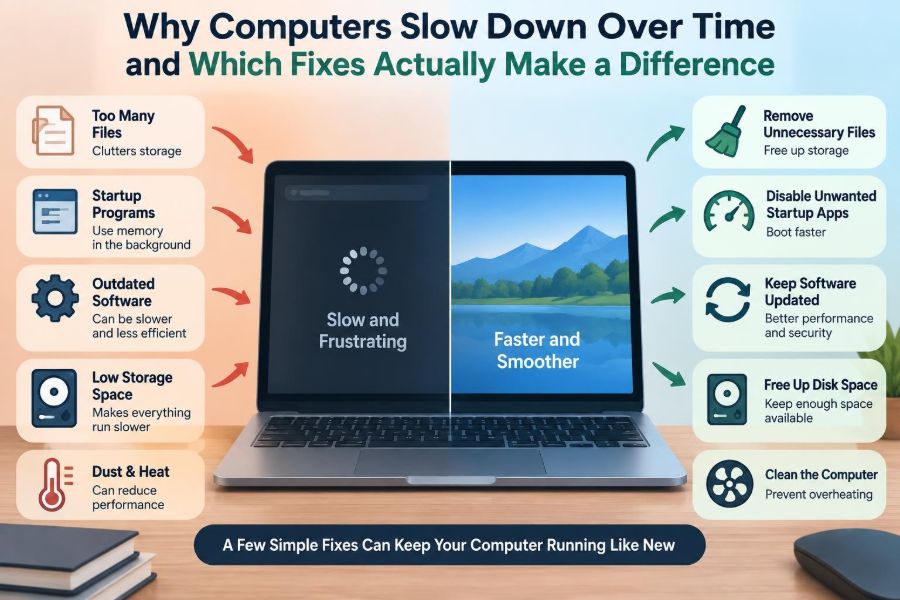

A computer that once felt instant can gradually become frustrating. Apps take longer to open, a browser hesitates when several tabs are open, and the fan seems louder during ordinary work.
That experience often leads to a simple conclusion: the computer is “old.” Age can matter, but it is not the whole explanation. A slow computer is usually the result of several limited resources competing at once: processor time, memory, storage speed, network access, cooling capacity, and software behavior.
Some common fixes help a great deal. Others mostly create the appearance of maintenance while changing little. Knowing the difference saves time, avoids risky “cleanup” tools, and makes it easier to decide whether a repair, an upgrade, or replacement is sensible.
The useful question is not “What can I delete?” It is which part of this particular computer is becoming the bottleneck?
🧠 A Computer Does Not Simply “Use Up” Speed
Normal computing does not wear away processor performance in the way a car engine loses efficiency. A CPU generally performs the same calculations at the same designed speed for years, unless it is overheating, power-limited, or faulty.
What changes is the workload around it. Newer applications may require more memory, web pages may contain more scripts and media, files accumulate, and background programs become more numerous. The machine can therefore feel slower even when its core hardware remains functional.
🚦 Performance Is Limited by the Slowest Busy Part
A bottleneck is the component or resource currently holding everything else back. A fast processor cannot make a program feel responsive if it is waiting for data from a slow hard drive. Extra memory will not fix a weak Wi-Fi connection during a video call.
Think of a checkout line: adding more shoppers does not make the cashier work faster. The first practical step is to identify the line causing the delay rather than applying every possible fix.
📦 Software Gets Heavier Over Time
Operating systems and applications receive updates for security, new device support, accessibility features, and capabilities users expect. Those improvements can increase their demand for processing power, memory, graphics resources, and storage.
This is not automatically poor programming. A modern video-conferencing app, for example, may process high-resolution video, background noise removal, screen sharing, captions, and encryption at the same time. Older hardware may still run it, but with less headroom.
🚀 Startup Programs Create a Slow First Impression
Many applications add a helper program that starts when you sign in. Cloud-storage sync tools, chat clients, update checkers, hardware utilities, game launchers, and security software can all compete for attention during startup.
Some are necessary; many are merely convenient. A computer may become usable eventually, but the first few minutes after sign-in feel slow because several programs are reading files, checking the network, and using processor time together.
- Keep security software and essential device services enabled.
- Consider disabling nonessential launchers and rarely used updaters from startup.
- Do not disable an item just because its name is unfamiliar; identify it first.
🪟 Too Many Open Programs Consume Memory
RAM, or random-access memory, is the fast working area where running programs keep data they need soon. Opening a document, browser tab, spreadsheet, or photo editor uses some RAM.
When RAM becomes scarce, the operating system moves less-active data to storage. This process is often called paging or swapping. It keeps the computer running, but storage is much slower than RAM, especially on an older mechanical hard drive.
🌐 Browser Tabs Are Small Applications
A browser is often the largest source of everyday memory use. Each tab may load images, video, advertisements, fonts, scripts, tracking code, and interactive features. A web-based office suite or design tool can use resources comparable to a traditional desktop application.
Closing unused tabs, removing unnecessary extensions, and restarting the browser occasionally can produce an immediate improvement. Bookmarking a page for later is usually more efficient than keeping it open for days.
🧩 Extensions Can Slow the Web Down
Browser extensions are useful, but they may inspect or alter every page that loads. Multiple coupon finders, grammar tools, download helpers, sidebar tools, and security extensions can add noticeable work to browsing.
Test this safely by opening a private window with extensions disabled, if your browser supports that behavior, or by temporarily disabling one extension at a time. Keep extensions from reputable sources and remove those you no longer use.
💾 A Nearly Full Drive Has Less Room to Work
Storage is not only a filing cabinet. The operating system needs working space for temporary files, updates, caches, virtual memory, and recovery tasks. When a drive is almost full, routine work becomes harder and updates can fail.
There is no single ideal free-space number for every device, because drive size and workload differ. The practical rule is to keep a meaningful amount of free capacity rather than letting the drive remain nearly full.
🗄️ Mechanical Hard Drives Are a Major Aging Bottleneck
A traditional hard disk drive, or HDD, stores data on spinning magnetic platters and reads it with a moving head. It is effective for large, inexpensive storage, but many small reads and writes take time because physical parts must move.
As applications, startup services, and browsers request many small files, an HDD can spend much of its time seeking. The result is often a computer that pauses even though the processor is not especially busy.
⚡ An SSD Upgrade Often Changes Everyday Responsiveness
A solid-state drive, or SSD, has no moving parts for ordinary data access. It is typically much faster at the small, scattered reads that affect booting, opening programs, searching files, and recovering from memory pressure.
For a computer that still has adequate processor performance and compatible storage connections, replacing an HDD with an SSD is often one of the most noticeable upgrades. It does not make every calculation faster, but it removes a common waiting point.
| Symptom | Likely pressure point | Fix most likely to help |
|---|---|---|
| Long boot and app launch times | Slow or busy storage | Free space; consider an SSD |
| Pauses with many apps or tabs | Insufficient RAM | Close workloads; add RAM if supported |
| Slow only on websites or calls | Network or browser load | Test connection; reduce extensions |
| Slow under sustained work, fan loud | Heat or power limits | Improve cooling; inspect settings |
🧮 More RAM Helps Only When RAM Is the Constraint
Adding memory is valuable when normal work regularly causes paging. A person editing large files, running virtual machines, working with many browser tabs, or switching between creative applications may benefit substantially.
It will have little effect if the computer already has plenty of available RAM and the real delay is a slow processor, weak graphics hardware, an overloaded drive, or a slow website. Check actual memory use before buying parts.
🔍 Task Managers Turn Guesswork into Diagnosis
Windows Task Manager, macOS Activity Monitor, and similar Linux tools show which programs are using CPU, memory, disk, network, and sometimes graphics resources. Their exact labels differ, but the diagnostic idea is the same.
Reproduce the problem while watching the tool. If disk activity stays very high during a freeze, storage is worth investigating. If one program consumes most CPU time, updating, changing, or closing that program may be more effective than general cleanup.
🌡️ Heat Can Cause Intentional Slowdowns
Processors protect themselves from excessive heat by reducing speed, a behavior called thermal throttling. This is safer than overheating, but it can make games, video exports, and other sustained tasks slower.
Blocked vents, dust buildup, a failing fan, soft surfaces that obstruct airflow, and degraded thermal materials can contribute. A laptop that is slow only after several minutes of demanding work is more suspicious for a heat issue than one that is slow immediately after startup.
🔌 Power Settings Trade Speed for Battery Life
Laptops commonly use power plans that reduce performance to extend battery runtime or lower heat and noise. This can be appropriate for reading and email, but it may limit responsiveness during heavier work.
Check whether the device is in a battery-saving mode and test the workload while connected to its correct charger. Avoid assuming every slow laptop needs a hardware upgrade when a power setting may be involved.
🔄 Updates Can Temporarily Compete for Resources
Operating system updates, application updates, search indexing, cloud synchronization, and backups may use processor time, network bandwidth, and disk activity. The effect is often temporary, especially after a major update or first sign-in on a new device.
Let legitimate maintenance finish before diagnosing a permanent problem. However, a machine that remains heavily active for long periods without clear reason deserves closer inspection.
☁️ Syncing and Backups Are Useful but Not Free
Cloud services protect files and make them available across devices, but a large initial sync can stress an older computer or limited connection. Uploading high-resolution photos while joining a video meeting may cause both tasks to feel worse.
Schedule large backups for quieter periods when possible. Pausing sync briefly can be reasonable during urgent work, but it should not become a permanent habit that leaves important files unprotected.
📡 Network Delays Can Look Like Computer Delays
A webpage that spins, a cloud file that will not open, or a meeting with frozen video may be limited by the internet connection rather than the computer. Wi-Fi distance, interference, router issues, congestion, and service outages can all contribute.
Compare behavior on another device or network before changing computer settings. If local apps open quickly but online services lag, investigate the connection first.
🦠 Malware Is Possible, but Not the Default Explanation
Malicious software can consume resources, display unwanted ads, alter browser settings, steal information, or run hidden tasks. It should be taken seriously, particularly when slowdowns appear alongside unfamiliar pop-ups, unexplained security alerts, or unknown programs.
Yet routine slowness is more often caused by ordinary software load, storage limits, or aging hardware. Use built-in or reputable security tools, keep software updated, and avoid installing multiple competing antivirus products, which can themselves create overhead.
🧹 Temporary Files Are Not Always Junk
Caches and temporary files exist for a reason: they store reusable data so programs do not need to recreate or download it each time. Deleting them can solve a specific corrupted-cache issue or reclaim needed space, but it can also make the next launch slower while the cache is rebuilt.
Use built-in storage-management tools to review large files, old downloads, unused applications, and system recommendations. This is safer and more meaningful than deleting every temporary file on a schedule.
🧪 Registry Cleaners Rarely Deliver Meaningful Speed Gains
On Windows, the registry is a database of configuration information. Removing a few obsolete entries usually does not solve a performance bottleneck, because the computer is not typically searching through the registry in a way that makes those entries significant.
Aggressive cleaners can remove needed settings or create problems that are harder to diagnose than the original slowdown. Be skeptical of tools that promise dramatic speed increases from a one-click scan.
🧱 Defragmentation Depends on the Drive Type
On an HDD, files can become fragmented: pieces are stored in different locations, requiring more head movement to read them. Modern operating systems generally manage HDD optimization automatically, so manual defragmentation is rarely a first response.
An SSD should not be treated like an HDD. Repeated traditional defragmentation is unnecessary and creates extra writes. Operating systems may perform SSD-aware maintenance, but users should use the system’s own optimization tools rather than generic advice from older tutorials.
🛠️ Drivers and Firmware Need a Careful Approach
A driver lets the operating system communicate with hardware such as graphics, Wi-Fi, printers, and storage controllers. An outdated or faulty driver can cause crashes, poor performance, or odd device behavior.
Update drivers from the computer manufacturer, hardware maker, or operating system update service when there is a reason: a documented issue, a compatibility need, or a known fix. Avoid random “driver updater” utilities that may install unsuitable software.
🎮 Graphics Limits Are Different from General Slowness
Games, 3D design software, video effects, and some AI-assisted features rely heavily on the graphics processor, or GPU. A computer can be perfectly adequate for documents and browsing while struggling with a new game or high-resolution editing project.
Lowering render resolution, reducing visual effects, using proxy media in video editing, or selecting a less demanding preset can improve the experience. A GPU upgrade may help desktop systems, while many laptops have limited upgrade options.
🧭 Separate a Single-App Problem from a System Problem
If only one application is slow, start there. Check its updates, extensions, project size, settings, cache, and compatibility. Reinstalling that application may be sensible after backups and basic troubleshooting.
If every application is slow, especially after a clean restart, look more broadly at startup items, memory, storage health, heat, operating system issues, and malware. This distinction prevents broad repairs for a narrow problem.
🧯 Warning Signs Point to Reliability, Not Just Performance
Repeated crashes, file corruption, clicking hard-drive sounds, sudden restarts, blue-screen or kernel errors, and drives that disappear are not ordinary clutter. They can indicate failing hardware or serious software faults.
Back up important files before attempting major fixes. Performance work should never take priority over protecting documents, photos, work projects, and account recovery information.
🧰 A Sensible Order for Troubleshooting
Start with changes that are low-risk, observable, and reversible. This order avoids spending money before understanding the problem.
- Restart the computer and install pending operating system and application updates.
- Check free storage space and remove large, unneeded files or unused applications.
- Use the task manager during the slowdown to identify high CPU, memory, disk, or network use.
- Review startup applications and browser extensions.
- Run a reputable security scan and inspect for unexpected software.
- Check cooling, vents, battery mode, charger, and network conditions.
- Consider targeted upgrades such as an SSD or additional RAM.
- Seek technical support if errors, drive warnings, or instability continue.
💰 Upgrade, Repair, or Replace?
An SSD, additional RAM, a fresh battery, or a cooling repair can extend the useful life of many computers. These choices make the most sense when the device otherwise meets your needs and can run supported, secure software.
Replacement becomes more reasonable when the processor or graphics hardware cannot handle essential workloads, storage or memory cannot be upgraded, repairs are unreliable, or the operating system no longer receives security updates. The best decision depends on the task, not simply the device’s age.
🗂️ Good Habits Preserve Responsiveness
Regular maintenance does not require obsessive cleaning. It means keeping backups, leaving storage headroom, uninstalling software you no longer use, limiting startup items, updating from trusted sources, and noticing changes before they become severe.
A restart is also useful more often than people expect. It clears many temporary states, completes some updates, and can reveal whether a problem is persistent or tied to a long-running session.
✅ The Core Principle: Diagnose Before You “Optimize”
Computers slow down for understandable reasons, but the visible symptom is not a diagnosis. Long startup times, browser pauses, sluggish video calls, and poor game performance can each have different causes.
The fixes that truly make a difference are the ones matched to the limiting resource: remove unnecessary startup load, free storage, reduce memory pressure, improve cooling, repair a network issue, replace a failing drive, or upgrade the component that is actually too weak.
Broad cleanup campaigns are usually less valuable than careful observation. A few minutes spent checking resource use can prevent hours of ineffective tweaking.
A computer feels fast when its workload fits its available resources, and the smartest fix is the one that removes the real bottleneck. With a little diagnosis, many “old” computers become far more pleasant to use again. 🧹💻⚡