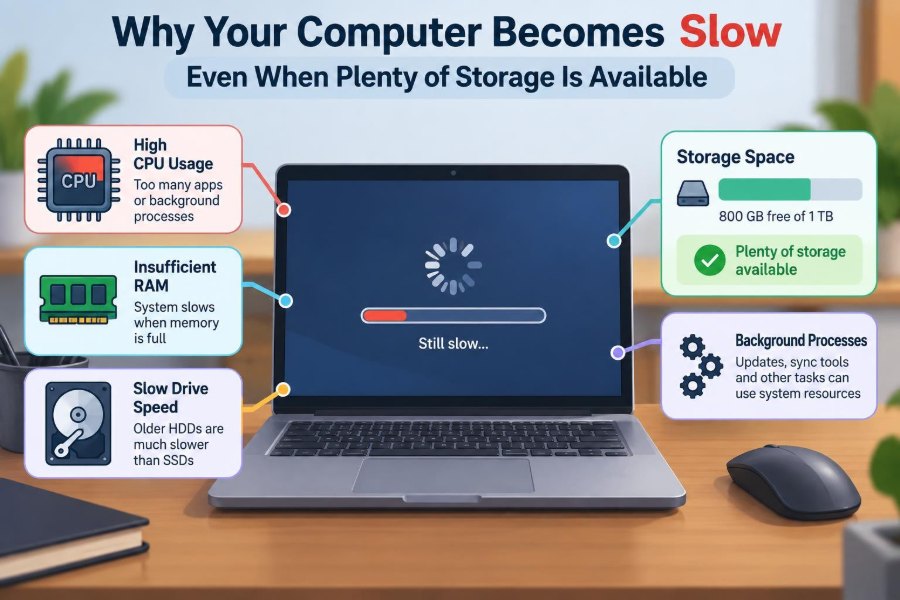

You open your laptop to send a quick message, but the browser takes ages to appear. A document pauses while you type. Video calls begin to stutter just when you need to share your screen.
Your first instinct may be to check the disk. There are hundreds of gigabytes free, so why does the computer still feel slow?
The confusion is understandable because “storage” is only one part of a computer’s performance. A machine can have an almost empty drive and still struggle with too many active programs, limited memory, heat, failing hardware, or a task that is simply demanding.
Understanding the difference helps you diagnose the real bottleneck instead of deleting useful files in the hope that speed will return.
🧩 Storage Space Is Not Computer Speed
Storage is the long-term space where files, applications, photos, and the operating system live. It is measured in gigabytes or terabytes. Free storage capacity tells you how much more data the drive can hold, not how quickly the computer can process work.
A useful analogy is a desk drawer. An empty drawer gives you room to store papers, but it does not make you read, calculate, or organize faster. Those jobs depend on other resources.
🧠 The Main Parts Behind Everyday Performance
Most slowdowns involve one or more of four resources: the processor, memory, storage activity, and graphics hardware. The operating system constantly divides work among them.
| Resource | Primary job | Common sign of pressure |
|---|---|---|
| CPU | Runs calculations and program instructions | Apps respond slowly during busy tasks |
| RAM | Holds data currently being used | Frequent pauses while switching apps |
| Drive | Stores and reads files permanently | Long loading, saving, or update times |
| GPU | Draws graphics and accelerates visual tasks | Choppy games, video, or design work |
One free resource cannot compensate fully for another that is saturated.
🚦 Bottlenecks Determine What Feels Slow
A bottleneck is the component currently limiting the task. If a photo editor is waiting for the CPU to finish a filter, extra free disk space changes nothing. If it is waiting to read a large image from a slow drive, a faster processor may not help much.
Different activities create different bottlenecks. This is why a computer may feel fine for email but sluggish in a meeting, while exporting video, or when opening a large spreadsheet.
⚙️ CPU Load Can Delay Every Click
The central processing unit, or CPU, executes the instructions that make programs work. When several demanding tasks compete for its time, the system must take turns serving them.
Examples include file compression, antivirus scans, software builds, video encoding, browser pages with complex scripts, and a game running in the background. A sustained high CPU load can make even the mouse pointer and typing feel delayed.
Checking Task Manager on Windows, Activity Monitor on macOS, or a system monitor on Linux can reveal whether a process is consuming unusual CPU time.
🧠 RAM Is Your Active Workbench
Random access memory, or RAM, is fast temporary workspace. Programs use it for open documents, browser tabs, images, code, and background data. Its contents disappear when the computer shuts down.
Having 500 GB of empty disk space does not create more RAM. A computer with modest memory can become slow if a browser, communication app, document editor, and several other tools are all open together.
🔄 When the System Starts Swapping
When RAM is nearly full, the operating system moves less-active information to a file on the drive. This process is commonly called paging or swapping.
It allows programs to remain open, but drives are much slower than RAM, even when the drive is an SSD. The result is often a pattern of pauses: you switch windows, wait; return to the first app, wait again.
Closing unused applications and tabs can relieve this immediately. If it happens regularly during normal work, a RAM upgrade may be more valuable than cleaning files.
🌐 Browser Tabs Are Small Programs
A modern browser is not just a document viewer. Each tab may run scripts, media players, advertisements, extensions, and background connections. A single poorly behaving page can consume significant memory or CPU time.
Try closing tabs you no longer need, disabling extensions you do not trust or use, and using the browser’s built-in task manager where available. Do not assume every open tab is harmless just because it is not visible.
🚀 Startup Apps Can Slow the Beginning of Every Day
Many applications ask to launch when you sign in: chat clients, cloud-sync tools, game launchers, update helpers, printer utilities, and vendor software. Each may be reasonable alone, but together they compete for attention after startup.
Review startup items in your operating system settings. Keep security software and tools you genuinely need at sign-in, but disable optional launchers that can start only when you open them.
🔔 Background Work Is Still Real Work
A computer may appear idle while it indexes files for search, synchronizes cloud folders, installs updates, creates backups, scans for malware, or generates photo thumbnails. These jobs can use CPU, memory, disk activity, or network bandwidth.
Background work is not automatically bad. Backups and security scans are useful. The practical question is whether the activity is expected, temporary, and running at a convenient time.
☁️ Cloud Synchronization Can Create Hidden Pressure
Cloud storage services watch selected folders for changes, then upload, download, and sometimes compare file versions. Editing a folder containing many small files can trigger substantial work.
If your device slows while syncing, pause the service briefly to test the connection. You can also exclude unnecessary folders, avoid keeping duplicate sync tools for the same files, and allow a large first sync to finish before judging performance.
💽 Drive Capacity and Drive Speed Are Different
Two drives can offer the same capacity while delivering very different performance. A traditional hard disk drive uses spinning magnetic platters and a moving read/write head. A solid-state drive, or SSD, uses flash memory and has no moving parts.
SSDs generally make the operating system, applications, and files feel more responsive because they access scattered data far faster. More free space on an old hard drive does not make it behave like an SSD.
📁 Fragmentation Matters Mainly on Hard Drives
On a hard drive, pieces of one file can be stored in different locations. The physical read head must move between them, which can add delay. This is called fragmentation.
Modern operating systems usually manage hard-drive optimization automatically. SSDs should not be treated like hard drives: conventional repeated defragmentation is unnecessary and can create extra writes. The system’s own optimization tool is the safer choice.
📦 Very Low Free Space Can Still Cause Trouble
Plenty of free storage does not guarantee speed, but almost no free storage can certainly cause problems. Operating systems and applications need working room for temporary files, updates, browser caches, virtual memory, and restore operations.
If the drive is nearly full, free a sensible amount of space and empty large unwanted items. That is maintenance, not a universal cure for all slowness.
🛠️ Temporary Files Are Usually a Symptom, Not the Cause
Caches and temporary files can grow over time, and clearing a corrupted application cache can occasionally solve a specific issue. But routine “cleaner” apps are often presented as if deleting temporary data will dramatically accelerate every computer.
Usually, temporary files are there to make repeated work faster. Remove them when space is constrained or when a particular application recommends it, rather than treating cache deletion as a performance ritual.
🧬 Too Many Processes Need Context
Seeing many processes in a monitoring tool is not proof that something is wrong. Operating systems deliberately split tasks into separate processes for stability, security, and responsiveness.
Look for a process that uses unusually high CPU, memory, disk, or network resources for an extended period, especially when you are not performing a matching task. Search its name before ending it; stopping essential system processes can cause instability or data loss.
🦠 Malware and Unwanted Software Can Consume Resources
Malware, intrusive browser extensions, and potentially unwanted programs can use processing power, network traffic, and memory. Symptoms may include unexpected advertisements, unfamiliar startup items, redirected searches, or fans running hard while the computer appears idle.
Use your operating system’s security tools and reputable security software, keep definitions updated, and remove software only after identifying it carefully. A slow computer alone is not proof of malware, but unexplained activity deserves investigation.
🌡️ Heat Can Make a Fast Computer Slow Down
Processors generate heat under load. If temperatures rise beyond safe operating conditions, the system may reduce clock speed to protect hardware. This is called thermal throttling.
Warm weather, a laptop used on bedding, blocked vents, dust buildup, or an aging cooling system can make this more likely. A machine that starts quickly but becomes sluggish after several minutes of demanding work may be dealing with heat.
🧹 Airflow and Laptop Placement Matter
Use laptops on a hard, flat surface so bottom or side vents can draw air. Do not cover desktop intake and exhaust vents with papers or place the tower inside a tightly enclosed cabinet.
If you are comfortable doing so and the manufacturer permits it, carefully remove dust using appropriate methods. For persistent overheating, especially with unusual fan noise, professional service may be safer than disassembly.
🔋 Power-Saving Modes Trade Speed for Battery Life
Battery-saving settings can limit processor performance, reduce display refresh behavior, or postpone background work. That trade-off is useful when away from power, but it can make demanding tasks feel slower.
Check the active power mode before diagnosing a performance problem. On a laptop, compare behavior while plugged in and on battery. Do not assume maximum-performance mode is always best; it can increase heat, fan noise, and energy use.
🎮 Graphics Limits Affect Visual Workloads
The graphics processing unit, or GPU, handles screen drawing and can accelerate games, 3D software, video editing, and some creative or scientific tasks. Integrated graphics share system resources, while dedicated graphics chips have their own memory and greater capacity.
If only games, 3D scenes, high-resolution external displays, or video effects stutter, the GPU or graphics settings may be the constraint. Lowering resolution, visual effects, or preview quality can be a practical compromise.
📡 Network Slowness Can Look Like Computer Slowness
A website that takes a long time to load may be waiting on the internet, a Wi-Fi signal, a VPN, a company server, or the website itself. In that situation, deleting files or adding RAM will not repair the connection.
Compare a local task with an online one. If a saved document opens quickly but cloud pages and meetings lag, test another network, check signal strength, and see whether other devices have the same problem.
🔌 External Devices Can Add Delays
A failing external drive, unreliable USB hub, slow network drive, or problematic printer utility can stall programs that try to access it. File Explorer or Finder may appear to freeze while checking an unavailable location.
As a diagnostic step, safely disconnect nonessential peripherals and retry the task. Reconnect devices one at a time to identify whether a particular accessory or driver is involved.
🧩 Drivers and Updates Can Help or Hurt
Drivers let the operating system communicate with hardware. Outdated, corrupted, or incompatible drivers can lead to poor graphics performance, device errors, crashes, or unexplained CPU use.
Install operating system updates and drivers from the device manufacturer or your computer maker when appropriate. However, updating every utility merely because a newer version exists is not a guaranteed speed improvement. If a problem began immediately after an update, note the timing and investigate that change.
📉 Aging Hardware Has Real Limits
Older computers can remain excellent for writing, web research, and office tasks, but modern applications often expect more memory, faster storage, stronger graphics, and newer processor features. Software complexity grows over time.
Set realistic expectations. An SSD and additional RAM may transform some older machines, while an entry-level processor from many years ago may still struggle with demanding video calls, many browser tabs, or media production.
🩺 Watch for Signs of Drive Failure
Storage drives can fail even if there is plenty of empty space. Warning signs include repeated file errors, unexplained freezes during disk access, failed saves, boot problems, or a hard drive making unusual repeated clicking sounds.
Back up important files promptly if you suspect a drive issue. Use built-in disk-health checks as clues, not absolute guarantees; a drive can fail without obvious warning, and a reported warning should be taken seriously.
📊 Measure Before You Change Anything
Performance monitoring turns guesswork into a useful test. Open the system monitor while the slowdown is happening, then identify the resource that is high and the process using it.
- High CPU: inspect demanding programs, background tasks, or heat.
- High memory: close apps and tabs; consider whether more RAM fits your workload.
- High disk activity: check updates, syncing, indexing, or a struggling drive.
- High network activity: investigate uploads, downloads, backups, or connection quality.
One brief spike is normal. A persistent pattern during a repeatable task is more informative.
🧪 Change One Variable at a Time
A careful troubleshooting sequence avoids creating new problems. Restart first, because it clears temporary memory use and completes some pending updates. Then reproduce the issue and observe it.
- Save your work and restart the computer.
- Test the same task with unnecessary apps closed.
- Check resource usage while the slowdown occurs.
- Pause or disconnect one suspected service or peripheral temporarily.
- Apply a targeted fix, then test again.
Changing many settings at once makes it difficult to know what actually solved the problem.
🗂️ Match the Fix to the Workload
A student who mainly writes essays may need fewer startup applications and better browser habits. A professional working with large spreadsheets may benefit from more RAM. A video editor may need faster storage and stronger graphics. A remote worker may need a better network more than a hardware upgrade.
The best solution follows the bottleneck and the task, not a generic checklist. This also helps you spend money only where an upgrade is likely to matter.
🚫 Common “Speed-Up” Mistakes to Avoid
Be cautious with registry cleaners, aggressive optimization tools, and websites promising instant performance fixes. Modern operating systems already handle many maintenance tasks automatically, while poorly designed tools can remove needed data, add advertisements, or create instability.
Avoid ending unfamiliar processes at random, disabling security protection for speed, or repeatedly reinstalling the operating system before checking simpler causes. Back up important data before major repairs or upgrades.
✅ A Practical Maintenance Routine
Good performance is often the result of modest, regular habits rather than a dramatic cleanup. Keep software updated, restart occasionally, leave reasonable free space, review startup items, close unused applications, and maintain backups.
For laptops, protect airflow and battery health. For every computer, pay attention to a change in normal behavior. A gradual slowdown after adding several programs has a different likely cause from a sudden slowdown accompanied by errors.
🎯 The Core Principle: Find the Resource Under Pressure
Free storage is useful, but it answers only one question: can the drive hold more data? It does not reveal whether the CPU is overloaded, RAM is exhausted, the drive is busy, the GPU is limited, the network is slow, or heat is forcing the system to reduce speed.
Once you identify what is under pressure during the specific slow task, the next step becomes clearer: close programs, adjust settings, wait for maintenance to finish, improve cooling, repair a connection, replace a failing component, or upgrade the part that truly limits your work.
A slow computer with plenty of free storage is not a contradiction; it is a reminder that performance depends on the whole system working together. Observe the task, locate the bottleneck, and choose the smallest sensible fix first. 💾⚙️🧠