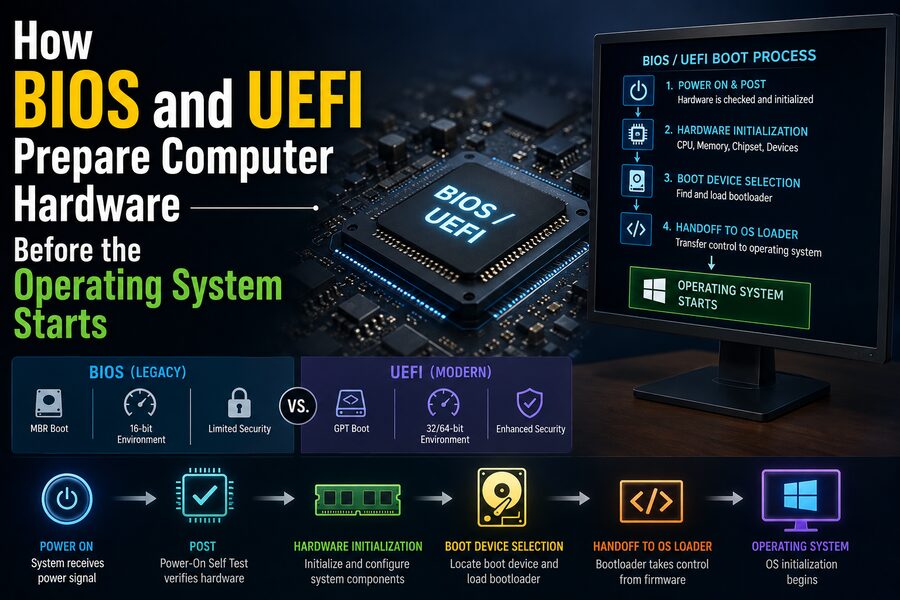

When you press the power button on a computer, the operating system does not start immediately. Before Windows, Linux, or another operating system can load, the computer must first perform a series of low-level checks and initialization steps.
The processor has to begin executing code. Memory must be identified and prepared. Storage devices must be detected. The keyboard, display hardware, USB controllers, and other components need to become usable. Finally, the system must locate a bootable operating system and hand control over to it.
This early startup work is handled by firmware known traditionally as BIOS and, in most modern computers, UEFI. ⚙️🖥️
BIOS and UEFI sit between the raw hardware and the operating system. Their job is to turn a newly powered-on collection of electronic components into a machine that is ready to load higher-level software.
Understanding this process reveals what really happens during the few seconds between pressing the power button and seeing an operating system logo.
🧠 What Is BIOS?
BIOS stands for:
Basic Input/Output System
It is firmware stored on a non-volatile memory chip located on the motherboard.
Unlike software stored on a normal hard drive or SSD, firmware remains available even when the main storage device is removed.
When older PC architectures start, the processor eventually begins executing instructions supplied by the BIOS.
The BIOS performs essential initialization tasks such as:
- Checking system hardware
- Initializing memory
- Detecting storage drives
- Configuring basic input and output devices
- Identifying bootable devices
- Loading boot code from storage
BIOS became a fundamental part of IBM-compatible personal computers and remained widely used for decades.
However, traditional BIOS has several limitations inherited from early PC architecture.
Modern systems therefore increasingly use UEFI.
🚀 What Is UEFI?
UEFI stands for:
Unified Extensible Firmware Interface
UEFI performs many of the same fundamental tasks as BIOS but provides a much more modern firmware environment.
It can support:
💾 Large storage devices
🖱️ Graphical setup interfaces
🔐 Secure Boot
🌐 Networking capabilities
⚡ Faster and more flexible startup
📁 Modern boot-management systems
🧩 Firmware applications and drivers
Although people often casually say “BIOS” when referring to a modern computer’s firmware settings, many current systems are actually using UEFI.
That is why a menu labeled something like BIOS Setup may technically be a UEFI firmware interface.
⚡ Step 1: Power Reaches the Computer
The startup process begins when the user presses the power button.
On a desktop computer, the power supply does not immediately deliver full operating power to every component without coordination.
Instead, motherboard power-control circuitry signals the power supply to begin providing regulated voltages.
The power supply then stabilizes its outputs.
Once the electrical conditions are suitable, the system can release the processor from its reset state.
At this point, the CPU has power—but it still does not know anything about Windows, Linux, files, programs, or even the installed SSD.
It simply begins executing machine instructions from a predefined startup location.
Those instructions eventually lead into the motherboard firmware. 🧠⚡
🧾 Step 2: The Processor Begins Firmware Execution
A processor is designed so that after reset it begins execution from a predefined location.
This startup mechanism allows the system to find firmware reliably every time it powers on.
The firmware contains the earliest instructions needed to initialize the machine.
At this stage, the environment is extremely limited.
The operating system is not running.
Normal storage drivers are unavailable.
Most devices have not yet been configured.
The firmware therefore performs initialization in carefully ordered stages.
Modern UEFI implementations may divide startup into several formal phases, each responsible for increasingly sophisticated initialization.
🔍 Step 3: The Computer Performs Hardware Checks
One of the best-known firmware activities is the Power-On Self-Test, commonly called:
POST
POST checks whether critical hardware appears functional enough for startup to continue.
Depending on the system, firmware may test or initialize components such as:
🧠 Processor
💾 RAM
🎮 Graphics hardware
⌨️ Keyboard controller
💽 Storage controllers
🔌 USB devices
🌐 Network interfaces
⚙️ Motherboard components
The exact behavior varies significantly among manufacturers.
Modern systems can perform many checks very quickly, so POST may be nearly invisible to the user.
Older computers often displayed detailed memory counts and hardware information during this phase.
🚨 What Happens If POST Finds a Problem?
If a critical component fails during startup, the computer may be unable to display a normal error message.
For example, what happens if the graphics system itself is not working?
Firmware therefore has several alternative methods for communicating failures.
These may include:
🔊 Beep codes
💡 Diagnostic LEDs
🔢 Motherboard status displays
📝 On-screen firmware messages
A particular sequence of beeps or diagnostic lights can correspond to problems involving RAM, CPU initialization, graphics hardware, or other components.
Enthusiast and workstation motherboards sometimes include small numerical displays that show firmware diagnostic codes during boot.
These codes can be extremely useful when troubleshooting a computer that refuses to start.
🧠 Step 4: System Memory Is Initialized
RAM is one of the most important components that firmware must prepare.
A modern operating system requires usable system memory before it can load.
But DRAM modules cannot simply be assumed to operate correctly with arbitrary timing values.
Firmware reads information stored on the memory modules and configures the memory controller.
This process may involve determining:
- Memory capacity
- Memory frequency
- Timing parameters
- Voltage settings
- Channel configuration
Modern systems may also perform memory training.
During memory training, the firmware and memory controller test timing relationships to determine reliable operating parameters.
This is one reason a newly built or significantly reconfigured computer may take longer to start the first few times.
The firmware may be calibrating the memory subsystem. 💾⚙️
🧩 Step 5: Firmware Discovers Installed Hardware
Once core components are available, firmware begins identifying additional hardware.
The system may enumerate devices connected through technologies such as:
- PCI Express
- SATA
- NVMe
- USB
- Integrated motherboard controllers
For example, firmware may discover:
🎮 A graphics card
💽 An NVMe SSD
🌐 A network adapter
🔊 An audio controller
🔌 USB devices
📡 Wireless hardware
Each device must be assigned or mapped into system resources so that software can later communicate with it.
This is part of the process that transforms raw hardware into an organized computing platform.
🎮 Step 6: Graphics Output Becomes Available
Before the operating system can display its own interface, the firmware may initialize enough graphics hardware to show startup information.
On older BIOS-based systems, this often involved specialized option ROMs and legacy display mechanisms.
UEFI introduced more standardized graphics support through technologies such as the Graphics Output Protocol, or GOP.
This allows firmware and operating-system boot software to display graphics without relying entirely on legacy video BIOS behavior.
That is why modern UEFI systems can often show:
🖥️ High-resolution manufacturer logos
🖱️ Mouse-driven firmware menus
📊 Graphical hardware information
long before the operating system itself has loaded.
⚙️ Step 7: Firmware Applies Saved Configuration
Motherboard firmware stores numerous configuration settings.
These can include:
- Boot order
- CPU settings
- Memory profiles
- Fan-control settings
- Virtualization features
- Security options
- Integrated-device controls
- Power-management settings
Historically, BIOS configurations were closely associated with battery-backed CMOS memory.
Modern UEFI systems may store configuration data in non-volatile flash memory or other persistent storage mechanisms.
The small motherboard battery remains important in many systems for maintaining the real-time clock and certain settings.
When users open the firmware setup interface by pressing keys such as:
Delete, F2, F10, or Esc
they are changing values the firmware will use during future startup sequences.
💽 Step 8: Firmware Searches for Something to Boot
Once hardware initialization is sufficiently complete, the computer must answer another critical question:
Where is the operating system?
The firmware examines its configured boot order.
A boot order might look like:
- Internal NVMe SSD
- USB storage
- Network boot
- Another installed drive
The exact mechanism differs substantially between traditional BIOS and UEFI.
🕰️ How Traditional BIOS Boots an Operating System
Traditional BIOS generally treats storage devices in a comparatively simple way.
Once a boot device is selected, BIOS reads a small piece of code from the beginning of that device.
Historically, this commonly involved the Master Boot Record, or MBR.
The MBR contains a small amount of executable boot code along with partition information.
Because the available space is extremely limited, the MBR usually does not contain the entire operating-system loader.
Instead, it contains enough code to locate and launch the next stage.
A simplified legacy boot chain might look like:
BIOS → MBR → bootloader → operating-system kernel
This multi-stage process developed partly because early PC systems had very limited firmware capabilities.
🆕 How UEFI Boots Differently
UEFI introduces a much more structured boot process.
Instead of simply executing code from the first sector of a disk, UEFI can understand certain file systems and directly load firmware-compatible executable files.
These files are normally stored on a special partition called the:
EFI System Partition, or ESP
The ESP commonly uses the FAT file-system family and contains bootloader files.
Examples may include loaders associated with:
🪟 Windows
🐧 Linux
🧰 Recovery tools
🔧 Firmware utilities
UEFI stores boot entries describing which executable should be launched.
A simplified UEFI startup chain may look like:
UEFI firmware → EFI boot manager → operating-system bootloader → kernel
This architecture is considerably more flexible than the legacy MBR approach.
📂 What Is the EFI System Partition?
The EFI System Partition is a small dedicated partition used by UEFI systems.
It stores files required during boot.
A computer with multiple operating systems may contain multiple bootloader files within the same EFI System Partition.
For example, the firmware could potentially maintain separate boot entries for different operating systems.
Rather than scanning the disk blindly, UEFI can maintain structured boot variables describing:
- Bootloader location
- Device path
- Boot priority
- Boot entry status
This makes modern boot management more sophisticated and manageable.
🗂️ UEFI and GPT Partitioning
UEFI is commonly used with the GUID Partition Table, or GPT.
GPT is a modern disk partitioning scheme designed to overcome several limitations associated with legacy MBR partitioning.
GPT can support:
💾 Very large disks
📁 Many partitions
🔍 Redundant partition metadata
✅ Integrity checking of partition information
Traditional MBR systems historically encountered practical limitations involving drive size and partition layout.
UEFI combined with GPT provides a much more appropriate foundation for modern storage devices containing terabytes of data.
🔐 Secure Boot Adds a Security Check
One of UEFI’s most important security features is Secure Boot.
Secure Boot helps protect the early boot process from unauthorized code.
Without protection, malicious software that runs before the operating system could potentially gain extremely powerful control over the machine.
Such malware can be especially difficult to detect because it executes below or before normal operating-system defenses.
With Secure Boot, firmware verifies cryptographic signatures associated with boot components.
A simplified chain might look like:
Firmware trusts approved key 🔑 → verifies bootloader ✅ → bootloader verifies later components → operating system starts
If an unauthorized or incorrectly signed bootloader attempts to run, Secure Boot may prevent it.
This creates part of what is known as a chain of trust.
🦠 Why Pre-Boot Security Matters
Malware that compromises the startup process can be particularly dangerous.
Historically, malicious software targeting boot sectors was known as a bootkit.
More advanced threats can potentially target firmware or early boot components.
Because these programs execute before the operating system is fully active, they may avoid some conventional security monitoring.
Modern firmware-security technologies therefore attempt to protect:
🔐 Firmware integrity
🧾 Bootloader authenticity
🧠 Trusted startup measurements
💻 Operating-system loading
UEFI Secure Boot is one component of this broader defensive architecture.
🛡️ TPM and Measured Boot
Modern computers may also include a Trusted Platform Module, or TPM.
The TPM is not the same thing as UEFI, but the two can participate in coordinated security processes.
During a measured boot, important pieces of startup code and configuration can be cryptographically measured.
These measurements may be recorded so that security software can later determine whether the startup environment matches expected values.
This can help support technologies involving:
🔒 Disk encryption
🧾 Device integrity
🏢 Enterprise security
🔑 Credential protection
For example, full-disk encryption systems may use TPM measurements to help determine whether the computer started in a trusted state before releasing encryption secrets automatically.
⏱️ Why UEFI Can Boot Faster
Traditional BIOS often performs initialization sequentially and relies on legacy compatibility mechanisms.
UEFI was designed with modern hardware and more flexible initialization in mind.
Modern systems can reduce startup time through techniques such as:
⚡ Parallel hardware initialization
💾 Faster storage
🧠 Optimized memory training
📁 Direct bootloader execution
🔄 Skipping unnecessary checks during normal boots
Many systems also offer a setting commonly called Fast Boot.
Fast Boot can reduce firmware startup time by avoiding or shortening certain initialization procedures when the hardware configuration has not changed.
This is different from operating-system features that may also use names such as Fast Startup.
🔄 BIOS Compatibility Still Exists on Some Systems
For many years, UEFI motherboards included a compatibility feature known as the:
Compatibility Support Module, or CSM.
CSM allowed a UEFI system to behave more like traditional BIOS when booting older operating systems or hardware.
This helped during the transition from BIOS to UEFI.
However, modern computers increasingly operate in native UEFI mode without legacy compatibility.
Removing legacy dependencies can improve security and simplify the boot architecture.
🌐 UEFI Can Do More Than Boot From Local Storage
UEFI is much more extensible than traditional BIOS.
Firmware can potentially support:
🌐 Network booting
🔧 Firmware update tools
🧪 Hardware diagnostics
💽 Storage management utilities
🔐 Security applications
📁 File-system access
Some systems allow users to update motherboard firmware directly from the UEFI setup interface without starting the main operating system.
Enterprise computers can also boot from network infrastructure for tasks such as operating-system deployment and centralized maintenance.
🌍 Network Booting
Computers do not always need a local SSD containing an operating system.
Businesses, schools, data centers, and repair environments may use network booting.
A computer can obtain boot information from another machine across the network.
Technologies such as PXE have historically enabled this kind of startup.
Network booting is useful for:
🏢 Deploying operating systems to many computers
🧰 Running diagnostic environments
💾 Installing systems without USB media
🖥️ Managing large fleets of machines
The firmware initializes the network interface and then contacts network infrastructure to obtain startup information.
🧬 ACPI Helps Describe Hardware to the Operating System
Firmware’s role does not disappear completely when the operating system loads.
The firmware can provide structured information describing system hardware and power-management behavior.
One major standard involved in this interaction is:
ACPI — Advanced Configuration and Power Interface
ACPI provides tables and mechanisms the operating system can use to understand aspects of the hardware platform.
It helps coordinate features such as:
🔋 Power states
😴 Sleep modes
🌡️ Thermal management
⚙️ Device configuration
🔘 Power-button behavior
This means firmware prepares not only the hardware itself but also information the operating system will need later.
🤝 Step 9: The Bootloader Takes Control
Eventually, the firmware finds and launches a valid bootloader.
At this point, responsibility begins shifting away from BIOS or UEFI.
The bootloader has a different mission.
Its job is typically to:
- Locate the operating-system kernel
- Load important components into memory
- Provide necessary startup information
- Transfer execution to the kernel
Examples of boot-related software include Windows Boot Manager and Linux bootloaders such as GRUB.
Once the kernel begins running, the operating system progressively takes control of hardware management.
🧠 Step 10: The Operating-System Kernel Initializes
The operating-system kernel is the central low-level component of an operating system.
Once started, it initializes its own subsystems.
These can include:
💾 Memory management
📁 File systems
🔌 Device drivers
⚙️ Process scheduling
🌐 Networking
🔐 Security mechanisms
The operating system may replace or supplement some firmware-provided functionality with sophisticated drivers designed specifically for the installed hardware.
At this stage, the machine transitions from firmware-controlled startup into normal operating-system operation.
Soon after, background services, login systems, desktop environments, and user applications can begin launching.
🔄 The Complete Startup Sequence
A simplified modern PC startup looks like this:
Power button pressed 🔘
⬇️
Power becomes stable ⚡
⬇️
CPU exits reset 🧠
⬇️
UEFI firmware begins executing ⚙️
⬇️
Processor and memory are initialized 💾
⬇️
Hardware is detected and configured 🔍
⬇️
POST and diagnostic checks occur ✅
⬇️
Firmware selects a boot device 💽
⬇️
Secure Boot may verify boot software 🔐
⬇️
UEFI launches the bootloader 📂
⬇️
Bootloader loads the operating-system kernel 🧠
⬇️
Operating system initializes drivers and services 🖥️
⬇️
Login screen or desktop appears 🎉
What looks like a single startup event is actually a carefully coordinated chain of software and hardware handoffs.
🆚 BIOS vs. UEFI
Although they serve similar fundamental purposes, BIOS and UEFI differ significantly.
🕰️ Traditional BIOS
Traditional BIOS is based on older PC design concepts.
Common characteristics include:
- Legacy boot-sector mechanisms
- Strong association with MBR partitioning
- Limited pre-boot environment
- Older hardware compatibility
- Text-oriented setup interfaces on many systems
🚀 UEFI
UEFI provides a modern firmware framework.
Common advantages include:
- GPT support
- Large-disk compatibility
- Structured boot management
- Secure Boot
- Graphical firmware interfaces
- Firmware drivers and applications
- Improved extensibility
- More sophisticated security mechanisms
For most modern personal computers, UEFI is now the standard approach.
🔧 Why Firmware Updates Matter
Motherboard firmware is software, and software can contain bugs.
Manufacturers periodically release firmware updates to:
🐛 Fix stability problems
🔐 Patch security vulnerabilities
🧠 Improve CPU compatibility
💾 Support newer memory modules
⚡ Improve boot behavior
🎮 Resolve hardware compatibility issues
A firmware update is commonly called a BIOS update, even on systems technically running UEFI.
Firmware updates must be performed carefully because interrupting the rewriting process can leave the motherboard unable to boot.
Many modern boards therefore include protective technologies such as backup firmware, recovery modes, or dedicated flashing features.
⚠️ Why Incorrect Firmware Settings Can Prevent Startup
Firmware exposes controls that directly affect low-level hardware operation.
Changing inappropriate settings can cause instability or prevent the machine from booting correctly.
Examples include:
⚡ Excessive CPU overclocking
🧠 Incorrect memory timings
🔋 Unsafe voltage changes
💽 Wrong storage-controller modes
🔐 Boot configuration changes
Motherboards therefore usually provide a way to restore default settings.
This is often called:
Load Setup Defaults
or:
Clear CMOS
Restoring defaults can be an important troubleshooting step if a configuration change prevents successful startup.
🧪 Firmware Is Essential for Hardware Troubleshooting
Because BIOS or UEFI starts before the operating system, it can help determine whether a problem is caused by hardware or software.
Suppose a storage drive is not visible inside Windows.
If the drive is also missing from UEFI, the problem may involve:
- The drive itself
- Power
- Cabling
- The storage controller
- Hardware configuration
If the drive appears correctly in UEFI but not in Windows, the issue may instead involve:
- Drivers
- Partitioning
- File systems
- Operating-system configuration
Firmware therefore provides technicians with a valuable view of the machine before higher-level software becomes involved. 🔍
🖥️ What Happens If No Operating System Exists?
A computer does not necessarily need an installed operating system to enter its firmware environment.
UEFI can initialize enough hardware to display setup menus and perform diagnostics independently.
However, if no valid bootloader exists, the firmware cannot continue into a normal operating system.
The user may see messages such as:
No bootable device found
or:
Operating system not found
This does not necessarily mean the motherboard has failed.
It often means firmware completed its work successfully but could not find suitable software to hand control to.
🚀 The Future of PC Firmware
Firmware continues to evolve alongside computer architecture.
Modern systems increasingly emphasize:
🔐 Stronger boot security
⚡ Faster initialization
🧠 Hardware-rooted trust
📡 Remote fleet management
🔄 Reliable firmware updates
💻 Integration with virtualization
🛡️ Protection against firmware attacks
As computers become more connected and security-sensitive, the startup environment itself has become an important part of the cybersecurity landscape.
Future firmware will likely perform increasingly sophisticated validation while trying to remain nearly invisible to ordinary users.
✅ Conclusion
BIOS and UEFI perform one of the most important but least visible jobs in computing.
When a computer first receives power, its operating system is not yet available to manage memory, storage, graphics, networking, or other devices.
Firmware must begin the process.
It initializes the processor and memory, checks critical hardware, discovers connected devices, applies configuration settings, prepares graphics and storage interfaces, identifies a bootable operating system, and eventually launches the bootloader. ⚙️💾
Traditional BIOS established this basic startup model for early personal computers, while UEFI modernized it with structured boot management, GPT support, firmware applications, improved extensibility, and security technologies such as Secure Boot.
Only after these firmware stages are complete can the operating-system kernel take control and transform the machine into the familiar desktop or computing environment users recognize.
So when you press your computer’s power button and see a manufacturer logo for only a few seconds, a surprisingly complex process is already underway. 💻⚡
Before Windows, Linux, or any other operating system can do anything at all, BIOS or UEFI must first turn powered electronic hardware into a computer that is ready to boot.