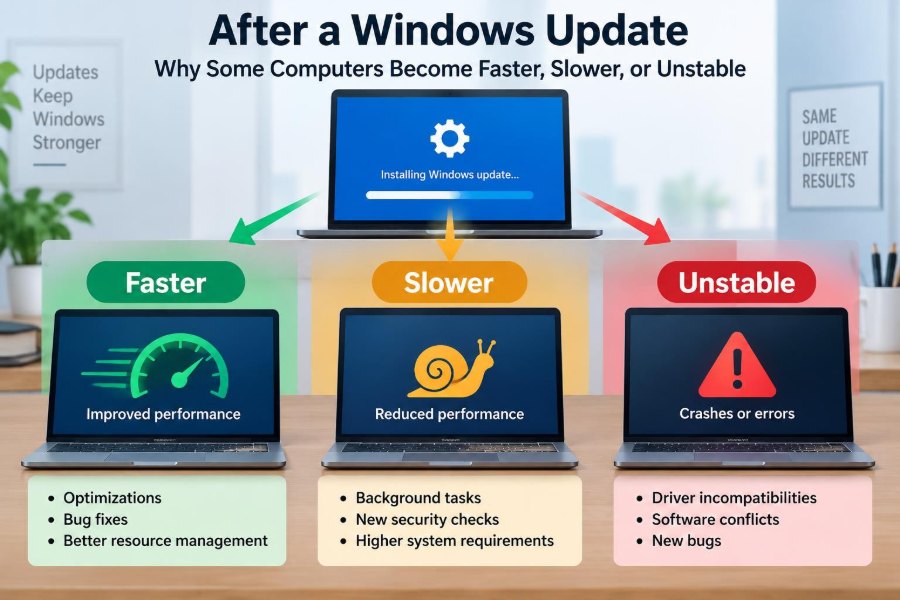

You restart your computer after Windows says an update is ready. At first, it may feel unusually quick: apps open cleanly, a long-standing glitch disappears, and battery life seems better. Or the opposite happens. The fan runs harder, the desktop hesitates, and a device that worked yesterday no longer behaves normally.
These sharply different experiences are not imaginary, and they do not necessarily mean that Windows updates are good or bad. An update changes part of a complex system: the operating system, security protections, drivers, background services, and sometimes the way Windows communicates with hardware.
Two PCs running the same update may have different processors, storage drives, drivers, installed programs, available disk space, and years of accumulated configuration changes. That is why one person reports a welcome improvement while another spends an afternoon troubleshooting.
Understanding what is happening after an update helps you react calmly. You can tell the difference between normal temporary work and a genuine problem, protect your files, and make better choices about updates on home and work computers.
🧩 An Update Changes More Than One Thing
A Windows update is not always a single patch. It can include security fixes, reliability changes, updated system components, new features, drivers, and servicing tools that prepare Windows to install later updates.
Some changes are small and focused. Others, especially major feature updates, replace large portions of Windows while preserving your applications and personal files. The more layers an update touches, the more opportunities there are for either improvements or conflicts.
🔒 Security Fixes Can Improve Everyday Reliability
Many updates close security weaknesses, but their value is not limited to blocking attacks. They can also fix crashes, memory-handling errors, network failures, and defects in built-in Windows services.
If a bug caused File Explorer to stop responding or a laptop to wake incorrectly from sleep, a correction can make the computer feel faster simply because it is no longer recovering from errors. A more stable system wastes less time retrying work.
⚙️ Why Performance May Get Better
Windows and hardware makers continually refine scheduling, power management, storage behavior, and compatibility. Better scheduling can help the operating system decide which program or processor core should handle a task. Improved power management can reduce unnecessary background activity.
For example, an update may correct a problem that made a graphics driver use too much processor time. The computer has not gained a faster CPU, but more of its existing capacity is now available for the applications you actually use.
📦 The First Hours Can Be Misleading
Right after an update, Windows often has work left to finish. It may rebuild its search index, scan files with security software, optimize components, remove temporary installation files, or download companion updates.
This can cause short-term disk activity, warmth, fan noise, and reduced battery life. On a computer with a traditional hard disk drive, the effect can be particularly noticeable because many small background reads and writes take longer than on a solid-state drive.
Before diagnosing a slowdown, leave the device plugged in and idle for a while, then restart once if Windows requests it. Performance that remains poor after this settling period deserves closer investigation.
🧠 Hardware Determines How an Update Feels
Windows supports an enormous range of hardware. A current desktop with ample memory and a fast SSD can absorb update tasks with little visible disruption. An older laptop with limited memory, a nearly full drive, and a slower processor has much less spare capacity.
This does not mean older computers cannot run updates safely. It means routine maintenance tasks compete more directly with your work. The same update can therefore feel nearly invisible on one machine and demanding on another.
💾 Storage Speed Is Often the Bottleneck
Updates must unpack files, create backups, replace system components, and record changes. These are storage-intensive operations. A slow or failing drive may make installation take a long time and can leave the computer feeling unresponsive afterward.
Free space matters too. Windows needs room for temporary files, recovery information, and normal day-to-day operation. When a system drive is close to full, Windows has fewer options for managing files efficiently and updates are more likely to struggle.
🧬 Drivers Are the Hardware Translation Layer
A driver is software that lets Windows communicate with a specific piece of hardware, such as a printer, graphics adapter, Wi-Fi card, touchpad, or audio device. Drivers sit between the operating system and physical equipment.
An update may change Windows in a way that exposes an outdated driver defect. It may also install a newer driver that fixes a long-standing problem. This explains why a webcam, printer, or external monitor can suddenly start working better—or stop working properly—after the same update.
🎮 Graphics Drivers Affect More Than Games
Graphics drivers influence video playback, multiple displays, video calls, screen brightness, animations, and many everyday applications. A faulty or incompatible graphics driver can cause flickering, black screens, sluggish windows, or crashes that look like general Windows instability.
If display problems begin immediately after an update, check whether the computer maker or graphics hardware maker provides a compatible driver. On business laptops and branded PCs, the manufacturer’s validated driver may be safer than installing an unrelated generic version.
📡 Network Changes Can Look Like Computer Slowness
Sometimes the PC is working normally but the internet connection is not. Updates can alter network drivers, VPN software, firewall behavior, DNS settings, or Wi-Fi power-saving behavior. A slow cloud application may then be mistaken for a slow computer.
Compare a local task, such as opening a saved document, with an online task, such as loading a website. If local work is fast but online services stall, investigate the network connection, router, VPN, or adapter driver rather than assuming the update slowed the processor.
🛡️ New Protections Have a Small Cost
Security measures sometimes add checks around sensitive operations. Those checks are designed to reduce risk, but they can consume a small amount of processing time in particular workloads. The impact depends on the hardware, the protection involved, and what software is running.
This is a real trade-off, not evidence that security updates are unnecessary. Disabling protections casually can expose a computer to much larger risks than a modest performance change. First determine whether an actual update-related issue exists and whether a supported fix is available.
🧹 Updates Can Remove Hidden Inefficiency
A computer may become faster after an update because the update repairs system files, replaces a damaged component, resets a troublesome service, or updates a driver. The visible improvement may be accidental from the user’s perspective, but the mechanism is straightforward.
Think of it as repairing a sticking door while repainting a room. The repainting was the planned task, yet the door works better because someone also corrected the hinge. Updates can have similarly welcome side effects.
🧱 Old Software May Depend on Old Behavior
Some applications rely on undocumented behavior, obsolete libraries, old printer components, or unusually permissive security settings. When Windows corrects or tightens one of these areas, that software may fail even though Windows itself is operating as designed.
This is especially common with aging utilities, legacy workplace applications, and hardware tools that have not been maintained. Compatibility is not permanent; software needs ongoing support as the platform beneath it evolves.
🔄 Feature Updates Carry More Change
Monthly quality updates generally focus on fixes and security. Feature updates are broader releases that can introduce new capabilities and deeper changes to Windows components. They may require more downloading, more free disk space, and a longer installation process.
Because feature updates alter more of the system, they have a greater chance of revealing old driver or application incompatibilities. That does not make them inherently unsafe, but it makes preparation and post-update checks more worthwhile.
⏳ A Restart Is Part of the Installation
Many Windows files cannot be replaced while they are in use. Restarting lets Windows complete changes before most programs load. Postponing restarts for too long can leave an update partly applied and make it harder to judge the system’s actual condition.
A restart is also a simple troubleshooting step because it clears temporary memory state and restarts services. It will not solve every issue, but it is a sensible first step after verifying that important work has been saved.
📊 Use Task Manager Instead of Guessing
When a PC feels slow, open Task Manager and look at processor, memory, disk, and network activity. The useful question is not merely “Is Windows slow?” but “Which resource is busy, and which process is using it?”
| What is high? | What it can suggest | A sensible next check |
|---|---|---|
| CPU | Background processing, a stuck app, or security scanning | Identify the process and wait or update the related software |
| Memory | Too many open apps or insufficient RAM for the workload | Close unneeded programs and review startup apps |
| Disk | Indexing, updates, antivirus work, or a slow drive | Allow time to finish; check free space and drive health |
| Network | Downloads, cloud sync, or an online-service issue | Check Windows Update, sync tools, and connection quality |
Do not end unfamiliar system processes just because they use resources briefly. Find out what they are first; forcing essential services to stop can create new problems.
🔍 Check Update History for Timing
Windows Update history shows what was installed and when. This helps establish a timeline: did the issue begin after a quality update, a driver update, a feature update, or perhaps after an application changed on the same day?
Timing is evidence, not proof. A fault noticed after an update may have another cause, such as a failing drive, a browser extension, a router problem, or software that updated automatically in the background.
🧪 Test One Symptom at a Time
“My computer is broken” is difficult to diagnose. A specific observation is much more useful: “Wi-Fi disconnects after sleep,” “the second monitor is blank,” or “one accounting program closes during printing.”
Reproduce the problem carefully. Note what you were doing, whether it happens every time, and whether another account or application behaves differently. Clear symptoms make it easier to search for known compatibility information or explain the issue to support staff.
🗂️ Backups Make Recovery Less Stressful
Updates are designed to preserve data, but no maintenance process is free of risk. Hardware can fail during an update, an installation can be interrupted, or a separate problem can become visible at the same time.
Keep important files in a backup that is separate from the computer, such as a reliable external drive or a trusted cloud backup service. Synchronization alone is not always a full backup, because unwanted deletions or corrupted files can also synchronize.
🧰 Built-In Repair Tools Have Limits
Windows includes troubleshooting and repair options that can help with common problems, such as Windows Update errors, startup issues, or damaged system files. They are useful tools, but they are not universal cures.
If a driver is incompatible, a repair scan cannot make the hardware maker support it. If a drive is failing, software repairs may only delay a more serious failure. Use tools to gather evidence and repair plausible faults, not as a random sequence of rituals.
↩️ When Rolling Back Is Reasonable
If a clearly identified update causes a serious, reproducible problem—such as repeated crashes, loss of a required device, or failure of essential work software—uninstalling a recent quality update or using a supported rollback option may be appropriate.
Rollback should be a temporary response while you seek a corrected driver, application update, or later Windows fix. Skipping security updates indefinitely can leave a machine exposed. In managed workplaces, involve the IT team before changing updates on a company device.
🚫 Avoid Random “PC Cleaner” Fixes
After an update problem, search results often promote registry cleaners, driver-updater utilities, and aggressive optimization tools. These products may make broad changes without understanding the actual cause, and some create more instability than they remove.
Prefer the Windows settings, Device Manager, reputable hardware-maker downloads, and documented recovery options. A targeted change based on a specific symptom is safer than allowing a utility to replace many drivers or delete unknown system entries.
🧾 Driver Updates Need Judgment
A newer driver is not automatically the best driver for every computer. Windows Update may offer a driver intended for broad compatibility, while a PC manufacturer may supply a version tailored for a particular model’s power controls, audio hardware, or docking station.
For a stable device with no problem, there is usually little reason to chase every optional driver release. For a device that fails after an update, use the maker’s support information to choose a compatible version and retain a way to revert if needed.
🏢 Work Computers Have Extra Constraints
Organization-managed computers may receive updates through central tools and may use security software, VPN clients, encryption, specialized peripherals, and internal applications. These layers can affect update timing and compatibility.
Employees should report symptoms with details rather than attempting unsupported workarounds. IT teams can compare reports across similar machines, test a fix, and prevent one local change from conflicting with company security or management policies.
🧑💻 Startup Apps Shape the Post-Update Experience
An update often leads to a restart, which launches every application configured to start with Windows. Cloud storage clients, chat apps, game launchers, browser helpers, device utilities, and security software can all compete for resources at once.
Review startup applications periodically and disable nonessential items you do not need immediately after sign-in. This does not remove the program; it simply stops it from launching automatically. Keep security and required workplace tools enabled unless you know their role.
🌡️ Heat and Battery Behavior Need Context
Brief warmth and faster battery drain after an update can result from indexing, scanning, synchronization, or downloads. A laptop may also choose a different power mode after a restart or reconnect to a less efficient network.
Persistent overheating, sudden shutdowns, or a swollen battery are not ordinary update side effects. Those symptoms can indicate a hardware or power problem and should be treated cautiously. Stop using damaged equipment and seek qualified assistance where appropriate.
🧭 A Practical Post-Update Checklist
After a significant Windows update, use a measured routine instead of changing many things at once:
- Restart if Windows requests it, then allow some idle time for background tasks.
- Confirm that essential functions work: sign-in, internet, audio, printing, displays, and important applications.
- Check available storage and Task Manager if the system remains slow.
- Review update history and write down the precise symptom and its timing.
- Install a relevant supported driver or app update if evidence points there.
- Back up important files before major recovery steps or rollback.
This order preserves useful clues. If you reset or reinstall everything immediately, you may erase the evidence needed to identify the actual cause.
🧠 The Core Principle: Change Reveals Dependencies
A Windows update can improve performance by fixing defects, refining drivers, repairing components, or reducing wasted work. It can also temporarily slow a PC while it completes maintenance, or reveal a weak link in old hardware, storage, drivers, or applications.
The update is often the trigger that exposes a dependency, not the sole underlying cause. A careful diagnosis asks what changed, what resource is constrained, and whether the symptom is temporary, reproducible, and tied to a specific component.
The best response is neither blind trust nor automatic panic: keep systems updated, maintain backups, observe specific symptoms, and make targeted fixes based on evidence. With that approach, most post-update surprises become manageable maintenance tasks rather than mysteries. 🖥️🔧